
01Who this is for
- Teams that want to generate dynamic content automatically within workflows.
- Businesses looking to streamline communication by using AI generated messages.
02GPT powered by OpenAI actions, explained
The GPT action is a workflow step that calls an OpenAI model to produce text based on a supplied prompt. You add it after a trigger, select a model, write the prompt (static or with dynamic placeholders), optionally adjust the temperature, and define where the output is stored. The result appears as a variable such as {{chatgpt.1.response}} for later steps.
03How businesses use the GPT powered by OpenAI action
- Digital marketing agency. When a new lead is captured, the workflow runs the GPT action with a prompt that includes the lead’s name to draft a personalized outreach email, then passes the email body to an Email Send action.
- Ecommerce store. If a checkout is abandoned, the workflow triggers the GPT action to write a reminder message referencing the abandoned items, and the generated text is sent via SMS.
- Online education platform. After a student finishes a lesson, the workflow calls the GPT action to create a study plan based on the lesson content, inserting the plan into an email delivered to the student.
04The numbers and rules that matter
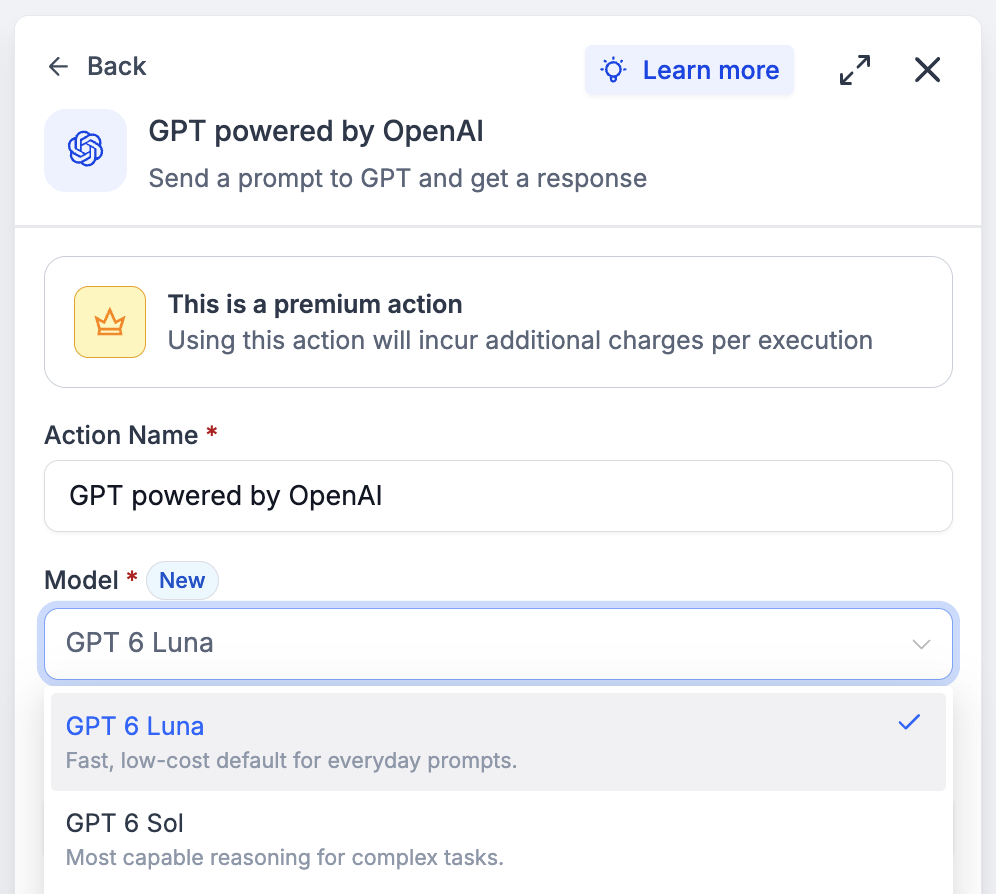
- Supported models: GPT 6 Luna (designed for fast, high volume tasks such as classification, summaries, tagging, and quick replies), GPT 6 Sol (designed for complex tasks that require multistep reasoning), GPT 5, GPT 5.1, GPT 5 Mini, GPT 5 Nano, GPT 4o, GPT 4 Turbo, GPT 4o Mini.
- Temperature range: 0.1 to 1.
- Output variable: {{chatgpt.1.response}}.
05Before you start
- Create a workflow or open an existing one.
- Add a suitable trigger that starts the workflow.
06How to set up and use the GPT powered by OpenAI action in HighLevel
Set up GPT action
- Open a workflow and add a trigger that fits your use case.
- Scroll to the Actions section and select the GPT Powered by OpenAI action.
- Choose an OpenAI model from the Model dropdown, such as GPT 6 Luna, GPT 6 Sol or any of the GPT 5/4 options.
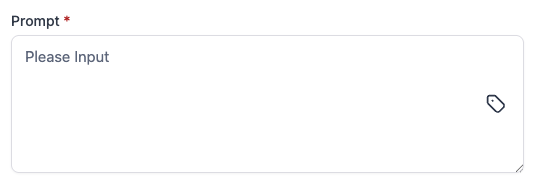
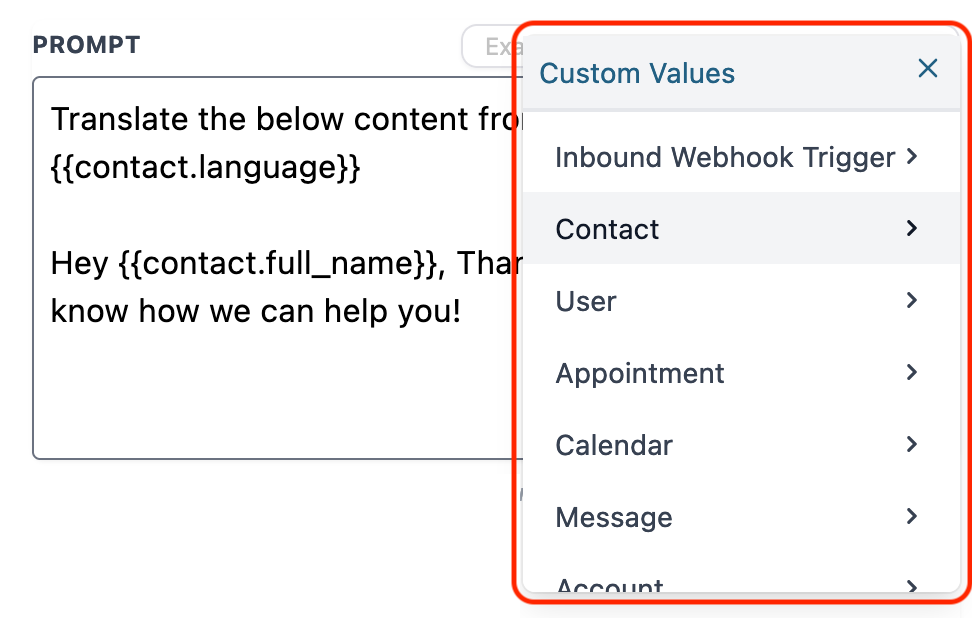
- Enter the prompt you want the AI to work on, using dynamic variables if needed.
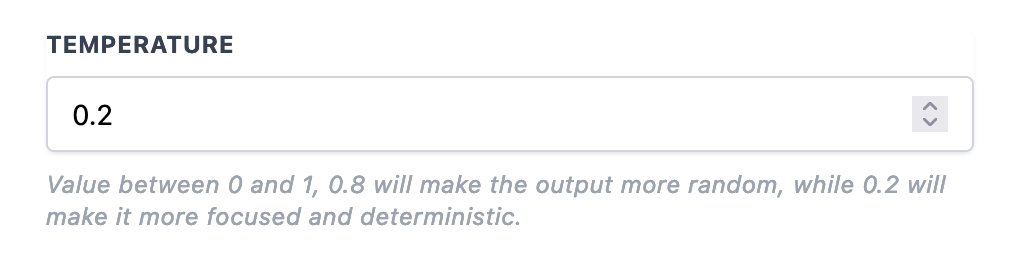
- Optionally adjust the Temperature value between 0.1 and 1 to control randomness.
- Define where the AI generated content will be stored (custom field, variable, etc.).
- Save the action.
- Run the workflow with a test contact to view the GPT output and verify it works as intended.
07What it looks like in HighLevel

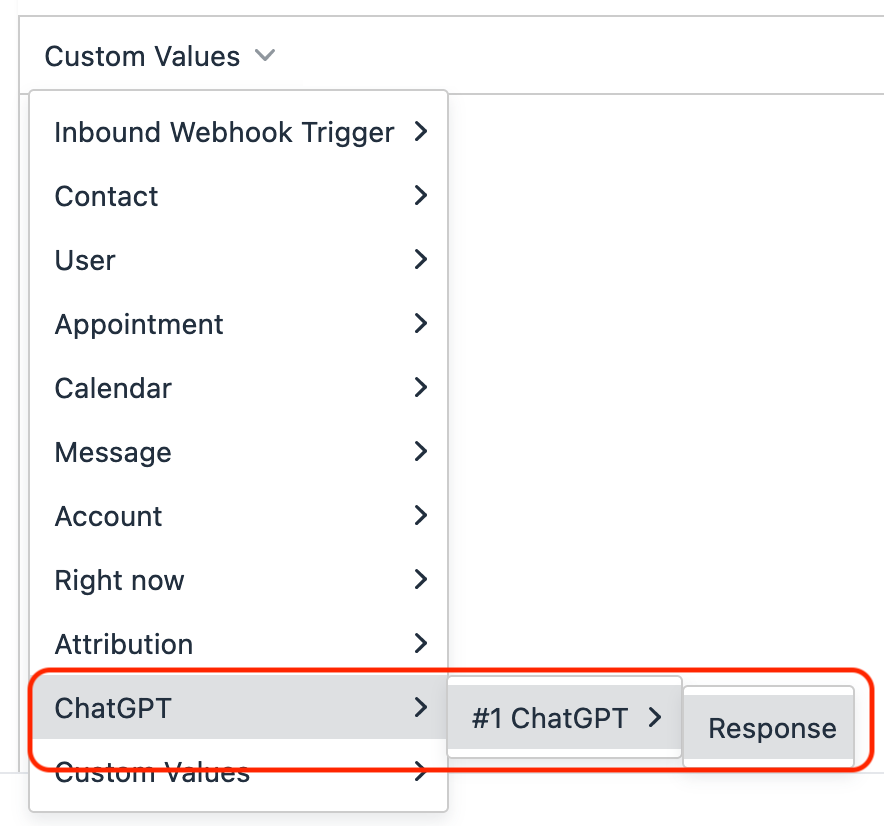
08Settings that matter
- Model. Selects which OpenAI engine processes the prompt, influencing speed and reasoning depth.
- Prompt. The instruction or question sent to the AI; can include dynamic placeholders from the workflow.
- Temperature. Controls the randomness of the generated text; lower values produce predictable output, higher values yield more varied results.
- Output. Determines where the AI generated content is stored, such as a custom field or a variable for later actions.
09Things to know before you rely on it
- Available models include GPT 6 Luna, GPT 6 Sol, GPT 5 series, GPT 4o, GPT 4 Turbo and GPT 4o Mini; additional models may appear in the dropdown.
- Temperature must be set within the range of 0.1 to 1.
- The action relies on the underlying OpenAI models, so generated responses should be reviewed before use.
10How it connects to the rest of HighLevel
- Combine GPT with the AI Intent Detection action for smarter routing. AI Intent Detection
- Use the AI Summarize action to condense GPT output before sending. AI Summarize
- Review HighLevel pricing to understand costs for GPT 4 and GPT 5 usage. Pricing
- Start a free trial to test GPT actions in your workflows. 30 day trial
Michael's take

People often think the GPT action will replace all human writing, but they overlook the need for clear prompts and a review step. I focus on building a solid prompt first, then I set a low temperature so the output stays on target.
If I were configuring a new workflow, I’d start with a simple test: Trigger the GPT action on a dummy contact, capture the response in a custom field, and inspect it before routing it to customers.