
01Who this is for
- Founders who need to replace many manual workflow steps with a single, flexible action.
- Marketing managers looking to personalize follow up messages without building separate automations.
- Operations teams that must update custom fields or trigger external tasks based on dynamic data.
02AI Agent workflow actions, explained
The AI Agent action is a premium workflow element that interprets a written prompt and performs a series of operations using the tools you allow it to use. It can call built in actions such as sending SMS, updating contact fields, or any custom tool you add.
When a workflow runs, the agent receives the trigger data, your instructions, and any enabled tools. It then decides which tool to call, what values to supply, and in what order, producing either free text or a JSON payload that downstream steps can reference.
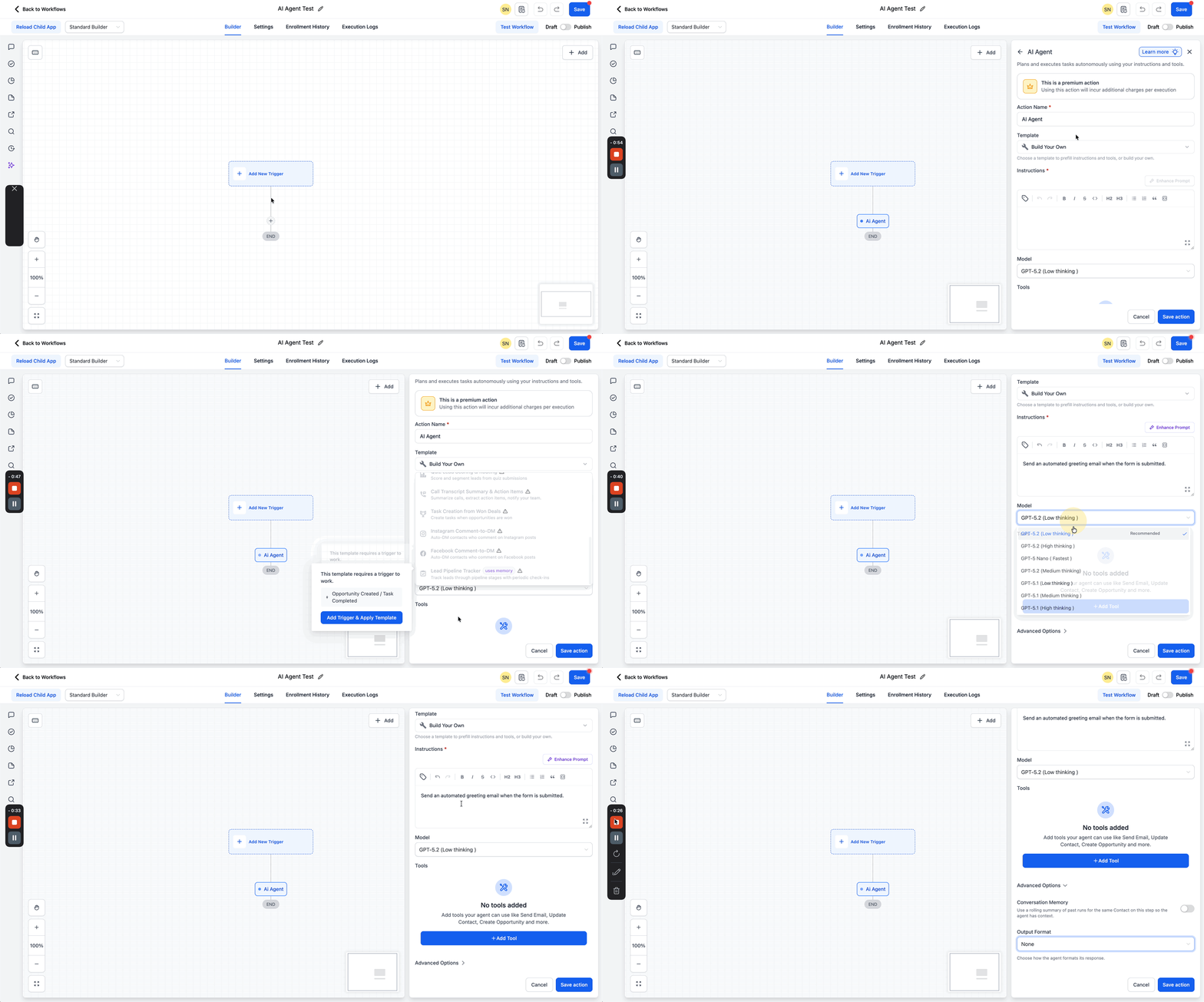
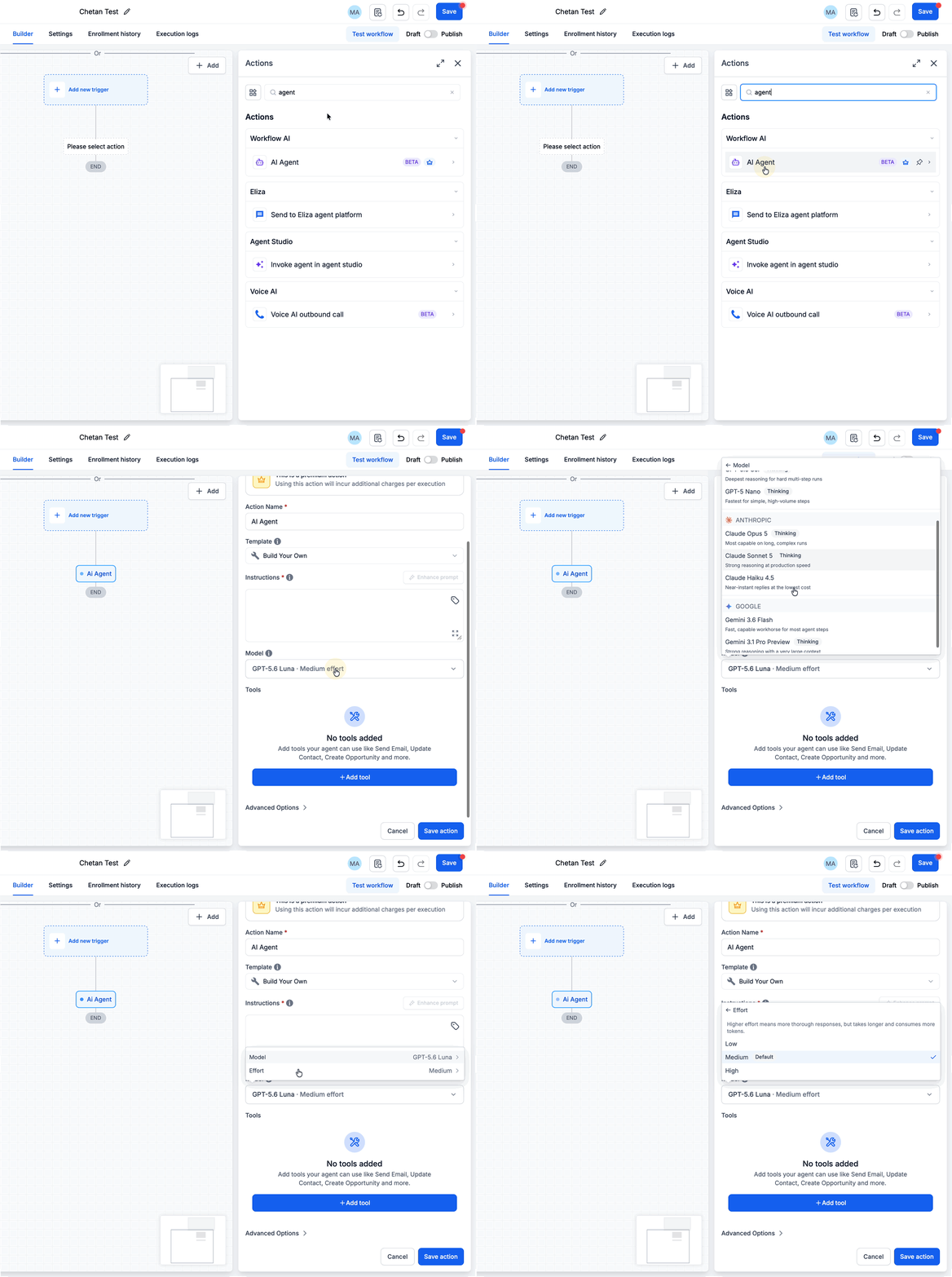
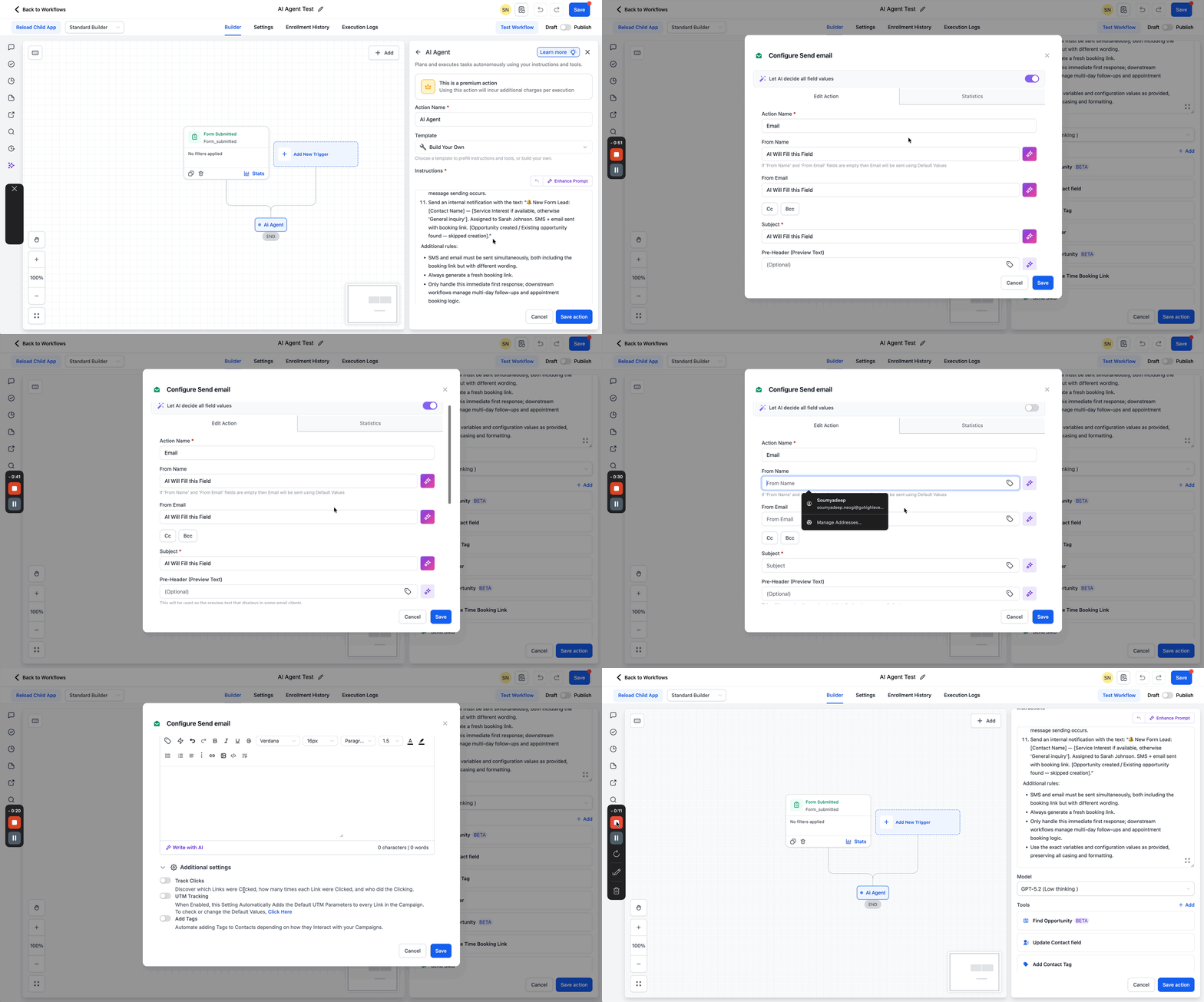
You find the AI Agent option inside the workflow builder under the Workflow AI section. After placing it on the canvas, you configure its name, template or custom prompt, model, tools, and advanced options such as conversation memory and output format.
03How businesses use AI Agent workflow action
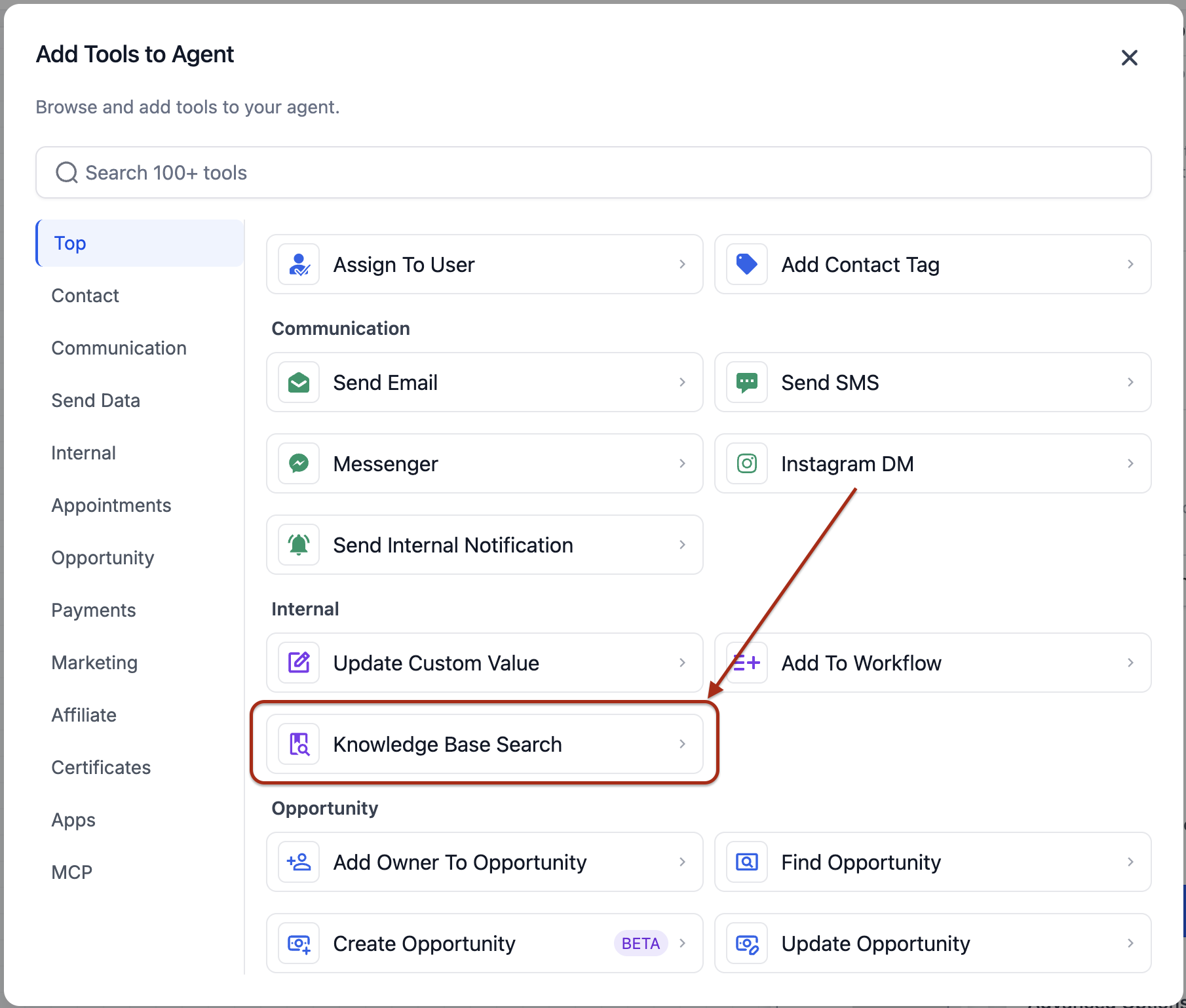
- Real estate brokerage. The broker creates a workflow that runs when a lead submits a property inquiry. Inside the AI Agent, they add the Search Knowledge Base tool to pull listing details, enable the Update Custom Value tool to store a suggested showing time, and let the agent send a personalized email and SMS with a booking link.
- Ecommerce store. When a new customer registers, the store adds an AI Agent step that enriches the contact with recent purchase history, generates a discount code using the Update Custom Value tool, and sends a welcome message. The JSON output includes the code for later steps.
- SaaS company. A lead capture form triggers a workflow that launches the AI Agent. The agent reads the form data, decides which sales rep to assign, creates an opportunity, and adds a task via the appropriate tool. The result is passed to subsequent actions for reporting.
04The numbers and rules that matter
- Premium action. Using this action incurs additional charges per execution.
- Up to 10 tools can be added per agent; internal tools such as Date Calculator and Math Operations do not count toward this limit.
- Automatic token optimizations can reduce execution costs by up to 50%.
- Models are grouped by provider (Anthropic, Google, OpenAI) and include effort levels Low, Medium, High.
- OpenAI GPT 6 Sol is for complex, multistep tasks; GPT 6 Luna is for faster, high volume tasks.
05Before you start
- The AI Agent action is a premium feature and will add a per execution charge.
- You must have access to the workflow builder and an appropriate subscription that includes premium actions.
06How to set up and use AI Agent workflow action in HighLevel
Set up the AI Agent workflow action
- Navigate to Automations > Workflows.
- Start a new workflow or modify an existing one.
- Select a suitable trigger such as a form submission or contact creation.
- Click the plus button or choose the placeholder to add an action on the canvas.
- Pick the AI Agent option from the Workflow AI group.
- Give the action a descriptive name.
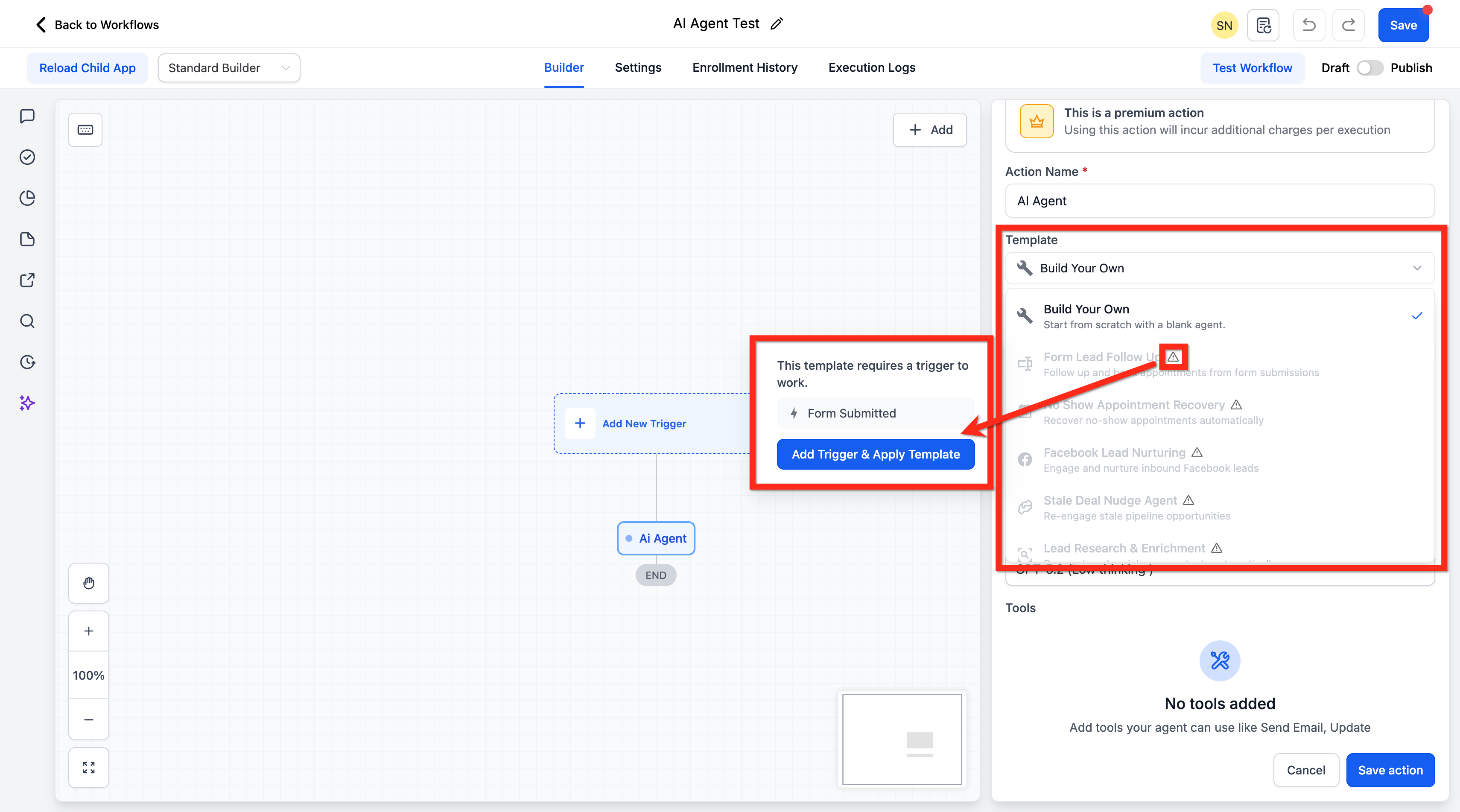
- Choose Build Your Own if you want to start from a blank configuration.
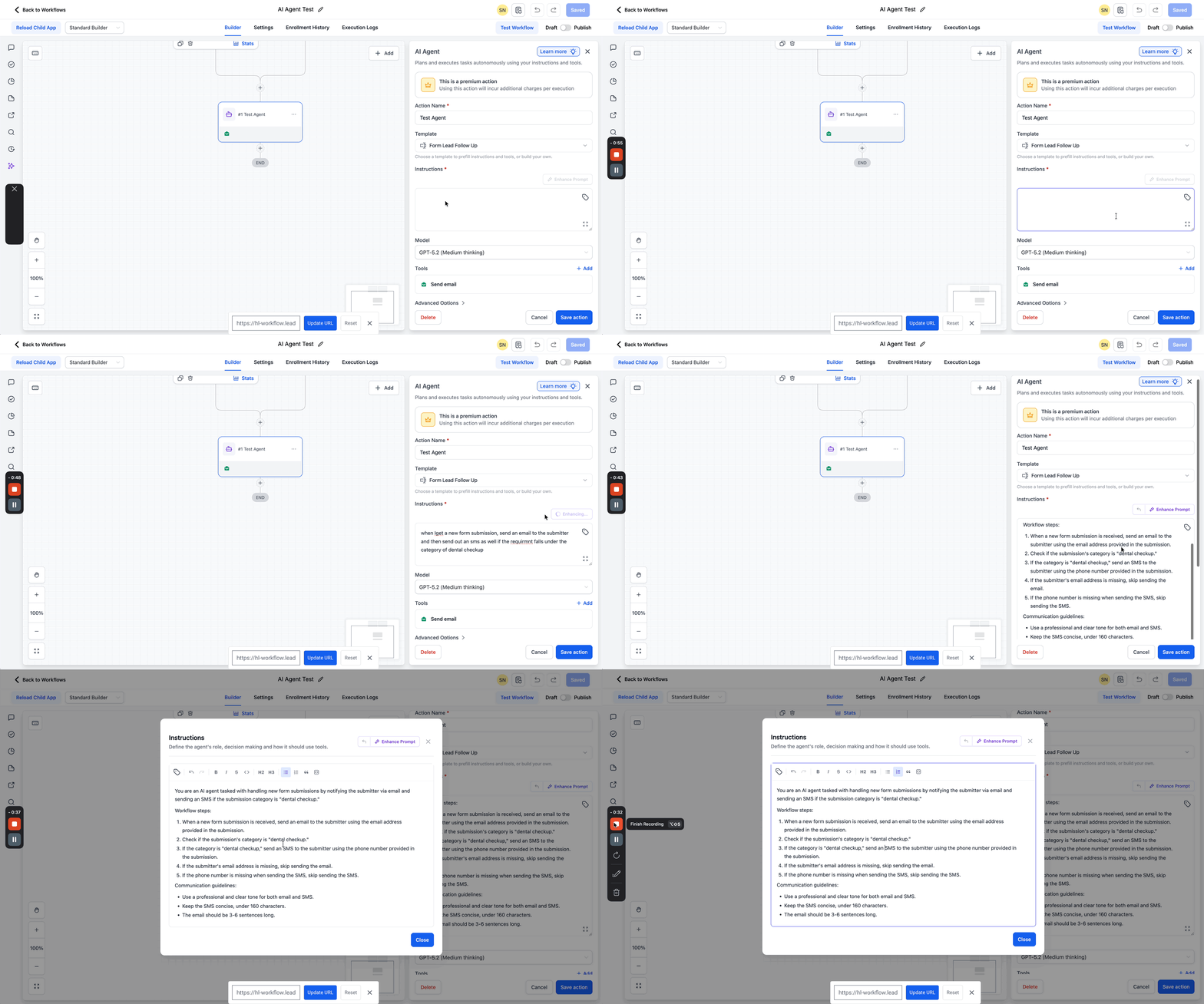
- Enter the task description in the Instructions field.
- Press Enhance Prompt to reorganize the instructions, if desired.
- Select the AI model that will run the agent.
- Click the plus button to add a tool and pick the ones the agent may use.
- Set each tool’s fields to let the AI generate values or to use fixed inputs.
- Open Advanced Options and turn on Conversation Memory or define the Output Format as needed.
- Save the action to make the workflow live.
07What it looks like in HighLevel
08Settings that matter
- Action Name. A label you assign to identify the AI Agent step within the workflow.
- Template. A pre filled set of instructions and tools that you can start from or replace.
- Instructions. The plain language guide that tells the agent what to do and how to decide.
- Enhance Prompt. A helper that rewrites loosely written instructions into a clearer, more detailed prompt.
- Model. The underlying language model that powers the agent’s reasoning.
- Tools. The actions the agent is allowed to call during its run.
- Conversation Memory. An optional rolling summary of prior runs for the same contact to give the agent context.
- Output format. The shape of the data the agent returns, none, plain text, or JSON.
09Things to know before you rely on it
- You can attach up to ten tools to a single AI Agent; internal utilities such as Date Calculator and Math Operations do not count toward this cap.
- Each execution incurs token usage charges based on the selected model and any premium tools used.
- Automatic token optimizations may lower costs by up to fifty percent without any manual setting.
10If something goes wrong
- Attempting to add more than ten tools causes an error.. Remove some tools so the total number is ten or fewer.
11How it connects to the rest of HighLevel
- Learn how the AI Decision Maker works in HighLevel workflows. AI Decision Maker
- Explore the AI Intent Detection workflow action for automatic classification. AI Intent Detection
- Review pricing details for HighLevel plans and premium actions. Pricing
- Start a thirty day trial to test AI workflow actions. 30 day trial
Michael's take

The AI Agent workflow action is overkill for simple automations that can be built with a few standard steps. Skip it if you only need basic notifications or single action updates.