
01Who this is for
- Teams that need concise summaries for appointment notes, such as medical office staff.
- Sales or pipeline managers who want brief overviews of opportunity notes.
02AI Summarize actions, explained
The action receives text, runs it through an AI model, and returns a shortened version. You tell the AI how long the summary should be, by words, characters, sentences, or paragraphs. The AI extracts key ideas, discards redundant parts, and preserves context.
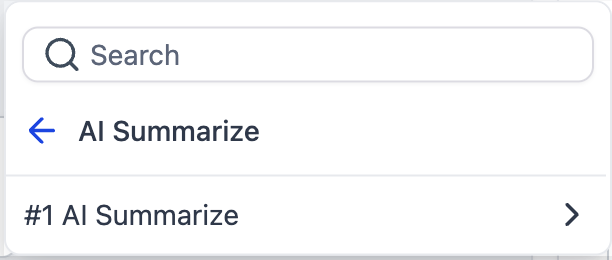
It is available as a workflow action inside the HighLevel automation builder. After you add it, you configure the length and provide the source text. The resulting summary appears as a custom variable that can be referenced by any following action.
03How businesses use AI Summarize
- Dental practice. Add the AI Summarize action to a workflow that triggers when a patient books an appointment. Set the max length to 160 characters and feed the detailed notes field. Use the generated summary in the confirmation SMS that is sent to the patient.
- Real estate agency. Create a workflow that runs when a property deal changes stage. Configure the action to output one paragraph from all notes and activity logs. Insert the summary into an email sent to the account manager.
- Restaurant chain. When a new online review arrives, trigger the AI Summarize action with a 50-word limit. Pass the summary to a Slack posting action so the team sees a brief version of the review.
04The numbers and rules that matter
- Cost: 1 cent ($0.01) per execution (per HighLevel's help center, checked November 2026).
05How to set up and use AI Summarize in HighLevel
Add and configure AI Summarize action
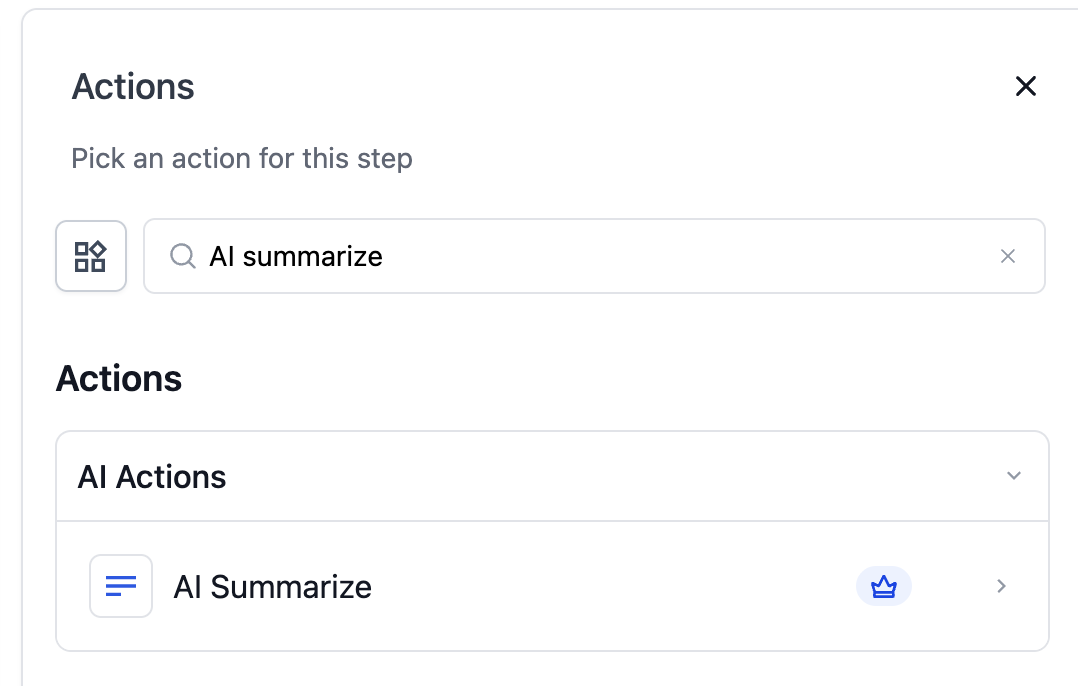
- Search for AI Summarize in the workflow actions list and add it to the workflow.
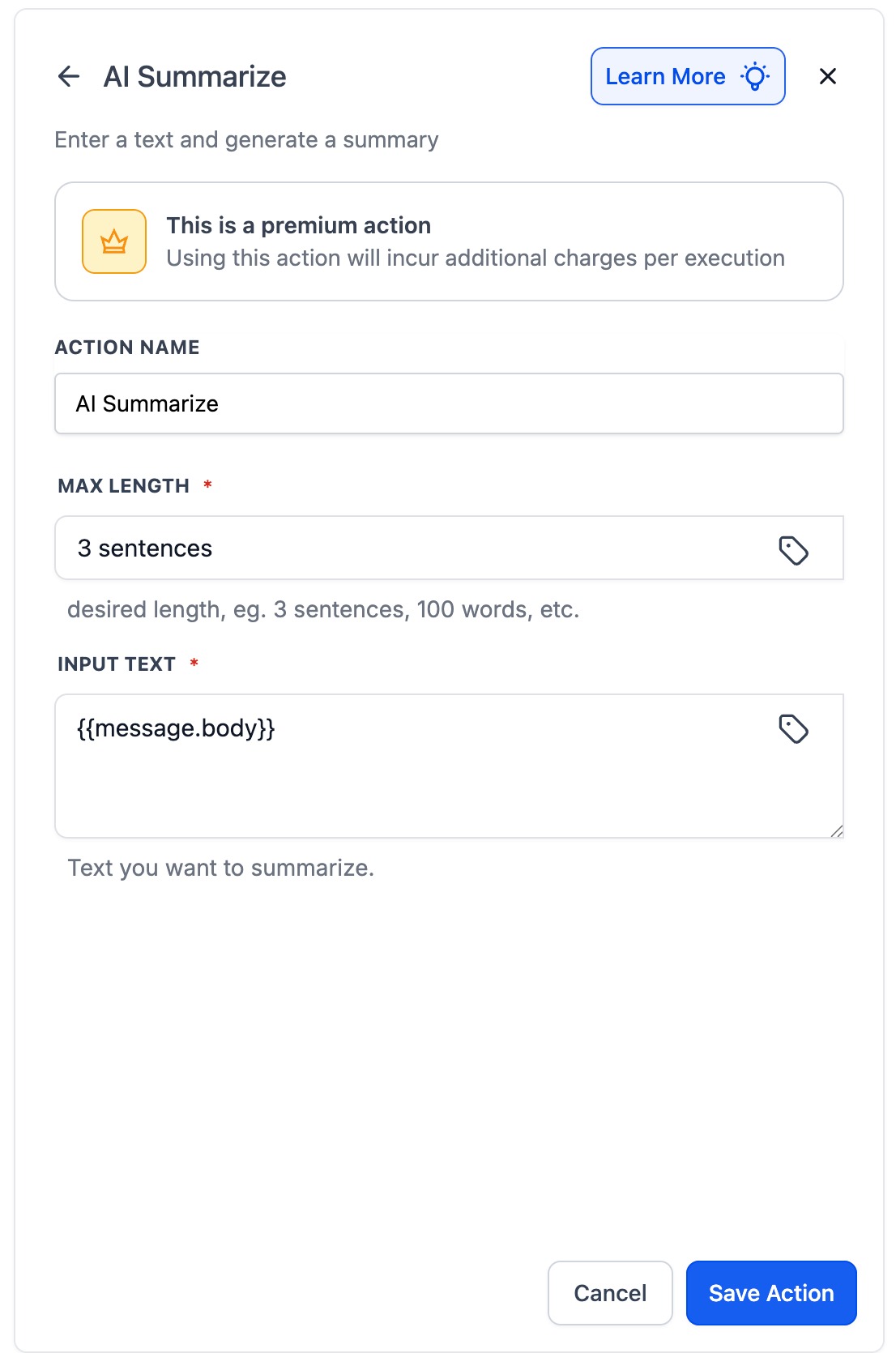
- Enter a descriptive Action Name such as Summarize Customer Review.
- Set the Max Length Input by choosing words, characters, sentences, or paragraphs and entering the desired value.
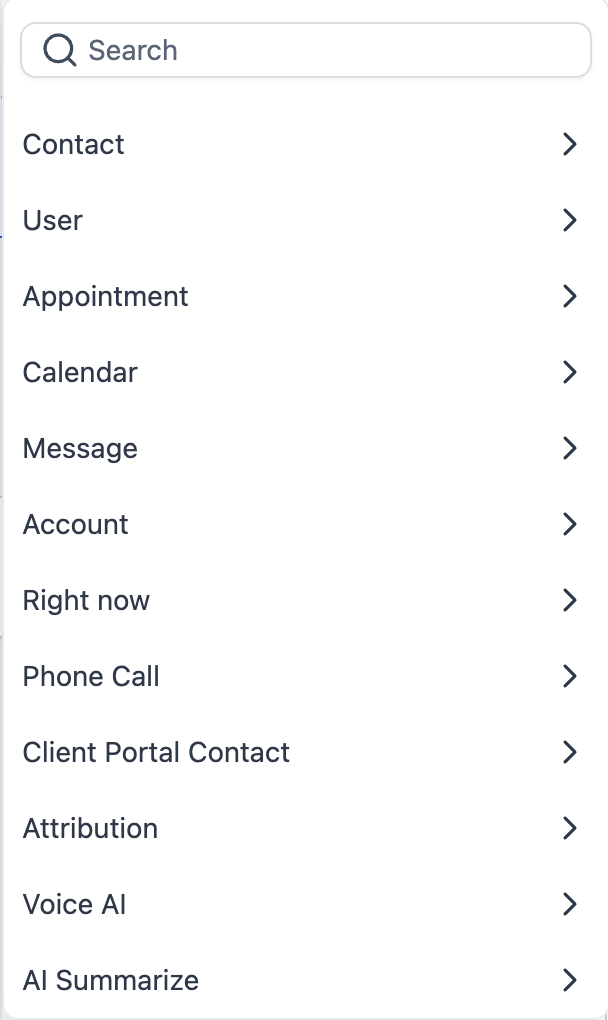
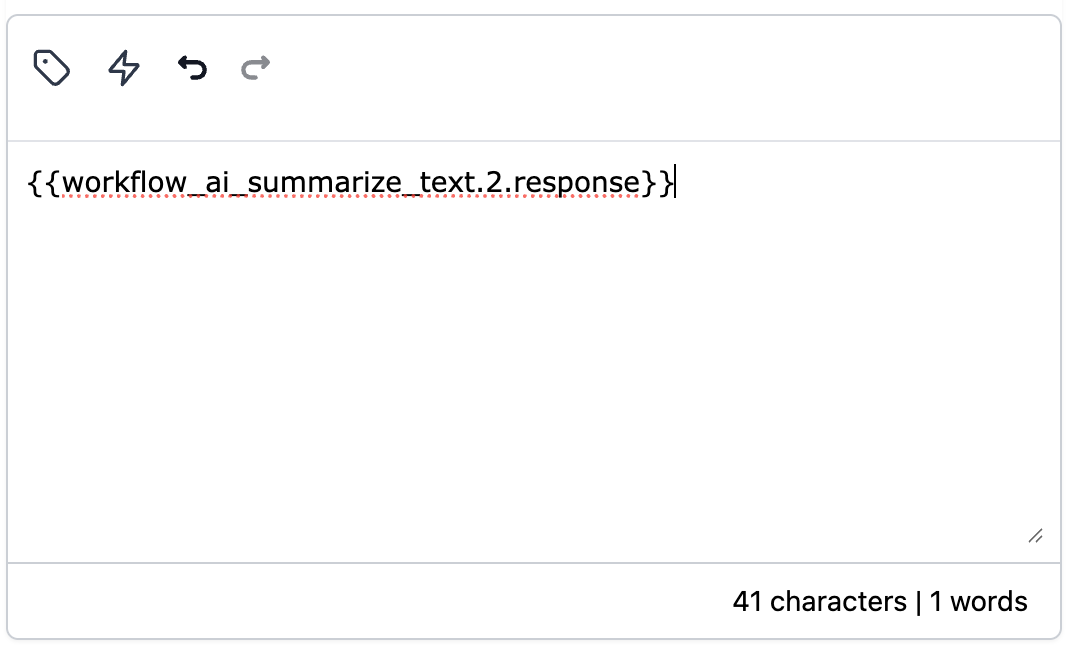
- Provide the Input Text either as a Static Value or by selecting a Dynamic Variable.
- Click Save to finish the configuration.
06What it looks like in HighLevel
07Settings that matter
- Action Name. A label you assign to identify the summarize step in the workflow.
- Max Length Input. Determines the size of the summary you want the AI to produce.
- Number of words. Specifies the summary length in words.
- Number of characters. Specifies the summary length in characters.
- Number of sentences. Specifies the summary length in sentences.
- Number of paragraphs. Specifies the summary length in paragraphs.
- Input Text. The source material the AI will condense.
- Static Value. Enter literal text directly as the input.
- Dynamic Variable. Select a workflow variable that contains the text to summarize.
08Things to know before you rely on it
- Each execution costs 1 cent ($0.01) (per HighLevel's help center, checked November 2026).
- The action is part of the Premium Actions suite; it requires that suite to be enabled.
- The AI decides what information to keep; there is no built in option to exclude specific content.
09How it connects to the rest of HighLevel
- Configure the GPT action for custom AI prompts GPT action setup
- Use the AI Intent Detection action in workflows AI Intent Detection
- Explore the Premium Actions pricing details Pricing page
Michael's take

The AI Summarize action feels like a convenient tool for businesses that juggle long notes, reviews, or transcripts.
A boutique consulting firm that sends postmeeting recaps to clients will find this useful. I would hook the action to a meeting transcript, set the length to one paragraph, and let the summary feed straight into the follow up email template.