
01Who this is for
- Marketing teams that need to send messages in contacts’ preferred languages without manual translation.
- Support teams that receive inquiries in multiple languages and want to reply using the same workflow.
02AI Translate actions, explained
The AI Translate action resides in the workflow builder’s actions list. It receives raw text, a source language, and a destination language, then returns the translated string. The result is stored as a workflow variable that other actions can reference.
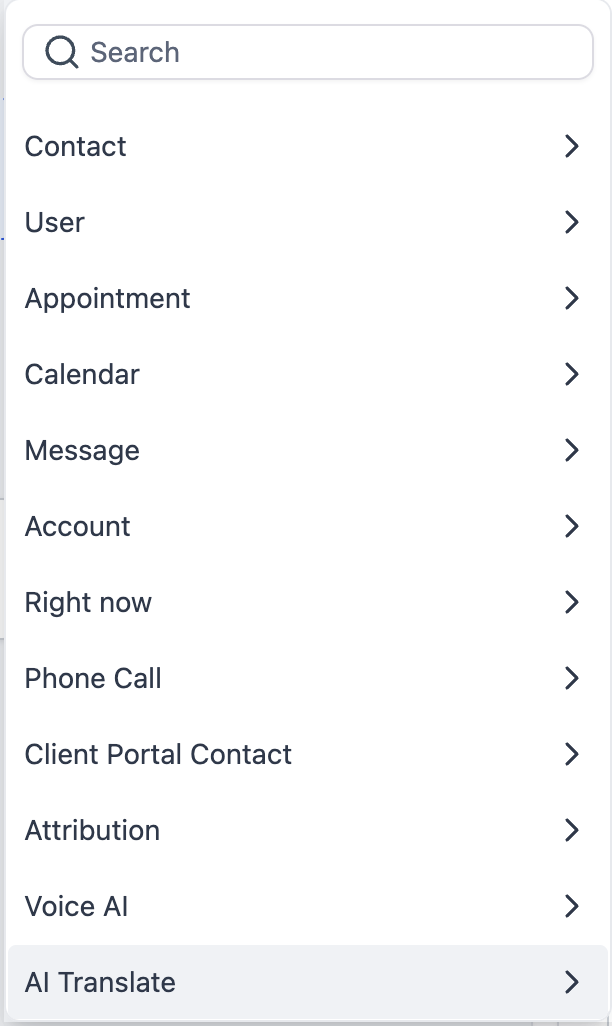
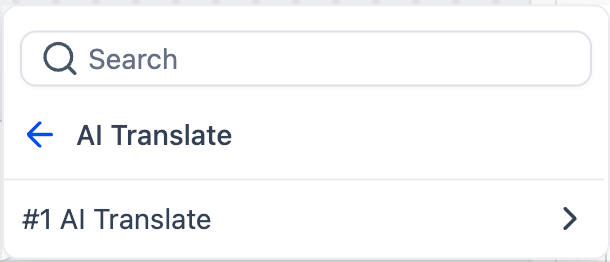
You add the action where a translation is required, set its parameters, and save it. After the step runs, the translated content is available via a custom variable such as {{workflow_ai_translate_content.x.response}}. This variable can be placed in any subsequent communication block.
03How businesses use AI Translate
- Welcome email localization. When a new contact signs up and selects a preferred language, the workflow adds the Translate Content action, selects English as the source and the chosen language as the target, and inserts the translated text into the welcome email body.
- Inbound message translation. A lead submits a message in Spanish, the workflow uses the Translate Content action to convert the message to English for the sales team, then includes the translated text in an internal notification.
- Order confirmation in multiple languages. After an order confirmation is generated in English, the workflow adds the Translate Content action to produce a French version, then sends the French email to customers whose profile indicates French as their language.
04How to set up and use AI Translate in HighLevel
Set up the AI Translate action
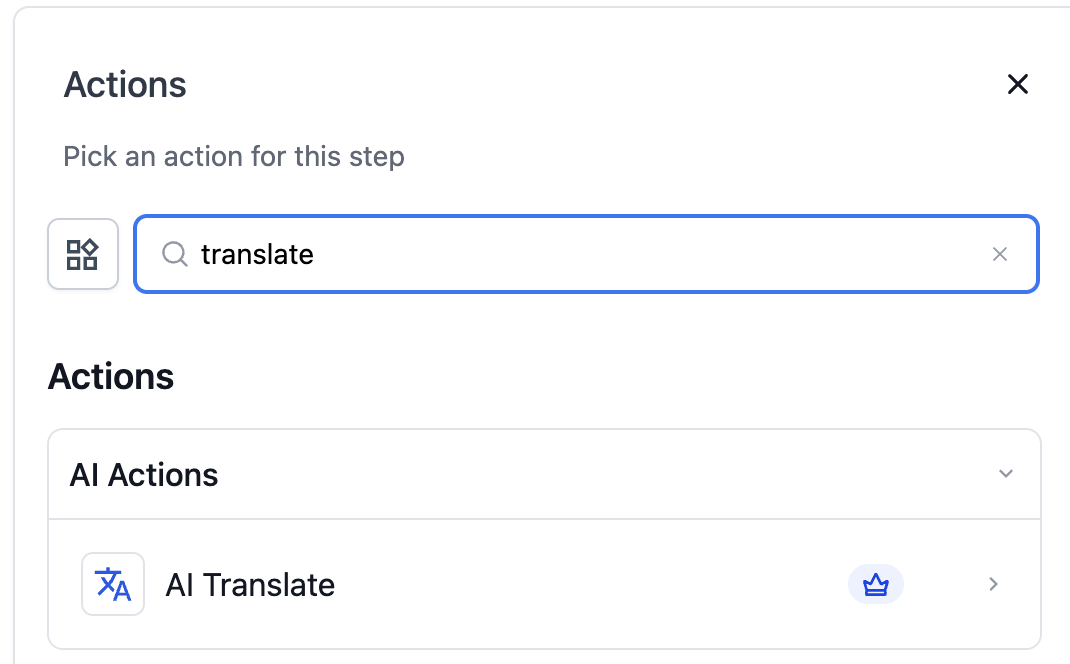
- Open the workflow builder, search for “Translate” in the actions panel, and add the Translate Content step where needed.
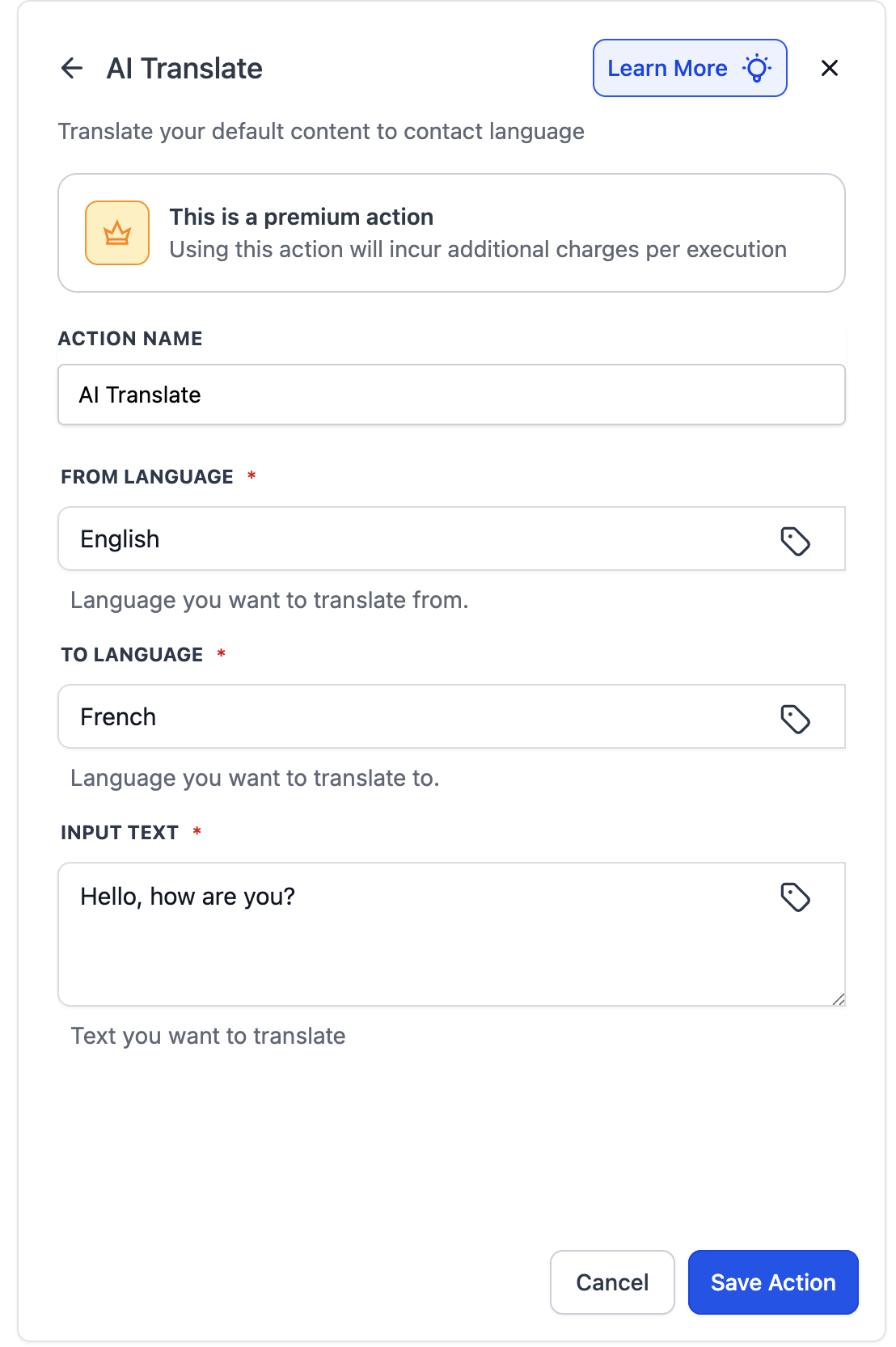
- Enter a clear name for the step, such as “Translate Welcome Email to Spanish”.
- Select the language of the original text in the From Language field.
- Choose the language you want the text converted to in the To Language field.
- Provide the text to be translated, either by typing it directly or by inserting a dynamic variable using the tag icon.
- Click the Save Action button to store the configuration.
05What it looks like in HighLevel
06Settings that matter
- Action name. Defines a readable label for the step to identify its purpose in the workflow.
- From Language. Specifies the language of the source text that will be fed into the translation engine.
- To Language. Indicates the target language for the translated output.
- Input Text. Contains the content to translate, entered as a static string or pulled from a contact field or prior step via a variable.
07How it connects to the rest of HighLevel
- Combine translation with the AI Summarize action to shorten multilingual messages. AI Summarize
- Use the AI Extract Data action to pull language preferences from incoming emails before translating. AI Extract Data
- Explore the AI Agent action for more complex multilingual conversation handling. AI Agent
Michael's take

Michael ReimerFounder of CRM Pros, HighLevel Commander and Certified Admin
It drops the language barrier into your automation and keeps the experience personal.
Don’t forget to test the output for accuracy before sending at scale.
Get More InformationOpens on HighLevelPublished November 2, 2026 · Updated November 17, 2026