
01Who this is for
- Founders who receive lead notifications via email can automatically pull name, phone, and email to create contacts without manual entry.
- Small businesses that process order confirmations from third party webhooks can extract order IDs, totals, and dates to build opportunities.
- Teams that handle appointment requests in plain text can capture dates, times, and locations for scheduling actions.
02AI extract data, explained
The AI Extract Data action lives inside the workflow builder as a premium AI step. It takes any text based value from a previous trigger or action, parses it with OpenAI models, and outputs the values you defined as workflow variables.
You choose the source text, optionally add context to improve accuracy, select a pre built template or define custom fields, and set the data type for each field. After the action runs, each field appears in the custom value picker for any downstream step.
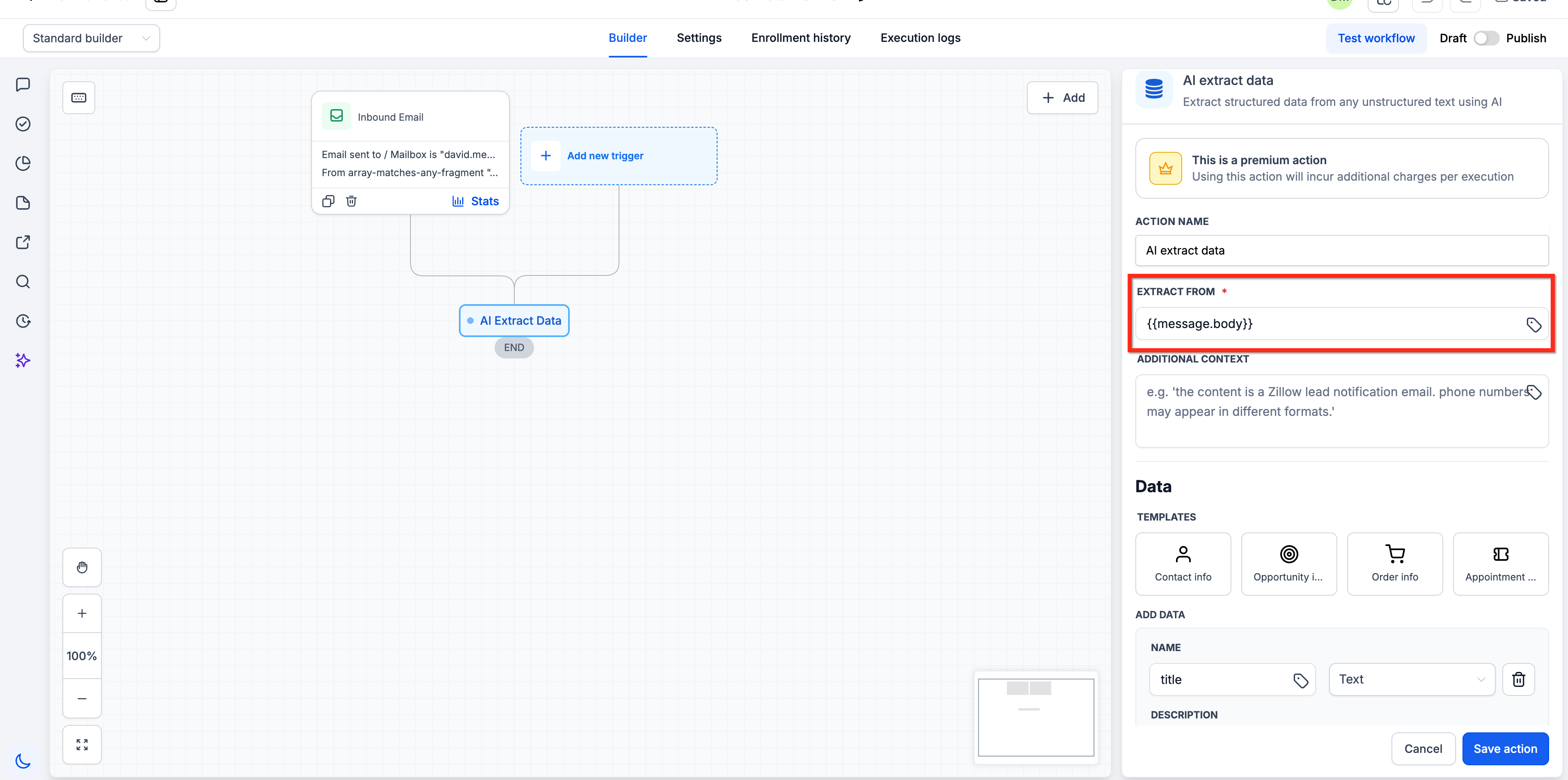
The action is marked with a premium badge, indicating that each execution adds an extra charge to your workflow usage.
03How businesses use AI extract data
- Real estate agency. The agency configures the action to pull the lead's name, phone, and property interest from incoming Zillow email bodies. Extracted values are then fed into an Update Contact action to add a new lead record.
- Ecommerce store. When a webhook delivers a raw text order confirmation, the store uses the Order info template to capture order_id, items, total_amount, and order_date. Those variables populate a Create Opportunity step.
- Medical clinic. The clinic extracts appointment date, time, and type from patient text messages. The extracted fields feed an If/Else branch that routes the workflow to send a confirmation reminder or reschedule notice.
04The numbers and rules that matter
- Premium action. Incurs additional charges per execution.
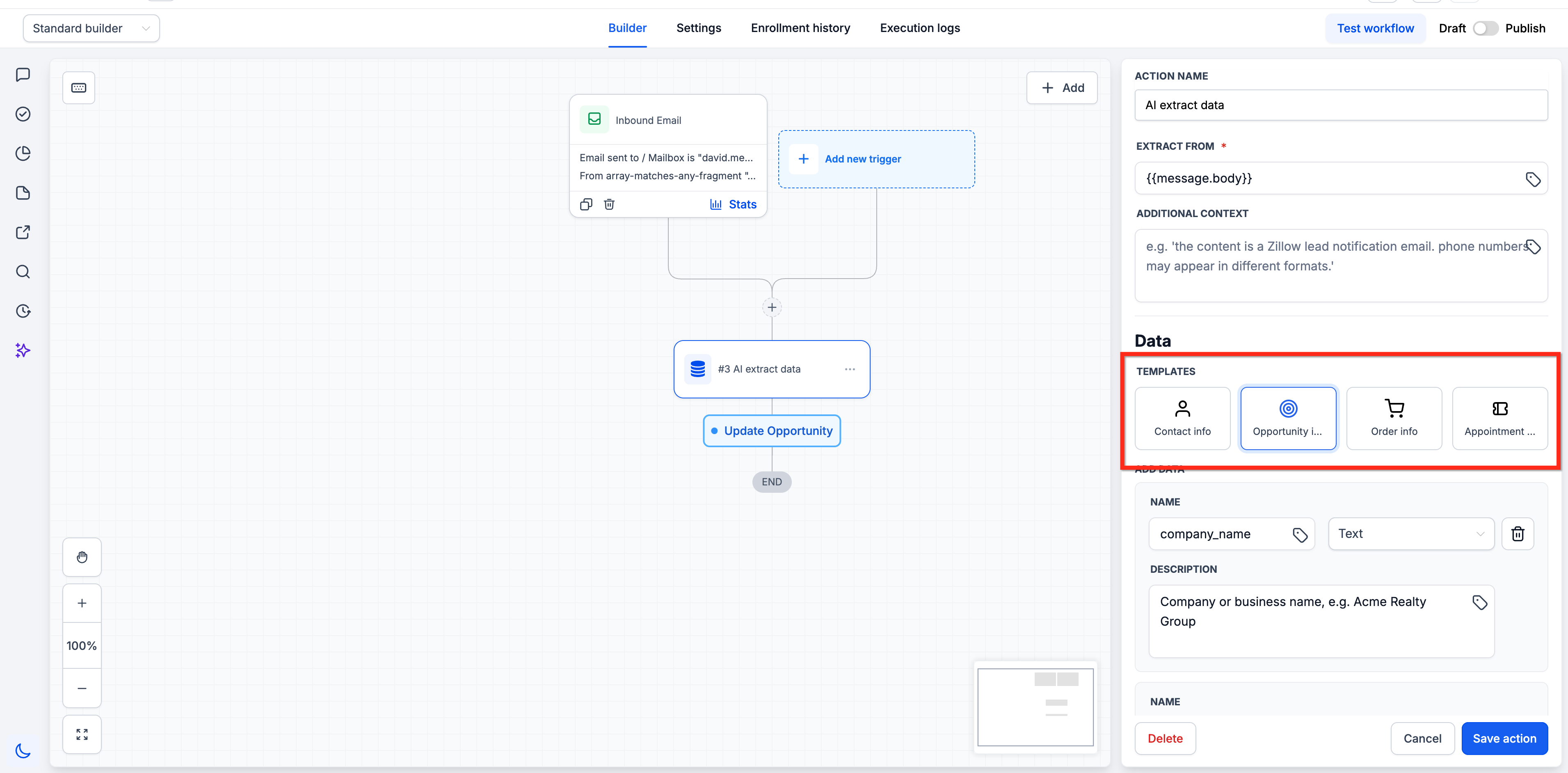
- Templates available: Contact info, Opportunity info, Order info, Appointment info.
- Supported data types: Text, Email, Phone, Number, Date, Date & Time, URL, Boolean.
05Before you start
- Access to premium workflow actions is required, as the AI Extract Data step incurs additional per execution charges (per HighLevel's help center, checked November 2026).
06How to set up and use AI extract data in HighLevel
Configure AI Extract Data action
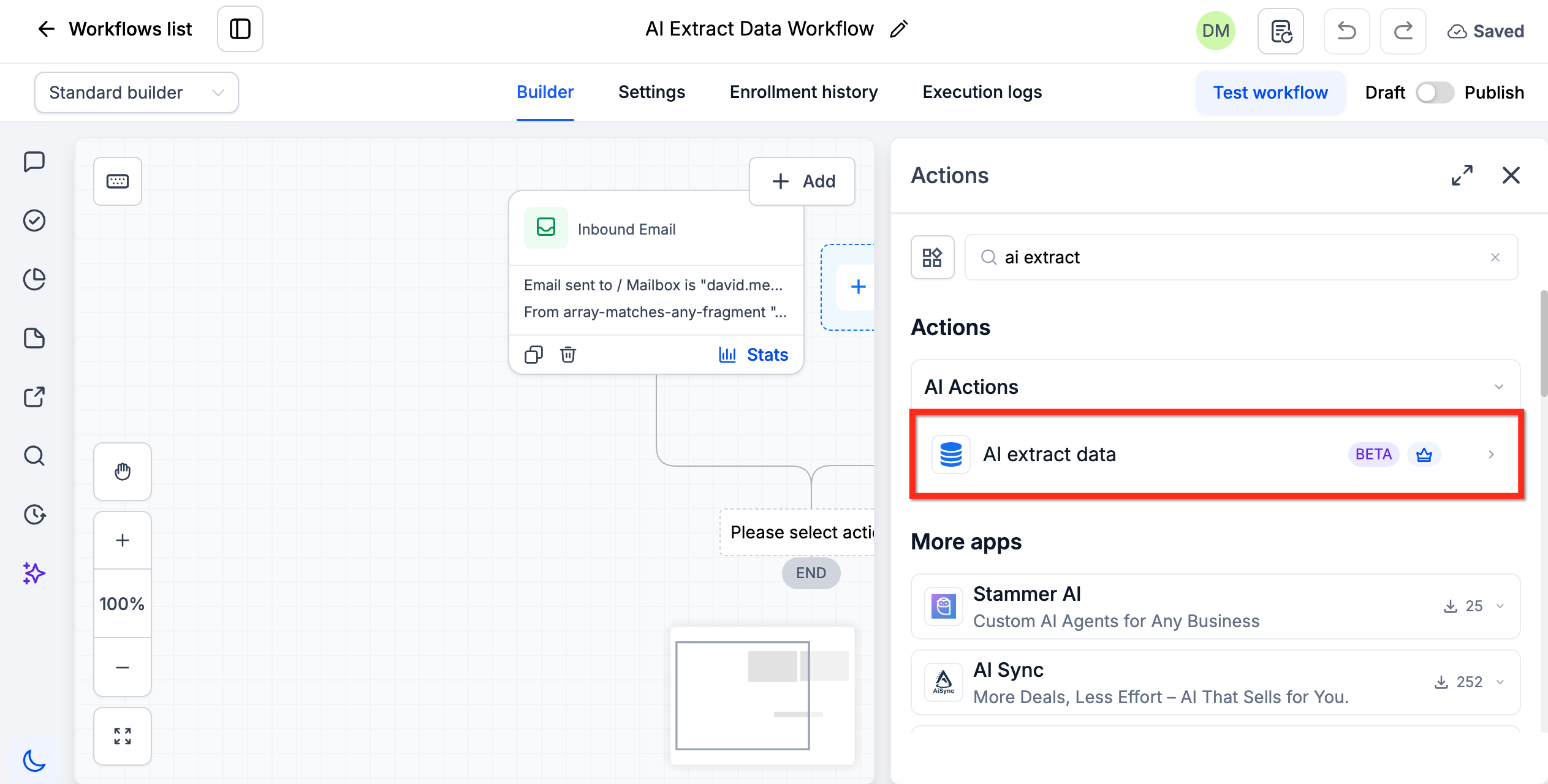
- Click the Plus (+) icon in the workflow canvas and search for the AI extract data action, then select it.
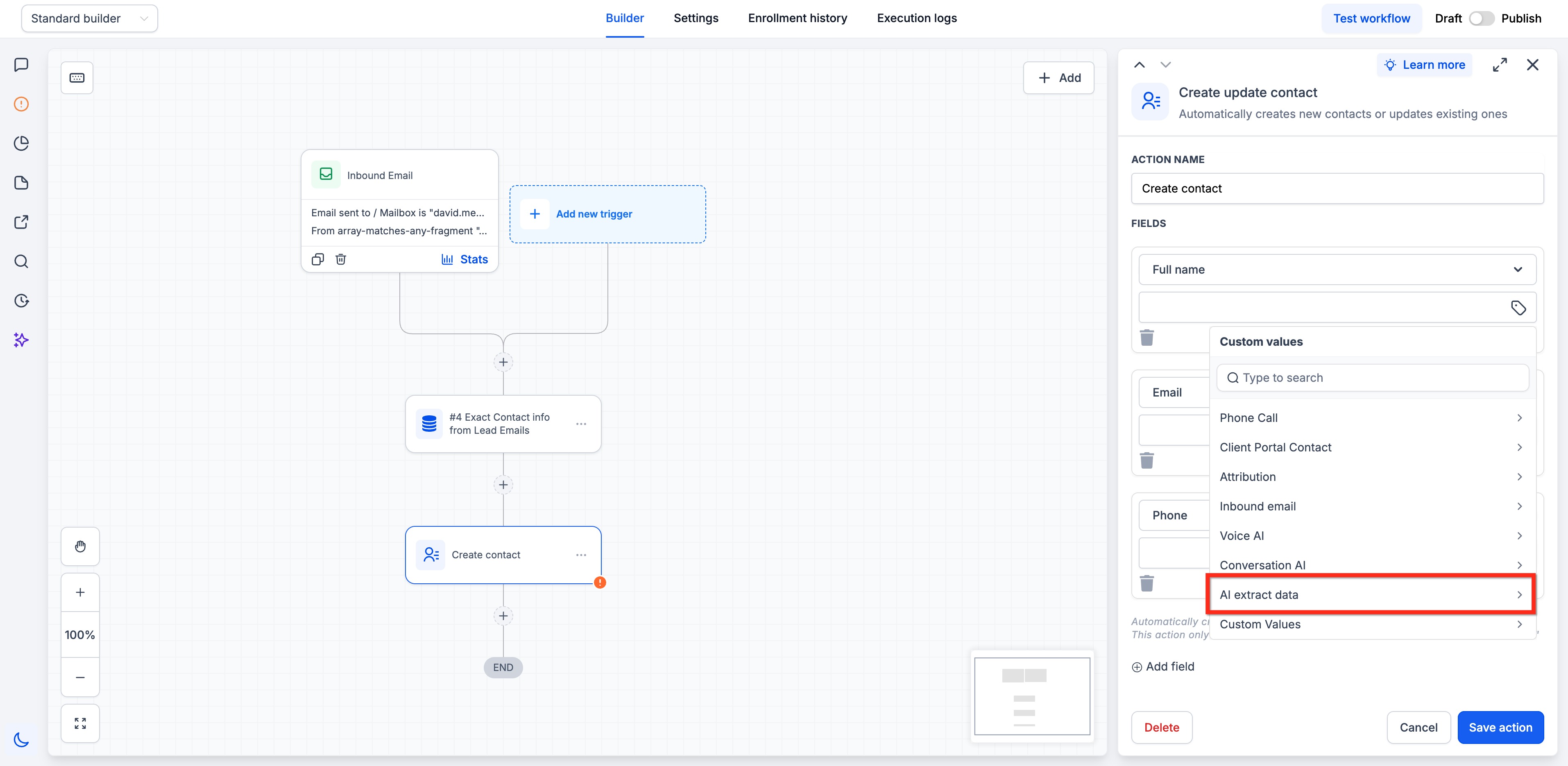
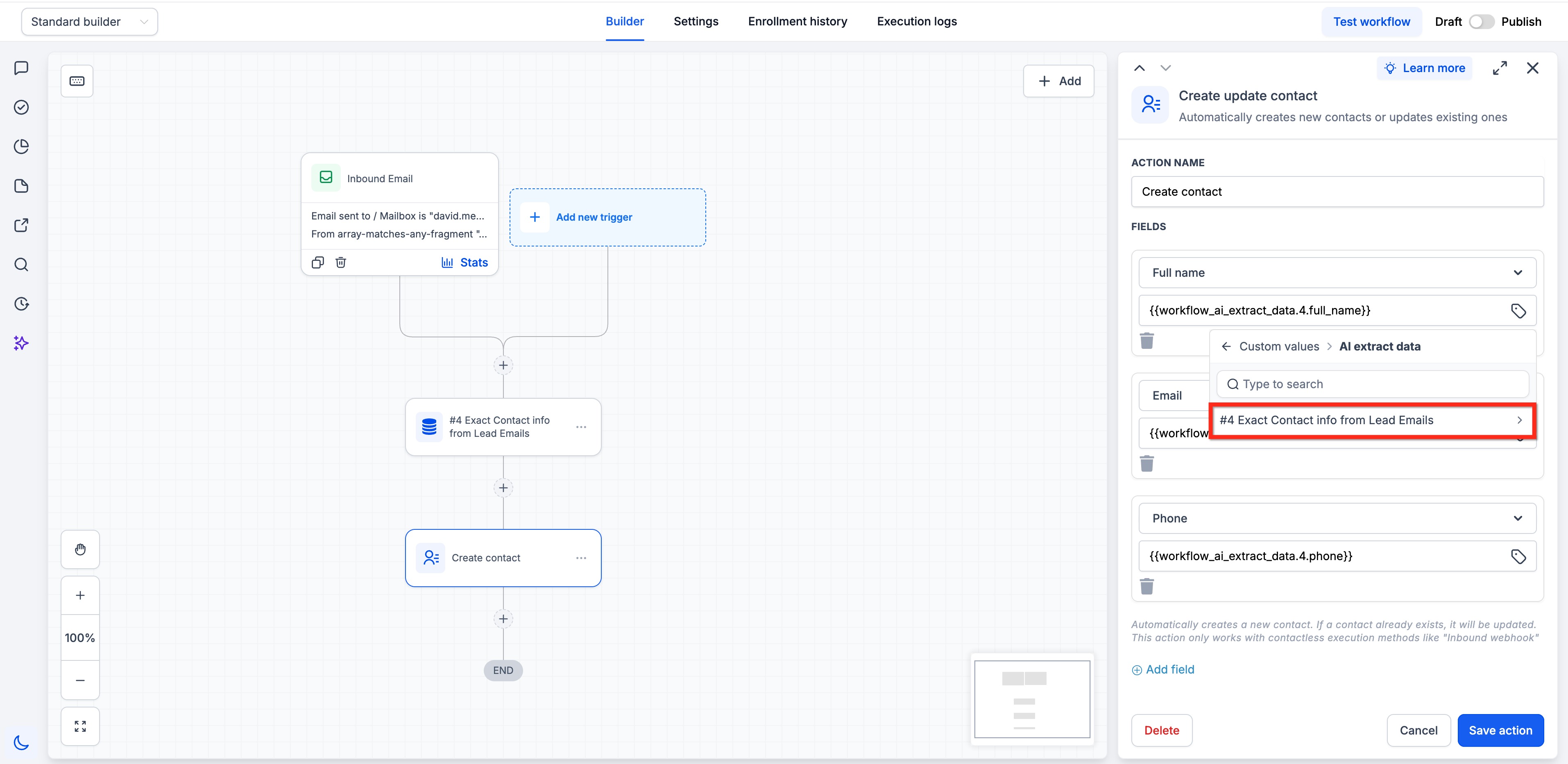
- In the Extract From field, open the custom value picker and choose the text source you want to parse, such as an email body or webhook payload.
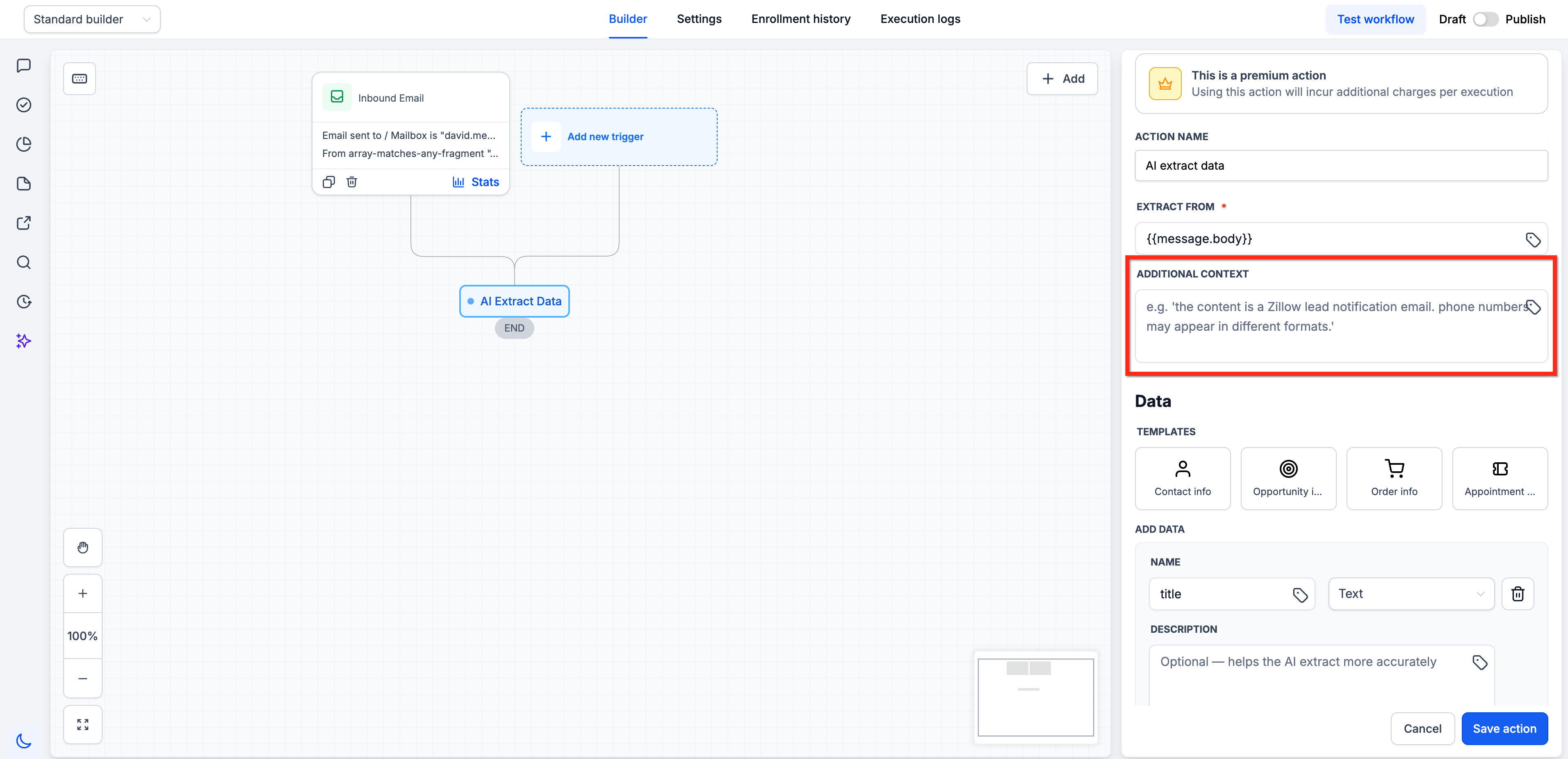
- Optionally fill the Additional Context field with details that clarify the source format, using a custom value if needed.
- Select a pre built template like Contact info, Opportunity info, Order info, or Appointment info to auto populate fields, or click + Add data to create custom fields.
- For each data field, enter a Name, choose a Type (Text, Email, Phone, Number, Date, Date & Time, URL, or Boolean), and add an optional Description to guide the AI.
- Press Save action, then add any downstream actions that will use the extracted variables.
07What it looks like in HighLevel
08Settings that matter
- Action Name. A label you assign to the step; it defaults to “AI extract data” and appears when referencing the action later.
- Extract From. The required source of unstructured text; you pick a custom value such as an email body, webhook payload, SMS content, or prior AI output.
- Additional Context. Optional text that provides background to the AI, helping it interpret ambiguous or irregular formats.
- Templates. Pre made sets of fields for common scenarios (Contact, Opportunity, Order, Appointment) that auto populate the Data Fields list.
- Data Fields. The list of variables to extract, each defined by a Name, a Type (e.g., Email, Number), and an optional Description for clarification.
09Things to know before you rely on it
- The action is a premium feature and adds extra charges per execution.
- If the AI cannot locate a defined field in the input, the corresponding variable will be empty; workflows should handle empty values.
- Providing Additional Context is optional but recommended for non standard inputs.
10If something goes wrong
- Extracted variable is empty. Add an If/Else branch to check for empty values before using them in critical actions.
11How it connects to the rest of HighLevel
- Configure GPT powered actions for related AI tasks GPT action guide
- Explore the AI Agent action for broader automation AI Agent
- Learn about AI Decision Maker routing in workflows AI Decision Maker
- Review pricing for premium workflow actions Pricing
- Start a free trial to test AI workflow actions 30 day trial
Michael's take

Michael ReimerFounder of CRM Pros, HighLevel Commander and Certified Admin
Don’t forget to add a check for empty variables so the workflow doesn’t break when the AI can’t locate a value.
Get More InformationOpens on HighLevelPublished November 2, 2026 · Updated November 17, 2026