
01Who this is for
- Agency admins benefit by centrally controlling the builder view for all owned subaccounts, reducing configuration time.
- Subaccount users gain a consistent experience when creating new workflows, matching the builder their team expects.
- Power users appreciate the ability to switch between Standard and Advanced views when they need visual logic for complex automations.
02Default Workflow Builder settings, explained
The feature defines which builder, Standard or Advanced, appears by default when a user creates a new workflow. It lives in two places: the Global Workflow Settings page for an individual subaccount and the Workflow Settings section of Agency Settings for agency wide control. Admins select the default builder and specify which user roles are permitted to change the view.
When a permitted user switches the builder inside a workflow and saves, that workflow will continue to open in the most recently saved view. Users without the switch permission do not see the toggle in the editor, preventing accidental changes. Existing workflows retain their last saved view; only newly created workflows follow the new default.
03How businesses use Default Workflow Builder settings
- Marketing agency. The agency sets the default builder to Standard for most clients to keep the interface simple. For a few power user accounts, the agency enables Advanced as the default and grants admin roles permission to switch, allowing complex automations where needed.
- SaaS startup. The startup configures the agency default to Advanced to take advantage of visual logic for its product onboarding flows. It then restricts switch permissions to subaccount admins so developers can stay in Advanced while sales staff see only Standard.
- Real estate brokerage. The brokerage assigns Standard as the default builder for all new agents, ensuring a uniform setup for lead capture workflows. It grants agents the switch permission only when they need to build custom property listing pipelines using Advanced features.
04Before you start
- User must have agency admin or agency user access to reach Global Workflow Settings or Agency Settings.
- The subaccount must be owned by the agency in order for agency level defaults to apply.
05How to set up and use Default Workflow Builder settings in HighLevel
Set default workflow builder for an individual subaccount
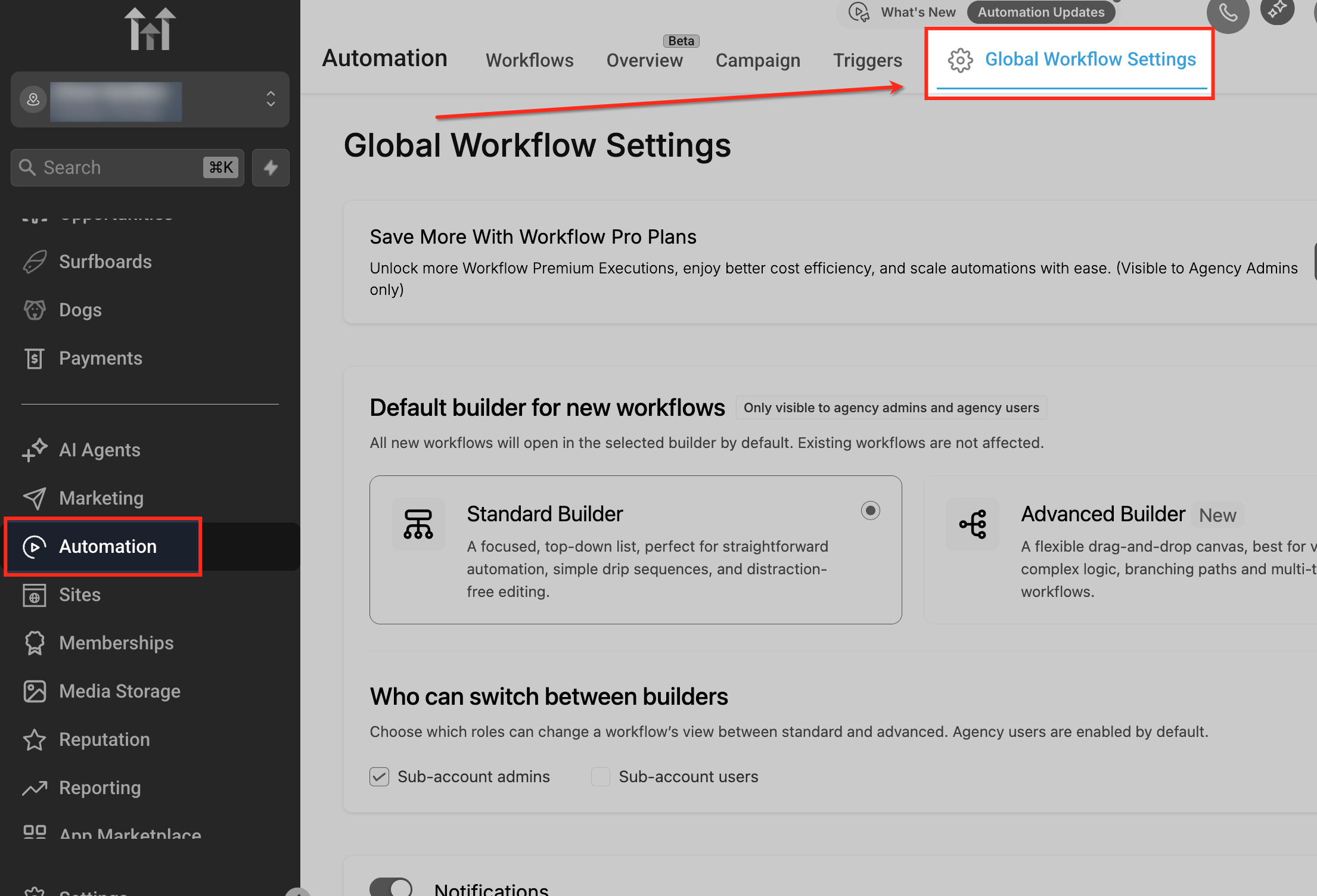
- Open Automation from the left sidebar and select Global Workflow Settings in the top navigation.
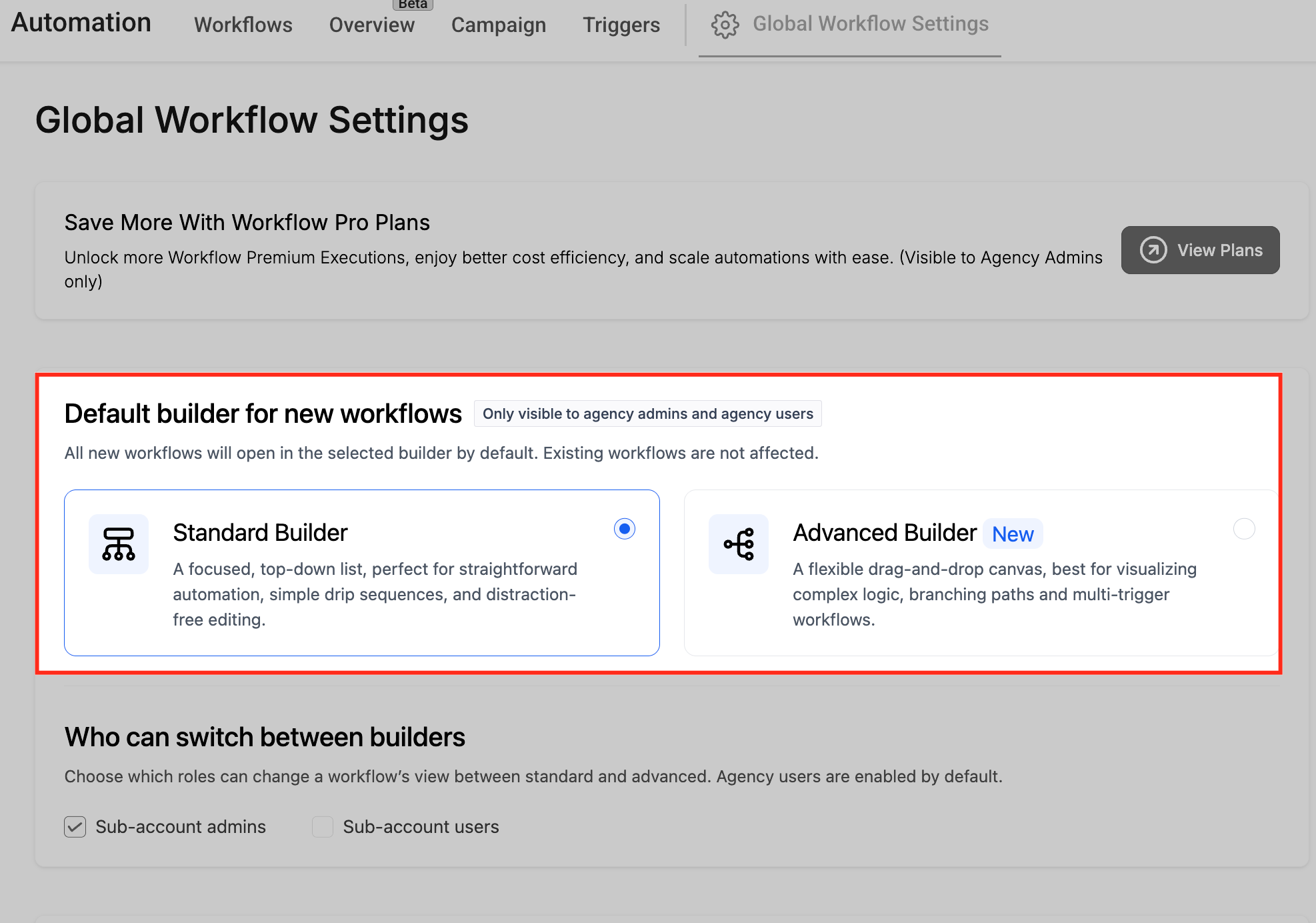
- In the Default builder for new workflows field, choose either Standard Builder or Advanced Builder.
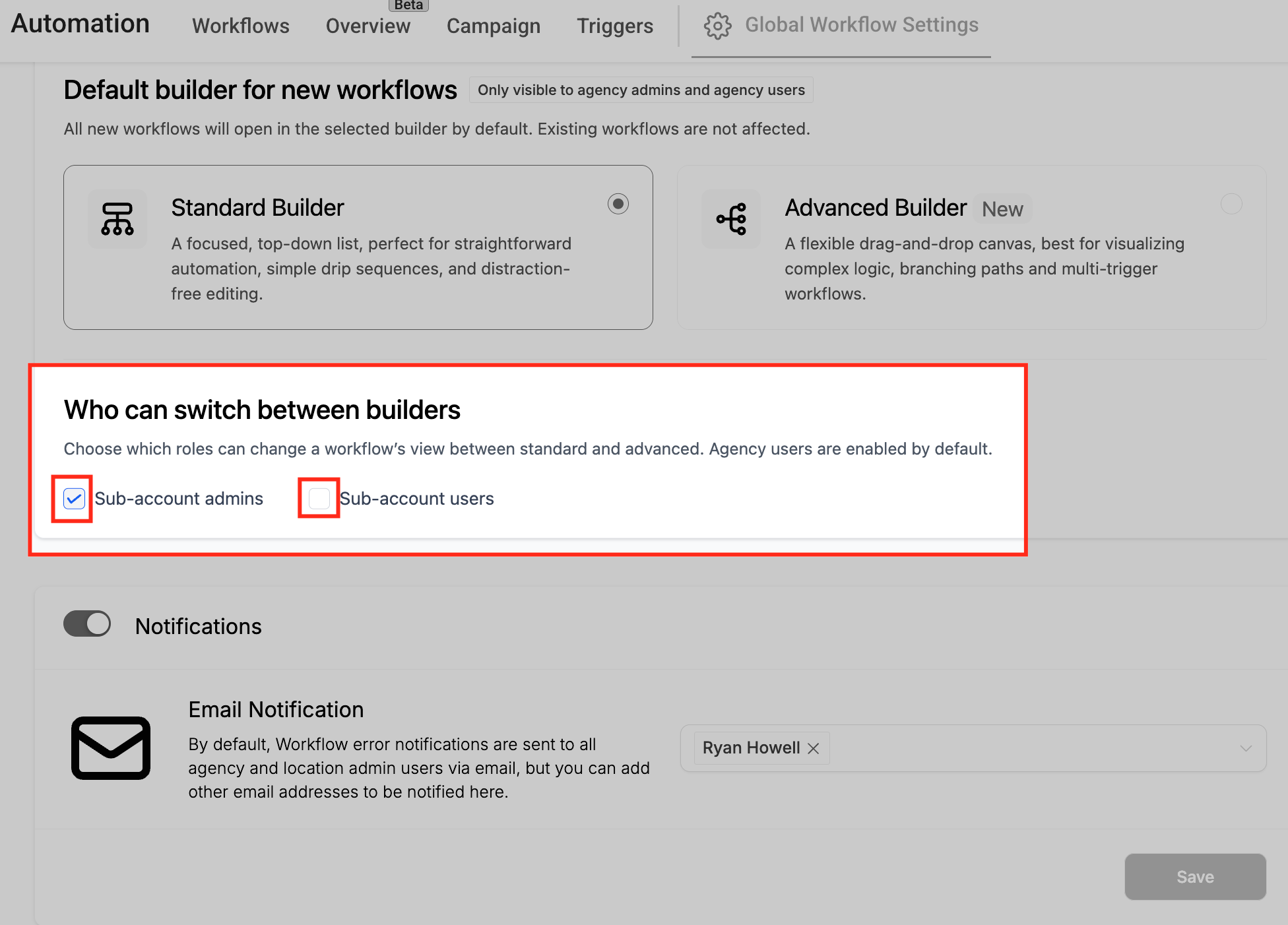
- Under Who can switch between builders, check the roles that should be allowed to change the view.
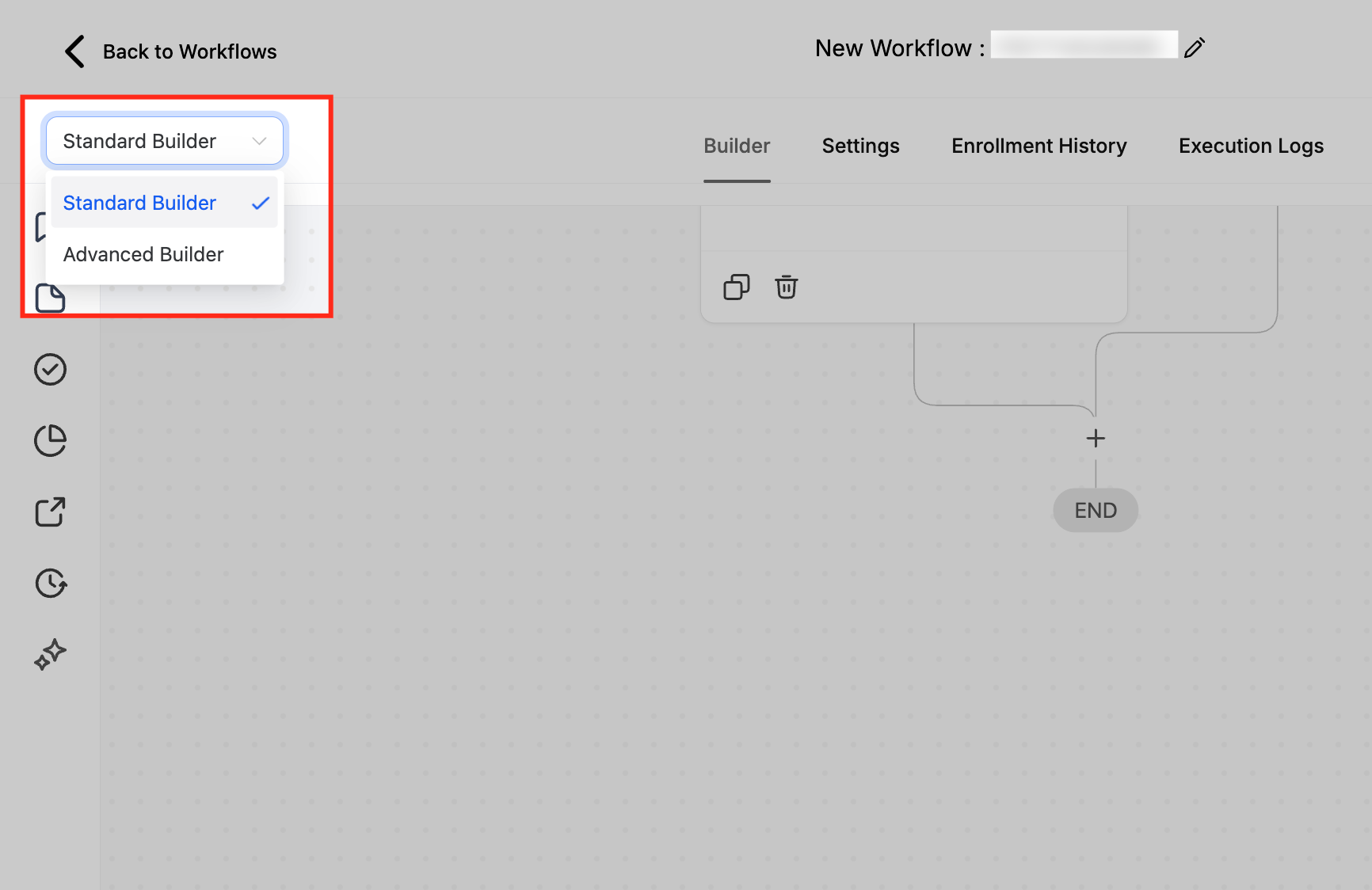
- Open any workflow and use the top left builder selector to confirm the toggle appears for permitted users and that the workflow opens in the saved view.
Set default workflow builder at the agency level
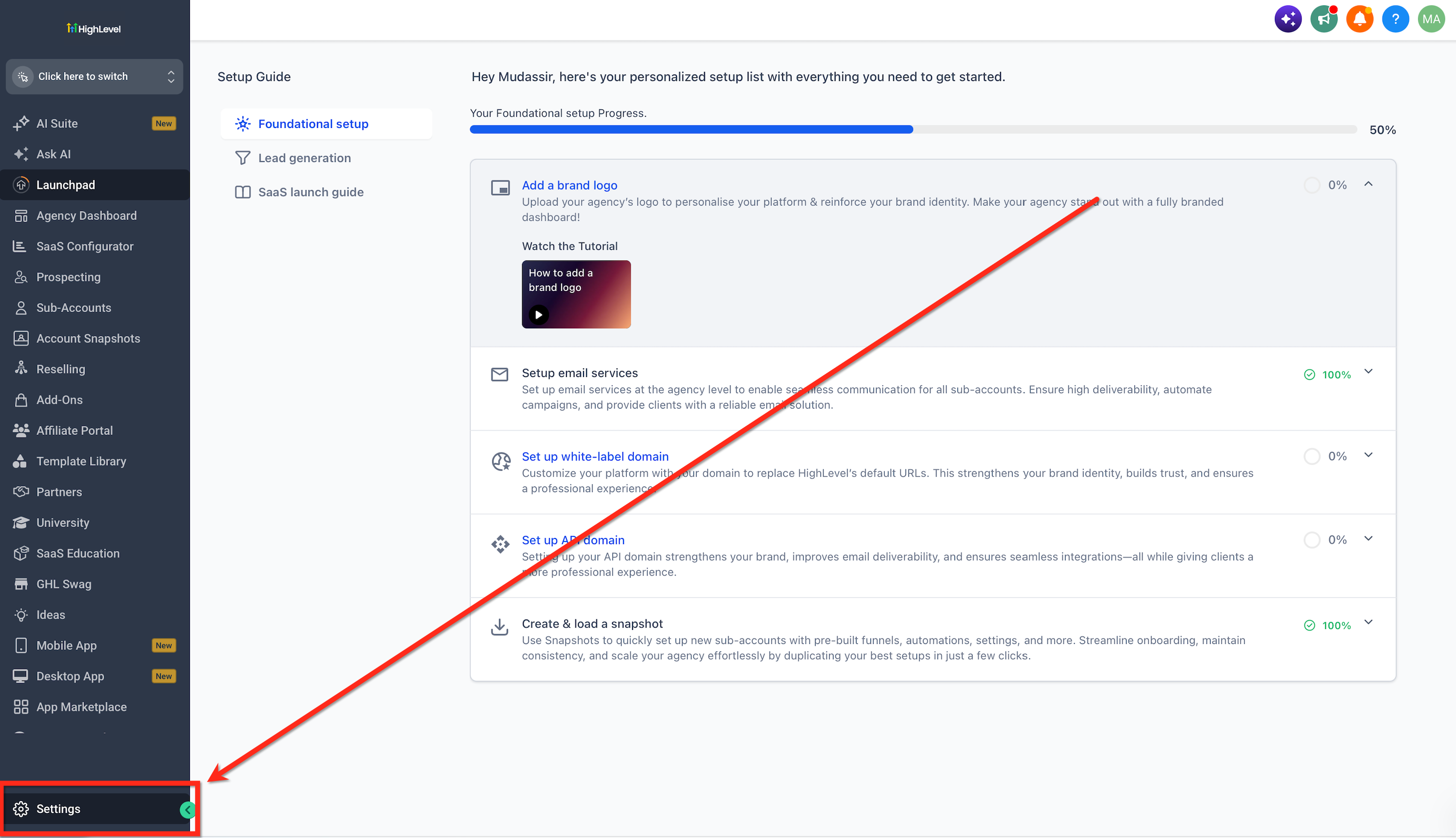
- Navigate to Agency Settings.
- Open the Workflow Settings section.
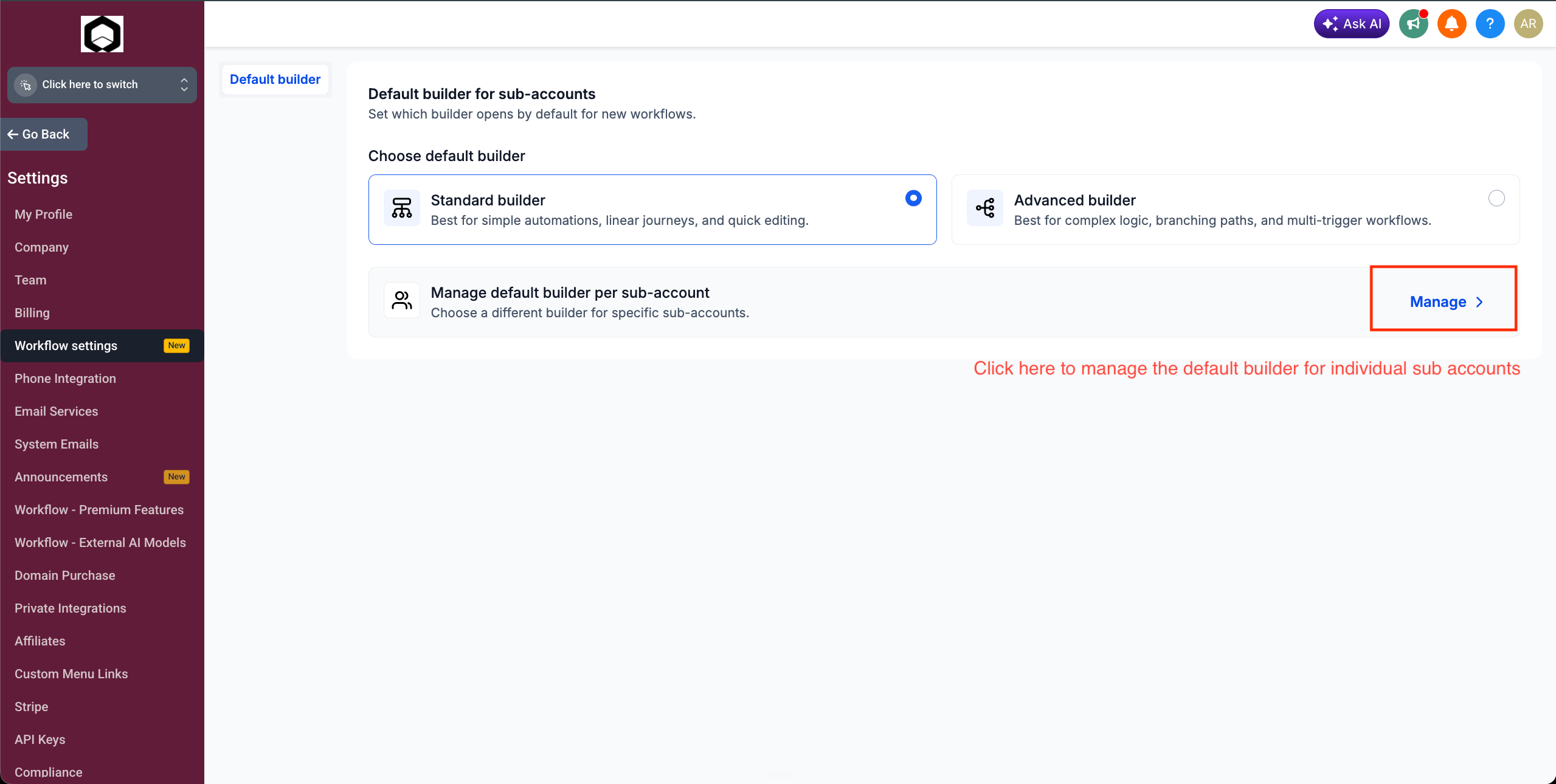
- Select Standard Builder or Advanced Builder as the agency default under default builder settings.
- Choose to apply the agency default to all subaccounts or manage it per individual subaccount.
- Save the changes so that new subaccounts inherit the selected default.
06What it looks like in HighLevel
07Settings that matter
- Default builder for new workflows. Specifies whether the Standard Builder or Advanced Builder opens when a user creates a new workflow.
- Who can switch between builders. Controls which user roles are allowed to toggle the workflow view between Standard and Advanced inside the editor.
08Things to know before you rely on it
- Changing the default only affects workflows created after the change; existing workflows keep their current view.
- Users without permission do not see the Switch View control in the workflow editor.
- Switching to Standard is blocked if the workflow contains Advanced only items until those items are removed.
- The Global Workflow Settings panel is visible only to agency admins and agency users.
- New subaccounts inherit the agency default at the time they are created.
- There is currently no public API to read or update these settings.
09How it connects to the rest of HighLevel
- Learn the basics of workflow automation in HighLevel Workflow basics
- Get started with creating workflows and using triggers, filters, and actions Workflow creation guide
- Explore the AI Builder for generating and editing automations AI Builder
- Review pricing tiers that include access to Advanced Builder features Workflow Pro pricing
- Start a free 30 day trial of HighLevel Start trial
Michael's take

When you have a team that’s still learning the basics, pinning the Standard Builder as the default saves time. Everyone lands on the same screen, onboarding is quicker, and you avoid the “where did that button go?” questions that can slow down a small agency.
If your workflows are already full of Advanced only nodes, the default setting won’t protect you from accidental switches. You’ll still have to watch for blocked switches and clean up those nodes, which can create extra work that outweighs the convenience of a preset view.