
01Who this is for
- Agency admins, can overview all automations to ensure changes won’t break dependencies.
- Agency users, benefit from quick navigation to locate assets and understand their impact.
- Business owners who inherit a complex account, can explore the automation layout to plan reorganizations.
02Workflow maps, explained
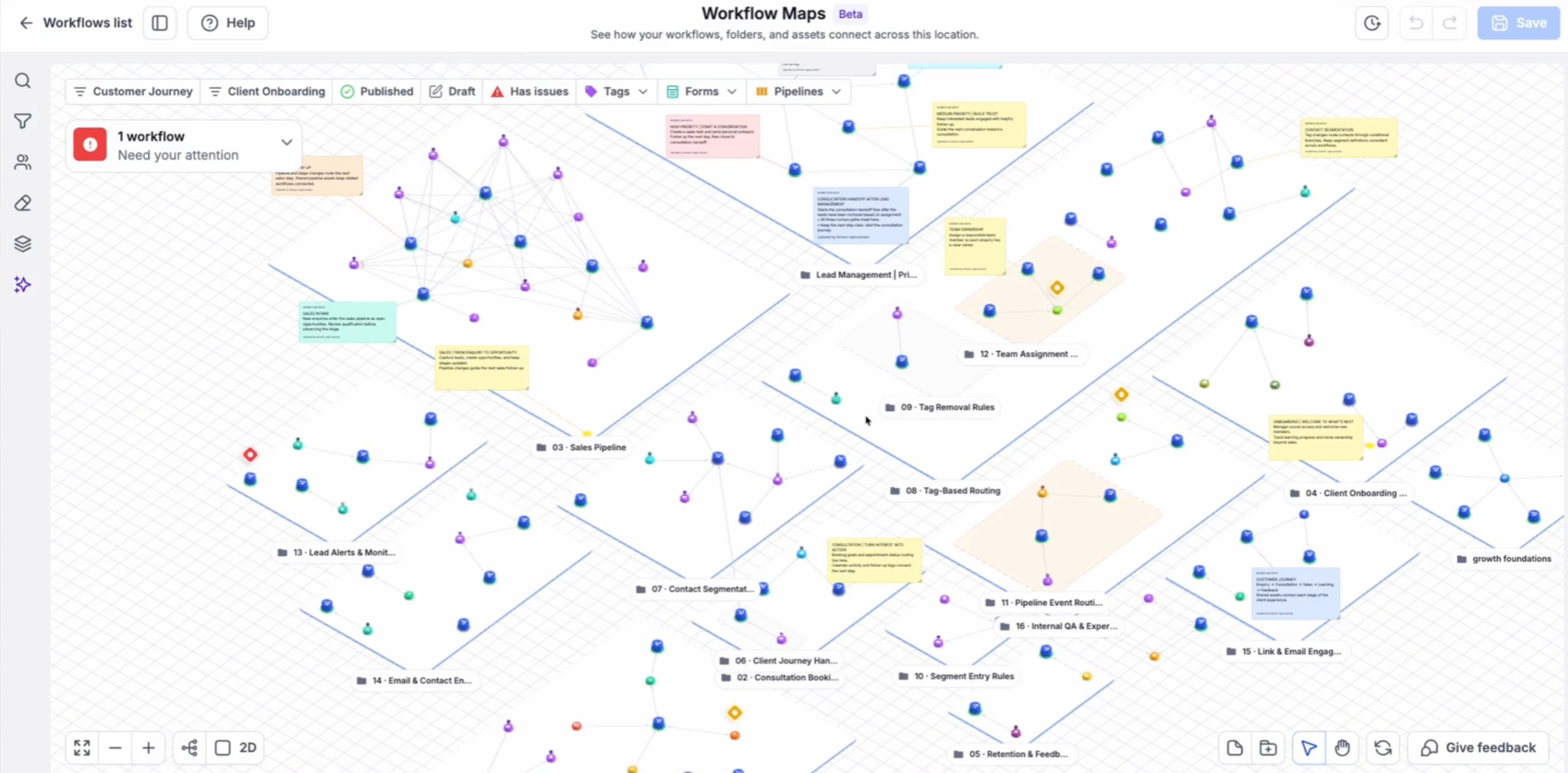
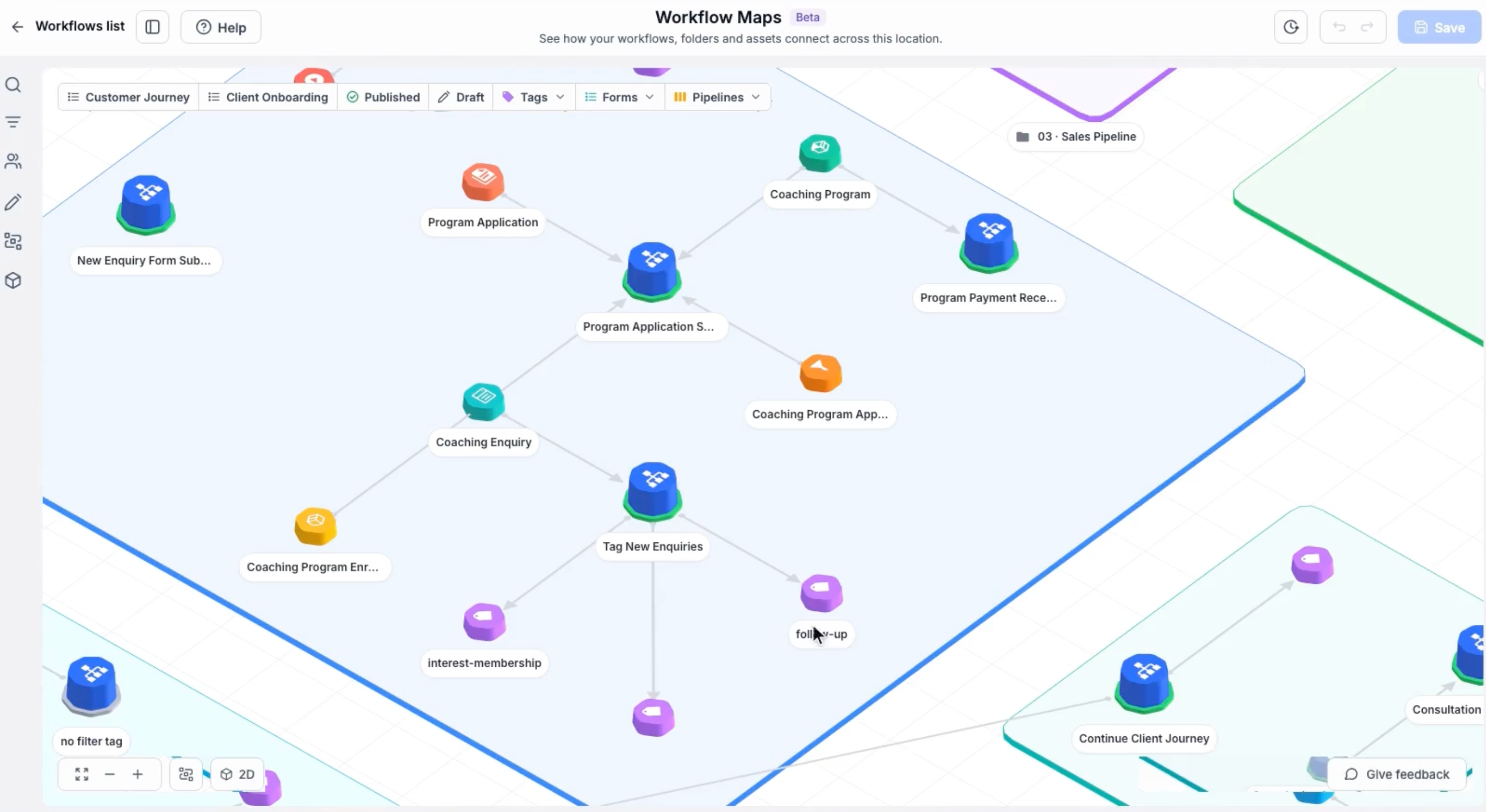
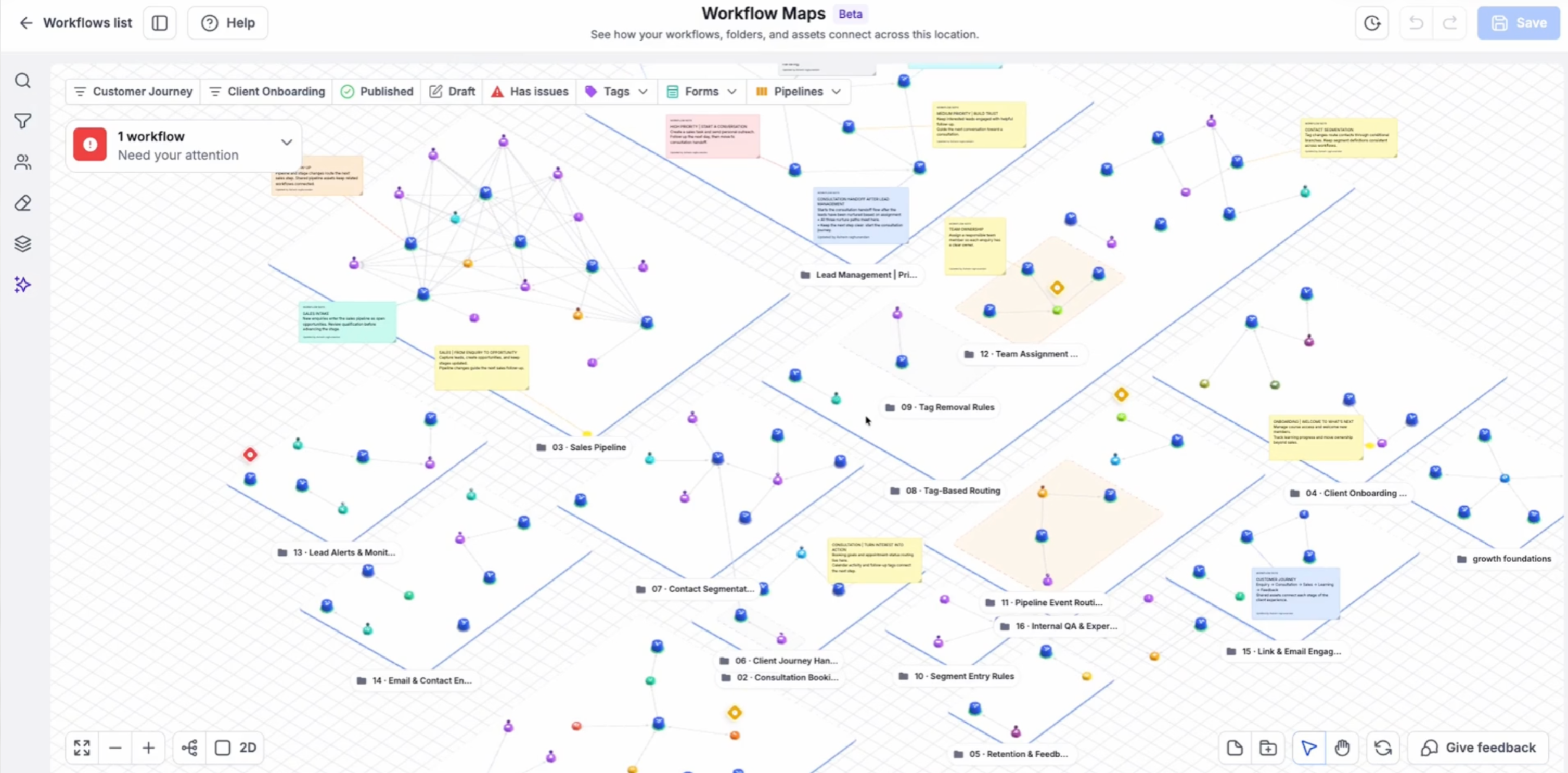
Workflow Maps is a visual canvas that draws from the workflows already built in a subaccount. It displays each workflow, its folder placement and any connected tags, forms, calendars, pipelines or custom fields. The map updates automatically, so no manual diagramming is required.
The interface includes controls for searching, filtering, fitting the entire map, and switching between 2D and 3D views. Connected items appear as lines, and clicking a node reveals details, linked workflows and options to open the workflow in the Builder. An AI assistant can answer questions about the map when available.
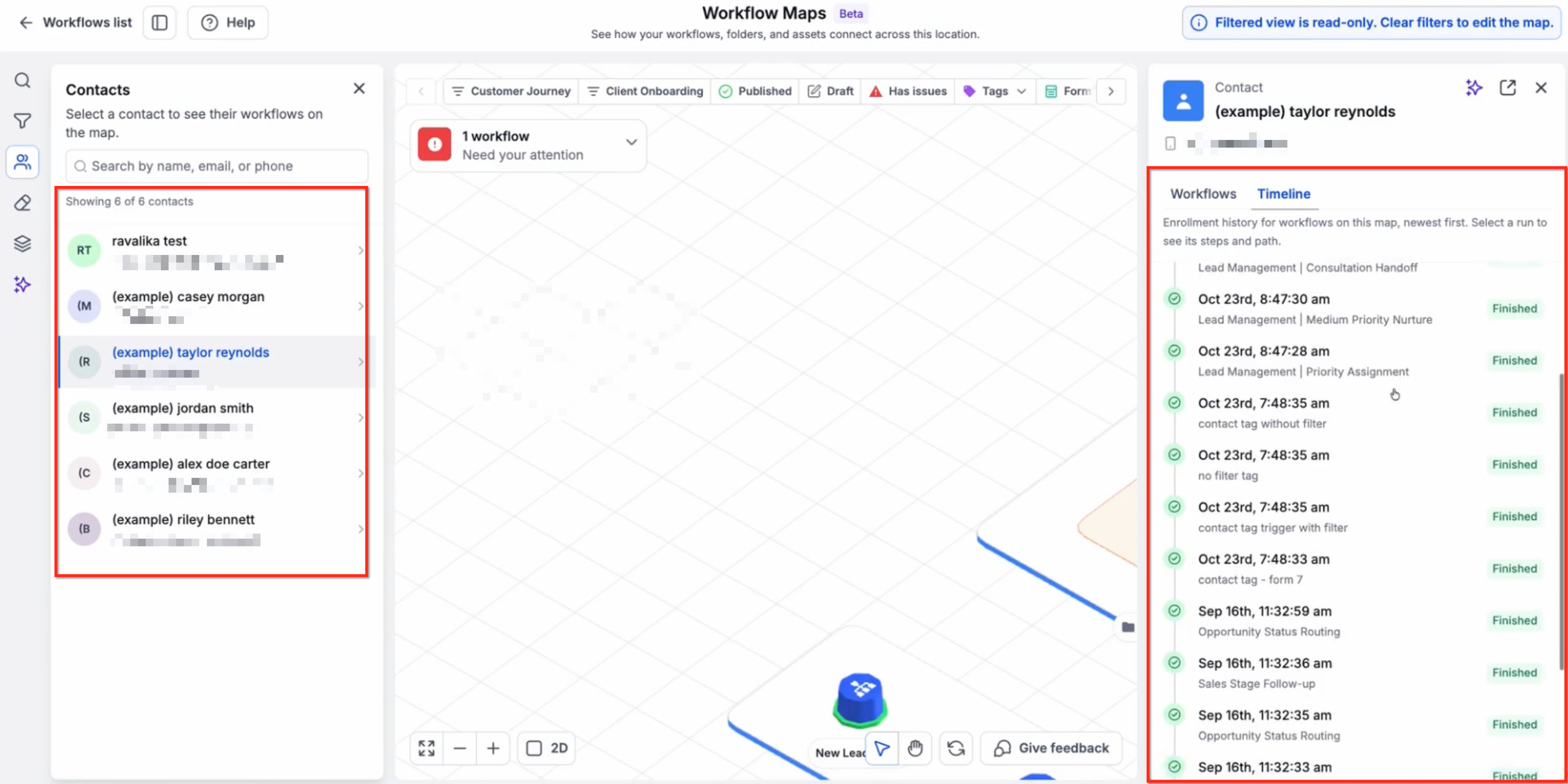
A Contact tracing view is built into the map, showing a Contact’s enrollment history across workflows, including waiting steps, completions and failures. Error filters highlight workflows that encountered execution problems, and a Cleanup view points out items that may need re organization.
03How businesses use workflow maps
- Digital marketing agency. The agency opens Workflow Maps to see how client automations rely on shared tags and forms. By selecting a tag, the agency reviews all workflows that use it before making any changes, preventing unintended disruptions.
- Ecommerce store. The store searches the map for the order confirmation form asset. It then inspects the connected workflows to verify the correct email sequence is triggered, using the linked workflow view to compare related automations.
- Coaching practice. A coach uses the Contact journey feature to locate a client’s 60 day enrollment record. The coach reviews waiting and failed steps to understand why a scheduled session reminder was not sent.
04The numbers and rules that matter
- Supported assets: Tags, forms, calendars, pipelines, Custom Fields and other supported items.
- Contact tracing shows a 60 day history window.
05Before you start
- User must have agency user or agency admin access in the target subaccount.
- If the account uses Labs, verify that Labs activation is enabled for Workflow Maps.
06How to set up and use workflow maps in HighLevel
Open workflow maps
- Log into the appropriate HighLevel subaccount.
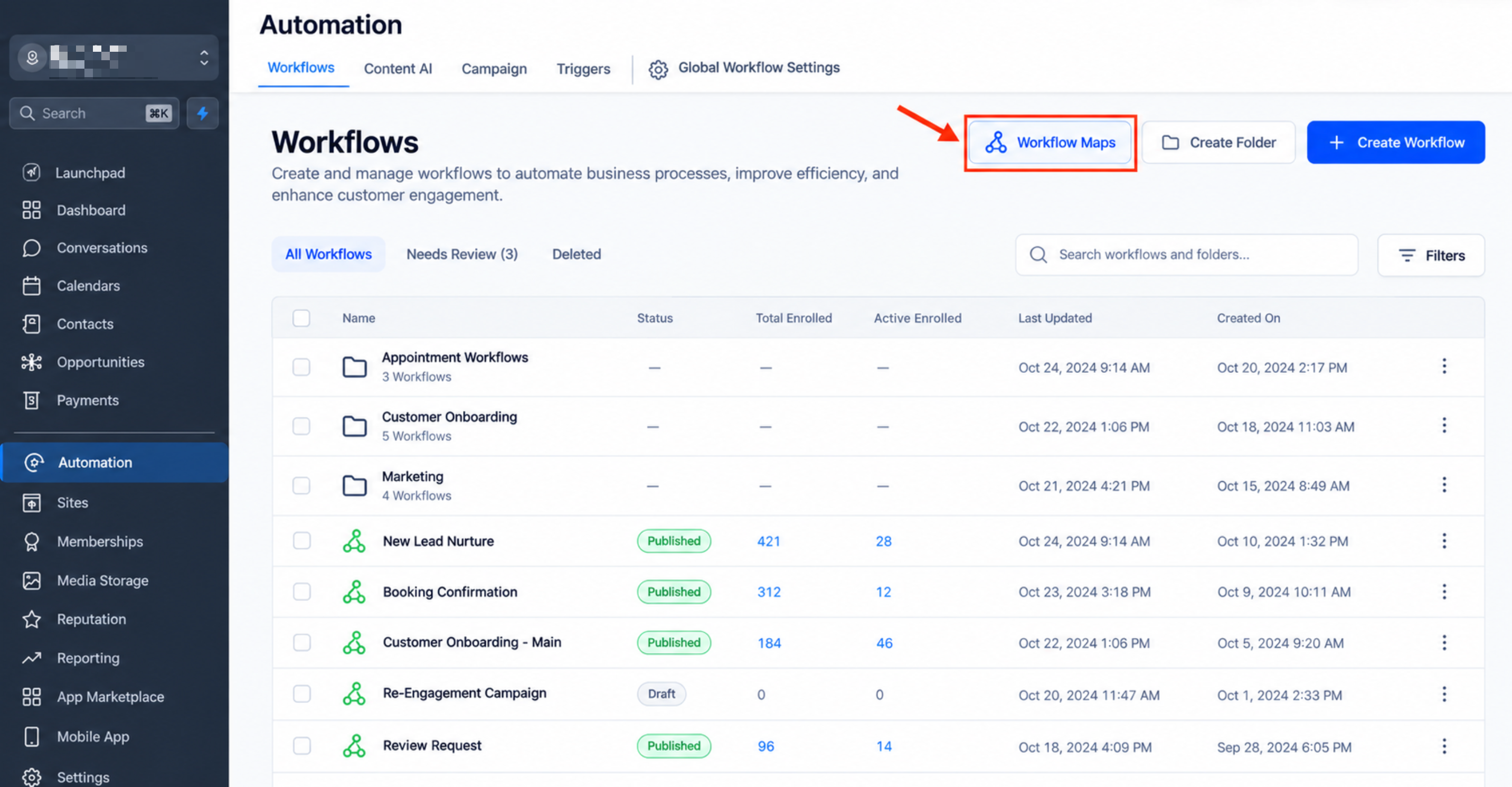
- Navigate to Automation > Workflows.
- Click the Workflow Maps option.
Explore your workflows
- Examine the displayed workflows and folders on the map.
- Activate the Fit control to show the full map view.
- Click a workflow or asset node.
- Read the shown details and see the connected items.
Find specific workflows or assets
- Open the Search field.
- Type the name of the desired workflow, asset, trigger or action.
- Choose the matching result from the list.
- If needed, set filters to narrow the visible portion of the map.
Review connections
- Select the workflow or asset you want to investigate.
- Look at the list of items linked to it.
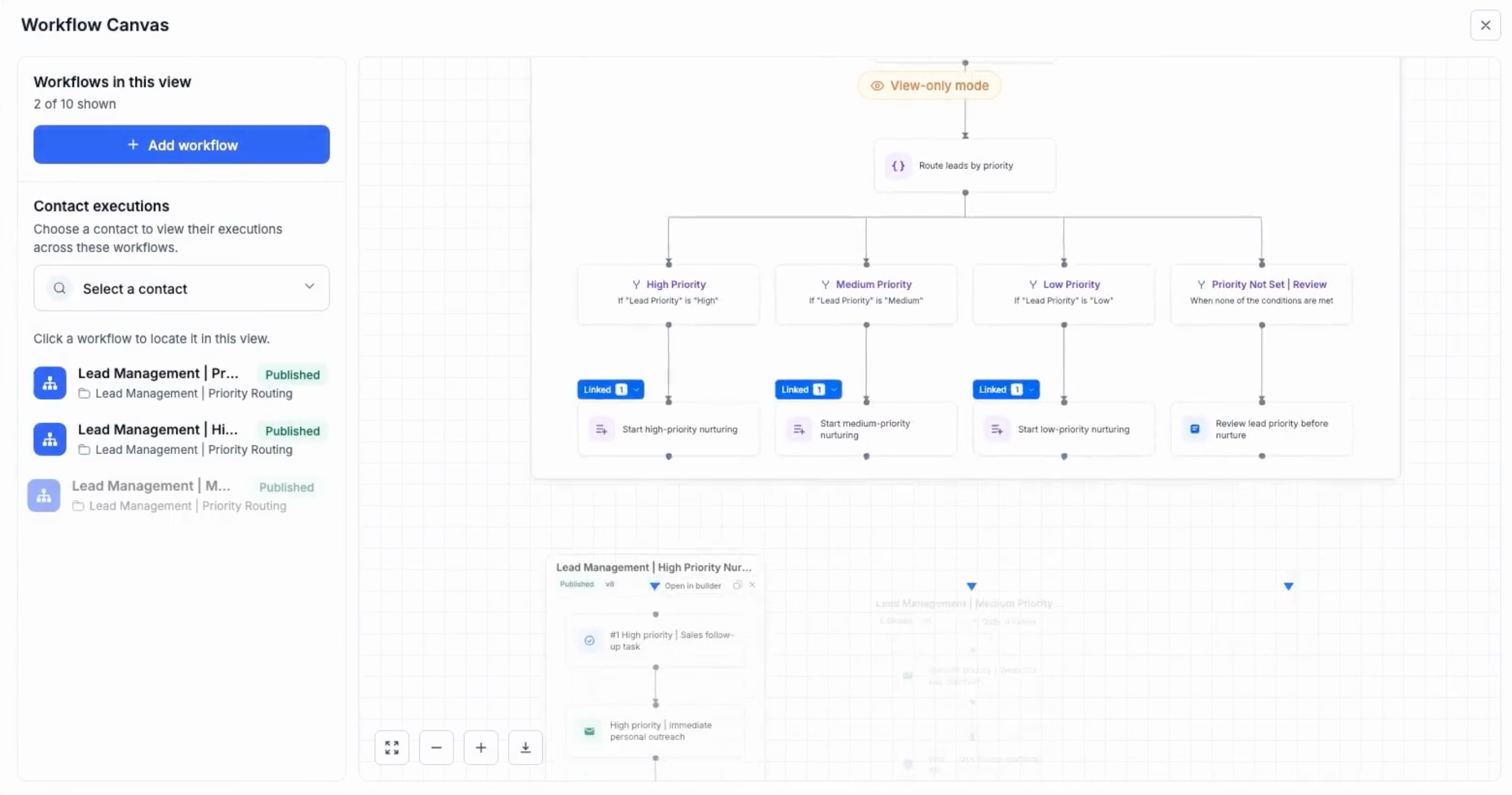
- If a Linked workflows button appears, click it to view related workflows together.
- Open the target workflow in Workflow Builder when you need to edit it.
Investigate a contact journey
- Launch the Contact tracing interface.
- Search for the Contact and select the record.
- View the Contact’s enrollment history across workflows.
- Check any waiting, completed or failed activities shown.
Review errors and cleanup findings
- Apply the error filters or use the error review panel to locate problematic workflows.
- Examine the execution details that caused the error.
- Open the affected workflow in Workflow Builder for correction.
- Open the Cleanup view to see suggested organization tasks.
Get additional help
- Open the Workflow Maps AI assistant if it is present.
- Enter a question about the workflows or assets you are reviewing.
- Refer to onboarding material or the Resources section for more guidance.
07What it looks like in HighLevel
08Settings that matter
- Fit. Adjusts the map view so the entire automation landscape fits within the screen.
- Search. Finds workflows, assets, triggers or actions by name on the map.
- Filters. Limits the displayed elements to those that meet selected criteria.
- Linked workflows. Shows a focused view of workflows that are directly connected to the selected item.
- Error filters. Highlights workflows that have execution failures for further review.
- Cleanup. Identifies potential maintenance items such as default named workflows, unused folders or workflows without recent enrollments.
- AI assistant. Provides answers about map connections, errors and organization when enabled.
09Things to know before you rely on it
- Only agency users and agency admins can view Workflow Maps at launch.
- Access may require Labs activation depending on account settings.
- Each subaccount generates its own map; maps are not shared across subaccounts.
- Marking an error as read removes the notification badge but does not fix the underlying issue.
- Cleanup findings suggest items for review; they do not automatically delete or modify anything.
10If something goes wrong
- A workflow does not appear on the map. Check the active filters and refresh the map data.
- Error badge remains after marking as read. Understand that marking as read only clears the badge; investigate the workflow to resolve the error.
11How it connects to the rest of HighLevel
- Learn the basics of workflow automation in HighLevel Workflow basics
- Explore how to build workflows with triggers, filters and actions Workflow creation guide
- Review pricing options for workflow features and plans HighLevel pricing
Michael's take

People often assume the map will automatically fix broken automations. It only visualizes relationships, so you still have to edit the workflow itself in the builder. I would first use the map to spot dependencies, then open the affected workflow and make the change there.
If I were exploring a new client’s account, I’d start with a quick Fit view, filter out any noisy assets, and then search for the tag or form I plan to adjust. That way I know exactly which automations might be impacted before I touch anything.