
01Who this is for
- Customer support agents, receive automated internal notes that keep them aware of lead status without leaving the conversation view.
- Sales managers, can automatically tag the assigned rep in a comment, ensuring quick follow up on high priority opportunities.
- Marketing coordinators, use internal comments to record campaign details for a contact, preserving context for future outreach.
02Add internal comments, explained
The Add Internal Comment workflow action inserts a private message into the timeline of a contact's conversation. The text you provide appears only to users who have access to the conversation and never reaches the client via SMS or email.
You may include @mentions inside the comment. The system can dynamically tag the contact’s assigned user or any specific team members you select. Mentioned users become followers of the contact and receive notifications according to their personal notification preferences.
The action resides under Communication Actions when editing a workflow. Once saved, it runs each time the workflow trigger fires, posting the comment if the comment field contains any text. Actions without comment text are ignored.
03How businesses use add internal comments
- Real estate brokerage. When a new lead signs up for a property tour, the workflow adds an internal comment like "New tour request. @Assigned User, schedule a showing." The assigned agent receives a notification and can view the note directly in the conversation.
- Dental practice. After a patient misses an appointment, a workflow posts an internal comment stating "Missed visit. Please call to reschedule." Staff members tagged in the comment are alerted through their notification settings.
- Software SaaS company. If a trial user triggers a usage threshold, the workflow creates an internal comment such as "Trial usage high. @Specific User, review for upsell." Multiple team members can be mentioned, and the comment remains private to the internal team.
04How to set up and use add internal comments in HighLevel
Configure Add Internal Comment action in a workflow
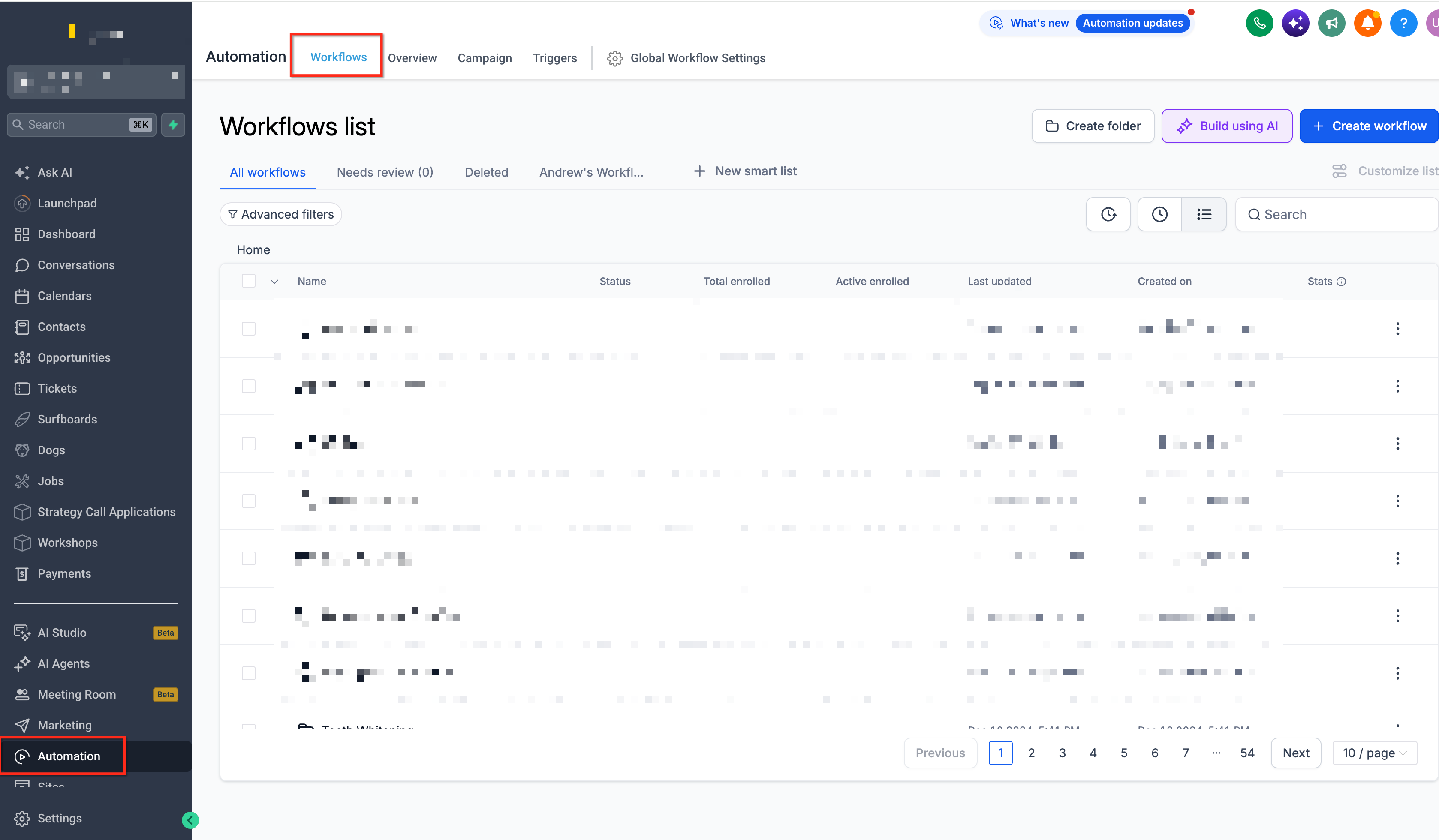
- Open the Workflows section via Automation > Workflows and either start a new workflow or edit an existing one.
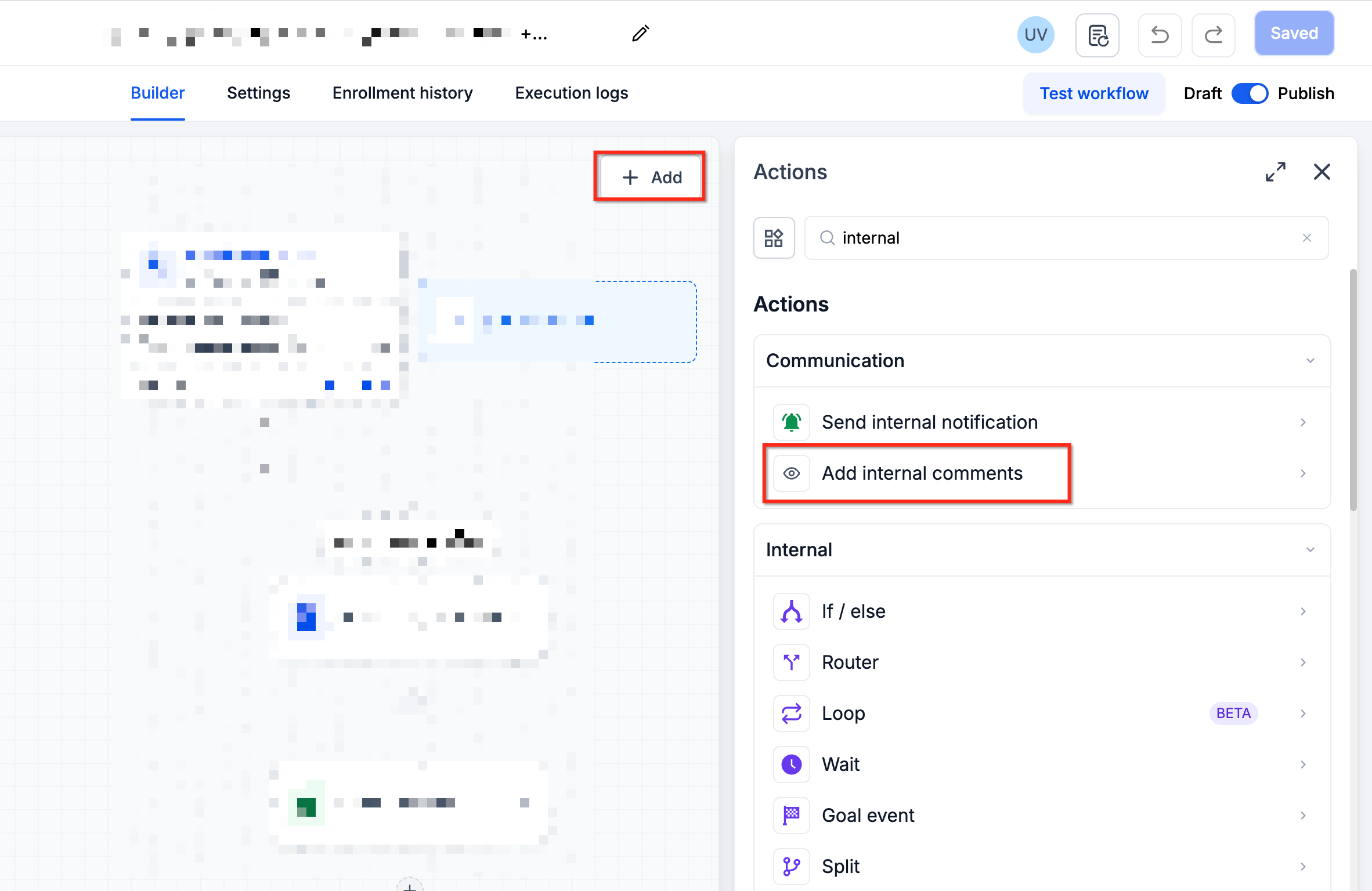
- Click the plus icon to add a new step and choose Add Internal Comments from the Communication Actions list.
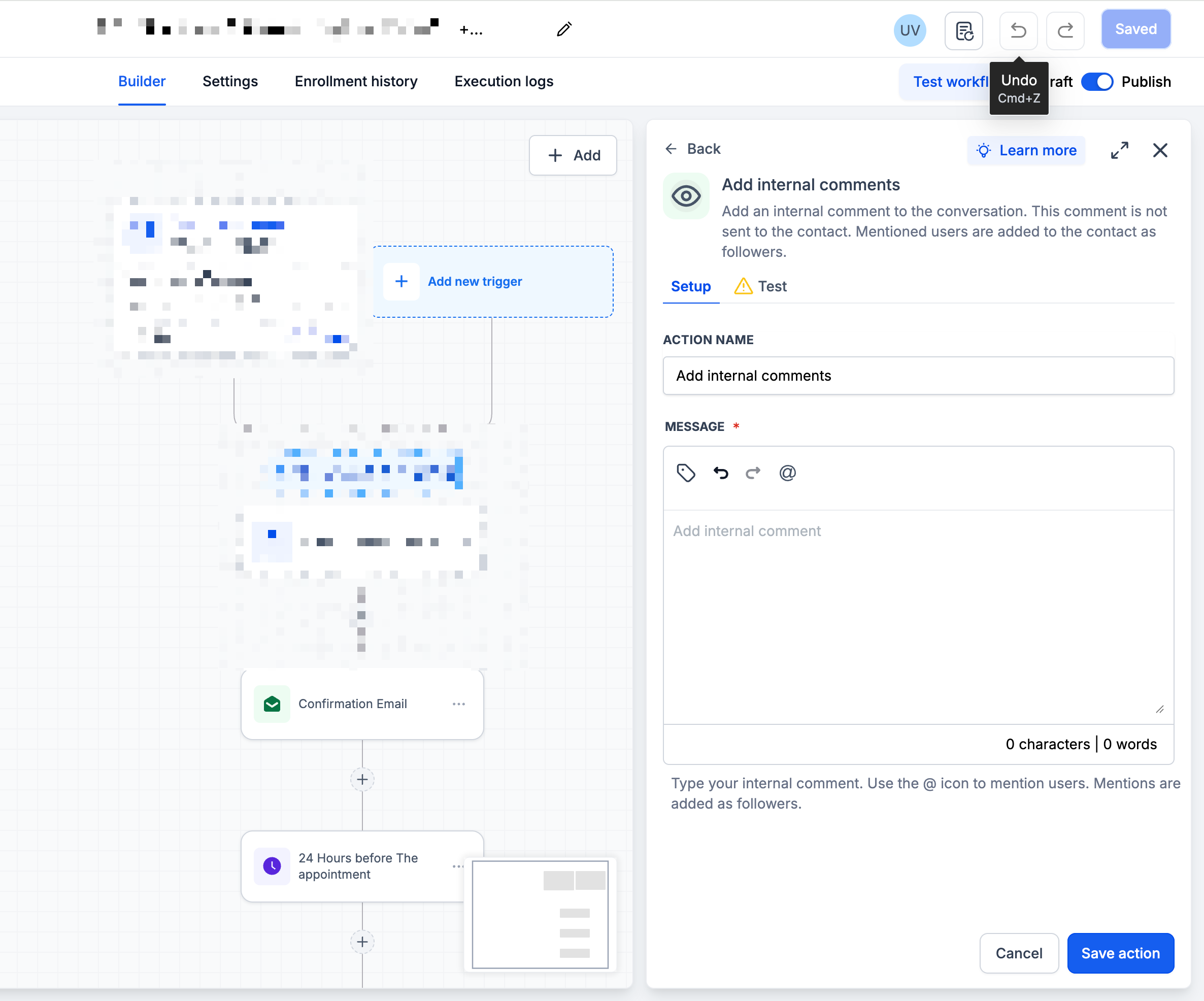
- Type the message you want your team to see in the comment field.
- Select the @ option and choose either Assigned User or Specific User to include mentions.
- Press Save Action to store the step in the workflow.
- Run a test using a sample contact, confirm the comment appears in the conversation, then publish the workflow.
05What it looks like in HighLevel
06Settings that matter
- Notifications. Controls whether mentioned users receive alerts about the internal comment based on their personal notification preferences.
07Things to know before you rely on it
- Comments are visible only to team members; clients never see them.
- Posting a comment does not consume SMS or email credits.
- After posting, a comment cannot be edited or deleted.
- Attachments cannot be added to internal comments.
- If the comment field is empty, the action is skipped.
- Removing a mention later does not automatically unfollow the user.
08If something goes wrong
- Comment does not appear in the conversation. Verify that the comment field contains text; actions with empty text are ignored.
- No mention notification received. Check the mentioned user's notification settings under Settings > My Profile > Notifications.
- Assigned User mention is missing. Ensure the contact has an assigned user; otherwise the Assigned User option is omitted.
09How it connects to the rest of HighLevel
- Explore other communication actions such as adding notes to records. Related workflow actions
- Learn how to use the Conversation AI actions to automate replies after internal notes. Conversation AI actions
- Read the introduction to HighLevel workflows for basics and setup details. Workflow basics
- Check the pricing tiers for the Workflow Pro plan if you need advanced automation features. Workflow Pro pricing
Michael's take

I find internal comments useful for keeping the team aligned.