
01Who this is for
- Anyone building a workflow can use Number Formatter to clean and standardize numeric data.
- Team members who need consistent numeric fields for reporting or communications can rely on this action.
02Number Formatter, explained
The Number Formatter action lives inside the workflow builder. It lets you manipulate numeric data at several points in an automation. You can change a text string that looks like a price into a true number, adjust how a number appears, reformat phone numbers, apply locale specific currency symbols, or create a random value.
Each sub action is selected by setting the Action Type field. After that you point the action at a field that contains the source data and fill in the required settings such as the input decimal mark, desired output format, country code, currency type or range limits. The result of the action is stored in a new field that you name.
You access the action when building a workflow by adding an action, choosing Number Formatter, and then configuring the appropriate settings for the chosen task.
03How businesses use the Number Formatter
- Ecommerce store. The store adds a Number Formatter action set to Text to Number to turn price strings received from checkout forms into numeric values, then uses Format Currency to apply the store's locale before sending receipt emails.
- Real estate agency. Agents include a Format Phone Number action that converts incoming lead phone numbers to the E.164 standard, ensuring all outbound calls use a consistent format across the team.
- Fitness studio. When a member books a class, the studio runs a Random Number action to generate a unique discount code within a defined numeric range for promotional emails.
04The numbers and rules that matter
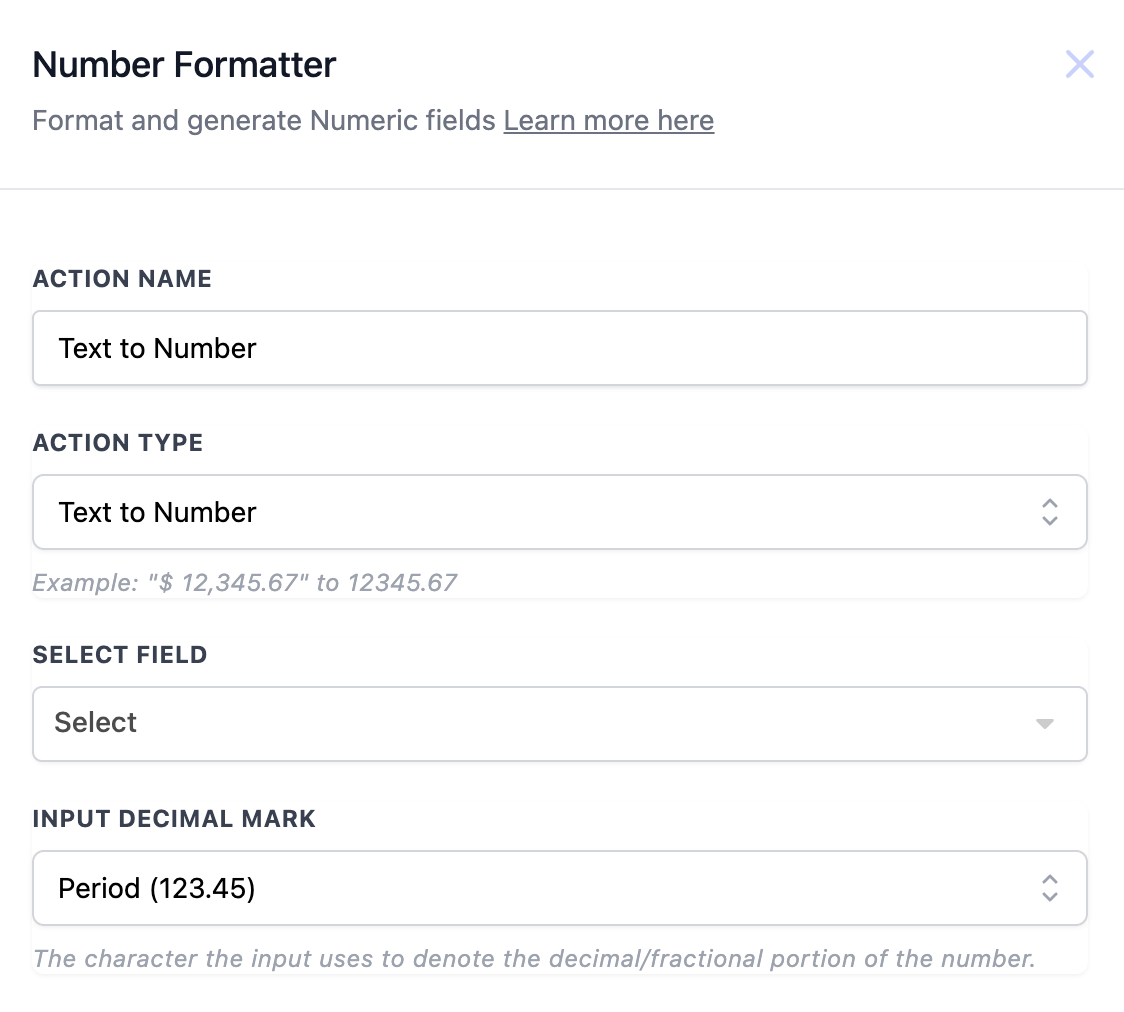
- Converts "$12,345.67" to 12345.67 (per HighLevel's help center, checked November 2026).
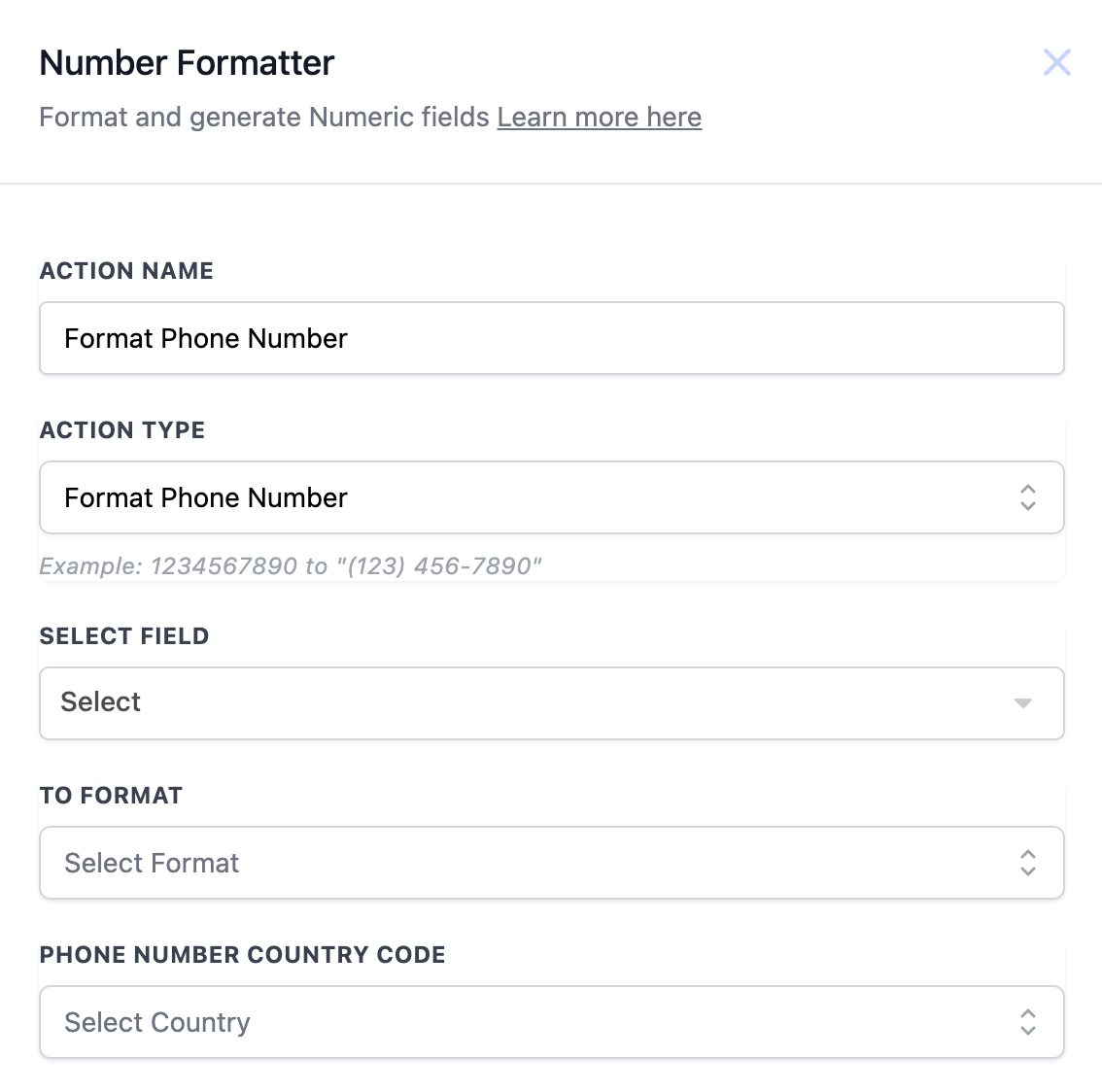
- Standardises phone numbers (e.g., (123) 456-7890 or E.164).
05How to set up and use the Number Formatter in HighLevel
Convert text representation of a number to a numeric value
- Add a Number Formatter action and give it a custom Action Name.
- Set the Action Type to Text to Number.
- Select the field that holds the textual number.
- Enter the Input Decimal Mark that appears in the source text.
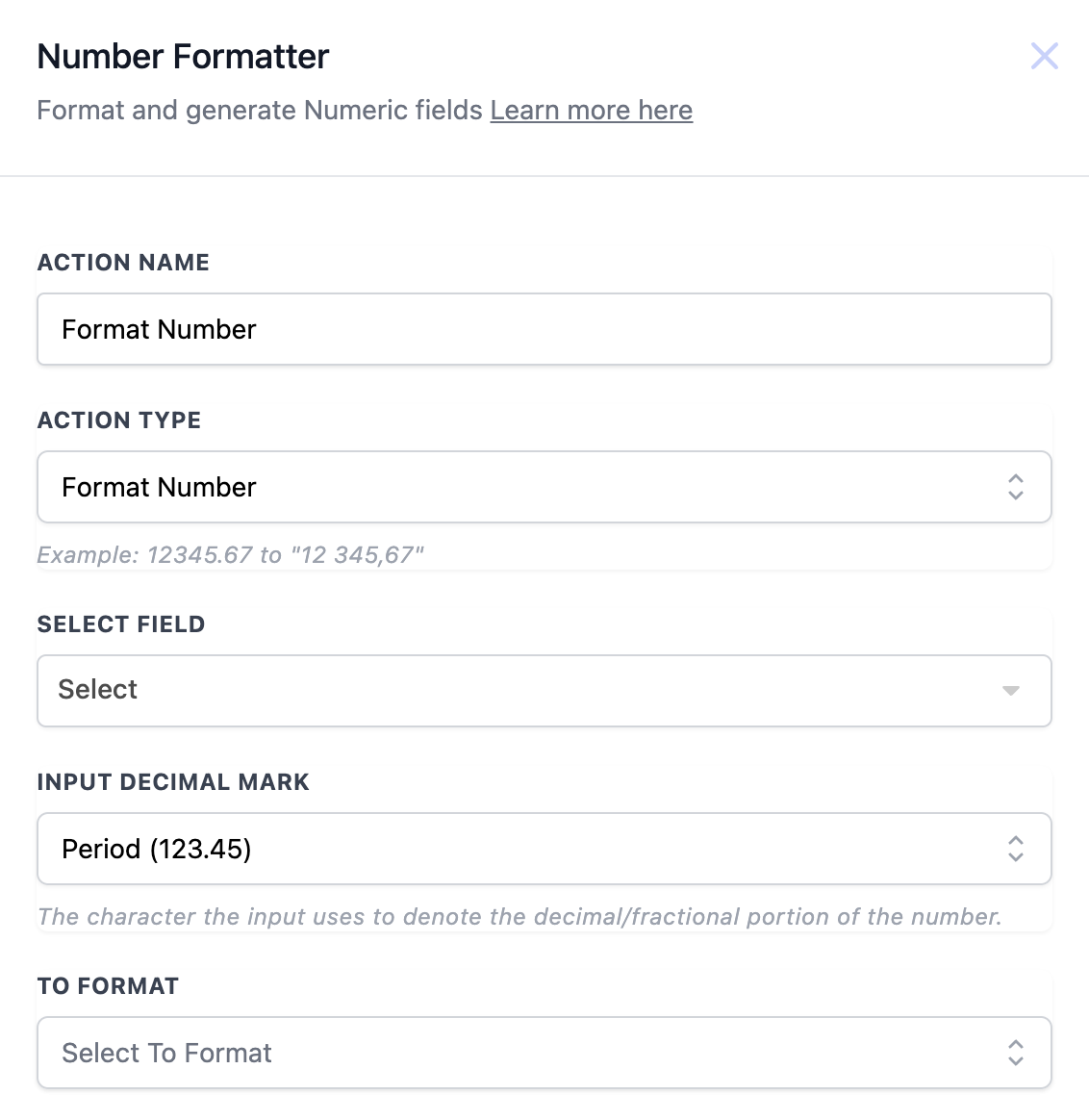
Format a number with specific separators
- Add a Number Formatter action and assign an Action Name.
- Choose Action Type as Format Number.
- Select the field containing the original number.
- Specify the Input Decimal Mark used in that number.
- Enter the desired output format in the To Format field.
Standardise a phone number format
- Add a Number Formatter action and set an Action Name.
- Select Action Type as Format Phone Number.
- Choose the field that contains the phone number.
- Pick the required format (for example E.164) in the To Format setting.
- Provide the Phone Number Country Code for the number.
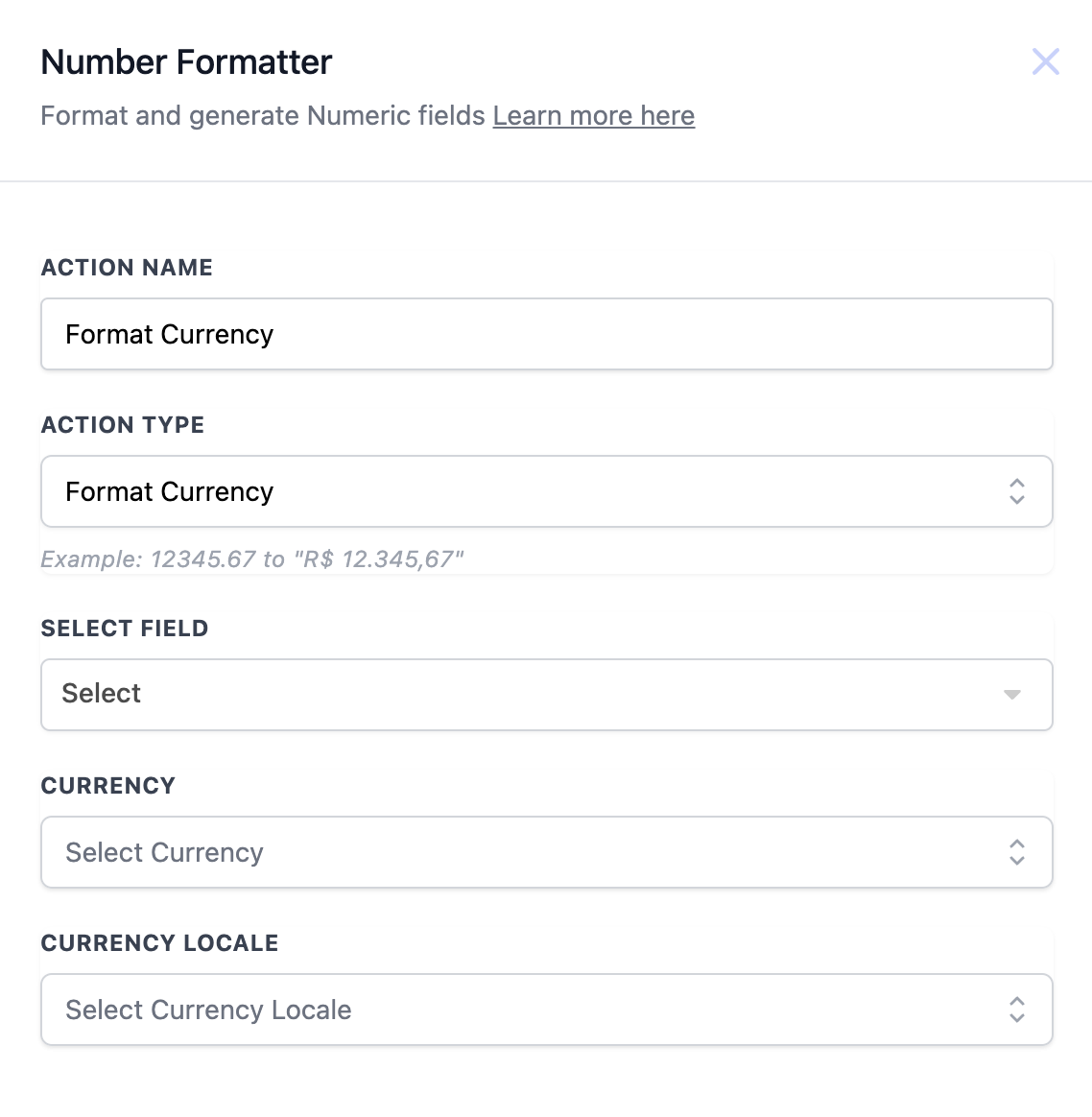
Apply locale aware currency formatting
- Add a Number Formatter action and name it.
- Set Action Type to Format Currency.
- Select the field that holds the numeric amount.
- Choose the Currency type such as USD or EUR.
- Select the Currency Locale like en US to define formatting.
Generate a random number within a range
- Add a Number Formatter action and give it an Action Name.
- Set the Action Type to Random Number.
- Enter the Lower Range value for the random number.
- Enter the Upper Range value for the random number.
- Optionally, set the number of Decimal Points allowed.
06What it looks like in HighLevel
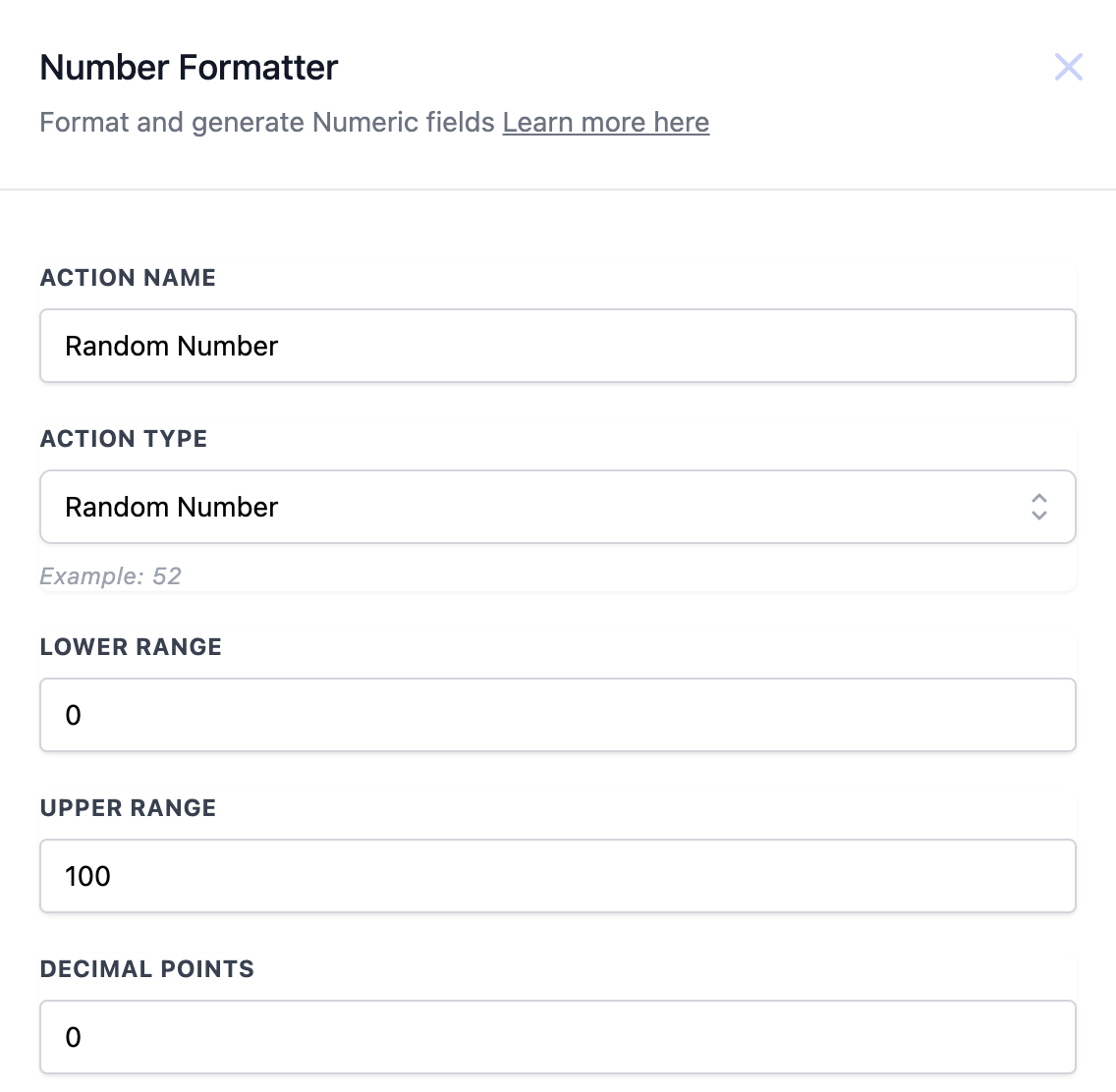
07Settings that matter
- Action Name. The identifier you assign to the action; it appears in the workflow for reference.
- Action Type. Specifies which formatting function the action will perform, such as Text to Number or Format Currency.
- Select Field. The field that contains the source data the action will read and transform.
- Input Decimal Mark. Defines the character used for decimals in the incoming value, for example a period or comma.
- To Format. The desired output pattern for the number, phone number, or other formatted value.
- Phone Number Country Code. Indicates the country context used when reformatting a phone number.
- Currency. The type of currency to apply, such as USD or EUR, when formatting a value.
- Currency Locale. The regional setting that determines currency symbols, separators and ordering.
- Lower Range. The smallest value that can be produced by the Random Number action.
- Upper Range. The largest value that can be produced by the Random Number action.
- Decimal Points. Optional setting that limits how many digits appear after the decimal point in a random number.
08Things to know before you rely on it
- Decimal Points is optional for the Random Number action; if left blank the generated number will have no decimal portion.
09How it connects to the rest of HighLevel
- Get an overview of building automations with HighLevel workflows. Workflow basics
- See how the Date/Time Formatter action works, a similar formatting tool. Date/time formatter
- Review plan options to ensure the Number Formatter action is available for your subscription. Pricing
Michael's take

When you’re pulling in payment info from forms or need receipts that look professional, Number Formatter is handy for turning strings like "$12,345.67" into clean numbers and then formatting them as currency.
If your workflow rarely deals with raw numeric strings or you already have external tools handling formatting, the feature may add little value.