
01Who this is for
- Marketing managers who need consistent date formats for email campaigns, ensuring all dates appear the same to recipients.
- Appointment coordinators who handle booking timestamps and must present them in a readable form for reminders.
- Event organizers who compare registration dates with event dates to trigger timely follow up actions.
02Date/Time Formatter, explained
The Date/Time Formatter action lives within the workflow builder. It offers three modes: formatting a date alone, formatting both date and time, and comparing two dates. Each mode requires you to specify the source field, its current pattern, and the target pattern or comparison settings.
When you select a mode, the action reads the input value, applies the defined pattern, and outputs the transformed string for downstream actions. For comparisons, the action evaluates which of the two dates is earlier, later, or if they match, allowing you to branch the workflow based on that result.
All supported patterns are listed in the article’s format table, ranging from simple numeric styles like YYYY MM DD to full textual representations such as "December 21st, 2023" and Unix timestamps.
03How businesses use date/Time Formatter
- Digital marketing agency. The agency creates a workflow that receives a lead form submission. It adds a Date/Time Formatter action to convert the submission date from MM/DD/YYYY to YYYY MM DD, then includes the standardized date in a follow up email.
- Medical clinic. The clinic sets up an appointment created trigger. It uses the Format Date and Time action to turn the Unix timestamp of the appointment into a readable MM DD YYYY HH format for SMS reminders.
- Conference organizer. The organizer builds a registration workflow. A Compare Dates action checks if the registrant’s sign up date is within three days of the event date, then sends a reminder if the condition is true.
04The numbers and rules that matter
- Supported formats: YYYY MM DD, MM DD YYYY, MM/DD/YYYY, MM/DD/YY, DD MM YYYY, DD/MM/YYYY, DD/MM/YY, DD MMM YYYY, D MMMM YYYY, MMMM D, YYYY, MMM DD, YYYY, MMMM Do YYYY, X (Unix Timestamp).
05How to set up and use date/Time Formatter in HighLevel
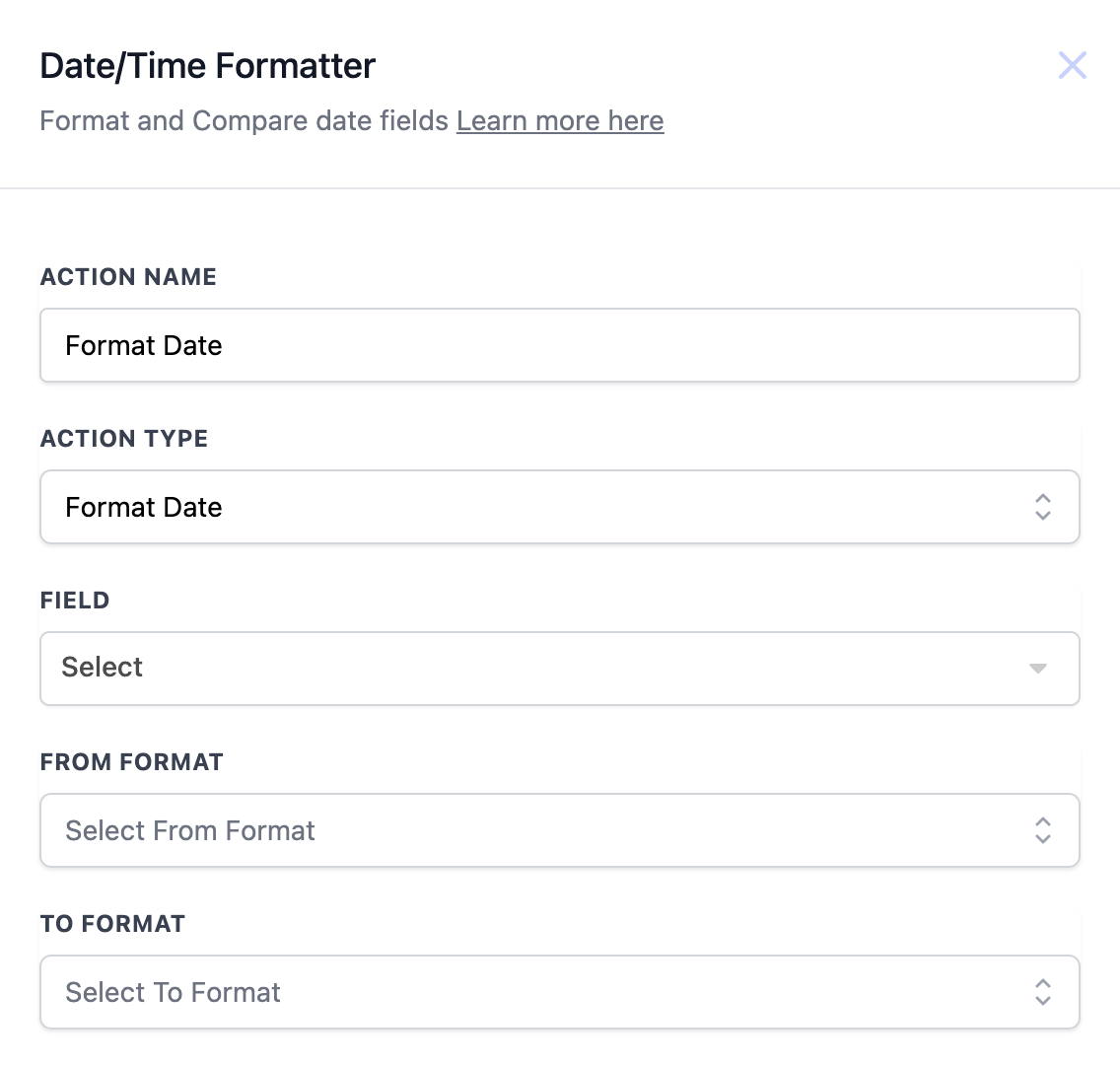
Format a date field
- Open the workflow editor and add a new action.
- Enter a unique name for the action.
- Select the Action Type called Format Date.
- Choose the date field you want to reformat.
- Define the field’s current pattern in the From Format box.
- Set the desired output pattern in the To Format box.
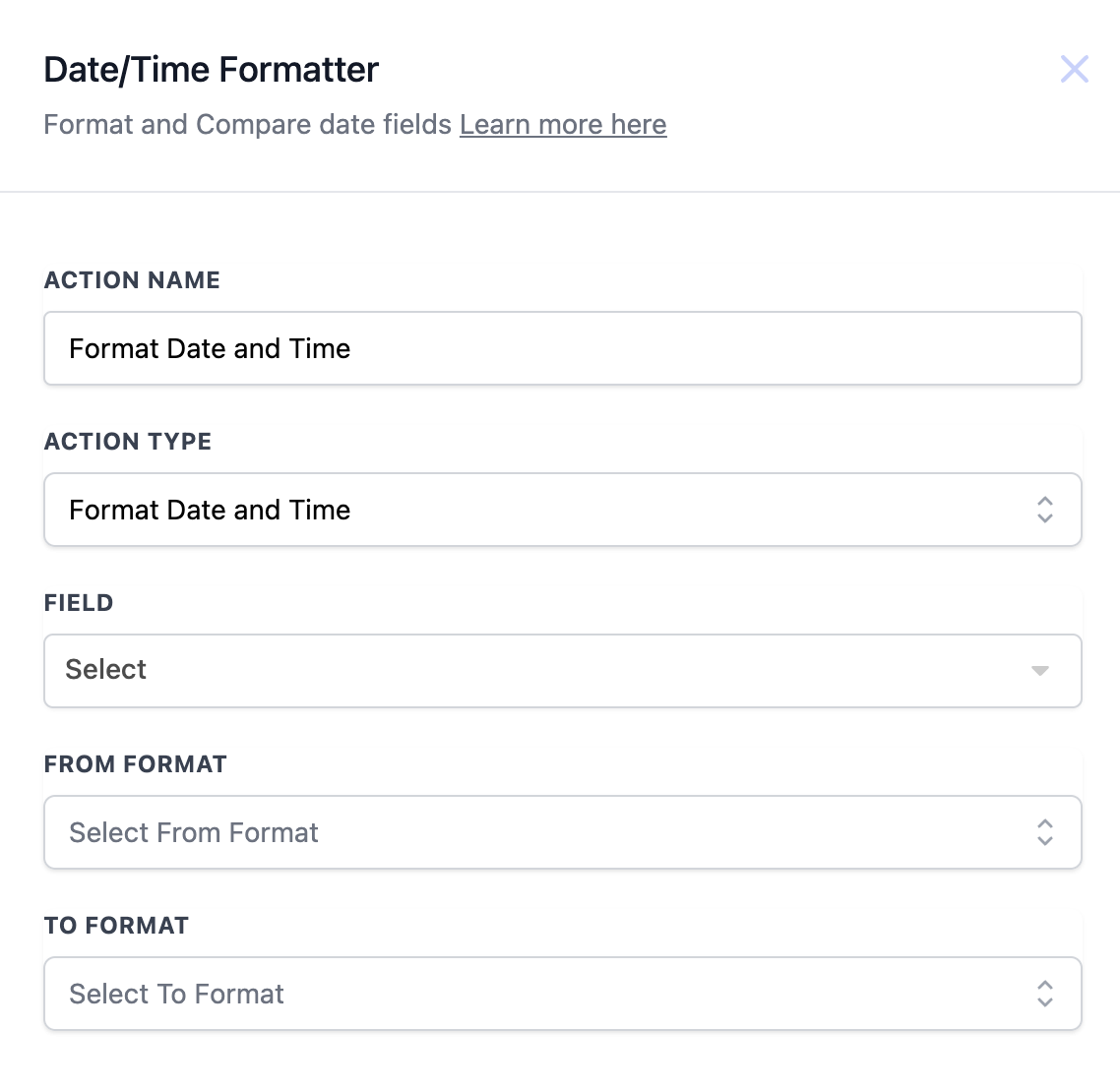
Format a date and time field
- Add a new action to the workflow.
- Provide a distinct Action Name.
- Pick the Action Type labeled Format Date and Time.
- Select the field that contains both date and time.
- Enter its existing pattern in From Format.
- Specify the new pattern in To Format.
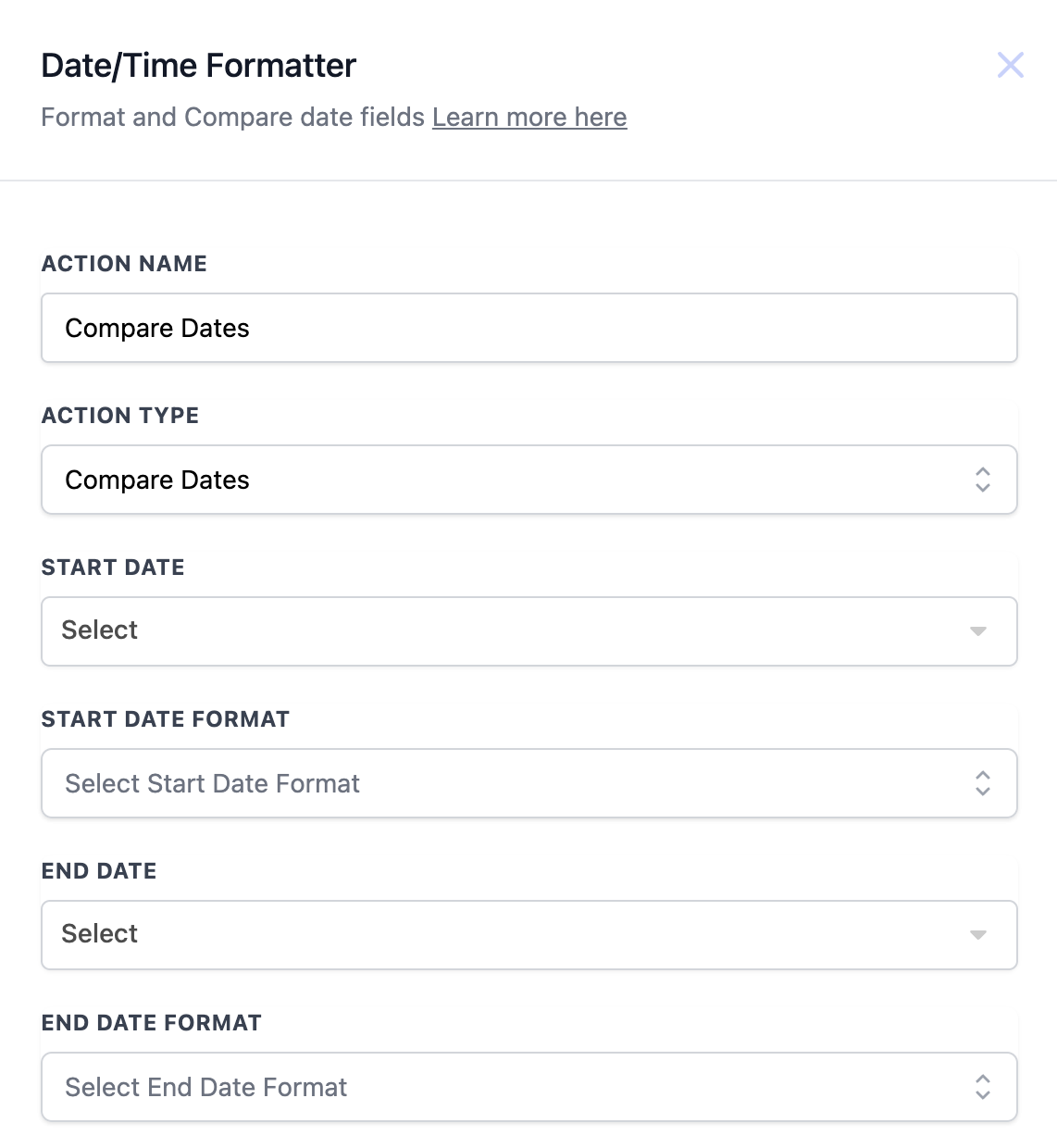
Compare two dates
- Insert a new action into the workflow.
- Give the action a clear Action Name.
- Choose Action Type Compare Dates.
- Select the first date field as Start Date.
- State its format in Start Date Format.
- Select the second date field as End Date.
- Enter its format in End Date Format.
06What it looks like in HighLevel
07Settings that matter
- Action Name. The identifier you assign to this specific workflow action.
- Action Type. Determines whether the action formats a date, formats date and time, or compares dates.
- Field. The date field that will be formatted when using Format Date or Format Date and Time.
- From Format. The pattern that matches the current representation of the date or date time field.
- To Format. The pattern you want the field to be converted into after the action runs.
- Start Date. The first date field used in a comparison.
- Start Date Format. The pattern describing how the Start Date is currently formatted.
- End Date. The second date field used in a comparison.
- End Date Format. The pattern describing how the End Date is currently formatted.
08Things to know before you rely on it
- Only the date and time formats listed in the article’s format table are supported.
- The action does not handle custom or locale specific patterns beyond those listed.
09How it connects to the rest of HighLevel
- Workflow automation basics and setup guide Workflow basics
- How to use the Number Formatter workflow action Number formatter
- HighLevel pricing and plans overview Pricing
Michael's take

Date/Time Formatter feels like a small convenience that can prevent manual cleanup. Converting dates once inside a workflow keeps reports tidy and avoids extra code later. A medical office that books appointments through an online form will appreciate turning the raw timestamp into a human readable date for reminder texts.