
01Who this is for
- Service businesses that rely on appointments can stop extra bot chatter once a slot is booked.
- Coaches and consultants can launch onboarding workflows the moment a client confirms a session.
- Support teams can prevent duplicate booking messages by putting the bot to sleep during the appointment window.
02Conversation AI postappointment booking actions, explained
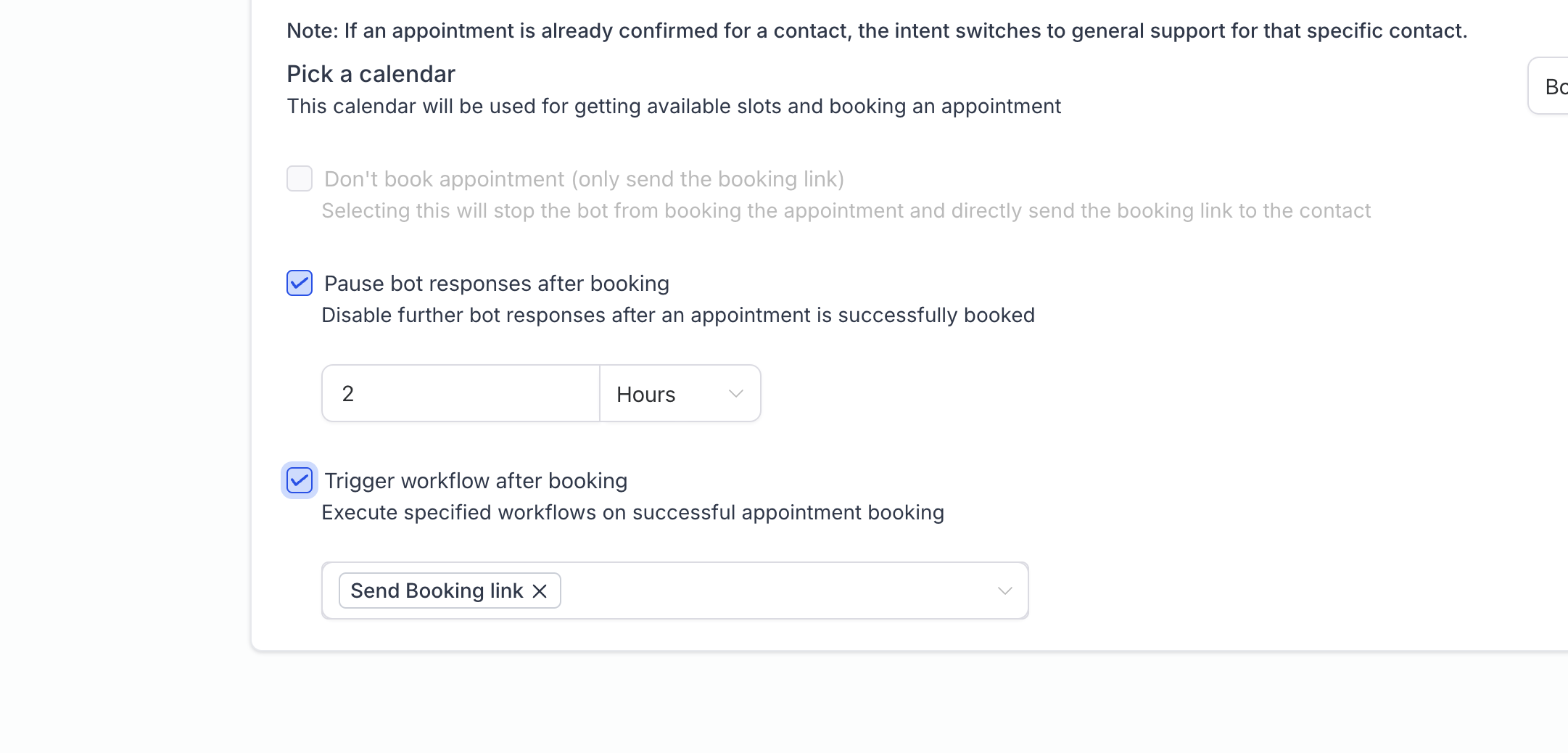
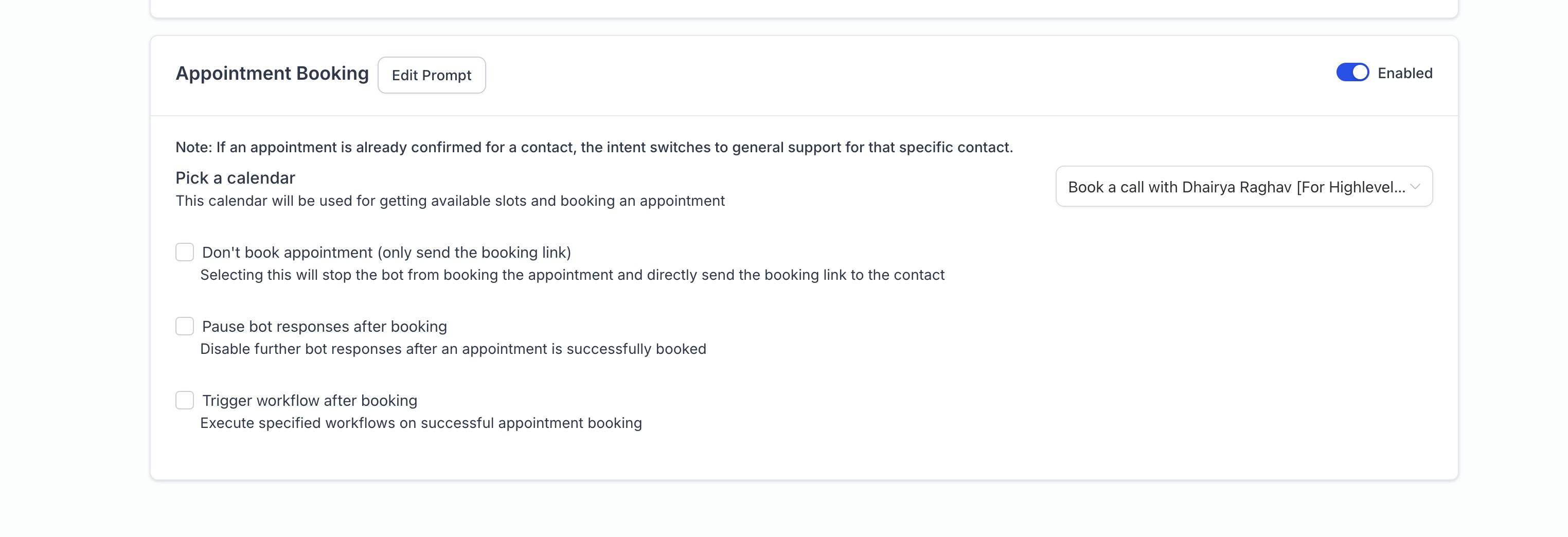
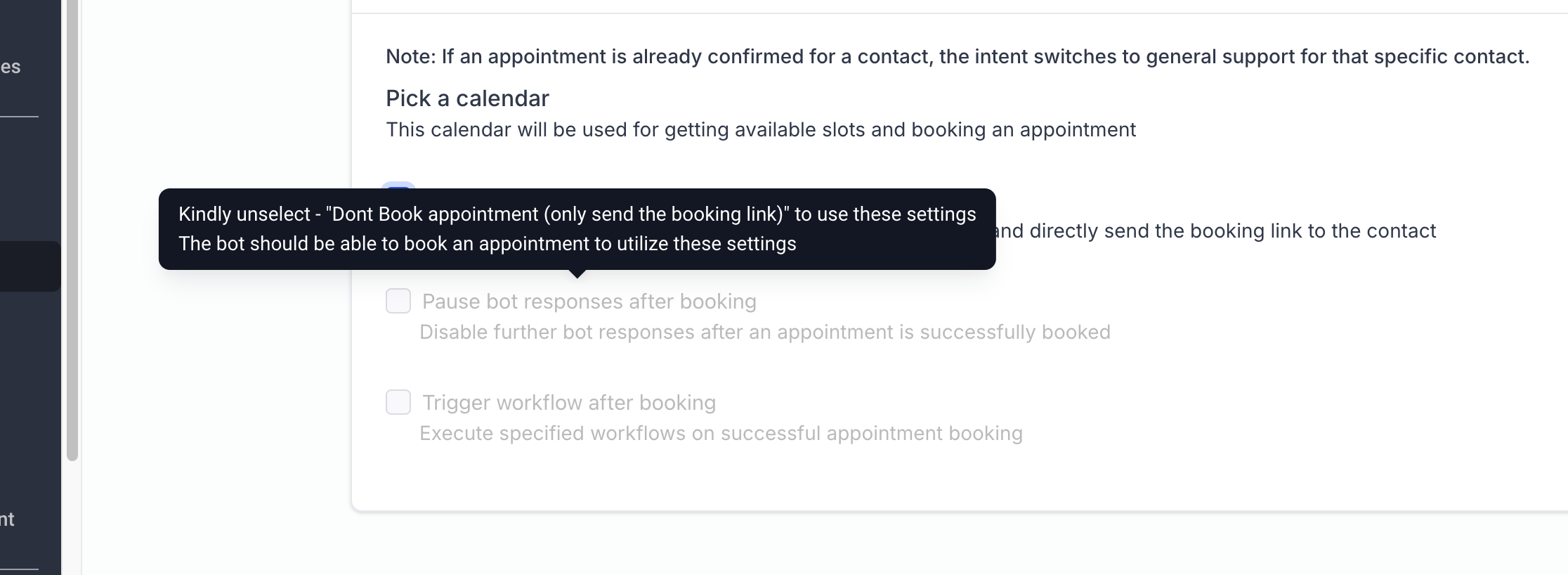
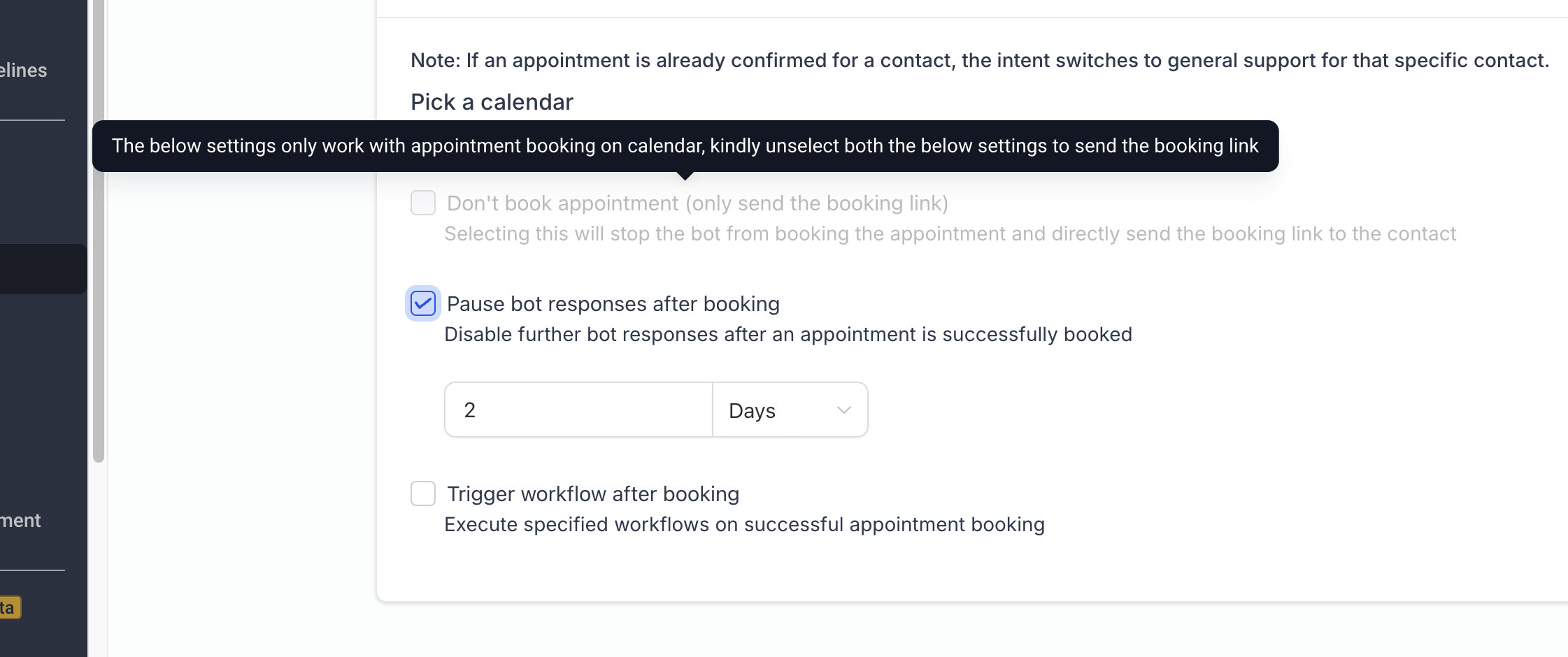
The feature adds two toggles inside the Appointment Booking configuration of Conversation AI. The first toggle, Put the Bot to Sleep, lets you define how long the bot stays silent after a booking, preventing further automated replies. The second toggle, Trigger Workflows, provides a dropdown where you can select one or more workflows that should start immediately after the appointment is confirmed. Both toggles are optional and can be enabled together, giving you full control over post booking interactions within the HighLevel environment.
03How businesses use Conversation AI postappointment booking actions
- Health clinic. The clinic enables Put the Bot to Sleep after a patient books a visit, ensuring the bot does not send follow up prompts during the waiting period, and selects a patient intake workflow to start automatically.
- Financial advisory firm. The firm activates the bot sleep setting after a prospect schedules a consultation, avoiding redundant reminders, and then triggers a workflow that sends a personalized welcome email and a pre meeting questionnaire.
- Home repair service. The service turns on bot sleep after a homeowner books a repair slot, preventing extra chat messages, and chooses a workflow that creates a service ticket and notifies the assigned technician.
04Before you start
- Create any workflows you want to trigger in advance, because the Trigger Workflows dropdown only lists existing workflows.
05What it looks like in HighLevel
06Settings that matter
- Put the Bot to Sleep. Controls how long the Conversation AI remains inactive after an appointment is booked.
- Trigger Workflows. Allows selection of one or more workflows that start automatically once a booking is confirmed.
07Things to know before you rely on it
- Both settings can be enabled at the same time, offering a combined configuration.
08How it connects to the rest of HighLevel
- Learn about all Conversation AI workflow actions Conversation AI actions
- Get started with workflow automation basics Workflow basics
- Understand how to create workflows with triggers, filters, and actions Workflow creation guide
Michael's take

Wondering if you really need to pause your bot after a booking? The sleep option makes sense when you don’t want the bot to keep chatting while the client is already scheduled, and the workflow trigger lets you automate follow up steps without manual effort.
If I were setting this up, I’d first enable the bot sleep timer just long enough to avoid overlapping messages, then link a confirmation workflow so every new appointment fires the same process automatically.