
01Who this is for
- Marketing managers can automate lead qualification by asking targeted questions and routing prospects without manual handling.
- Customer support teams can use the action to gather initial issue details and direct tickets to the appropriate queue.
- Sales directors can set up multi turn AI dialogs that qualify opportunities before handing them to a salesperson.
02Conversation AI workflow actions, explained
The Conversation AI action inserts an AI powered messaging step into any workflow. When the workflow reaches the step, the platform sends the configured question through the selected channel and pauses execution while it waits for a reply.
If the contact answers, the AI uses the provided Personality, Additional Instructions and conversation history to generate a response. The action can repeat this exchange until a custom branch condition matches, the contact exceeds the Timeout, or the Bot responses limit is hit.
The action lives inside Automations > Workflows. It appears as a single block where you can set the question, channel, Timeout, response limits and routing branches.
The built in branches Time Out and No Condition Met are always present and cannot be removed. Custom branches let you define specific paths based on reply content.
03How businesses use Conversation AI workflow action
- Real estate agency. The agency creates a workflow that uses Conversation AI to ask a prospect about budget and location preferences. Based on the reply, the workflow routes the lead to a buying interest or renting interest branch, allowing agents to focus on qualified prospects.
- Online fitness studio. The studio sets up a Conversation AI step to confirm class availability after a user books a session. The AI replies with available times, and the workflow moves the member to a confirmation branch or a follow up branch if no suitable slot is found.
- Dental practice. The practice adds a Conversation AI action to ask new patients if they need appointment reminders. Depending on the answer, the workflow either schedules reminder messages or skips that step, keeping communication relevant.
04The numbers and rules that matter
- Supported channels: SMS, Facebook, Instagram, WhatsApp, Live Chat.
- Bot responses limit controls how many AI messages this action can send.
05Before you start
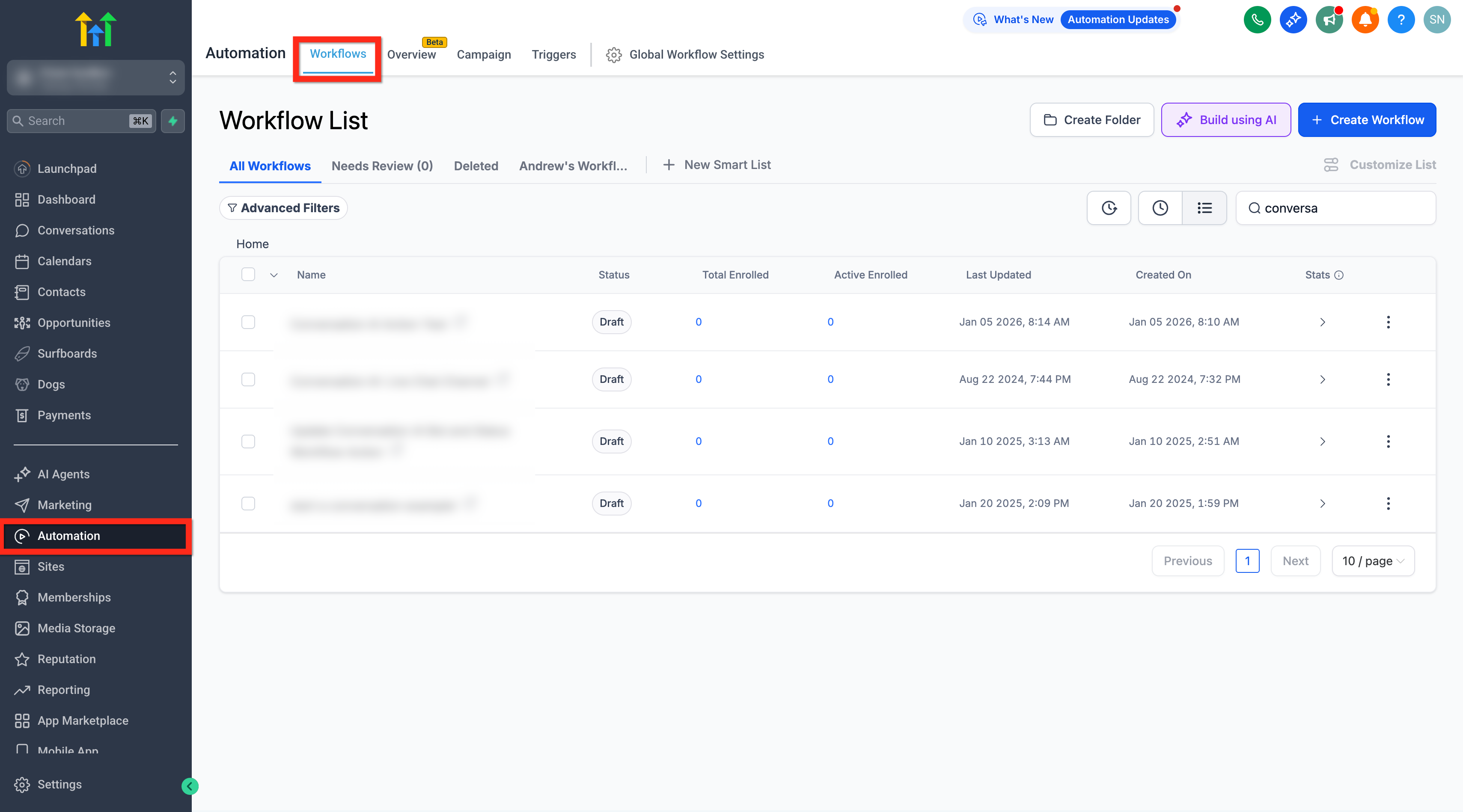
- Access the appropriate subaccount and open Automations > Workflows.
- Create or locate the workflow where the AI conversation will occur.
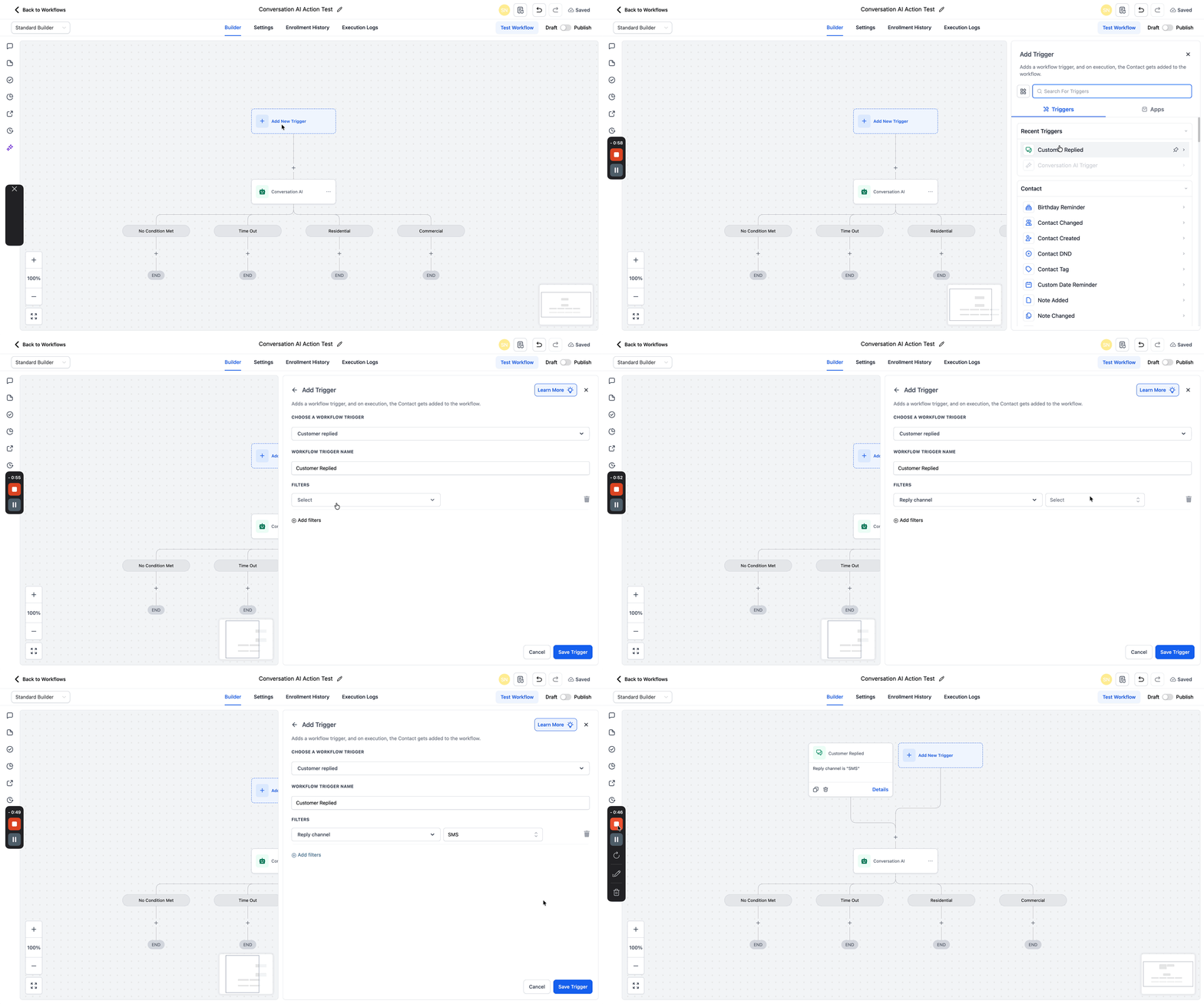
- Set up a trigger that matches the event you want to start the automation.
- Confirm that the chosen communication channel (SMS, Facebook, Instagram, WhatsApp, Live Chat) is enabled for the workflow.
- Plan the custom branch outcomes and decide how to handle no reply or unmatched conditions.
06How to set up and use Conversation AI workflow action in HighLevel
Set up Conversation AI workflow action
- Log in to the chosen subaccount.
- Open Automations > Workflows.
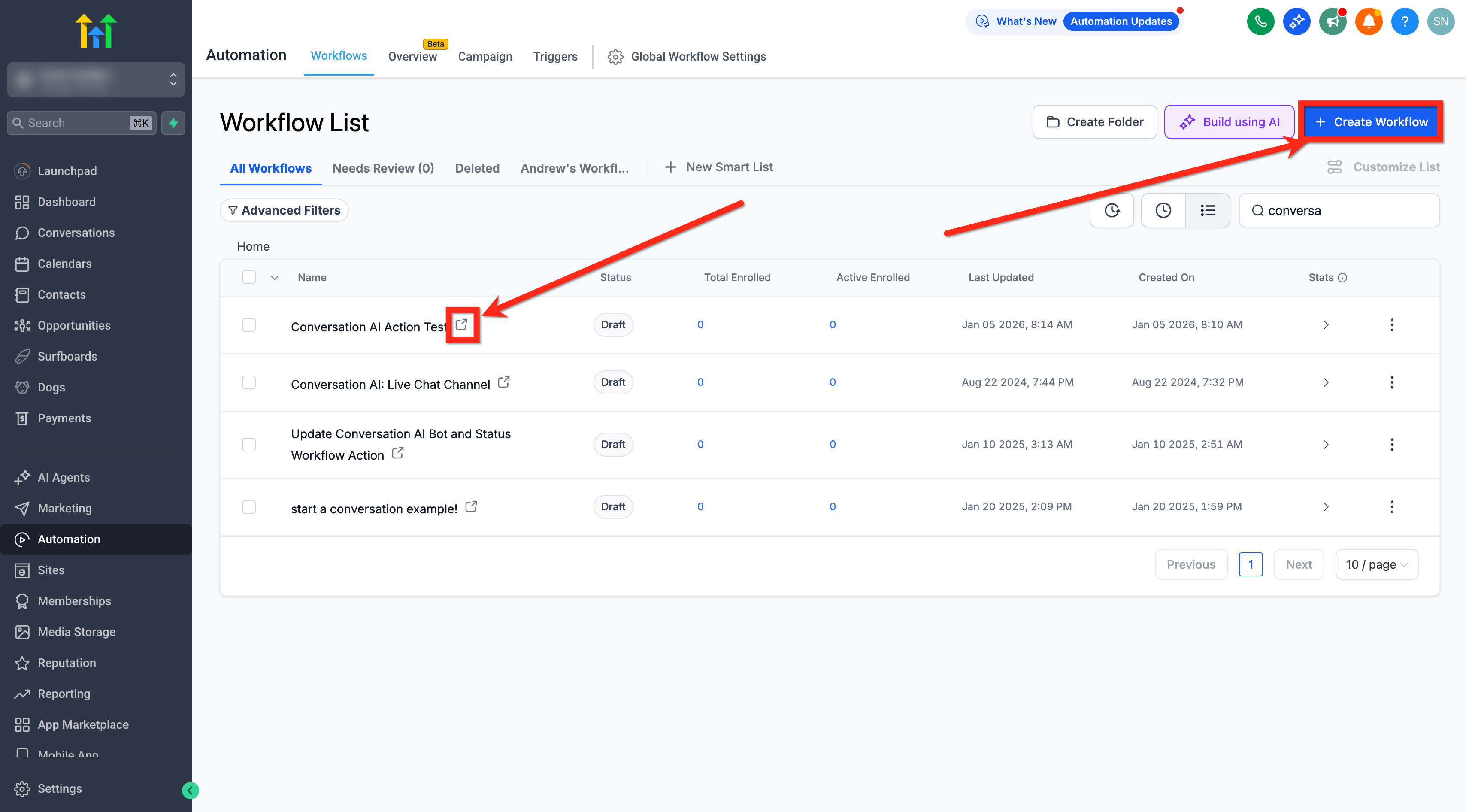
- Create a new workflow or edit an existing one.
- Add or modify the trigger that enrolls contacts.
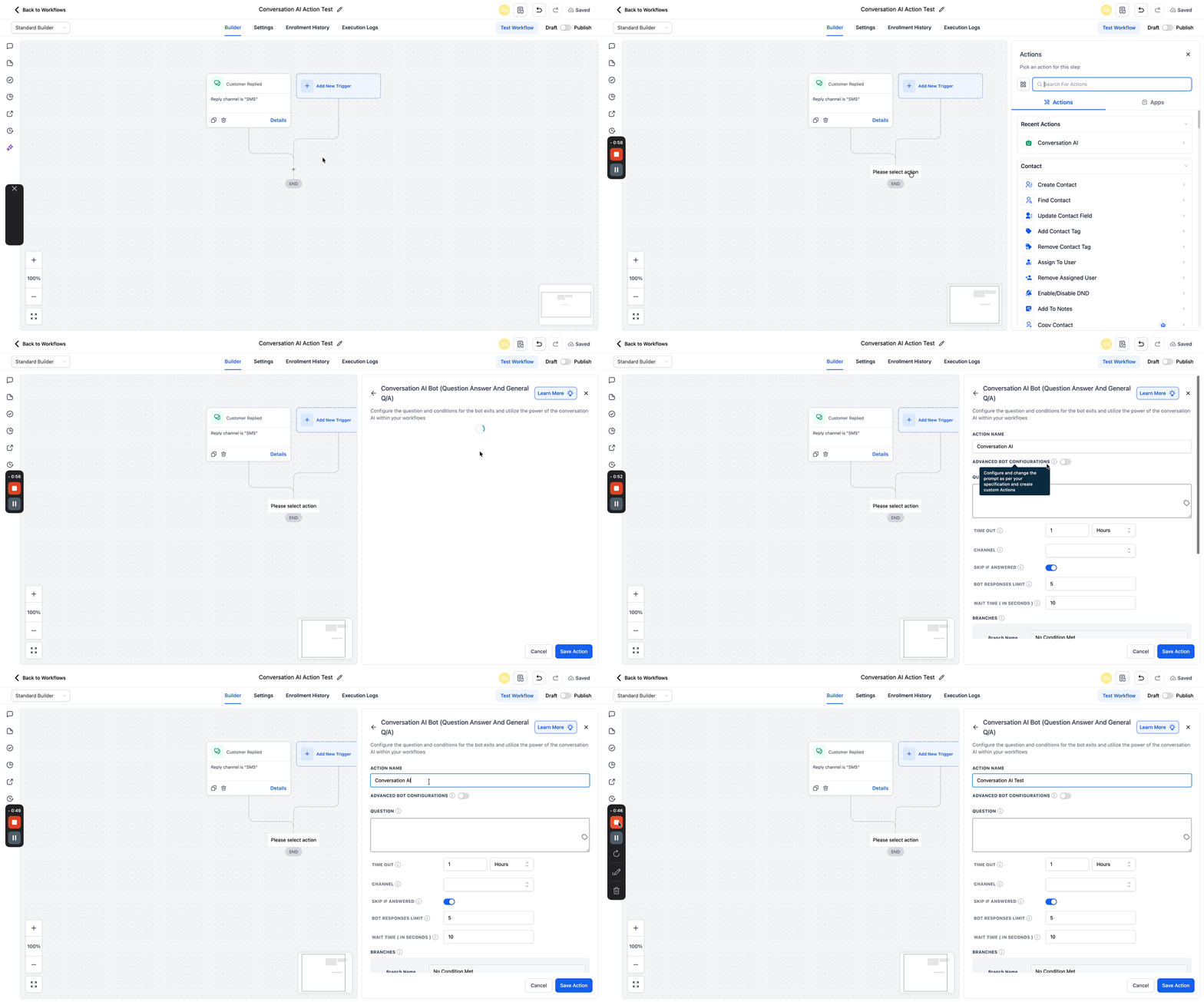
- Click the + icon on the canvas where the action will be placed.
- Search for “Conversation AI”.
- Select the Conversation AI action from the results.
- Assign a clear name to the action.
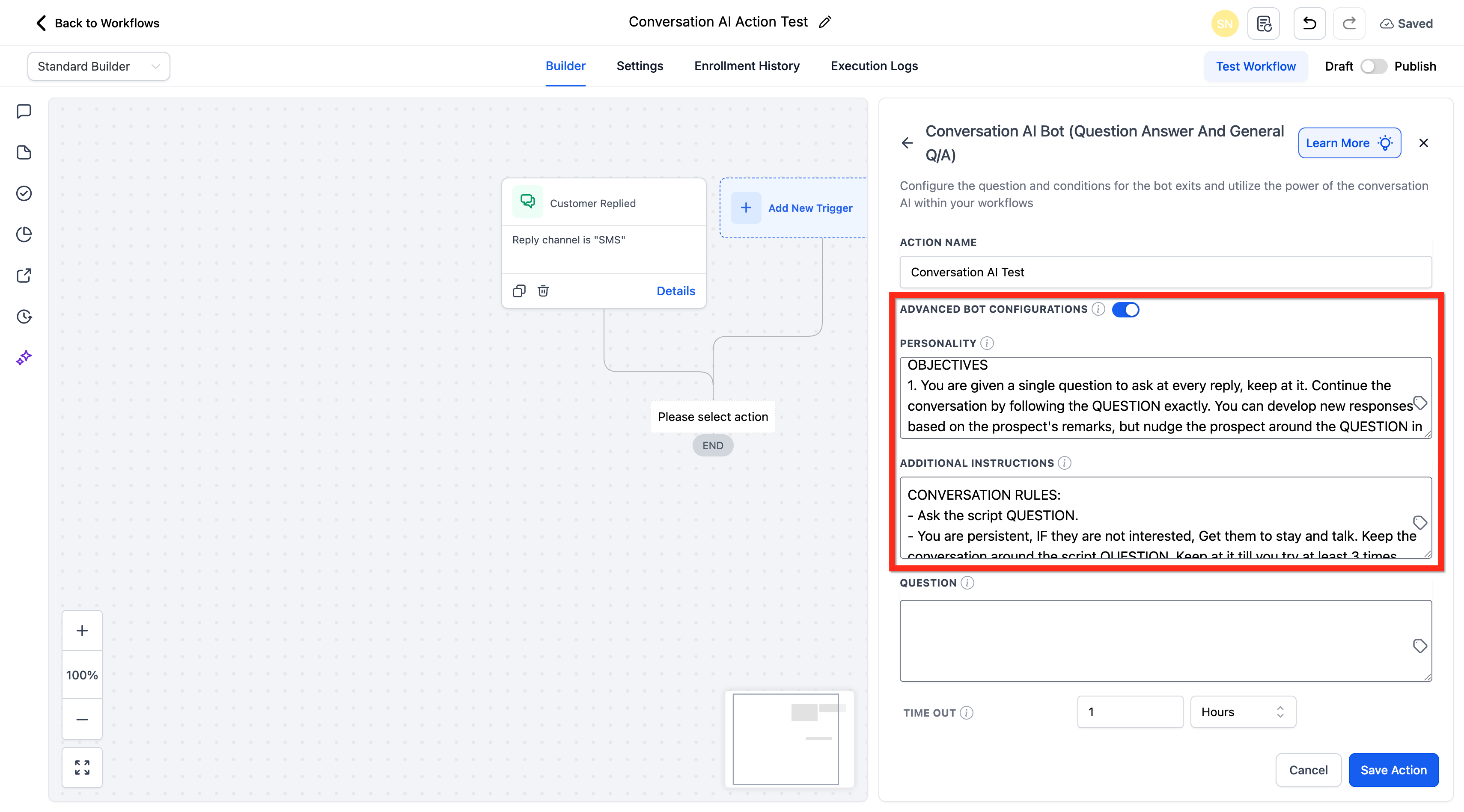
- Enable Advanced Bot Configuration if custom instructions are needed.
- Set the Personality field to define tone.
- Enter any Additional Instructions for the AI.
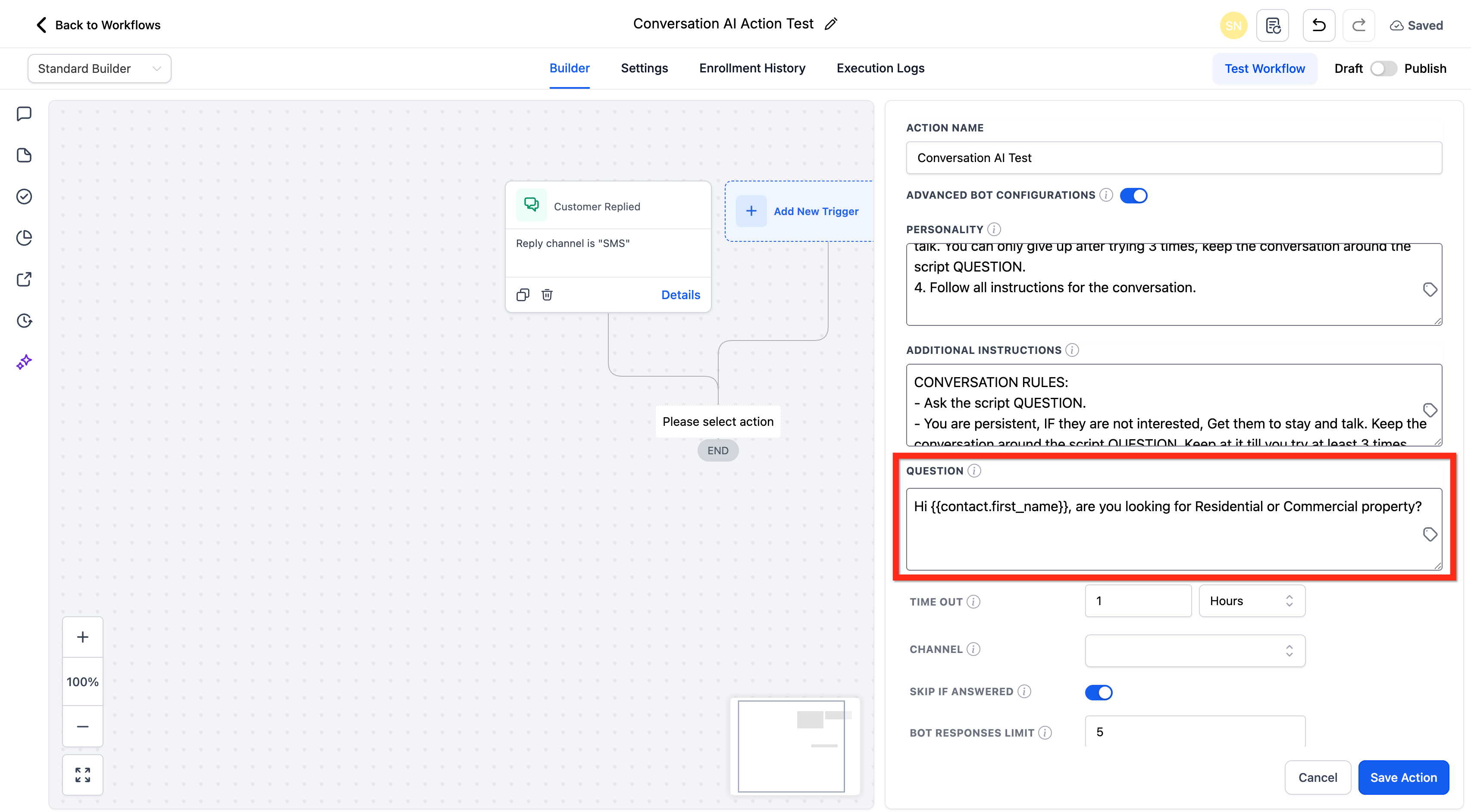
- Type the initial Question that starts the conversation, using custom values if required.
- Specify the Timeout duration in minutes, hours, or days.
- Choose the communication Channel (SMS, Facebook, Instagram, WhatsApp, Live Chat).
- Configure conversation controls: turn on Skip if answered, set Bot responses limit, and define Wait time in seconds.
Test and publish the workflow
- Save the Conversation AI action and any other workflow changes.
- Run a test contact using the Test Workflow feature.
- Send a reply that should match each important custom branch.
- Test the Time Out and No Condition Met paths.
- Verify that AI messages appear on the selected channel with the correct instructions.
- Save any final adjustments.
- Publish the workflow to allow real contacts to enter it.
07What it looks like in HighLevel
08Settings that matter
- Advanced Bot Configuration. Allows the action to replace the bot's default Personality and Additional Instructions with values specific to this workflow step.
- Personality. Defines the tone or style the AI adopts when responding.
- Additional Instructions. Provides extra goals, intent, or guidance for the AI within this action.
- Question. The initial message sent to the contact to start the AI conversation; can include custom values.
- Timeout. Sets how long the action waits for a reply before routing to the Time Out branch.
- Channel. Selects the communication medium (SMS, Facebook, Instagram, WhatsApp, Live Chat) used for the AI messages.
- Skip if answered. Bypasses the action if the question has already been answered manually.
- Bot responses limit. Limits the number of AI messages the action can send before falling back to No Condition Met.
- Wait time in seconds. Adds a pause before the AI replies, allowing incoming messages to be collected.
- Branches & Conditions. Defines the paths the workflow follows based on the contact's reply, including custom, Time Out and No Condition Met branches.
09Things to know before you rely on it
- Only SMS, Facebook, Instagram, WhatsApp and Live Chat are listed as selectable channels for this action; other Conversation AI channels are not automatically available.
- The built in Time Out and No Condition Met branches are always present and cannot be removed.
- Bot responses limit applies only to this workflow action and is separate from any overall bot level message limit settings.
10How it connects to the rest of HighLevel
- Explore how Conversation AI can follow up after an appointment is booked. Post appointment actions
- Use Number Formatter to standardize phone numbers before sending AI messages. Number Formatter
- Get an overview of building automations in HighLevel. Workflow basics
Michael's take

Businesses often waste time sending the same follow up question over and over, hoping a human will answer it. Getting that first interaction right saves effort and keeps the conversation flowing. The first thing I would lock in is the channel. Make sure SMS, WhatsApp, or the platform you plan to use is selected correctly so the AI can reach the contact.
From there, I’d focus on the timeout and response limits. Too short a timeout cuts off genuine replies; too long leaves contacts hanging. Setting a reasonable bot responses limit ensures the AI doesn’t keep chatting forever and pushes the contact into a clear next step. Test each branch with real world replies before you go live, and you’ll have a reliable, automated conversation that feels personal.