
01Who this is for
- Founders who need quick data transformations without writing code from scratch, because the AI produces the script from a description.
- Small agencies that build client automations and want to prepare API payloads in a single workflow step.
02Build with AI, explained
Build with AI lives inside the Custom code action of a workflow. When you click its button, a prompt window appears where you type what the code should do. The platform then returns JavaScript that can reference any input properties you added.
The generated script appears in the code editor. You can format it, run a test with sample values, and view the output object. After confirming the result, you save the action and the workflow can use the returned fields in later steps.
The feature is limited to JavaScript and is marked as a premium action. It does not create an entire workflow; it only produces code for one step.
03How businesses use build with AI
- Ecommerce store. Add a Custom code action to calculate a discount from the order amount. Provide the amount as an input property, describe the 15 percent reduction in the prompt, and let the AI generate the JavaScript. The returned discount fields are then used to set the final price.
- Real estate lead capture. Create a step that extracts the domain from a prospect's email address. List the email input property, ask the AI to return an emailDomain field, and review the generated code. Subsequent actions can route leads based on the domain.
- SaaS onboarding. Build an action that formats a phone number into E.164 format. Add the phone input, describe the formatting rule, and let the AI produce the code. The formattedPhone output is then sent to the welcome email action.
04The numbers and rules that matter
- Total response size must be under 2MB.
05Before you start
- You can create or edit the workflow.
- You are using the Custom code workflow action.
- You understand which workflow data the code must read.
- You know the output fields that later actions will need.
- You will review and test the generated code before publishing.
- The Custom code action is a premium workflow action.
06How to set up and use build with AI in HighLevel
Open the workflow builder
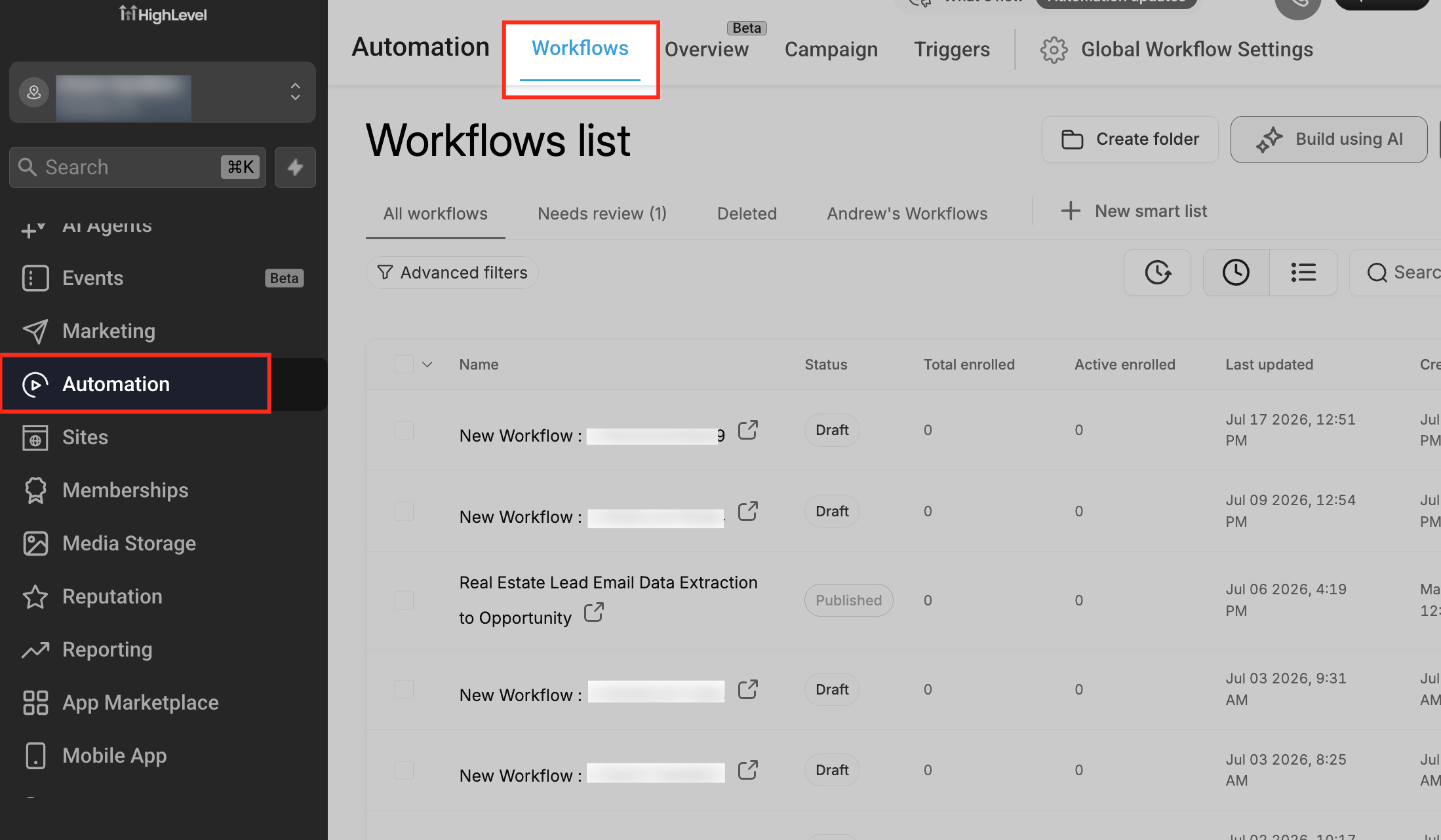
- Select Automation > Workflows from the left menu.
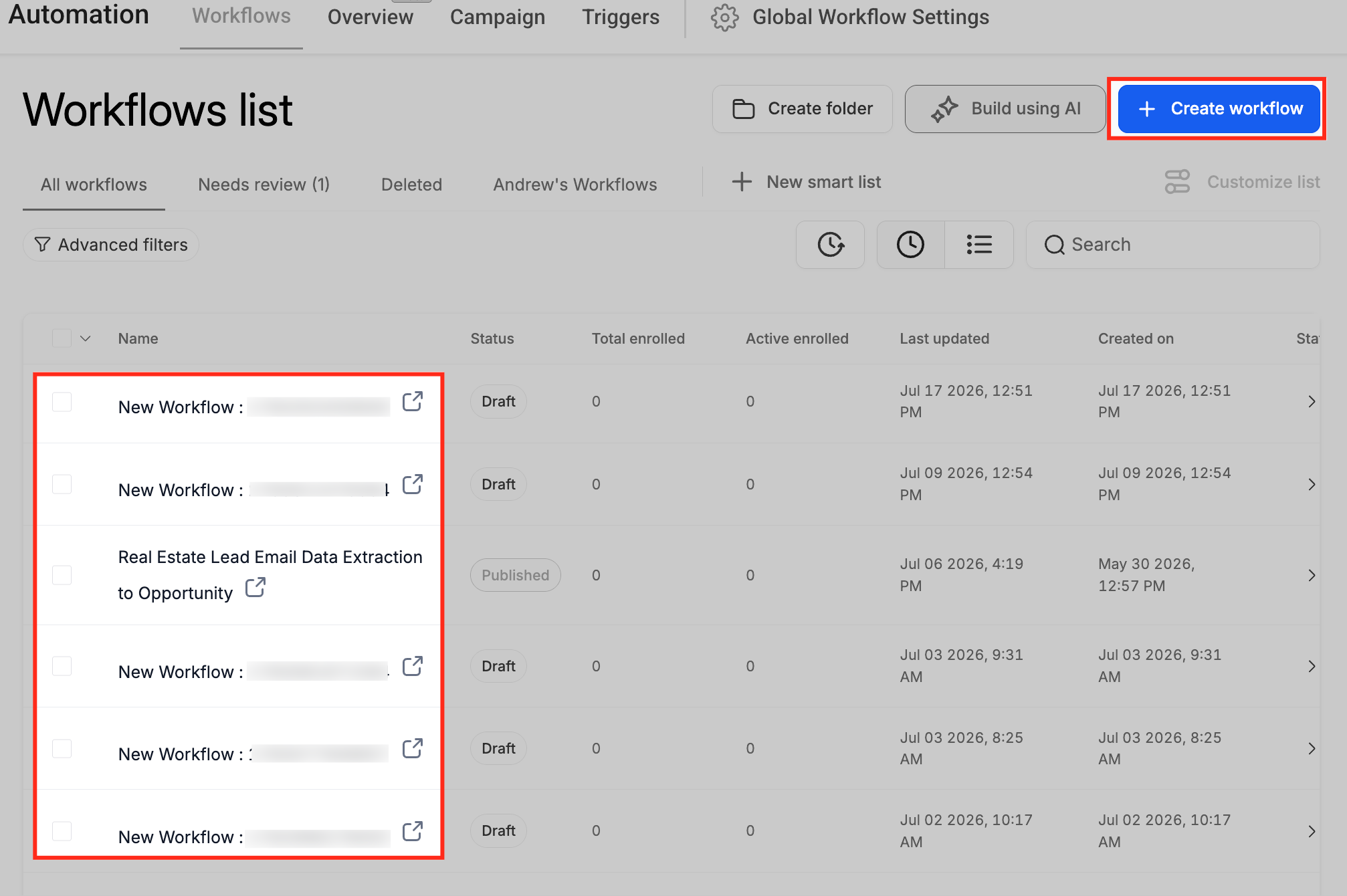
Create or open a workflow draft
- Start a new workflow or open an existing draft for testing.
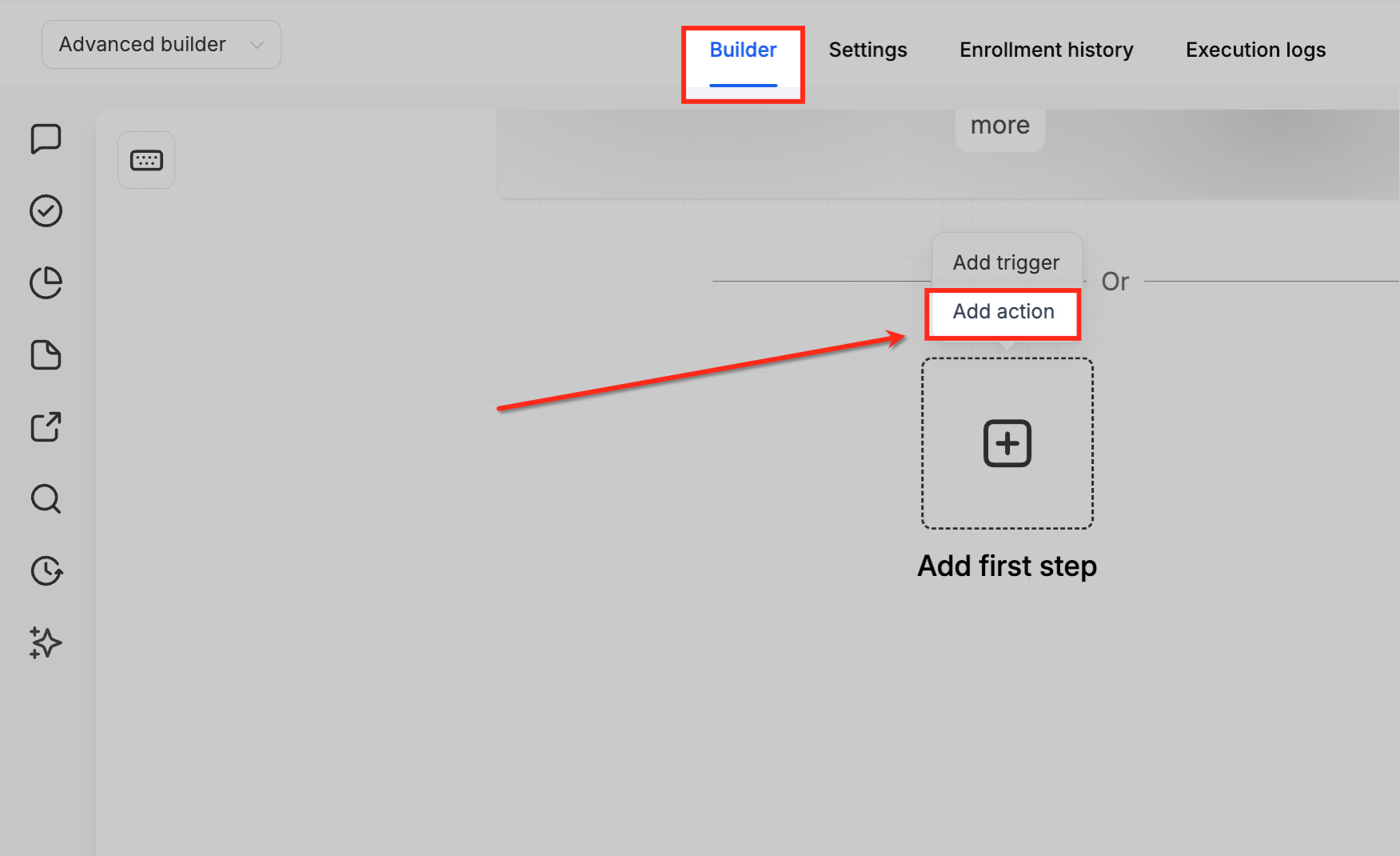
Add a new action to the workflow
- Hover over Add first step and click Add Action where the custom logic should run.
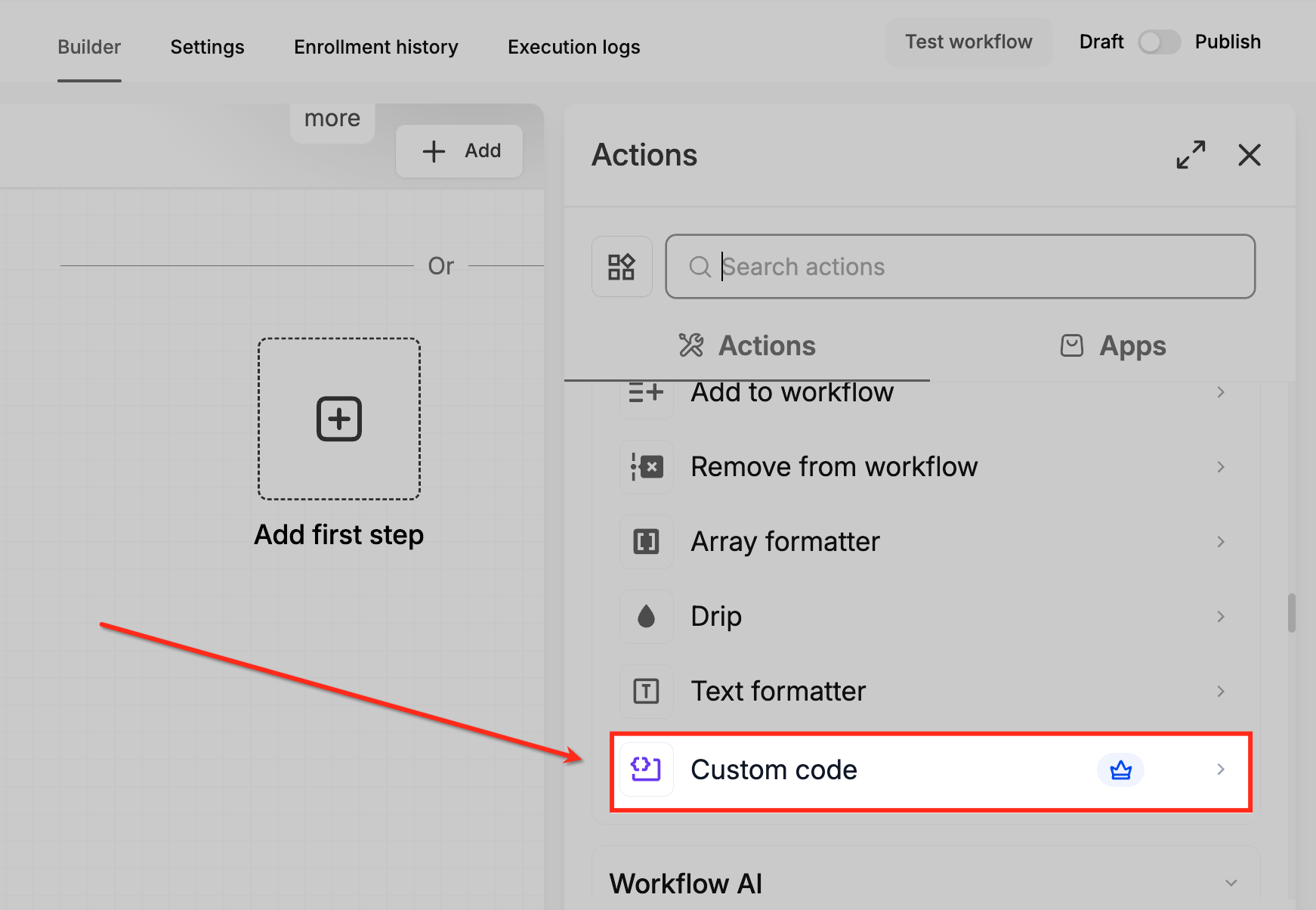
Choose the Custom code action
- Search for Custom code in the actions list and select it to open its configuration panel.
Review the configuration panel
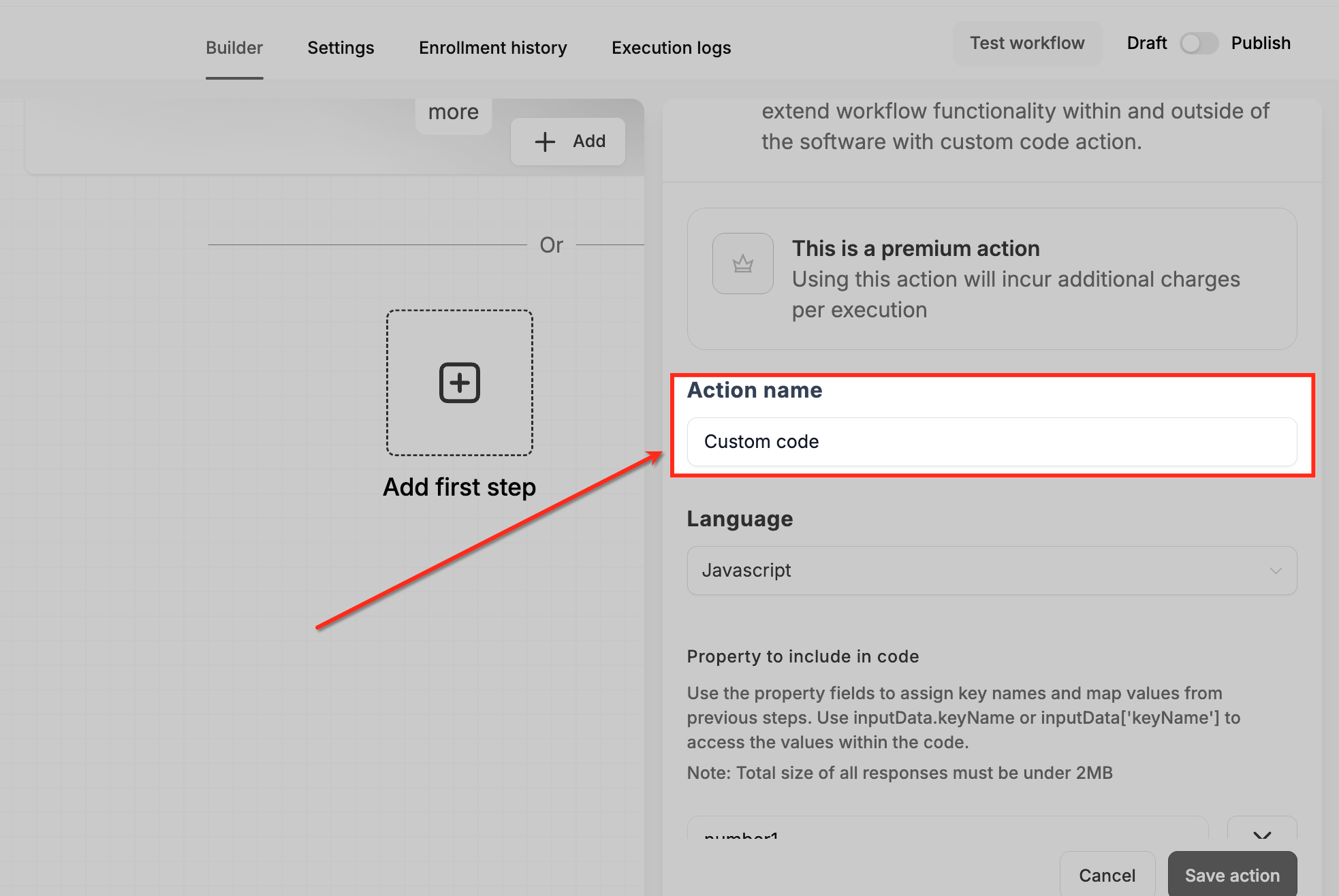
- Look at the panel that shows the action name, language picker, input properties, code editor, Build with AI button, testing tools, reference output, and save control.
Assign a descriptive name to the action
- Enter a clear name that explains what the code will do.
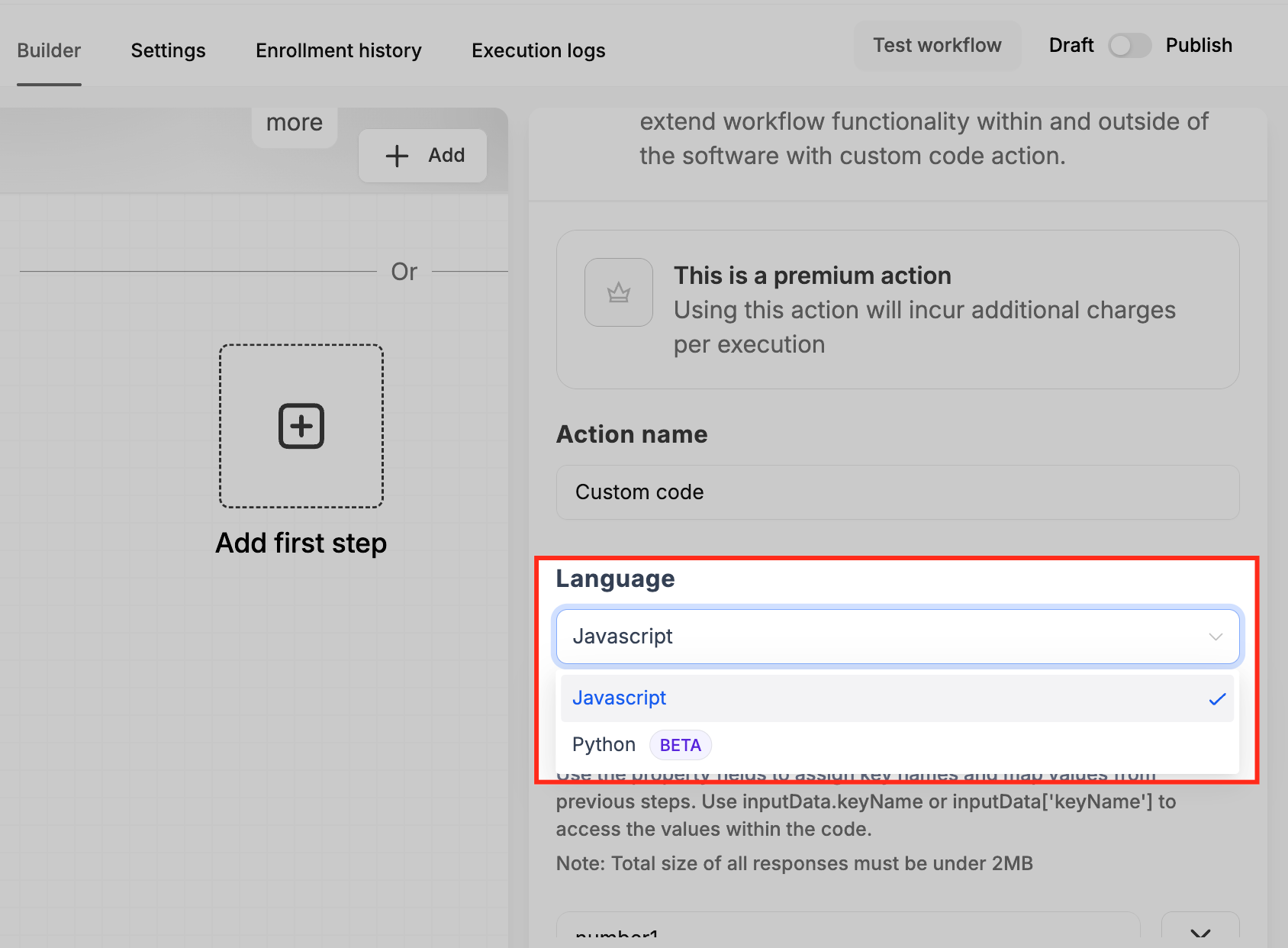
Confirm the programming language
- Check that the Language dropdown is set to Javascript.
Add input properties for the code
- Use the Property to include in code area to create keys and bind each to a workflow value.
Launch AI code generation
- Click the Build with AI button in the code section.
Provide a plain language prompt
- Write a description that states the goal, the input keys, any formatting rules, and the names of output fields.
Examine the AI generated JavaScript
- Read the returned script and verify that it uses the correct input keys and creates the expected output.
Clean up the script layout if needed
- Press Format code to tidy the indentation and spacing.
Run a test of the script
- Click Test your code, supply sample values, and execute the code.
Check the returned output object
- Review the output shown after testing and confirm that the fields match the intended structure.
Save the Custom code action
- Click Save action to store the step in the workflow.
Validate the entire workflow
- Run a full workflow test and inspect the execution log for any errors.
07What it looks like in HighLevel
08Settings that matter
- Language. Selects which programming language the Custom code action will run; only Javascript is supported.
- Build with AI. Opens a prompt window that generates JavaScript based on the description you provide.
- Format code. Rewrites the script with consistent indentation and line breaks.
- Test your code. Executes the script with sample inputs and shows the resulting output.
- Reference output. Displays the fields returned by the script so later actions can reference them.
09Things to know before you rely on it
- The script must return a JavaScript object or an array of objects.
- The total response size cannot exceed 2 MB.
- Custom code is a premium workflow action.
- Build with AI creates only Javascript code; other languages are not available.
- When testing code, custom values from the workflow are not passed automatically.
10How it connects to the rest of HighLevel
- Learn how to add triggers, filters, and actions when building a workflow. Workflow basics
- Explore Conversation AI actions that can be combined with custom code steps. Conversation AI actions
- Review pricing options and premium features for workflow automation. HighLevel pricing
Michael's take

Build with AI can turn a plain description into ready to run JavaScript for a single step, giving you a chance to review and test before going live.
Don’t skip the test step; untested AI generated code can break the entire automation.