
01Who this is for
- Founders who build multiple automations can keep configurations uniform across projects, reducing manual recreation.
- Marketing managers can quickly replicate email send or SMS actions in new campaigns without rebuilding each step.
02Copy workflow actions across workflows, explained
Copy Workflow Actions Across Workflows is a feature inside the workflow builder that lets you duplicate an action or a block of actions from one workflow and paste it into another workflow. The copy command captures the selected actions, preserving their names, settings and linked assets, and stores them on a temporary clipboard.
The clipboard remains active for fifteen minutes. During that period you can paste the copied actions multiple times, even into different workflows opened in separate browser tabs, as long as all workflows belong to the same subaccount. Triggers are not included in the copy; only the actions themselves are transferred.
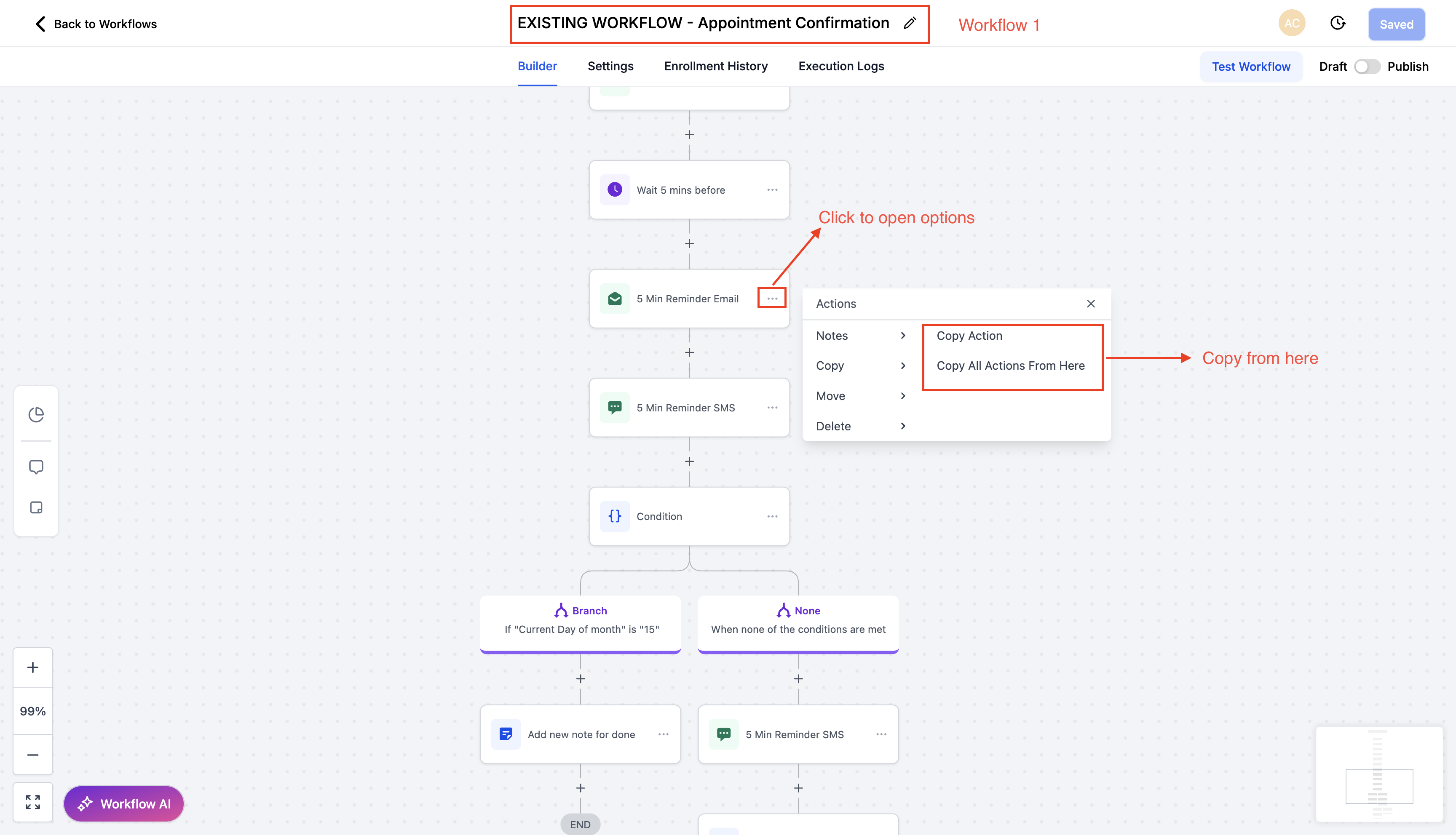
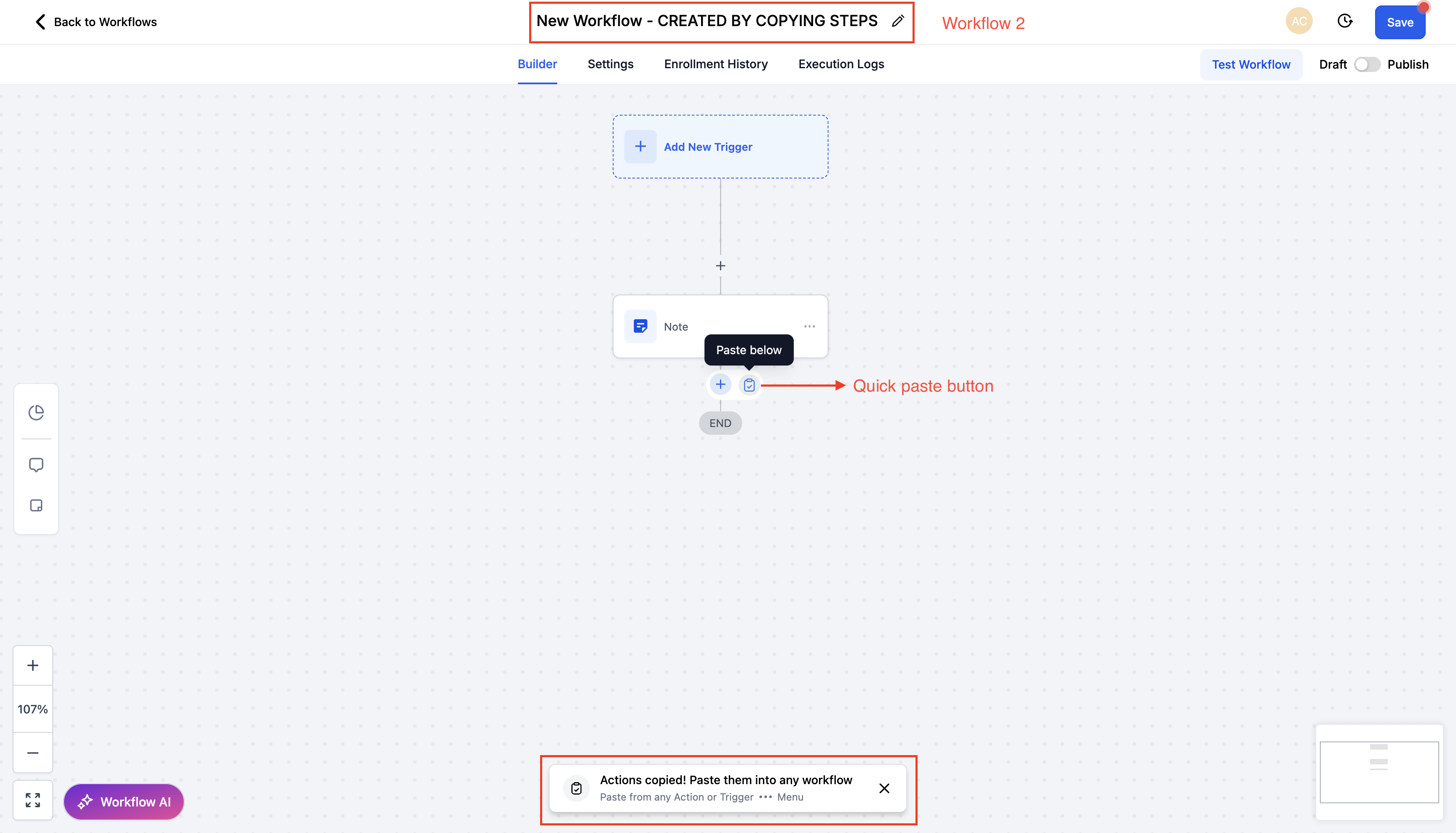
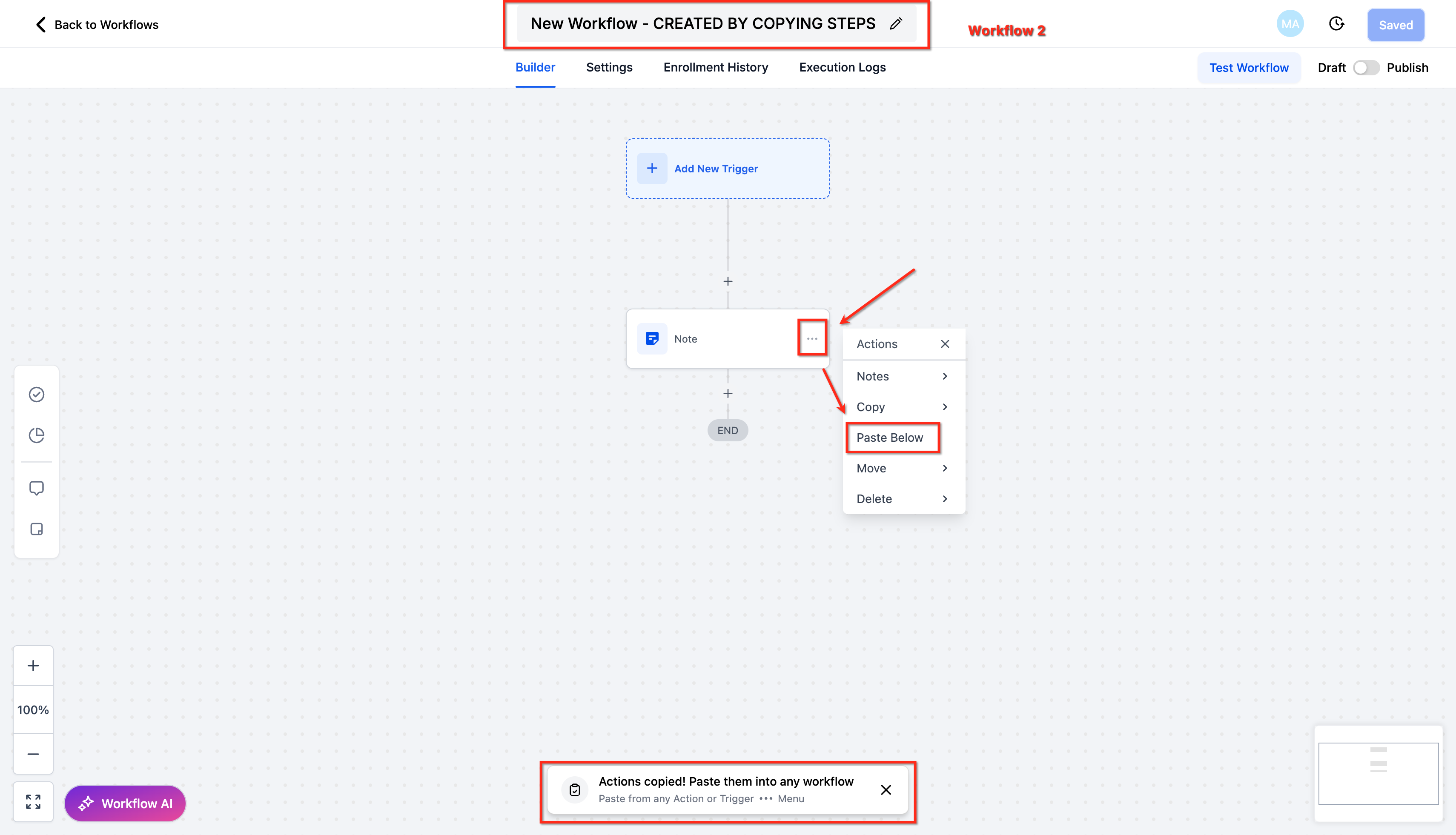
You find the copy option in Automation > Workflows. After selecting a source workflow, the three dot menu on an action offers "Copy Action" for a single step or "Copy All Actions From Here" for a block. Paste options appear either as a Quick Paste button next to the "+" add action control or through the "Paste Below" entry in another action’s three dot menu.
03How businesses use copy workflow actions across workflows
- Digital marketing agency. The agency copies a sequence that sends a follow up email and adds a tag after a lead form submission. It pastes the sequence into each client’s new lead nurture workflow, adjusting only the email template where needed.
- Real estate brokerage. An agent copies the action block that updates a contact’s status and schedules a calendar event. The block is pasted into multiple property specific workflows, ensuring the same status change logic is used everywhere.
- Fitness studio. The studio copies the actions that send a welcome SMS and enroll a member in a membership plan. Those actions are pasted into each new membership onboarding workflow, keeping the communication steps identical.
04The numbers and rules that matter
- Copied actions stay available for 15 minutes.
05Before you start
- You must be signed in to the same subaccount for both the source and target workflows.
06How to set up and use copy workflow actions across workflows in HighLevel
Copy and paste workflow actions across workflows
- Open Automation > Workflows, select the source workflow, locate the desired action, open its three dot menu and choose either Copy Action or Copy All Actions From Here.
- Open the target workflow in the same subaccount, either in the same browser tab or a different tab.
- Click the Quick Paste button that appears next to the "+" button for adding new actions.
- Or open any existing action’s three dot menu in the target workflow and select Paste Below.
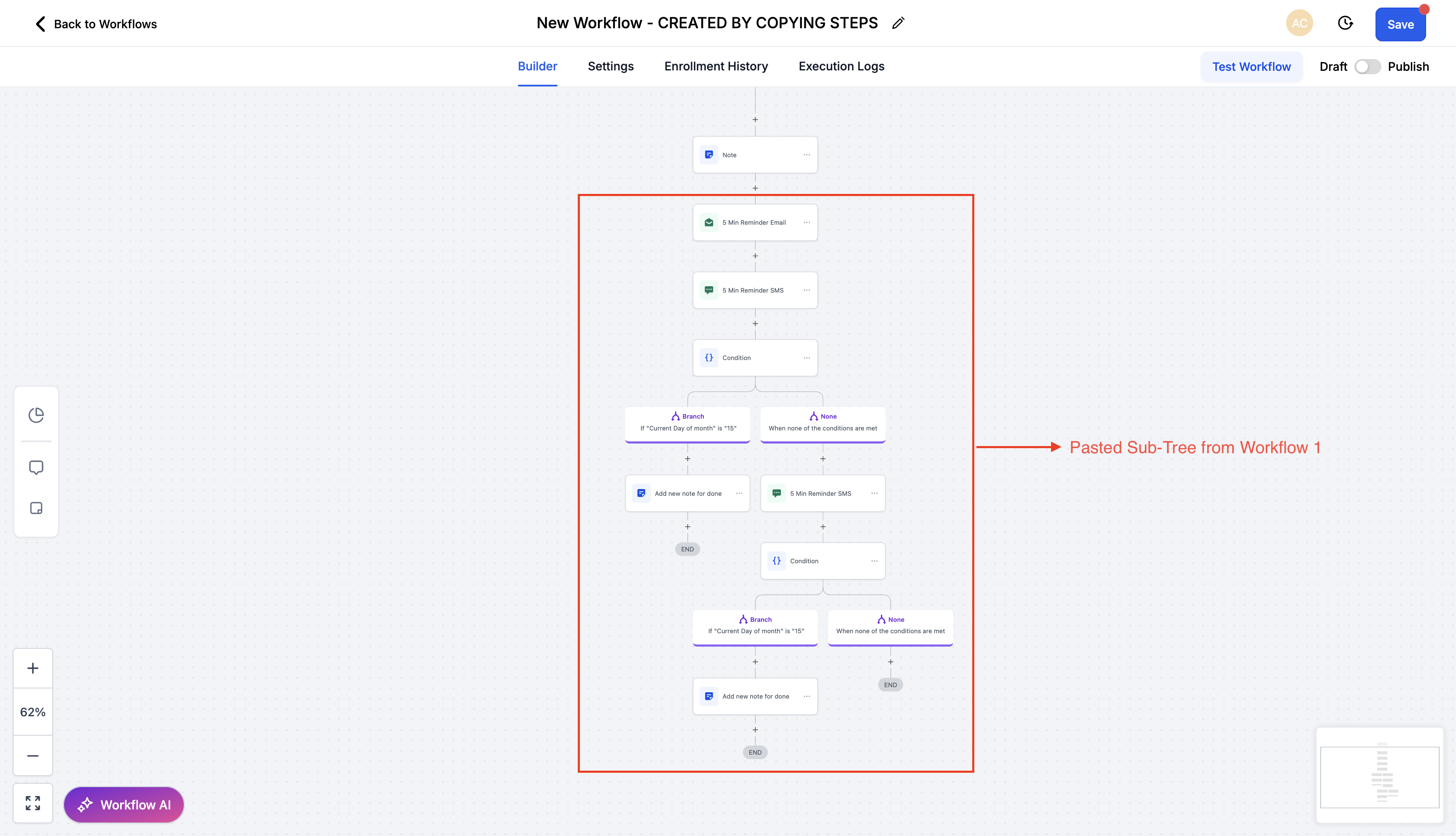
- Check the pasted actions to verify that asset references, names and settings are correct.
- Save the target workflow to finalize the changes.
07What it looks like in HighLevel
08Things to know before you rely on it
- Copied actions are available for fifteen minutes from the moment they are copied.
- The copy function works only within the same subaccount; actions cannot be copied across subaccounts.
- Triggers are not included when copying actions; they must be recreated separately.
- Asset references (emails, forms, calendars) remain valid only if those assets exist in the same subaccount.
09How it connects to the rest of HighLevel
- Learn the basics of building automations in HighLevel. Automation basics
- Get started with creating workflows, triggers and actions. Workflow creation guide
- Review the pricing tiers that grant access to workflow features. HighLevel pricing
Michael's take

People often copy a workflow, then spend time hunting down each step to edit it again. That defeats the purpose of a reusable action library. Instead, I look for the exact step or block I need, use the Copy Action or Copy All Actions From Here menu, and paste it directly where it belongs in the new workflow.
If I were building a new automation that shares an email follow up with several campaigns, I would copy that email action once and paste it into each workflow during the 15 minute window. That keeps the wording identical and reduces accidental typos.