
01Who this is for
- Ecommerce store owner, wants to reduce missed chat replies by alerting shoppers to new messages.
- Service provider, can silence alerts during quiet periods to keep the site experience calm.
- Marketing agency, can match the sound setting to a brand’s tone for each client site.
02Notification sound settings, explained
Notification Sound is a toggle found in the Chat Widget builder. When it is turned on, the widget plays a sound and shows popups, badges, or tab title changes whenever a visitor receives a new chat or system message. When it is turned off, messages arrive silently with no visual interruptions.
The setting works for both All in One and Live Chat widgets. It does not affect any staff or operator notifications, which are managed elsewhere in the platform. No code changes are required; the toggle controls the behavior directly from the builder.
03How businesses use notification sound setting
- Online retailer. The retailer enables Notification Sound to cue shoppers when a live chat agent replies, ensuring they notice the response. The toggle is set in the widget builder for the store’s chat widget.
- Consulting firm. The firm disables the sound to keep the website experience quiet during webinars. They turn the Notification Sound off for the specific widget that appears on their landing page.
- Healthcare clinic. The clinic turns the sound on only for after hours welcome messages so visitors know a response is pending. They adjust the toggle for the after hours chat widget in the builder.
04The numbers and rules that matter
- Supported messages include live chat intro, acknowledgement, outside hours welcome, subheading, contact details request and redirect messages.
05How to set up and use notification sound setting in HighLevel
Adjust the Notification Sound setting for a chat widget
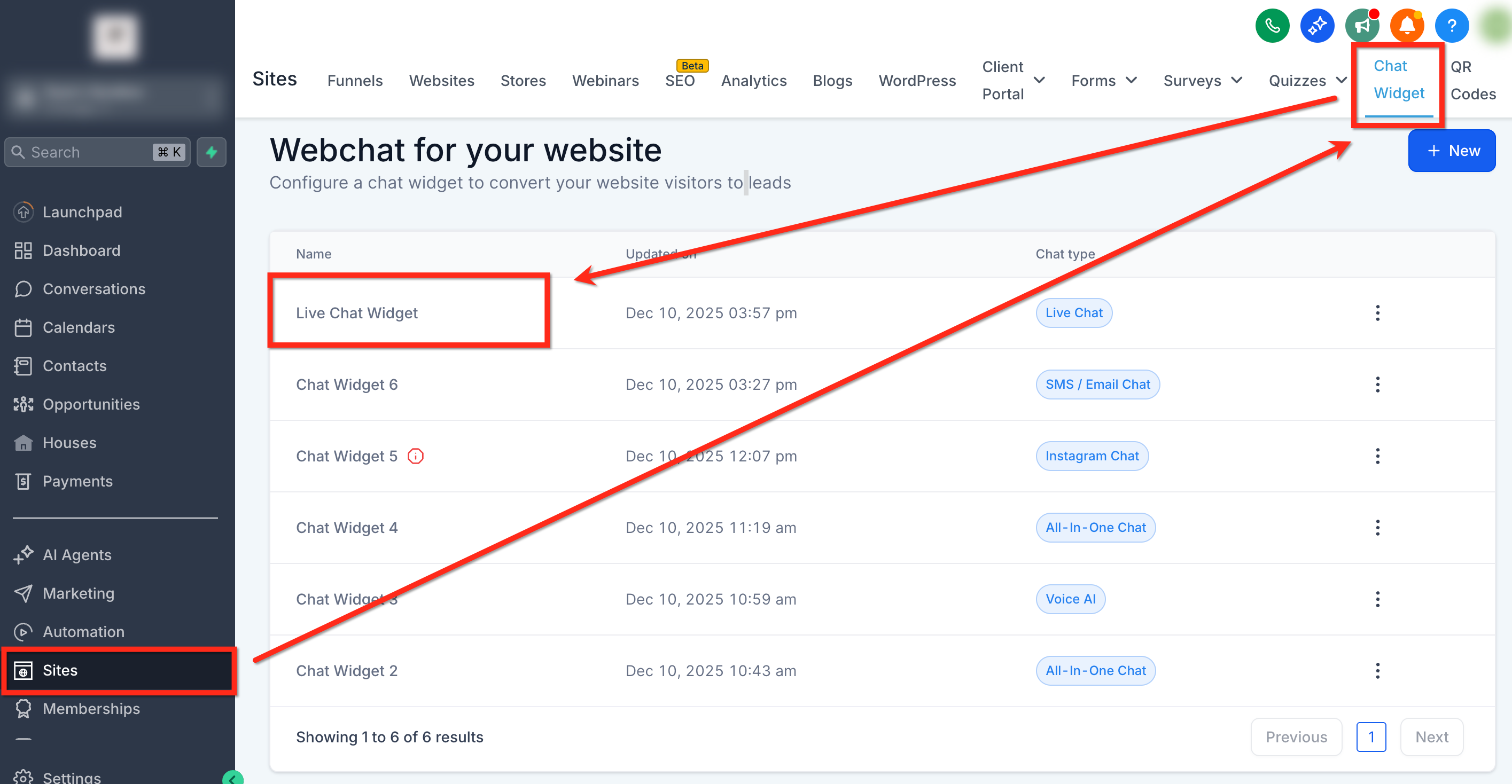
- Open Sites > Chat Widgets and select the widget you want to edit.
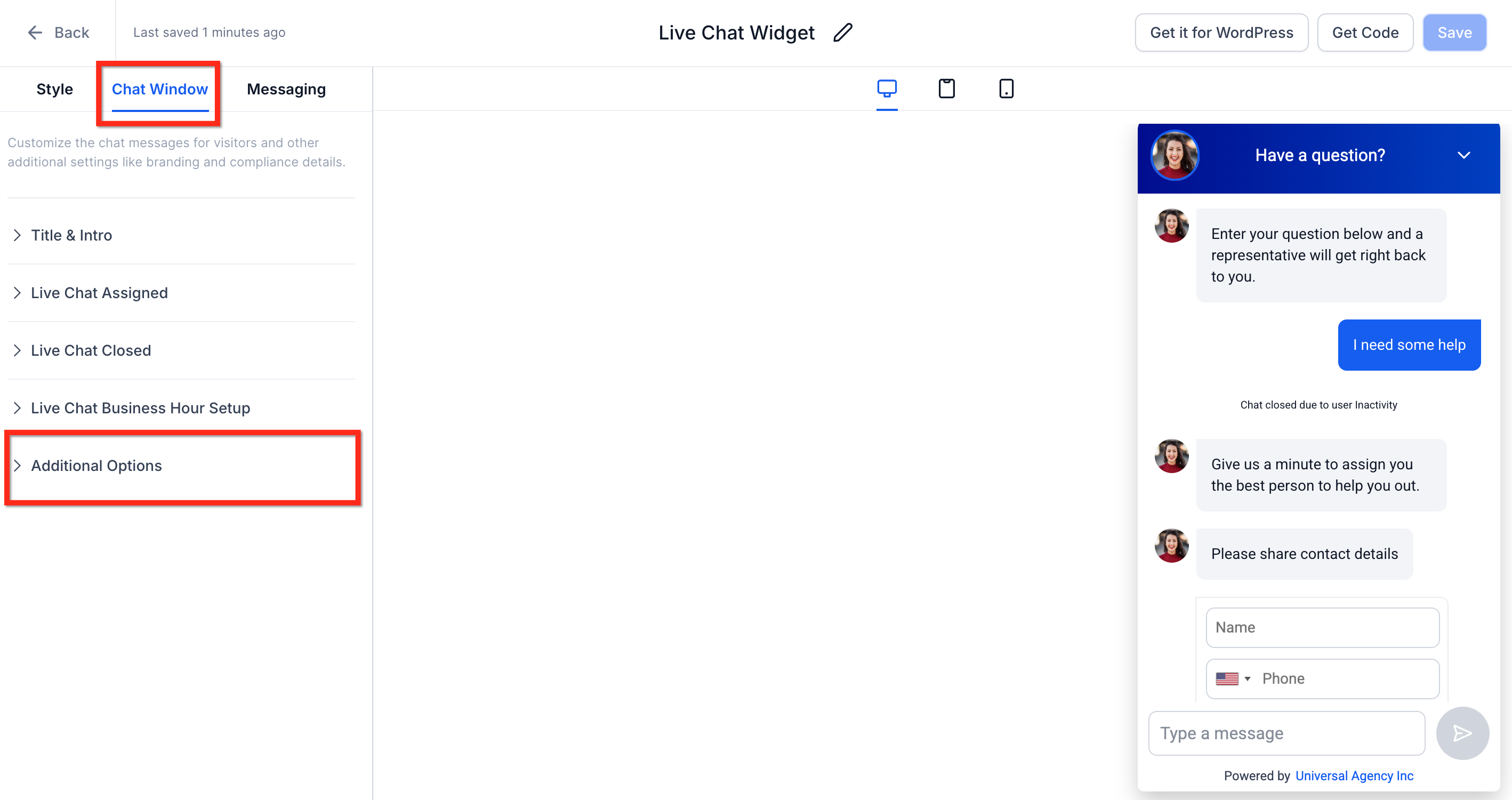
- In the left menu choose the Chat Window tab and open the Additional Options dropdown.
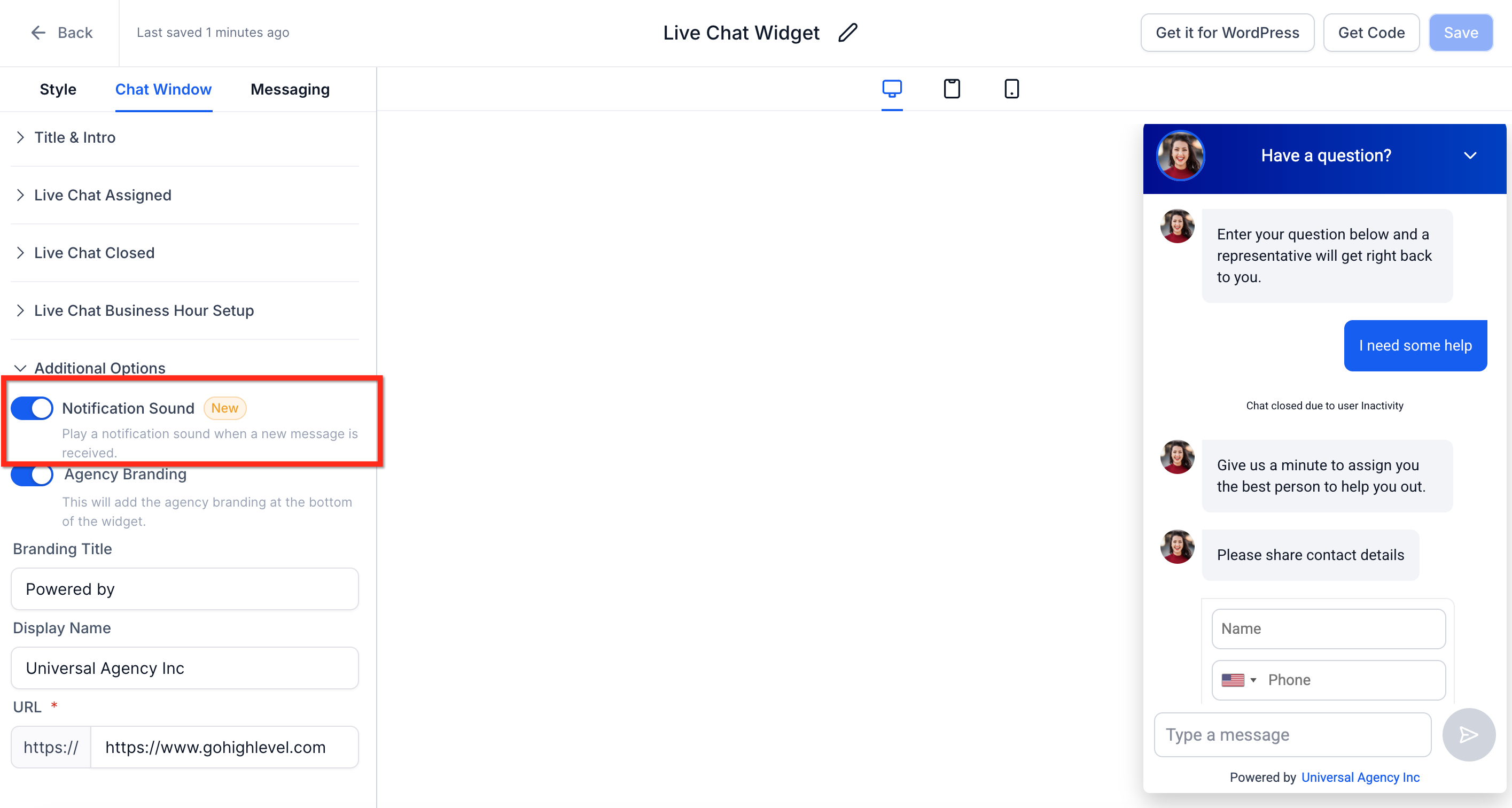
- Toggle Notification Sound to ON or OFF according to your preference.
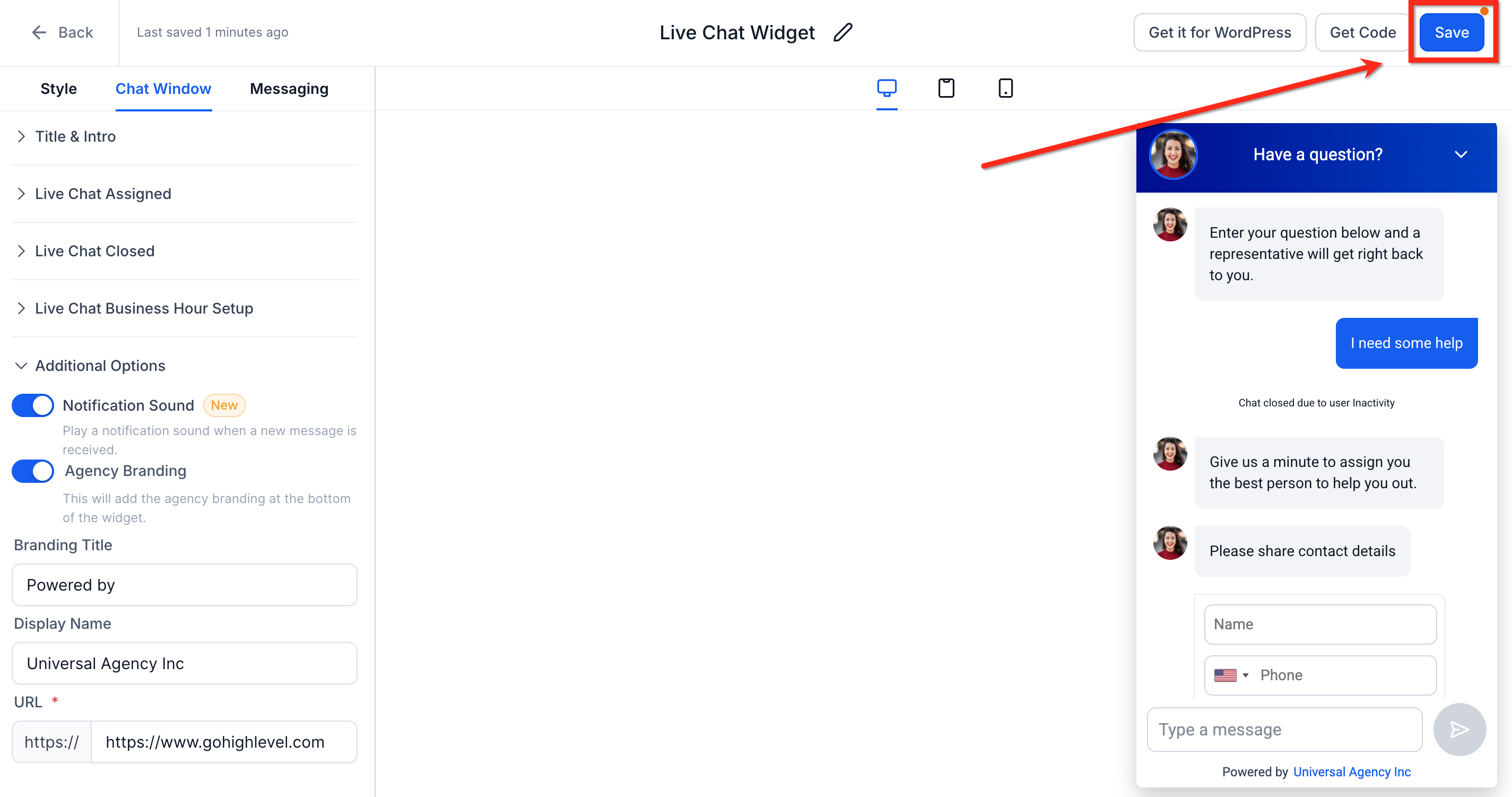
- Click Save in the top right corner.
- Refresh the page on your site to see the change take effect.
06What it looks like in HighLevel
07Settings that matter
- Notification Sound. Controls whether the visitor hears a sound and sees visual alerts when a new chat or system message is displayed.
08Things to know before you rely on it
- The toggle is ON by default for supported widgets.
- Only All in One and Live Chat widgets include this option.
- The setting is applied per widget; each widget has its own toggle.
- Custom sounds or volume adjustments are not available.
09If something goes wrong
- Custom sound cannot be uploaded. The feature only provides an ON/OFF toggle; custom audio is not supported.
10How it connects to the rest of HighLevel
- Install a HighLevel chat widget and configure its workflow Install chat widget
- Set up multiple chat widgets in a single subaccount Multiple widgets
- Learn how to use the All in One chat widget All in One widget
Michael's take

Most people assume the sound will play for every widget on the page, but the toggle works per widget. I’d set the sound on only for the primary chat widget that you want visitors to notice first.
If I were adding a new widget, I’d enable the sound, check the site, and then decide if a quieter secondary widget needs the toggle off. That simple check avoids unexpected silence or noise.