
01Who this is for
- Marketers who need to run promotions and also send appointment reminders can keep consent separate and stay compliant.
- Service providers that deliver order confirmations and also market new offers benefit from a single widget that captures both types of permission.
02Mixed Use Case Support, explained
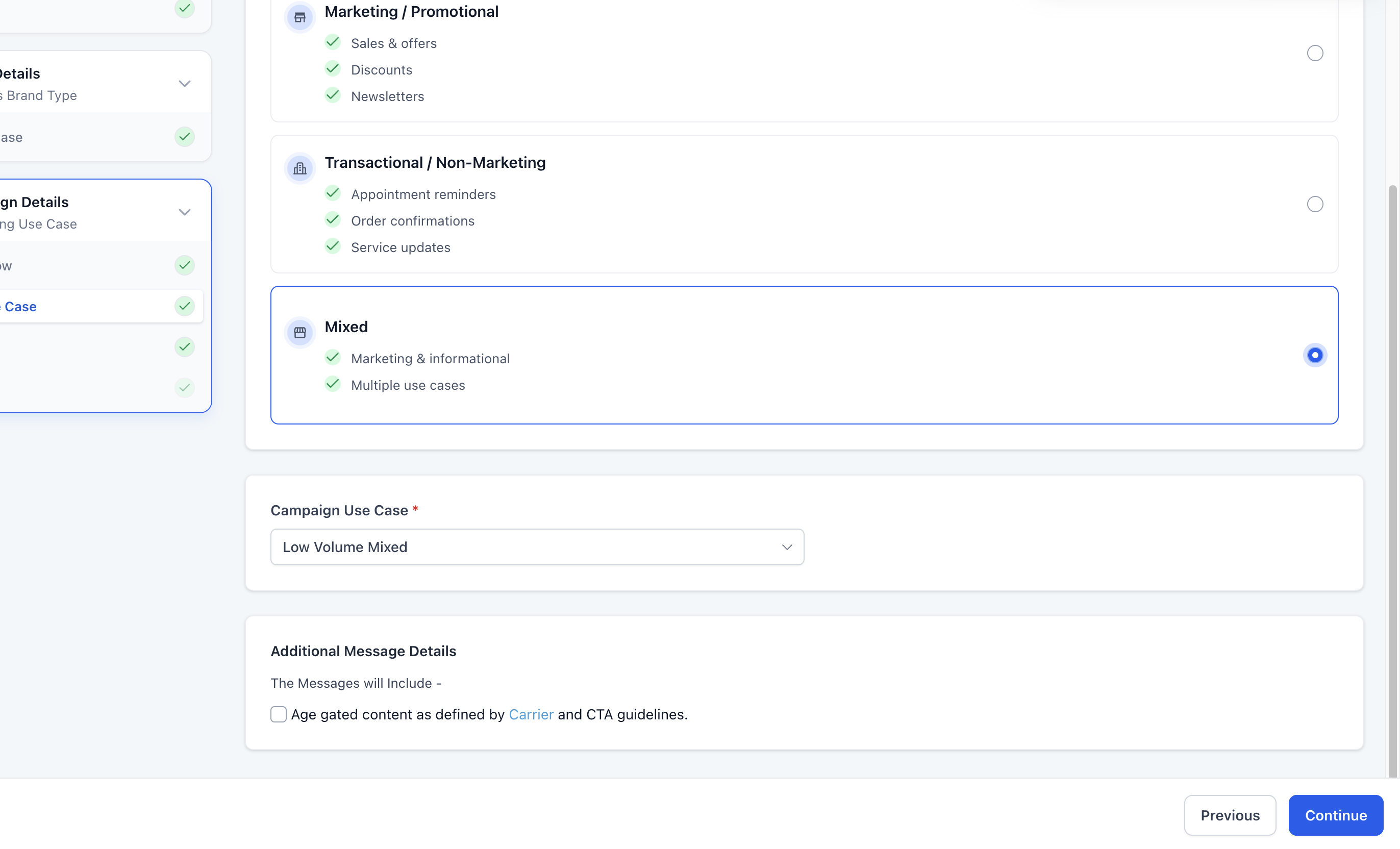
The mixed use case option appears in the chat widget registration flow. When it is chosen, HighLevel automatically assigns the Low Volume Mixed campaign use case and builds a widget that contains two independent consent checkboxes.
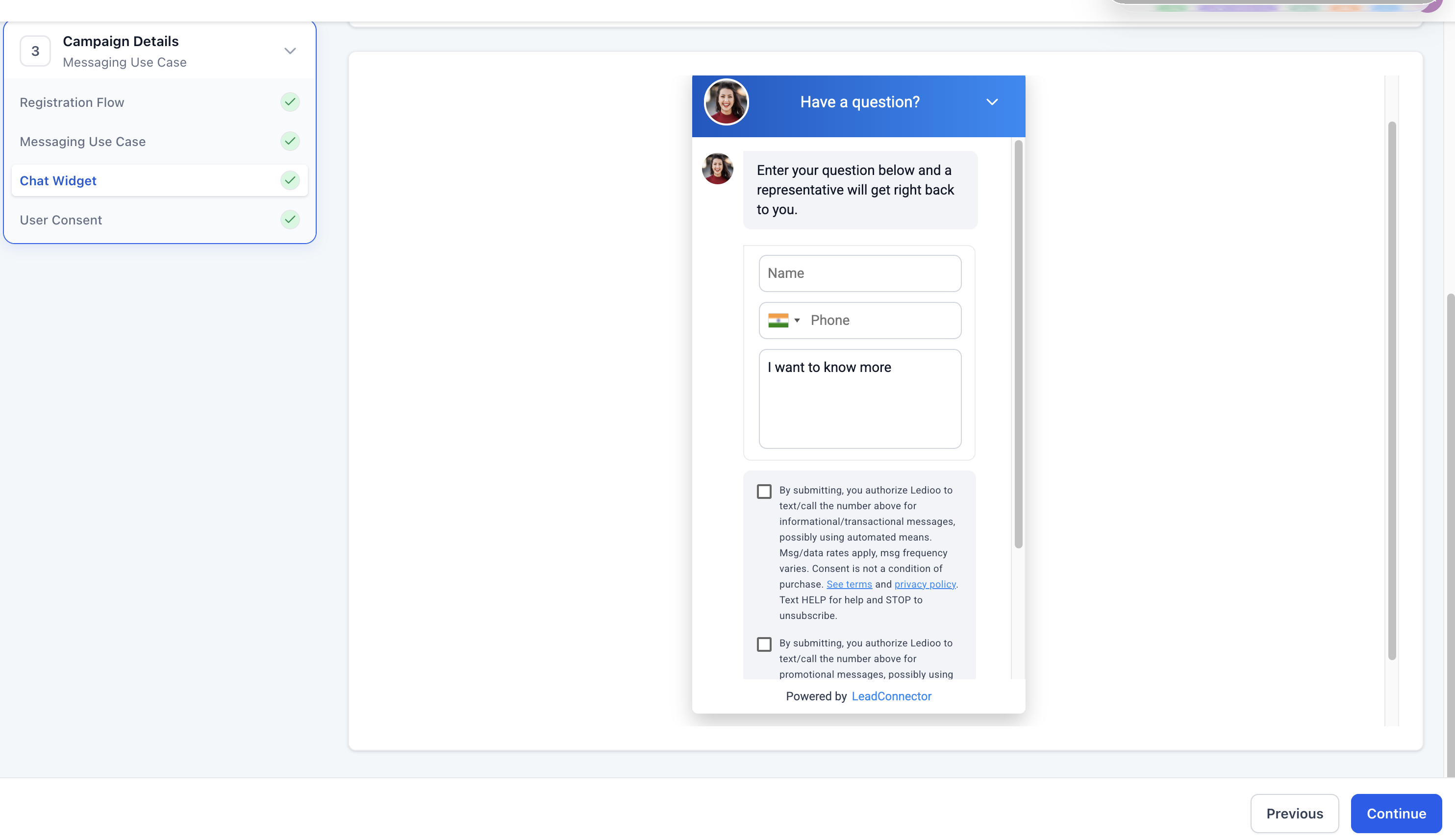
One checkbox captures permission for informational or transactional messages such as reminders. The other checkbox captures permission for marketing or promotional messages such as offers. Neither box is preselected, so contacts must actively opt in.
All compliance text, STOP and HELP information, and rate disclosures are generated by the platform and cannot be edited. The widget can still be styled where the flow permits.
03How businesses use mixed use case support
- Fitness studio. The studio adds the mixed widget to its class schedule page. Members can tick the box for class reminders only, or also opt in to receive promotions for new programs. The studio’s outbound texts respect each member’s selections.
- Dental practice. The practice installs the widget on its appointment booking page. Patients may consent to appointment confirmations while choosing whether to receive marketing about teeth whitening specials. The practice’s messages follow the consent choices stored for each patient.
- Ecommerce retailer. The retailer places the mixed widget on its checkout page. Shoppers can agree to order status updates and separately decide if they want promotional offers. The retailer’s SMS campaigns use the appropriate consent flag for each contact.
04Before you start
- Complete the required A2P brand setup in the Trust Center.
- Have access to the appropriate subaccount where the campaign will be registered.
05How to set up and use mixed use case support in HighLevel
Set up mixed use case support
- Open the subaccount that will own the campaign.
- Navigate to Settings > Phone System > Trust Center.
- Select the option to continue to A2P campaign registration.
- Choose the chat widget setup flow.
- Proceed to the messaging use case step.
- Select Mixed as the message type.
- Verify that the campaign use case changes to Low Volume Mixed automatically.
- Continue through the guided campaign questions.
- Preview the generated widget and confirm it shows an informational consent checkbox.
- Confirm the widget also shows a marketing consent checkbox.
- Check that each checkbox has its own disclosure language.
- Make sure no consent checkboxes are preselected before publishing the widget.
- Install the widget on the submitted website page and ensure the page is live and publicly viewable.
- Ensure the widget is the only form on that page collecting SMS consent.
- Review the campaign details and sample messages and correct any issues before submission.
- Submit the campaign and monitor its status in the Trust Center.
06What it looks like in HighLevel
07Settings that matter
- Messaging Use Case. Controls which message type is selected during registration; choosing Mixed signals that both promotional and informational messages will be sent.
- Campaign Use Case. Is set by the platform to Low Volume Mixed when Mixed is selected, defining the carrier approved classification for the campaign.
08Things to know before you rely on it
- Select Mixed only when the actual program includes both promotional and informational messages.
- The generated consent disclosures and required fields are locked and cannot be edited.
- Using the mixed widget does not guarantee campaign approval; the full registration must still meet carrier requirements.
09How it connects to the rest of HighLevel
- Install HighLevel chat widget and configure its workflow Install widget
- Create multiple chat widgets in a single subaccount Multiple widgets
- HighLevel pricing and plans Pricing
Michael's take

Mixed use case support feels like a modest convenience rather than a massive shift. It lets you keep everything in one place when you need to send both promotional offers and transactional alerts, and it handles the compliance bits for you.
Think of a local salon that sends discount specials and also appointment reminders. With the mixed widget, the salon can ask clients whether they want marketing messages, appointment updates, or both, all from the same chat window, keeping the sign up experience clean and compliant.