
01Who this is for
- Founders of service based businesses, embed chat next to offers or forms to capture visitor questions where they occur.
- Marketing managers for ecommerce sites, place chat inline with product listings to assist shoppers at decision points.
- Web developers building custom landing pages, use the widget as a design element that matches page styling.
02Embedded live chat widgets, explained
The Embedded Live Chat Widget renders the chat interface inline with other page elements. It appears where the embed code is placed, so it can sit beside hero sections, pricing blocks or booking forms. The widget still uses the same Live Chat engine, so routing, lead capture and automation behave exactly as with the standard floating widget.
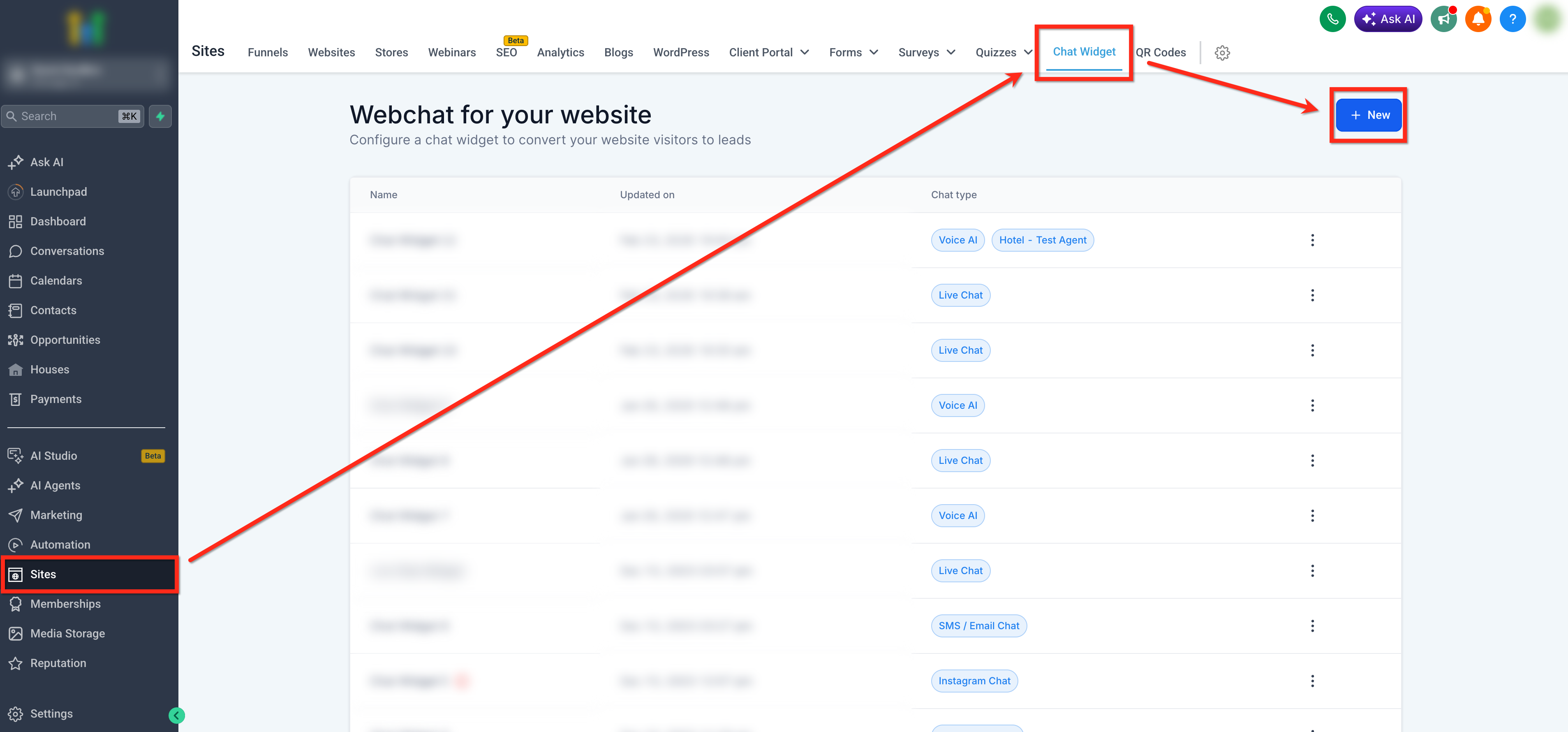
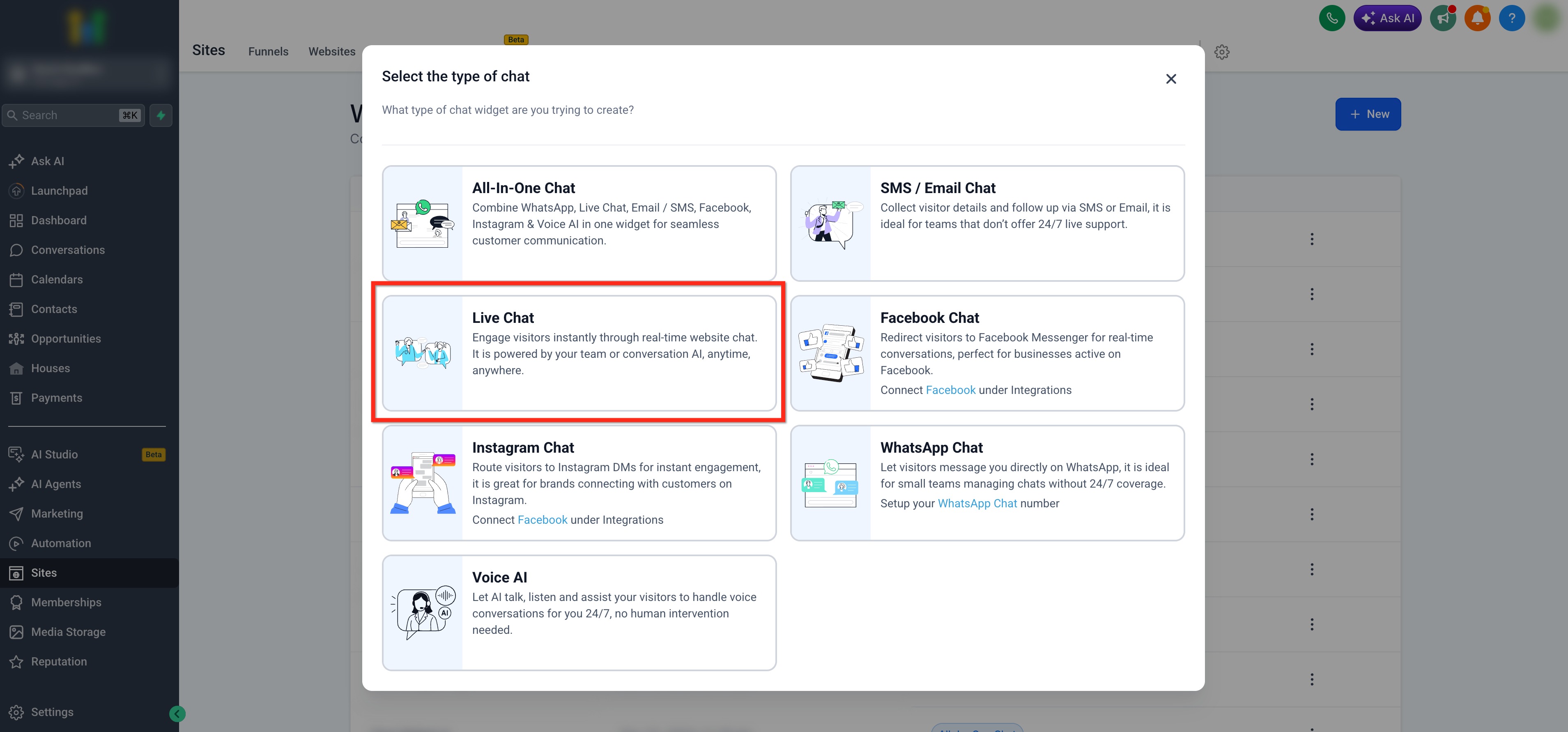
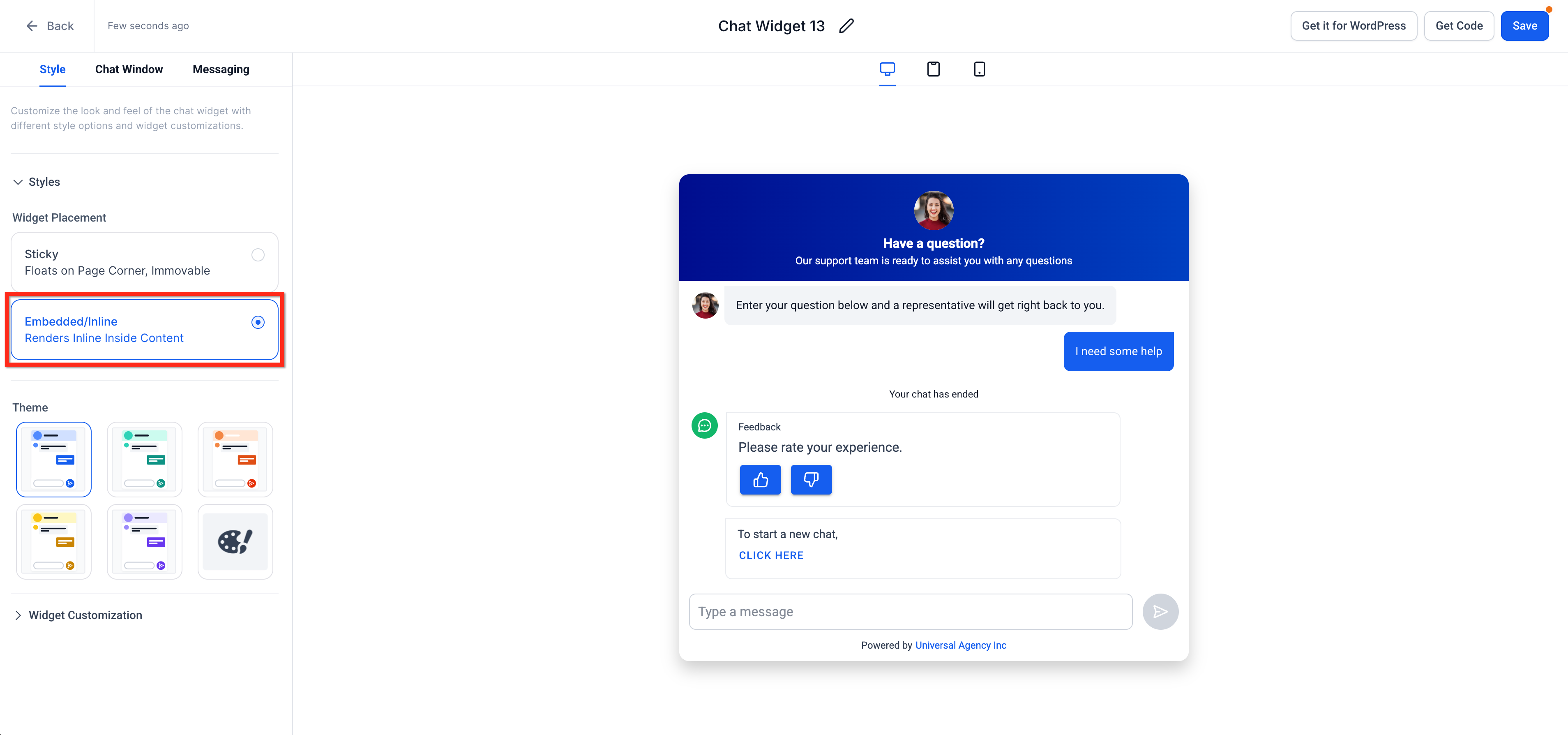
You create or edit a chat widget in the Sites > Chat Widget area, choose Live Chat, and set the Widget Placement to Embedded / Inline on the Style tab. After customizing appearance, messages and business hour settings, you copy the generated embed script. The script is then pasted into a Custom Code block in a funnel or into the HTML of a website, and the widget displays at that location on desktop and mobile.
03How businesses use the Embedded Live Chat Widget
- SaaS startup. The startup creates a chat widget, selects Embedded placement, and inserts the embed code on the pricing page of its product site. Visitors can ask questions without a floating bubble, keeping the page layout clean.
- Real estate agency. The agency designs a property listing page, adds the embed code beneath each listing, and customizes the widget’s branding. Prospective buyers can start a conversation directly from the listing area.
- Online course provider. The provider adds the embed script to the enrollment funnel’s checkout step, after customizing the intro message. Learners can request help right before completing purchase, and the chat still follows existing assignment rules.
04The numbers and rules that matter
- Supported on funnels, websites, landing pages, custom HTML sites and other pages where Chat Widgets can be installed.
05How to set up and use the Embedded Live Chat Widget in HighLevel
Set up embedded live chat widget
- Open Sites > Chat Widget and click + New or select an existing widget.
- Choose the Live Chat option for the widget type.
- In the Style tab, set Widget Placement to Embedded / Inline.
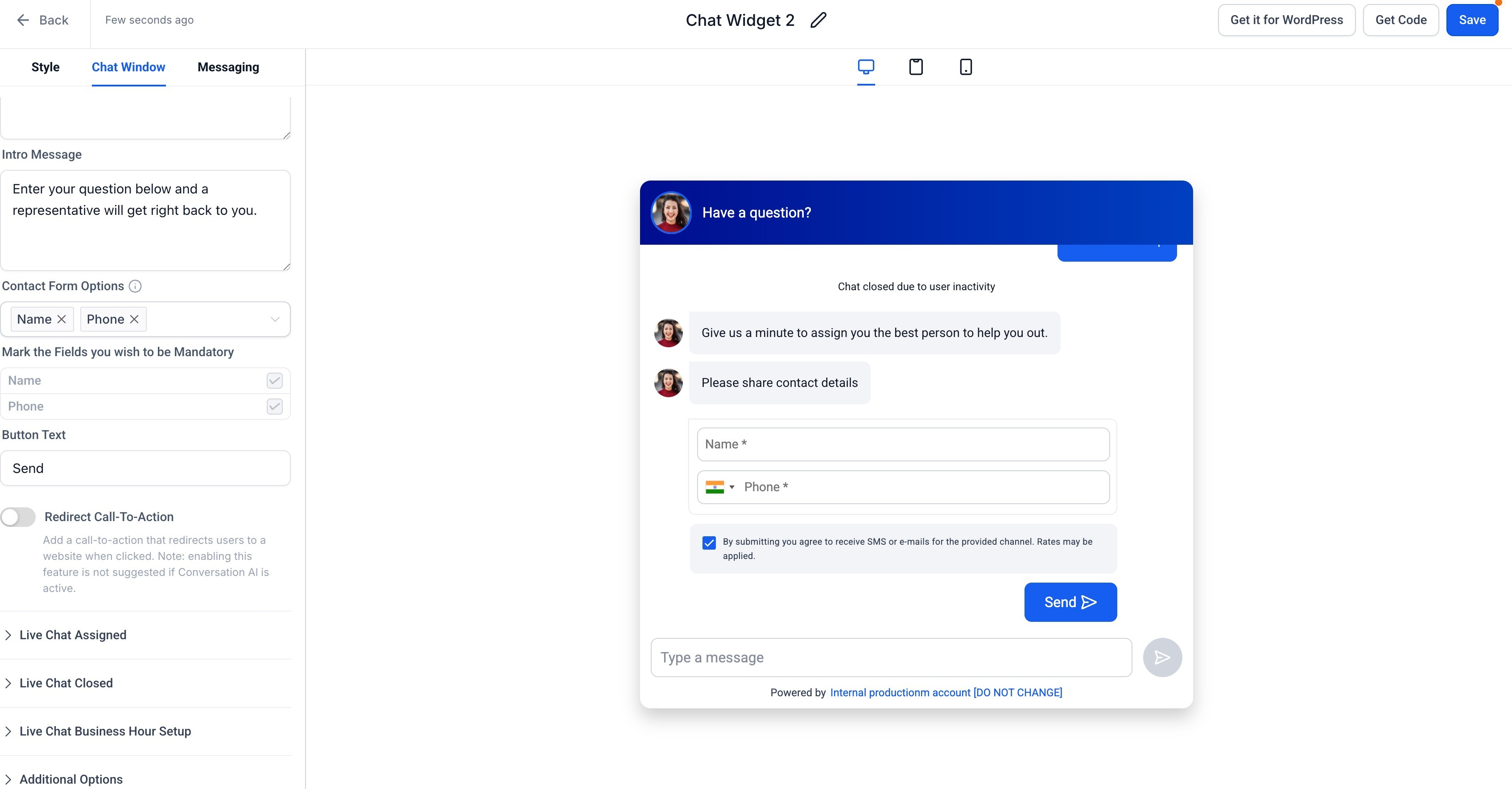
- Adjust theme, appearance, chat window fields, messages and business hour settings as needed.
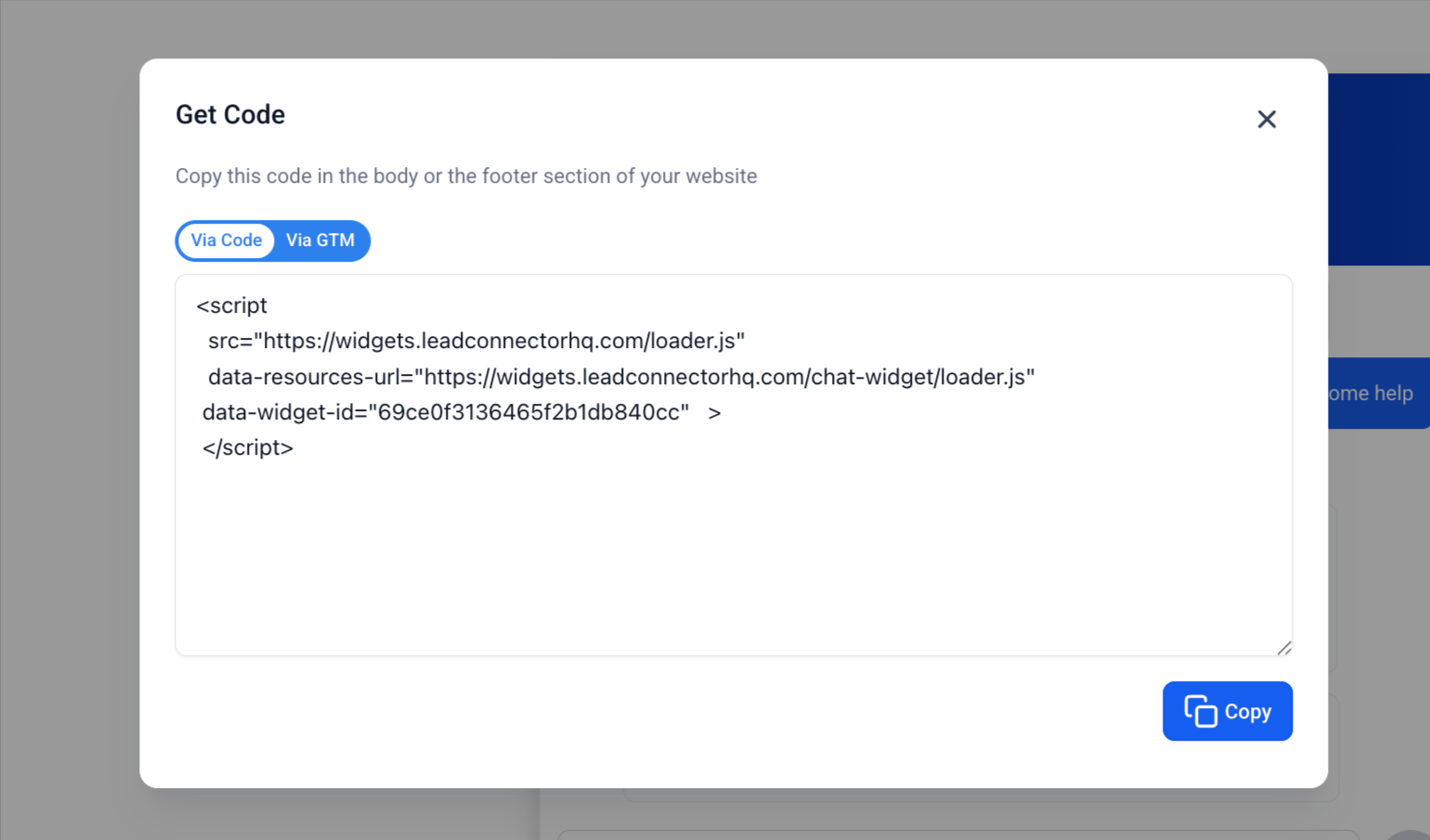
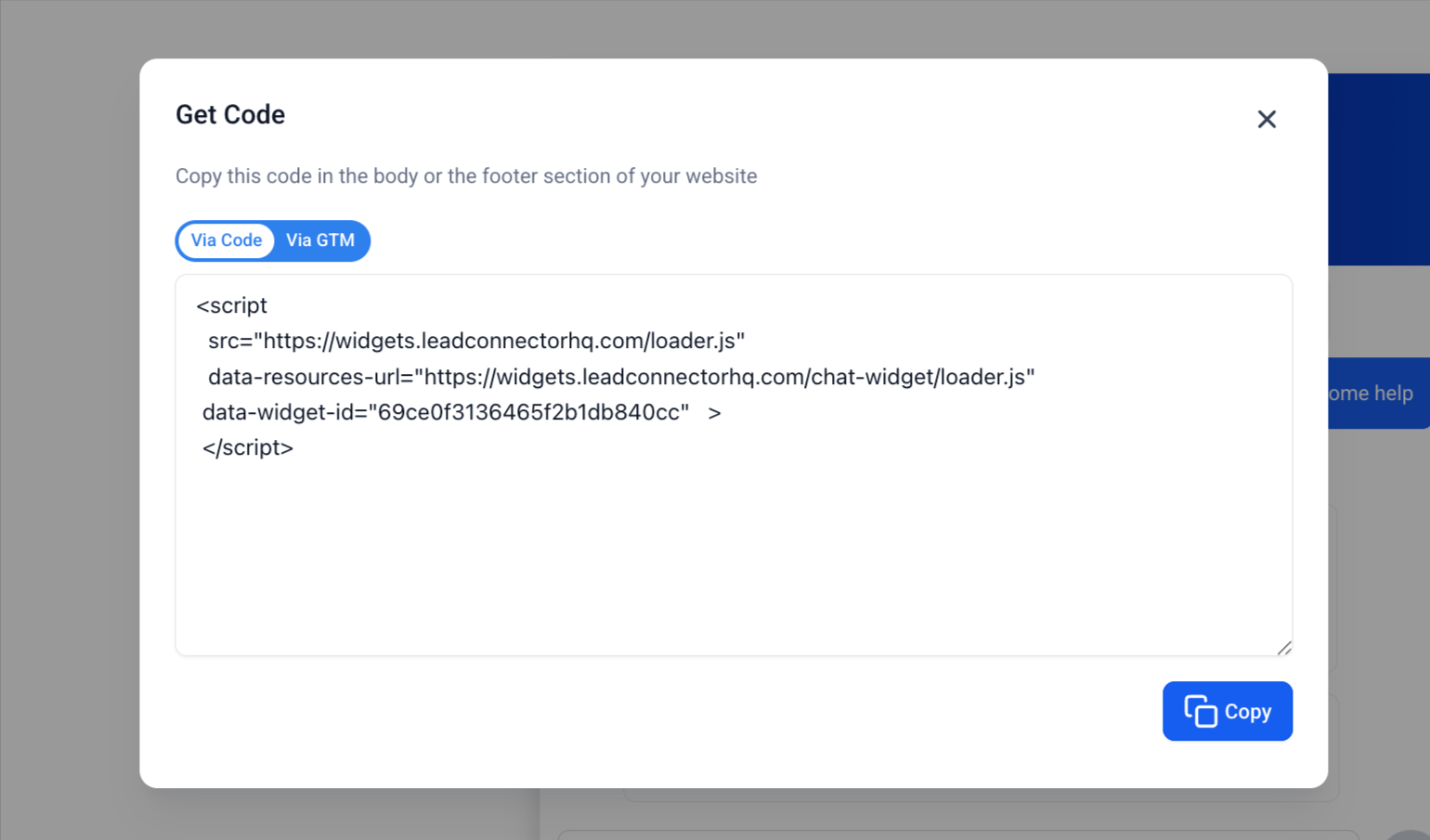
- Click Get Code at the top right and copy the embed script.
- Paste the script into a Custom Code element in a funnel or into the HTML of a website, then save and publish.
06What it looks like in HighLevel
07Settings that matter
- Widget Placement. Determines whether the chat appears embedded inside page content or as a floating bubble.
- Theme & Appearance. Controls colors, avatar and header styling to match the widget with the page design.
- Chat Window Settings. Sets the introductory message, required contact fields and button text for the chat window.
- Messaging & Behavior. Defines auto responses, live chat assignment rules, business hours and closed chat messages.
08Things to know before you rely on it
- Embedded widgets do not float on the screen; they stay within the page layout.
- Switching between Sticky and Embedded placements resets any custom widget dimensions to the recommended defaults.
- Embedding multiple widgets on the same page is not recommended because it may cause UX and tracking conflicts.
09If something goes wrong
- Widget not showing. Confirm the embed code is placed correctly and that the page has been published.
- Layout issues. Check the container width in the page builder and verify there are no CSS conflicts.
- Chat not responding. Review live chat assignment settings and ensure business hour configuration is correct.
10How it connects to the rest of HighLevel
- Installing HighLevel chat widget and configuring its workflow Install chat widget
- How to embed HighLevel chat widget on Squarespace Squarespace embed
- Add HighLevel's chat widget to a Shopify website Shopify embed
Michael's take

I would first identify the exact spot where a visitor makes a key decision. Like next to a pricing table or a sign up form. And embed the code right there. Then I’d preview the page on mobile to confirm the widget stays readable and doesn’t interfere with the layout.