
01Who this is for
- Founders who want consistent opening messages for every chat conversation, improving agent readiness.
- Marketing managers seeking a way to capture visitor intent upfront without exposing contact info.
- Customer support teams that need a clear first message to speed up response planning.
02Customizable message fields, explained
The custom message field appears as a pre filled "Message" box in the contact form of new WhatsApp, Email/SMS, All in One Chat, and Voice AI widgets. If the widget’s form lacks a message field, the new field is required and automatically contains the default text you set. When a message field already exists, the custom field is optional and can be kept, removed, or reordered.
You define the default text, up to 255 characters, directly in the widget builder. The field can include merge tags for dynamic content, be marked as required, and be repositioned by drag and drop. Once saved, the widget embeds on your site with the pre filled message visible to visitors, who may send it unchanged or edit it before submitting.
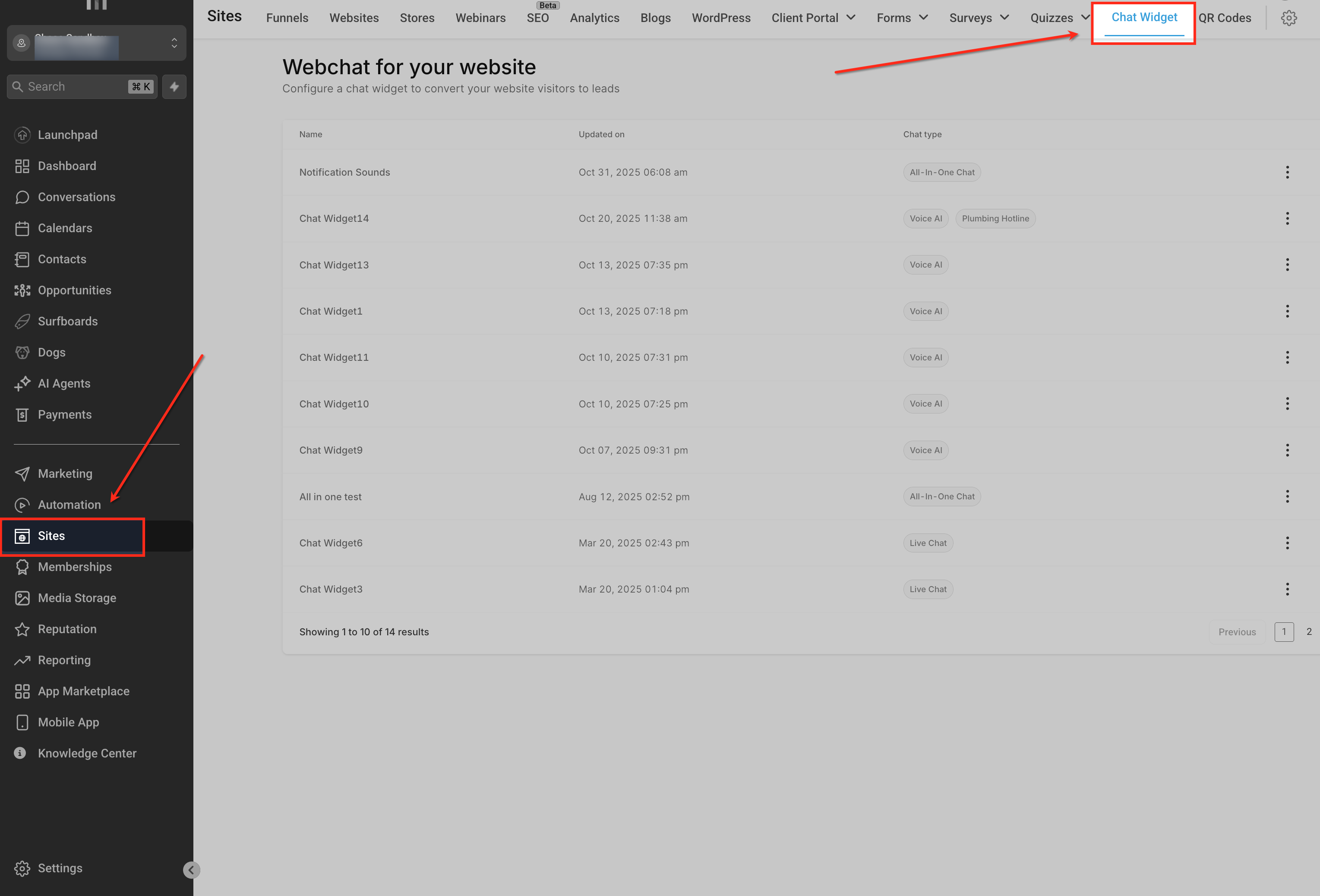
The feature lives inside the Chat Widget settings under Sites. It does not apply to Live Chat widgets, which continue to use their native free form box.
03How businesses use customizable message fields
- Real estate agency. The agency creates a WhatsApp chat widget with a default message like "Hi, I’m interested in property XYZ." Prospects can edit the text to specify a listing, giving agents immediate context while the lead’s contact details remain private.
- Dental practice. A dental office adds an Email/SMS chat widget that pre fills "I would like to schedule a cleaning." Patients can adjust the request before sending, allowing staff to see the appointment intent right away without exposing phone numbers in the chat thread.
- SaaS startup. The startup builds an All in One Chat widget with a default line such as "I have a question about pricing plans." Visitors modify the query if needed, and the first message triggers the "Customer Replied" automation in the workflow.
04The numbers and rules that matter
- Maximum 255 characters for the prefilled text, including spaces.
05How to set up and use customizable message fields in HighLevel
Set up the customizable message field in a new chat widget
- Open the left navigation, select Sites, then choose Chat Widget to open the widget dashboard.
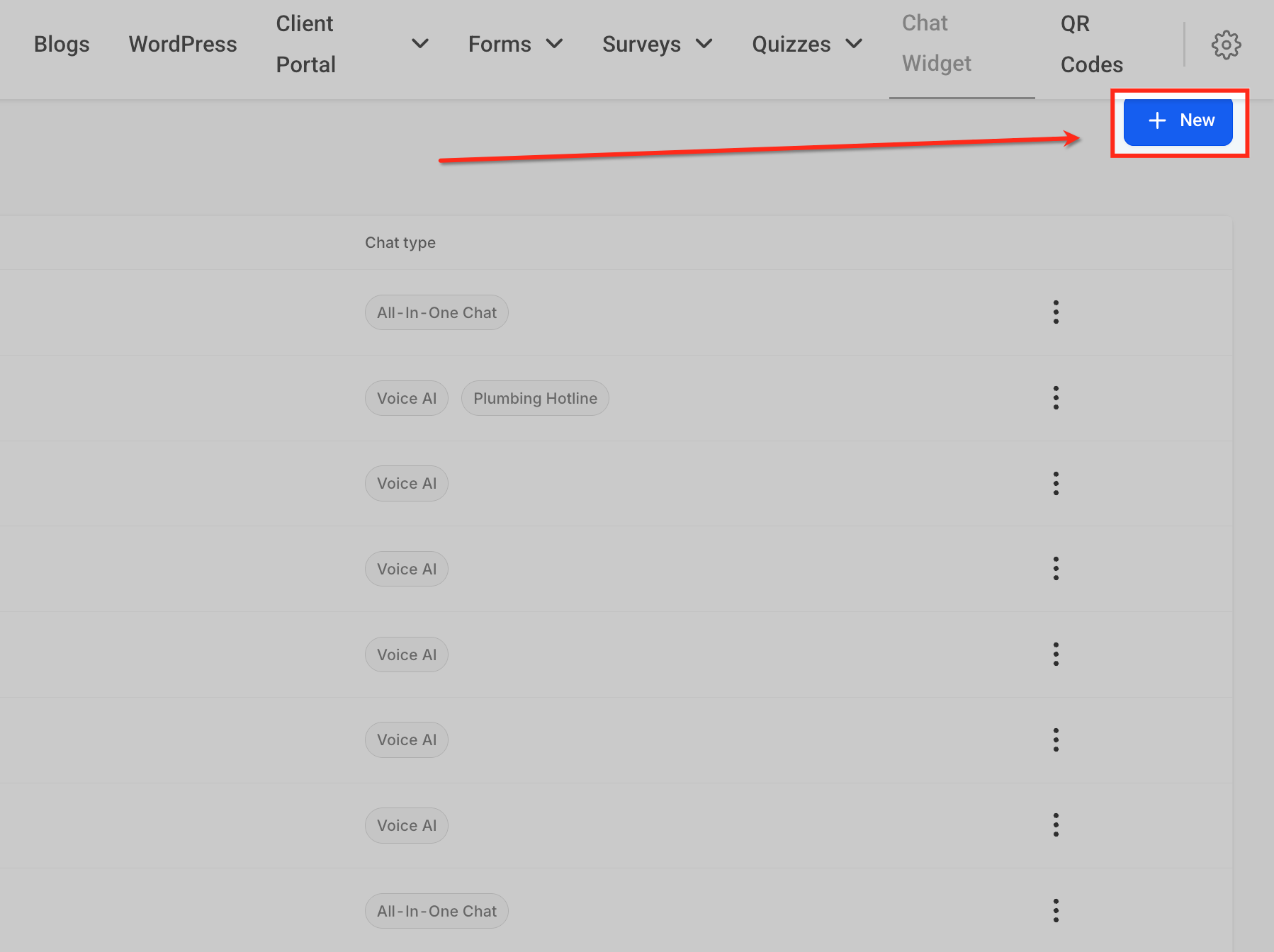
- Click the + New button at the top right corner of the Chat Widget page.
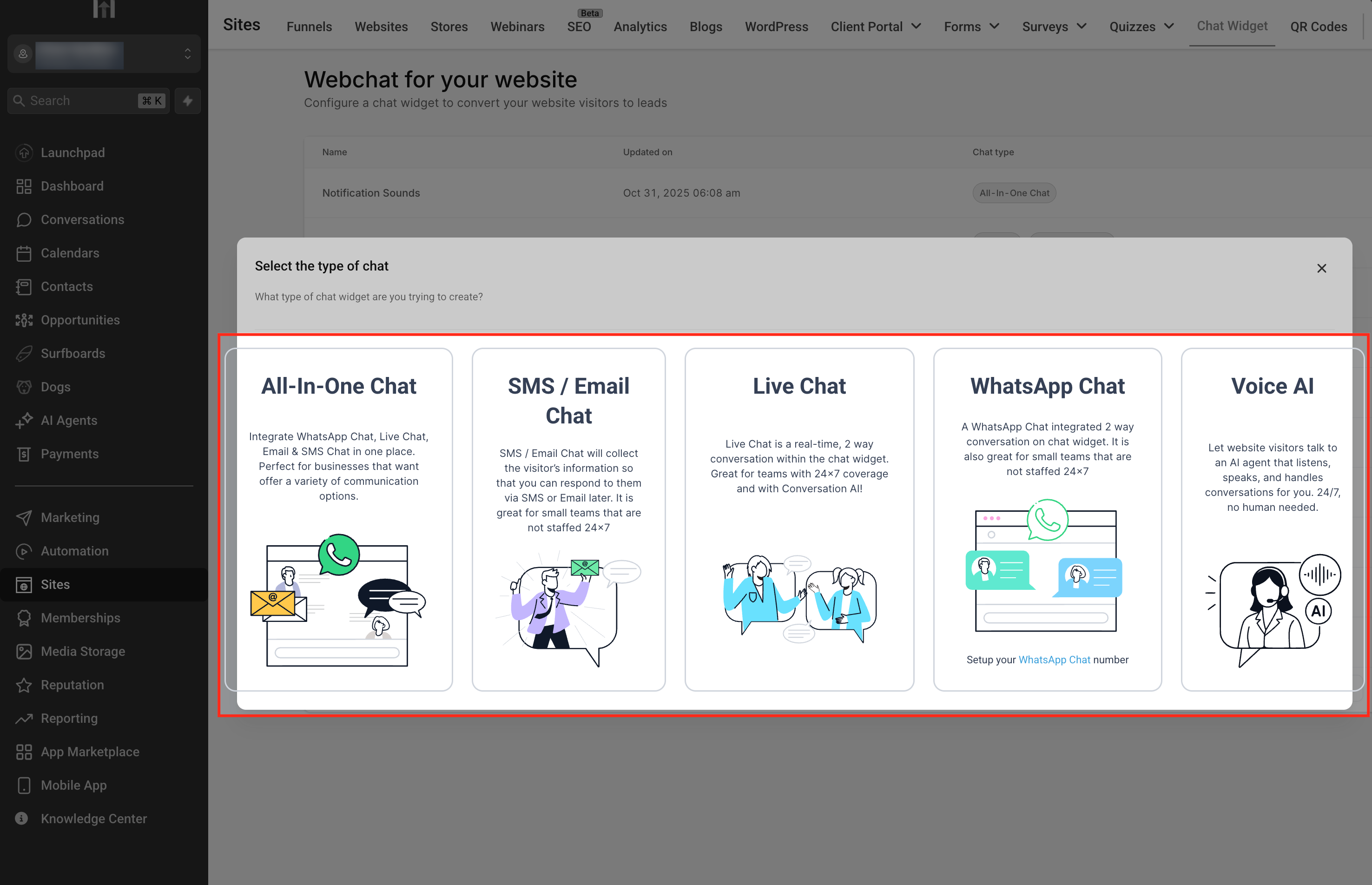
- Select the desired widget type, WhatsApp, Email/SMS, All in One, or Voice AI, from the list of options.
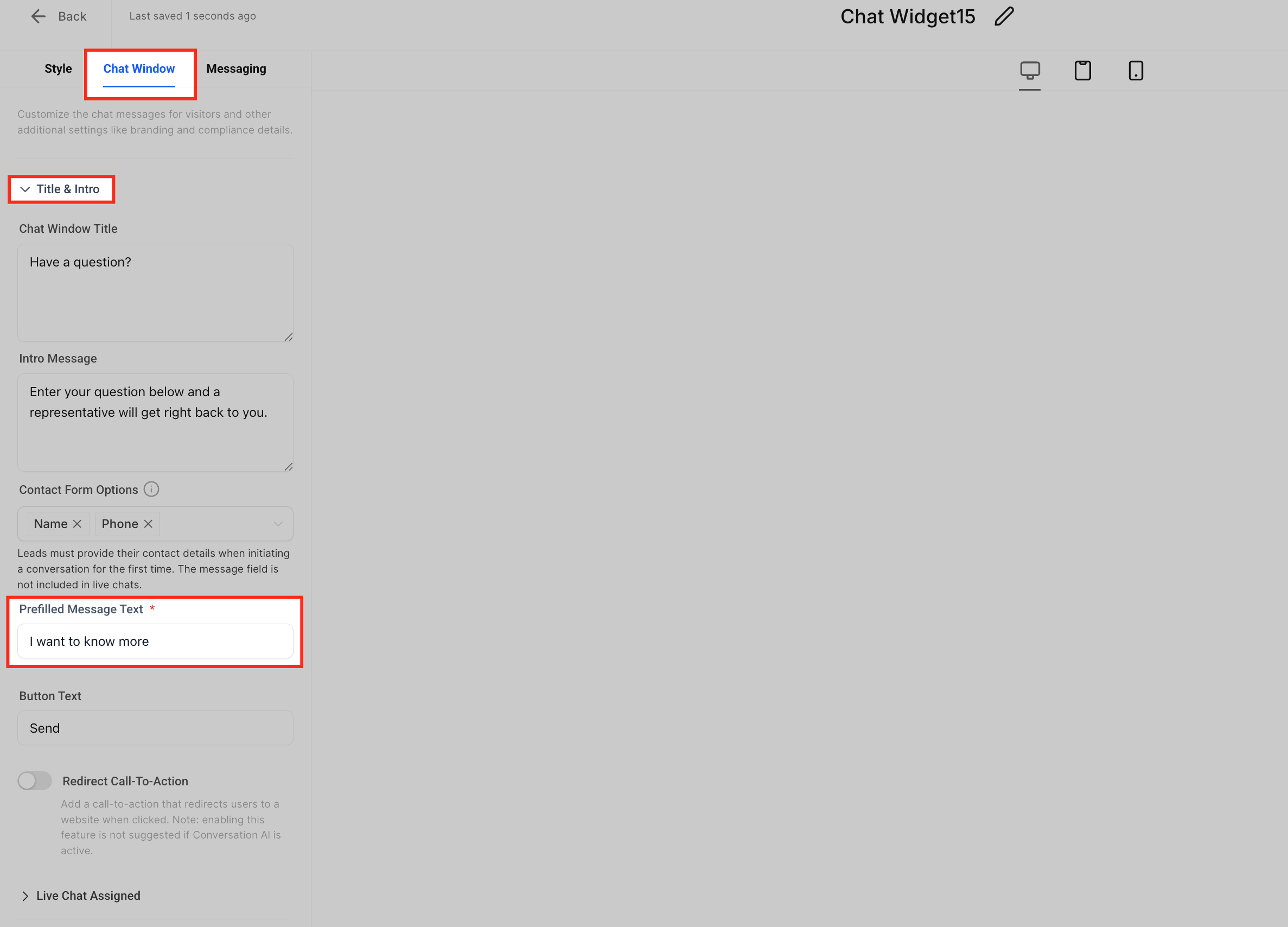
- Open the Chat Window tab, edit the Prefilled Message Text field with your default message, adjust the Title and Intro Message as needed, toggle Required on or off, and save the widget.
06What it looks like in HighLevel
07Settings that matter
- Prefilled Message Text. Controls the default text that appears in the message box when the widget loads.
- Required. Determines whether the custom message field must be completed before a visitor can submit the form.
08Things to know before you rely on it
- The default text can contain up to 255 characters, including spaces.
- Live Chat widgets do not include this field; they keep the original free form box.
- If a contact form lacks a message field, the custom field is mandatory; otherwise, it is optional.
09How it connects to the rest of HighLevel
- Set up multiple chat widgets in a single subaccount Multiple widgets
- Add HighLevel chat widget to a Squarespace website Squarespace embed
- View HighLevel pricing and plans Pricing
Michael's take

Not all chat widgets need a prefilled message, and adding one can feel unnecessary if you already capture intent elsewhere. Forgetting that Live Chat doesn’t get this field can also lead to inconsistent experiences across your site.