
01Who this is for
- Support managers need automatic acknowledgment and routing when customers reply to a support widget.
- Sales directors benefit from routing sales widget replies directly to the sales team and creating opportunities.
- Business owners with multiple brand sites can keep each widget’s automation separate for easier maintenance.
02Customer replied workflows, explained
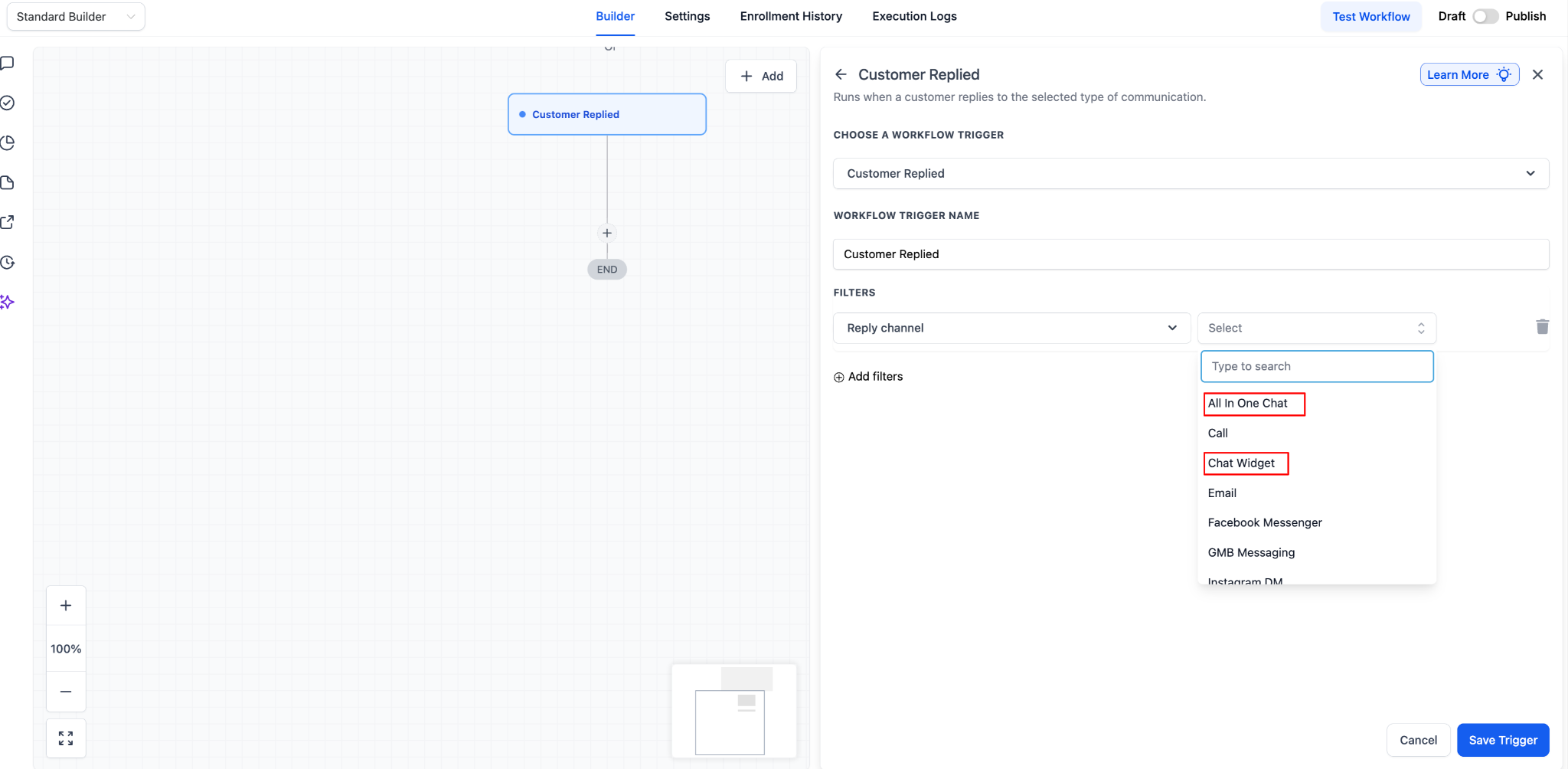
The feature adds a Customer Replied trigger to the workflow builder. When a contact sends a message back through the All in One Chat system, the workflow can start automatically. The trigger first checks that the event is a reply, then limits it to the All in One Chat channel.
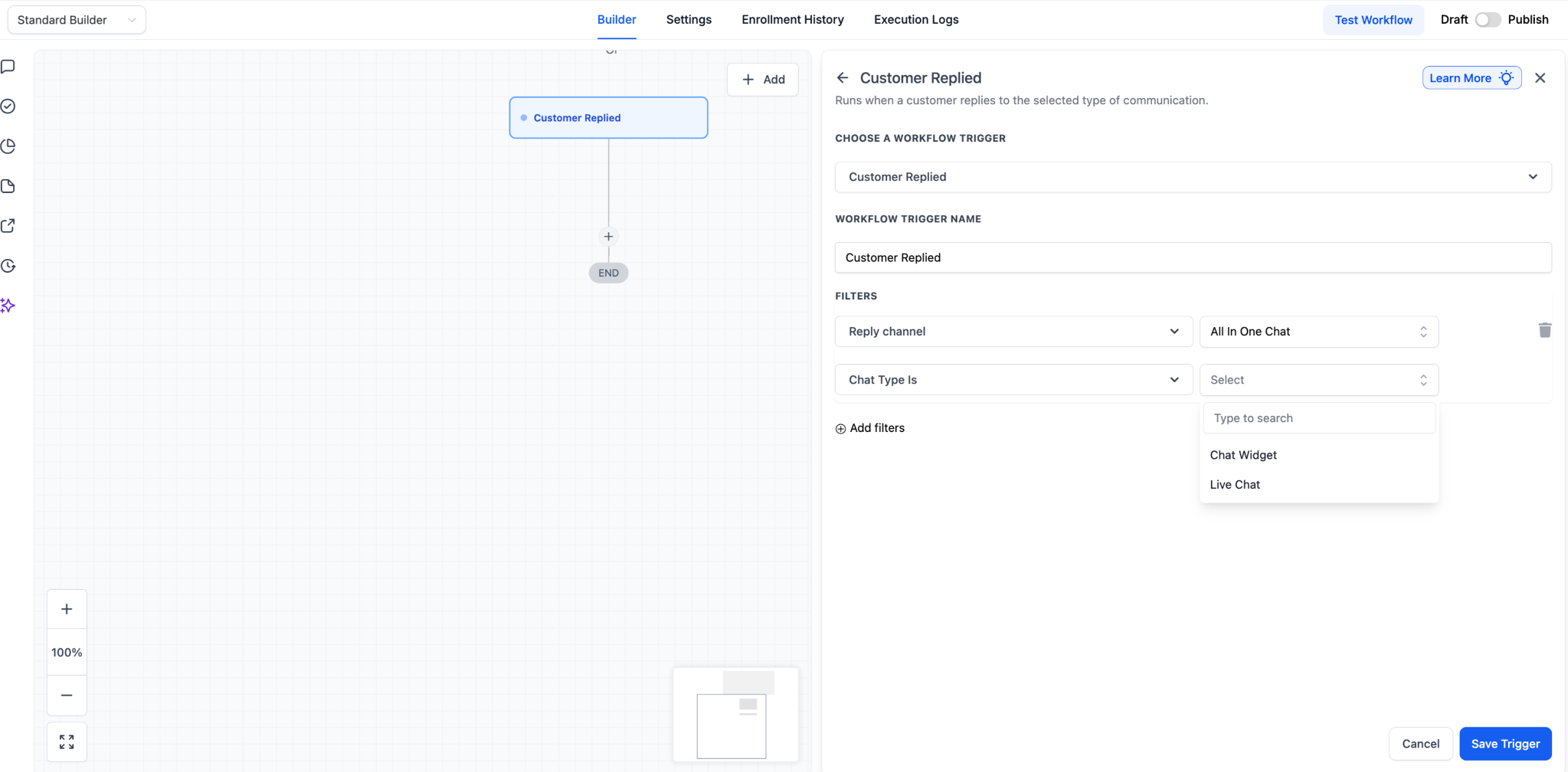
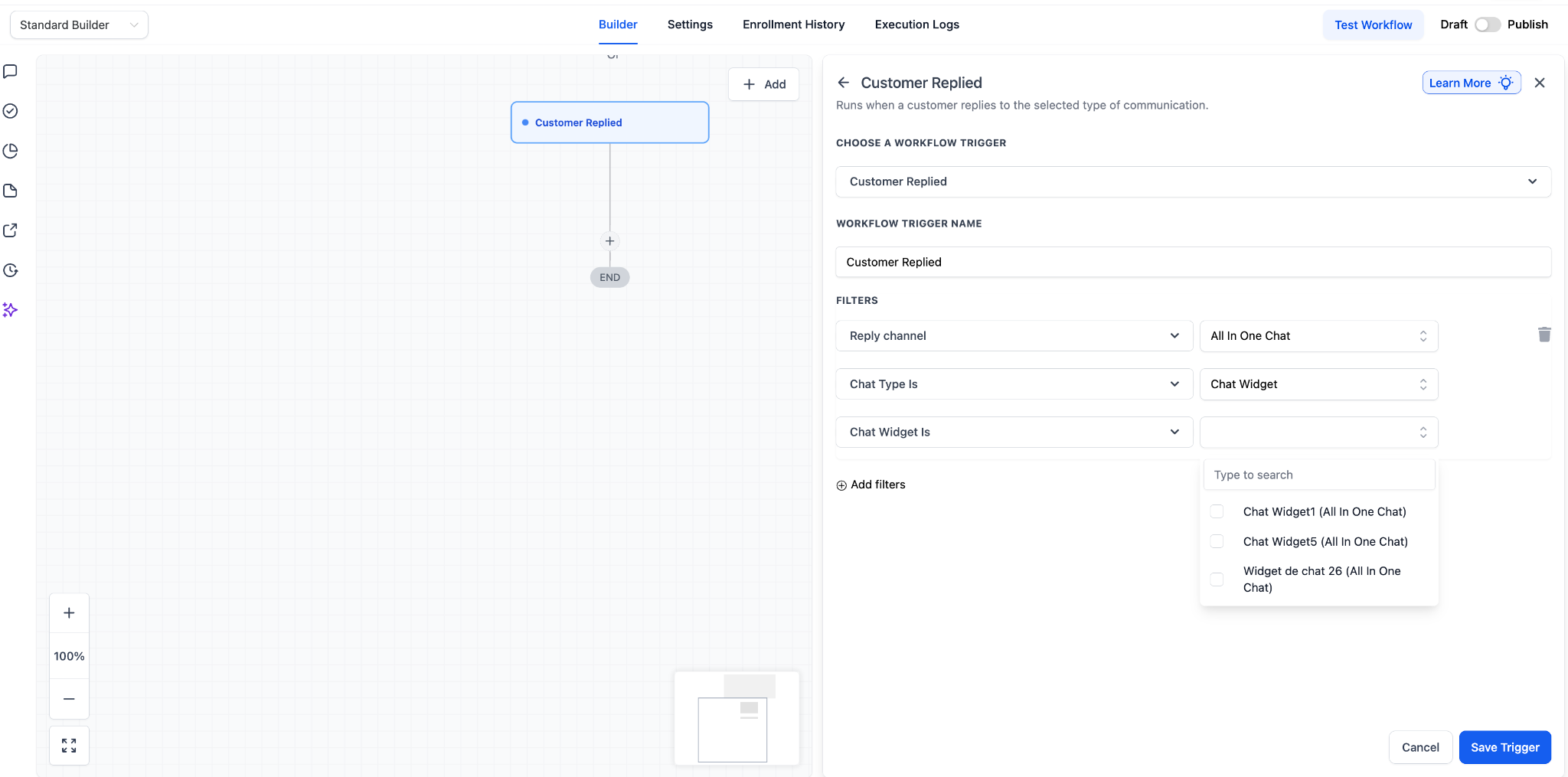
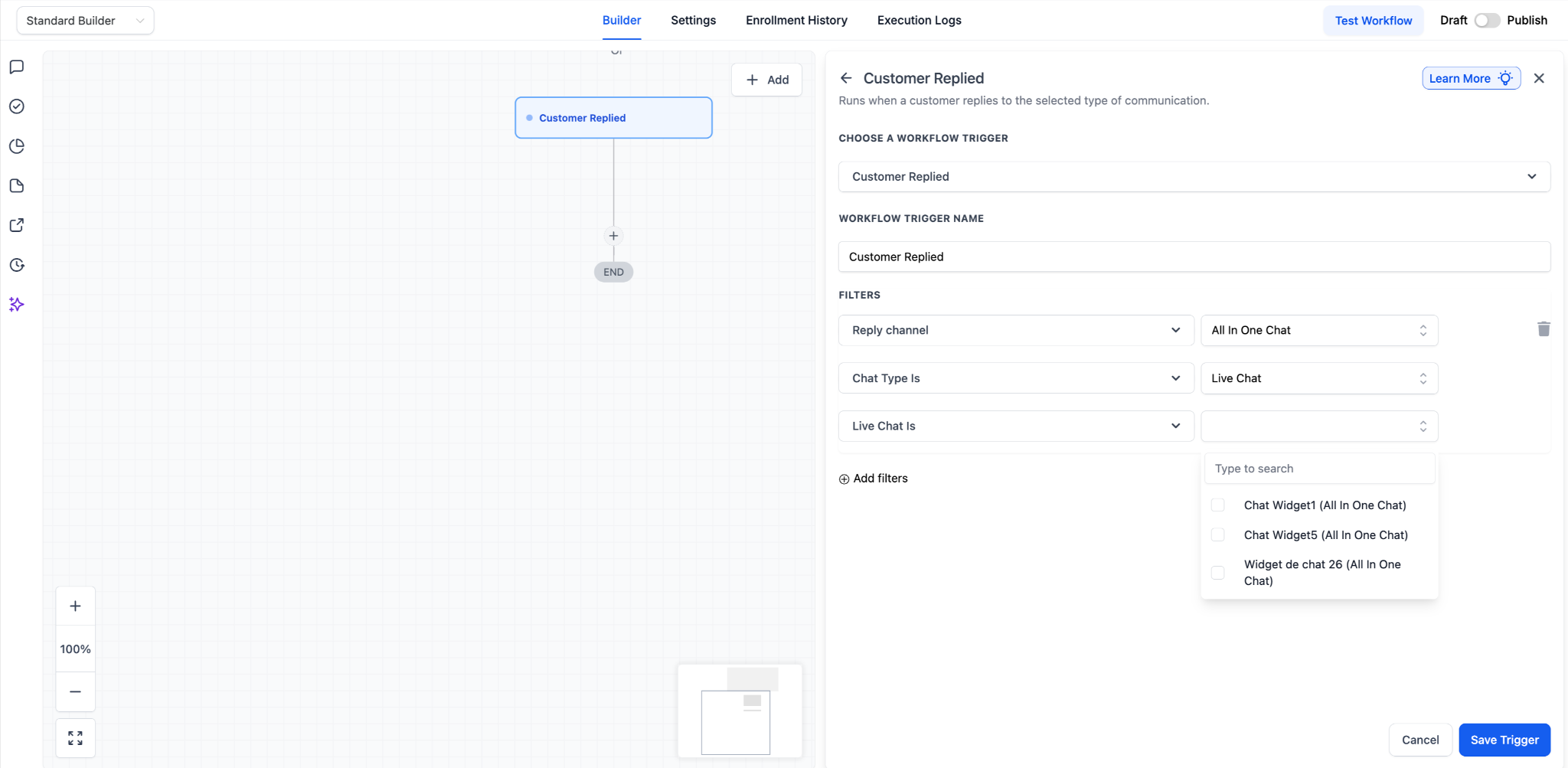
After selecting All in One Chat, two additional filters appear. Chat Type lets you pick either a Chat Widget or Live Chat. A third dropdown then shows only the widgets or live chat configurations that belong to the chosen type. The workflow runs only when every selected condition matches the incoming reply.
All of these settings are located in the workflow editor under Automations > Workflows. The trigger panel provides the dropdown menus for Reply Channel, Chat Type, and the specific widget or live chat configuration.
03How businesses use customer replied workflows
- Ecommerce store. Create a workflow that triggers on a reply from the checkout support widget. The workflow can send a confirmation message, tag the contact as "Reply Received" and assign the conversation to a support agent.
- Real estate agency. Set the Chat Type to Live Chat and select the property inquiry configuration. When a potential buyer replies, the workflow can add a tag "Property Interest", create a task for the agent and send an internal notification.
- SaaS startup. Use the Chat Widget filter for the pricing widget. When a visitor replies with a pricing question, the workflow can add a tag "Pricing Interest" and route the contact to the sales pipeline.
04Before you start
- At least one All in One Chat widget must be configured in the account.
- You need access to the Automations > Workflows area.
- If the workflow will assign contacts, users or teams must already exist.
- Tags or pipeline names used in the workflow should follow an established naming convention.
05How to set up and use customer replied workflows in HighLevel
Open Automations > Workflows
- Navigate to Automations > Workflows.
Create a new workflow or open an existing one
- Click Create Workflow or select a workflow you already built.
Add a trigger to the workflow
- Select Add Trigger from the workflow canvas.
Choose Customer Replied as the trigger event
- Pick Customer Replied from the list of available events.
Set Reply Channel to All in One Chat
- In the Reply Channel dropdown, select All in One Chat.
Select the Chat Type
- Choose either Chat Widget or Live Chat under the Chat Type option.
Pick the specific widget or live chat configuration
- From the dynamically displayed list, select the exact widget or live chat setup you want the workflow to listen to.
Save the configured trigger
- Click Save Trigger to finalize the trigger settings.
06What it looks like in HighLevel
07Settings that matter
- Reply Channel. Determines which communication channel the trigger monitors; selecting All in One Chat limits the trigger to chat widget replies.
- Chat Type. Filters the trigger to either a widget interface or a live chat configuration within the All in One Chat system.
- Chat Widget. When Chat Type is set to Widget, this list lets you choose the exact widget whose replies should start the workflow.
- Live Chat. When Chat Type is set to Live Chat, this list shows the live chat configurations that can be selected for the trigger.
08Things to know before you rely on it
- All in One Chat appears in the Reply Channel list only if at least one widget is set up.
- Only the widget or live chat configuration chosen in the final dropdown will activate the workflow; other widgets are ignored.
- Mixing Chat Widget and Live Chat in the same trigger is not supported.
- The trigger fires only on Customer Replied events, not on initial messages.
09If something goes wrong
- All in One Chat does not appear in Reply Channel. Make sure the trigger you selected is Customer Replied and that an All in One Chat widget exists in the account.
- Expected widget does not appear in the configuration list. Switch the Chat Type selection and verify that the widget configuration is active and correctly named.
- Workflow triggers unexpectedly. Confirm you selected the correct widget or live chat configuration and check for other workflows with overlapping trigger conditions.
10How it connects to the rest of HighLevel
- Learn how to install the HighLevel chat widget and set up its workflow Install chat widget
- Add the HighLevel chat widget to a Wix website Wix integration
- Set up multiple chat widgets in a single subaccount Multiple widgets
Michael's take

A small convenience that can feel like a real shift for any business that lives in chat. By catching a customer’s reply the moment it lands, you can send a thank you, hand the conversation to the right team, or flag a VIP without any manual steps.
A support focused SaaS company benefits most. The moment a user answers a help widget, the workflow can assign the ticket, tag it, and push a follow up. If I were setting this up, I’d start with a simple acknowledgement workflow, then layer in routing and escalation as the process proves reliable.