
01Who this is for
- Founders of SaaS startups, they need extra lead data to qualify prospects directly from chat interactions.
- Marketing managers at service firms, they can capture appointment preferences or budget details through custom fields.
- Customer support leads at ecommerce brands, they gather order numbers or product SKUs without leaving the chat.
02Custom Fields, explained
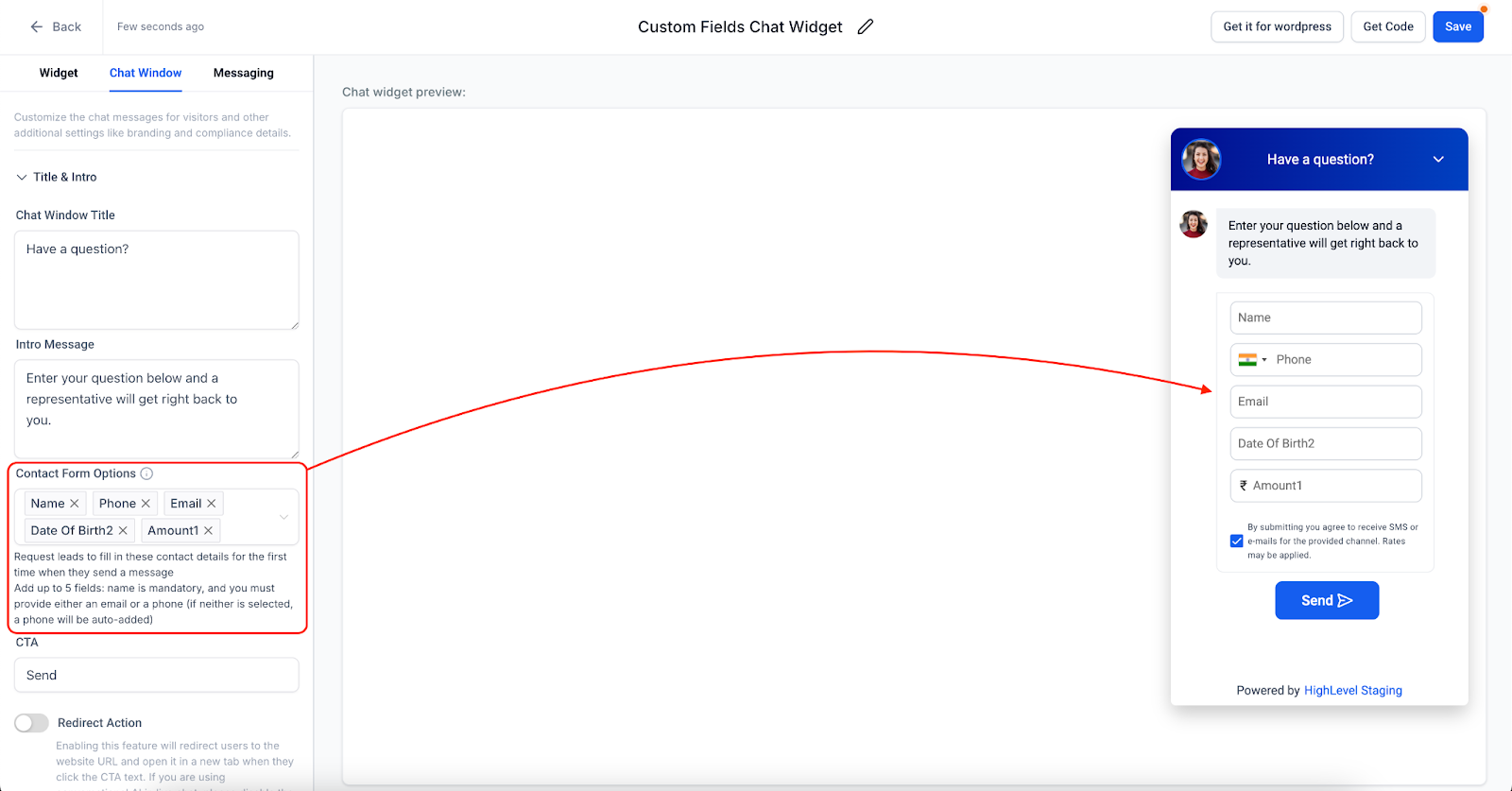
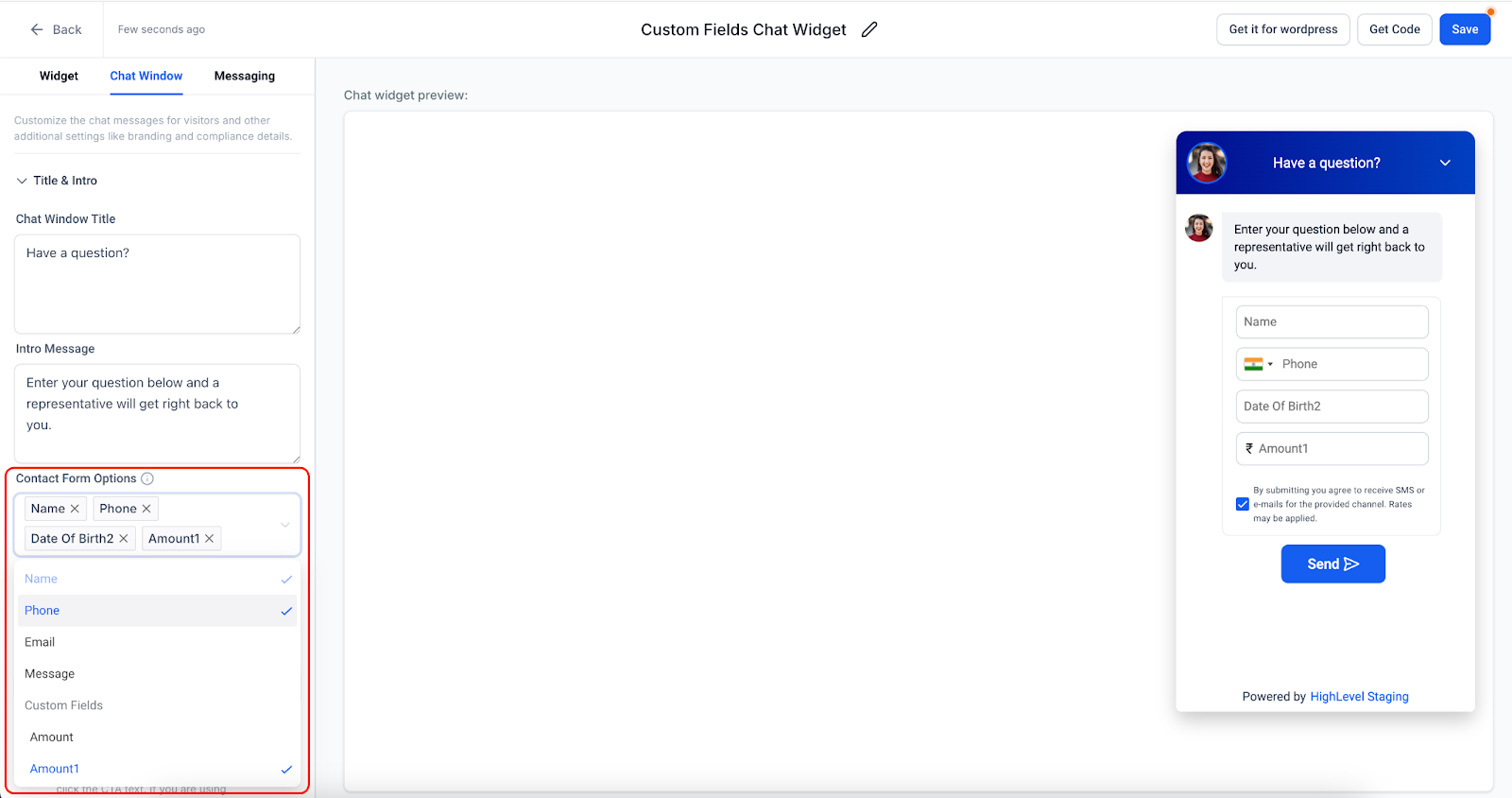
The custom field feature extends the HighLevel chat widget’s contact form. It lives inside the chat widget builder where standard fields such as Name, Phone or Email, and Message are already present. Users can add new fields alongside these defaults.
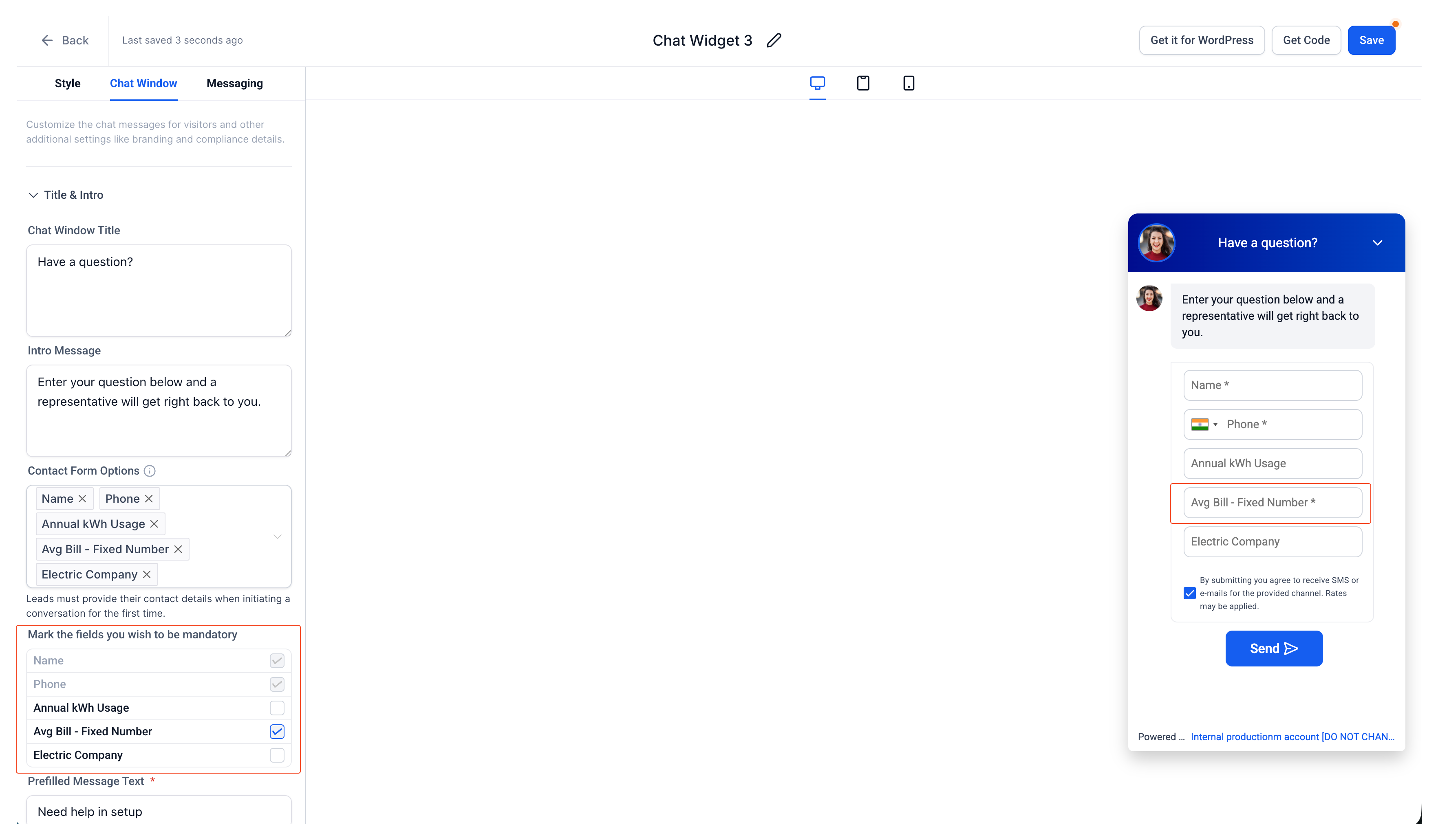
Each new field can be one of several data types, including single line, multi line, monetary, numeric, phone, date picker, or a single option dropdown. Fields can be marked as required, showing an asterisk, and the form cannot be submitted until required entries are completed. Phone fields validate against country codes, while email fields check proper formatting.
03How businesses use Custom Fields
- Dental practice. The practice adds a date picker field for patient birthdate and a numeric field for insurance ID. These fields are marked required so the contact form collects necessary details before creating a patient record.
- Real estate agency. The agency adds a dropdown field listing budget ranges and a single line field for property type. Marking them required lets agents gather qualification data directly from chat visitors.
- Online coaching business. The coach adds a numeric field for desired session frequency and a multi line field for specific goals. Required validation ensures prospects provide complete information before the coach follows up.
04The numbers and rules that matter
- Maximum of 5 fields total, including standard and Custom Fields.
05How to set up and use Custom Fields in HighLevel
Add custom fields to a chat widget
- Open the builder for the chat widget you want to modify.
- Select the option to add a new field to the contact form.
- Choose the field’s data type from the supported list.
- Enter a label that describes the field’s purpose.
- Toggle the setting to make the field required, if needed.
- Repeat the process for additional fields while keeping the total under five.
- Save the widget configuration to apply the new fields.
06What it looks like in HighLevel
07Settings that matter
- Supported Custom Field Types. Determines which data formats a new field can accept, such as single line, multi line, monetary, numeric, phone, date picker, or dropdown.
- Field Limitations. Controls the maximum number of fields, up to five total including standard fields, and enforces that either phone or email is mandatory.
08Things to know before you rely on it
- A maximum of five fields can exist on a widget, counting both standard and custom entries.
- Either phone or email must be present; one of them is required for contact creation.
- If more than one phone field is added, only one country flag can be chosen and changes sync across all phone fields.
09How it connects to the rest of HighLevel
- Installing HighLevel chat widget and configuring its workflow Install chat widget
- How to set up HighLevel’s All in One Chat widget All in One widget
- How to set up multiple chat widgets in one HighLevel subaccount Multiple widgets
Michael's take

Custom Fields in the chat widget are a nice way to gather extra data without building a separate landing page.
Skip it if you only need name, phone/email and a short message. Adding more fields can slow down the visitor’s experience.