
01Who this is for
- Marketing managers who need an easy way to engage site visitors and capture leads.
- Small business owners with a Weebly website looking for an integrated chat solution.
- Web designers who want a quick method to add live chat without custom coding.
02Chat widgets, explained
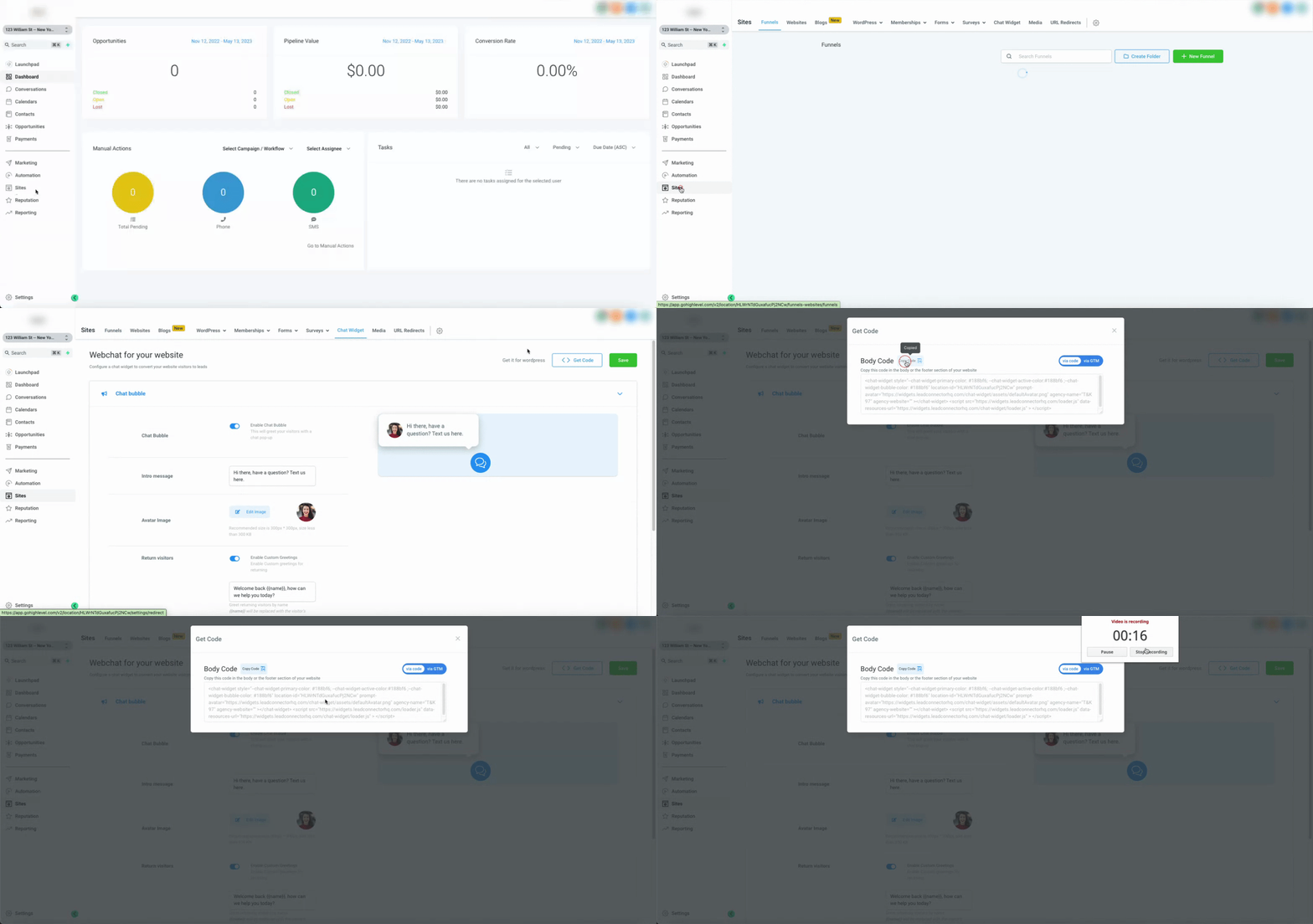
The chat widget adds a live chat box to a Weebly site. The widget code is generated in HighLevel under Sites > Chat Widget > Get Code. Once the code is placed on the site, visitors can click the chat icon to start a conversation with you or your team.
You can embed the code site wide by using Weebly’s Header Code Injection feature, which injects the script into the page header of every page. Alternatively, you can embed the code on individual pages with a Custom HTML/Embed Code element, giving you control over where the chat appears.
Both methods are managed from the Weebly website editor. After pasting the code, you either save the settings or publish the page to make the widget visible to site visitors.
03How businesses use chat widgets
- Real estate agency. The agency copies the widget code from HighLevel, pastes it into the Header Code Injection box, and saves. The chat icon now appears on every property listing page, allowing prospects to ask questions right away.
- Boutique clothing store. The store adds a Custom HTML element to its checkout page, inserts the chat code there, and publishes. Shoppers can start a chat only during checkout, helping them resolve purchase issues.
- Consulting firm. The firm places the widget code in the Header Code Injection area to have the chat accessible on all service pages. Prospective clients can initiate conversations from any service description.
04Before you start
- A Weebly site must be created and you must have editor access.
- Obtain the embed code from HighLevel by navigating to Sites > Chat Widget > Get Code.
05How to set up and use chat widgets in HighLevel
Add widget with header code injection (6 steps)
- Log in to your Weebly account and open the website editor.
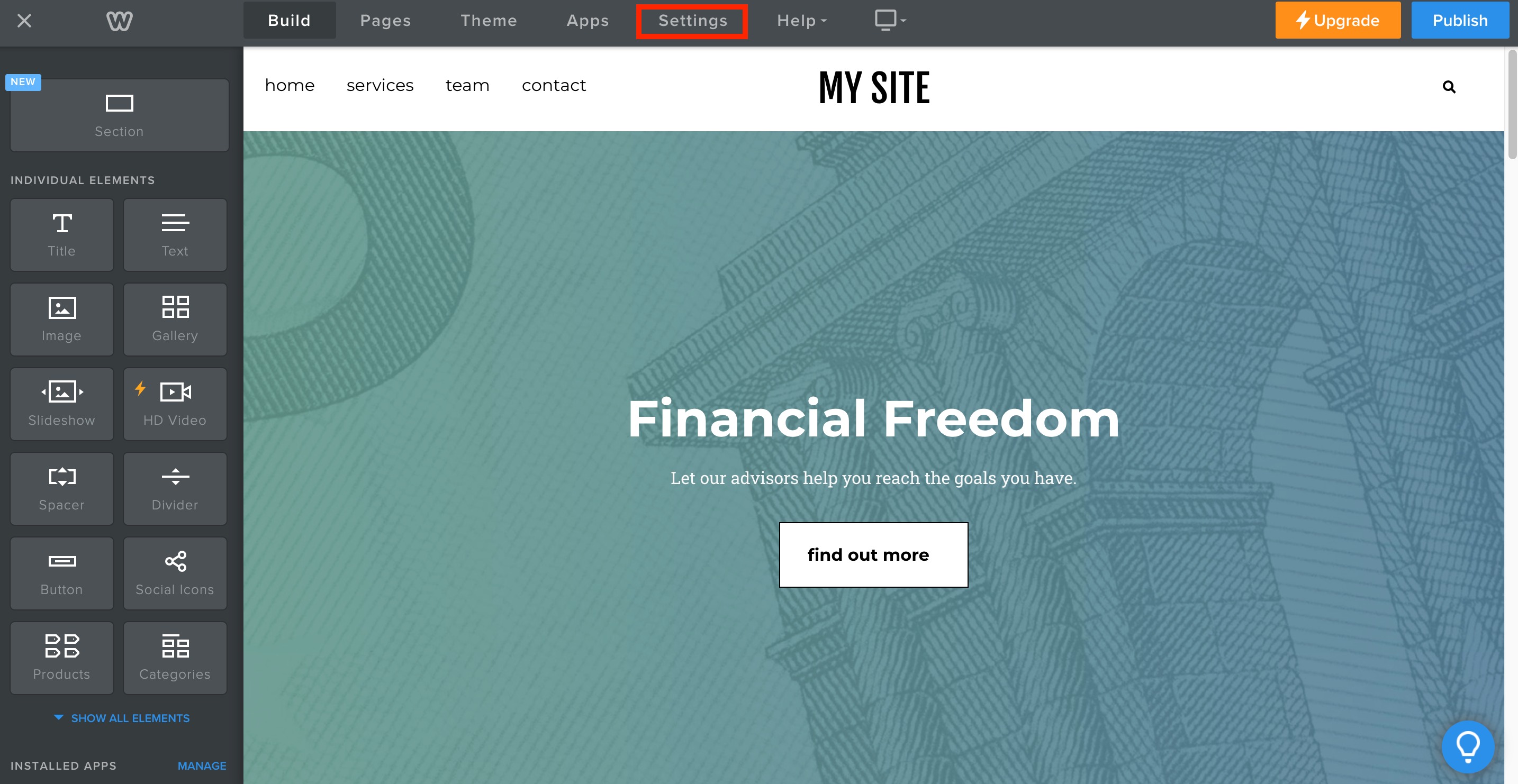
- Select Settings from the left hand menu.
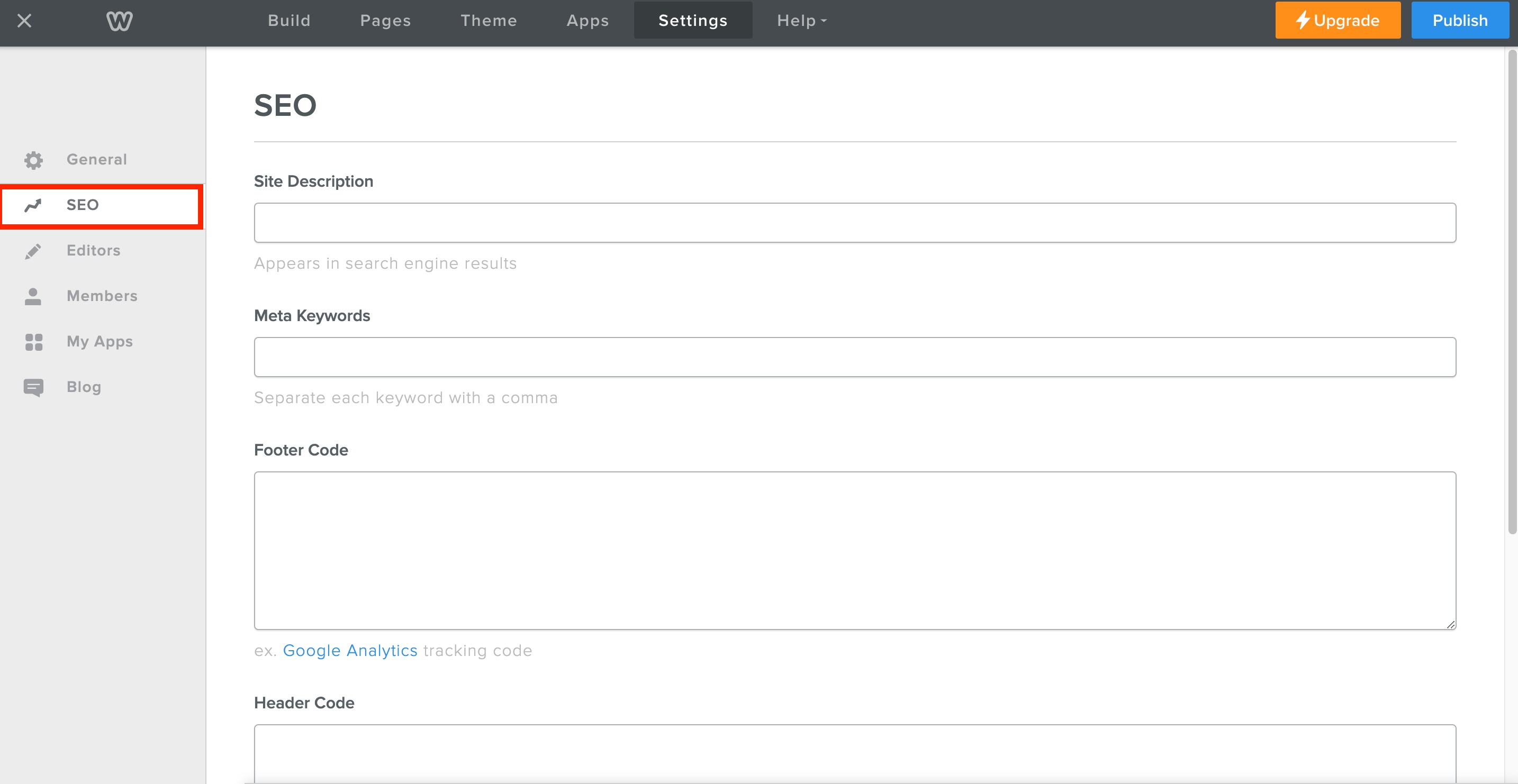
- Choose SEO from the options displayed.
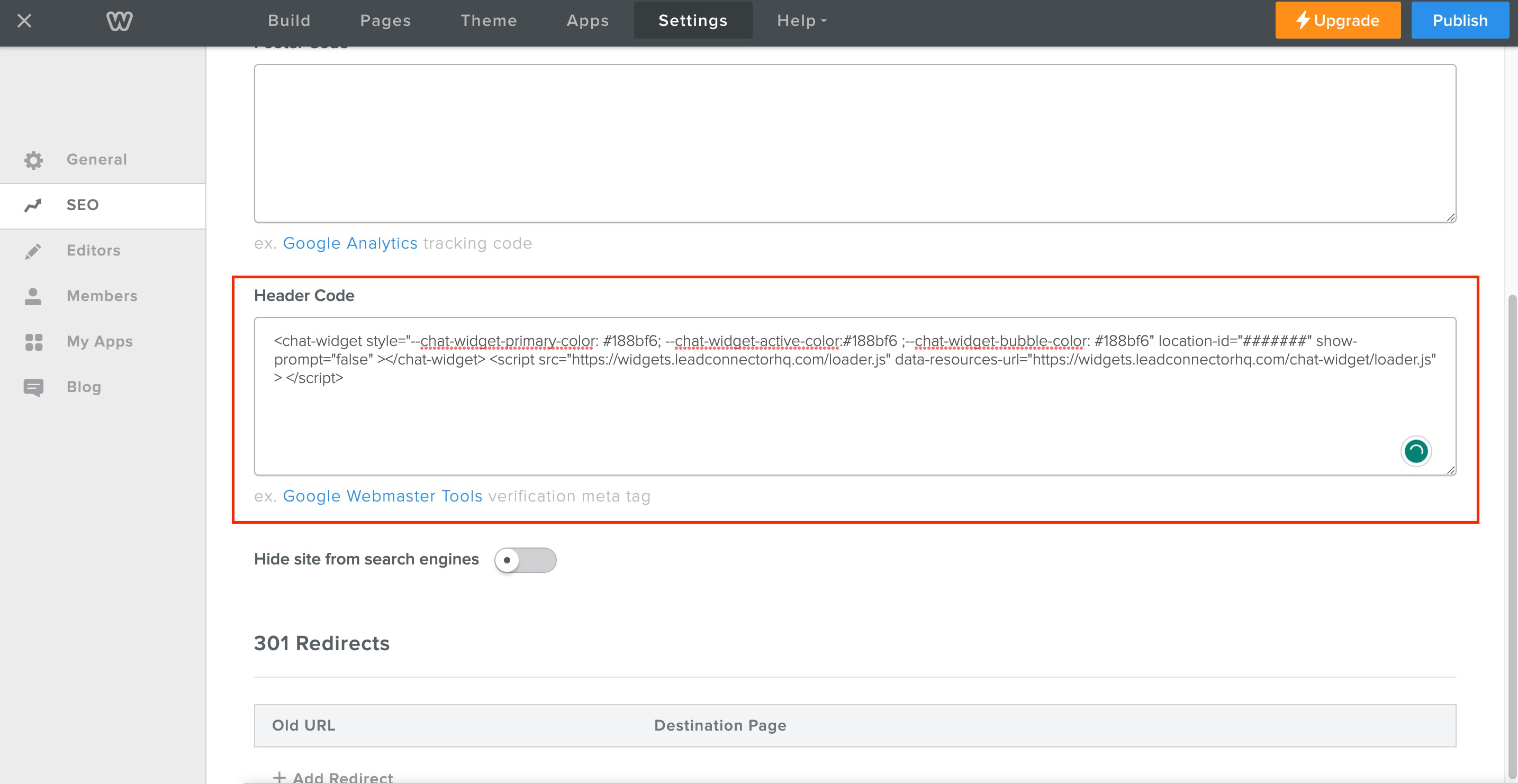
- Scroll to the Header Code Injection section and open the editor.
- Paste the HighLevel chat widget code into the injection box.
- Click Save to apply the changes.
Add widget with custom HTML element (5 steps)
- Log in to your Weebly account and open the website editor.
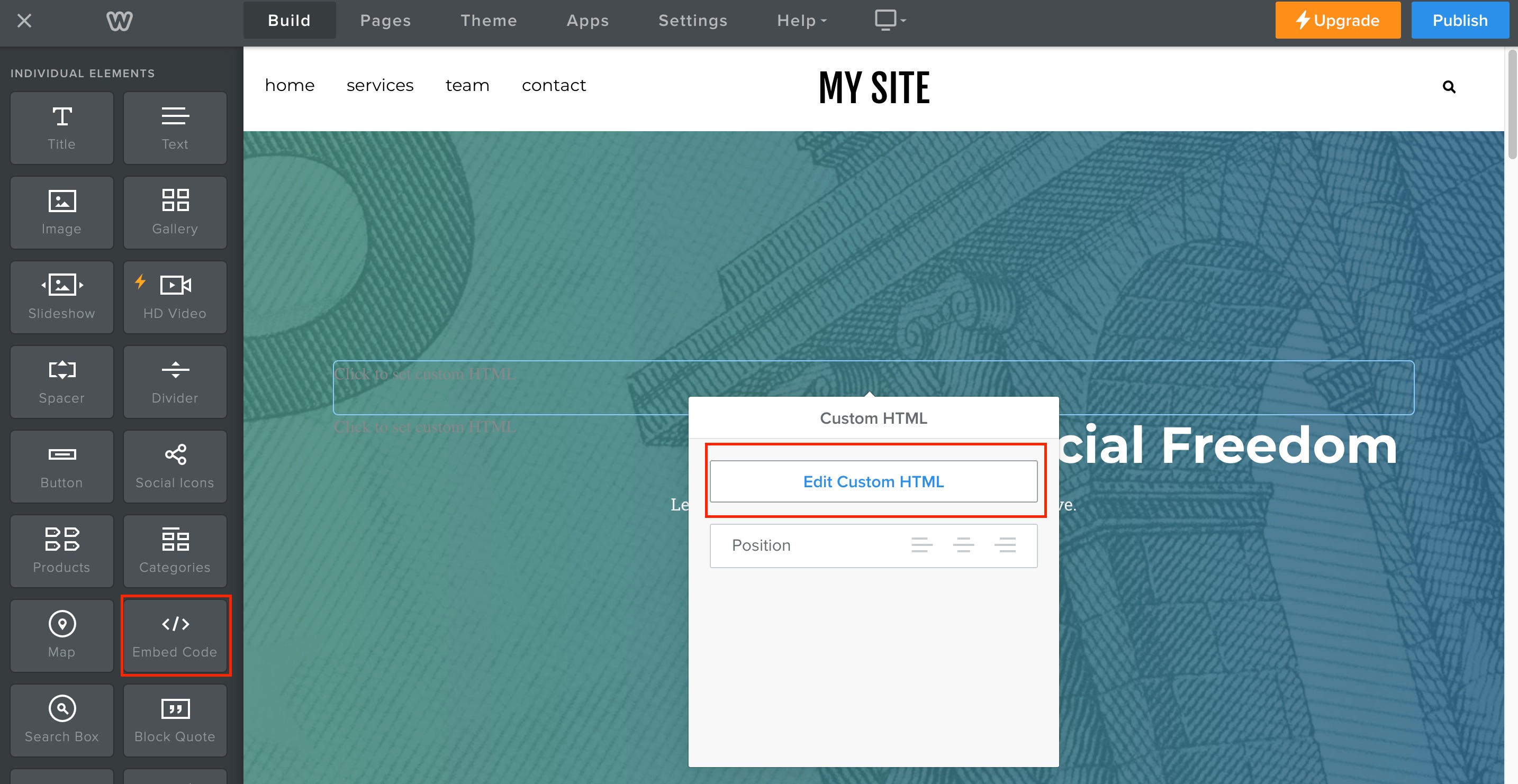
- Click Elements in the left hand menu and pick Custom HTML/Embed Code.
- Drag the Custom HTML element onto the page where the chat should appear.
- Paste the HighLevel chat widget code into the element.
- Click Publish to make the widget live.
06What it looks like in HighLevel
07Settings that matter
- Header Code Injection. Controls whether a script placed in the site header runs on every page, allowing a global chat widget.
- Custom HTML/Embed Code. Allows insertion of HTML snippets on a specific page, enabling placement of the chat widget only where the element is added.
08How it connects to the rest of HighLevel
- Learn how to install the HighLevel chat widget and set up its workflow. Install chat widget
- Find out how to create multiple chat widgets within a single subaccount. Multiple widgets
- Review HighLevel pricing and plan options. Pricing
Michael's take

A quick way to start a conversation is to get the chat code from HighLevel and drop it into the Weebly header so every page has the widget.
I’d double check the widget shows up in preview mode before publishing the site.