
01Who this is for
- Customer support agents can quickly shift calls to specialists without ending the conversation.
- Sales managers can introduce senior staff during warm transfers for deeper engagement.
- Field technicians can route calls to dispatch while remaining on site.
02Inbound call transfers, explained
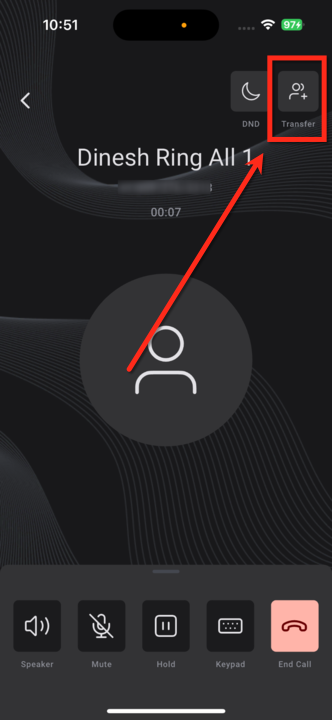
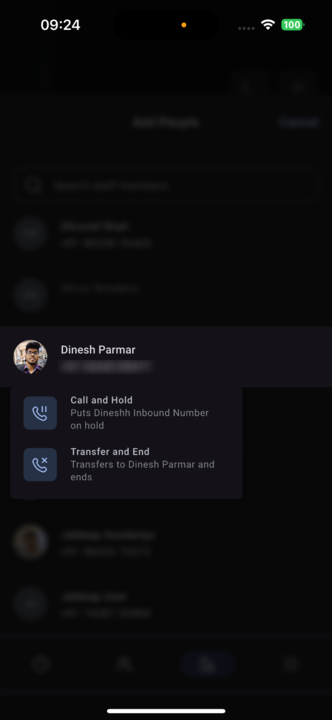
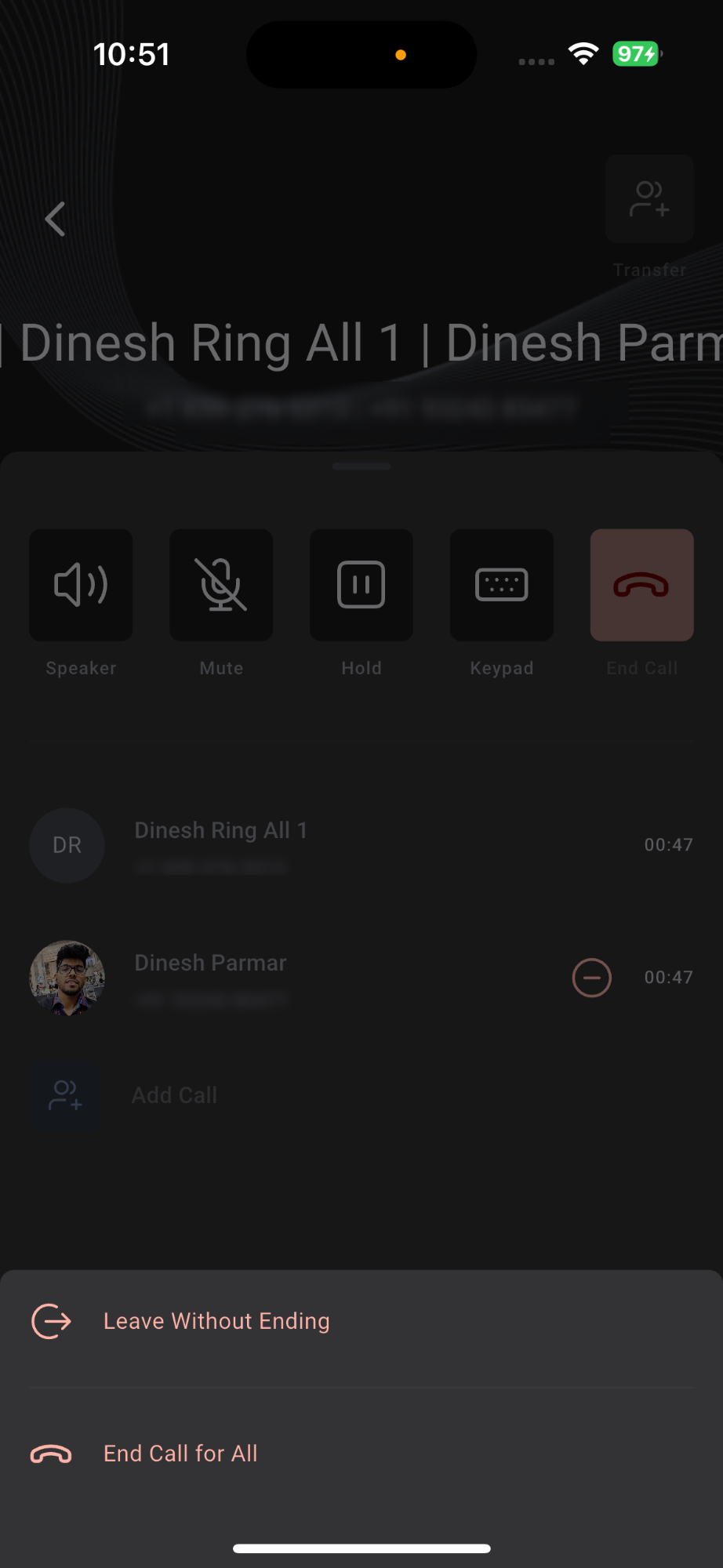
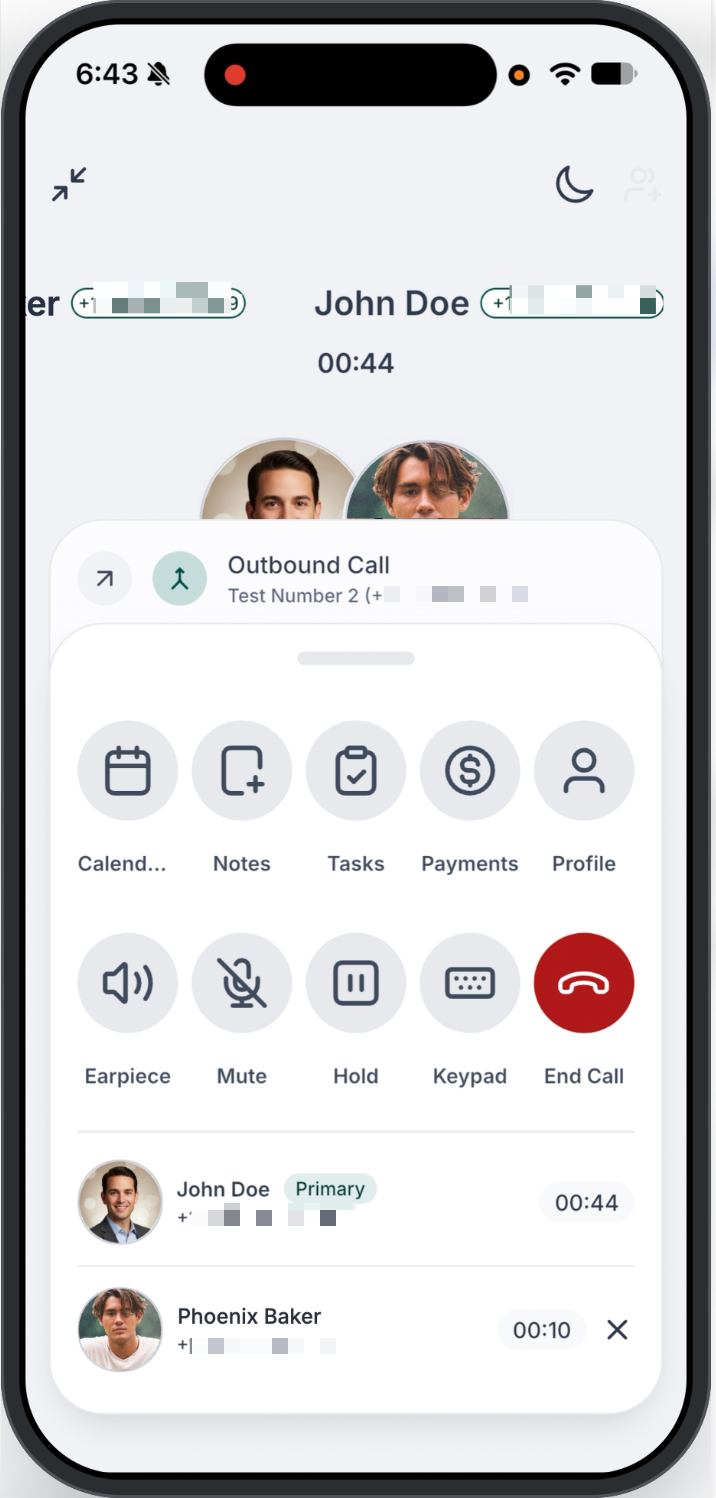
The feature appears during an active inbound call on the HighLevel mobile app. After answering, a Transfer button at the top right opens a panel where you choose a recipient from recent calls, contacts, staff list, or by entering a number on the keypad. You then select either warm or blind transfer. Warm transfer keeps you on the call to provide context, while blind transfer hands the call off right away. When you perform a warm transfer, a participant panel slides up from the bottom of the screen. From there you can leave the call while it continues for others, end the call for everyone, or remove a specific participant such as another staff member. The panel shows each participant’s status in a scrollable list.
03How businesses use inbound call transfers
- Dental practice. A receptionist answers a patient call, taps Transfer, selects the dentist from Staff, chooses warm transfer, and stays on the line to introduce the patient before sliding the participant panel to remove themselves.
- Real estate agency. An agent receives a lead call, taps Transfer, searches a colleague’s number via the keypad, selects blind transfer, and the call is handed off right away without the agent remaining on the line.
- IT support firm. A technician answers a support call, taps Transfer, picks a senior engineer from Recents, chooses warm transfer, and after introducing the issue, uses the participant panel to end the call for all participants when the issue is resolved.
04The numbers and rules that matter
- Supported on HighLevel v3.97.3 and above.
- Supported on LeadConnector v3.97.3 and above.
05Before you start
- The mobile app must be version v3.97.3 or higher for HighLevel or LeadConnector.
- White labeled apps require an update request from the provider.
- User settings must allow transferring to external phone numbers if that option is needed.
06How to set up and use inbound call transfers in HighLevel
Transfer an inbound call
- Answer the incoming call in the HighLevel mobile app.
- Tap the Transfer button in the top right corner of the call screen.
- Choose the recipient from Recents, Contacts, Staff, or the keypad.
- Select Warm Transfer to stay on the line or Blind Transfer to disconnect immediately.
- If using Warm Transfer, slide up the participant panel and choose to leave the call, end the call for everyone, or remove an individual participant.
07What it looks like in HighLevel
08Settings that matter
- External transfer permission. A setting HighLevel exposes for this feature.
09Things to know before you rely on it
- The feature works only on HighLevel v3.97.3 and above or LeadConnector v3.97.3 and above.
- White labeled mobile apps need a provider update to access the transfer feature.
- External numbers can be transferred to only if permitted in the user’s settings.
- After completing either a warm or blind transfer, you cannot rejoin the same call.
- Callers receive no system generated notification of the transfer; they may hear your voice during a warm transfer.
10How it connects to the rest of HighLevel
- Explore all mobile and desktop app capabilities. Mobile & desktop features
- Learn how to promote and customize a white label app. White label app guide
- Download the HighLevel desktop app for Windows, macOS, or Linux. Desktop app download
Michael's take

Inbound call transfers are a small convenience that can feel like a real shift for teams that handle calls away from a desk. Being able to move a call to a colleague without hunting for a laptop keeps service smooth and lets you stay productive on the go.
A field service company with technicians on the road can use warm transfers to introduce a dispatcher while a customer is on the line. The dispatcher gets the context right away and the technician can finish the call and stay focused on the job.