
01Who this is for
- Teams that keep HighLevel open all day benefit from native OS notifications and a distraction free window.
- Small business owners seeking a faster, dedicated interface for their marketing and client management workflows.
- IT managers who need to deploy the same application across macOS, Windows and Linux computers.
02Desktop apps, explained
The Desktop App packages HighLevel into a native application that runs on macOS, Windows and Linux. It shows the same data as the web version but in a single optimized window and provides OS level notifications.
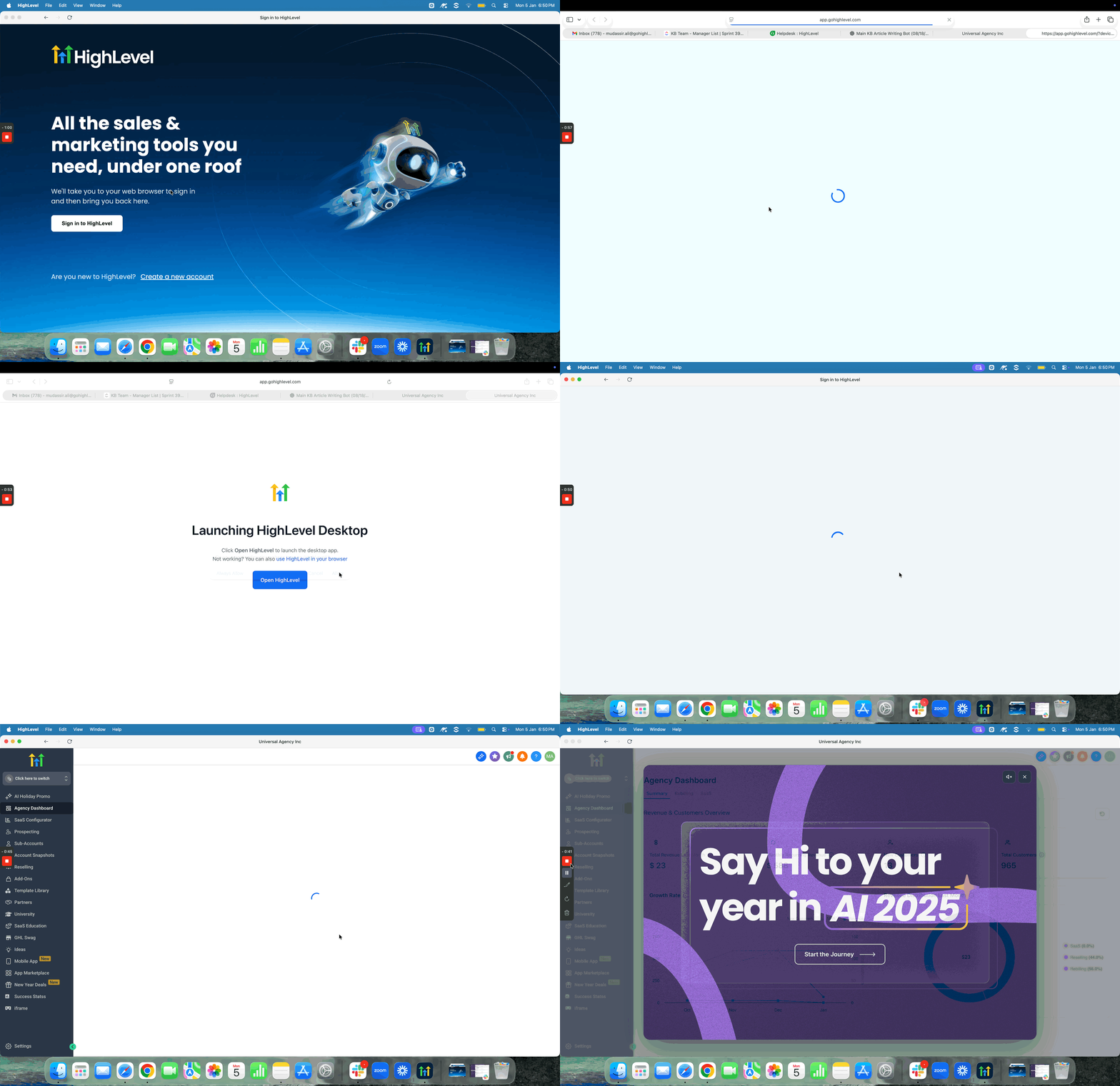
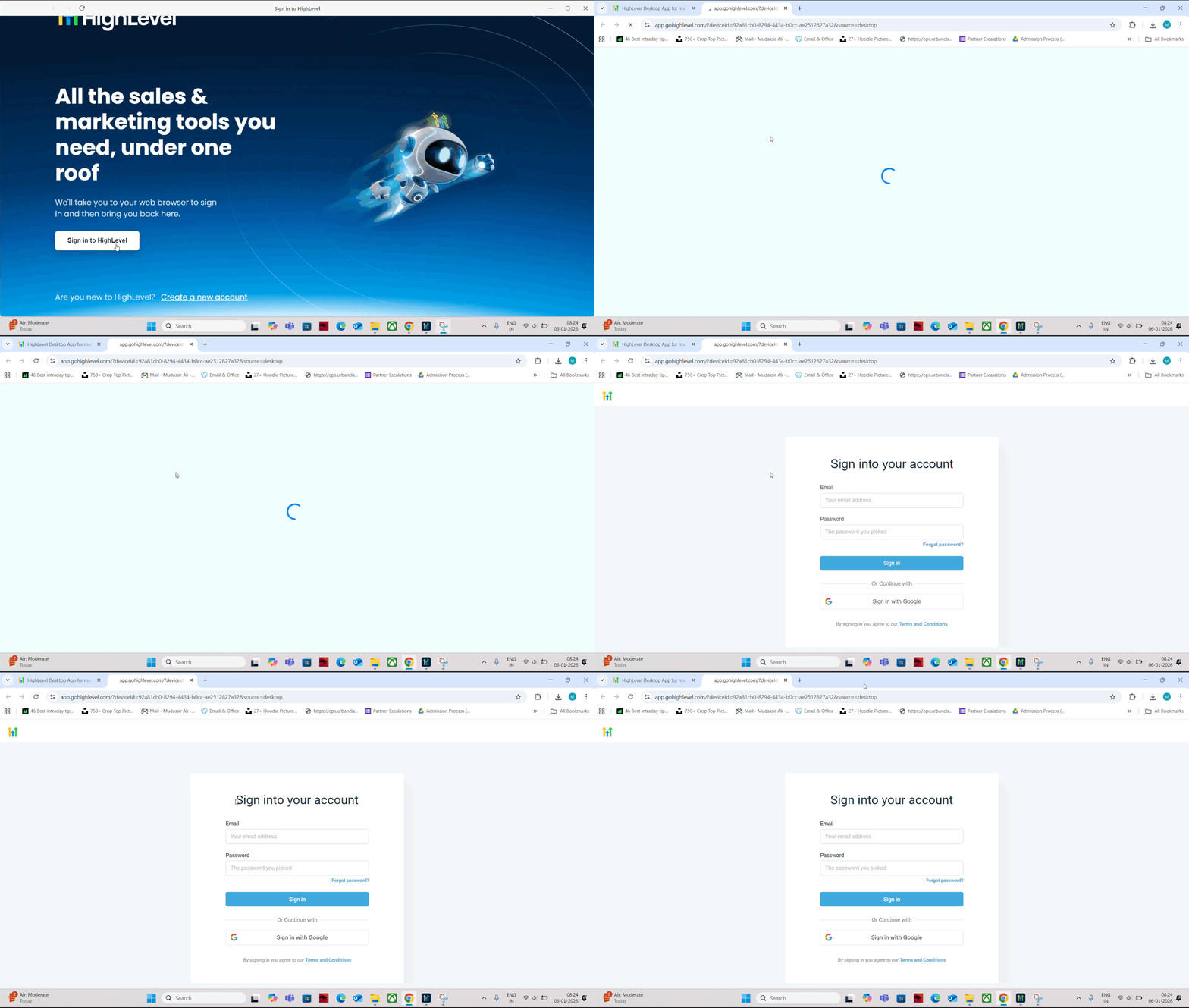
The experience and the data are the same as in the web version. When you click Sign In, the app opens your default browser; if you are already logged into the web version, you are returned to the app automatically, otherwise you complete the login flow.
The app is installed from official download links and lives in the usual locations for each operating system, Applications on macOS, the Start menu on Windows, and the applications menu on Linux.
03How businesses use desktop apps
- Marketing agency. The agency downloads the macOS installer, drags the icon into Applications, and signs in. Team members can keep the app open for the day and receive native notifications for new leads, keeping focus on campaign work.
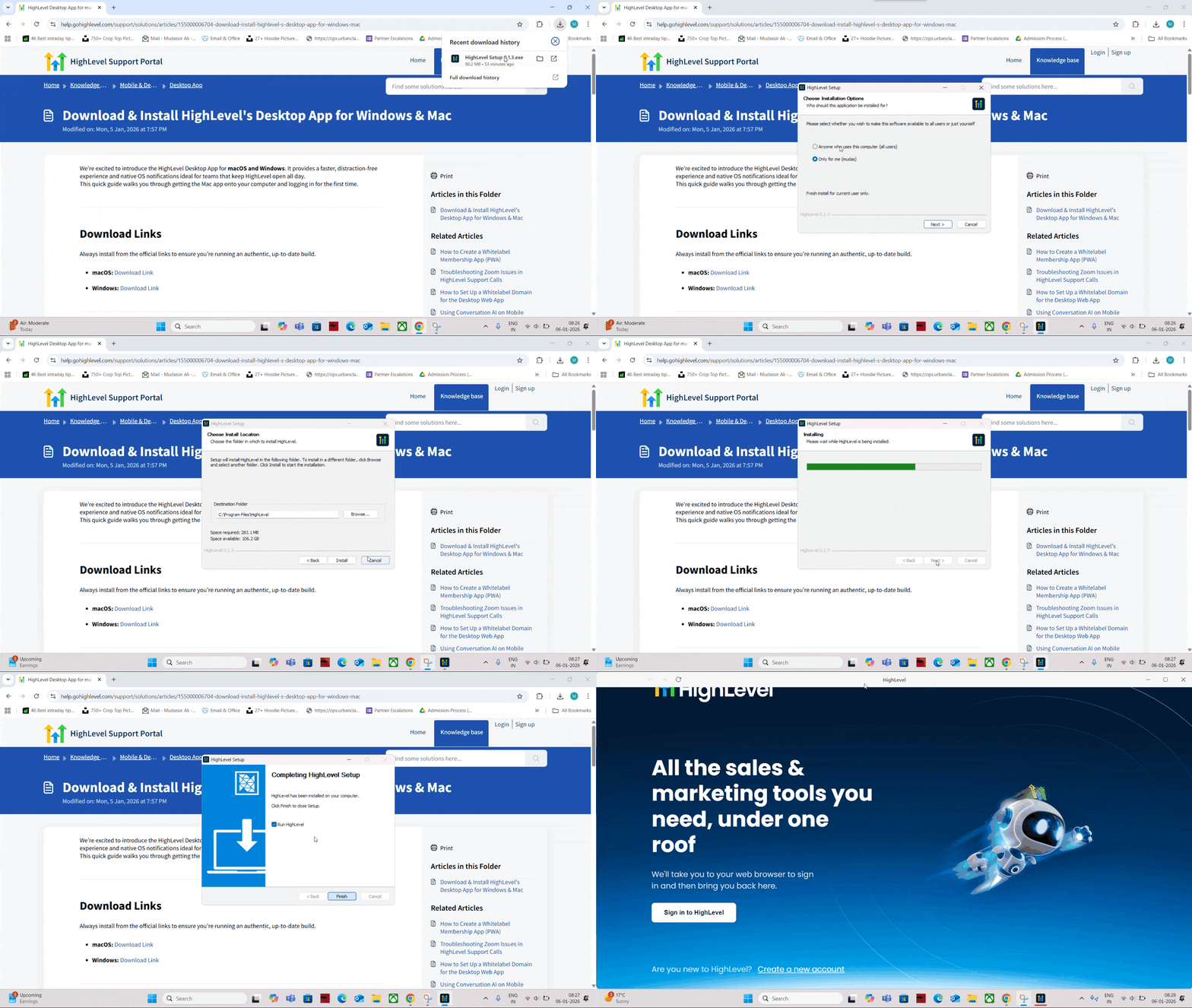
- Real estate brokerage. Agents on Windows install the exe file, run the setup wizard, launch HighLevel from the Start menu and sign in. The desktop client lets them monitor property inquiries without switching browsers.
- Fitness studio. The studio’s Linux workstation installs the Debian based package, follows the Linux installer flow, opens the app from the applications menu and signs in. Trainers get real time reminders for class bookings via OS notifications.
04The numbers and rules that matter
- Linux offers Debian based (x64, arm64) and Red Hat based (x64, arm64) packages.
05Before you start
- Use the official download links provided for each operating system.
06How to set up and use desktop apps in HighLevel
Install HighLevel on macOS
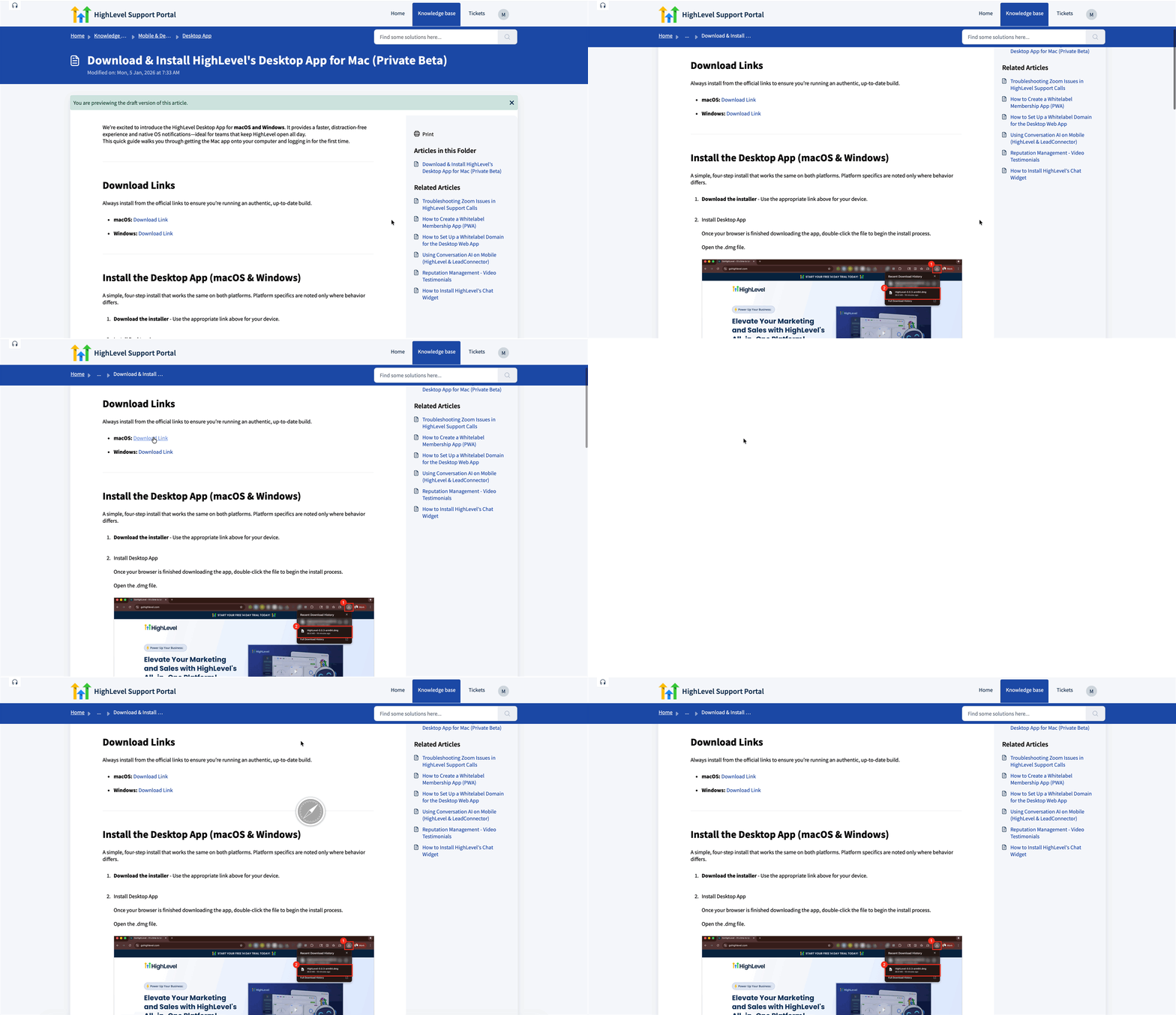
- Download the macOS .dmg installer from the official link.
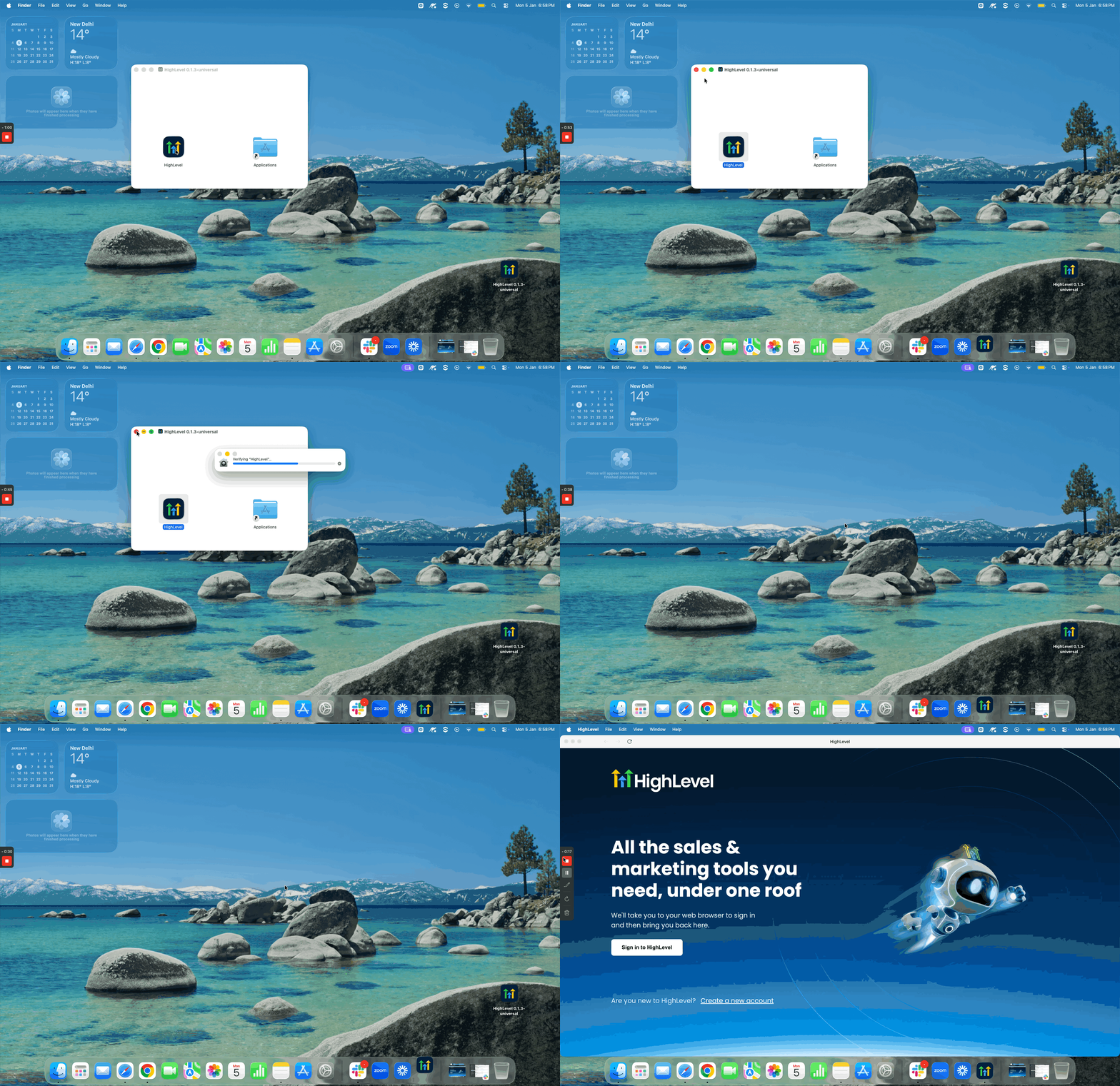
- Open the .dmg file and drag the HighLevel icon into the Applications folder.
- Launch HighLevel from Applications, Launchpad or Spotlight.
- Click Sign In, complete the browser login if required, and return to the app.
Install HighLevel on Windows
- Download the Windows .exe installer from the official link.
- Run the .exe file and follow the setup wizard to finish installation.
- Open HighLevel from the Start menu.
- Click Sign In, log in through the browser if not already signed in, and return to the app.
Install HighLevel on Linux
- Download the Linux installer that matches your distribution and architecture from the official links.
- Install the package using your system’s standard installer process.
- Open the Desktop App from your applications menu.
- Click Sign In, complete the browser authentication, and be routed back to the app.
07What it looks like in HighLevel
08Things to know before you rely on it
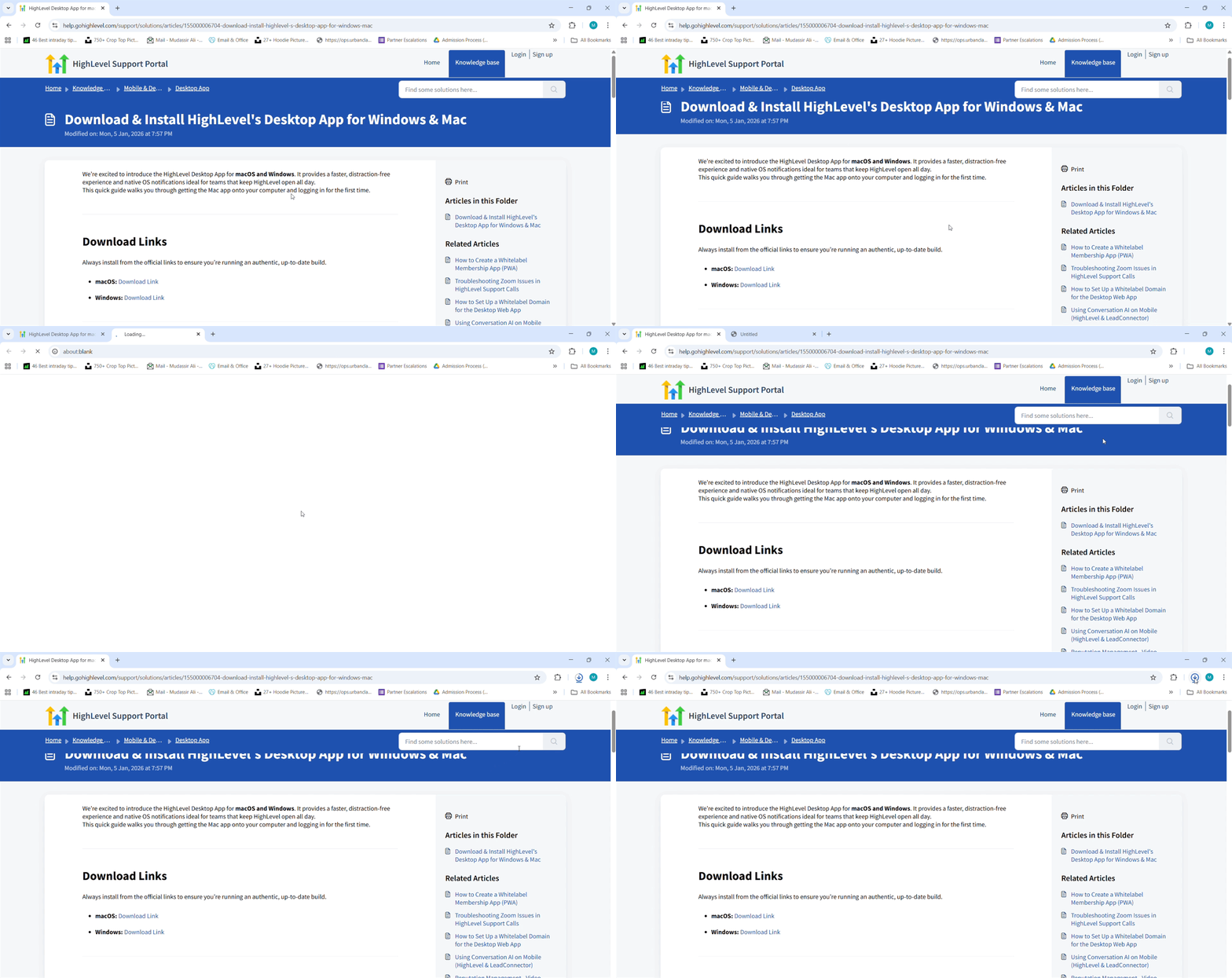
- Always install from the official links to ensure you have an authentic, up to date build.
- Linux offers separate installers for Debian based and Red Hat based distributions, each with x64 and arm64 variants.
09If something goes wrong
- Notifications do not appear. Enable OS level notifications for HighLevel and then review the in app notification preferences.
10How it connects to the rest of HighLevel
- See the full list of Mobile & Desktop App capabilities. All features
- Check HighLevel pricing and plan options. Pricing
- Start a 30 day trial to try the desktop app. 30 day trial
Michael's take

Don’t forget to enable OS level notifications or you’ll miss the alerts the app is meant to deliver.