
01Who this is for
- Agency owners who need to broaden messaging options for their subaccounts, because custom providers add SMS and Email channels beyond native ones.
- Sales teams that want to start conversations on the lead’s preferred channel directly from the mobile app.
- Customer support reps who switch between channels within a single conversation to keep communication fluent.
02Custom conversation providers, explained
Custom conversation providers are extra SMS or Email services that you add from the App Marketplace. They differ from native providers such as WhatsApp, which are already built into HighLevel. Once a provider is installed and marked active, it becomes an option in the mobile app’s Conversations tab.
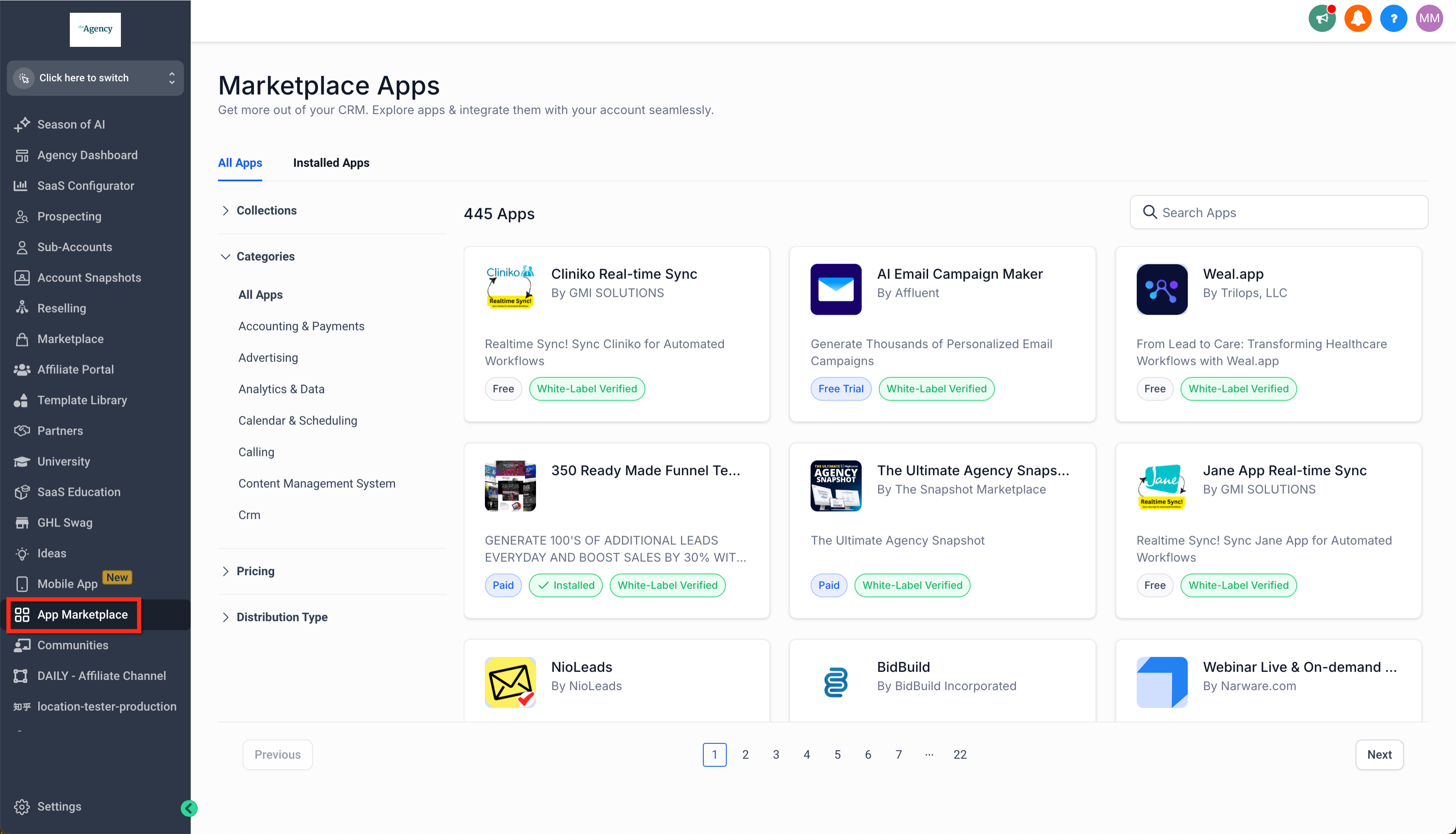
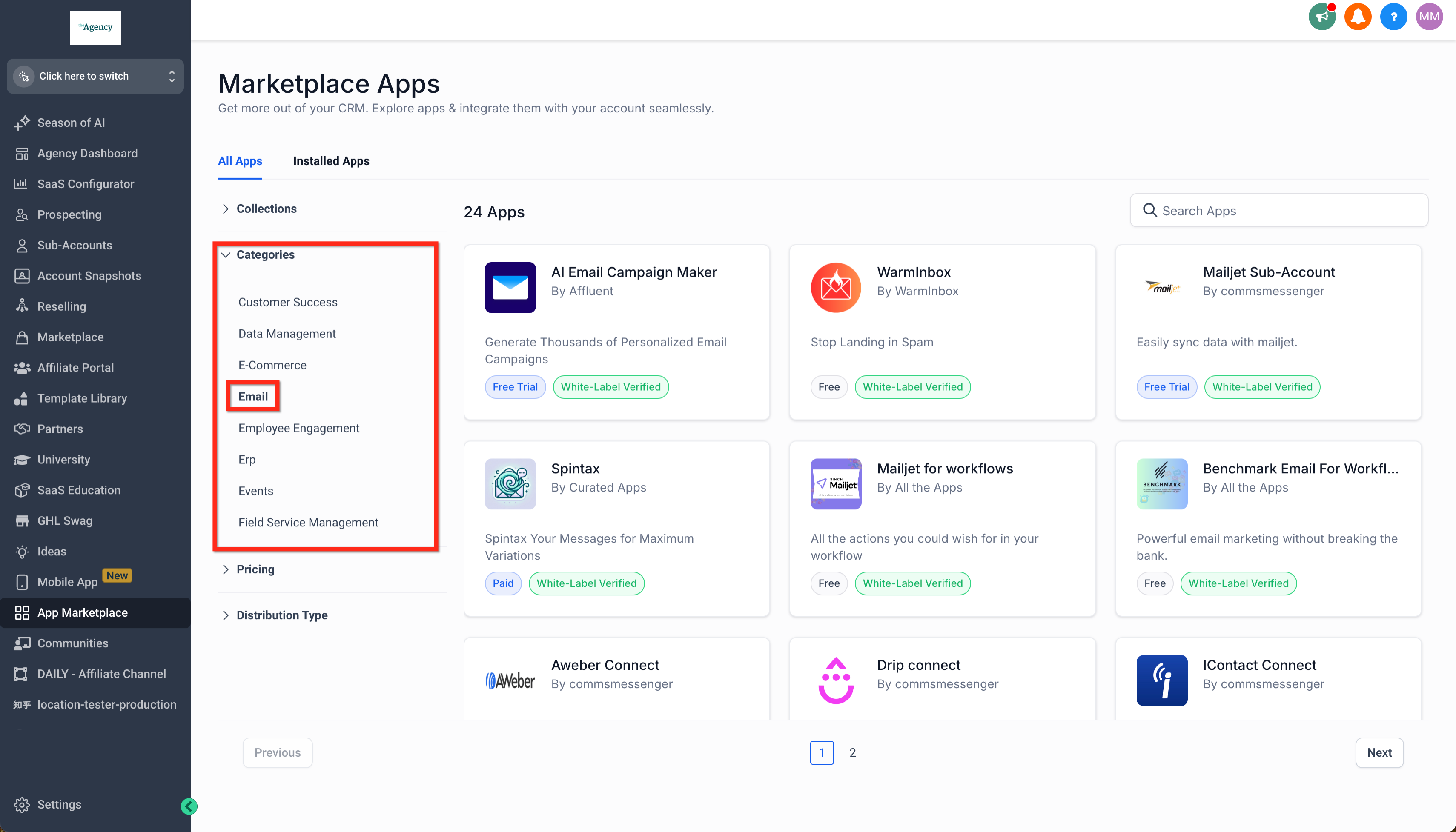
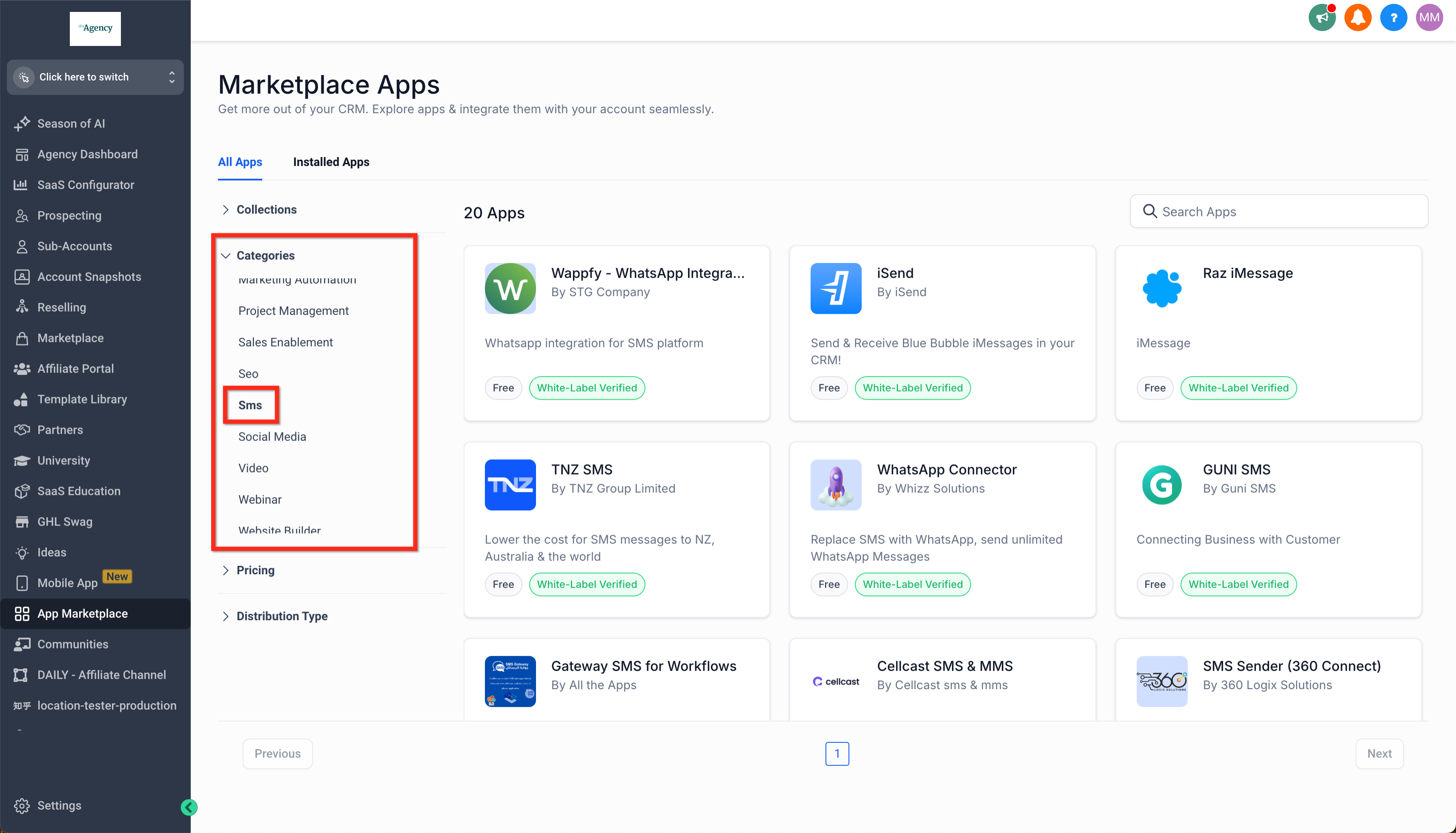
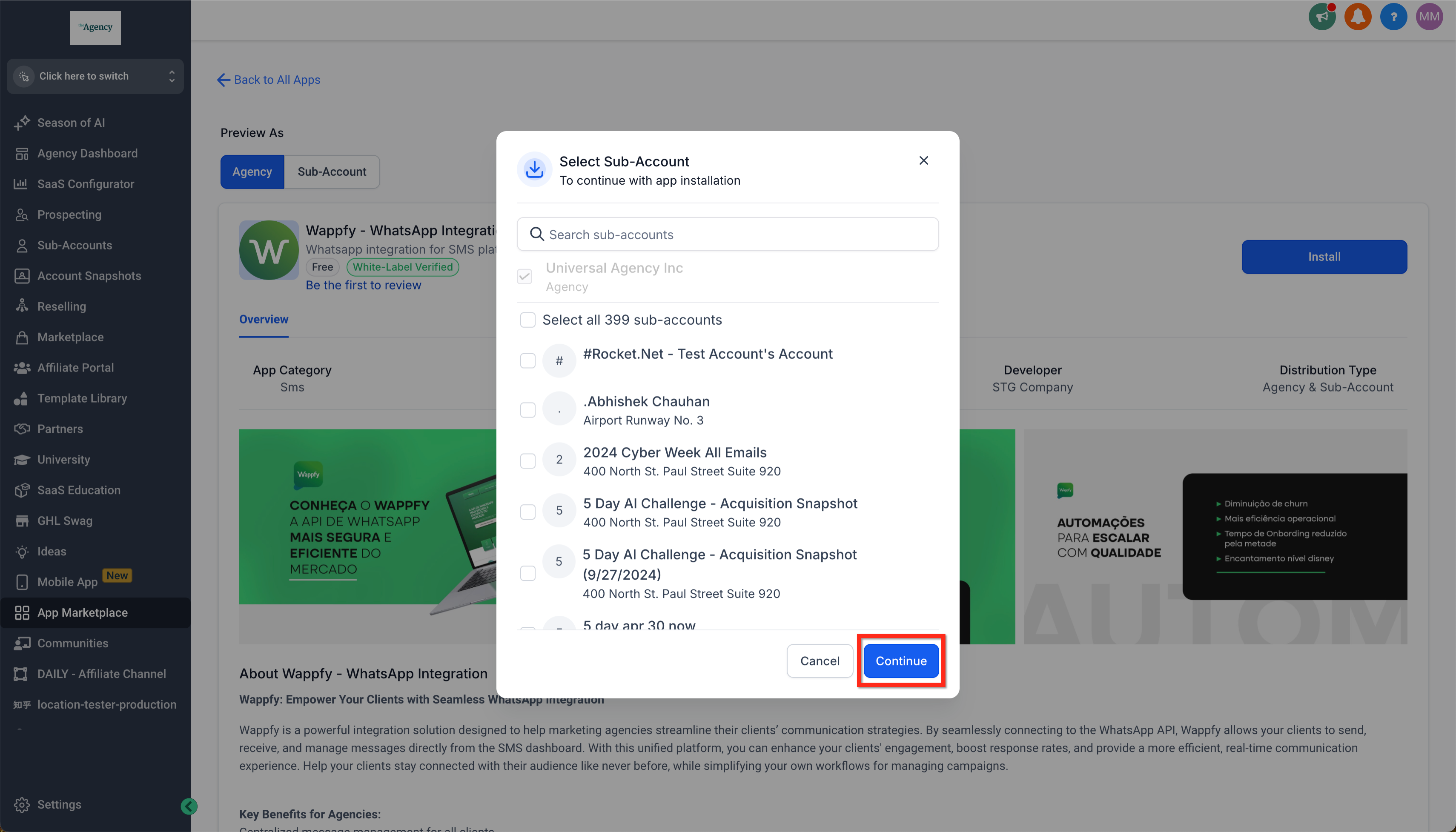
Installation occurs in the Agency Account. You open the App Marketplace, filter by the Email or SMS category, select the desired provider, and follow the install flow, including choosing subaccounts and confirming the install. After the install, you verify the provider’s status in Settings > Conversation Providers.
In the mobile app you can start a new chat on any installed provider or change the channel inside an existing conversation. All channel options, including custom providers, appear under Conversations > New or when you select a new conversation mode within a thread.
03How businesses use custom conversation providers
- Real estate brokerage. The brokerage installs a custom SMS provider to text property updates to clients. Agents open the HighLevel mobile app, tap Conversations > New, and choose the SMS provider to start a new conversation with a lead.
- Dental practice. The practice adds a custom Email provider for appointment reminders. Staff verify the provider in Settings > Conversation Providers, then use the mobile app to switch an existing patient thread to the Email channel.
- Ecommerce store. The store integrates a third party SMS service to send order status alerts. After installing the provider, marketers select it from the Conversations tab in the mobile app to begin a chat with a shopper who prefers text messages.
04Before you start
- Access to an Agency Account with permission to reach the App Marketplace.
- One or more subaccounts where the custom provider will be installed.
05How to set up and use custom conversation providers in HighLevel
Install a custom conversation provider
- Open your Agency Account and go to the App Marketplace.
- Filter the marketplace by the Email category or the SMS category.
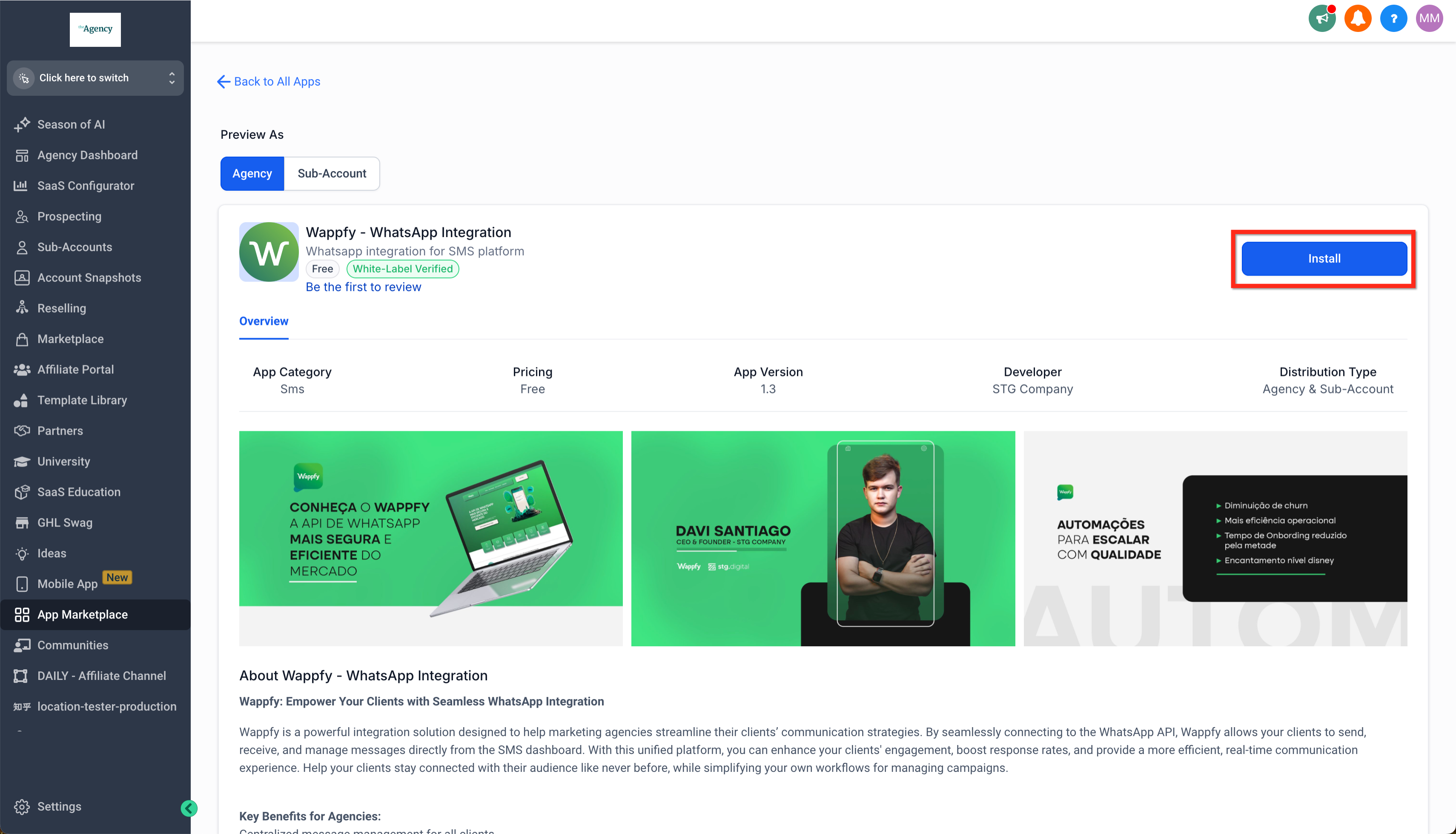
- Click the desired custom conversation provider and press Install.
- Select the subaccounts that should receive the provider and click Continue.
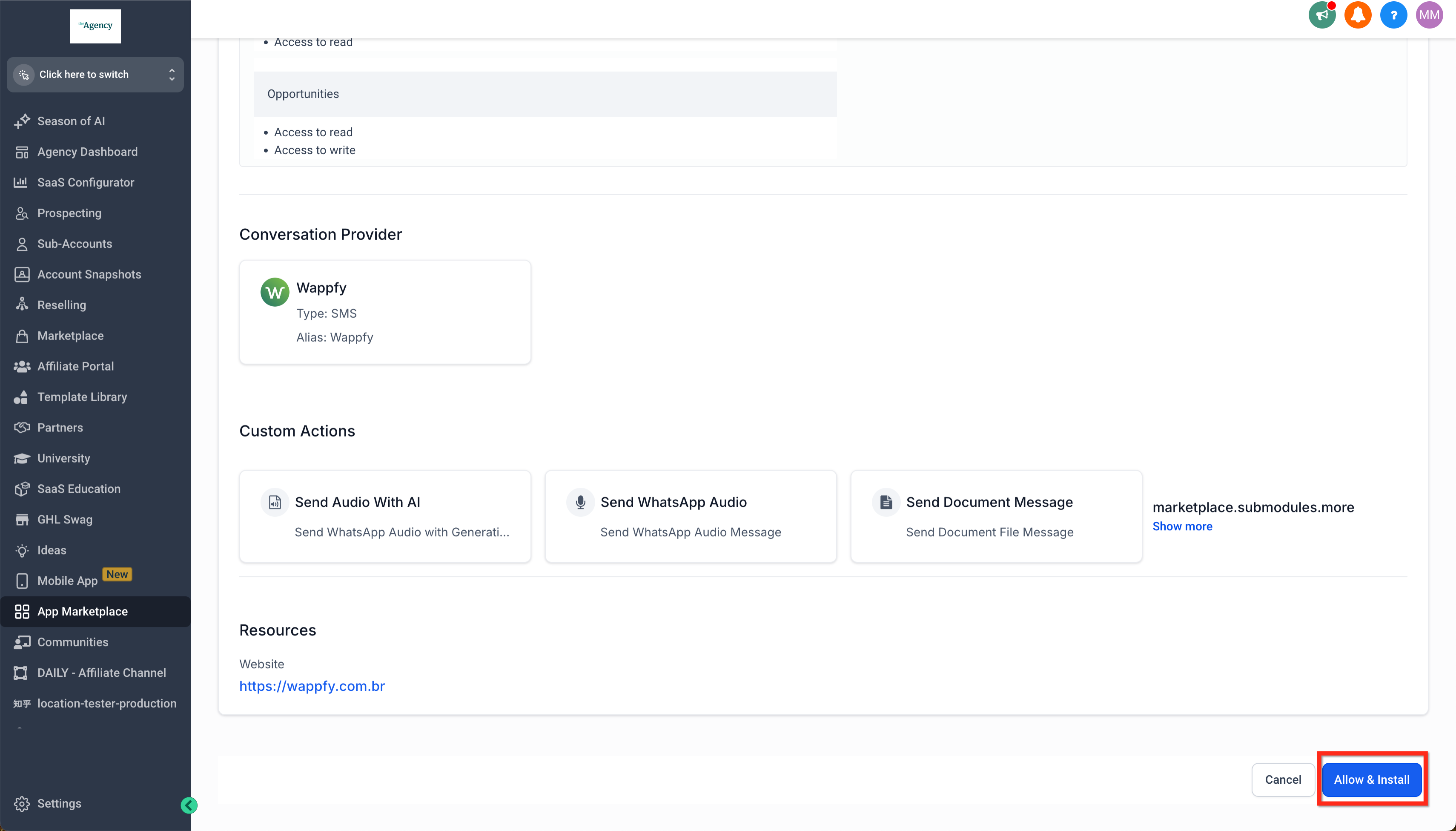
- Review the provider details and confirm by clicking Allow & Install.
- Follow any additional instructions the provider supplies, such as entering an API key.
Find custom conversations in the mobile app
- Navigate to Subaccount > Settings > Conversation Providers to see which custom providers are active.
- In the mobile app, tap Conversations then New to view all channel options, including the custom providers.
- Within an existing conversation, select a new conversation mode to switch to any custom provider.
06What it looks like in HighLevel
07Settings that matter
- Conversation Providers. Controls which custom SMS or Email providers are enabled for the subaccount and appear in the mobile app.
08Things to know before you rely on it
- Custom conversation providers are separate from native providers that HighLevel supports out of the box.
- Only SMS and Email providers are available through the App Marketplace.
- Integration may require following the provider’s own instructions, such as supplying an API key.
09How it connects to the rest of HighLevel
- Explore other mobile utilities like the Business Card Scanner. Business Card Scanner
- Learn how to share calendar links directly from the mobile app. Share Calendar Links
- See the complete list of mobile and desktop capabilities. All Mobile & Desktop App features
Michael's take

Be careful about assuming every channel will be fast ready. Custom providers need their own API keys and may have their own activation steps, so you could hit a hiccup if the third party service isn’t fully set up.
When you get it working, it can result in faster reply times and more deals closed.