
01Who this is for
- Sales representatives who meet prospects at events and need to capture contact info without manual entry.
- Event organizers who gather many attendee cards and want to add them to their marketing lists right away.
- Realtors who exchange cards with potential buyers and require a fast way to create follow up contacts.
02Business card scanner, explained
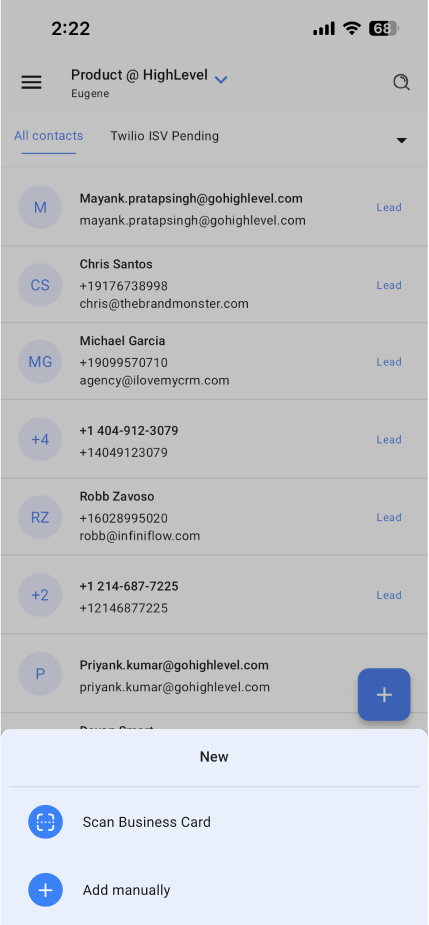
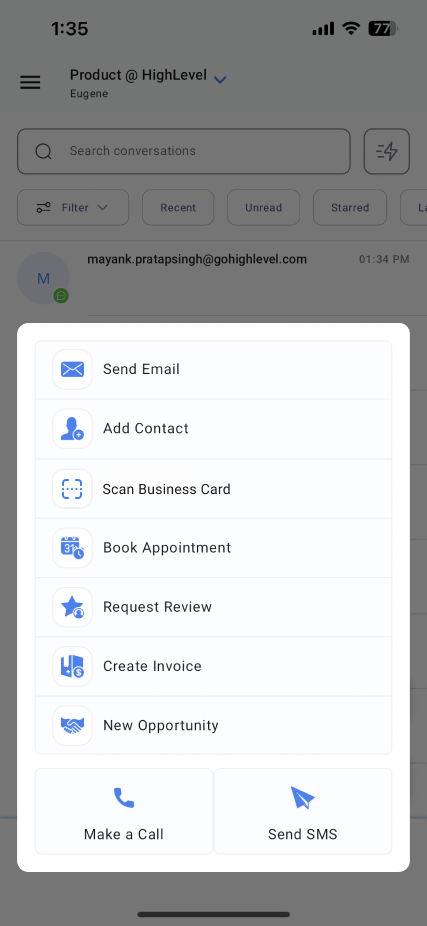
The scanner is built into the HighLevel and LeadConnector mobile apps. It can be launched from three places: the Contacts list, the contact creation screen, or the bolt quick actions menu. When activated, a rectangular frame appears; the phone’s camera reads the card and fills contact fields automatically.
After the data appears, a row of chips shows at the bottom of the screen. Each chip represents a piece of parsed text. Users drag a chip onto the appropriate field to correct mismatches, or they type directly. When all information is correct, tapping Save adds the new record to the Contacts tab and syncs it with the account.
The feature is available on iOS and Android versions 3.74 or later for HighLevel, LeadConnector, and White label apps (the latter requires a request). No image of the card is stored after the contact is saved.
03How businesses use business card scanner
- Real estate office. An agent opens the mobile app, selects the Scan Business Card option from the Contacts screen, and captures a client’s card at an open house. After adjusting any fields with chips, the agent saves the record, creating a new contact in the platform.
- Conference booth team. Team members use the bolt quick actions button to launch the scanner during a trade show. They quickly scan each visitor’s card, edit any errors using the chip interface, and store the contacts for post event follow up.
- Dental practice front desk. When a new patient drops a business card, the receptionist taps the scan icon on the contact creation screen, captures the card, corrects details with chips if needed, and saves the patient as a contact for appointment reminders.
04The numbers and rules that matter
- Available on HighLevel (iOS, Android) v3.74 or later.
- Available on LeadConnector (iOS, Android) v3.74 or later.
- Available on WhiteLabel (iOS, Android) v3.74 or later (update must be requested).
05Before you start
- Install the HighLevel mobile app version 3.74 or later on a supported iOS or Android device.
- Log in and select the subaccount where the new contact should be created.
06How to set up and use business card scanner in HighLevel
Scan a business card
- Open the HighLevel mobile app and choose the appropriate subaccount.
- Go to the Contacts page, tap the ‘+’ button, and select ‘Scan Business Card’.
- Or tap the scan icon at the top right of the contact creation screen.
- Or press the bolt quick actions button and choose ‘Scan Business Card’.
- Place the card inside the rectangular overlay; the app extracts the information automatically.
- Adjust the parsed fields using the chips or the keyboard, then tap Save to create the contact.
07What it looks like in HighLevel
08Things to know before you rely on it
- The scanner works only on app versions 3.74 or newer for iOS and Android.
- White label apps need a request for the update to become available.
- The original card image is not retained after the contact is saved.
09If something goes wrong
- The card does not scan correctly or misses information.. Check the scanned fields for accuracy and edit them manually or with chips before saving. Improve lighting, use a high contrast background, and keep the phone steady, then try scanning again.
- The scan fails completely.. Retry the scan under better lighting conditions or on a plain background to increase accuracy.
10How it connects to the rest of HighLevel
- All Mobile & Desktop App features Mobile app feature list
- HighLevel pricing and plans Pricing info
- Start a 30 day HighLevel trial Free trial
Michael's take

If I were setting this up for a new team, I'd walk them through the three entry points so they can choose the one that fits their workflow. I’d also remind them to double check each scanned contact, because a clean database saves time down the road.