
01Who this is for
- Sales representatives who need to send booking links while on the go, so they can schedule calls without opening a desktop.
- Service providers such as consultants or coaches who want to give clients instant access to a meeting slot from their phone.
02Calendar links, explained
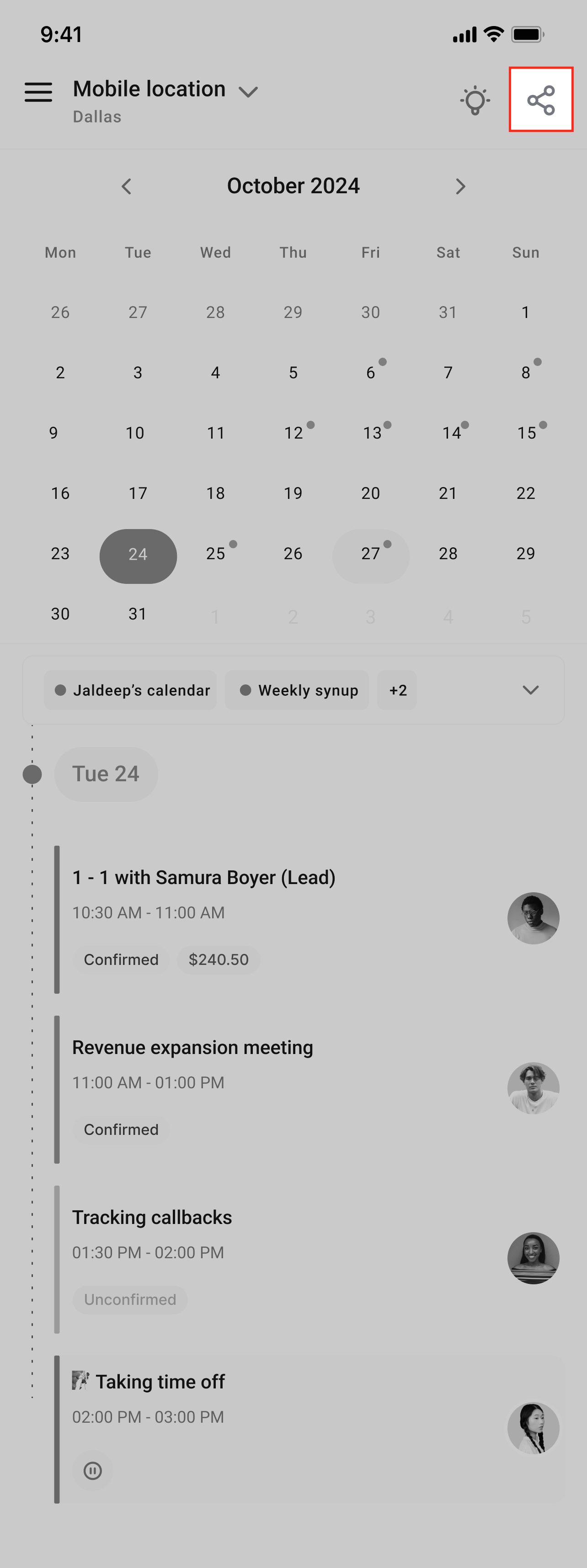
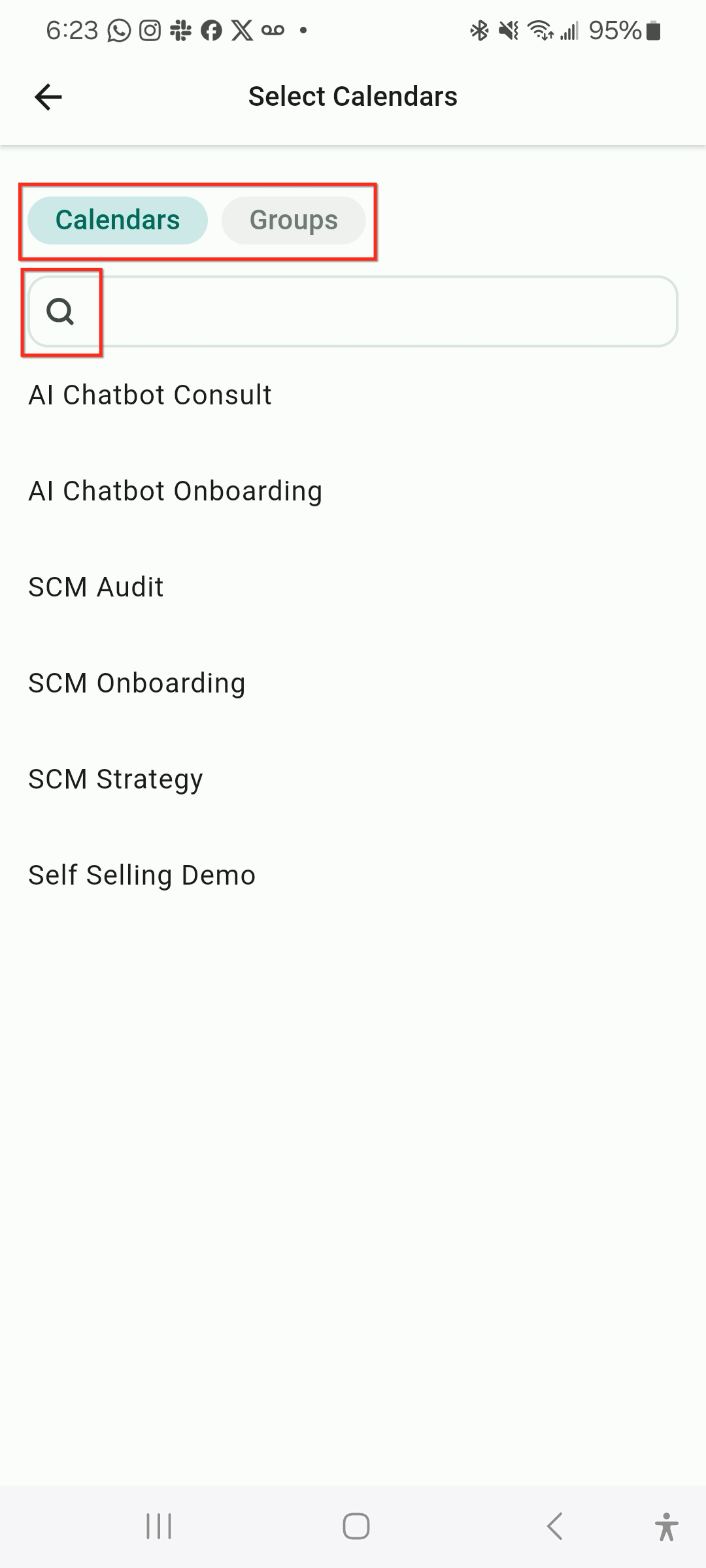
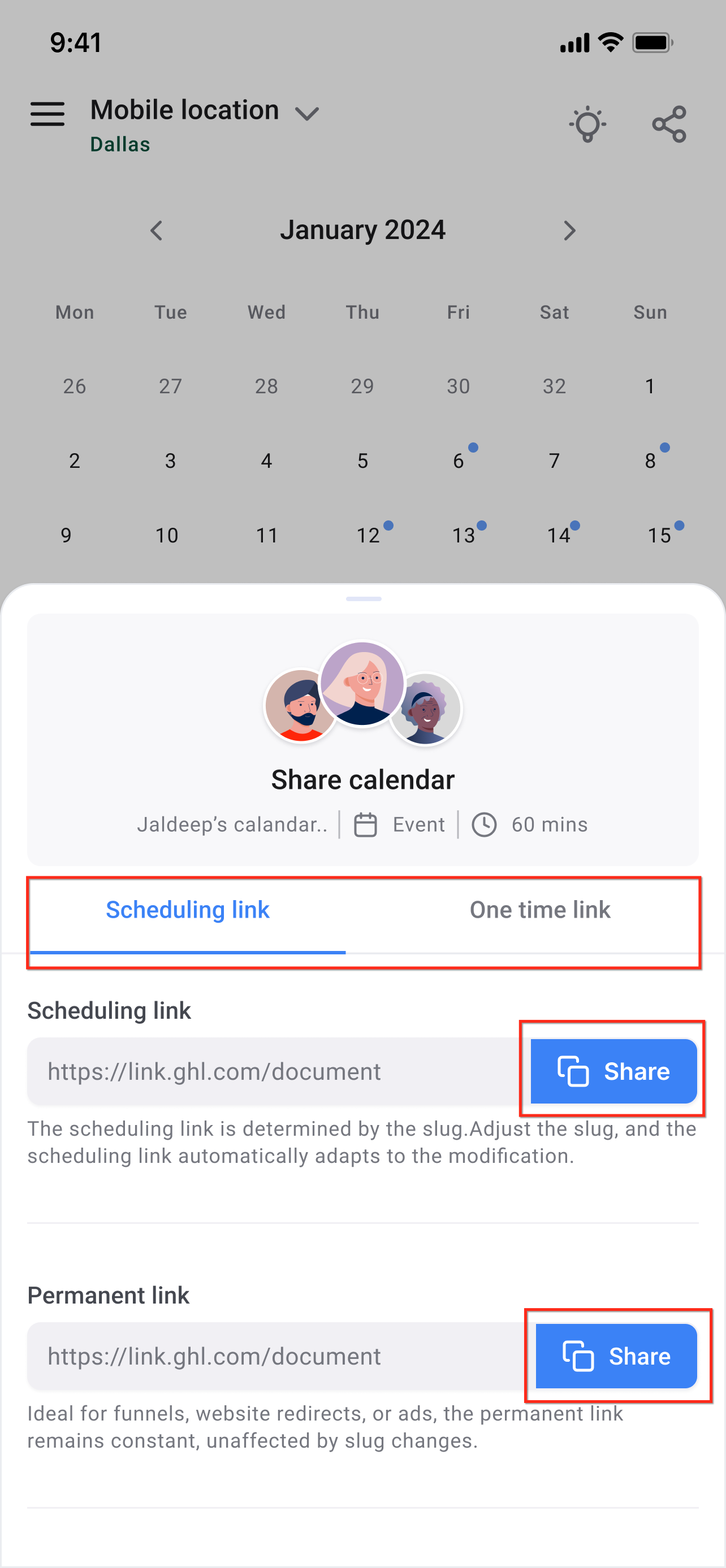
The feature lives on the Calendars screen of the HighLevel mobile app. A share icon in the upper right corner opens a selector where you pick a single calendar or a group of calendars. After selection you can copy a scheduling link, a permanent link, or, for individual calendars only, a one time link.
The chosen link is placed on the device’s clipboard. From there you paste it into email, SMS, chat or any other channel you use to contact leads. The one time link expires after it is accessed once, preventing further use.
03How businesses use calendar links
- Dental practice. A receptionist selects the practice's appointment calendar in the app, copies the scheduling link, and pastes it into a reminder text to patients. The link lets patients book a cleaning slot without opening a browser.
- Real estate agency. An agent picks a group that contains multiple property showing calendars, copies the permanent link, and shares it in a WhatsApp group with potential buyers. The link always points to the current availability.
- Personal trainer. The trainer selects an individual training session calendar, generates a one time link, and sends it via email to a new client. The link works only for the first click, ensuring the slot cannot be double booked.
04Before you start
- Install the HighLevel (or LeadConnector or whitelabeled) mobile app on your device.
05How to set up and use calendar links in HighLevel
Share calendar link from the mobile app
- Confirm the HighLevel mobile app is installed on the device.
- Open the app and tap the Calendars icon on the bottom navigation bar.
- Press the share icon located at the top right of the Calendars screen.
- Search for and select the desired calendar or group.
- If a calendar is selected, choose a scheduling link, permanent link, or one time link; if a group is selected, choose a scheduling or permanent link.
- Tap the Share button to copy the chosen link to the clipboard.
- Open the messaging or email app you want to use.
- Paste the copied link and send it to the lead or customer.
06What it looks like in HighLevel
07Things to know before you rely on it
- One time links are only available for individual calendars, not for groups.
- A one time link becomes invalid after a single access.
08How it connects to the rest of HighLevel
- View multiple calendar layouts in the mobile app Multiple calendar views
- Use custom values when sharing calendar links Custom values in calendar
- Explore all mobile and desktop app capabilities Mobile & Desktop features
Michael's take

Having an easy way for prospects to pick a time slot feels helpful.
When the link is on your phone, you can drop it into a chat or text quickly.
Make sure the correct calendar is selected before you copy the link. That way you avoid sending a link that goes to the wrong team or service.