
01Who this is for
- Team members who need to see each other's availability in one place.
- Managers who oversee multiple calendars or groups from their mobile device.
02Multiple calendar views, explained
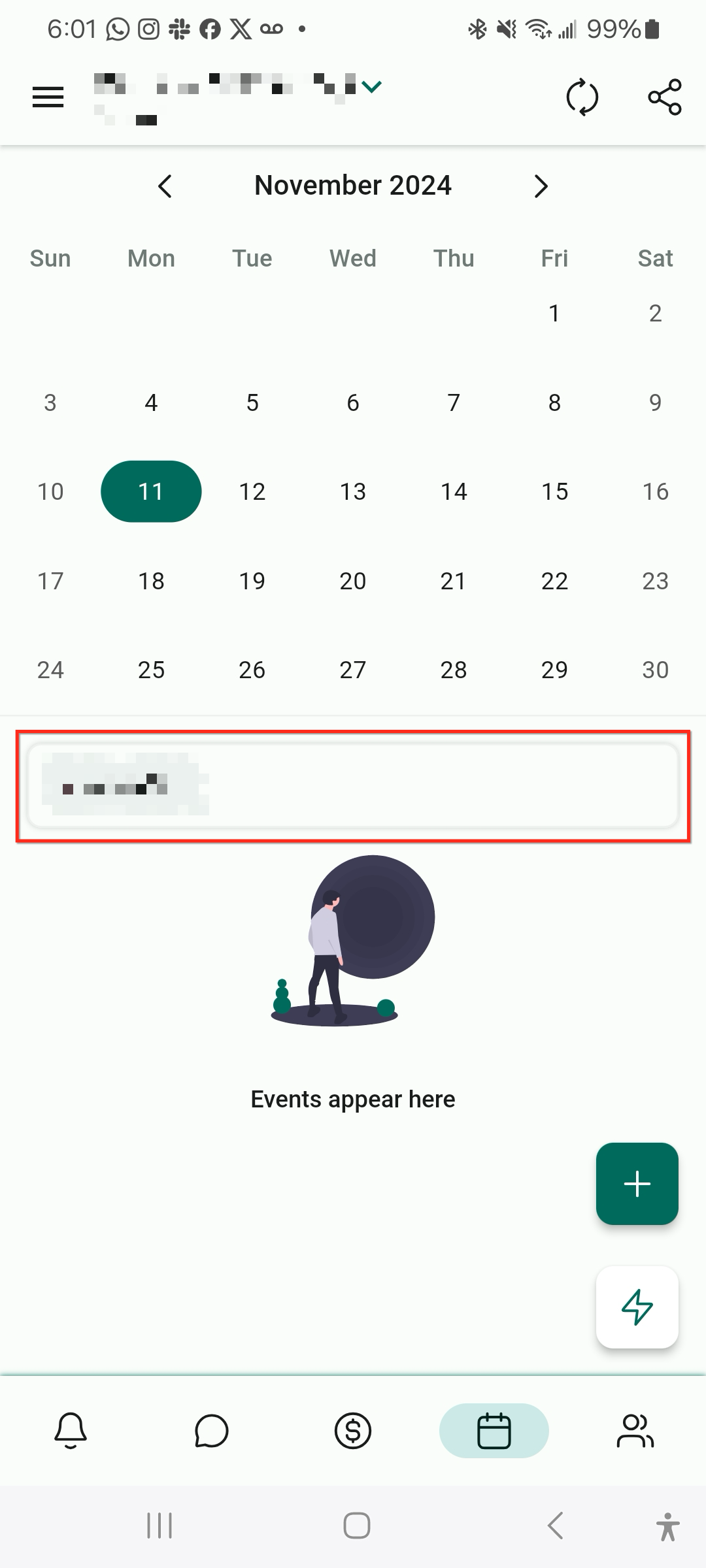
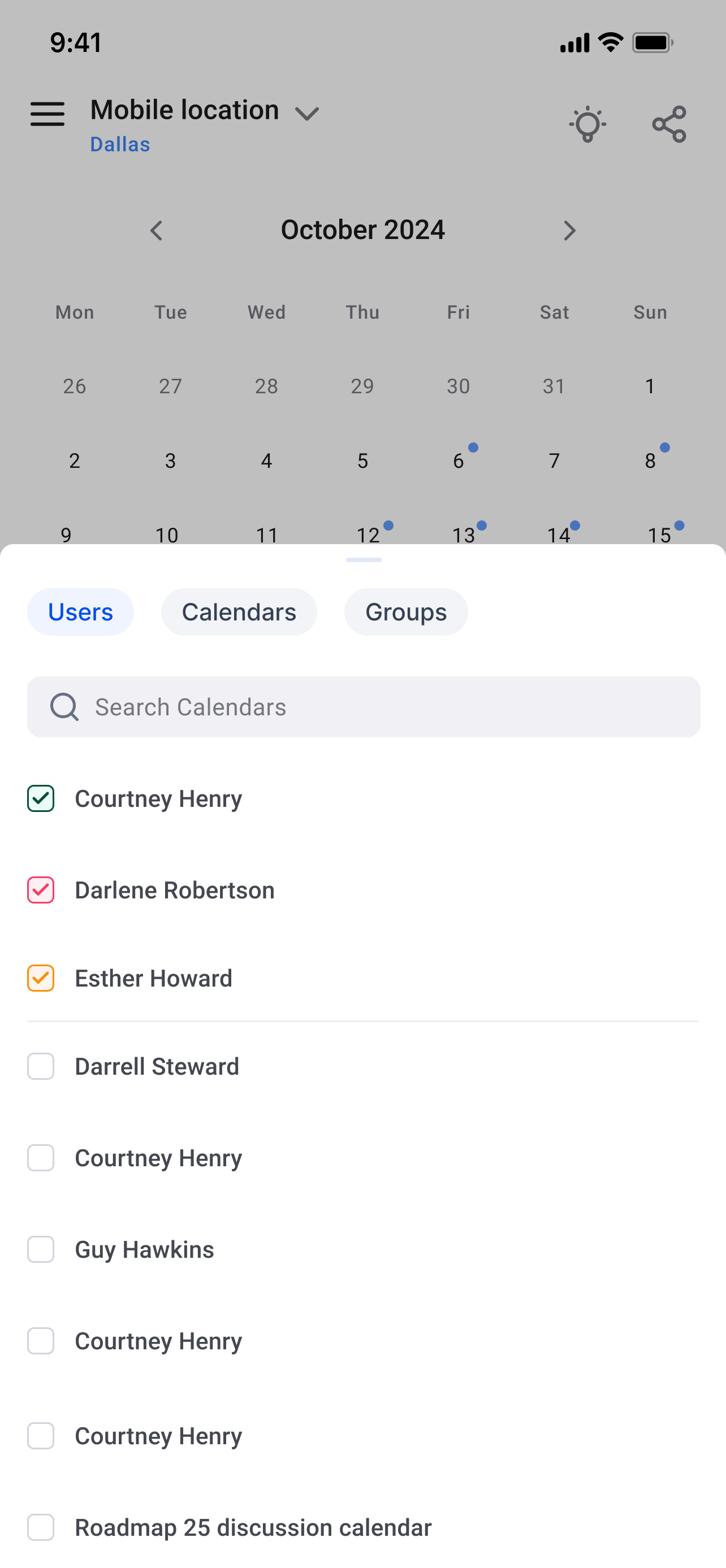
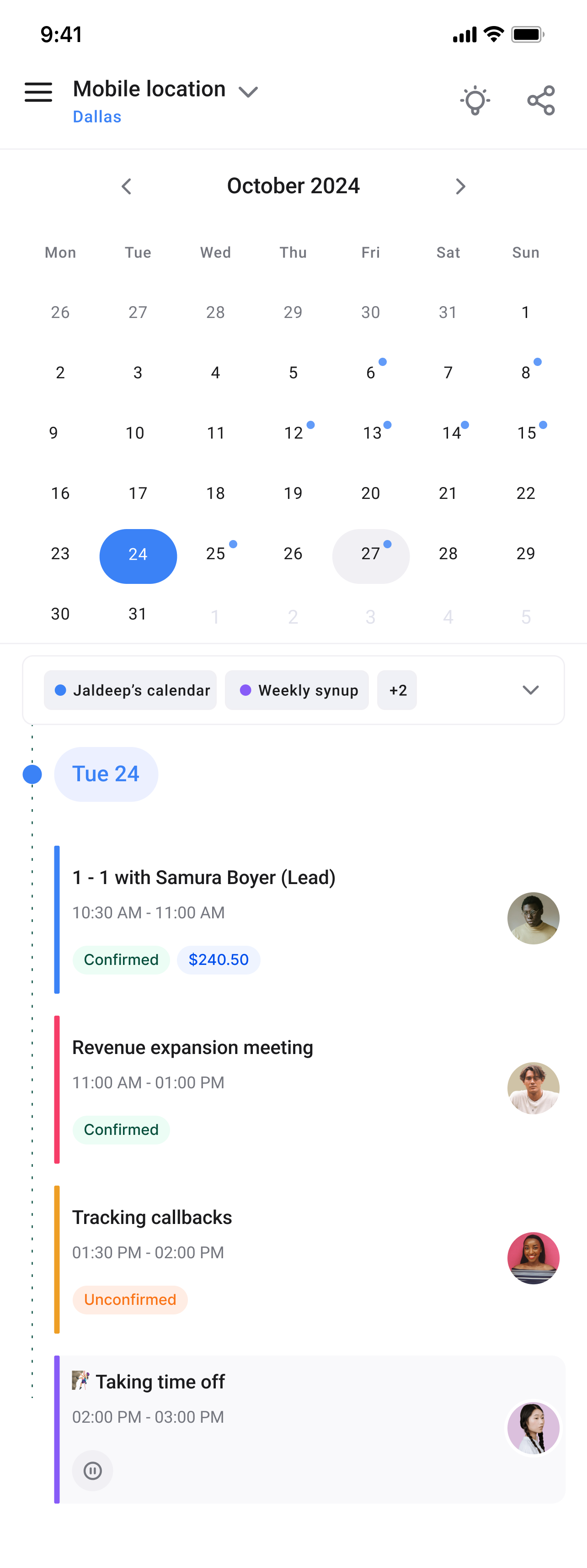
The feature adds a selector to the calendar screen in the mobile app. From the dropdown you can add any combination of users, calendars or groups. Once selected, the app shows every event from the chosen sources in the events area. Each source is displayed with its own colour, making it easy to tell which schedule an event belongs to. You access the selector from the calendar tab on the bottom navigation bar of the HighLevel, LeadConnector or Whitelablled mobile apps.
03How businesses use multiple calendar views
- Dental practice. Add the calendars of each dentist and the office calendar to the mobile view. The practice can see all patient appointments together, with each dentist’s schedule shown in a different colour.
- Coaching business. Select the calendars for individual coaches and the group class calendar. This lets the coach monitor personal sessions and group workshops from one screen on the mobile app.
- Multi location service business. Include calendars for each location and the main business calendar. The owner can track appointments across all sites in a single, colour coded mobile view.
04The numbers and rules that matter
- Supported mobile apps: HighLevel, LeadConnector, Whitelablled.
05Before you start
- Install your preferred mobile app, HighLevel, LeadConnector, or a Whitelablled version, on the device.
06How to set up and use multiple calendar views in HighLevel
View multiple calendars in the mobile app
- Open the HighLevel mobile app on your device.
- Tap the Calendars icon in the bottom navigation bar.
- Tap the dropdown selector that appears above the calendar.
- Choose any combination of users, calendars, or groups from the selector.
- Review the events area where each selected source appears in a distinct colour.
07What it looks like in HighLevel
08How it connects to the rest of HighLevel
- Share calendar links directly from the mobile app. Share calendar links
- Switch contacts and use custom values in the mobile calendar. Switch contacts
- Explore all mobile and desktop app capabilities. All mobile app features
Michael's take

Michael ReimerFounder of CRM Pros, HighLevel Commander and Certified Admin
I would pull all the relevant users, calendars, or groups into one view and let the colour coding do the work.
Get More InformationOpens on HighLevelPublished November 2, 2026 · Updated November 16, 2026