
01Who this is for
- Appointment based service providers can adjust the client record mid booking, ensuring the right person is linked to each meeting.
- Sales teams using mobile scheduling can add custom location details, such as a virtual meeting URL, directly in the appointment form.
- Consultants who take extensive notes can read the full text from their phone without the notes being cut off.
02Contacts and Custom Values, explained
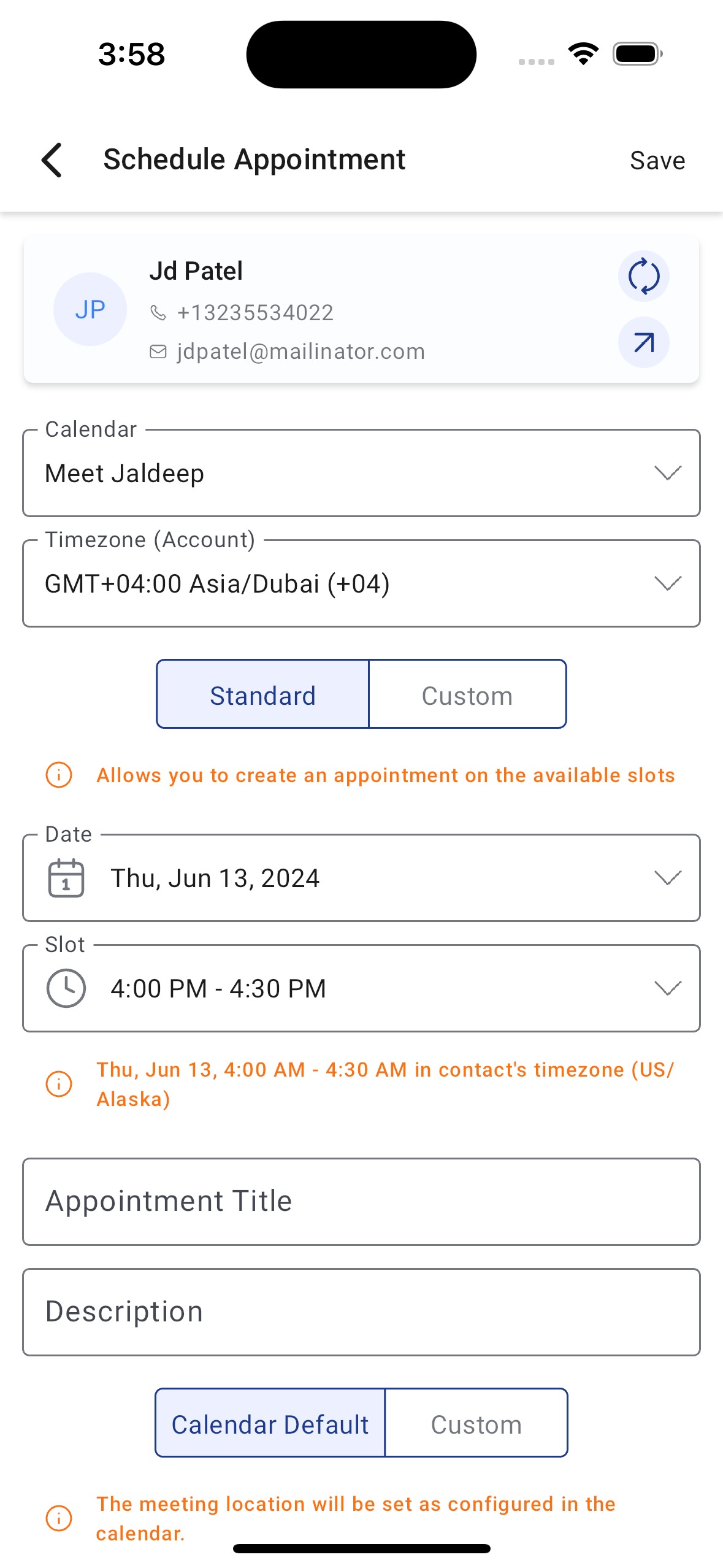
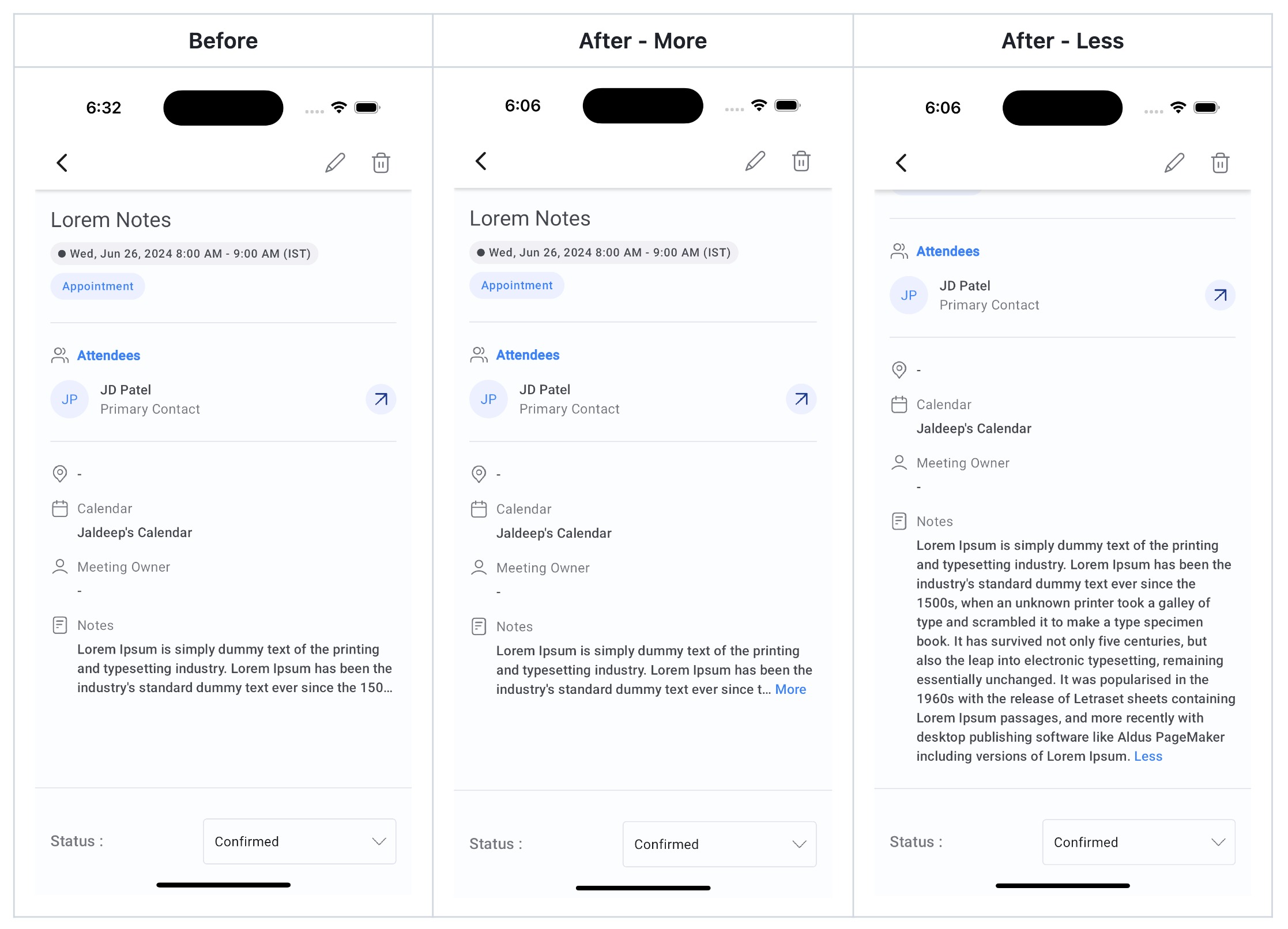
The update adds three new capabilities to the calendar module in the HighLevel mobile app. First, while creating a new appointment you can tap a button to replace the currently selected contact with another one from your list. Second, the custom meeting location field now accepts any custom values you have defined, letting you store URLs, room numbers, or other location data. Third, calendar notes are no longer shortened; a “View more” link appears to reveal the entire note. These features are available in the standard HighLevel mobile app, the LeadConnector version, and in white labelled installations after a request is made. They appear inside the appointment creation screen and the event detail view. The changes affect only how information is entered and displayed in the mobile calendar; they do not alter existing records automatically.
03How businesses use contacts and Custom Values
- Medical clinic. When booking a patient visit, the receptionist can swap the patient record if the wrong one was selected, enter a custom telehealth link in the meeting location, and read the full visit note without scrolling through truncated text.
- Real estate agency. An agent can change the client tied to a property showing while scheduling, place a custom virtual tour URL into the meeting location field, and expand the full discussion notes for each showing on the phone.
- Event planning company. The coordinator can replace the contact for a vendor appointment on the fly, add a custom field value such as a QR code link for the venue, and tap “View more” to see the entire preparation note.
04The numbers and rules that matter
- Available on HighLevel, LeadConnector, and White labelled mobile apps (update needs to be requested).
05Before you start
- You must be using the latest version of the HighLevel mobile app, LeadConnector app, or a white labelled app that has received the update request.
06How to set up and use contacts and Custom Values in HighLevel
Use the new calendar capabilities in the mobile app
- While creating a new appointment, tap the contact area to select a different contact before saving.
- Enter a custom value into the Custom meeting location field; any predefined custom values are accepted.
- Open a calendar event and tap “View more” in the notes section to display the full text.
07What it looks like in HighLevel
08Settings that matter
- Custom meeting location. Controls the content stored for the meeting location and now allows any custom values you have set up.
09Things to know before you rely on it
- The feature is available on the standard HighLevel and LeadConnector mobile apps.
- White labelled mobile apps require a request to receive the update.
- Calendar notes will show the full text only after tapping “View more”; they are not automatically expanded.
10How it connects to the rest of HighLevel
- Explore all mobile and desktop app capabilities. All Mobile & Desktop App features
- Learn how to share calendar links from the mobile app. Share calendar links
- See the pricing options for HighLevel plans. HighLevel pricing and plans
Michael's take

Scheduling an appointment and realizing the wrong client is selected can waste time and cause confusion. Getting that contact switched on the spot keeps the calendar accurate and avoids a follow up edit.
The first thing I’d lock down is the ability to edit the contact during the booking flow. I’d make sure the custom meeting location field accepts the values I need before I rely on it for client facing details.