
01Who this is for
- Social media managers can manage multiple client accounts on the go, saving time away from a desktop.
- Small business owners can quickly share updates and promotions without needing separate tools.
02Social Planner, explained
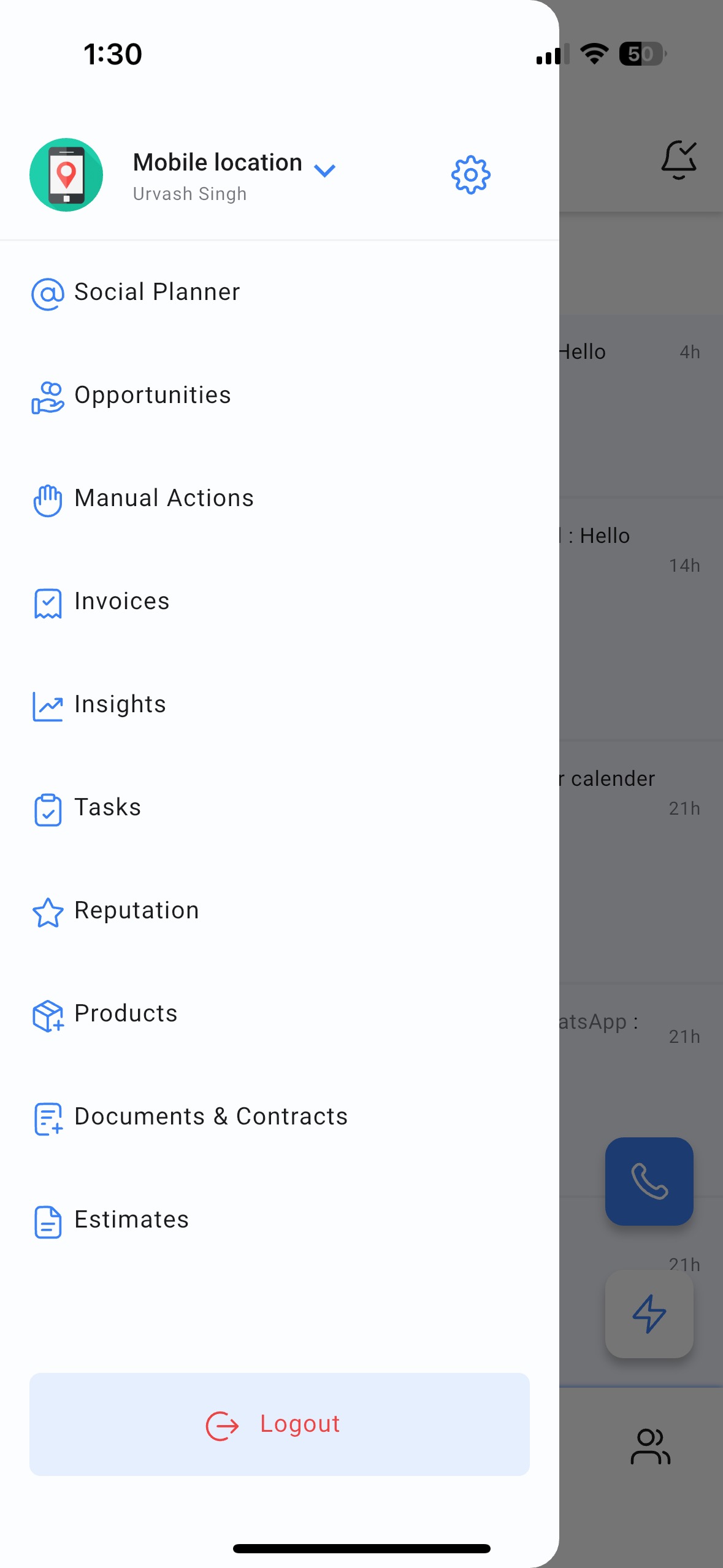
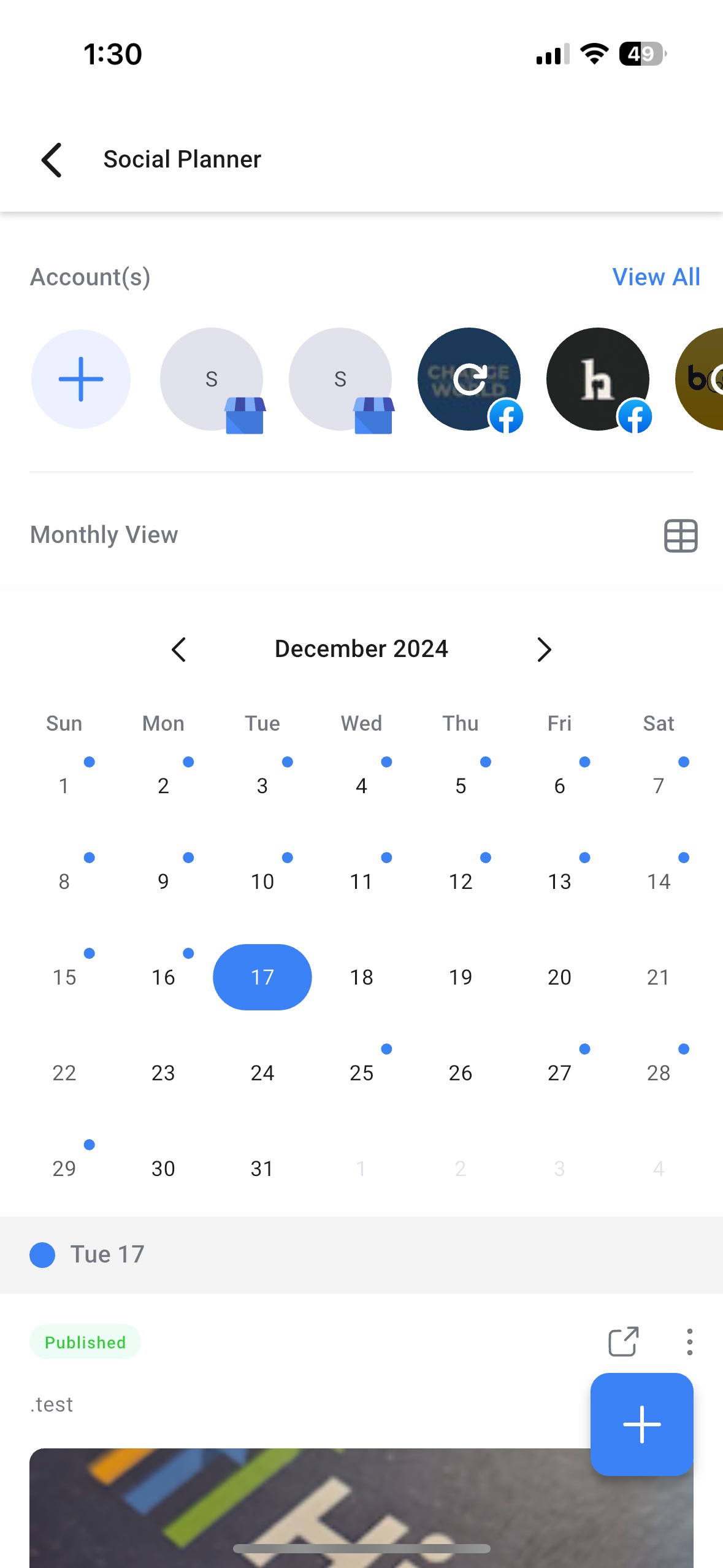
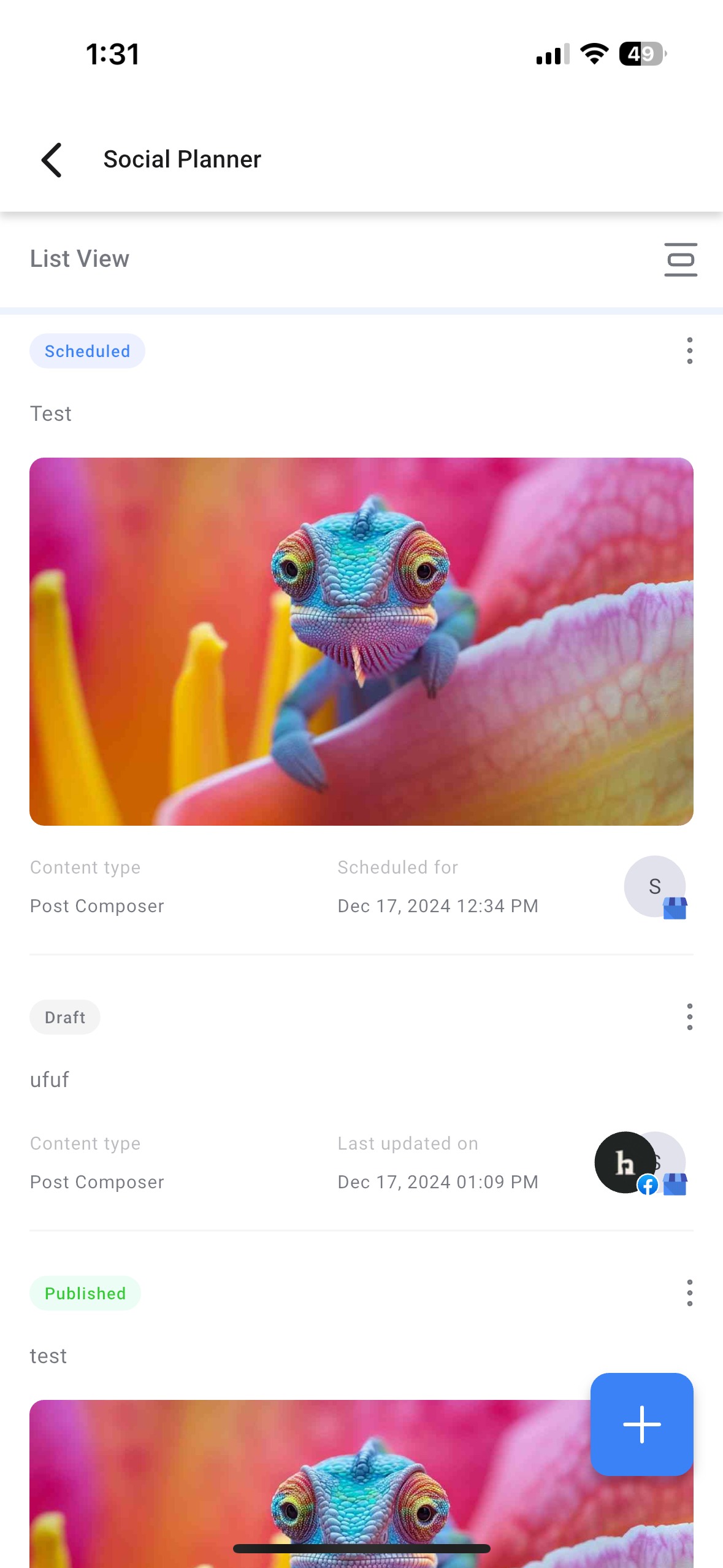
The Social Planner lives inside the HighLevel mobile app under the left hand navigation drawer. It shows a timeline of posts and offers three viewing modes: Monthly, Weekly, and List. You can link Facebook, Instagram, Google My Business, LinkedIn, YouTube, and TikTok accounts.
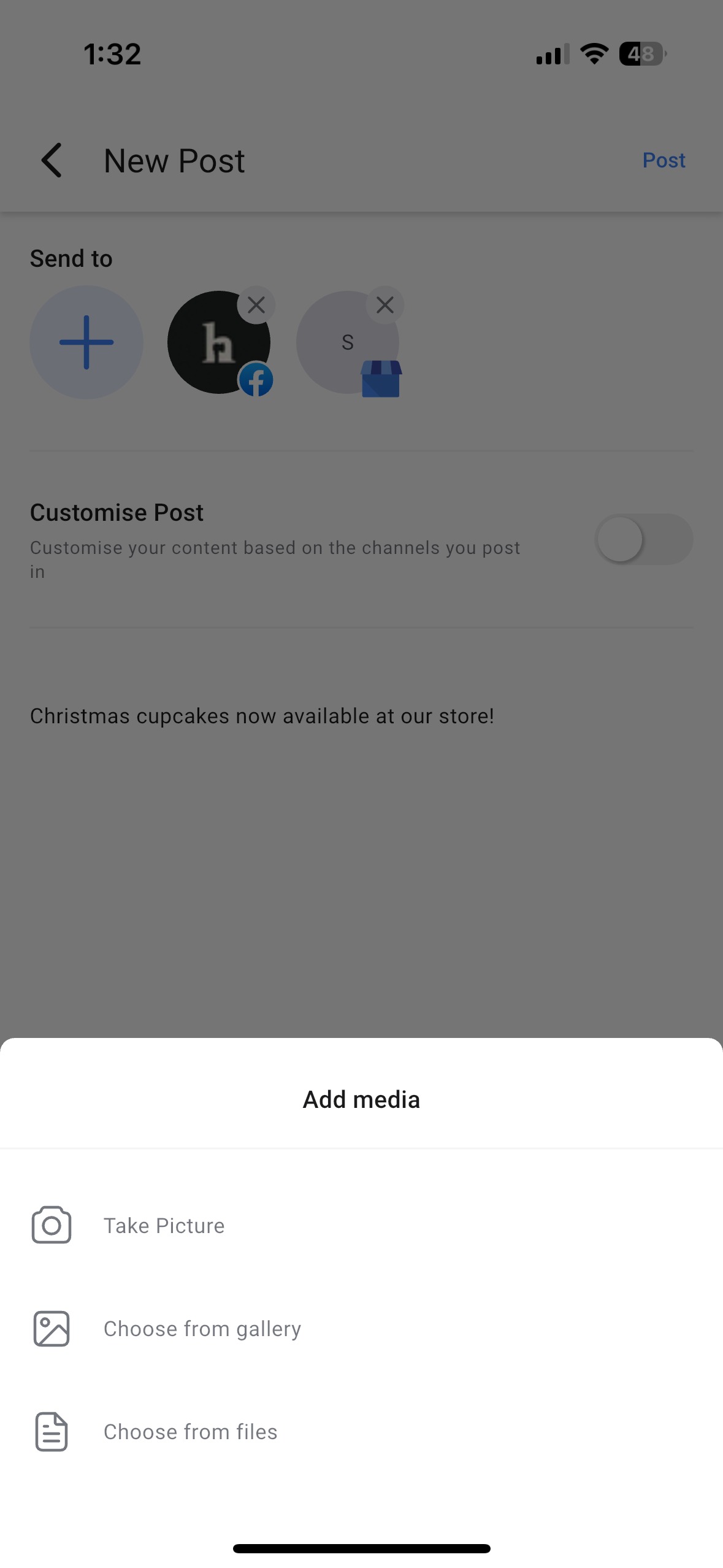
After accounts are linked, you create a post, attach media from your camera, gallery, or files, and optionally customize each platform’s settings. You can publish immediately, set a future date, save as a draft, or schedule recurring deliveries. A redirect button on each published card opens the original social platform to view the live post.
03How businesses use Social Planner
- Digital marketing agency. The agency adds client social accounts, crafts tailored posts, and schedules them for optimal times. Agents use the Customize Post toggle to add platform specific captions or reels before publishing from the app.
- Restaurant owner. The owner connects the venue’s Facebook and Instagram pages, snaps a photo of a new dish, and creates a post directly on the phone. They may save it as a draft to edit later or schedule it for the lunch rush.
- Real estate broker. The broker links LinkedIn and YouTube, records a property video with the device camera, and uses the mobile planner to publish the video now or set a recurring reminder for weekly listings.
04The numbers and rules that matter
- Available on HighLevel v3.88.1 and above.
- Available on LeadConnector v3.88.1 and above.
05Before you start
- Install the HighLevel, LeadConnector, or whitelabel mobile app version 3.88.1 or higher.
- Open the desired subaccount within the app.
06How to set up and use Social Planner in HighLevel
Connect a new social account
- Open the left navigation drawer and select Social Planner.
- Tap the + button located under the Account(s) heading at the top of the page.
- Follow the on screen authentication prompts for the chosen platform.
- Confirm that the account appears in the connected accounts list.
Create a new post
- Tap the floating + button in the bottom right corner of the Social Planner screen.
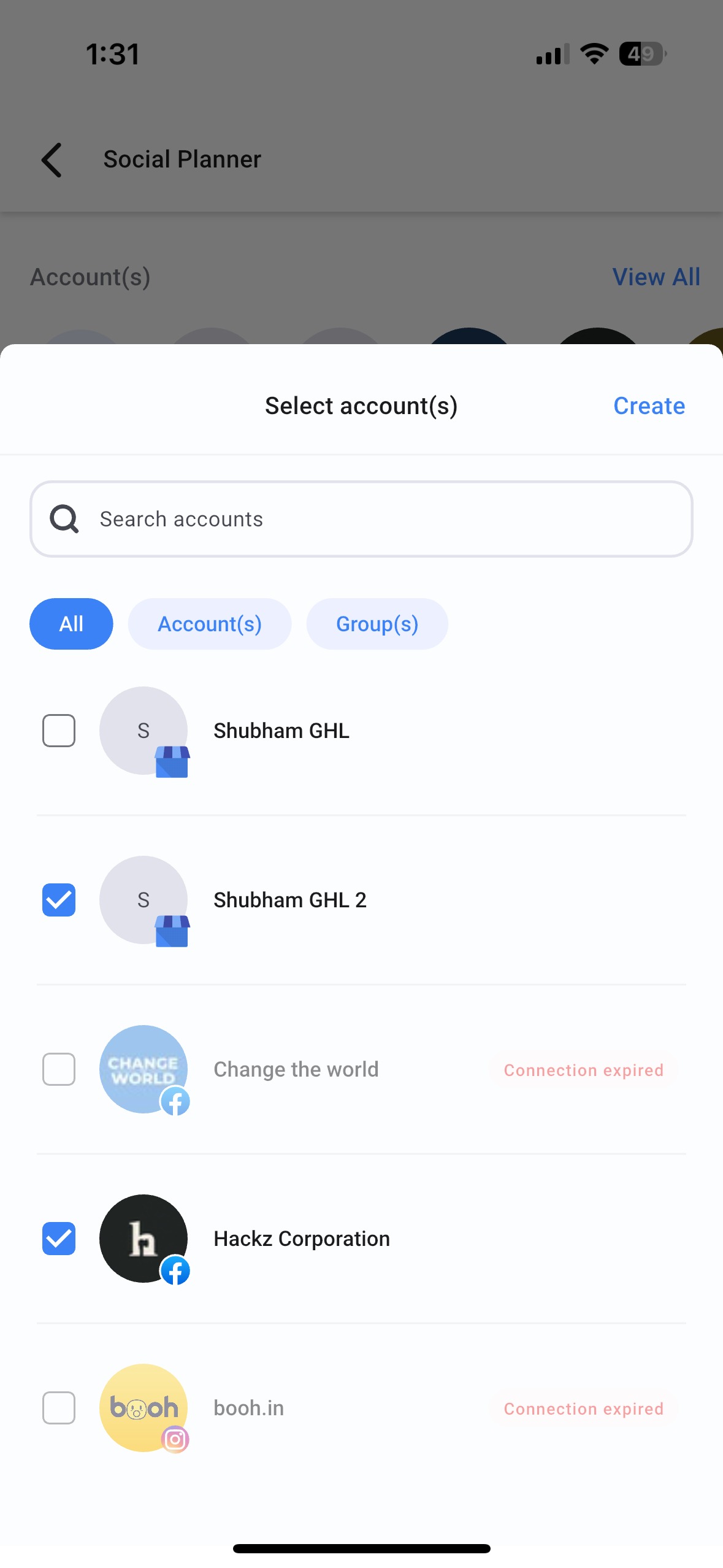
- Select all social accounts to receive the post and press Create.
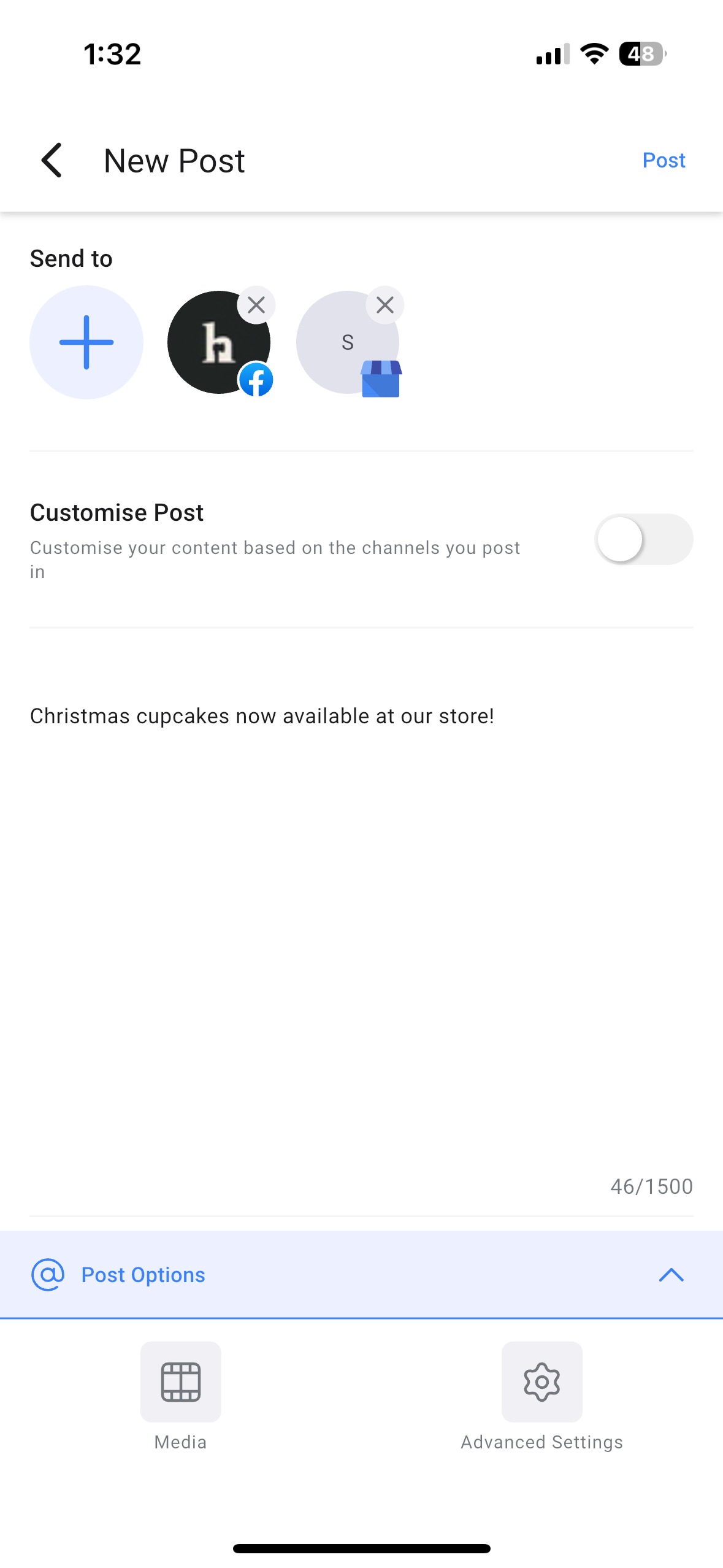
- Enter the post text and use the + button under Send To to add any additional accounts.
- Activate the Customize Post toggle to set channel specific options.
- Add images or video using the device’s camera, gallery, or files app.
- Press Post at the top right, then choose to publish now, schedule, save as draft, or set a recurring schedule.
07What it looks like in HighLevel
08Settings that matter
- Customize Post toggle. Controls whether you can set individual options for each selected social platform, such as feed versus reel for Facebook.
09Things to know before you rely on it
- Supports six social platforms: Facebook, Instagram, Google My Business, LinkedIn, YouTube, and TikTok.
- Feature is available only in app versions v3.88.1 and later for HighLevel and LeadConnector.
- Whitelabel apps require a requested update before the Social Planner can be used.
10How it connects to the rest of HighLevel
- Learn how to add media and apply watermarks in the mobile Social Planner. Media optimization
- Explore the three calendar views that can be switched from within the app. Calendar views
- Review HighLevel pricing and plan options for mobile app access. Pricing
Michael's take

Wondering if you really need a social media planner inside your phone? The answer is yes if you’re often on the move and still want to keep your brand’s feeds fresh. The mobile Social Planner lets you snap a photo, write a caption, pick the accounts and push it out.
I’d start by connecting the accounts you already use on the web version, then fire off a quick draft for tomorrow’s content while you’re commuting. Test the Customize Post toggle to make sure each network gets the right format before you rely on the scheduler for a full week’s worth of posts.