
01Who this is for
- Agency owners who need to provide a consistent mobile experience across all client subaccounts.
- Developers responsible for linking Apple and Google publishing accounts and handling app builds.
02Whitelabel mobile apps, explained
The Mobile App Customizer is an agency level workspace inside HighLevel where you configure a white label iOS and Android application. It stores visual settings such as app name, logo, primary colour, font and splash screens, as well as login screen details.
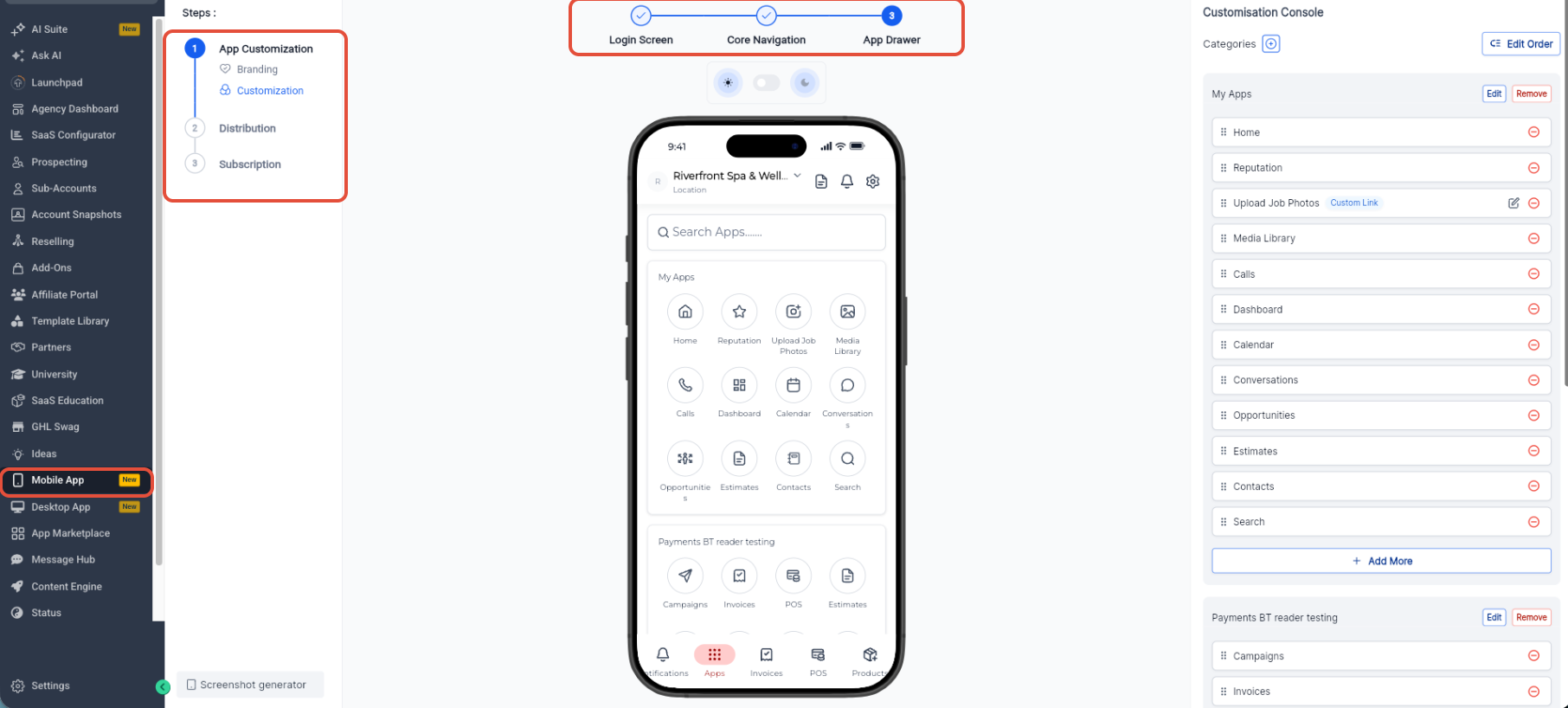
Navigation is managed through two sections: Core Navigation for top and bottom bar items and the App Drawer for additional modules. Custom modules let you add external URLs that open inside the app or in a mobile browser. All changes are saved in the customizer and can be compiled into a new app build.
The customizer also holds store profile fields, connects to Apple App Store Connect and Google Play Console, and runs build workflows that generate installable packages ready for upload to the respective app stores.
03How businesses use whitelabel mobile apps
- Digital marketing agency. The agency opens the Mobile App Customizer, updates the branding to match its own logo and colours, adjusts the navigation to feature its core services, and then generates a build for client testing.
- Fitness studio chain. Each studio receives the same white label app; the chain customizes the login screen with its tagline, adds a custom module that links to the class schedule, and publishes the app through the connected Apple and Google accounts.
- Consulting firm. The firm prepares the store profile with its privacy policy URLs, selects distribution countries, and then launches an update build after changing the app name to reflect a new service offering.
04Before you start
- A Custom Agency App subscription must be active.
- An Apple Developer Program Organization account with App Store Connect access is required.
- A Google Play Console Organization account is required.
- A valid D U N S number is needed for Apple enrollment.
- Publicly reachable Privacy Policy and Terms & Conditions URLs must exist.
05How to set up and use whitelabel mobile apps in HighLevel
Promote mobile app to subaccounts
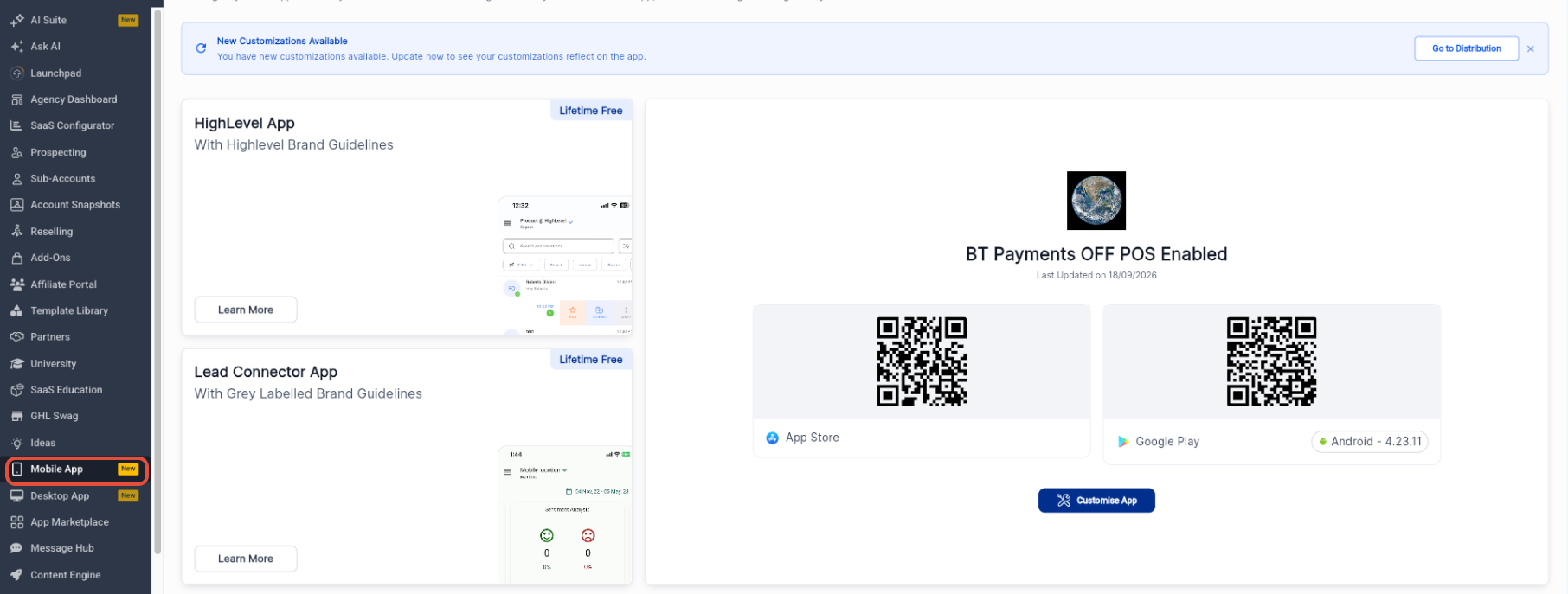
- Switch to Agency View to access agency level controls.
- Select Mobile App from the left navigation.
- Review the list of supported mobile app experiences.
- Check the App Store and Google Play download options for the whitelabel app.
- Click Customise App to begin editing the branded app.
Customize branding
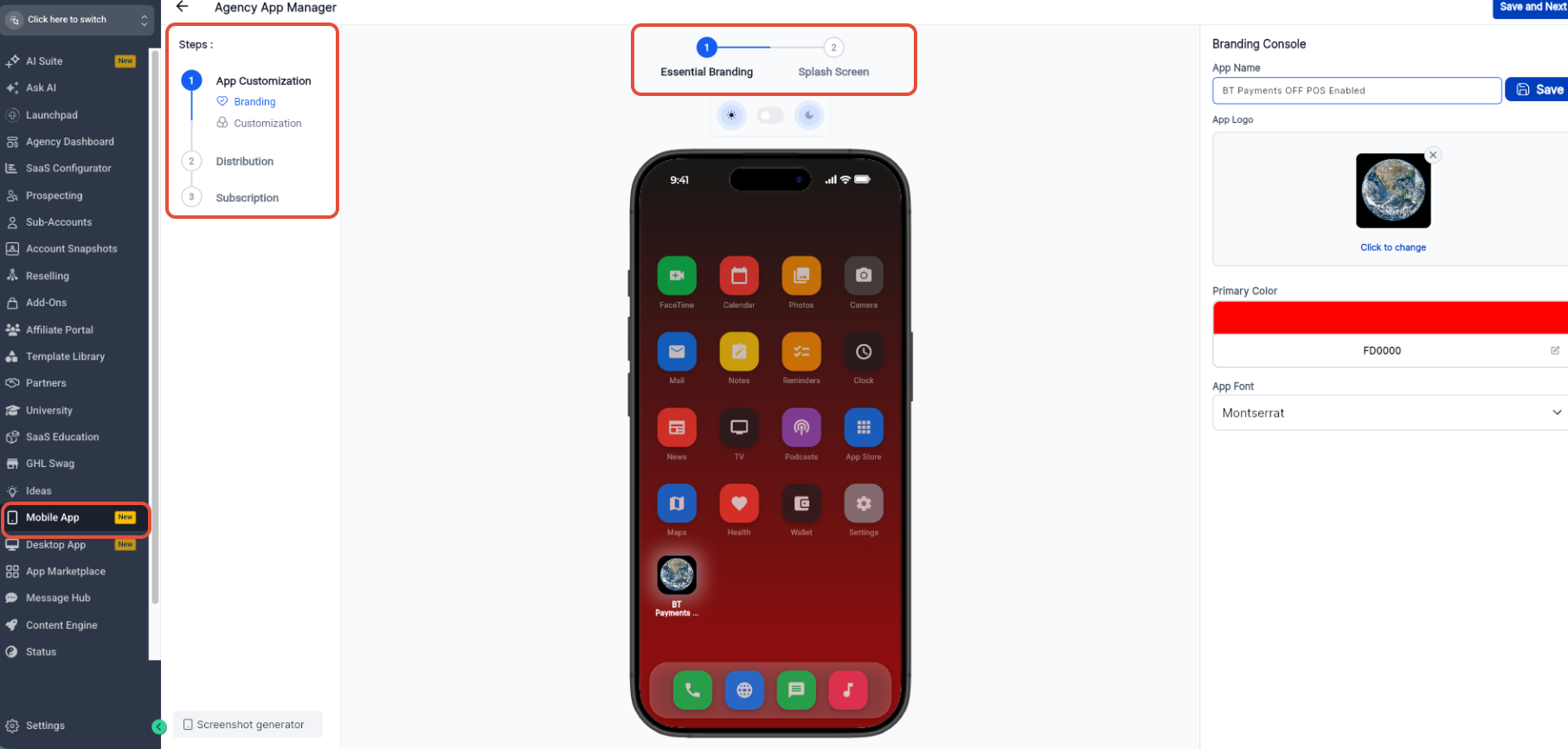
- From the Mobile App workspace, click Customise App.
- Open App Customization.
- Select the Branding section.
- Enter the App Name.
- Upload the App Logo.
- Choose the Primary Color.
- Select the App Font.
- Click Save and Next.
- Open the Splash Screen area.
- Upload the Light Mode splash screen.
- Upload the Dark Mode splash screen.
- Click Save and Next.
Customize login screen
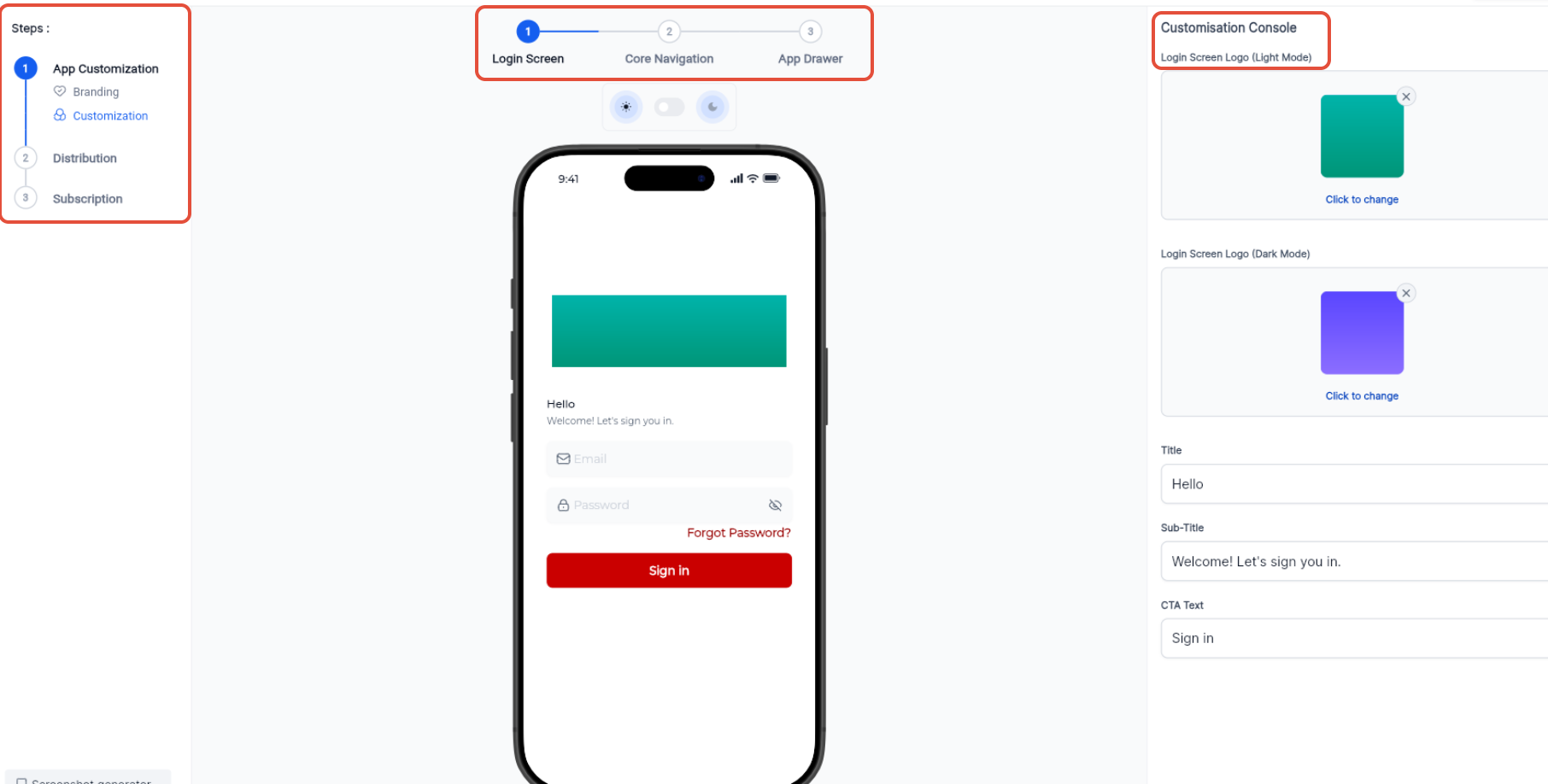
- Under Customization, open Login Screen.
- Configure the Light Mode login logo.
- Configure the Dark Mode login logo.
- Set the Title field.
- Set the Sub Title field.
- Set the CTA Text.
- Click Save and Next.
Configure core navigation
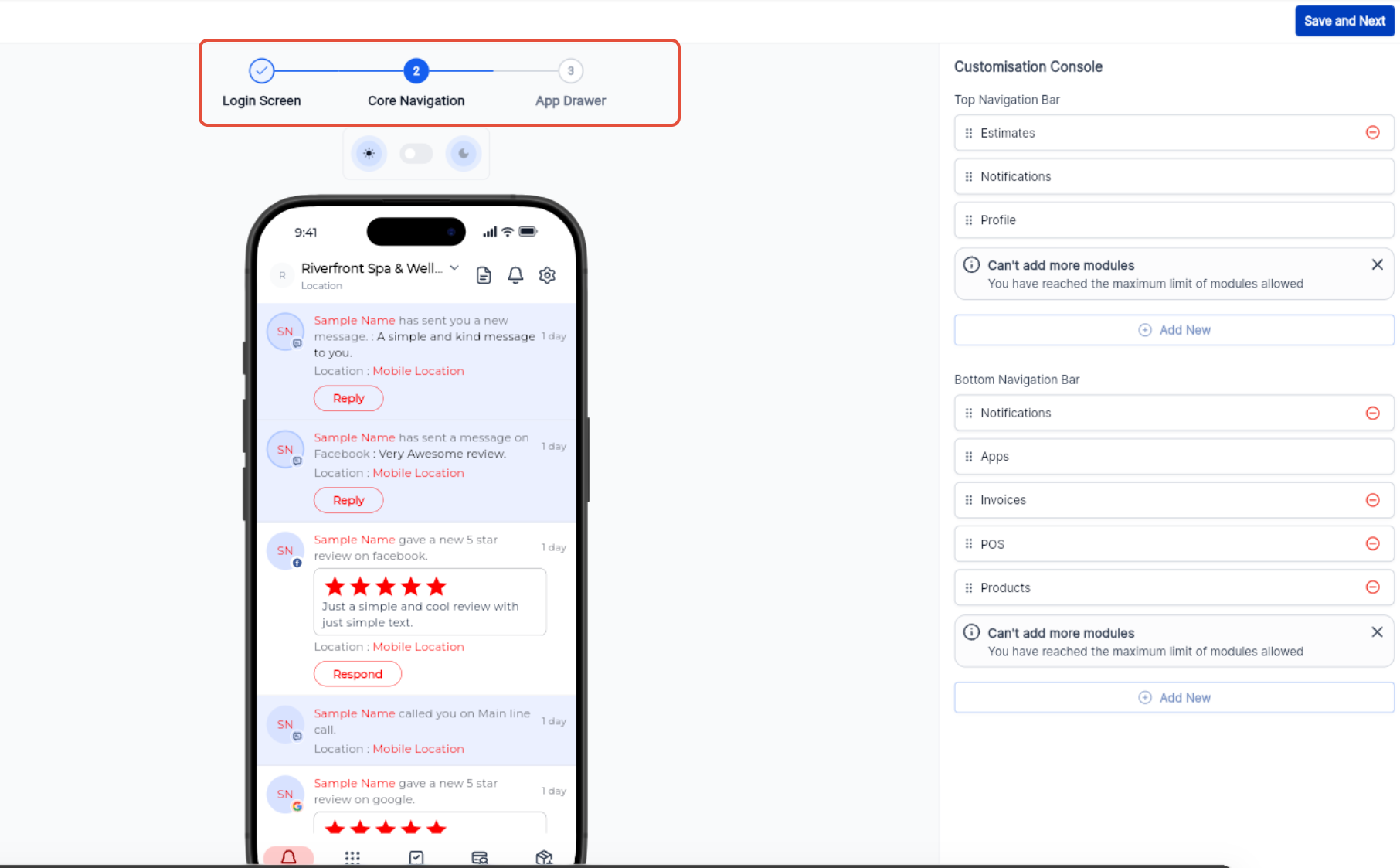
- Under Customization, open Core Navigation.
- Review the Top Navigation Bar.
- Add or edit top navigation items as needed.
- Review the Bottom Navigation Bar.
- Add, remove, or reorder supported modules.
- Move additional modules to the App Drawer when needed.
- Click Save and Next.
Configure the App Drawer
- Under Customization, open App Drawer.
- Add or remove supported modules.
- Reorder modules as needed.
- Create or edit supported categories.
- Save your changes.
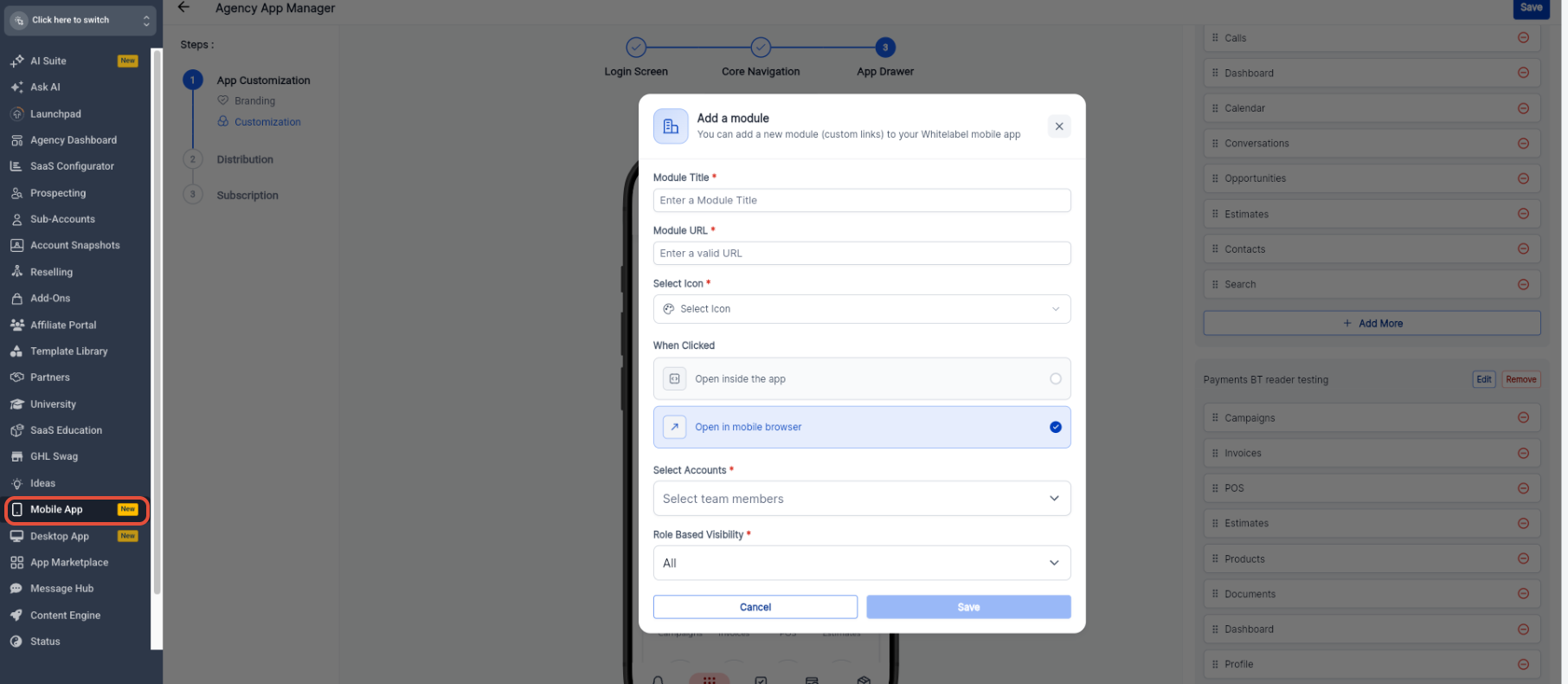
Add a custom module
- From the chosen App Drawer category, click Add More.
- Enter the Module Title.
- Enter the Module URL.
- Select an icon.
- Choose Open inside the app or Open in mobile browser.
- Configure account selection and role based visibility.
- Click Save.
Prepare the store profile
- From Agency View, select Mobile App.
- Open your Whitelabel Mobile App.
- Navigate to Distribution > Profile.
- Enter the App Name.
- Add the Terms & Conditions URL.
- Add the Privacy Policy URL.
- Select distribution countries.
- Select the default language.
- Configure app store categories.
- Complete the short description and other required fields.
- Save the profile.
Connect app stores
- Go to Distribution > Channels.
- Start or review the Apple AppStore connection.
- Complete the required Apple connection workflow.
- Start or review the Google PlayStore connection.
- Complete the required Google connection workflow.
- Confirm that both store connections show as Connected.
Build and launch the app
- Open Distribution > Channels.
- Select the appropriate store release action, such as Launch App or Update.
- Start the app build workflow.
- Monitor each build stage as the system prepares the app.
- Click Continue in background if you do not need to stay on the screen.
- When the build finishes, follow the store upload and review steps.
06What it looks like in HighLevel
07Settings that matter
- App Name. Defines the display name of the white label mobile application.
- App Logo. Specifies the icon that appears on device home screens and within the app.
- Primary Color. Sets the main colour used across the app’s UI elements.
- App Font. Selects the typeface applied to textual content in the app.
- Splash Screen. Provides light mode and dark mode images shown while the app launches.
- Login Screen Title. Sets the headline displayed on the app’s login page.
08Things to know before you rely on it
- A Custom Agency App subscription is required before any build or publish action.
- Apple publishing needs an Apple Developer Program Organization account with a D U N S number.
- Google publishing needs an applicable Google Play Console Organization account.
- Package and bundle identifiers must stay the same after the first Production release to keep the update path intact.
- Customization is limited to branding, login screen, navigation, App Drawer and custom module controls only.
09If something goes wrong
- App build fails. Review the build progress information, address the highlighted issue, and restart the build.
10How it connects to the rest of HighLevel
- Link Apple App Store account to the Mobile App Customizer Link Apple account
- Link Google PlayStore account to the Mobile App Customizer Link Google account
- Review HighLevel pricing and plans for Custom Agency App eligibility Pricing
Michael's take

Most agencies try to push a new build before they’ve verified every branding and navigation setting. That leads to wasted builds and store submission delays. I would lock in the final app name, logo, colors and splash screens first, then run a single test build to confirm the app opens cleanly on both platforms.
Once the test passes, I’d connect the Apple and Google accounts, fill out the store profile, and launch the production build. Keeping the package and bundle identifiers stable from day one saves you a lot of headaches later when you need to release updates.