
01Who this is for
- Service based businesses can collect card payments on site, eliminating manual entry.
- Retail shops can process tap, insert, or swipe sales directly from the mobile POS.
- Event organizers can accept attendee fees using portable Stripe terminals without extra hardware.
02Stripe mobile POS terminals, explained
The feature lets you connect selected Stripe approved payment terminals to the HighLevel mobile application. Once a reader is paired, the app can send a payment request to the device, allowing customers to complete a transaction by tapping, inserting, or swiping their card.
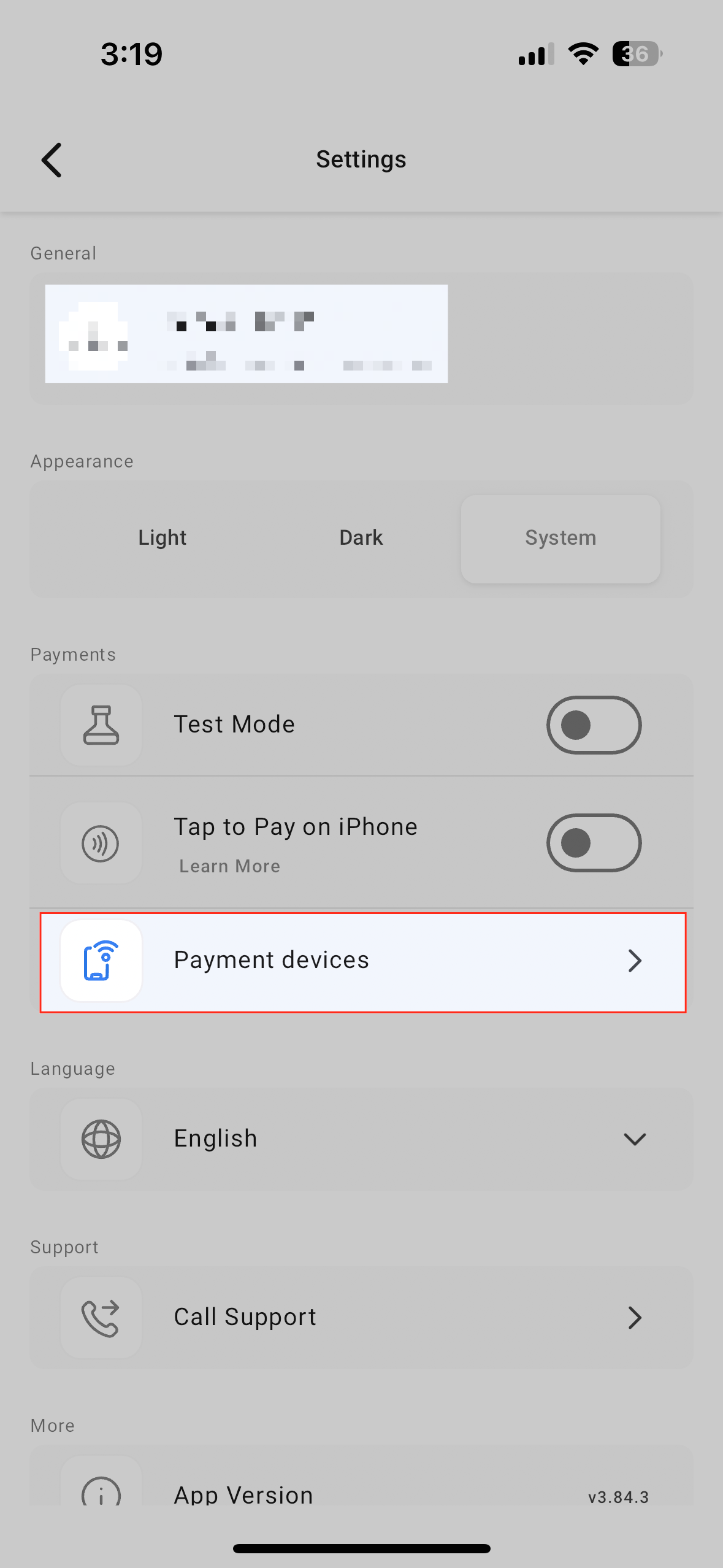
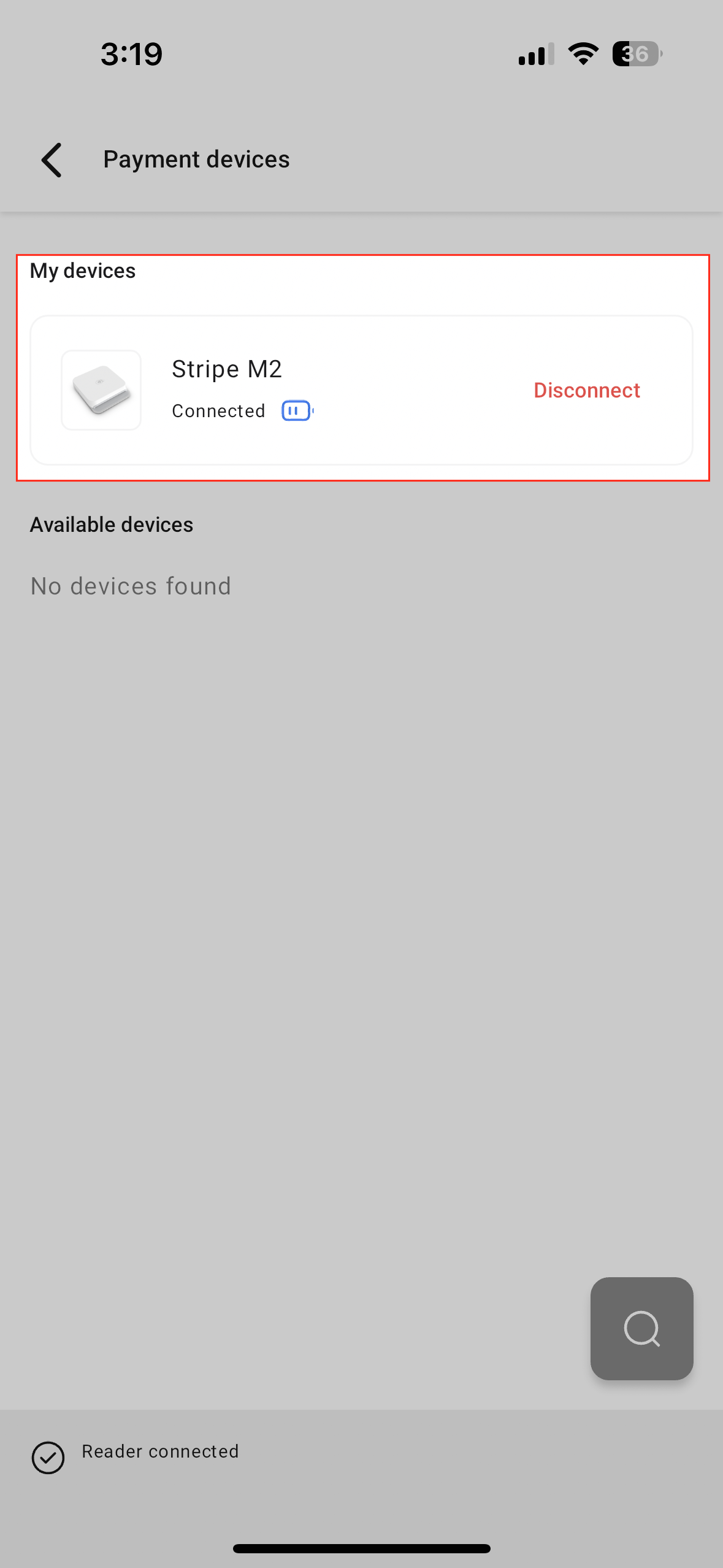
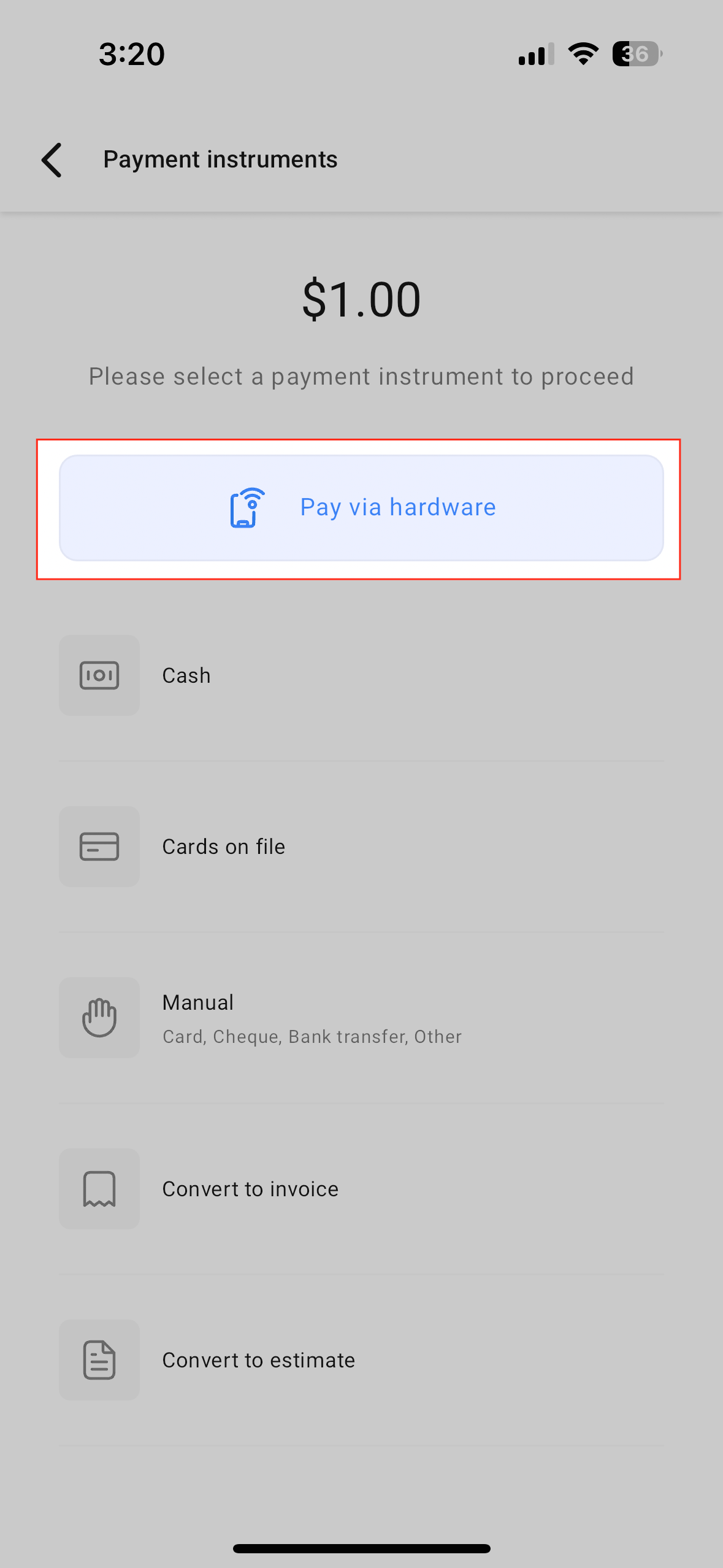
To pair a terminal, open the Navigation menu, go to Settings, and choose Payment Devices. When the reader appears on the pairing screen, tap Connect and let the app install any updates. After pairing, a “Pay with Hardware” tile appears in the payment instruments area of the POS or Invoices view. Selecting this tile triggers the terminal to accept a card payment.
The capability is available in the HighLevel, LeadConnector, and Whitelabeled mobile apps and supports the Stripe M2 reader and the BBPOS WisePad 3 device.
03How businesses use Stripe mobile POS terminals
- Hair salon. The stylist opens the POS tab, taps the Pay with Hardware tile, and lets the client tap or swipe their card on the Stripe reader to settle the appointment payment.
- Food truck. The operator selects the Invoices view, chooses Pay with Hardware, and customers insert or swipe their cards on the BBPOS WisePad 3 to pay for orders.
- Fitness studio. When a member checks in, staff accesses the POS screen, presses the hardware payment tile, and the member completes the membership fee using the Stripe M2 reader.
04The numbers and rules that matter
- Supported terminals are Stripe M2 reader and BBPOS WisePad 3.
- Terminal must be turned on and have at least 25% battery.
05Before you start
- Install the HighLevel, LeadConnector, or Whitelabel mobile app on the device.
- Have a supported Stripe M2 or BBPOS WisePad 3 terminal turned on with at least 25 % battery.
06How to set up and use Stripe mobile POS terminals in HighLevel
Connect and use a Stripe hardware terminal for payments
- Open the Navigation menu and select Settings (gear icon).
- Tap Payment Devices.
- Power on the terminal and confirm it has at least 25 % battery; the app will show a pairing screen.
- If the device was previously linked, it appears under My devices.
- When the device appears, tap Connect.
- The app will check the terminal for updates and install any that are found.
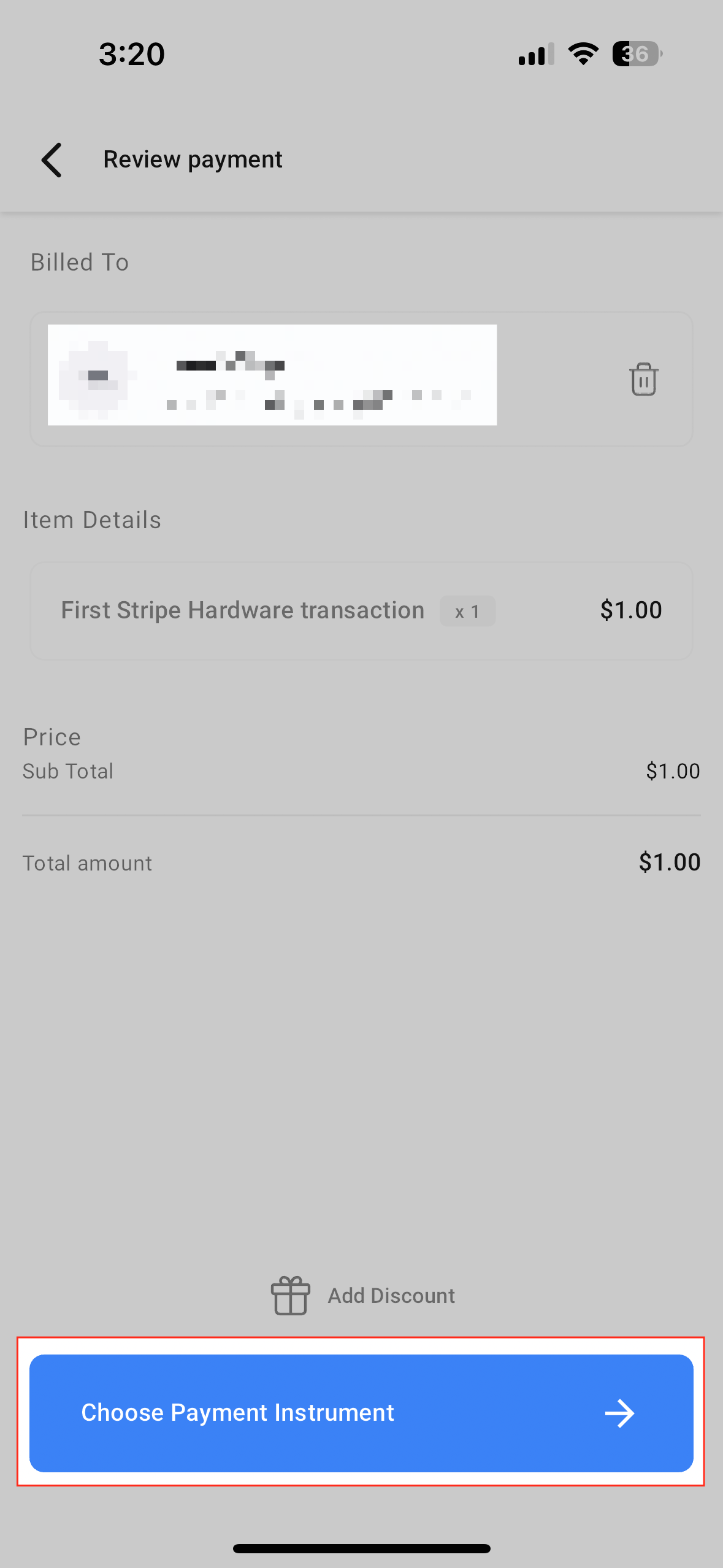
- After updates finish, go to the POS tab or Invoices section.
- Tap the Pay with Hardware tile under payment instruments.
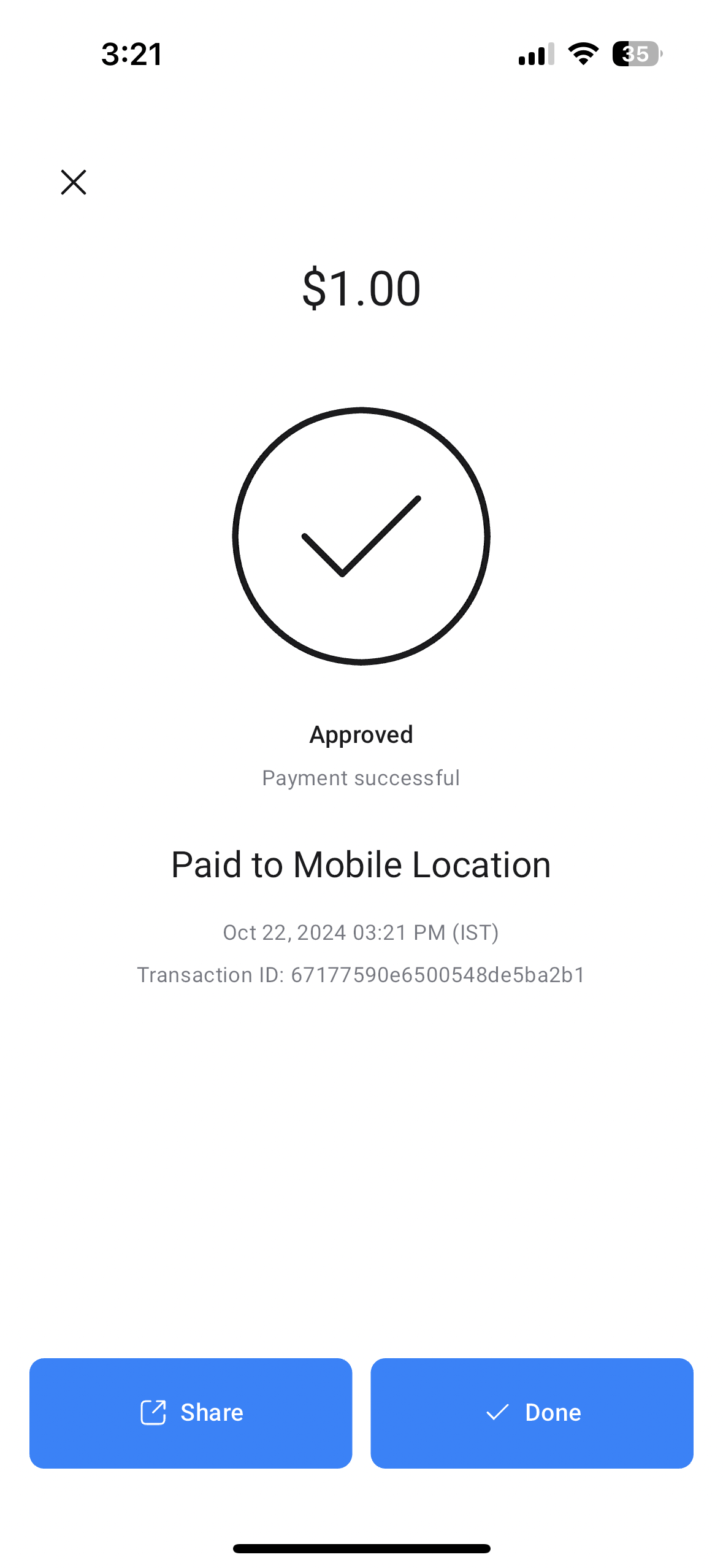
- Have the customer tap, insert, or swipe their card to complete the transaction.
07What it looks like in HighLevel
08Settings that matter
- Payment Devices. Allows you to pair, view, and manage supported hardware payment terminals within the mobile app.
09Things to know before you rely on it
- Only the Stripe M2 reader and BBPOS WisePad 3 terminals are supported.
- The terminal must have at least 25 % battery to pair.
- Feature works in HighLevel, LeadConnector, and Whitelabeled mobile applications.
10How it connects to the rest of HighLevel
- See how the mobile app adapts to iPad and tablet screens. iPad and tablet support
- Learn about the consolidated payment hub for managing all transactions. payment hub
- Review pricing and plan options for mobile POS usage. pricing
Michael's take

Works great if you already need a card reader for face to face sales.
Skip it if you only sell online and have no plan to accept in person payments.