
01Who this is for
- Retail store owners who need to adapt pricing or descriptions at checkout.
- Service providers who want to add or change service details while creating an invoice.
- Mobile sales representatives who require on the spot product customization.
02Dynamic products, explained
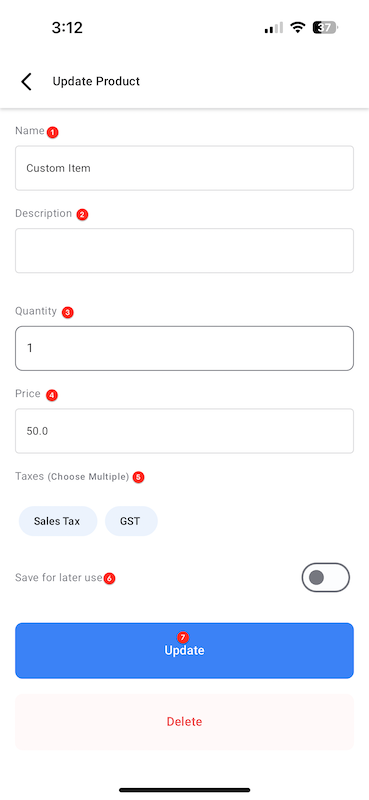
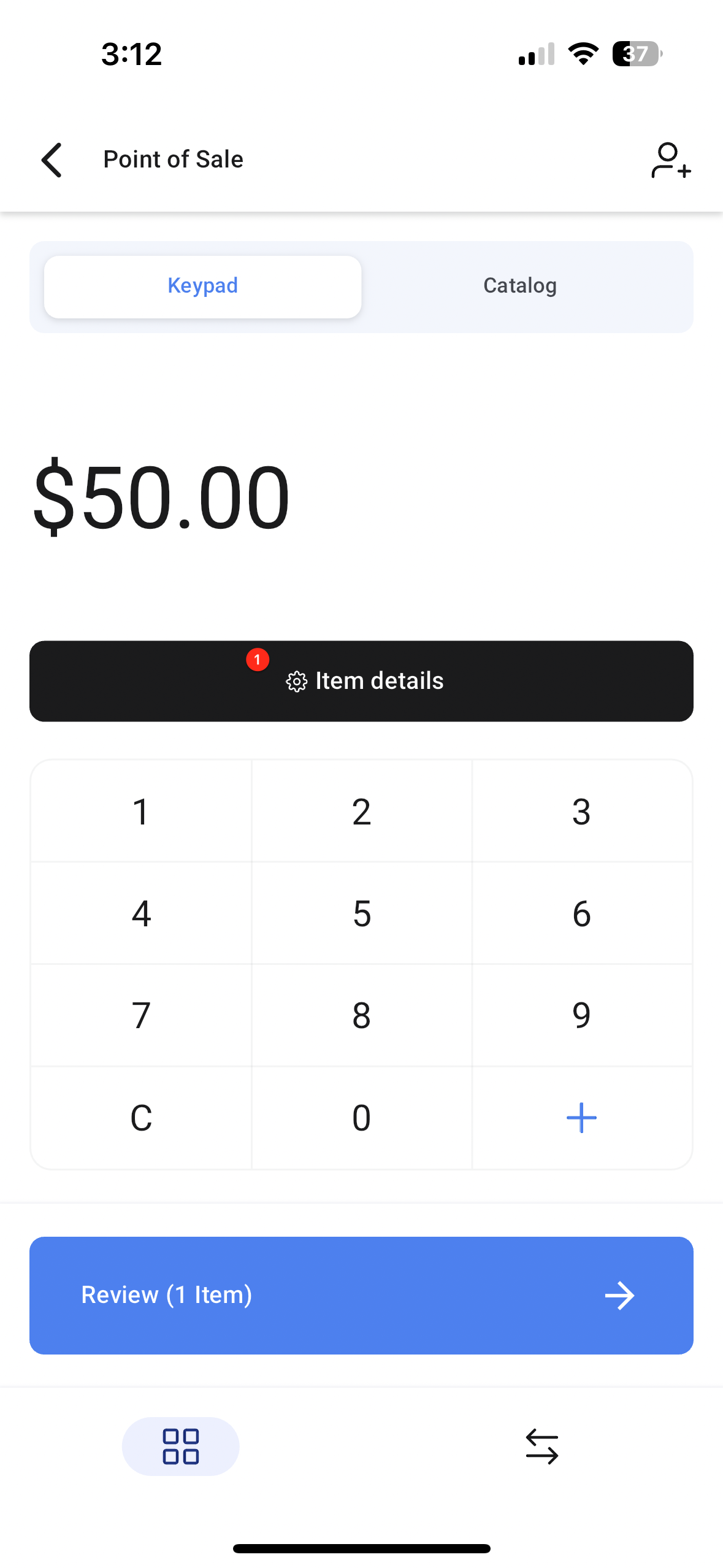
Dynamic Products are an editing layer inside the HighLevel mobile point of sale. When you add a custom amount or select a catalog item, an Item Details button appears. Tapping it opens a screen where you can change the name, description, taxes, quantity, price, and choose to save the item for later use. The same editing screen is also reachable from the product tile on the review page.
The feature lives in the mobile app’s POS section, reachable by the "$" icon on the bottom bar. It works for both keypad entered custom amounts and catalog items. Any changes you make are applied to the current transaction and can be stored in the catalog for reuse.
03How businesses use dynamic products
- Dental practice. A dentist adds a custom item for a special procedure, taps Item Details, renames it, adds a description, links the appropriate tax, adjusts the price, and saves it to the catalog for future appointments.
- Fitness studio. When selling a class package, the studio selects the package from the catalog, taps the product tile on the review screen, updates the quantity or price to reflect a promotion, and confirms the change before charging the member.
- Food truck. The vendor enters a custom amount for a build your own sandwich, opens Item Details, changes the name to the specific sandwich, adds a description of ingredients, applies tax, and saves the custom item for the next day's sales.
04Before you start
- Install the HighLevel, LeadConnector, or whitelabeled mobile app on your device.
05How to set up and use dynamic products in HighLevel
Open Update Product editor
- Tap the big black edit details button on the POS number pad, or
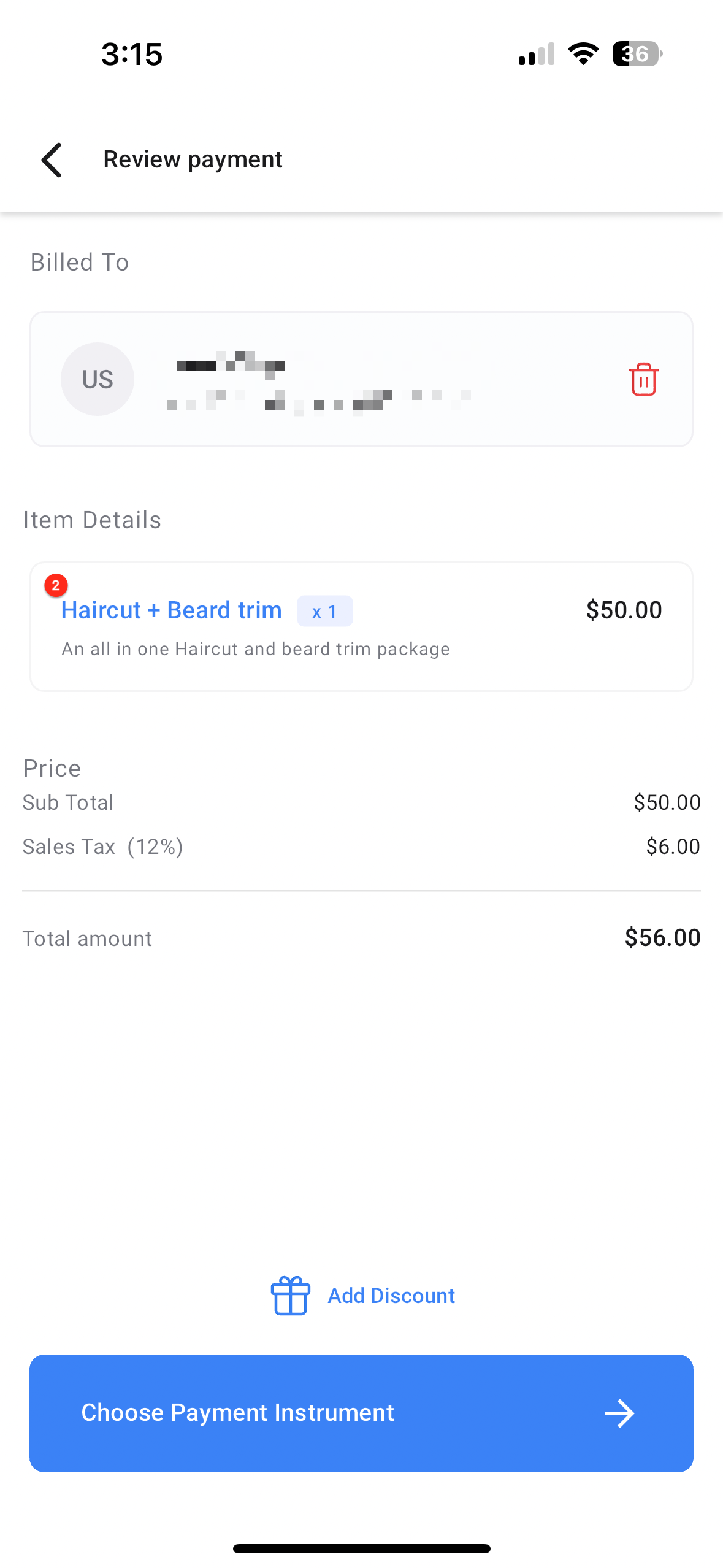
- Tap the item card on the Review Payment screen.
Edit a custom item
- Add a custom amount using the keypad on the POS screen.
- Tap the highlighted Item Details button shown below the amount.
- Replace the default name "Custom Item" with the desired product name.
- Enter a description, adjust taxes, quantity, or price as needed.
- Toggle Save for later use if you want to keep the item in the catalog, then tap Update.
Edit a catalog item
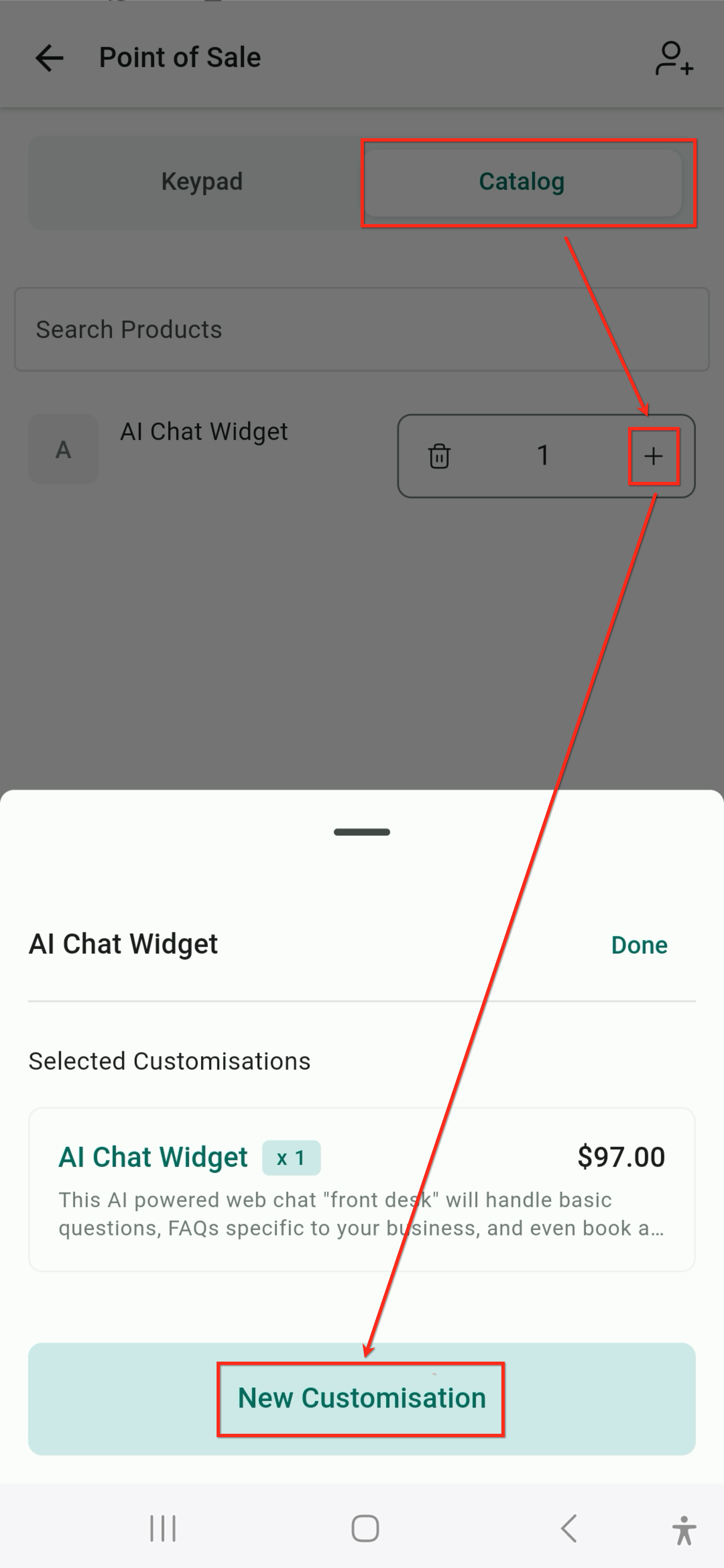
- Add a catalog item to the checkout list.
- On the Review Payment screen, tap the item tile to open its details.
- Modify the name, description, price, or quantity fields.
- Tap Update to apply the changes (or discard if you do not want to keep them).
06What it looks like in HighLevel
07Settings that matter
- Name. Controls the label shown for the product on the invoice or receipt.
- Description. Adds supporting text that appears on the final invoice or receipt.
- Quantity. Sets how many units of the product are being sold.
- Price. Defines the monetary amount charged for the product.
- Taxes. Links applicable tax rules to the product for the transaction.
- Save for later use. When enabled, stores the edited custom item in the catalog for future transactions.
- Update (or discard changes). Commits the edits to the transaction or cancels them.
08How it connects to the rest of HighLevel
- Learn how to accept in person payments with NMI and Authorize.net in the Mobile POS. In person payments
- Find out how to use Stripe hardware terminals with the HighLevel mobile POS. Stripe terminals
- See the full list of Mobile & Desktop App features for HighLevel. All Mobile & Desktop features
Michael's take

Wondering if you can tweak a product’s price or description on the fly when you’re at the register? Absolutely, Dynamic Products let you make those changes right in the mobile app, whether you’re entering a custom amount or pulling from your catalog.
I’d start by adding a custom item, then open the Item Details screen and rename it to match a special service you’re offering. Turn on Save for later use and you’ll have that custom product ready for the next customer.