
01Who this is for
- Field service managers benefit because they can generate accurate quotes while at the job site, reducing back office steps.
- Small business owners use the feature to keep the quoting process inside the platform and avoid separate paperwork.
- Customer support teams gain visibility of sent, accepted and declined estimates from a single view.
02Mobile estimates, explained
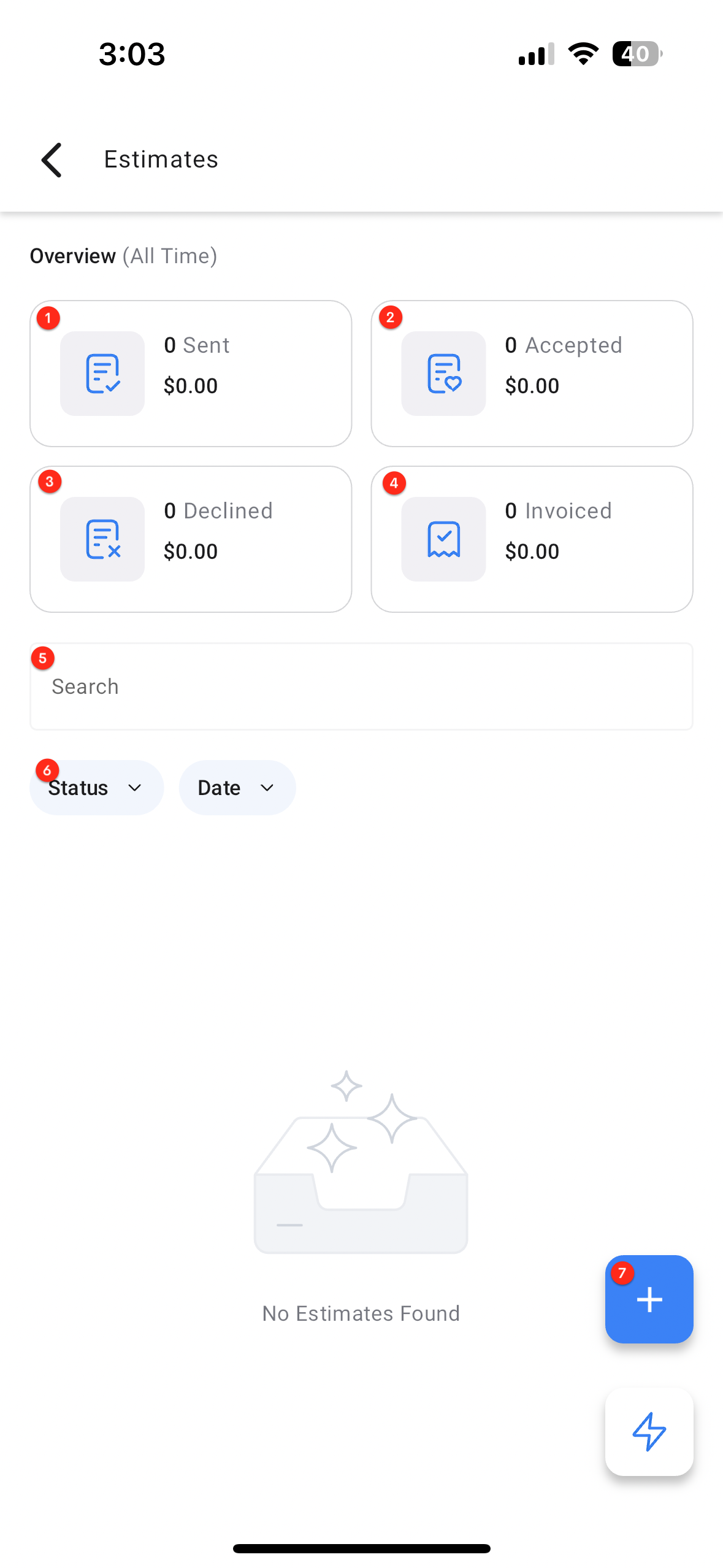
The mobile estimate feature lives in the Estimates section of the HighLevel mobile app. The dashboard shows counts of sent, accepted, declined and invoiced estimates and lets you filter by status, search term or date range. Tapping an estimate opens it for editing if it is still a draft, while long pressing displays additional actions such as copy link or mark as accepted. Left swiping a card reveals the two most important actions and an option to view more.
03How businesses use mobile estimates
- Plumbing service. The plumber opens the Estimates screen, creates a new quote, adds parts and labor for the repair, attaches tax, and sends the link to the homeowner. The homeowner taps Accept on their phone, and the plumber receives a notification to invoice the job.
- Home cleaning company. The cleaning crew supervisor selects a client, enters the number of rooms, extra services and any discounts, then pushes the estimate to the client via text. The client can reject if they need changes, prompting the supervisor to generate a fresh quote.
- Appliance repair business. A technician uses the mobile app on the service call, adds the needed replacement part from the catalog, selects the correct model variant, and sends the estimate. The customer signs the acceptance on their phone, and the technician immediately creates an invoice.
04The numbers and rules that matter
- Filters include a search bar, estimate status filter, and date range filter.
05How to set up and use mobile estimates in HighLevel
Build an estimate
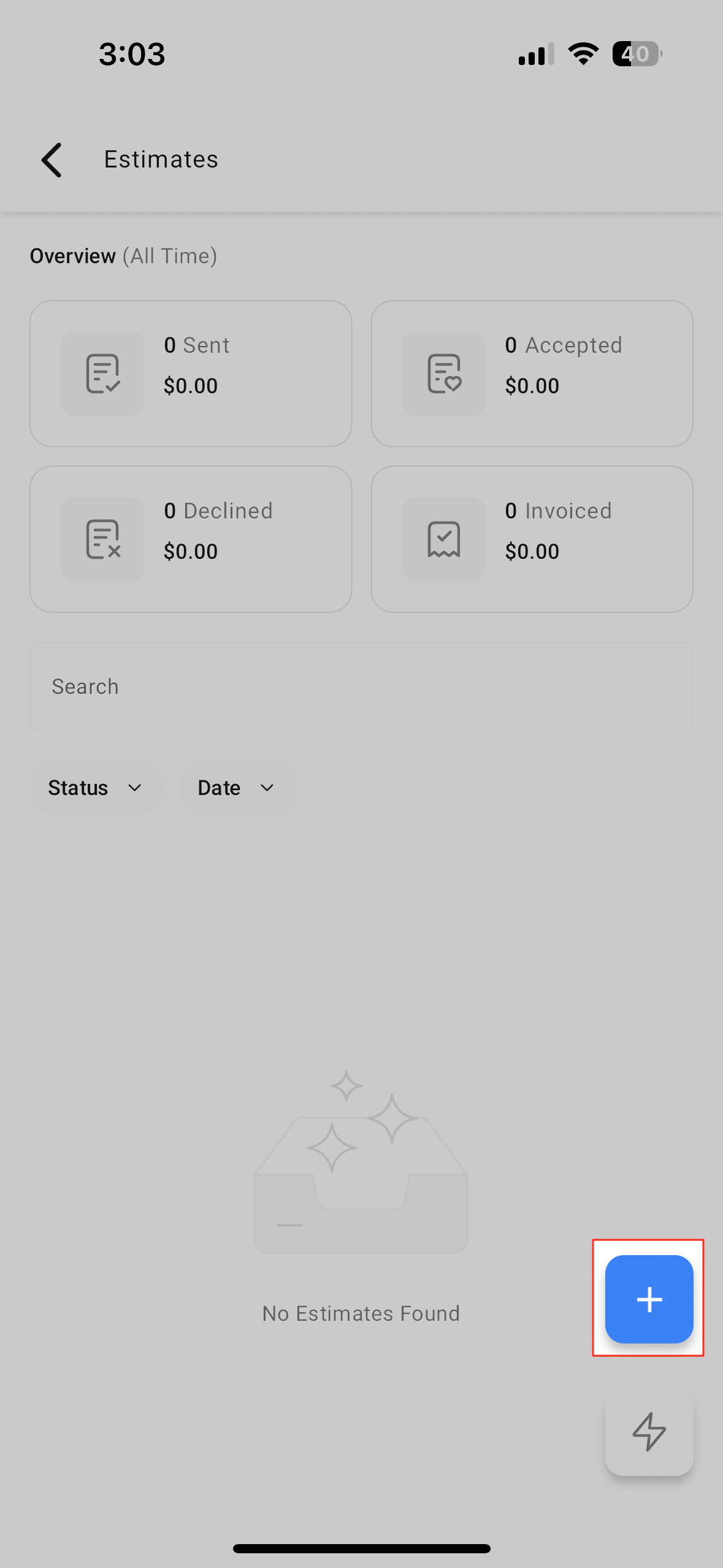
- Open the left navigation, select Estimates, and tap the plus button.
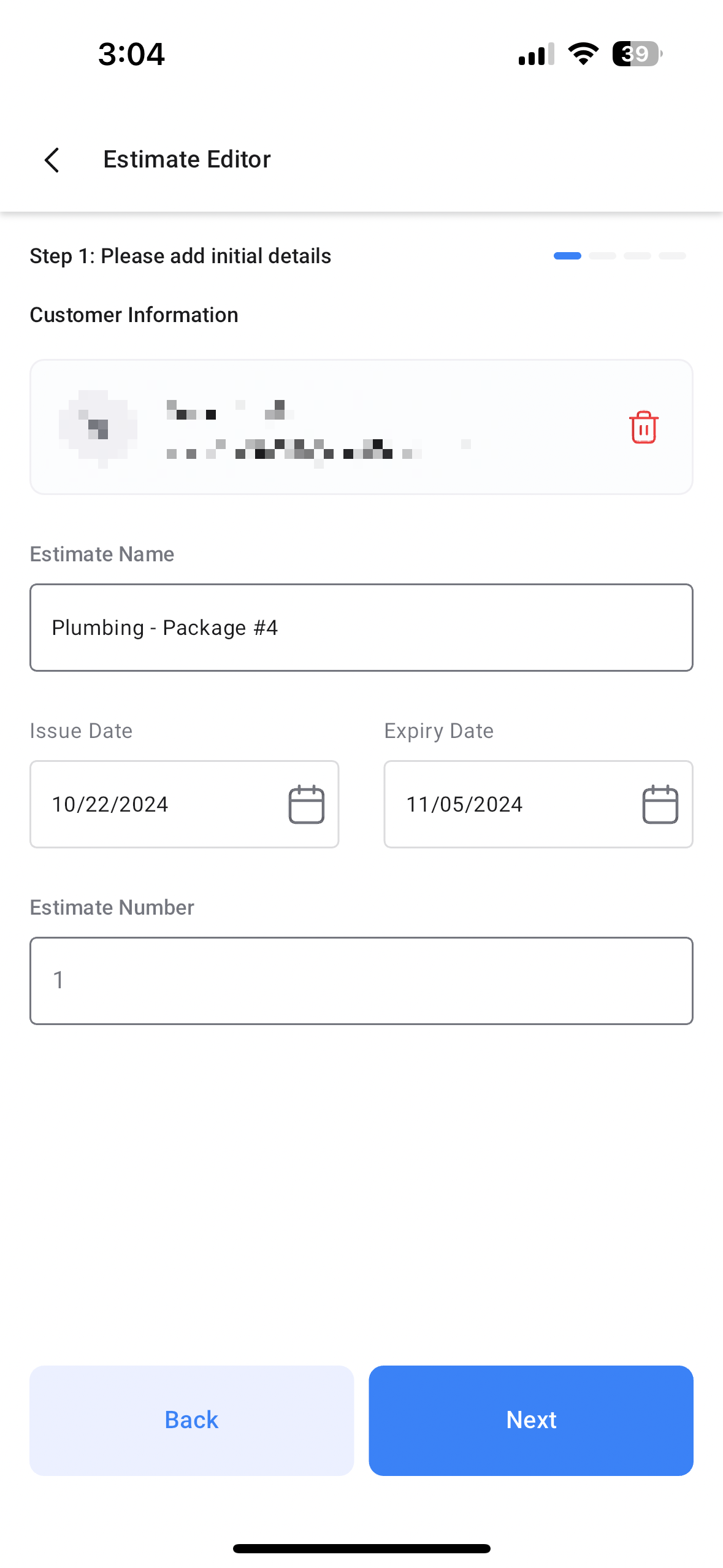
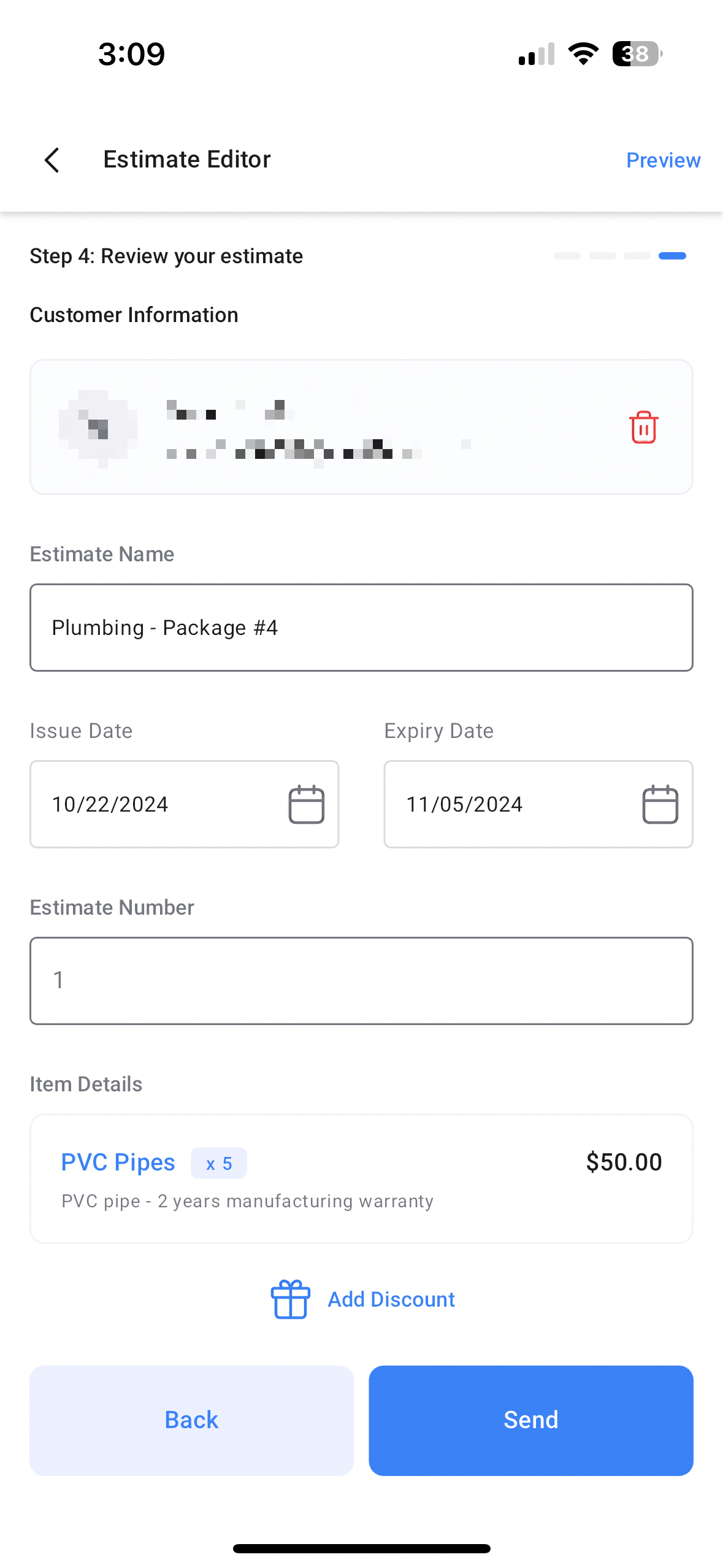
- Enter the contact, give the estimate a name, set the issue date, due date and estimate number.
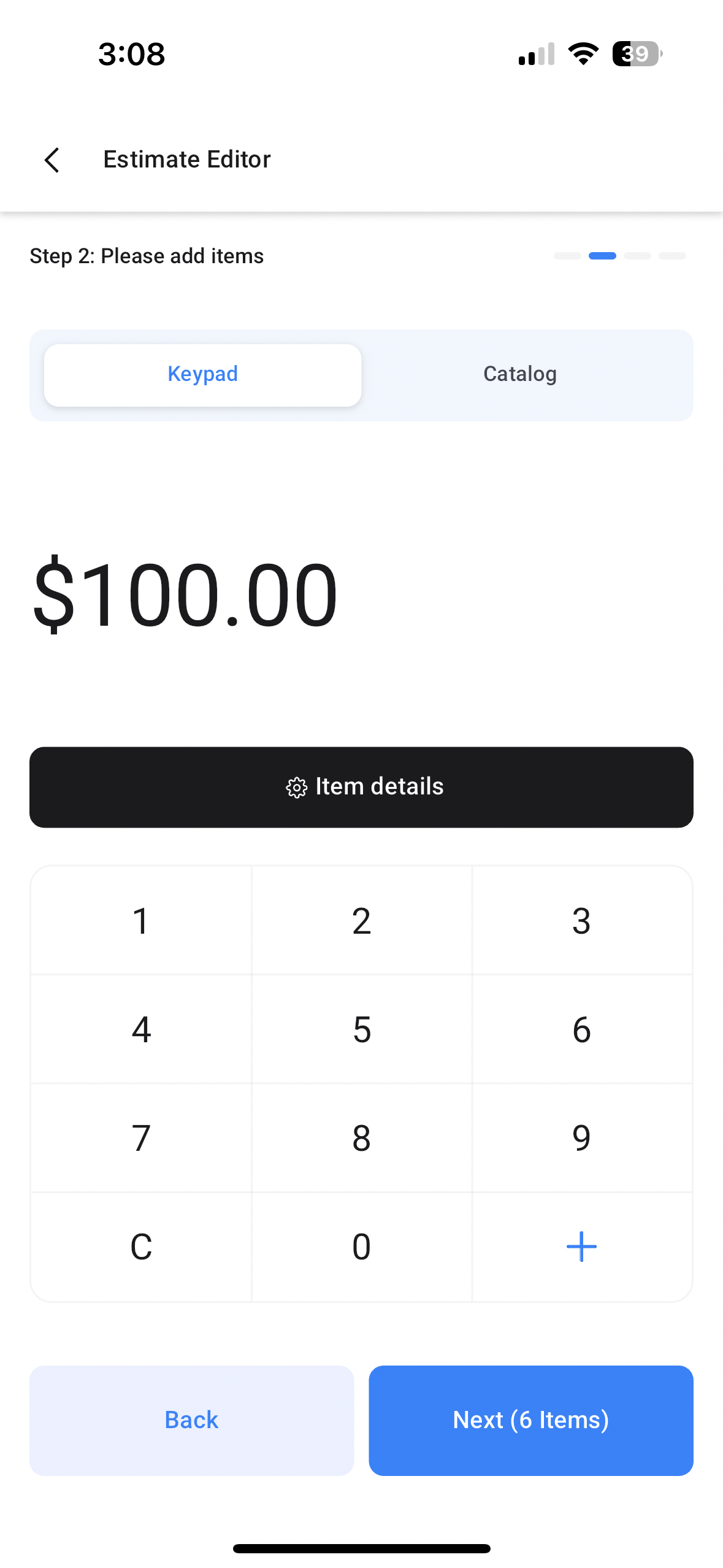
- Add line items by choosing catalog products or entering custom items, link taxes and pick the appropriate variants.
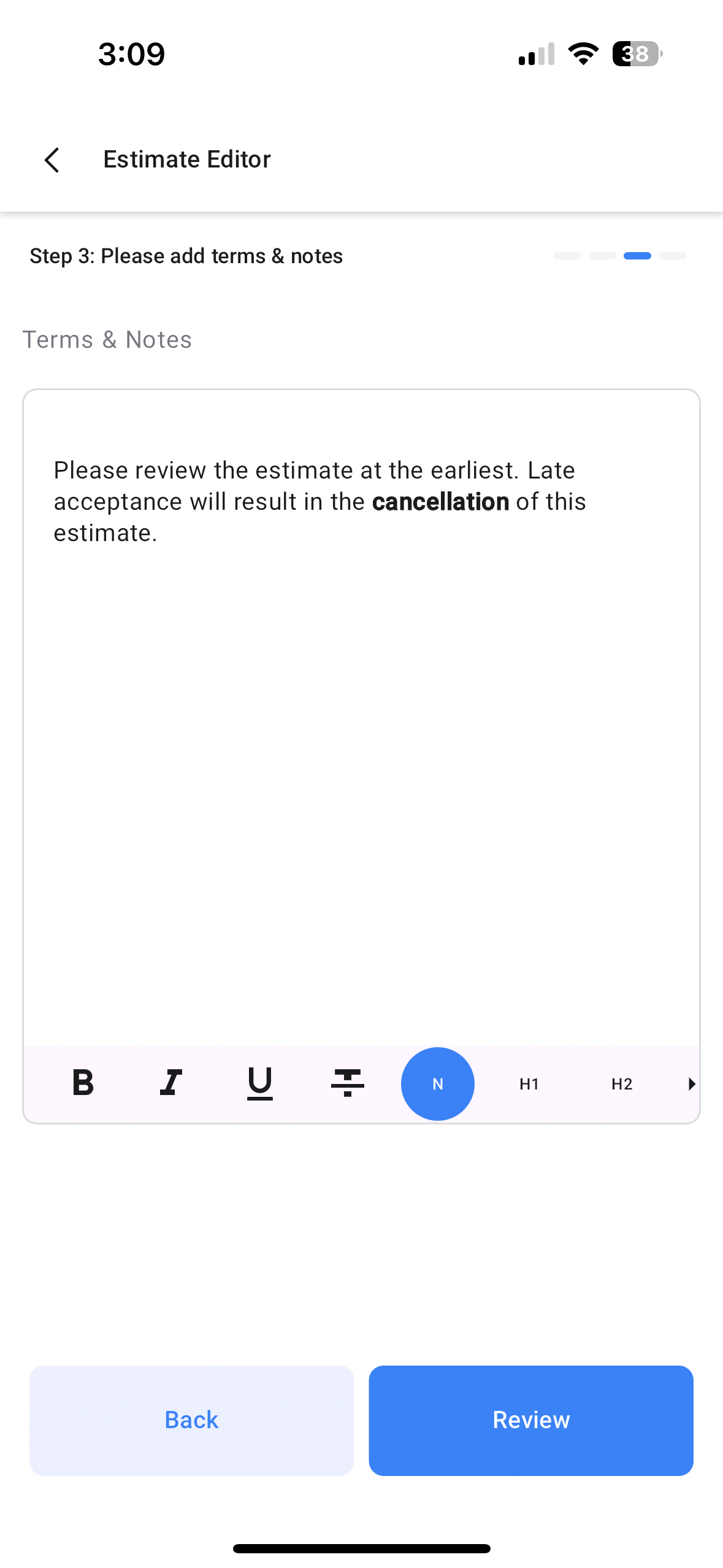
- Enter any terms and notes for the quote.
- Review all details, verify the contact information, dates and items, and add discounts if needed.
- Send the estimate using email, text, or both.
- The client receives a link and can accept or reject the estimate on their device.
- If the client accepts, convert the estimate to an invoice to collect payment.
06What it looks like in HighLevel
07If something goes wrong
- Cannot edit an estimate after it has been sent. Create a new estimate with the required changes.
08How it connects to the rest of HighLevel
- Send payment directly from a mobile estimate Direct payments in estimates
- View all payment activity for estimates in the mobile app Consolidated payment hub
- Start a 30 day trial to test the mobile estimate feature 30 day trial
Michael's take

Most people assume they can tweak a quote after firing it off and then just resend the same link. The app won’t let you edit a sent estimate, so you need to create a fresh estimate if anything changes.
If I were on a job site, I’d pull up the estimate builder, fill in the parts and labor right then, send the link, and wait for the client’s tap.