
01Who this is for
- Founders of fitness studios can provide members with a dedicated app to browse classes, join community chats and access shared files.
- Education entrepreneurs can deliver course content, track progress and let learners sign in through a single branded mobile experience.
- Service based businesses can expose appointment scheduling, custom objects and account settings inside a branded app for their clients.
02AI App Studio, explained
AI App Studio generates a mobile experience by interpreting a written description of your business. After you describe the app, select design preferences, and answer a few clarifying questions, the AI builds screens, code and a preview that matches your branding.
The builder lives inside the HighLevel platform under the AI Studio section of a subaccount. It pulls in existing Client Portal elements such as courses, communities, files, appointments and authentication, and can include up to three custom objects with fields and links. The result can be inspected in a live phone frame preview and exported as an Android APK.
03How businesses use AI App Studio
- Wellness studio. The studio enters a prompt describing member sign in, course browsing and community discussion, selects a green colour palette and clean fonts, and lets AI App Studio generate the app. The Founder then previews the screens and exports the Android package.
- Online teaching platform. The platform describes an app that shows course modules, tracks progress, and allows file downloads. After choosing a palette and fonts, the AI builds the app, which the team reviews for correct navigation before publishing the APK.
- Consulting service. The service outlines an app that provides appointment booking, custom object records for client projects, and account settings access. After confirming design choices, AI App Studio creates the screens, which are inspected for accurate sign in flow.
04The numbers and rules that matter
- Custom Objects: Include up to three objects with fields, dropdowns, and links.
- Need business description, branding assets, and any Client Portal resources you want to include.
05Before you start
- You must have access to the AI App Studio private beta and a HighLevel subaccount with AI Studio editing permissions.
- Prepare a clear business description, branding assets and any Client Portal resources you plan to include.
06How to set up and use AI App Studio in HighLevel
Open AI Studio and describe your app
- Sign in to your HighLevel account.
- Navigate to the appropriate subaccount.
- Choose AI Studio from the left hand navigation.
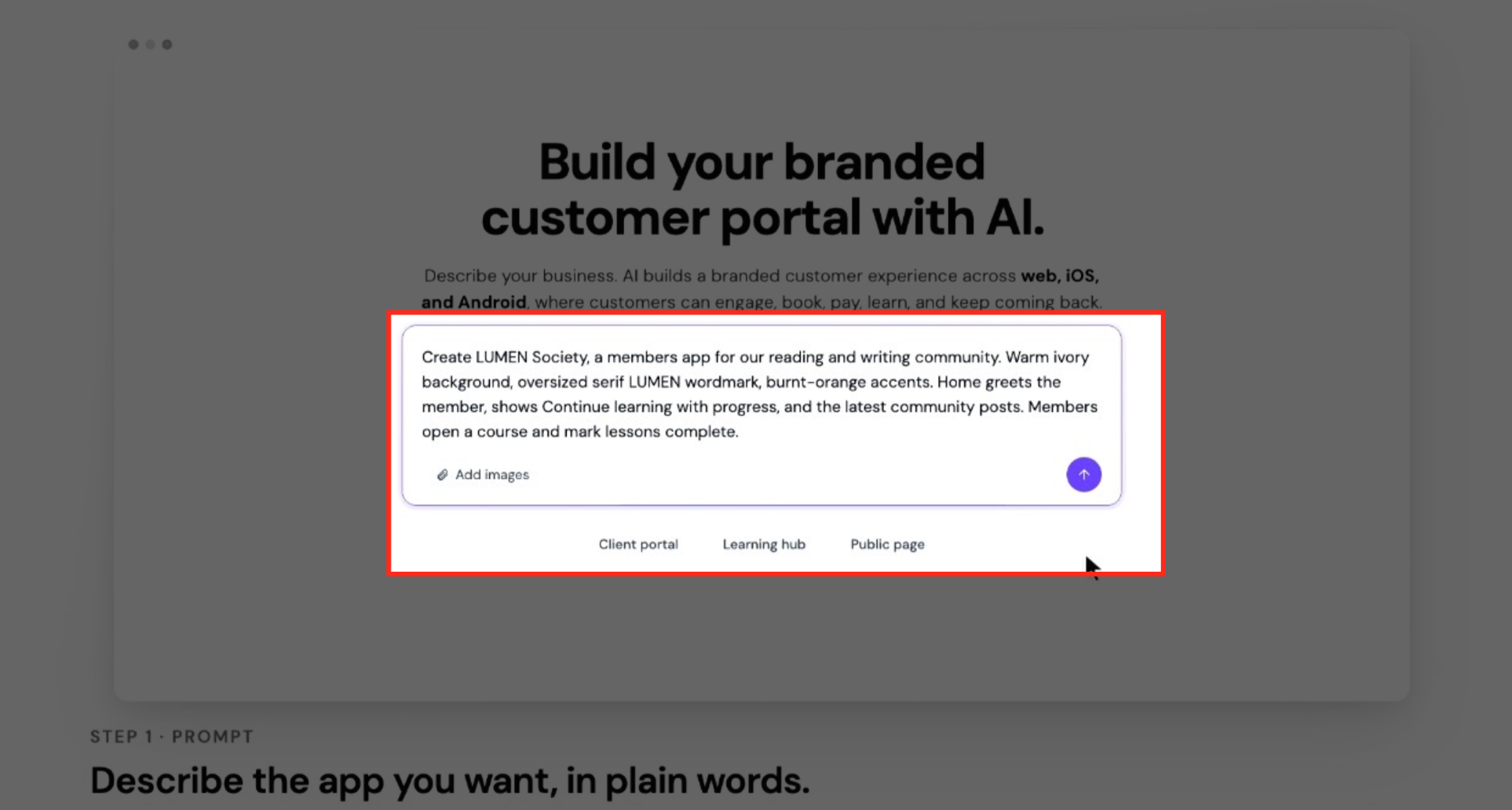
- Find the prompt field on the AI Studio home screen.
- Type a description of the mobile app you want to build.
- Click Add images and attach any branding visuals you have.
- Press the purple arrow button to submit the description.
Choose mobile and a starting point
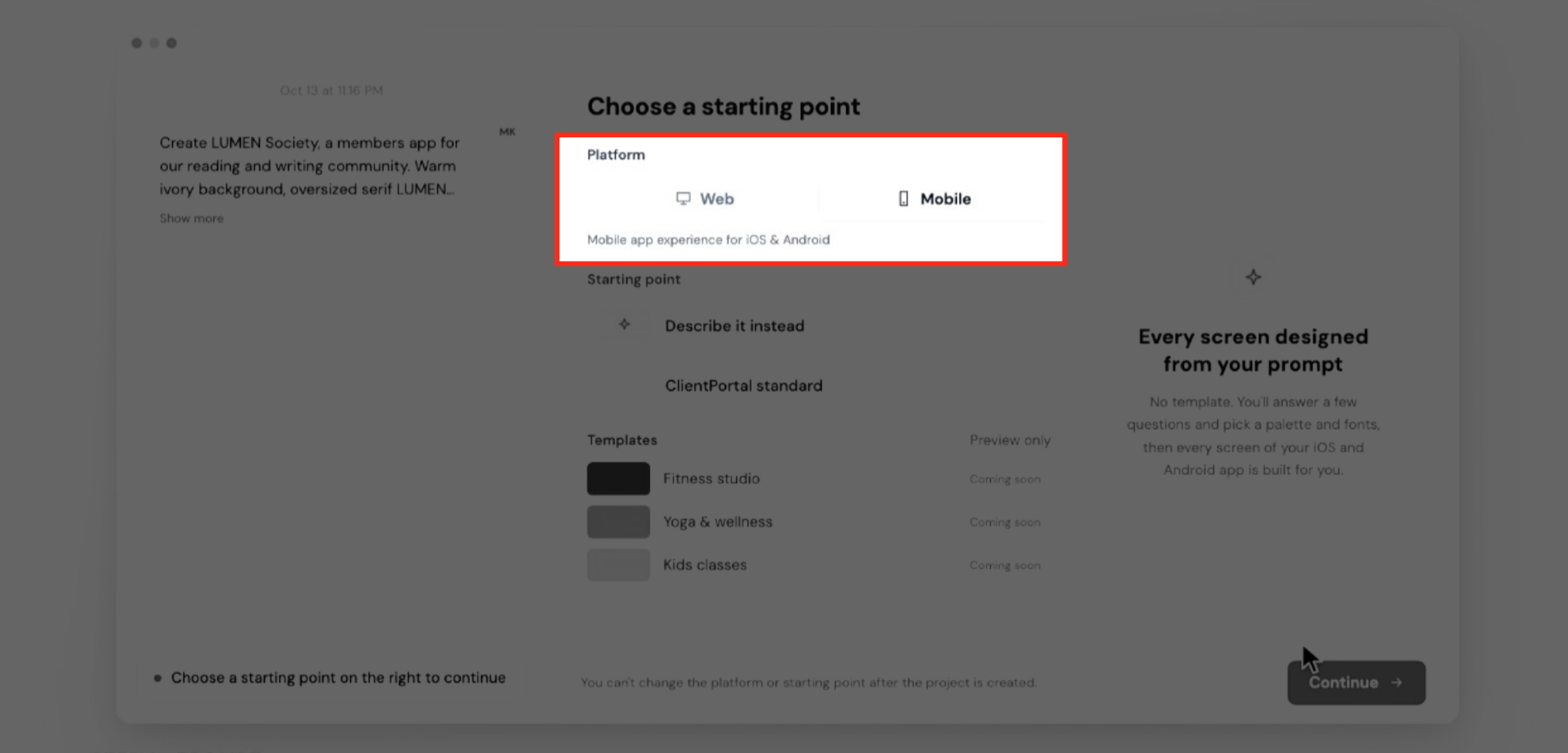
- When the Choose a starting point screen appears, locate the Platform selection control.
- Select the Mobile option.
- Look over the list of available starting point choices.
- Choose Describe it instead to build the experience from your description.
- Click the Continue button.
- Important: you cannot change the platform or starting point after creating the project.
Answer clarifying questions
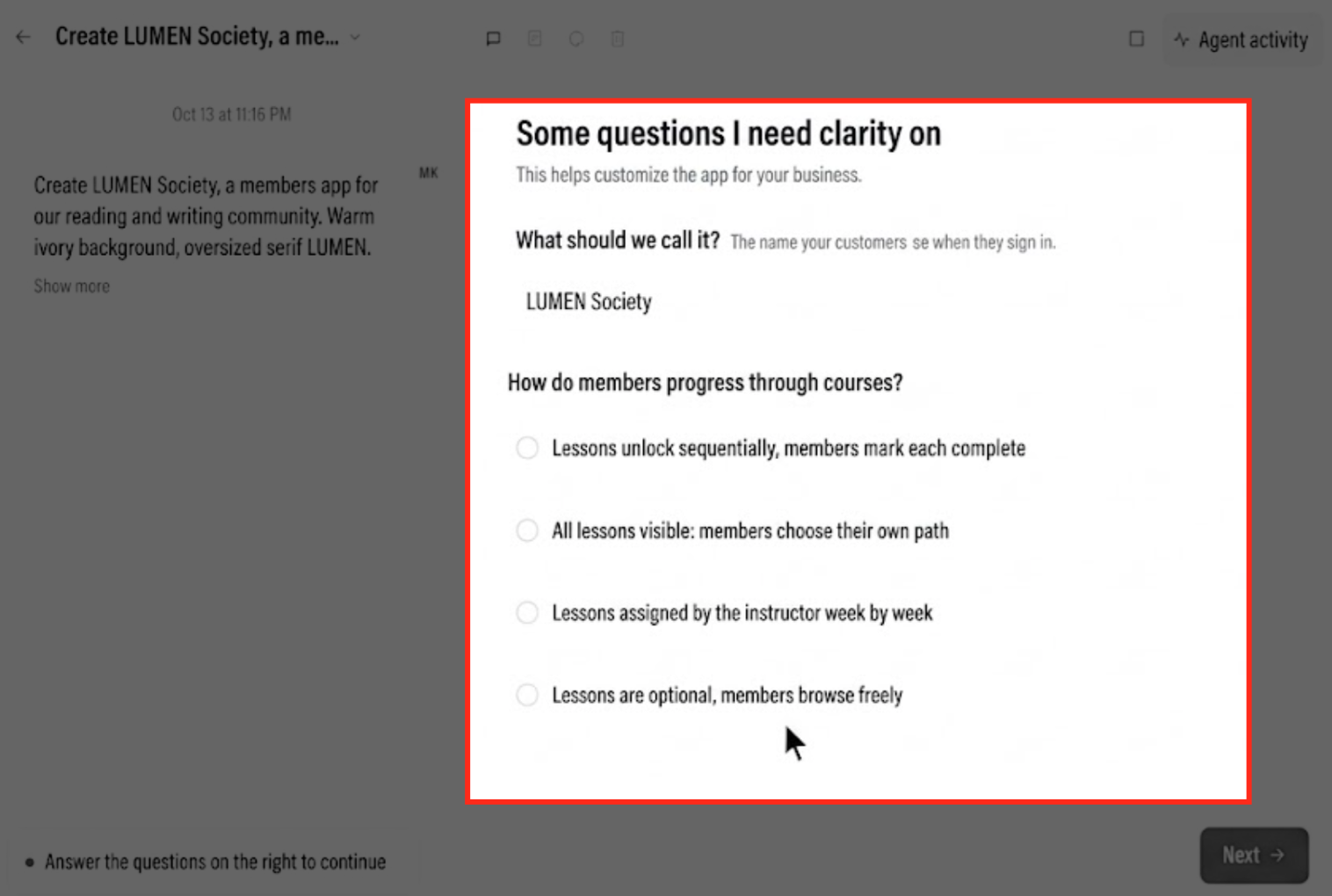
- Read the questions displayed under Some questions I need clarity on.
- Review the answer options provided for each question.
- Pick the options that best match your requirements.
- Click Next to proceed.
Choose your color palette and fonts
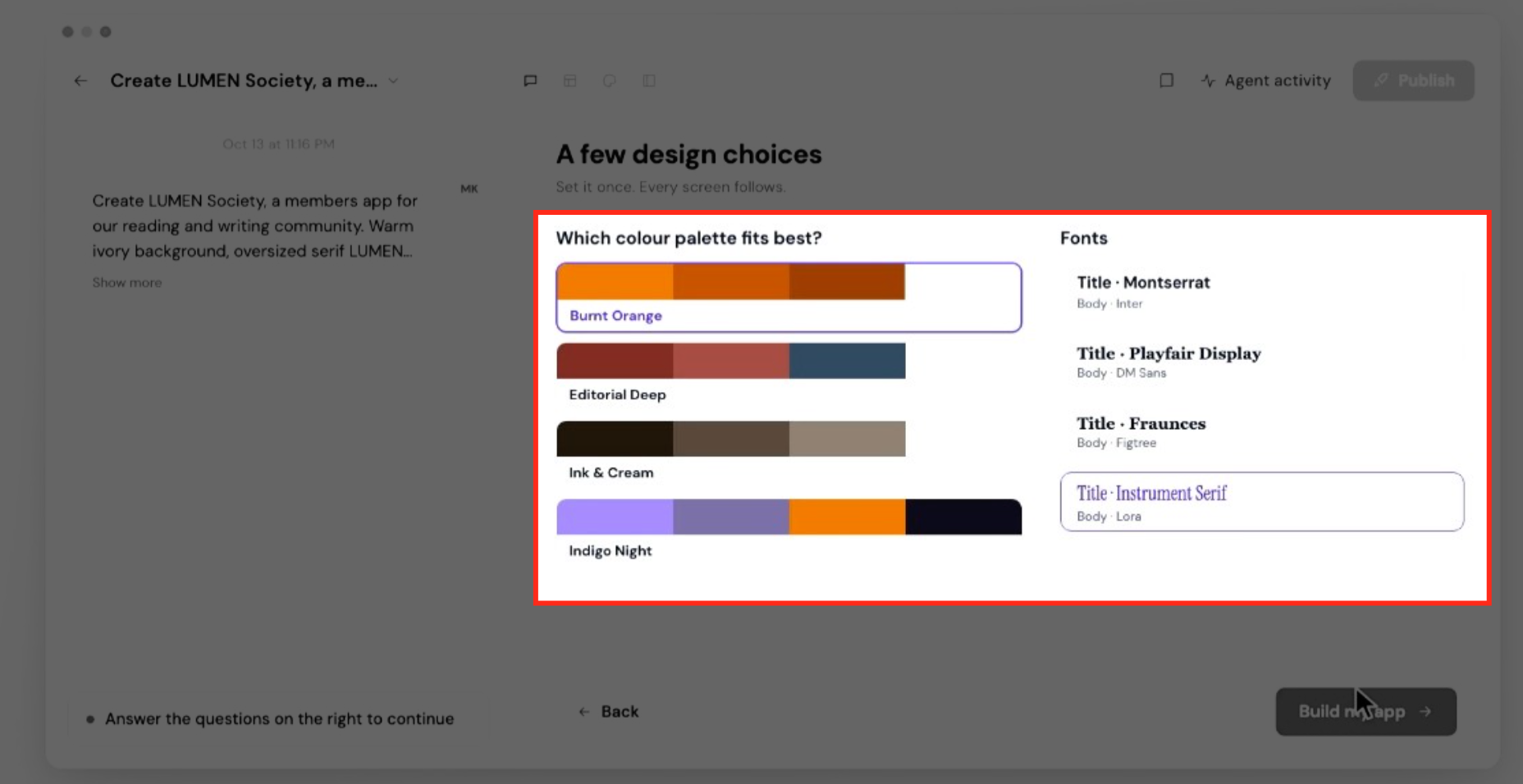
- Open the A few design choices screen.
- Select the colour palette that fits best for your brand.
- Review the available font combinations.
- Choose the title and body fonts you prefer and click Build my App.
Generate your mobile app
- Press Build my App after finalizing design selections.
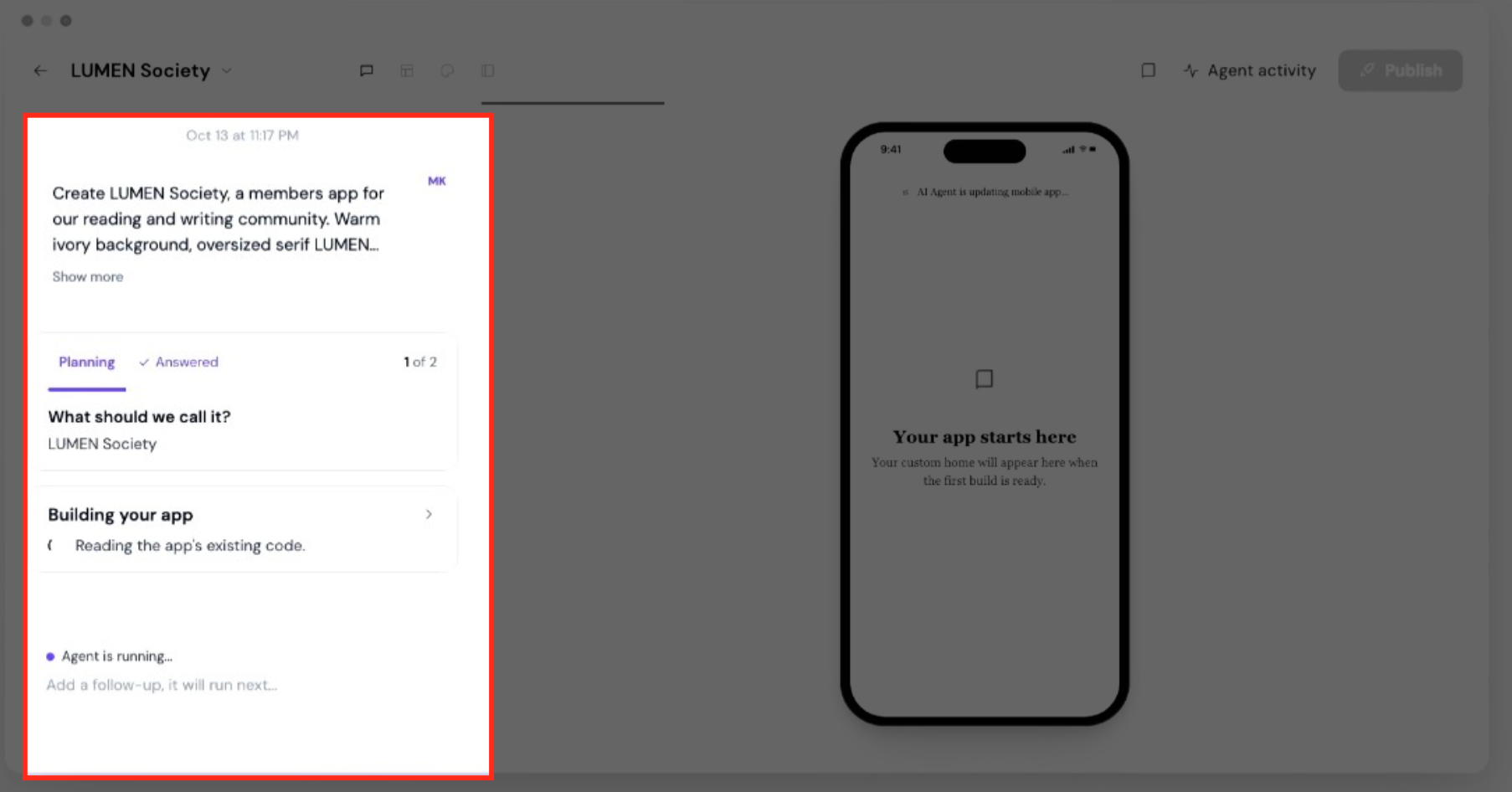
- Watch the progress information displayed in the builder.
- Observe the AI agent as it creates the application.
- Look at the phone frame preview while the build runs.
- When the build finishes, examine the generated screens.
Review the generated experience
- Compare the app’s business name and branding with your original prompt.
- Check the home screen that was created.
- Test navigation between the app’s screens.
- Verify that courses, communities, files and other requested resources appear.
- Confirm member sign in, sign up and account related screens are correct.
07What it looks like in HighLevel
08Settings that matter
- Platform selection. Determines whether the project targets a Mobile or Web experience; once set it cannot be changed.
- Which colour palette fits best?. Lets you pick the primary colour scheme that will be applied across all generated app screens.
09Things to know before you rely on it
- Access to AI App Studio is limited to users in the private beta.
- The chosen platform and starting point cannot be altered after the project is created.
- You can add up to three custom objects, each with its own fields, dropdowns and links.
10How it connects to the rest of HighLevel
- Register a Google Developer account to publish the generated Android APK. Google developer account
- Learn how to enroll an Apple Developer account for future iOS publishing. Apple developer account
- View HighLevel pricing and plan options related to beta feature access. HighLevel pricing
Michael's take

AI App Studio can turn a short business description into a fully branded Android app that pulls in your courses, communities and other portal content.
Don’t forget that once you pick Mobile as the platform you can’t switch later.