
01Who this is for
- Course creators benefit because each new course automatically grants a badge, eliminating extra configuration.
- Education marketers gain a consistent first touch recognition tool that enhances learner onboarding.
- Membership site owners can streamline credential delivery without building separate workflows.
02Welcome badges, explained
The Welcome Badge feature automatically creates a credential the moment a learner enrolls in a newly created course. It is built into the default course creation flow, so no additional automation or manual steps are required. The badge appears in the learner’s profile, enriching their credential history.
In the platform, the badge is attached to every course made under Memberships > Courses > Products. It is issued only on the first enrollment and does not affect courses that existed before the feature was enabled. Creators can choose from five ready made templates or edit the design in the Credentials area. If desired, the badge can be set to Draft to stop automatic issuance.
03How businesses use welcome badges
- Online language school. When a new language module is added, the school selects a Welcome Badge template during course creation. Learners right away see the badge in their portal, confirming enrollment and encouraging continued study.
- Fitness coaching program. The coach creates a new workout plan as a course. The automatic Welcome Badge is enabled, giving participants a visible credential the moment they sign up, reinforcing commitment.
- Professional certification provider. A new certification track is launched as a course. The provider customizes the badge design via the Certificate Builder, then publishes the course so every new applicant receives the badge upon enrollment.
04How to set up and use welcome badges in HighLevel
Set up a Welcome Badge for a new course
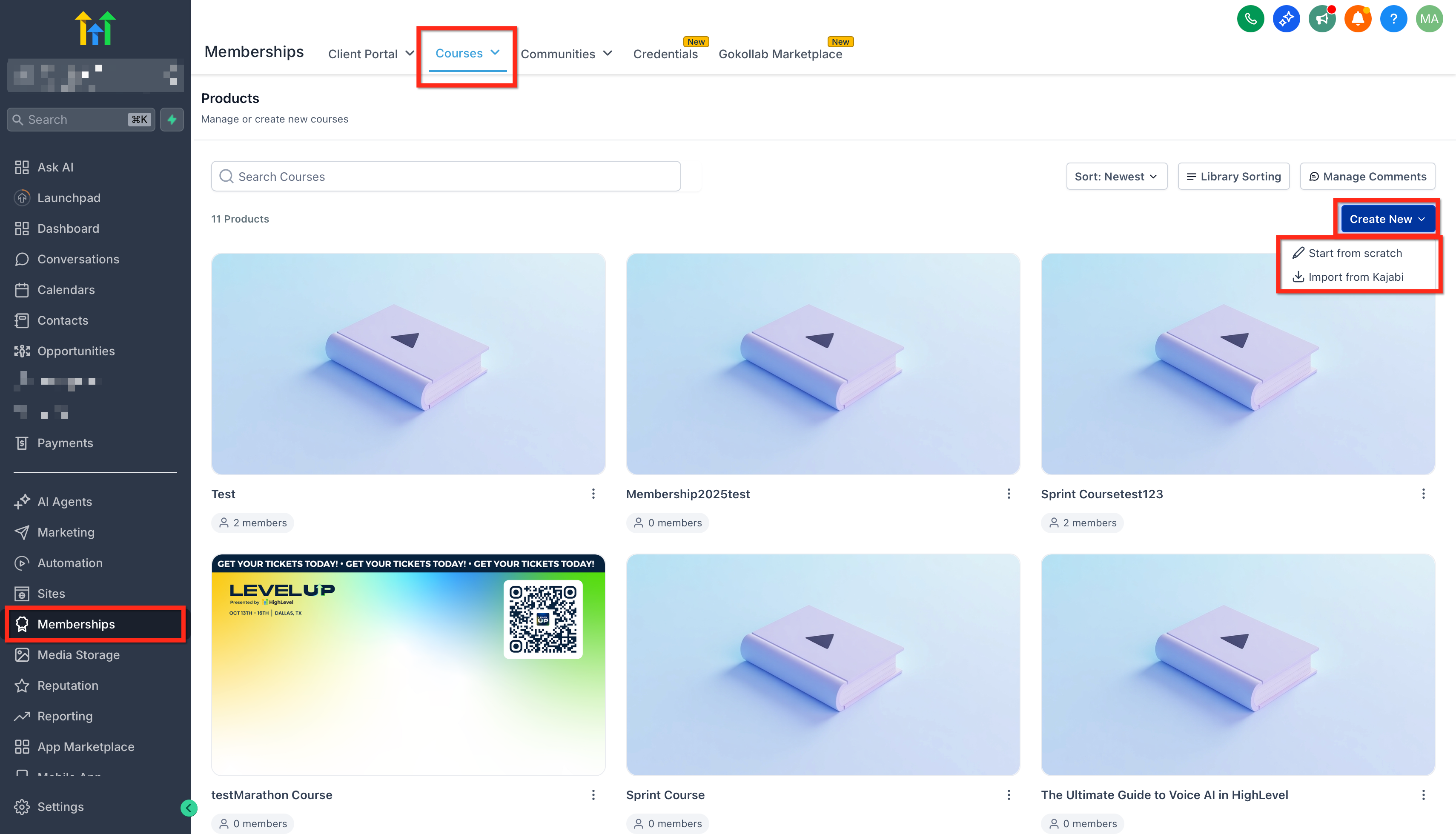
- Navigate to Memberships > Courses > Products and create a new course, which adds a Welcome Badge automatically.
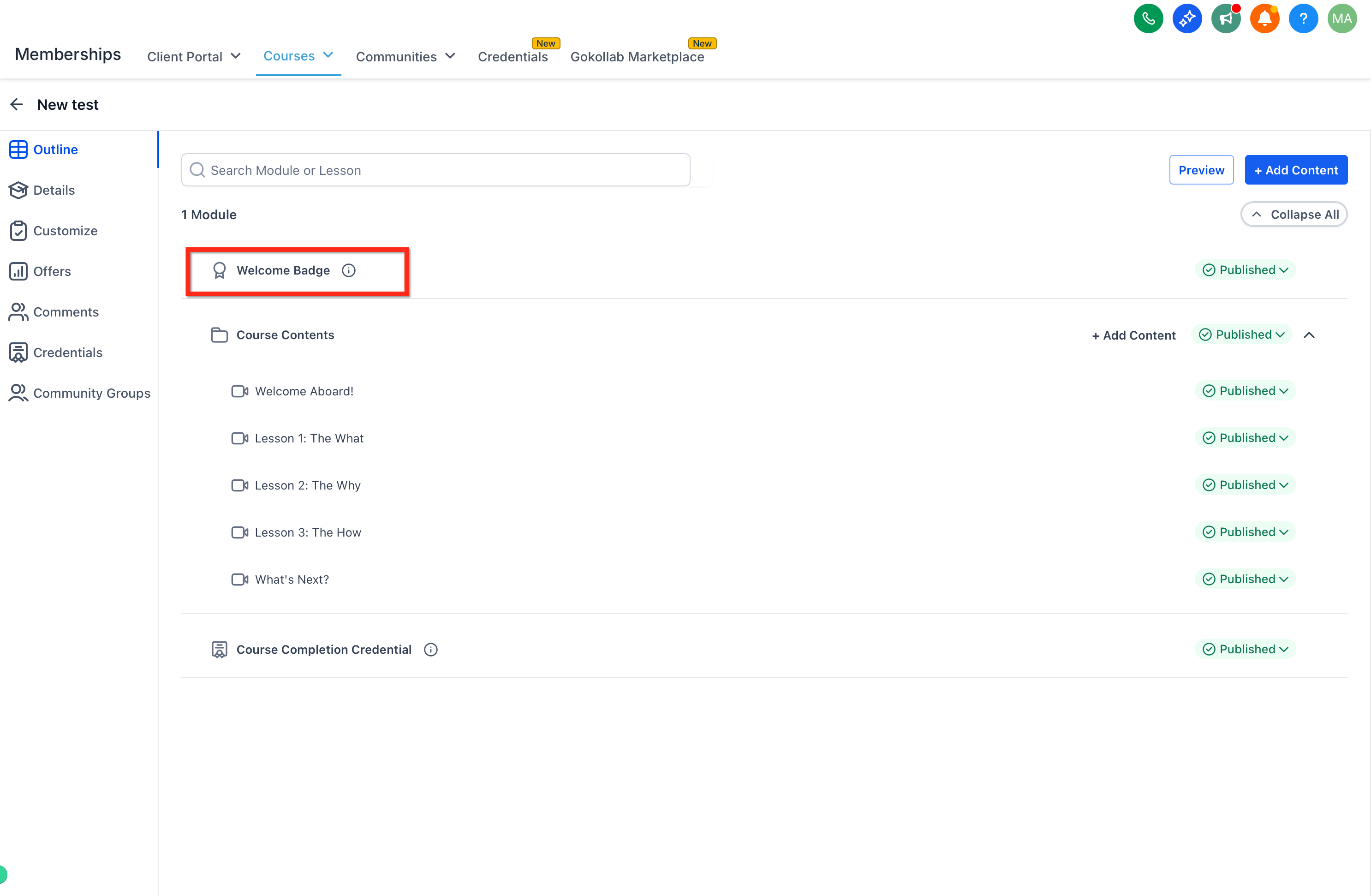
- Open the course settings and find the Welcome Badge section.
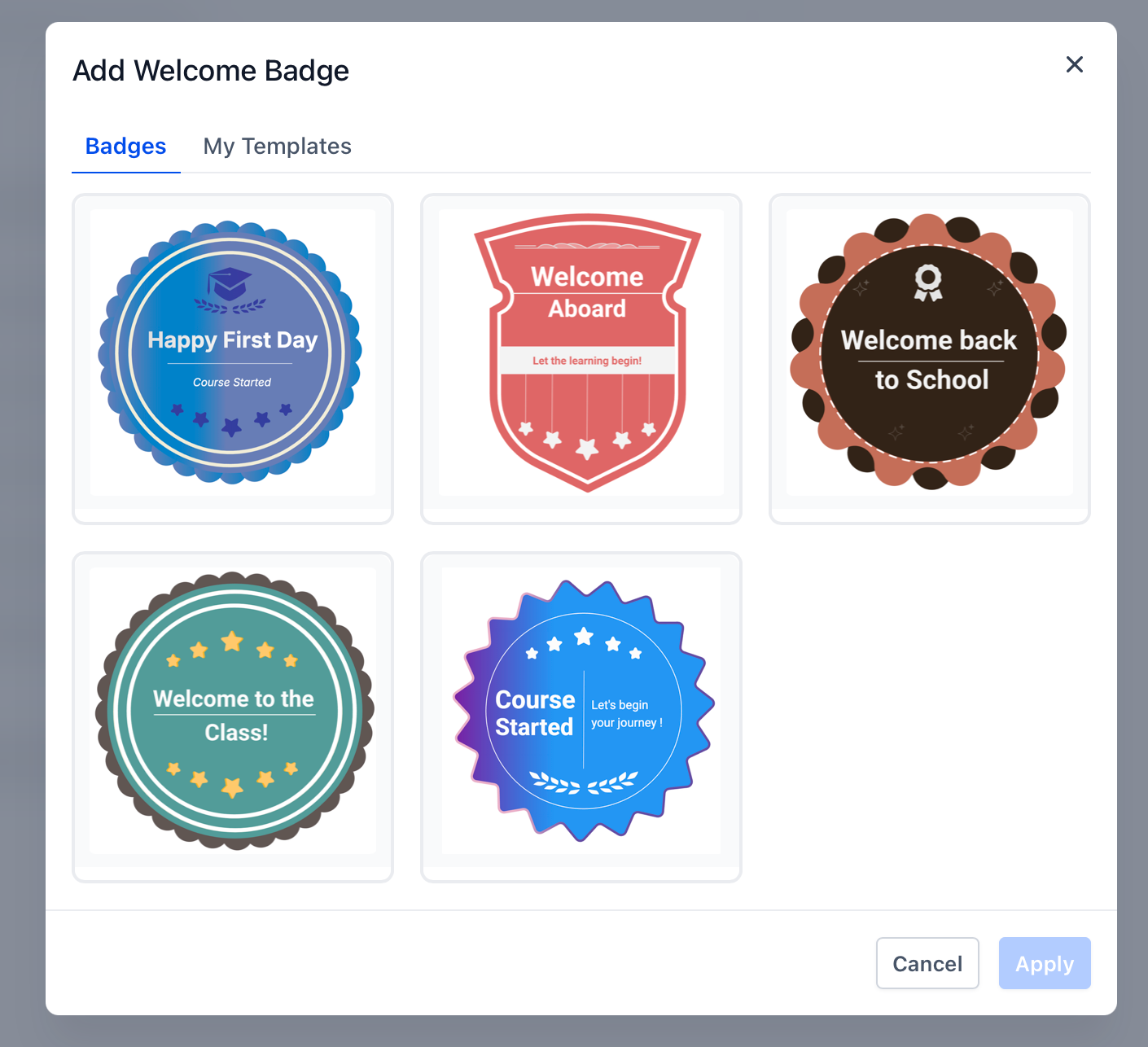
- Choose a template from the five curated Welcome Badge options.
- Save the selected template.
- Go to Memberships > Credentials and edit the badge with the Certificate Builder to adjust the design if desired.
- Set the badge status to Draft in Credentials to disable automatic issuance when needed.
- Note that Welcome Badges are not applied retroactively to courses that already exist.
05What it looks like in HighLevel
06Settings that matter
- Welcome Badge section. Contains the options for the automatic badge that is issued when a learner first enrolls.
- Badge status. Controls whether the auto issued badge is published for immediate distribution or kept as Draft to prevent automatic issuance.
07Things to know before you rely on it
- Welcome Badges are attached only to courses created after the feature is active; existing courses are not updated.
- A badge is issued only on the learner’s first enrollment and will not be re issued on subsequent enrollments.
- Creators can select from five predefined Welcome Badge templates unless they customize the design in Credentials.
08How it connects to the rest of HighLevel
- Learn how to build courses where the Welcome Badge is added automatically. Course builder guide
- Customize badge appearance using the Membership themes and Certificate Builder. Membership themes
- Review plan requirements for accessing Memberships & Communities features. Pricing
Michael's take

It adds a touch of professionalism, boosts engagement, and you get it without writing a single workflow.
If your courses are already live and you’re not looking to add extra recognition steps, the feature may not move the needle. Disabling it on a legacy catalog won’t affect existing learners, so you can simply leave it off when it isn’t needed.