
01Who this is for
- Course creators who want to provide audio only instruction can reach learners who prefer listening over reading.
- Membership site owners seeking multimedia lessons can combine audio with text to enrich content.
- Coaches delivering workout explanations can supply portable audio for on the go access.
02Audio files in courses, explained
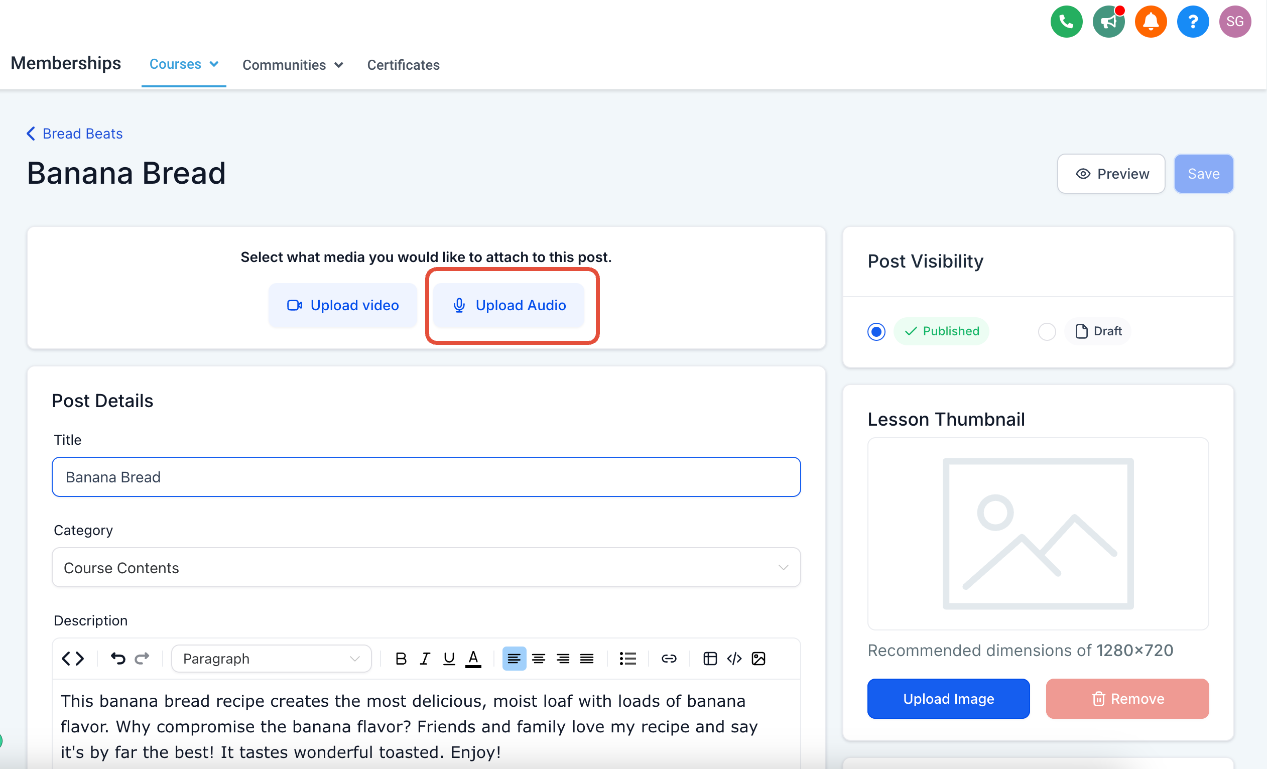
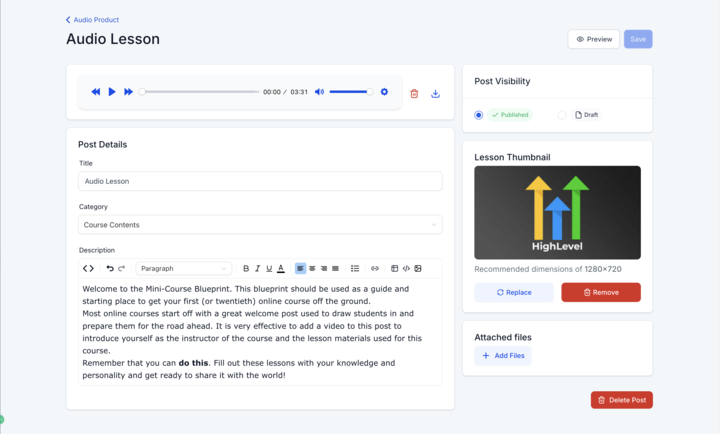
The audio files feature adds a new lesson type that accepts sound recordings. After selecting the audio option, you can upload a file with a single click, decide whether to add supporting text, and then publish the lesson for members.
HighLevel accepts MP3, AAC and WAV formats, ensuring playback works on desktops, tablets and mobile phones. Uploaded files are automatically optimized for these devices.
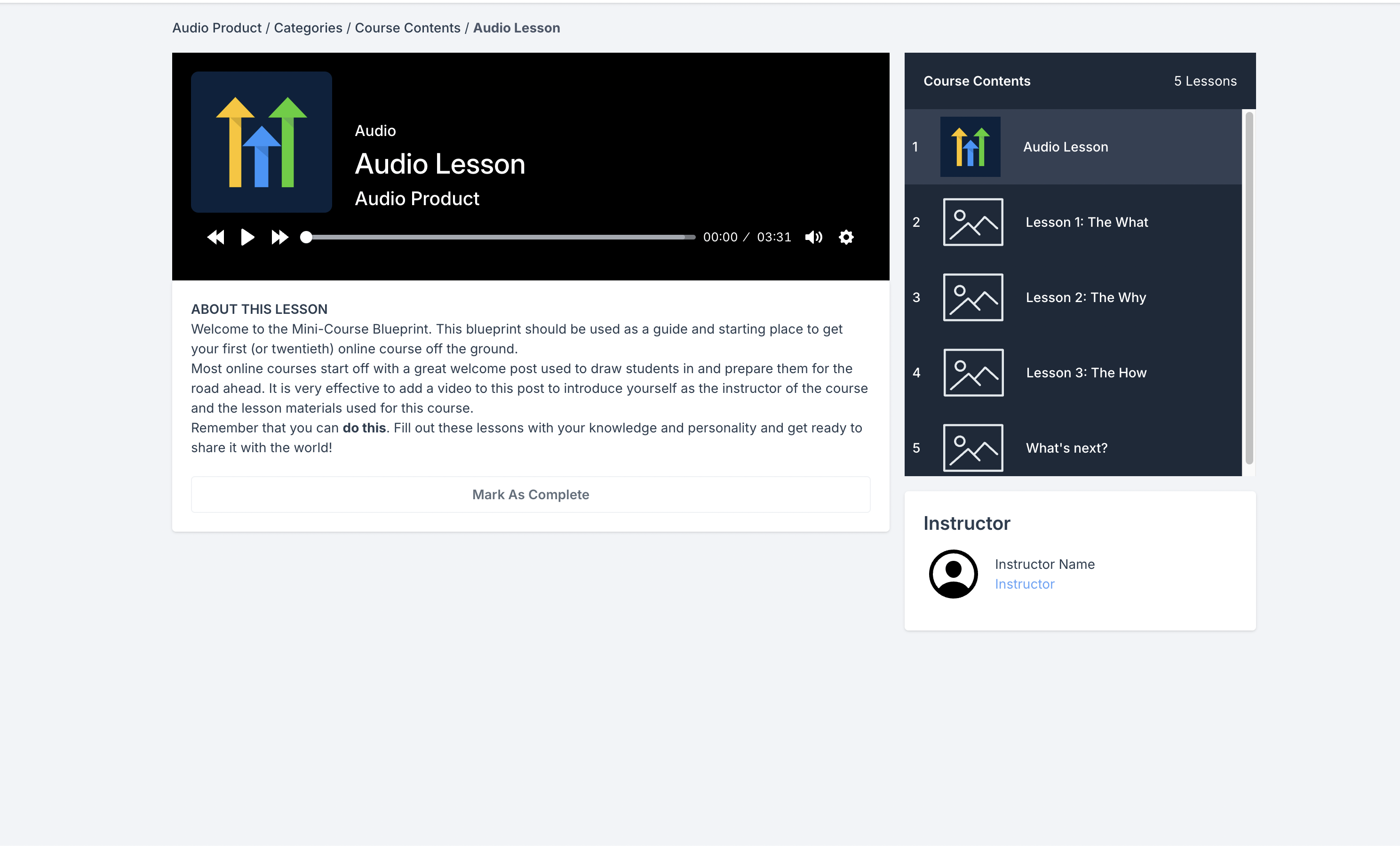
When a lesson is published, the system pulls a thumbnail from the lesson’s existing image, keeping branding consistent. Learners can adjust playback speed, giving them more control over how they consume the audio.
03How businesses use audio files in courses
- Fitness coaching business. Upload an audio recording of a workout routine as a lesson, optionally attach a written summary, and publish it. Members can later play the audio on any device and change the speed to match their pace.
- Language school. Add pronunciation drills in MP3 format to a lesson, combine them with written vocabulary lists, and publish. Students can stream the audio, use the speed control to slow it down, and study on mobile or desktop.
- Podcast based teaching platform. Create a lesson that consists of a podcast episode uploaded as a WAV file. The lesson inherits a thumbnail automatically and is published for listeners to access with adjustable playback speed.
04The numbers and rules that matter
- Supported audio formats: MP3, AAC, WAV.
- Supported devices: Desktops, Tablets, Mobile phones.
05How to set up and use audio files in courses in HighLevel
Upload an audio lesson
- Initiate a one click upload of the desired audio file.
- Navigate to Memberships > Courses > Lessons and select the audio option for a new lesson.
- Choose whether the lesson will contain only the audio file or be paired with text content.
- Publish the lesson so it becomes available to learners.
06What it looks like in HighLevel
07Settings that matter
- audio. Selects the audio option when creating a lesson, allowing a sound file to be added as the lesson’s primary content.
08Things to know before you rely on it
- Supported audio formats are MP3, AAC and WAV.
- Automatic thumbnails are generated from the lesson’s existing thumbnail image.
- Learners can adjust playback speed, but snapshot and cloning of audio files are not currently available.
09How it connects to the rest of HighLevel
- Build and organize full courses in HighLevel Course builder
- Create password free access links for members Magic links
- Review pricing and plan details for HighLevel Pricing
Michael's take

I would add a short introduction as text, then drop in the recording. That gives learners a quick preview before they press play, and the automatic thumbnail keeps the course looking polished.