
01Who this is for
- Community managers who need a quick way to locate past discussions for moderation or reference.
- Coaches who want to help members find relevant resources or peer expertise without leaving the Community.
- Small business owners running member groups and who want to streamline navigation for their audience.
02Unified community search, explained
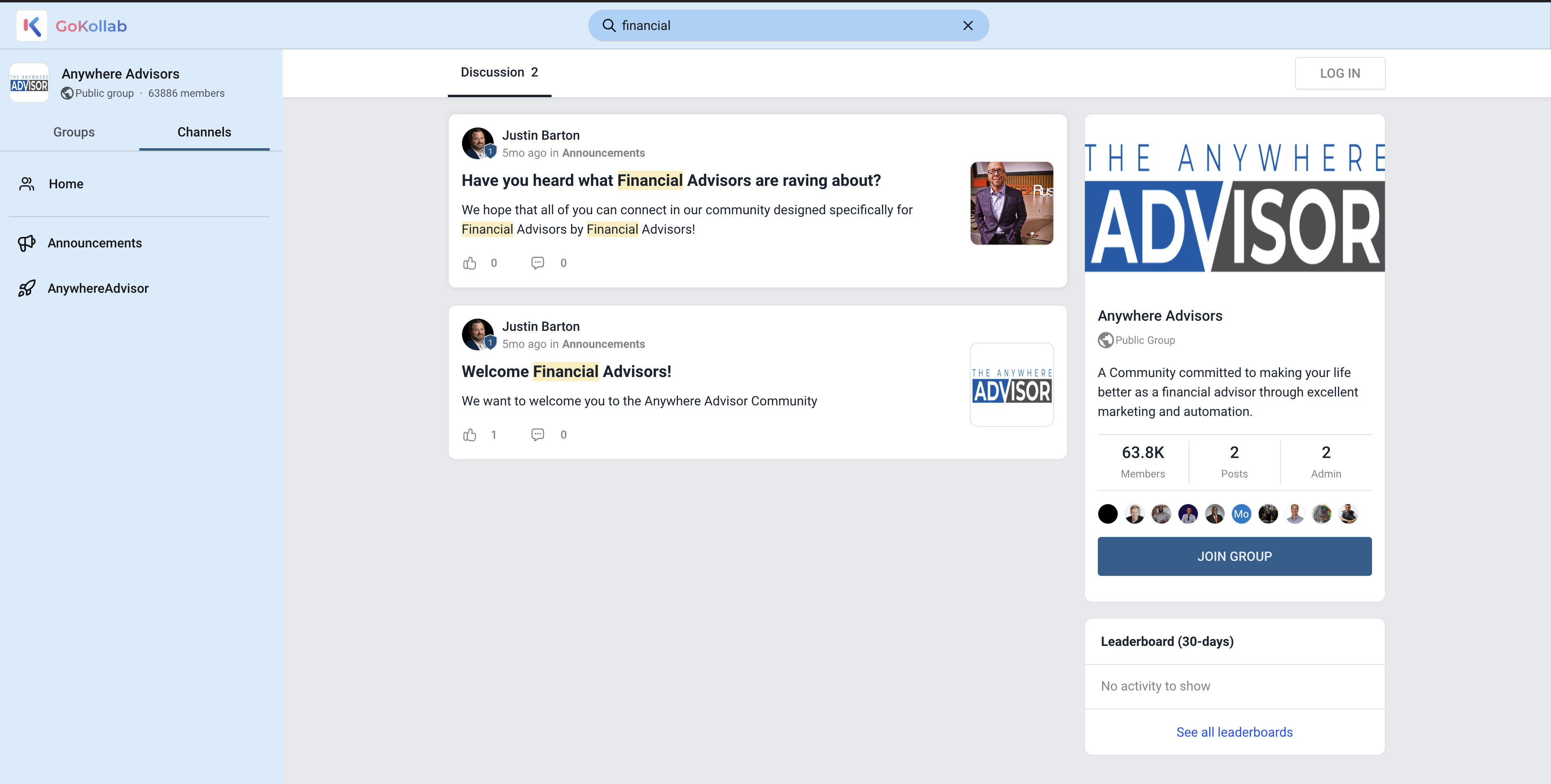
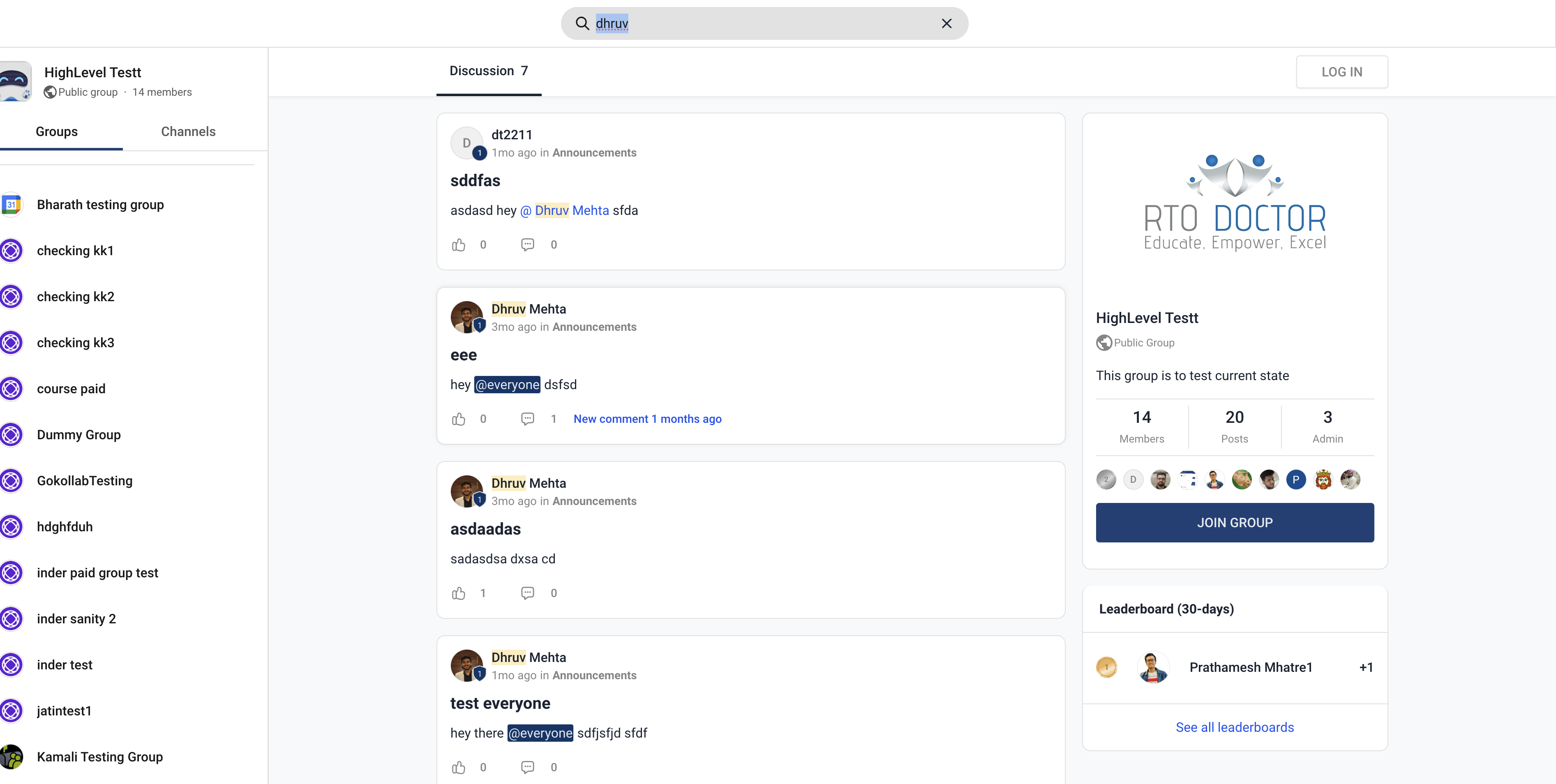
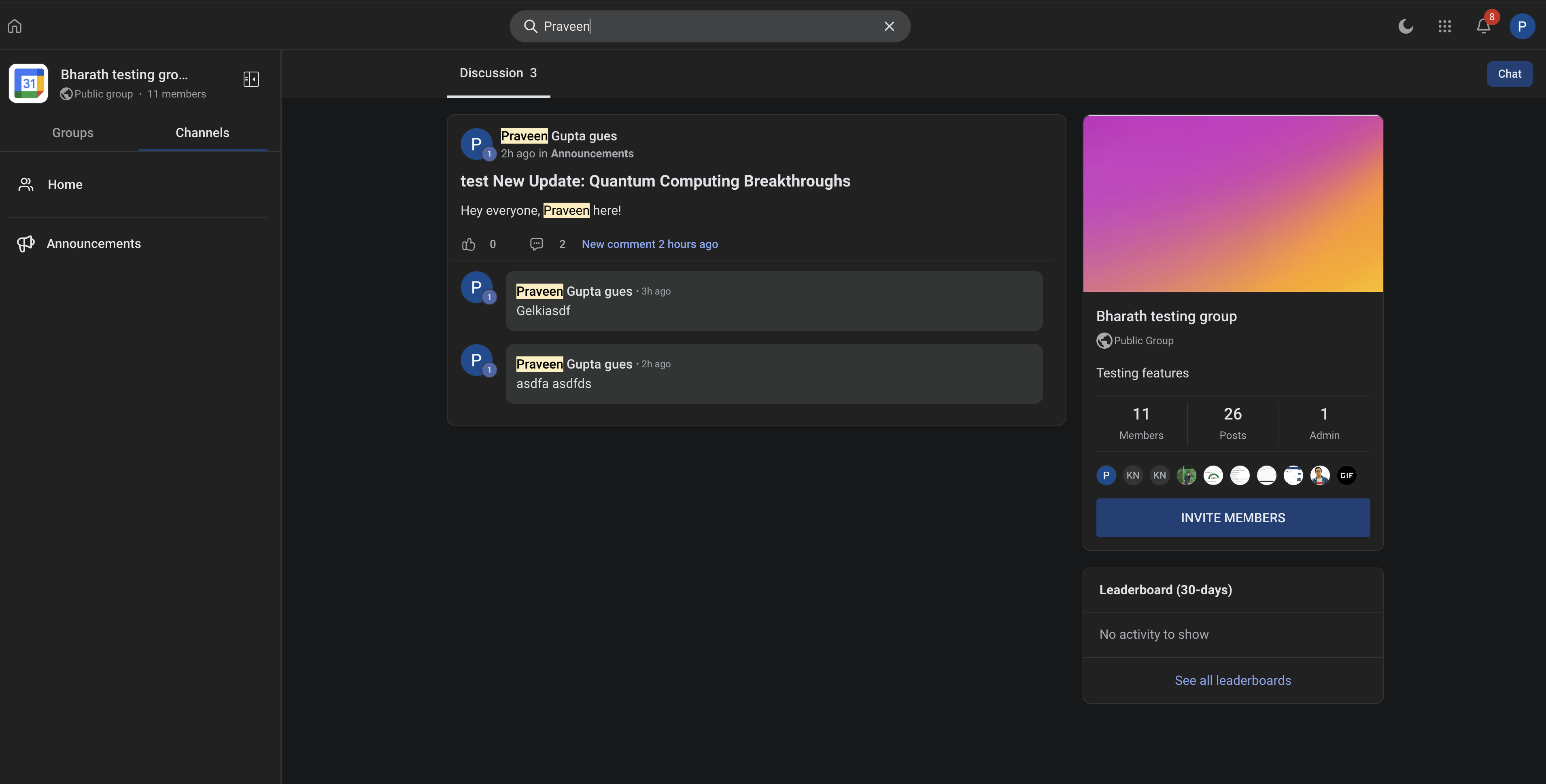
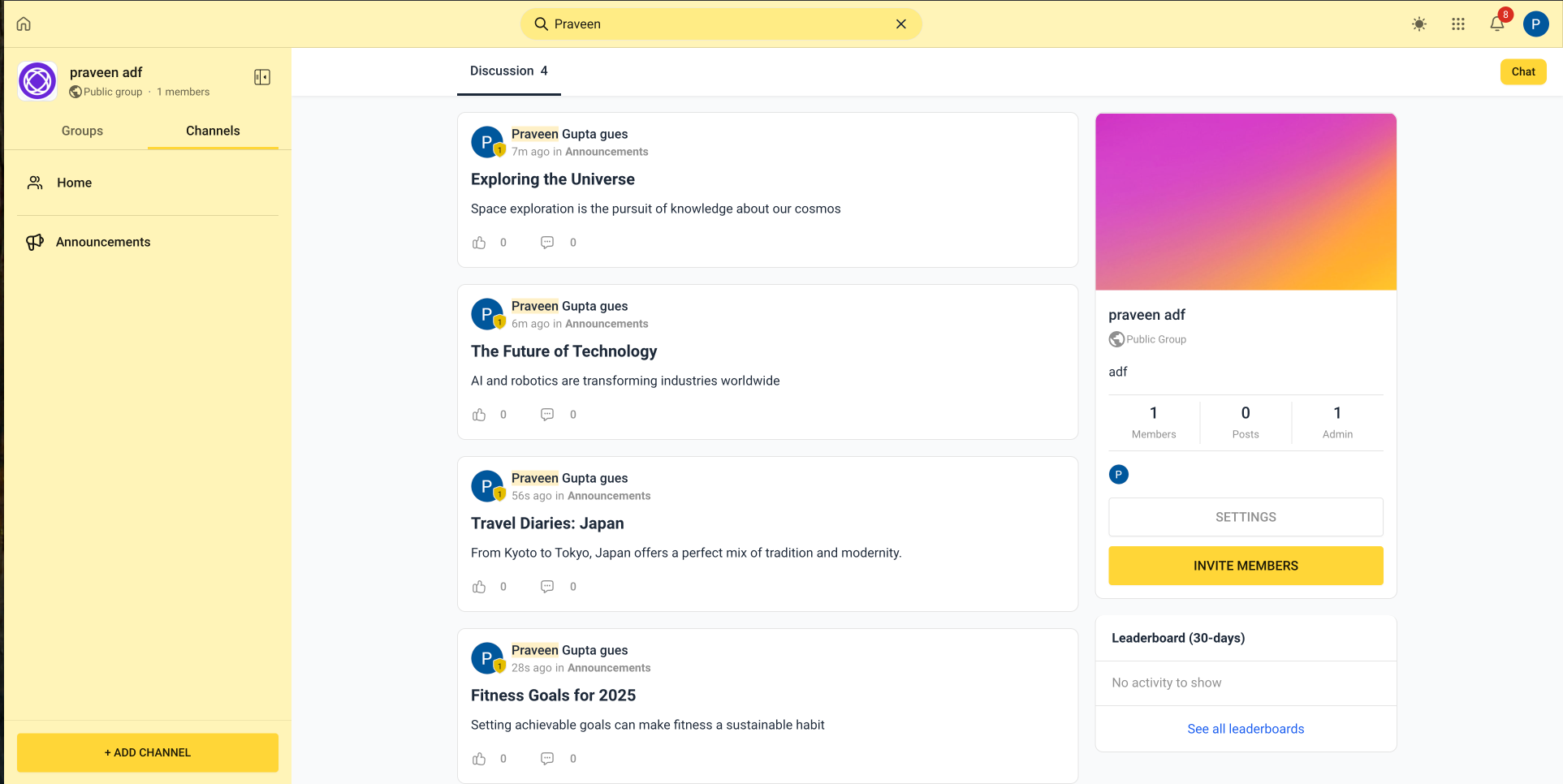
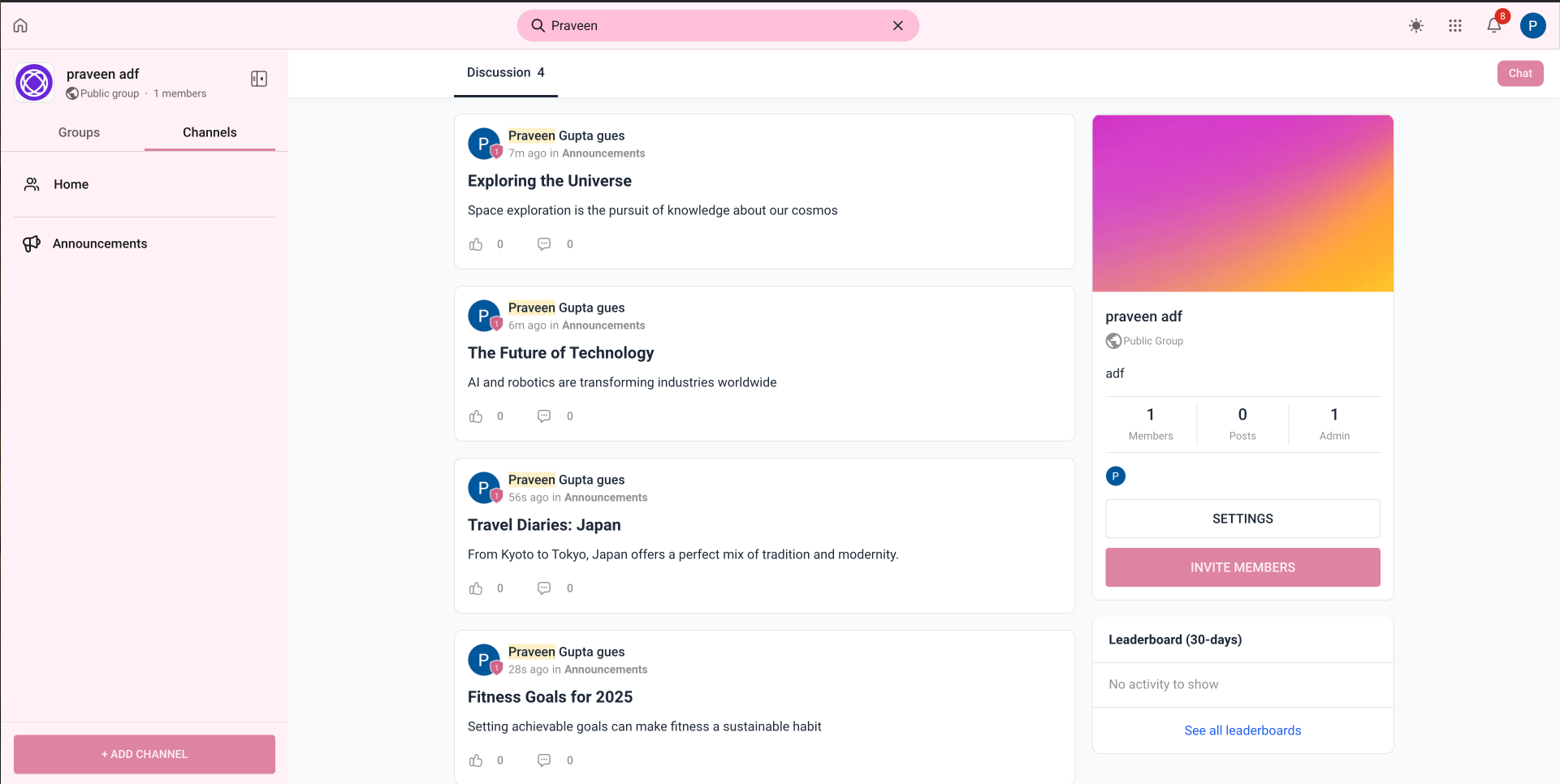
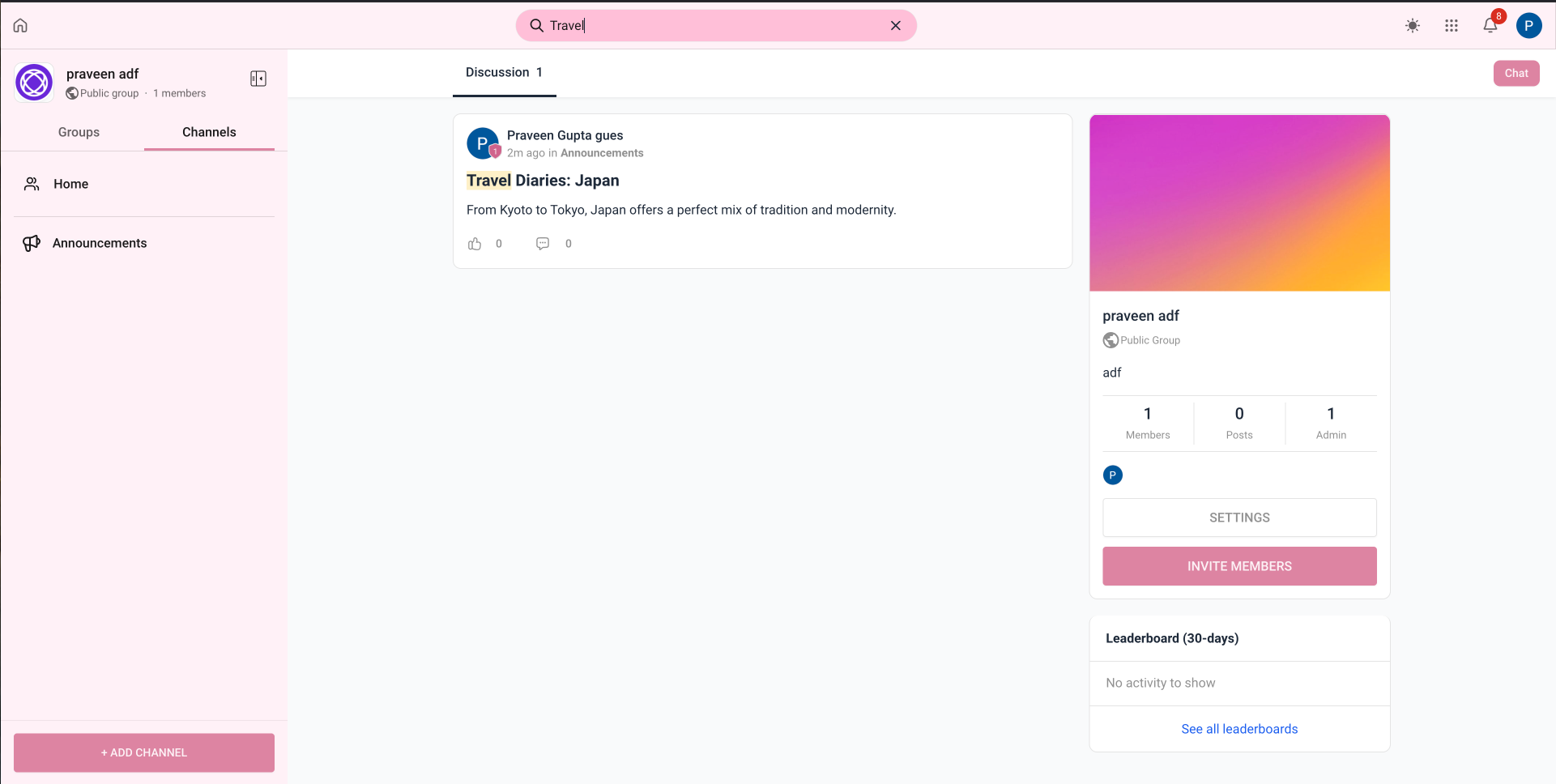
Unified Community Search is a single search field placed at the top of a Community. When a user enters any word, phrase, or member name, the system pulls matching items from three areas: post titles and bodies, comment text, and member profiles. The results appear together, allowing the user to jump directly to the desired content or profile.
The search bar lives inside every Community view, so members never have to exit the current experience. Matching items are shown in a list that labels whether each result is a post, a comment, or a member, making it clear what will open when clicked. Selecting a result opens the full post, the comment thread, or the member’s profile page.
03How businesses use unified community search
- Fitness coaching group. The coach types a specific exercise name into the Community search bar. The list returns posts that discuss the routine, comments where members shared tips, and any coaches with that name, letting the coach open the exact discussion in seconds.
- Online education platform. An instructor searches for a quiz question phrase. The unified search brings up the original lesson post, comments where students asked follow up questions, and the profile of the student who posted, enabling the instructor to address the query directly.
- Local business networking club. A member looks for a fellow participant’s name. The search returns the member’s profile along with any posts or comments they authored, so the member can connect without opening the separate member directory.
04How to set up and use unified community search in HighLevel
Use unified community search to locate posts, comments, or members
- Open the Community where you want to perform the search.
- Identify the search field located at the top of the Community interface.
- Enter the word, phrase, or member name you are looking for.
- Examine the list of results that includes matching posts, comments, and members.
- Click a result to open its full content or member profile.
05What it looks like in HighLevel
06How it connects to the rest of HighLevel
- Learn how to create channels, posts, and manage Community content. Manage content
- See how to manage members inside groups for better organization. Manage members
- Explore all Memberships & Communities features available in HighLevel. All features
Michael's take

When a member can't remember where a useful tip was posted, they often click through feeds, comment threads and member lists. Unified community search reduces the need to browse multiple areas by letting them type the idea or a name once and see everything that matches. The first thing I would get right is making sure the search bar is prominently placed at the top of the Community so members see it as the go to way to locate content.
Once the bar is visible, I would encourage the team to test a few common keywords and verify that posts, comments and member profiles all appear as expected. That quick check confirms the feature is live and reliable before members start depending on it.