
01Who this is for
- Community owners who charge for membership can automate tax collection and show tax amounts at checkout.
- Course creators selling paid courses inside Communities gain centralized tax handling.
- Event organizers offering paid Community events can apply regional taxes without extra setup.
02Tax support in Communities, explained
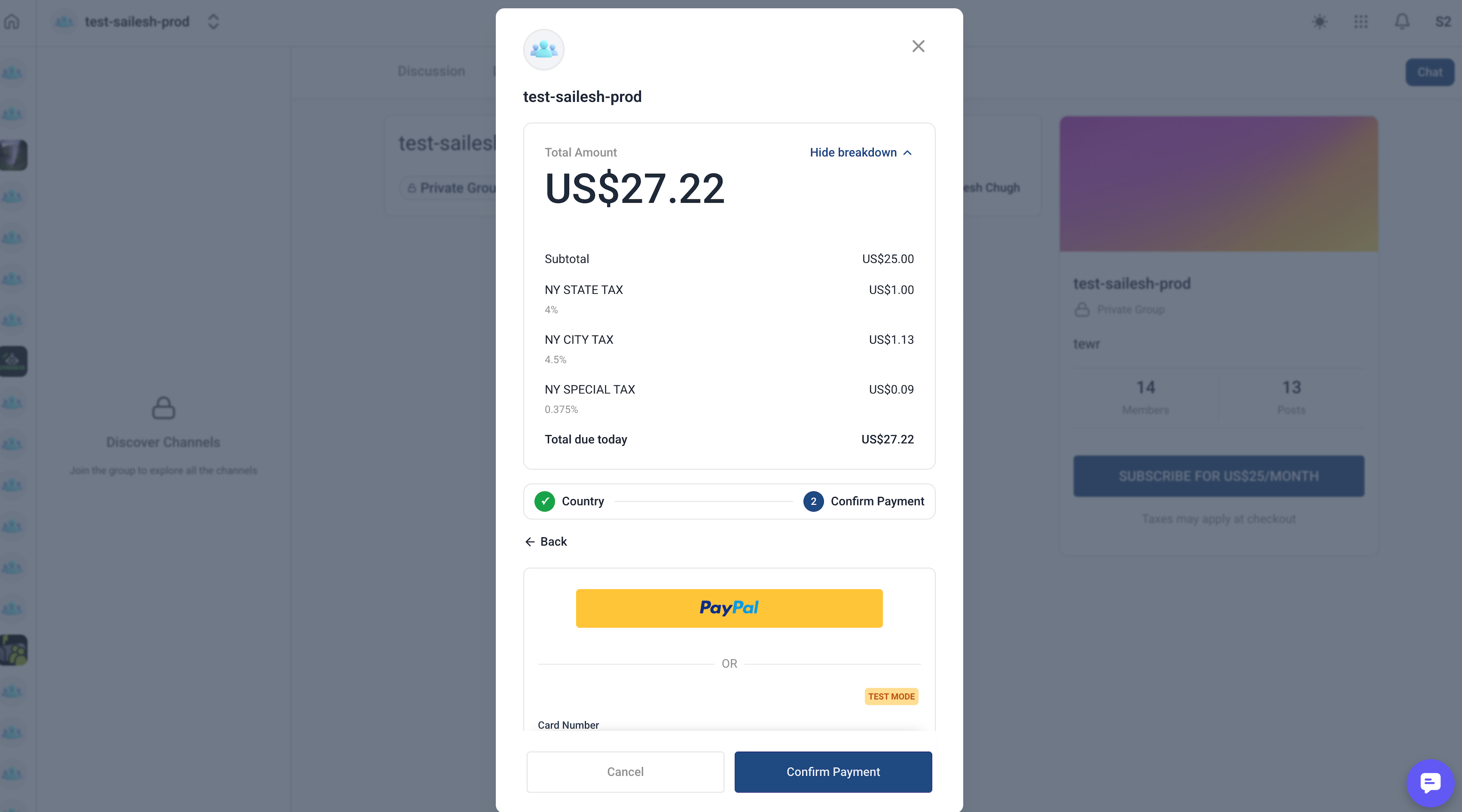
Tax Support in Communities connects the tax rules you set up in HighLevel Payments to eligible Community purchases. When a member buys a paid membership, a course, a paid event, or an event subscription, the checkout can add the correct tax amount based on your automatic or manual tax configuration.
The feature works from the Payments area. Automatic taxes use the customer’s billing address, your nexus addresses, product tax categories and global pricing behavior. Manual tax rates are created in Payments and attached to products when needed. Both methods can coexist.
All tax logic lives in Payments > Settings > Taxes. Communities checkout reads those settings, so you do not need a separate tax setup for Community items.
03How businesses use tax support in Communities
- Online course provider. Create paid courses inside a Community, attach the appropriate product tax category or manual tax rate in Payments, and members will see the tax amount before completing purchase.
- Event organizer. Set up a paid Community event, ensure the event’s product includes the correct tax category or manual rate, and the checkout will calculate tax based on the attendee’s address and your nexus configuration.
- Membership based coaching business. Charge for access to a private Community group, enable automatic taxes or attach a flat manual tax rate in Payments, and members will be charged the correct total including tax at signup.
04Before you start
- Confirm a payment provider is connected in Payments > Integrations.
- Configure tax settings in Payments > Settings > Taxes, including automatic taxes or manual rates.
- Add any needed nexus addresses and verify the business address.
05How to set up and use tax support in Communities in HighLevel
Set up tax support in Communities
- Navigate to Payments > Integrations and verify the payment provider connection.
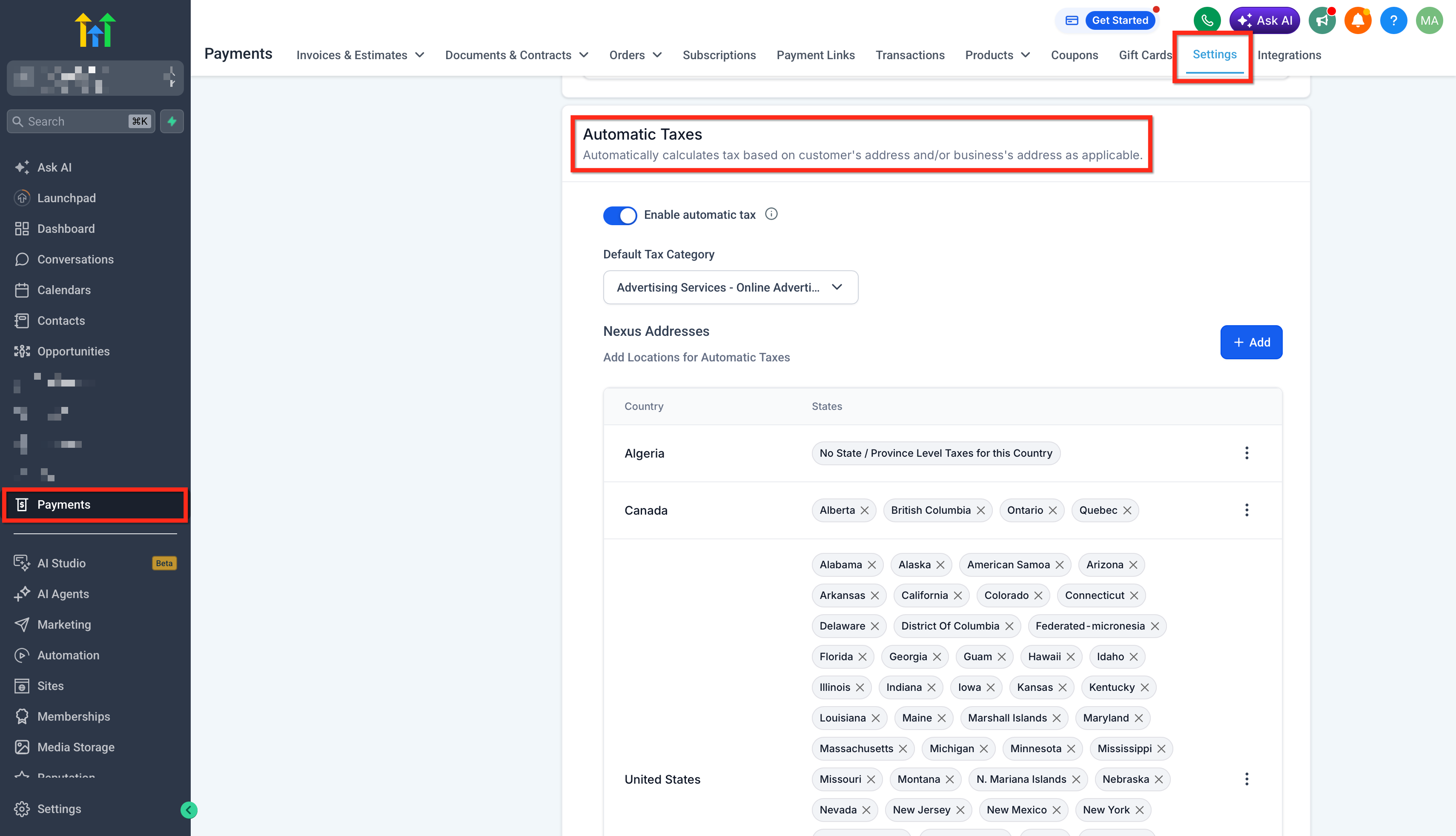
- Open Payments > Settings > Taxes and turn on Automatic Taxes if you want them.
- Add or review your nexus addresses and confirm the business address is correct.
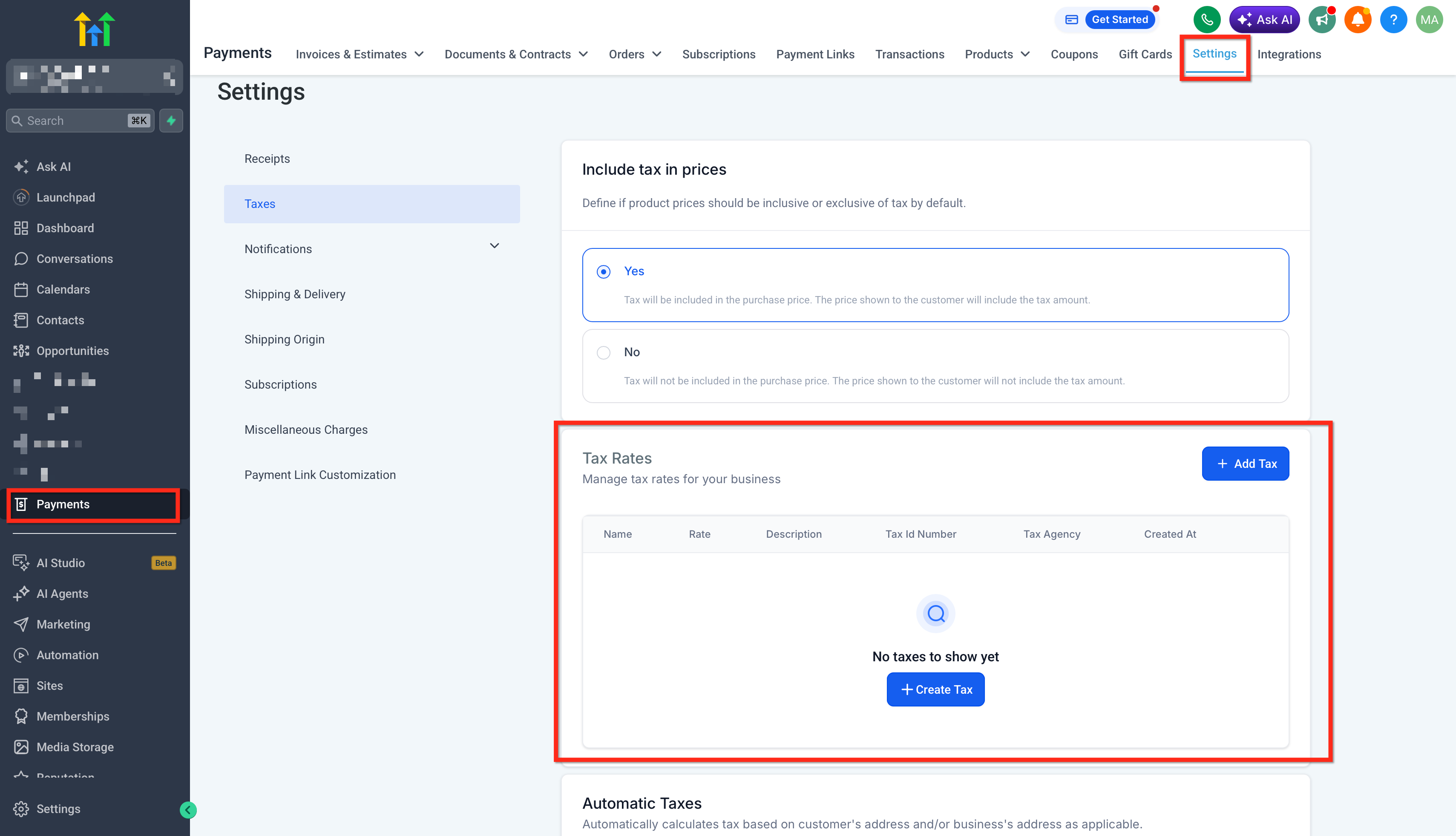
- Set the tax inclusive or tax exclusive pricing option in the same Taxes settings.
- Create or check any manual tax rates you need in Payments > Settings > Taxes.
- Locate the paid Community item (membership, course, event, or subscription) and review its product configuration for tax category and attached manual rates.
- Do not assume all paid Community items use the same product setup path; review each item’s product configuration individually.
- Run a test checkout in the Community and confirm the subtotal, tax amount, and final total display as expected.
06What it looks like in HighLevel
07Settings that matter
- Automatic Taxes. Controls whether HighLevel calculates tax automatically from customer address, nexus locations and product categories.
- Nexus Addresses. Defines the regions where your business must collect tax.
- Business Address. Provides the primary location used in tax calculations.
- Product Tax Category. Assigns a tax code or category to a product to improve automatic tax accuracy.
- Manual Tax Rates. Allows you to set fixed tax percentages and attach them to specific products.
- Tax Inclusive or Tax Exclusive Behavior. Determines whether tax is shown as part of the displayed price or added on top at checkout.
08Things to know before you rely on it
- Tax support applies only to eligible paid Community purchases such as memberships, courses, events and event subscriptions.
- Automatic taxes work only when they are enabled in Payments and when nexus addresses are defined.
- Manual tax rates apply only when attached to the product used for the Community purchase.
09If something goes wrong
- Tax does not appear during Community checkout. Check that Automatic Taxes are enabled, nexus addresses are set, the customer address is complete, manual rates are attached where needed, and the product’s tax configuration has been reviewed.
10How it connects to the rest of HighLevel
- Learn how to build courses for memberships and sell them inside Communities Course builder guide
- View all Memberships & Communities features, including tax support details All Communities features
- Check HighLevel pricing and plan eligibility for Communities tax support Pricing page
Michael's take

Caution: Tax handling can become complicated if the Payments tax settings aren’t aligned with what you sell in Communities. Missing nexus addresses or a disabled automatic tax toggle can cause tax to be omitted at checkout.
When set up correctly, the feature lets you manage tax logic from HighLevel Payments instead of building separate tax workflows for each community product.