
01Who this is for
- Community admins can streamline navigation by linking relevant discussions without sharing raw URLs.
- Course creators can direct learners to live sessions or topic channels, keeping instruction flow clear.
- Event organizers can promote upcoming webinars inside conversation threads so members can register with a single click.
02Tagging channels and events, explained
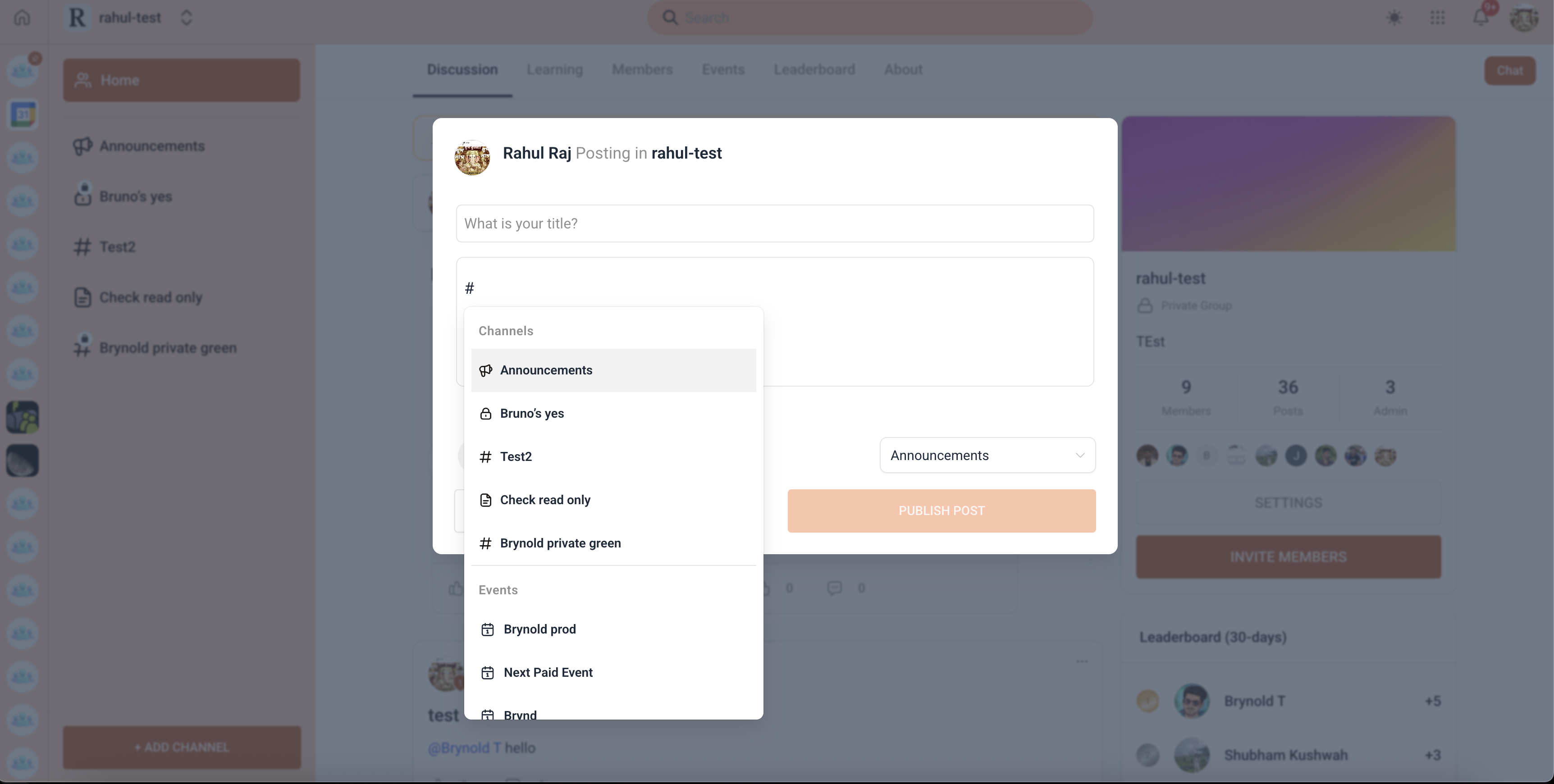
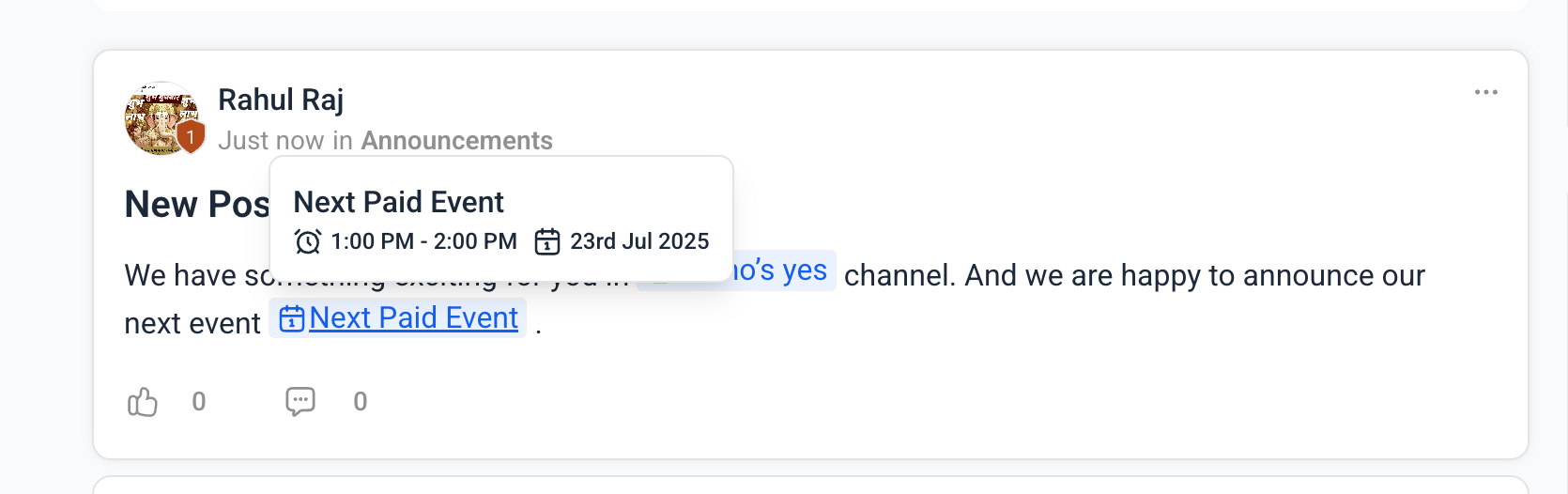
Channel and event tags are inline references that appear as icons within Community posts or comments. When a member clicks a tag, HighLevel opens the associated channel or event page, provided the member has access. The tags are created by typing the hash symbol (#) and selecting a destination from a permission aware picker.
The feature lives inside the post and comment editors of any HighLevel Community. It works wherever the supported rich text editor is used, such as new posts, replies, or edited content. Tags are removable by editing the message and deleting the inline tag before saving again.
03How businesses use tagging channels and events
- Online coaching group. A coach types #WeeklyLiveSession in a post announcing the next class. Members click the tag to jump to the live event page and see registration details. The tag only appears for members who can attend the session.
- Membership site with multiple discussion topics. A moderator replies to a question and adds #ProductFeedback to guide the asker to the dedicated feedback channel. Members with access to that channel see the tag and can continue the conversation there.
- Fitness community offering virtual workouts. When announcing a new yoga class, the manager inserts #YogaMorning in the announcement post. Participants click the tag to view the event page, register, or join the live stream if they have the required permission.
04Before you start
- The target channel or event must already exist in the Community.
- You must have permission to view the channel or event you intend to tag.
05How to set up and use tagging channels and events in HighLevel
Add a channel or event tag
- Open the Community where you want to post.
- Start a new post or open the comment editor on an existing post.
- Place the cursor where the tag should appear and type the # symbol.
- A pop up list of channels and events you can access will appear.
- Select the desired channel or event from the list, either by clicking or using the keyboard.
- Verify that the tag shows up in the editor with its appropriate icon.
- Complete any additional text you want to include in the post or comment.
- Save or publish the content to make the tag visible to other members.
06What it looks like in HighLevel
07Things to know before you rely on it
- Only channels and events the user can access are shown in the tag picker.
- Private channels or restricted events will not appear unless the user has permission.
- Tags can be removed by editing the post or comment and deleting the tag before saving.
08If something goes wrong
- A channel or event does not appear when typing #. Check the permission settings for the missing channel or event; ensure you have access to view it.
09How it connects to the rest of HighLevel
- Set up and manage your HighLevel community Community setup guide
- Learn how to manage members inside groups Group member management
- Create channels, posts and manage content in Communities Content management
- Explore HighLevel pricing and plans Pricing page
- Start a 30 day HighLevel trial Free trial
Michael's take

Most people think they can just copy paste a link and call it a day. In practice the link breaks, looks messy, and forces members to hunt for the right place. I prefer to use the # tag so the reference lives inside the conversation and only shows up for people who can actually get there.
If I were setting up a new community, I would tag the welcome channel and the next live event right in the first post, so the community stays tidy.