
01Who this is for
- Community managers, they can boost discussion flow by sharing videos and events that members can interact with right away.
- Coaches and trainers, they can post tutorial videos or upcoming webinars and let clients watch or sign up directly.
- Event organizers, they can promote workshops and allow members to register from the post, reducing navigation steps.
02Rich link & event previews, explained
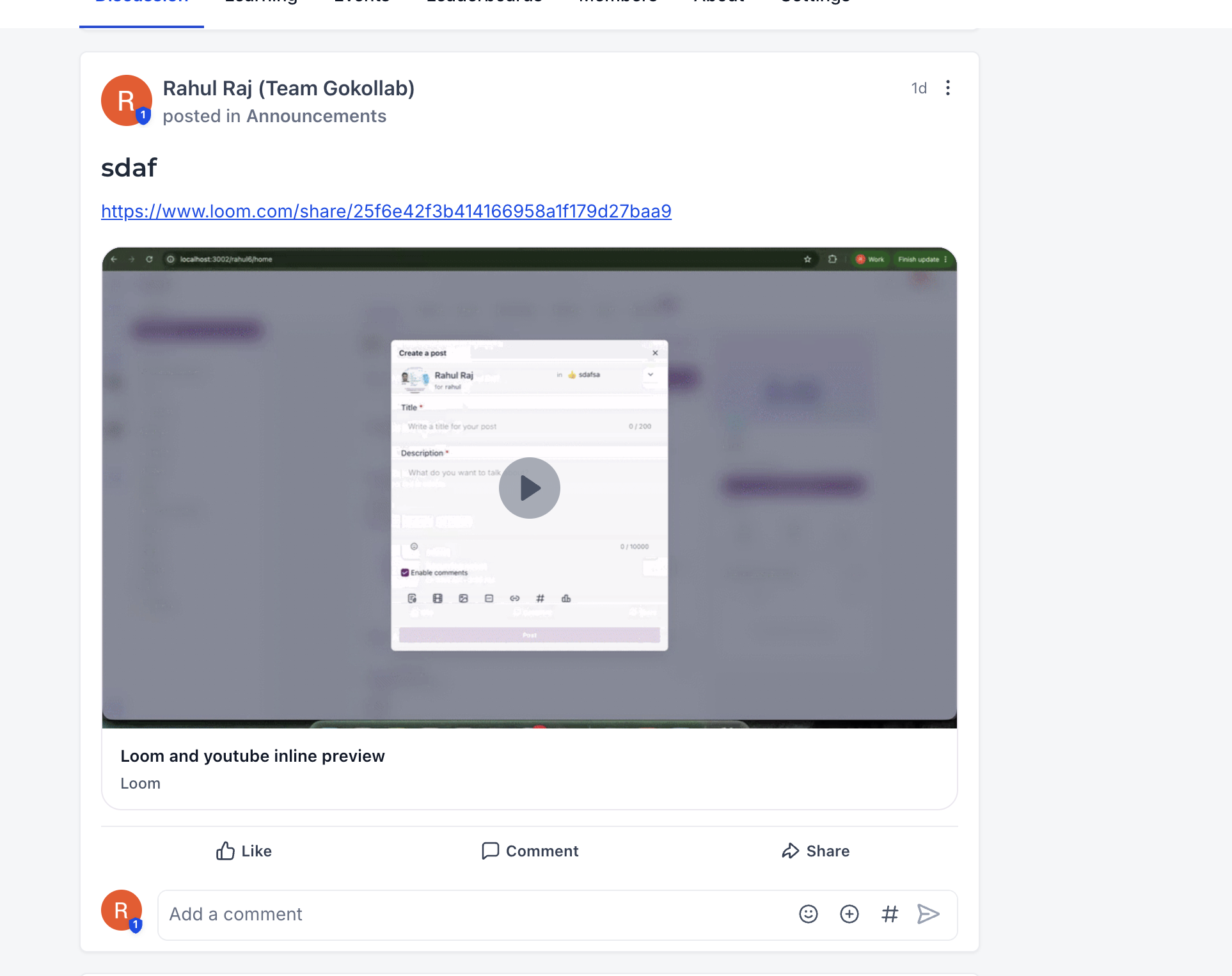
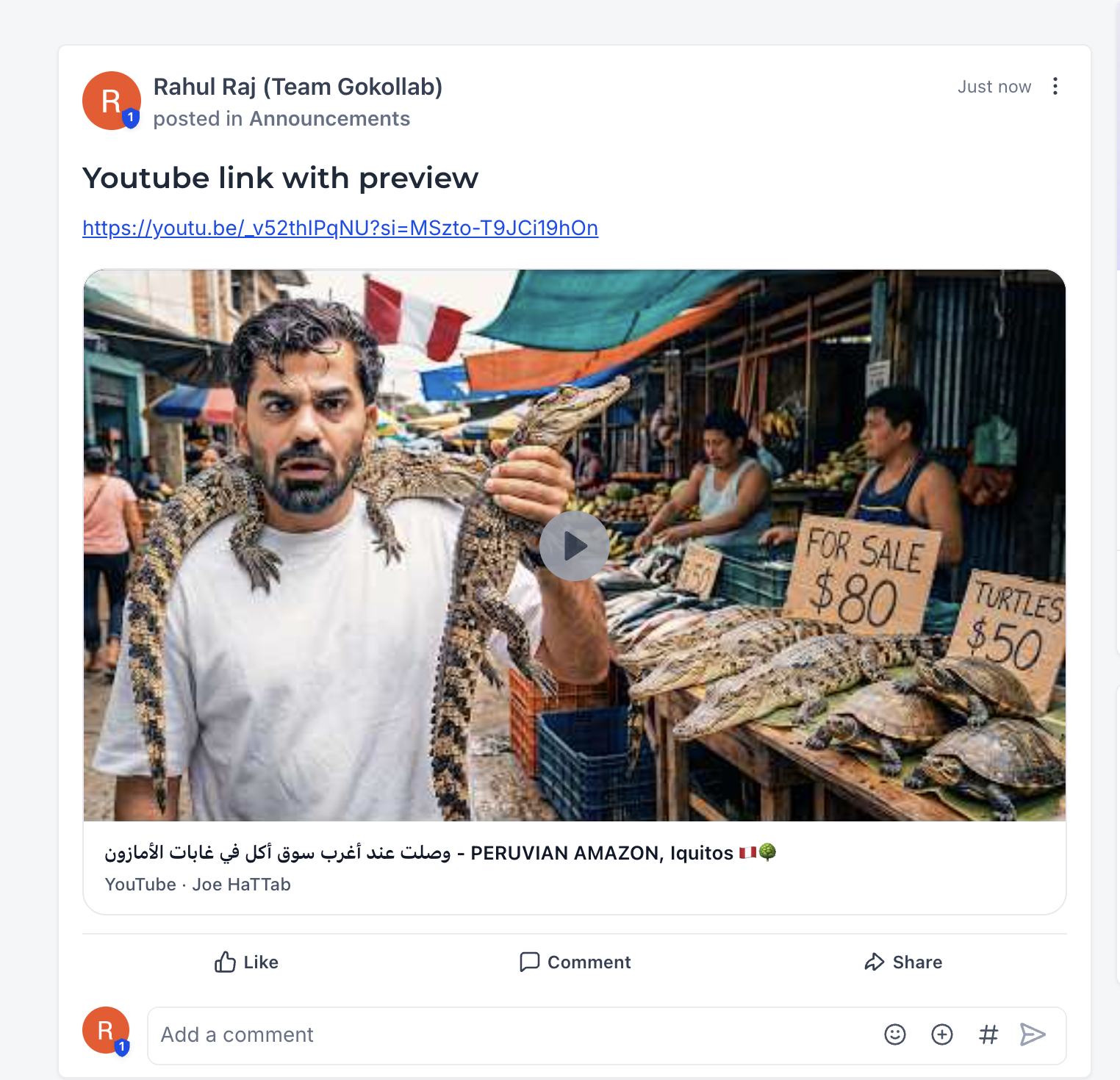
Rich link previews generate a card whenever a URL from a supported video service is placed in a post or comment. The card shows a thumbnail, title, description and an embedded player for YouTube or Loom videos, so members can view the clip inside the feed.
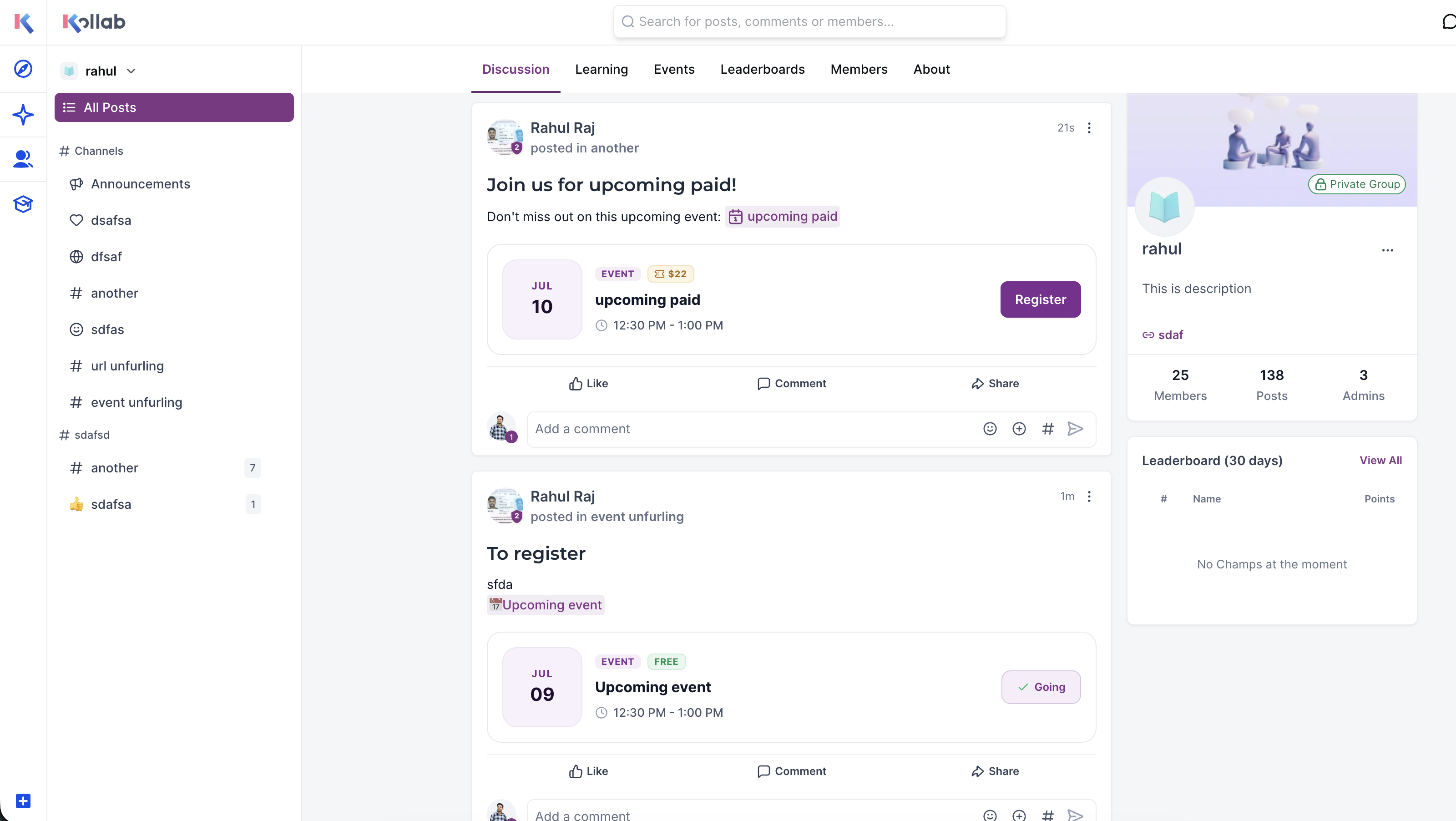
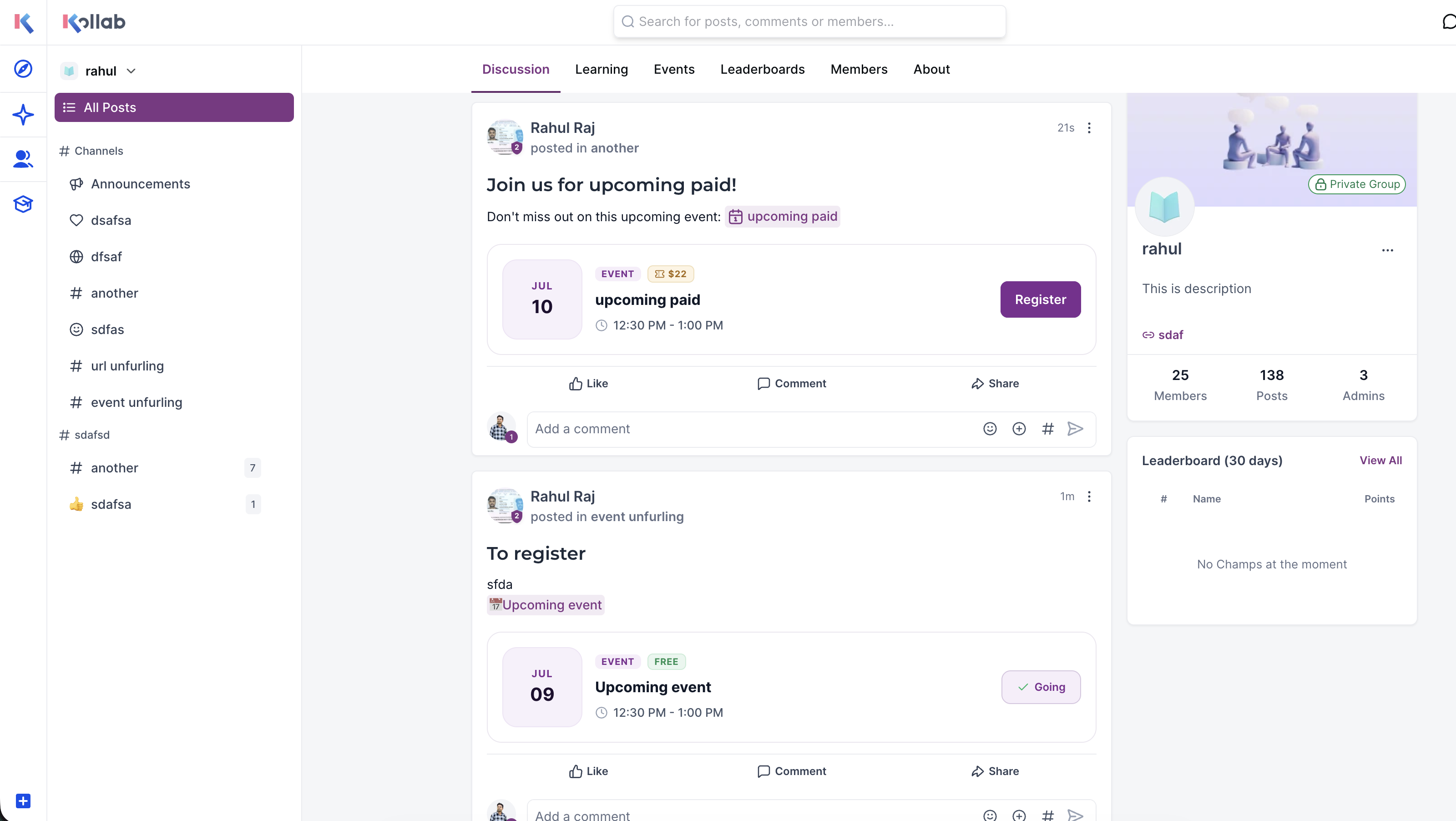
Event preview cards appear when an event is referenced. The card lists the event name, date, time, registration status and includes a button that registers the member without opening the Events page. Both preview types work the same way in regular posts and in comment threads, giving a consistent experience throughout the community area.
03How businesses use rich link & event previews
- Fitness coaching business. The coach posts a YouTube workout video link in a community discussion. The preview card shows the video player, allowing members to start the routine without leaving the thread. The coach also mentions an upcoming live class, and the event card lets members sign up directly from the post.
- SaaS product community. A product manager shares a Loom demo link in a support forum. The preview displays the video, so users can watch the walkthrough while reading replies. When a new feature webinar is announced, the event card provides date details and a register button inside the same conversation.
- Real estate agency forum. An agent posts a virtual tour video from YouTube in a buyer's group. The preview lets prospects watch the tour without opening a new window. The agent also references an open house event, and the preview card lets members RSVP without navigating away.
04How to set up and use rich link & event previews in HighLevel
Use rich previews in community posts and comments
- Open the HighLevel Community and start a new post or add a comment to an existing thread.
- Insert a URL from YouTube or Loom, or type the name of an event you want to highlight.
- Watch the platform generate a preview card automatically beneath your text.
- Publish the post or comment; the preview will appear in the feed for members to interact with.
05What it looks like in HighLevel
06Things to know before you rely on it
- Only YouTube and Loom video links generate rich link previews; links from other services will not produce a preview.
- Event preview cards appear only when an existing community event is mentioned in the text.
- Additional video platforms may be added in future updates, but currently support is limited to the two listed.
07How it connects to the rest of HighLevel
- Create and manage a HighLevel community Community setup guide
- Manage members inside groups in HighLevel Member management
- Create channels, posts and manage content in HighLevel communities Content management
Michael's take

People often think they need to add special markup or enable a setting before the previews will appear. In reality the preview cards generate the moment you paste a supported link or reference an event, so there’s no extra step to turn on.
If I were adding a video or promoting a webinar, I would just drop the YouTube URL or event name into the discussion. The preview shows up automatically, letting members watch or sign up without leaving the thread.