
01Who this is for
- Course creators who want a branded look can control logo placement and colors to match their business identity.
- Online educators needing a consistent visual style across multiple courses benefit from saving templates for rapid deployment.
- Membership site managers can adjust sidebar offers and instructor sections to promote additional products.
02New Theme Customizer, explained
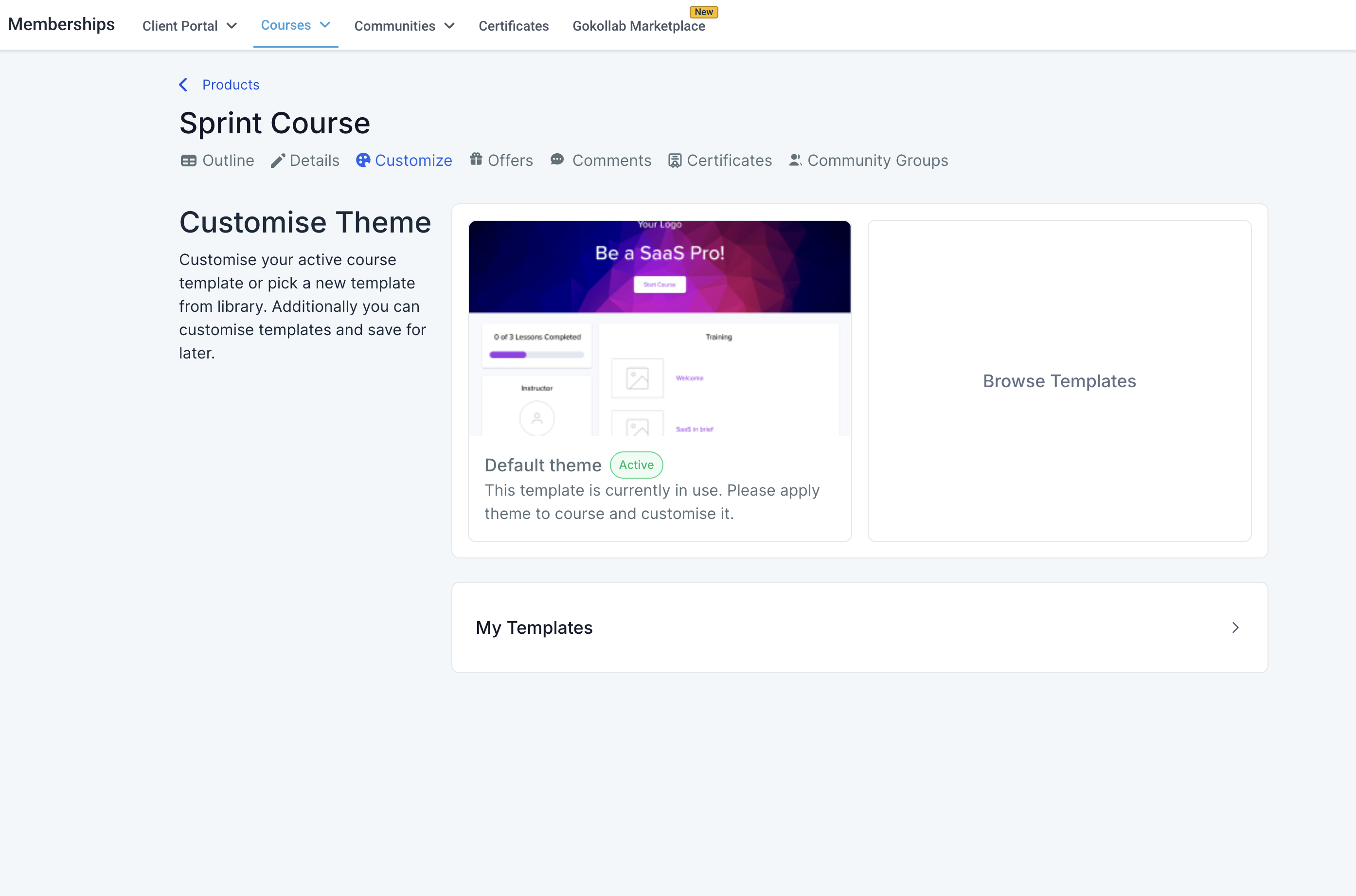
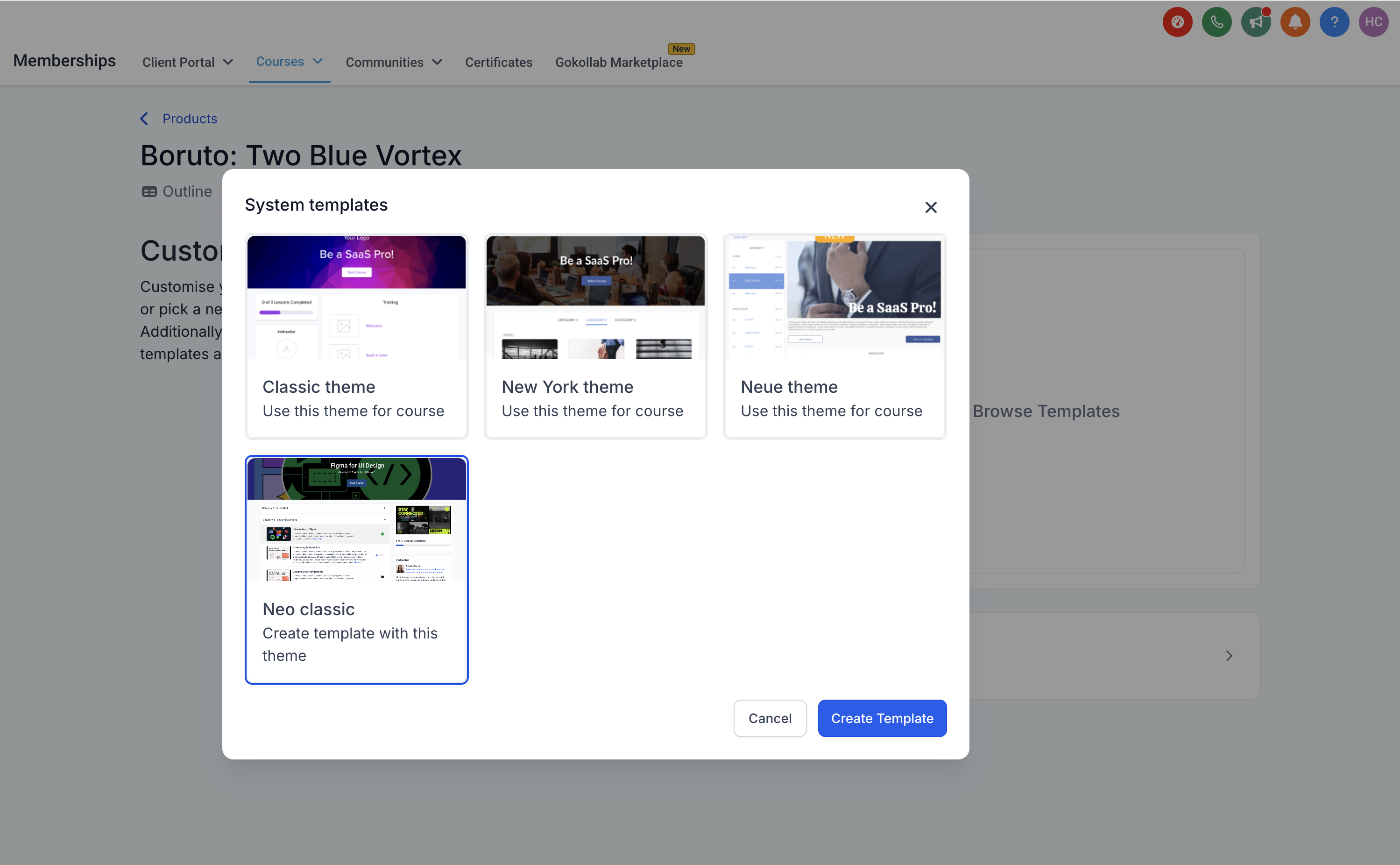
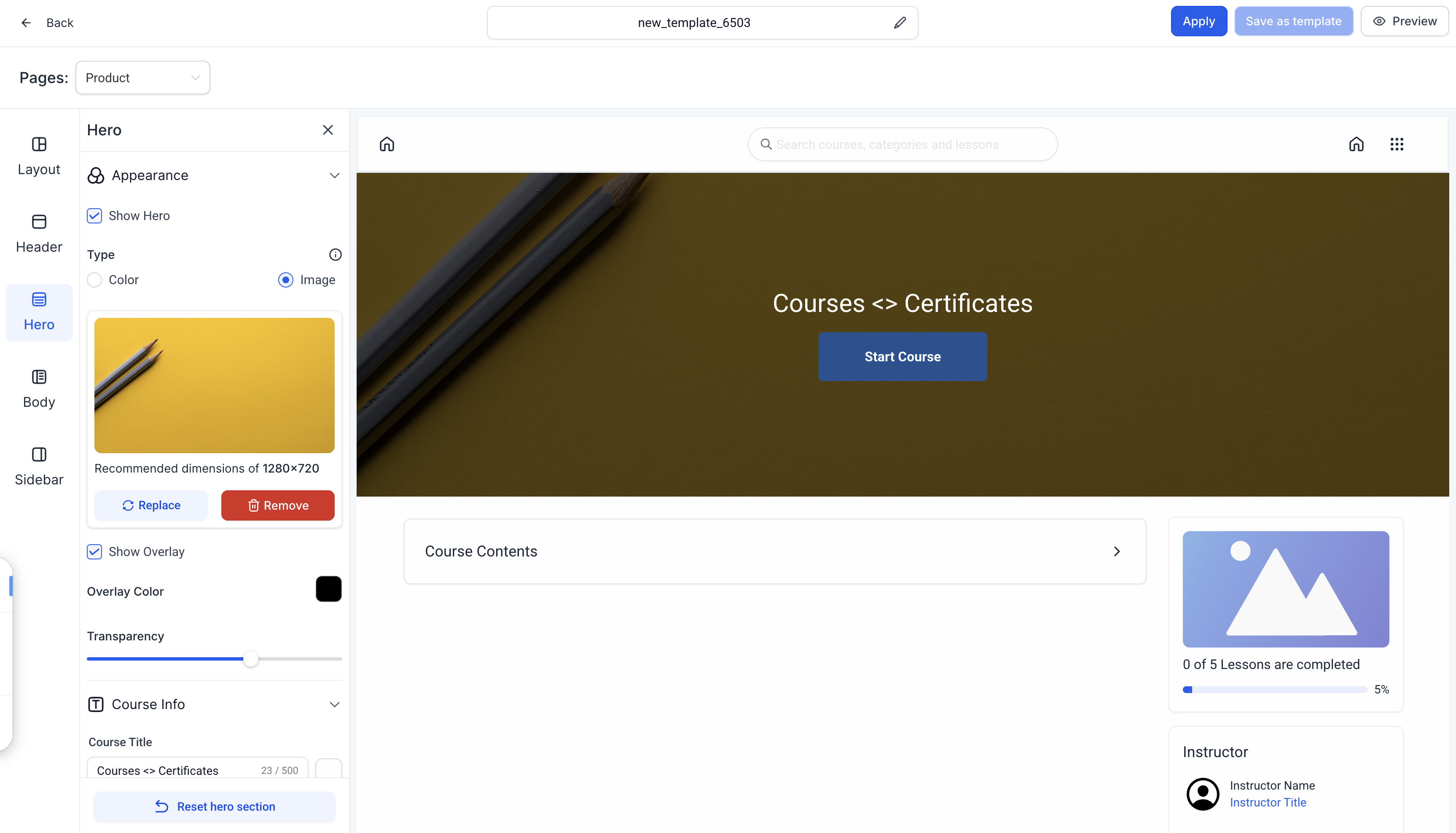
The customizer lives inside the course editor under the Customize option. After opening it, you choose a system template such as Neo Classic to unlock the full set of design controls. The interface shows toggles for visibility, color overrides, text styling, and custom content blocks across several page areas.
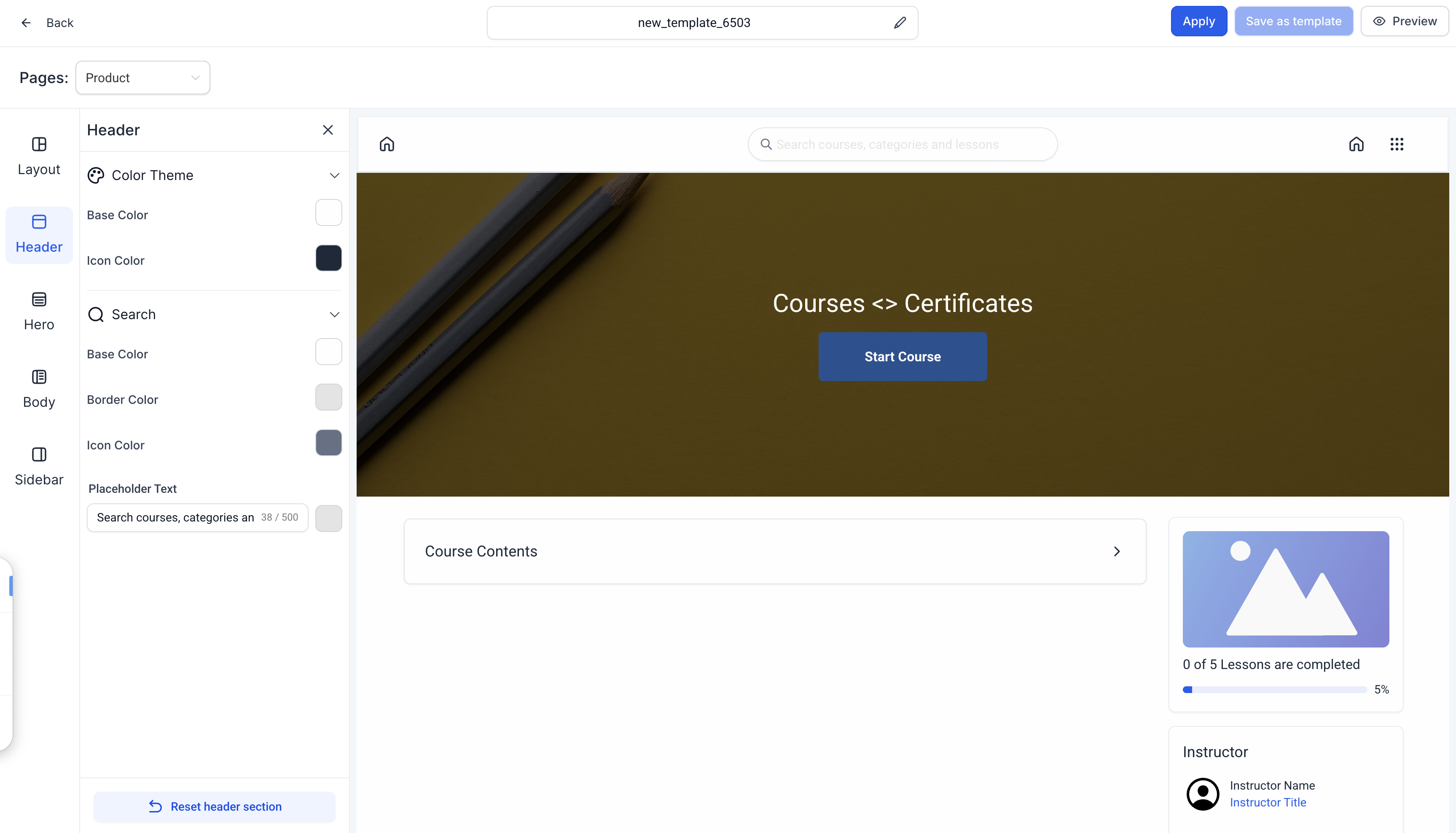
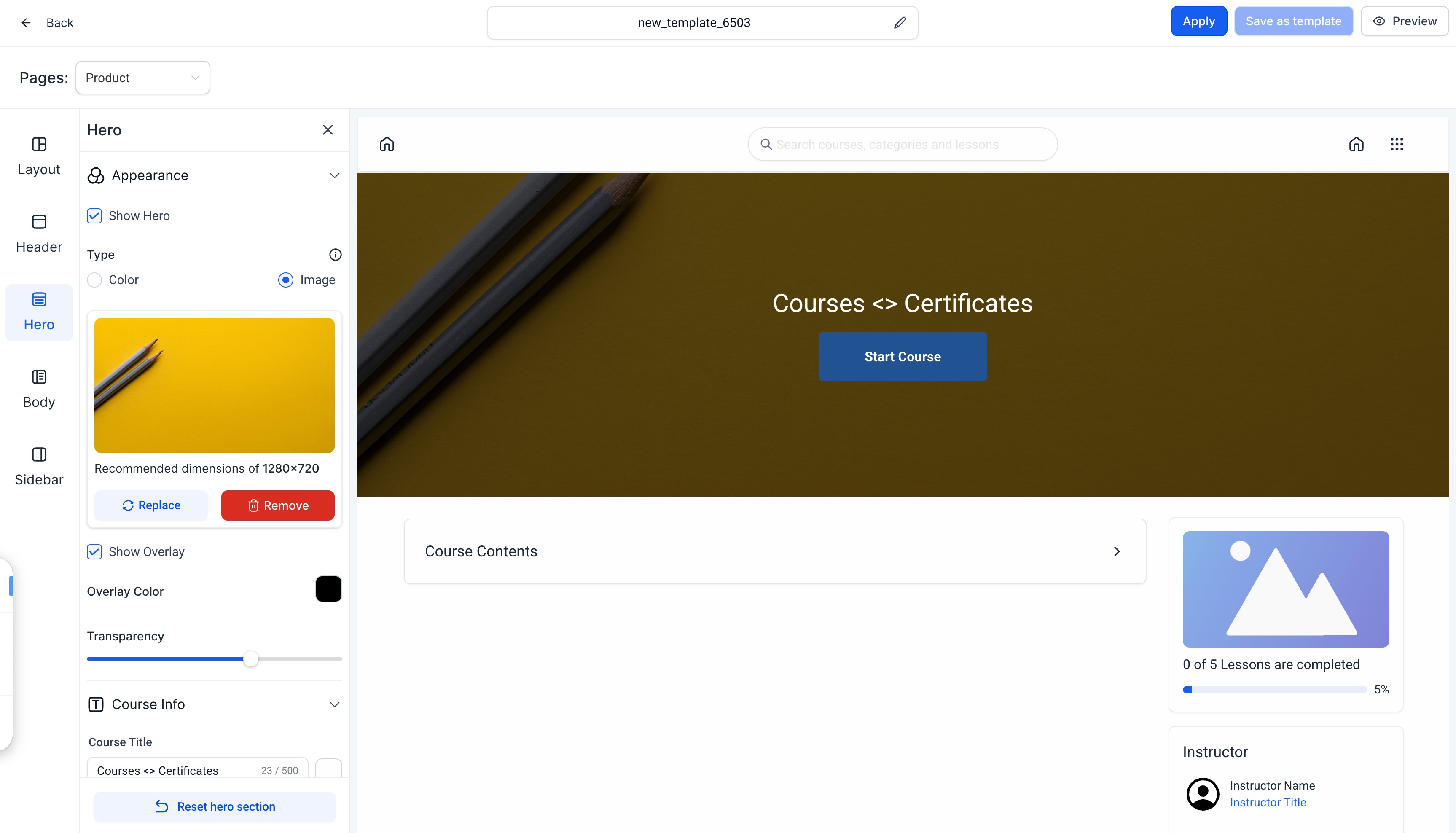
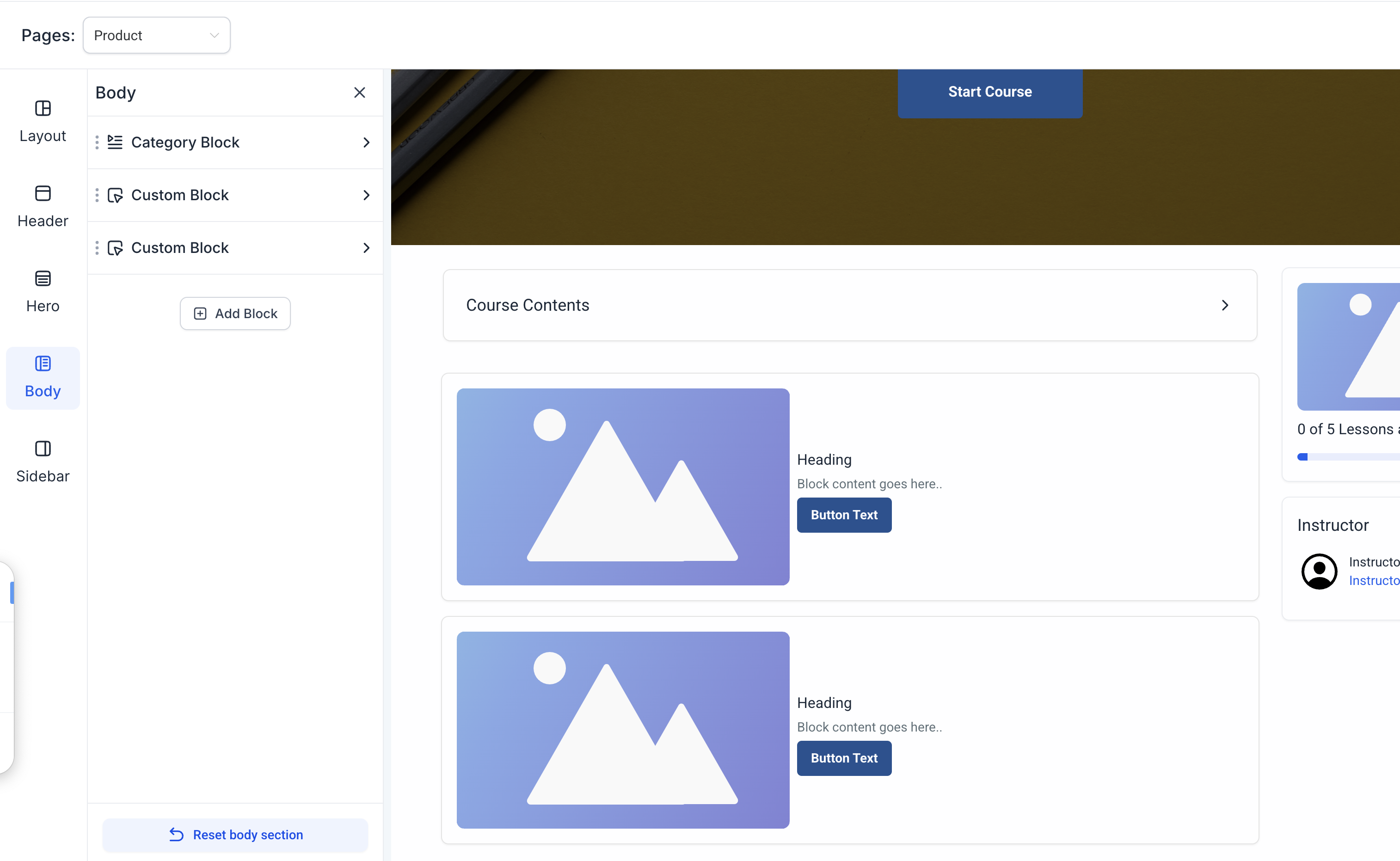
Each section, logo, search bar, hero, welcome body, syllabus, sidebar, lesson pages, and category pages, offers its own set of options. You can hide or show elements, replace default colors, add custom text, upload images or videos, and define CTA links. Real time preview updates let you see the impact of each change immediately.
When the design is complete, the editor provides a Save as Template button. Naming the template stores it in the My Templates library, where you can later activate it for another course or edit it further.
03How businesses use the New Theme Customizer
- Online coaching business. The coach opens the Customize screen, selects the Neo Classic theme, and updates the logo to show the company mark. They then hide the default search bar, upload a hero image, and add a CTA button linking to a sign up page. After saving, the template is stored for future coaching programs.
- Software tutorial provider. The provider edits the Course Sidebar to display a progress bar and adds a custom block promoting a premium add on. They customize the Lesson Page background color and enable auto advance. The finished layout is saved as a template for all upcoming software modules.
- Yoga studio offering class recordings. The studio adds a video block to the Welcome Body, uploads a welcome video, and sets a CTA button that links to the studio’s schedule. They adjust the Hero Section colors to match their brand and save the design as a template for each new yoga series.
04How to set up and use the New Theme Customizer in HighLevel
Customize a course theme
- Open the course outline and click the Customize button.
- Select Browse System Templates to view available base themes.
- Choose Neo Classic to load the New Theme Customizer.
- Adjust the logo, search bar, hero area, sidebar and other sections using the provided toggles and overrides.
- When finished, save the changes or locate the theme later via My Templates on the main Customize screen.
Save a customized theme as a template
- In the theme editor, click the Save as Template button.
- Enter a descriptive name for the new template in the modal window.
- Confirm by clicking Save.
- After saving, you are taken to the newly created template view.
05What it looks like in HighLevel
06Settings that matter
- Logo. Controls whether the logo appears, its type (text or image), click action, size and placement within the header.
- Search Bar. Manages visibility, helper text, and background or text color overrides for the site search field.
- Hero Section. Sets visibility, background type (image or solid color), overlay options, and styling for title, description, spacing and start button.
- Welcome Body. Allows adding multiple blocks such as images, text, videos, custom content, and CTA buttons, each with alignment and color settings.
- Course Syllabus. Controls visibility and presentation style, including category or post listings and customizable label texts.
- Course Sidebar. Manages progress bar display, instructor info, cross sell offers and custom blocks with text, image and CTA options.
- Lesson Page Customization. Provides options for breadcrumb navigation, player background color, auto advance toggle, and text styling within the lesson body.
- Category Page Customization. Offers settings for the categories sidebar, including progress bar visibility and color overrides.
07Things to know before you rely on it
- Applying the Neo Classic theme shows its name as Neo Classic Theme to differentiate it from saved templates.
- When a theme is activated, the name may display a shimmer loading effect while the change processes.
- The primary call to action in the template editor is now labeled Activate Template with updated button text and tooltips.
- Logo and Search Bar sections are marked mandatory, meaning they must be configured before the theme can be saved.
08How it connects to the rest of HighLevel
- Learn how to build and launch courses in HighLevel. Course builder guide
- Explore other membership product themes and how to select them. Membership themes
- Start a 30 day trial to test the New Theme Customizer. 30 day trial
- Review pricing and plan options for accessing theme customizer features. Pricing
- See details about the Founder Plan for unlimited customizer use. Founder Plan
Michael's take

The New Theme Customizer is a solid way to keep your courses looking on brand without writing code.
If you prefer a plain, default look and don’t want to spend time on design tweaks, you can skip it.