
01Who this is for
- Course creators, they can organize content and let learners move between sections without leaving the page.
- Coaches and trainers, they can monitor quiz outcomes at a glance and respond to comments quickly.
- Community managers, they can foster interaction using the new comments area on mobile.
02Courses mobile ui, explained
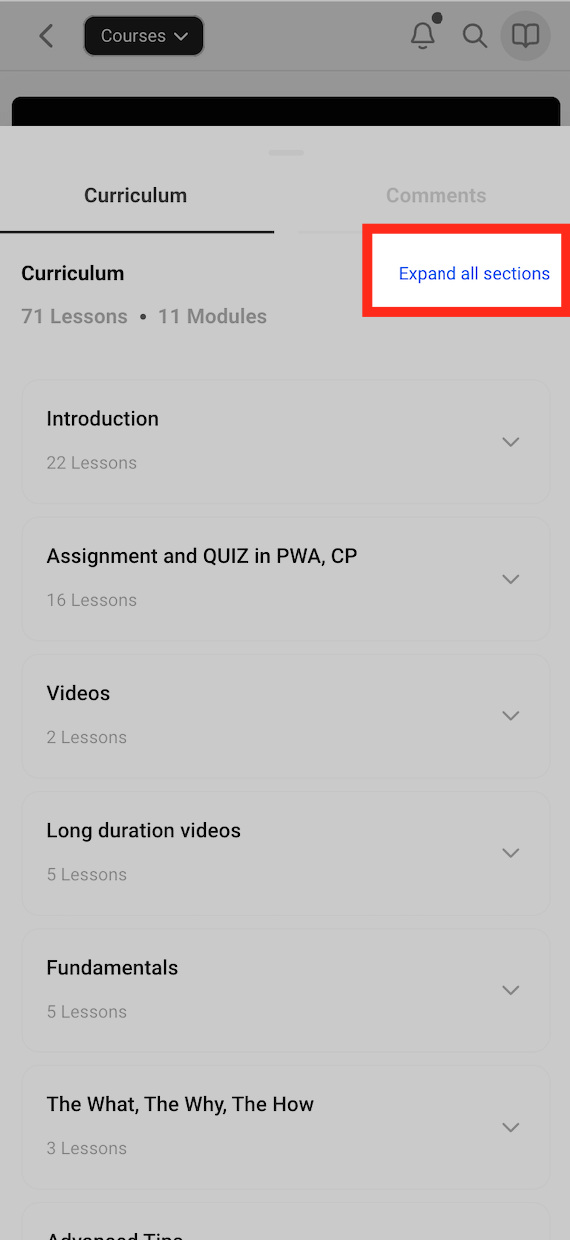
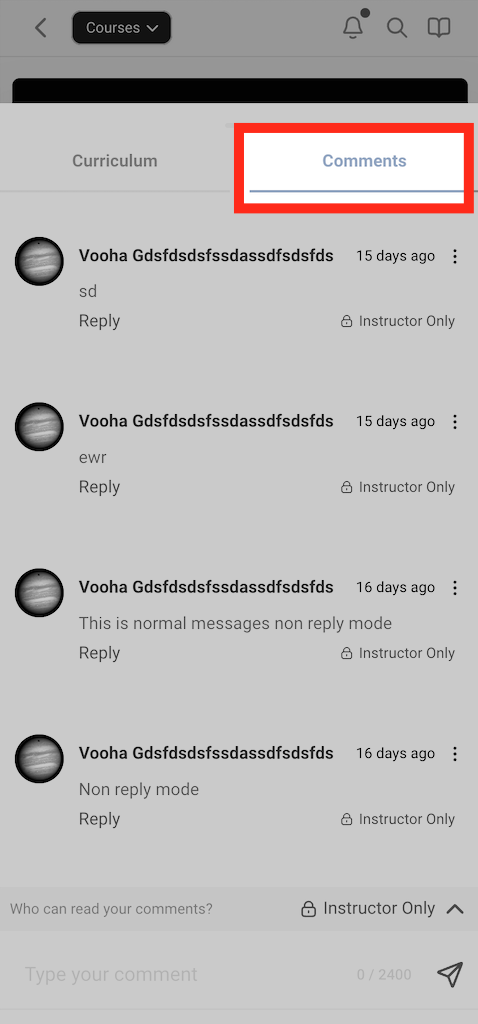
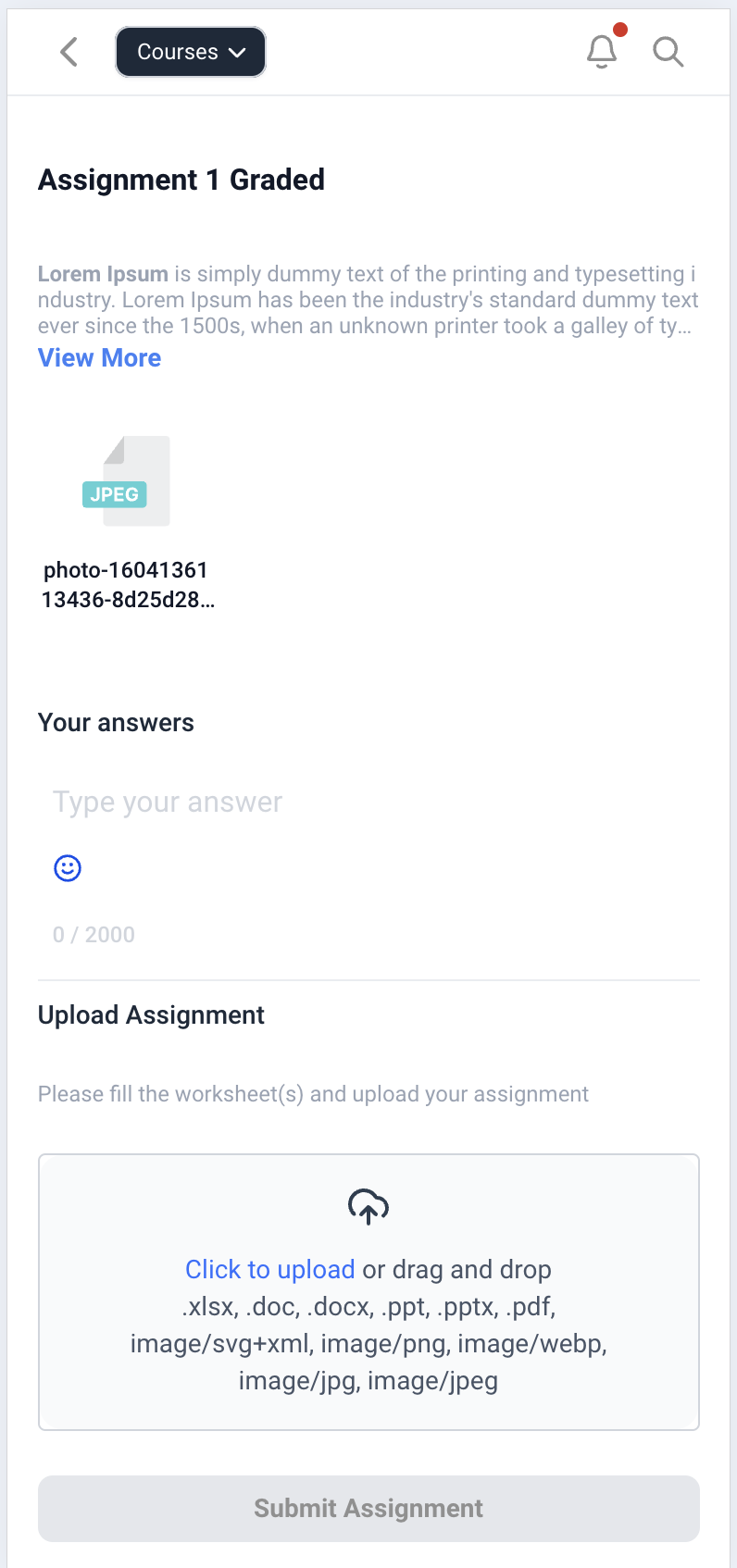
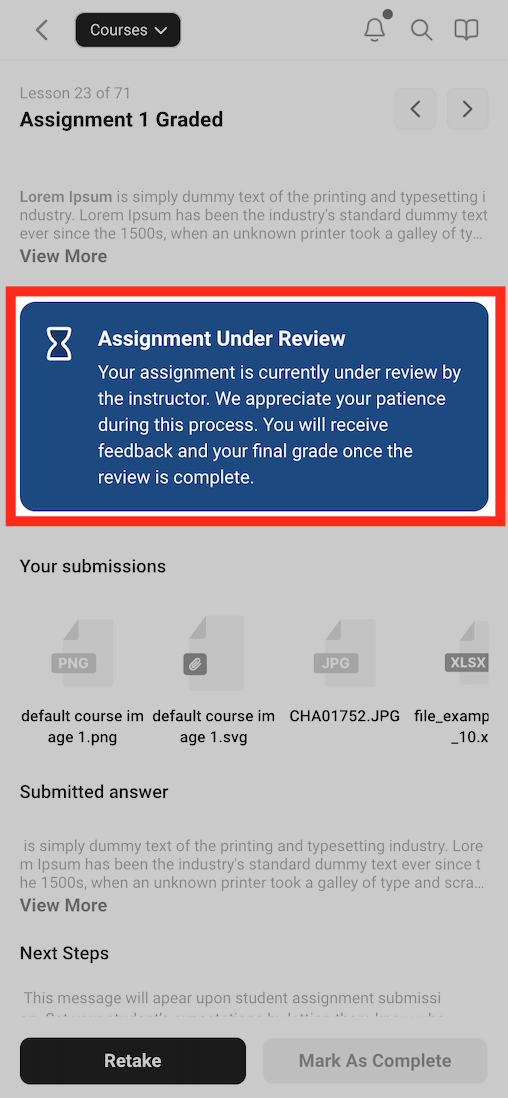
The new mobile Courses interface places category lists and lesson titles together on one screen. Users can tap a category to expand its lessons or collapse it for a quick view, then select any lesson, text, audio, or video, to start learning. Comments are displayed in a refreshed area that lets members reply directly beneath each message, keeping discussions easy to follow. Quizzes and assignments load without cropping, and navigating between questions feels smooth. At the top of each lesson a status badge shows whether a quiz or assignment is in review, passed, or failed. While content loads, shimmering placeholders appear instead of traditional spinning loaders.
Behind the scenes the codebase has moved to a Vue 3 composition structure and the folder layout has been reorganized. Pages are split into several sub components that load lazily, which reduces the initial bundle size and helps the interface load faster.
03How businesses use the courses mobile ui
- Online language tutoring platform. Instructors upload text, audio and video lessons, and students navigate categories on their phones without extra clicks. Learners can watch a video lesson, then immediately answer a quiz and see a pass or fail badge.
- Fitness membership program. Trainers add workout videos and accompanying audio cues. Members expand the week’s category, view the video, complete a short assignment, and right away see whether the assignment passed.
- Professional association community. Members browse policy brief categories, post replies in the comments section, and discuss documents. The status overview lets them track which quizzes on compliance topics have been reviewed or passed.
04The numbers and rules that matter
- Code structure moved to Vue 3 composition API.
05How to set up and use the courses mobile ui in HighLevel
Navigate categories and lessons on mobile
- Open a course on a mobile device, tap a category header to expand or collapse its lessons, then select a lesson to view its content.
06What it looks like in HighLevel
07How it connects to the rest of HighLevel
- Build and organize your course content with the HighLevel course builder. Course builder
- Generate password free access links using HighLevel magic links. Magic links
- Customize the look of your membership with HighLevel membership product themes. Membership themes
Michael's take

I think the new mobile UI could let members spend less time navigating and more time absorbing the material.
If I were setting up a course, I’d enable the new UI right away and test the shimmer placeholders on a few videos to see how the load feels before rolling it out to everyone.