
01Who this is for
- Community managers who want to screen new members to keep discussions on topic.
- Coaches offering private groups and need to verify applicant fit before granting access.
- Event organizers running exclusive networking groups and requiring additional qualifications.
02Members approval questions, explained
Member Approval Questions is a feature that prompts prospective members to answer a set of custom queries before they are allowed into a HighLevel group. It helps group admins or owners ensure new participants meet the community’s criteria.
Admins enable the feature in Settings, add up to three distinct questions, and select a response type, text box, single select, or multi select. Each option within a question must be unique.
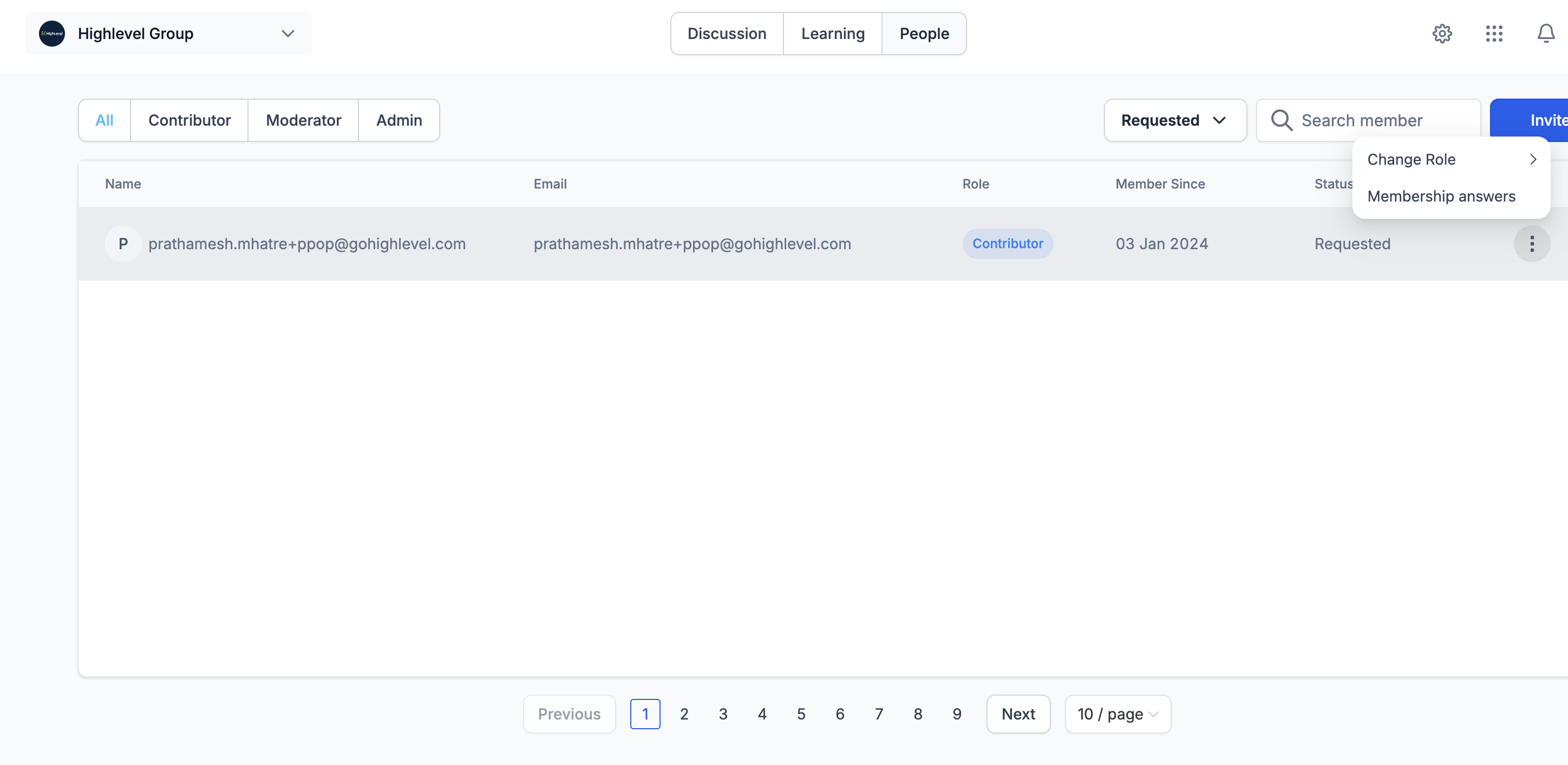
When a user submits a request, their answers are stored under the People tab’s Requested filter. From there, admins can review each response and click Approve or Decline to control membership.
03How businesses use members approval questions
- Coaching business. The coach turns on Member Approval Questions, creates three screening questions about client goals, and selects single select options. When a prospect requests access, the coach reviews their answers in the Requested filter and decides whether to grant entry.
- Paid membership site. The site owner enables the feature, adds a multi select question about preferred learning topics, and a text box for a brief introduction. Applicants answer during sign up, and the owner reviews the responses to approve members who match the site's focus.
- Fitness class community. The community manager activates approval questions, asks a text box question about fitness level and a single select question about class preference. Responses appear in the People tab, where the manager approves members whose fitness level aligns with class requirements.
04The numbers and rules that matter
- Maximum 3 questions can be added.
05Before you start
- You must be an admin or owner of a HighLevel group.
06How to set up and use members approval questions in HighLevel
Add approval questions
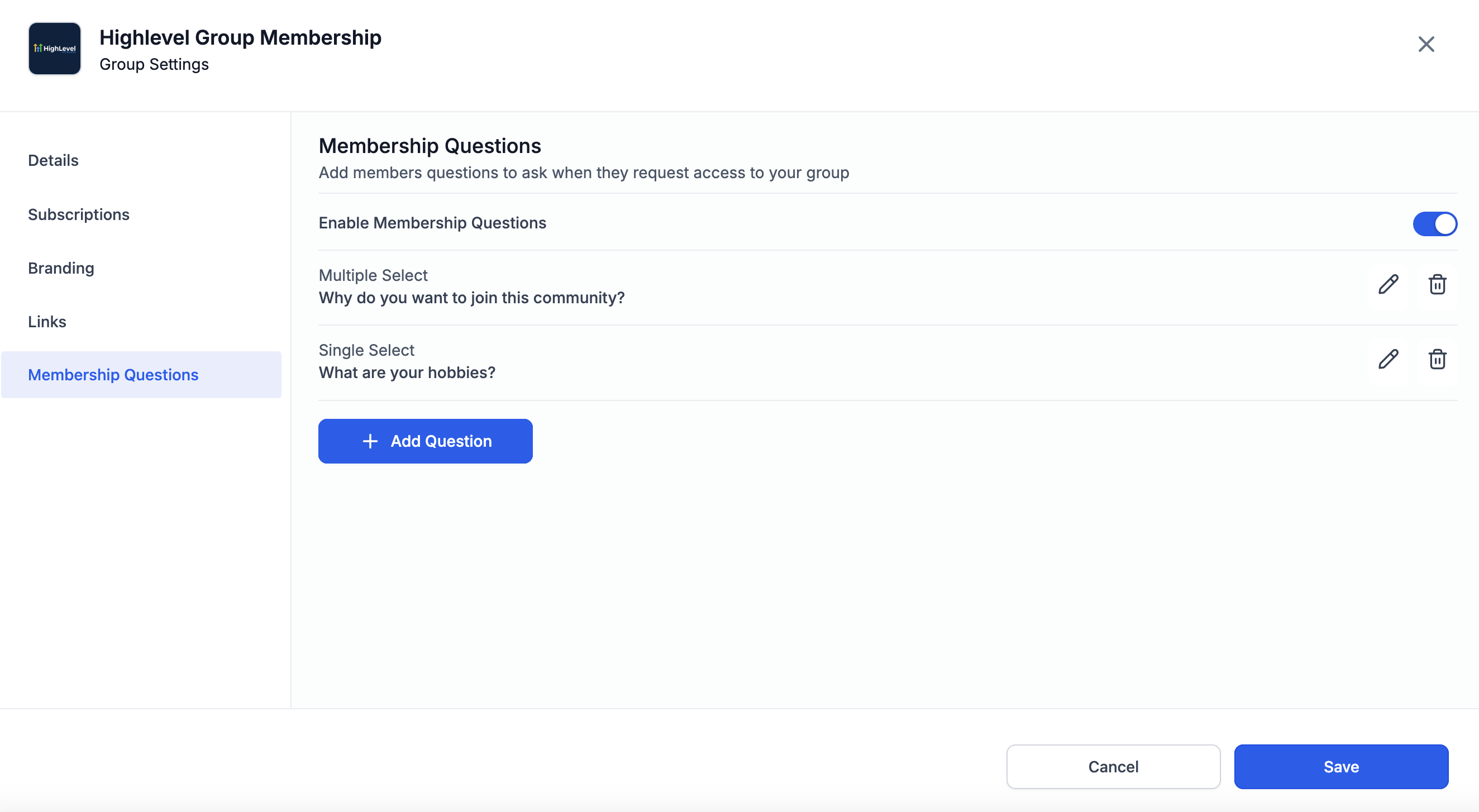
- Open Settings and select Member Questions.
- Toggle on Enable Member Questions.
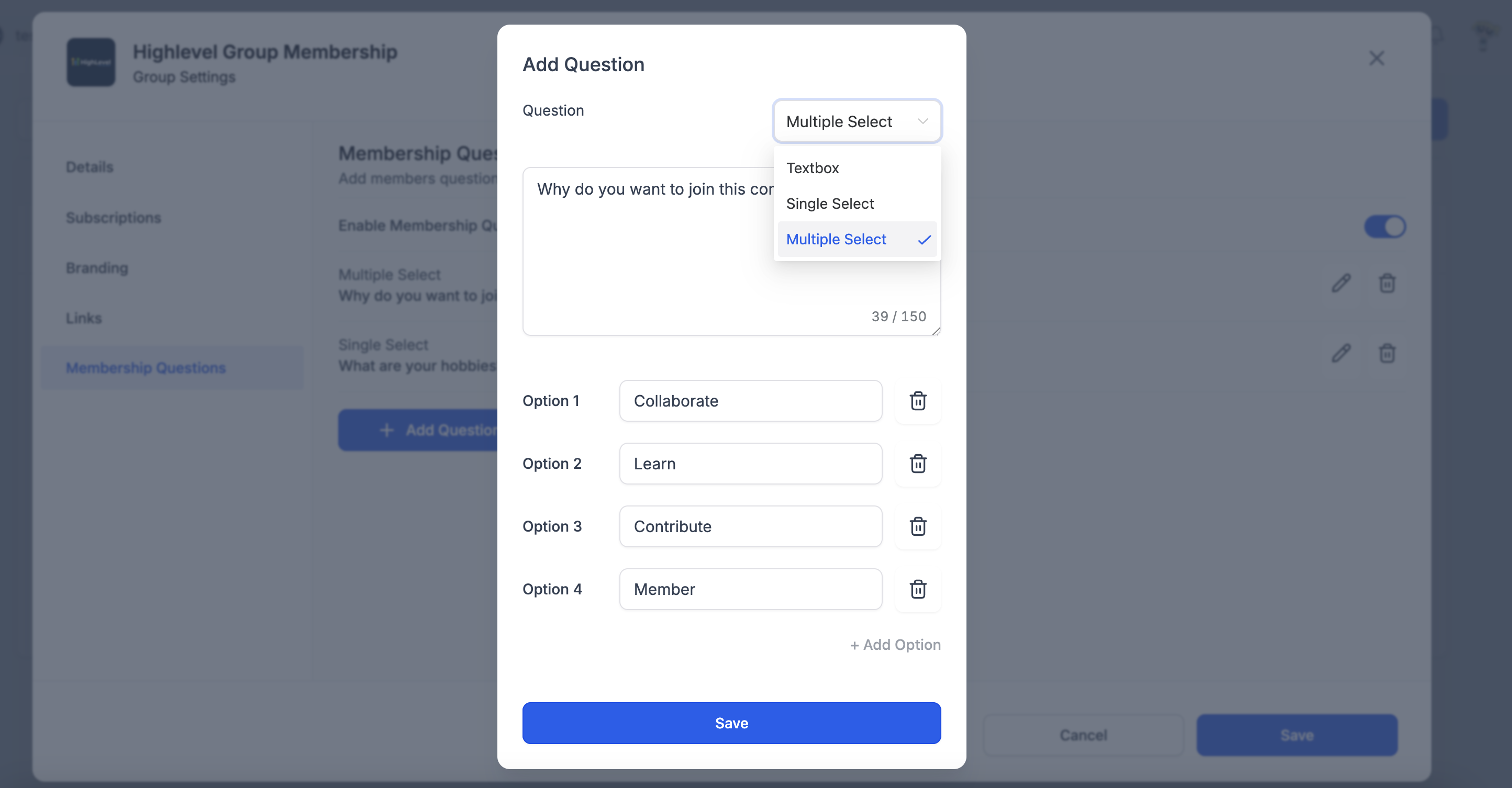
- Click Add Questions and enter each question, remembering the three question limit and that each option must be unique.
- Choose a question type, Text Box, Single Select, or Multi Select, for each entry.
Manage member responses
- Navigate to the People tab and choose the Requested filter.
- Review the list that shows all members who have asked to join.
- Click the three dot menu beside a pending applicant.
- Select Membership Answers from the dropdown.
- Click Approve or Decline according to the applicant’s responses.
07What it looks like in HighLevel
08Settings that matter
- Enable Member Questions. Turns the approval questionnaire on or off for a group.
- Add Questions. Opens the interface to create up to three custom questions for new members.
- Question Type. Sets the format of each question as Text Box, Single Select, or Multi Select.
09Things to know before you rely on it
- A maximum of three approval questions can be created per group.
- All answer options within a question must be unique.
- Only Text Box, Single Select, and Multi Select formats are supported.
10How it connects to the rest of HighLevel
- How to manage members inside groups in HighLevel Manage members
- Create and customize a HighLevel community Community setup
- HighLevel pricing and plans Pricing
Michael's take

I see members approval questions as a small convenience that can become a real shift for tight knit communities. By forcing a quick check in, you keep the group focused and avoid the chatter of members who aren’t a fit.
A mastermind coaching circle works well with this feature. The host can ask applicants why they joined and what outcome they expect, then approve only those whose goals match the circle’s purpose.