
01Who this is for
- Founders who run online courses and want a single place for content and community management.
- Membership site owners seeking to keep current member logins while adding new portal capabilities.
- Community managers looking to combine courses, forums and affiliate programs without rebuilding user accounts.
02Legacy membership migrations, explained
The migration tool shifts a Legacy Membership configuration into the Client Portal. It updates the site’s settings so that courses, communities, affiliates and future features reside in one unified interface. The process is started from the Memberships section and uses the existing site settings page.
During migration, users continue to log in with the credentials they already have. After the move, the portal supplies the same course access plus new experiences such as push notifications and a forthcoming native mobile app. Administrators should verify branding, domain, email and app settings once the migration finishes.
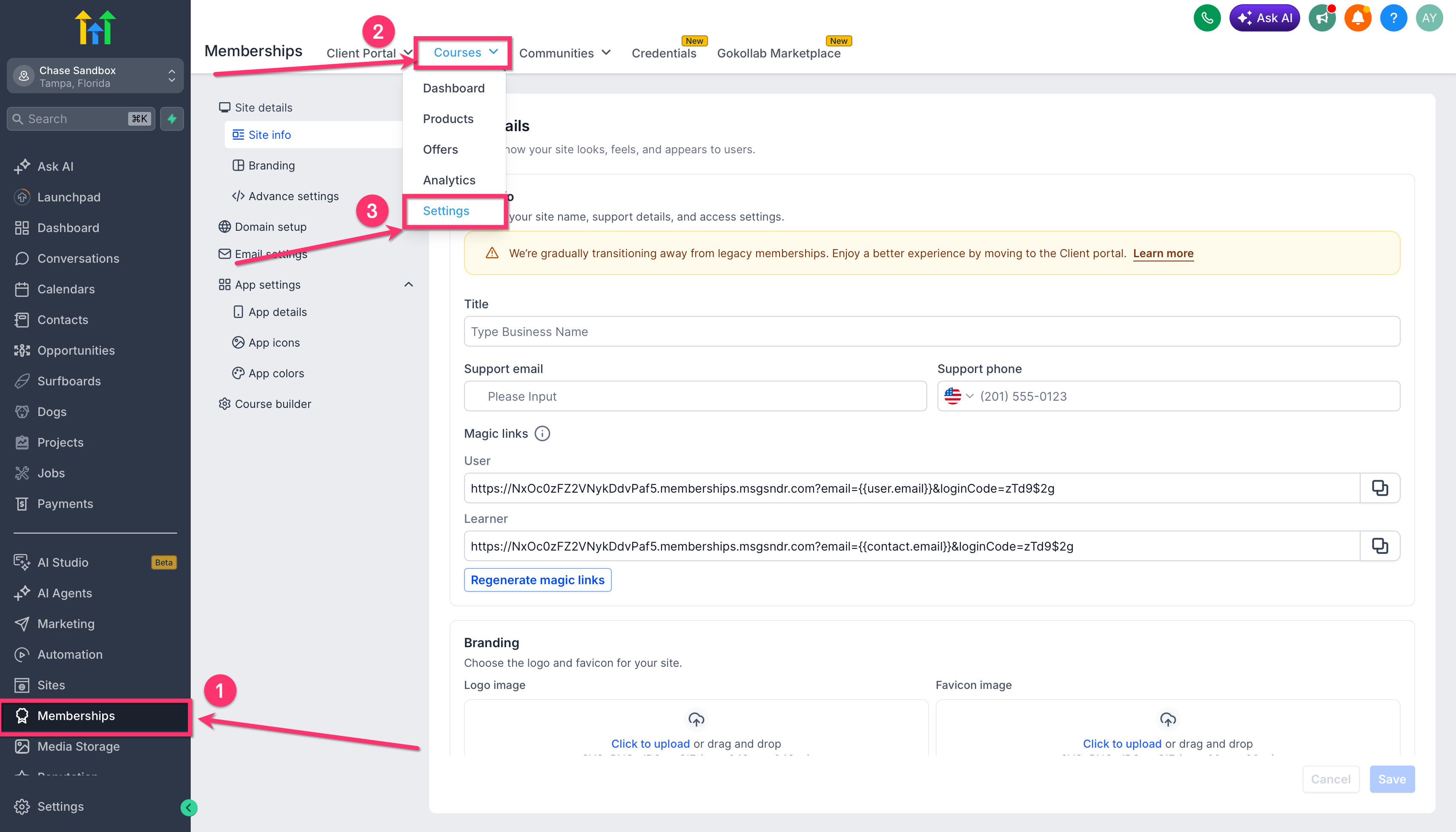
The feature lives inside the Memberships area of HighLevel. From there, select Courses, open the site’s settings, and follow the on screen prompts that guide the transition to Client Portal settings.
03How businesses use legacy membership to Client Portal migration
- Online course creator. Open Memberships, choose Courses, then go to the site’s Settings. Review the migration notice and run the guided steps so the course catalog moves into the Client Portal while keeping student login details.
- Subscription based community platform. Navigate to Memberships > Settings > Site Settings, read the migration message and complete the on screen flow. The community’s members retain access and gain new portal features like notifications.
- Affiliate program manager. From the Memberships section, access the Courses settings page, confirm the migration prompt, and follow the instructions. After migration the affiliate tools are available within the unified Client Portal.
04How to set up and use legacy membership to Client Portal migration in HighLevel
Migrate legacy membership to client portal
- Select Memberships from the main menu.
- Open the Courses tab.
- Enter the Settings area for the site.
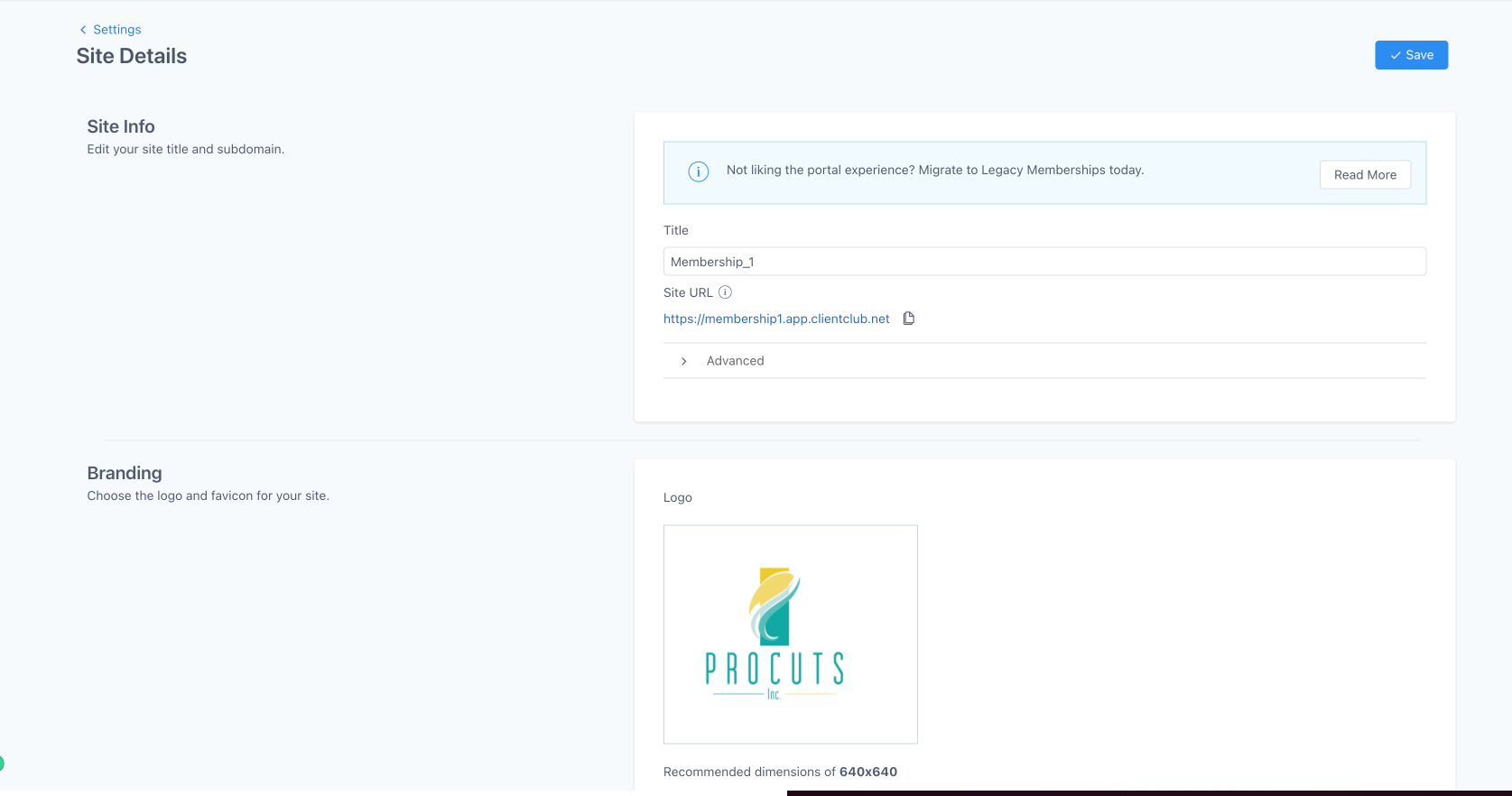
- Read the migration message displayed in the settings view.
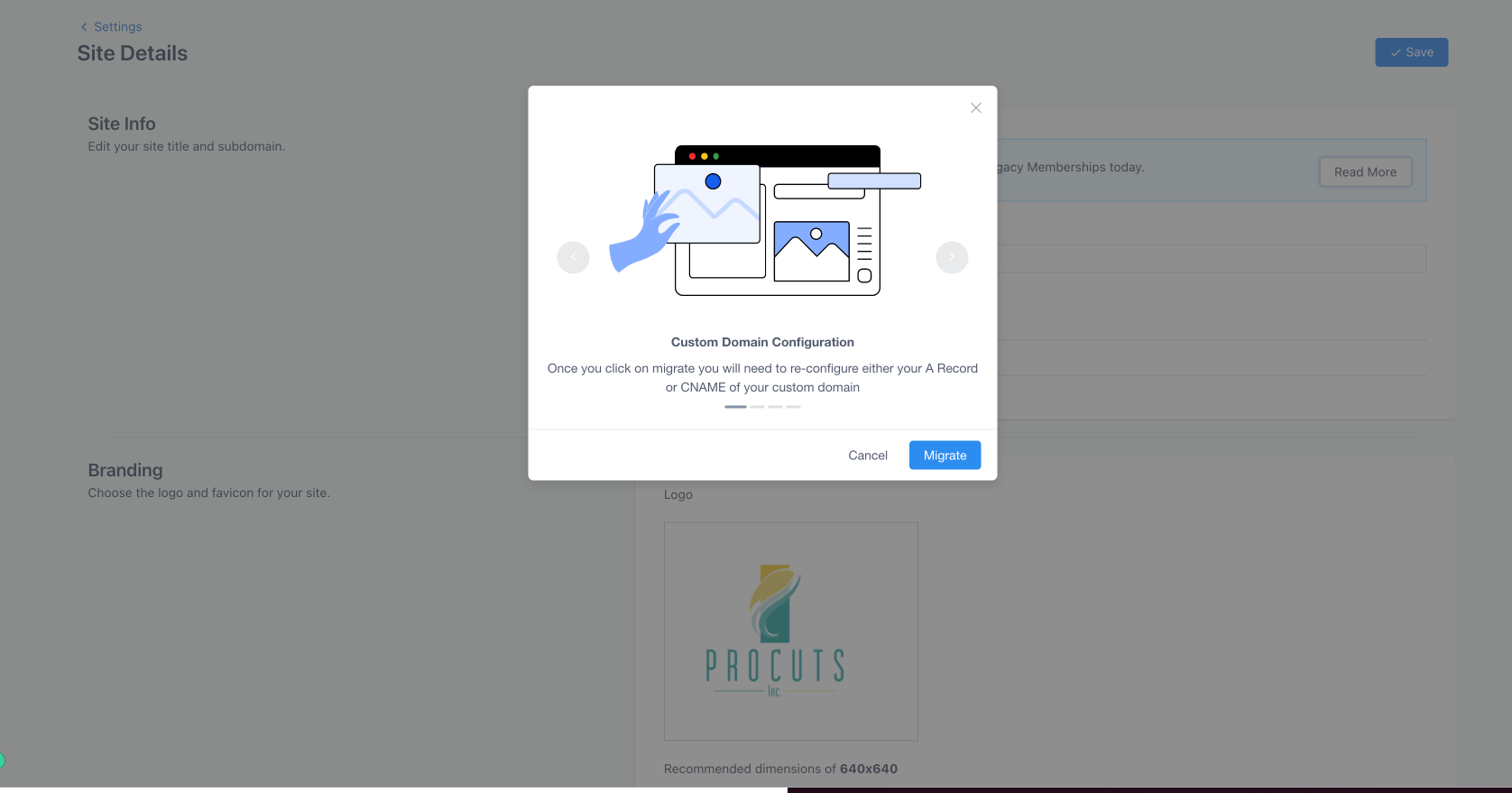
- Please follow the onscreen instructions carefully before migrating to ensure a smooth transition.
- Complete the on screen instructions to switch to Client Portal settings.
05What it looks like in HighLevel
06Settings that matter
- Site Settings. Controls the configuration page where the migration prompt appears and where the transition to the Client Portal is initiated.
07Things to know before you rely on it
- The older Membership PWA does not work with the new Client Portal; a native mobile app is being developed instead.
- After migration, review branding, domain, email and app configurations to ensure they still match the original setup.
- Follow the provided on screen steps carefully to avoid migration errors.
08How it connects to the rest of HighLevel
- Learn how to build and launch courses inside HighLevel memberships. Course builder guide
- Generate password free magic links for portal access. Magic links
- Explore pricing options and plan eligibility for using the Client Portal. Pricing
Michael's take

Wondering if moving your old membership site into the Client Portal is worth the effort? The migration gives you a single place for courses, communities and future mobile app access, while your members keep the same login.
If I were setting this up, I’d run the migration, then double check branding, domain and email settings right after. That way you know everything lines up before you start advertising the new portal to your audience.