
01Who this is for
- Community members can share quick spoken updates without leaving the platform, keeping conversations in one place.
- Course creators can attach lesson audio files alongside written content, simplifying member access to multimedia.
- Support teams can respond to questions with voice notes, providing clearer explanations than typed replies.
02Voice notes, explained
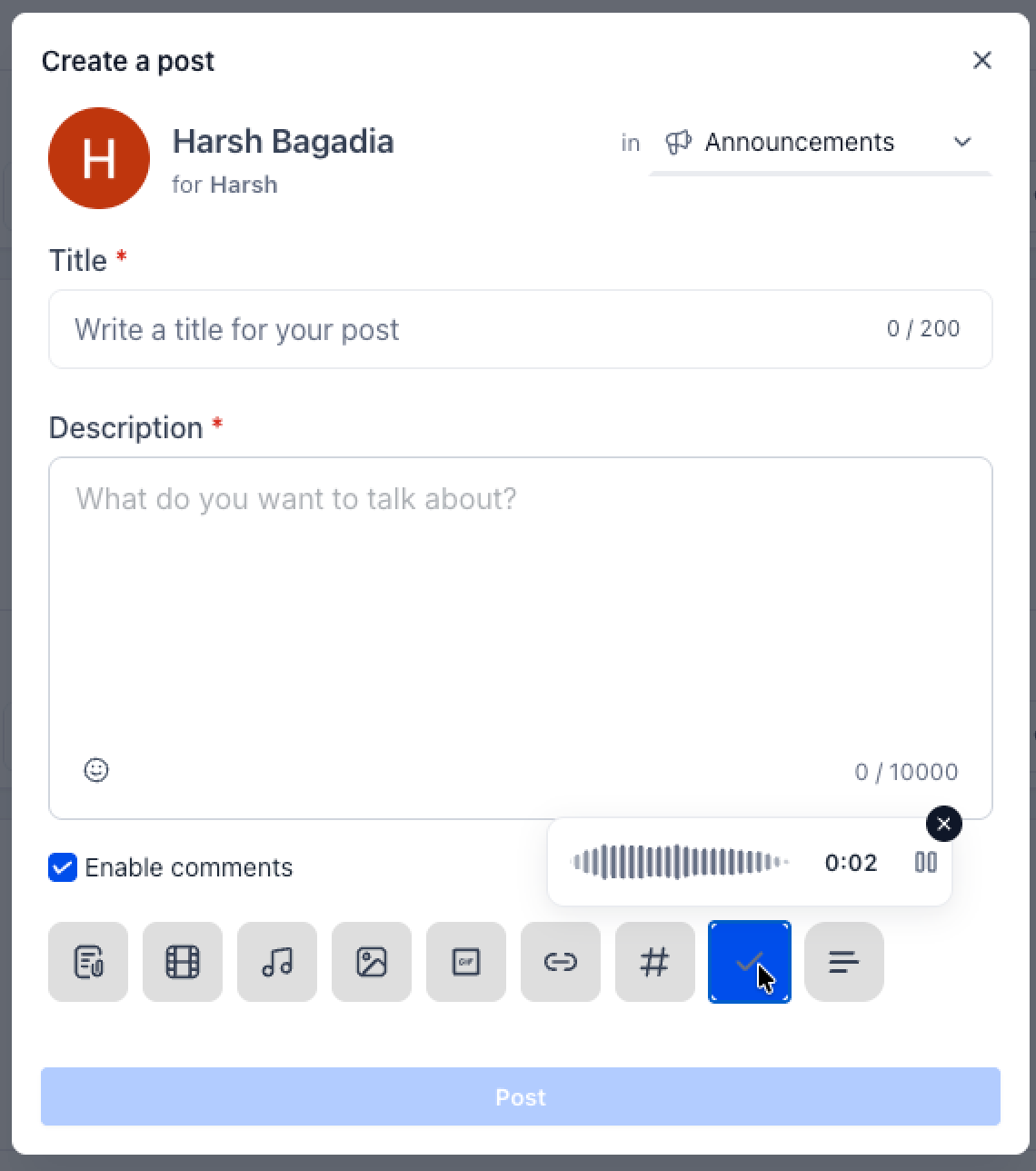
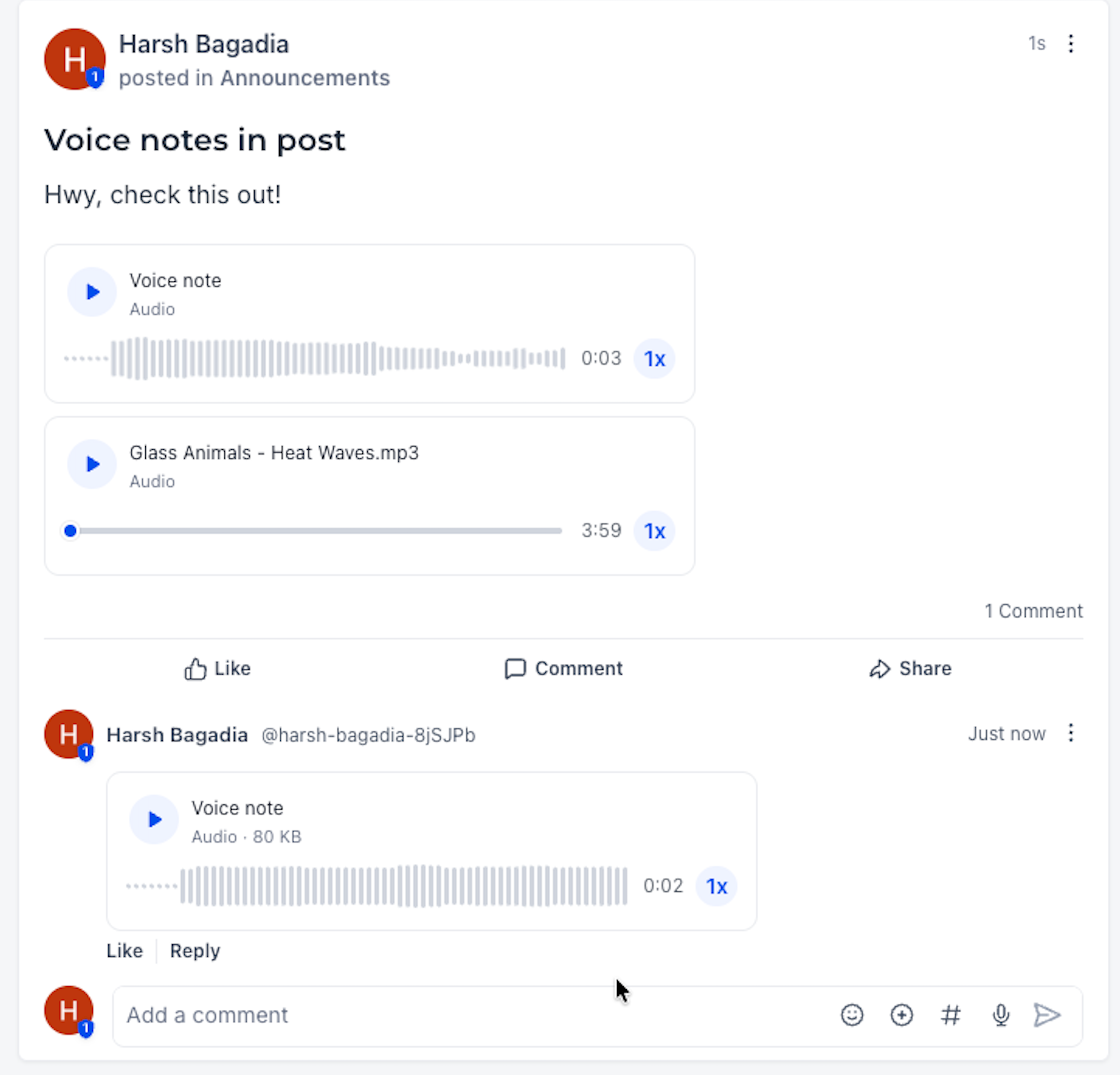
Voice notes are an audio attachment option inside the Community post and comment composers. When the microphone icon is clicked, the platform records the member’s voice and shows a waveform and timer during capture. After recording, the audio appears as an attachment that can be played back directly in the post.
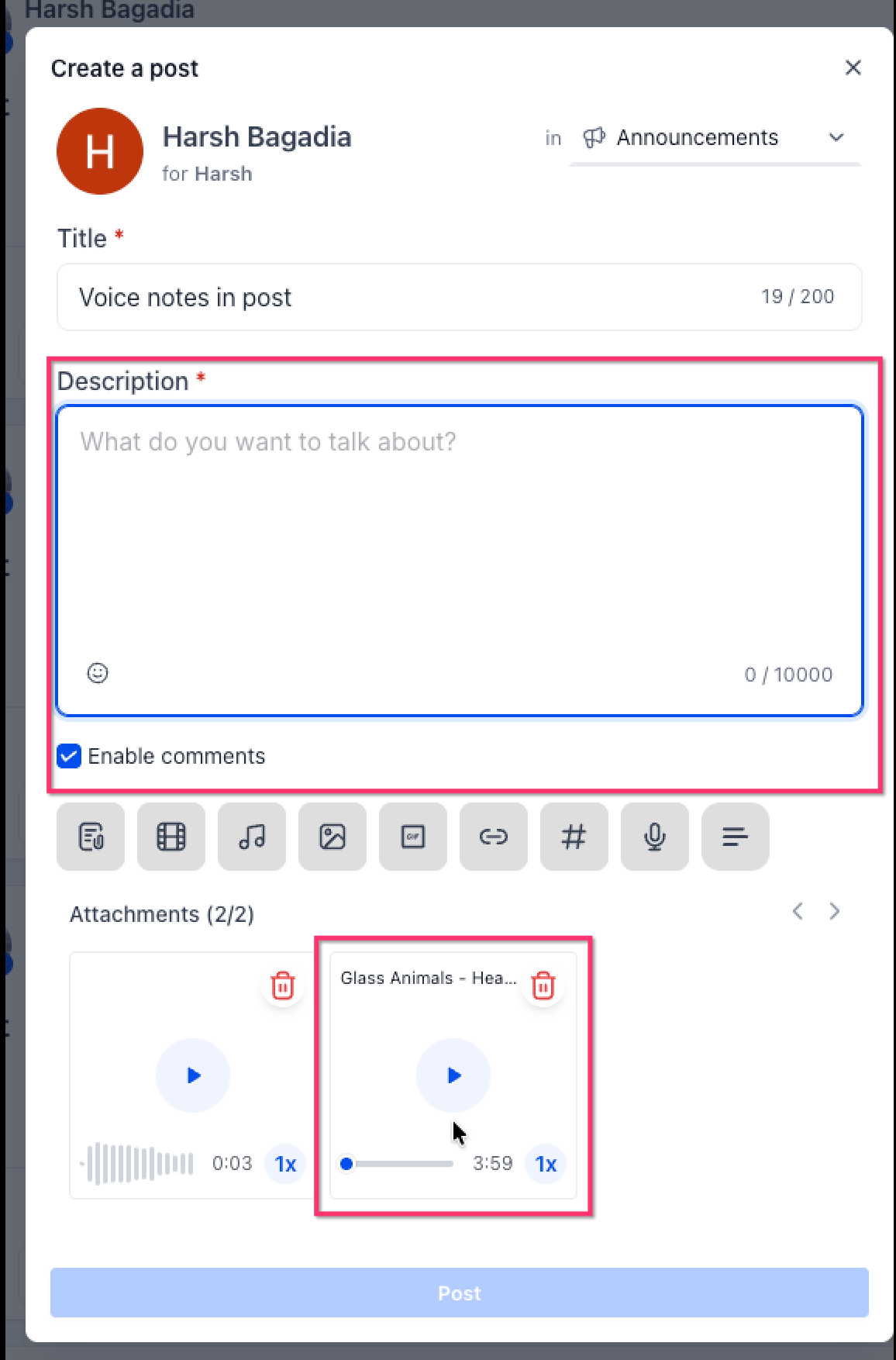
Members may also upload pre recorded audio files using the standard attachment controls. Uploaded files are displayed with a timeline style player, and both recorded voice notes and uploaded audio can coexist in the same post.
Each audio item includes playback speed controls (1x, 1.5x, 2x) and a continuous listening mode that automatically advances to the next audio item when one finishes. The feature lives inside the Community module of HighLevel.
03How businesses use voice notes
- Fitness coaching business. A coach can record a brief motivational voice note in a post announcing a new workout challenge, letting members hear the instruction right away. The coach can also upload a longer audio guide for the week’s routine.
- Online tutoring service. A tutor uploads a recorded lesson audio file to a community post, supplementing the written summary. Students can play the file directly in the discussion without leaving the platform.
- Software support team. Support agents add voice notes to comment threads to explain troubleshooting steps verbally, letting customers hear a step by step guide rather than reading long text.
04The numbers and rules that matter
- Playback speeds available: 1x, 1.5x, 2x.
05How to set up and use voice notes in HighLevel
Record a voice note in a Community post
- Open the post composer in the desired Community channel and fill in the title and description.
- Click the microphone button among the composer’s attachment icons.
- Speak your message while the waveform and timer display the recording progress.
- If needed, use the Pause button to stop recording temporarily, Resume to continue, or Cancel to discard the recording before publishing.
Upload an existing audio file
- While drafting the post, click the attachment icons in the composer.
- Select the audio file you want to add from your device.
- Verify that the file appears with the other attachments before publishing the post.
Add a voice note to a comment
- Open the comment field beneath the relevant Community post.
- Press the microphone icon inside the comment composer.
- Record the response and send the comment, which displays the voice note with playback controls.
06What it looks like in HighLevel
07Settings that matter
- Playback speed. Controls how fast the audio plays, offering options of 1x, 1.5x, and 2x speed.
- Continuous listening. When enabled, automatically starts the next audio item after the current one finishes.
08How it connects to the rest of HighLevel
- How to create and manage a HighLevel community Create and manage communities
- HighLevel community: create channels, posts and manage content Manage community content
- Managing members inside groups in HighLevel Manage group members
Michael's take

When community members need to share quick updates, explain a concept, or give feedback, voice notes can be useful.
If the discussion relies only on text or the audience prefers typed content, adding voice notes may feel unnecessary, as the extra step of recording or uploading audio might not add value, especially if members rarely listen to audio in the community.