
01Who this is for
- Community managers, can direct specific members to relevant discussions.
- Course creators, can call attention to particular students within lesson comments.
- Support teams, can involve the right agent in a support thread quickly.
02Community tagging, explained
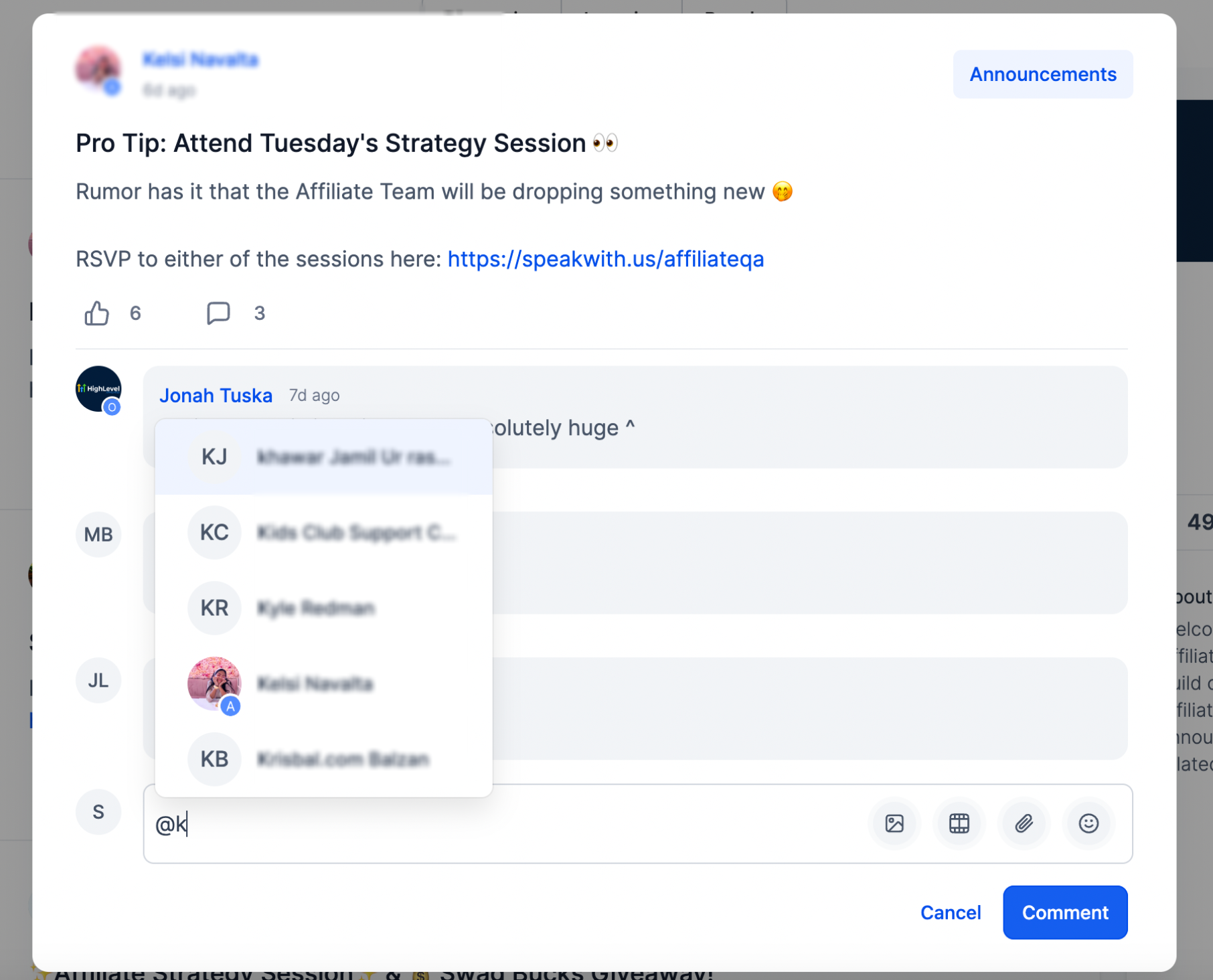
Tagging is a way to mention a member by name inside a post, comment or reply. When you type the @ symbol and start typing a member’s name, a list of matching members appears. Selecting one inserts a highlighted tag that links to that member’s profile.
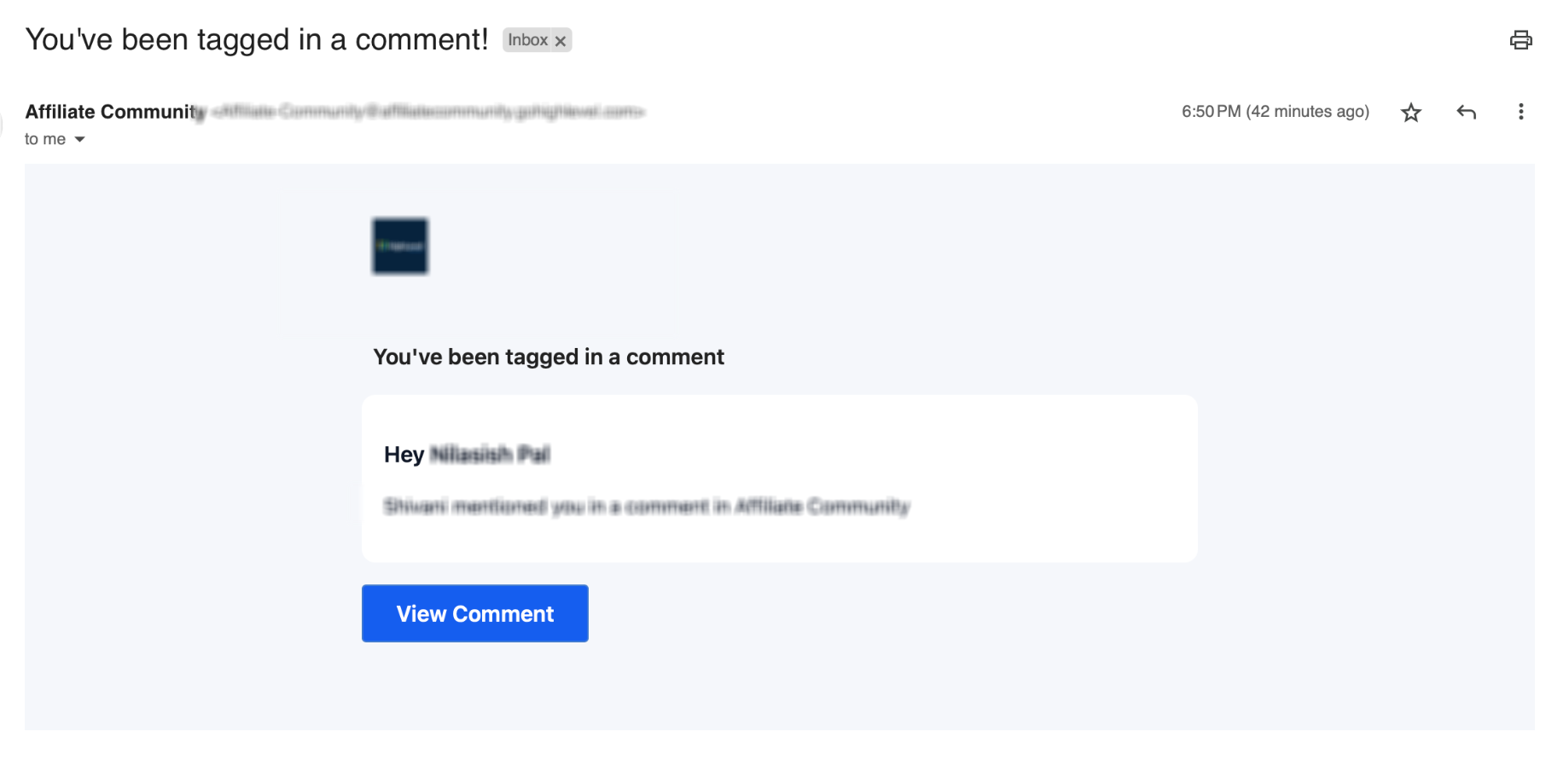
The platform determines whether an email is sent based on the member’s personal notification preferences. If the member has enabled tag or mention alerts, they receive an email with a direct link to the content where they were tagged. Unsubscribing from that specific email type only affects that notification and community, leaving other alerts active.
Tagging and its email controls are managed from the Community area, the Client Portal, or the Courses section of HighLevel. Notification settings are accessed through the profile icon under Manage Your Account.
03How businesses use community tagging
- Online coaching program. The coach writes a post announcing a new module and tags the participants who need to review it. Each tagged participant receives an email that links directly to the announcement, ensuring they see the update.
- Fitness membership community. A trainer replies to a member’s question in a comment thread and tags another trainer with expertise. The tagged trainer gets a notification and can join the conversation without searching for it.
- Software user group. A community moderator posts a poll and tags several power users to gather feedback. The users receive email alerts that take them straight to the poll, helping the moderator collect responses faster.
04Before you start
- You must have access to a HighLevel Community where you can create posts or comments.
05How to set up and use community tagging in HighLevel
Tag members in a post
- While drafting a post, type the @ symbol followed by the first letters of the member’s name.
- Select the correct member from the suggestion list that appears.
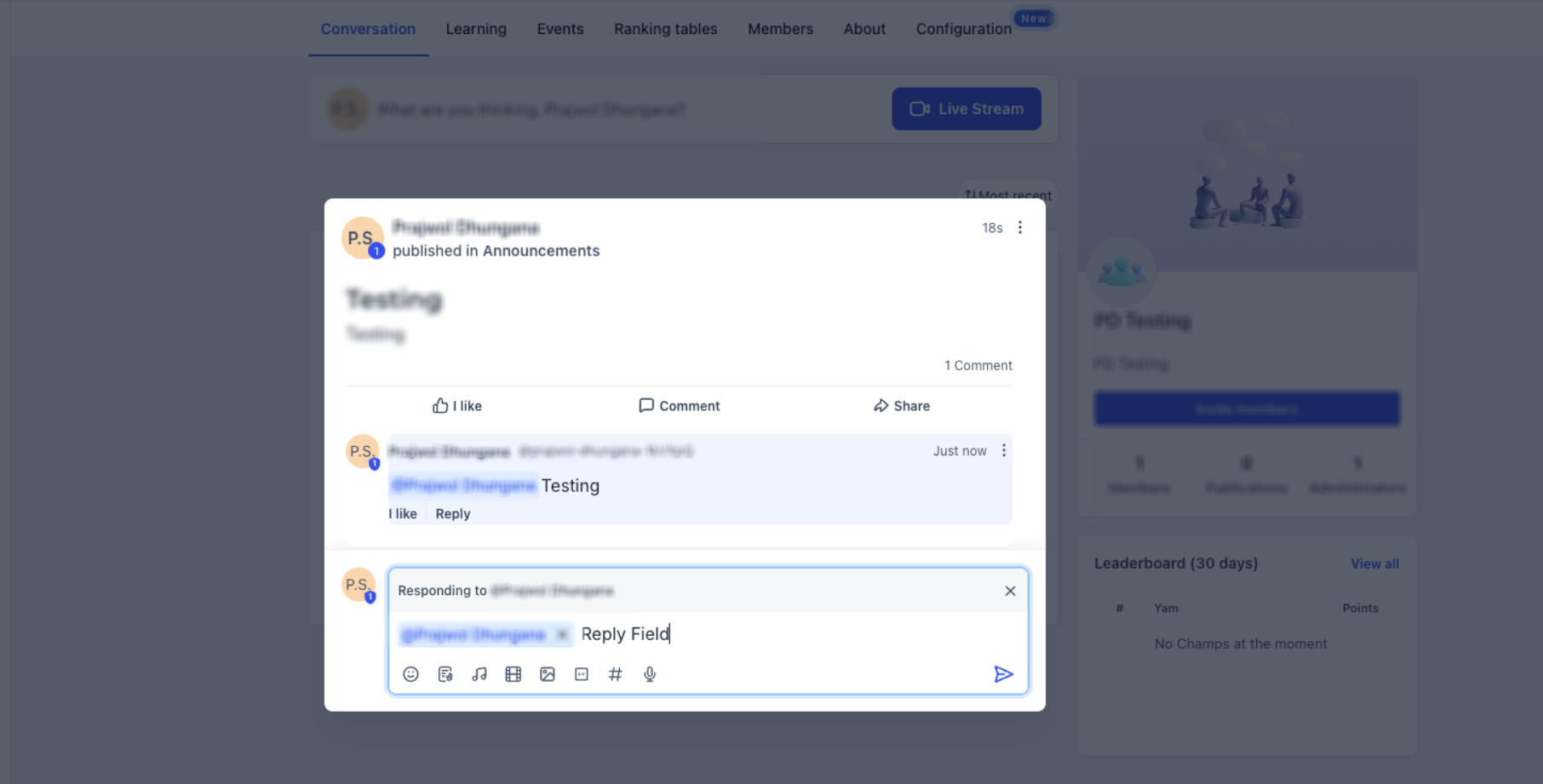
- The member’s name appears in the post as a highlighted tag.
- Publish the post to finalize the tag.
Tag members in a comment or reply
- When writing a comment, type the @ symbol and part of the member’s name.
- Choose the member from the matching suggestions list.
- The name is inserted as a highlighted tag within the comment.
- Publish the comment to make the tag visible.
Re enable tag email notifications
- Open the Client Portal, Communities, or Courses area.
- Click your profile icon and select Manage Your Account.
- Open the Notifications section.
- Toggle the tag or mention email option back on.
06What it looks like in HighLevel
07Settings that matter
- Notifications. Controls whether a member receives email alerts for tags and mentions in posts, comments or replies.
08Things to know before you rely on it
- You can tag multiple members in a single post, comment or reply.
- Unsubscribing from a tag or mention email only disables that specific notification type for the shown community; other notifications remain active.
09How it connects to the rest of HighLevel
- Learn how to set up and manage a HighLevel community Community setup guide
- Manage members inside groups in HighLevel Member group management
- Create channels, posts and manage content in HighLevel communities Content management
Michael's take

Community tagging is handy when you need to pull a specific member into a conversation.
If you never rely on email alerts or prefer to keep discussions purely within the portal, you can skip it.