
01Who this is for
- Webinar hosts, can organize attendees into focused discussion groups.
- Team leads, can run simultaneous brainstorming sessions without leaving the meeting.
- Coaches, can create small coaching circles and bring participants back for group debriefs.
02Breakout rooms, explained
Breakout Rooms are sub sessions inside a Meeting Room. The host decides how many rooms to create, how participants are assigned, and whether people can move between rooms or return to the main meeting. All controls are accessed from the Breakout Rooms panel on the right side of the meeting interface.
During a breakout, each room has its own recording and live transcription controls, its own timer, and can receive broadcast messages from the host. When the host closes rooms, participants are returned to the main meeting automatically or after a countdown.
03How businesses use breakout rooms
- Online coaching business. The coach creates breakout rooms for each client group, enables auto move so participants enter their rooms without extra clicks, and records each session separately for later review.
- Corporate training department. A trainer sets up multiple rooms for role play exercises, allows participants to switch rooms for different scenarios, and broadcasts timing reminders to all groups.
- Virtual event organizer. The organizer opens breakout rooms for separate topic tables, enables the option for attendees to choose their table, and records each discussion for post event content.
04The numbers and rules that matter
- You can create up to 100 breakout rooms per session.
05Before you start
- Start a Meeting Room session and be the host.
- Ensure you have host permissions to access the Breakout Rooms panel.
06How to set up and use breakout rooms in HighLevel
Create and open breakout rooms
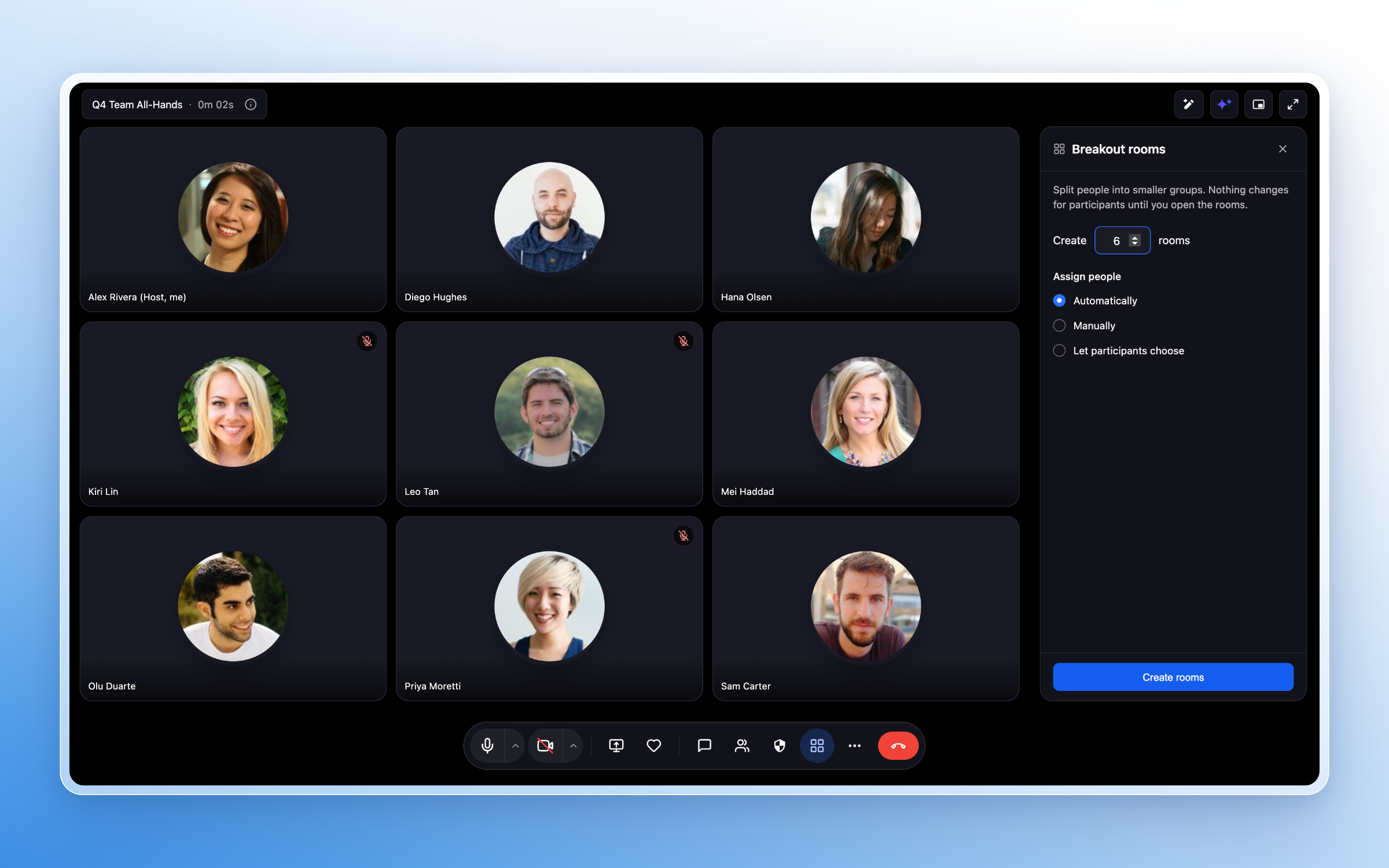
- Click the four square Breakout Rooms icon in the meeting toolbar to open the panel.
- Enter the desired number of rooms (up to 100) and pick an assignment method, then press Create rooms.
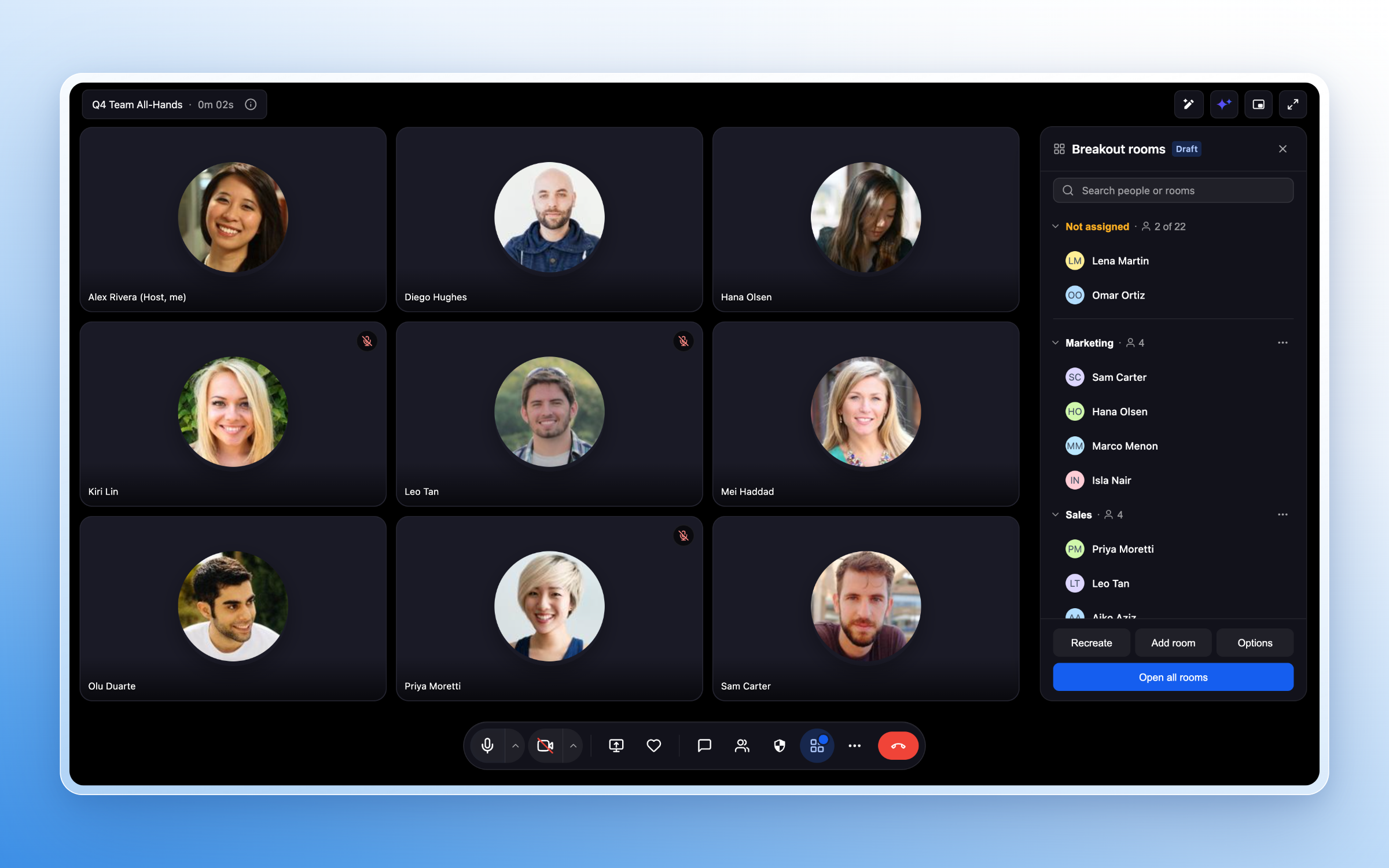
- Review the draft list, expand rooms to see participants, rename or add rooms, and adjust assignments as needed.
- Select Options to adjust movement, closing duration, and countdown settings.
- Return to the room list after configuring the settings.
- Press Open all rooms to start the breakout session.
Manage active breakout rooms
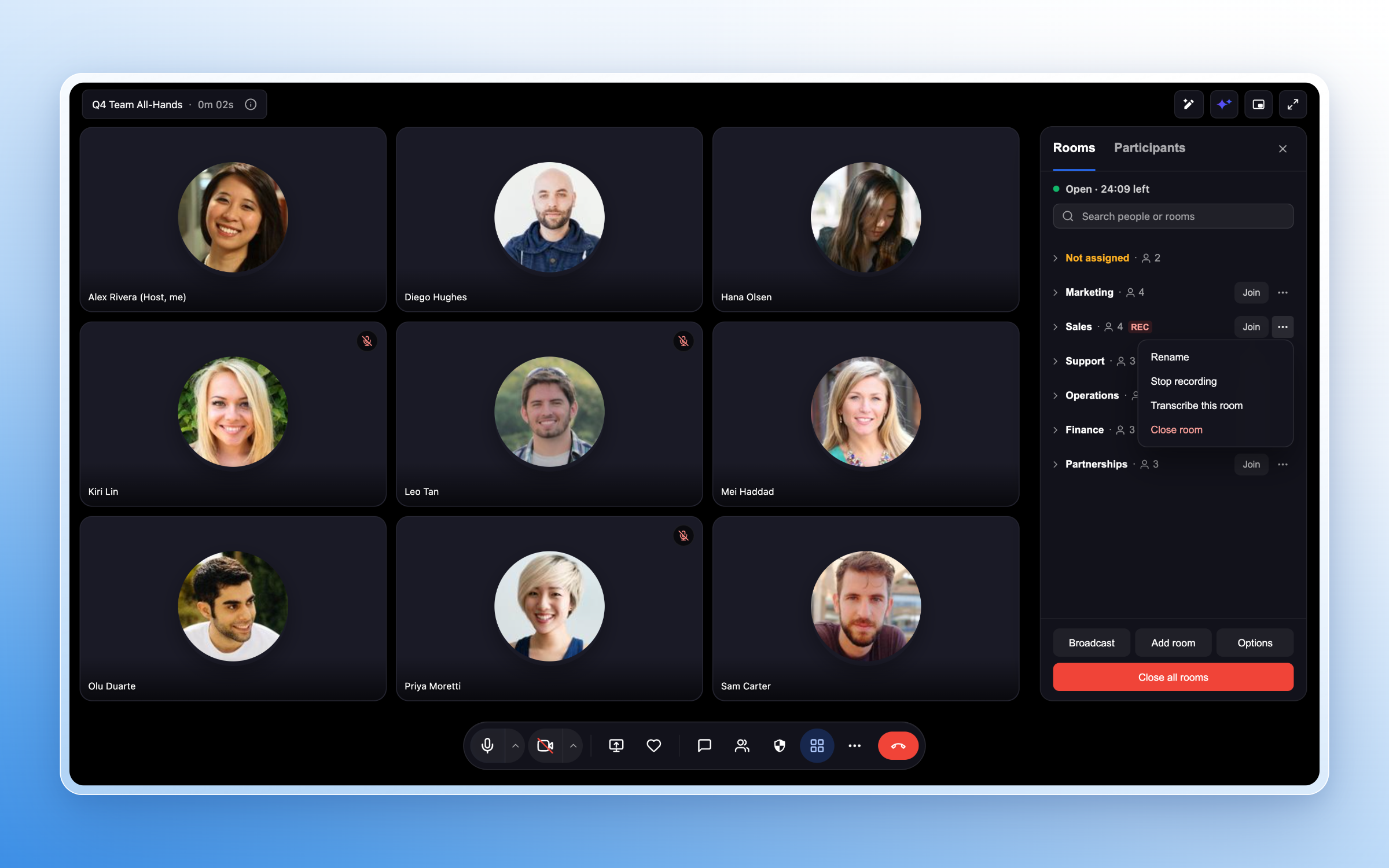
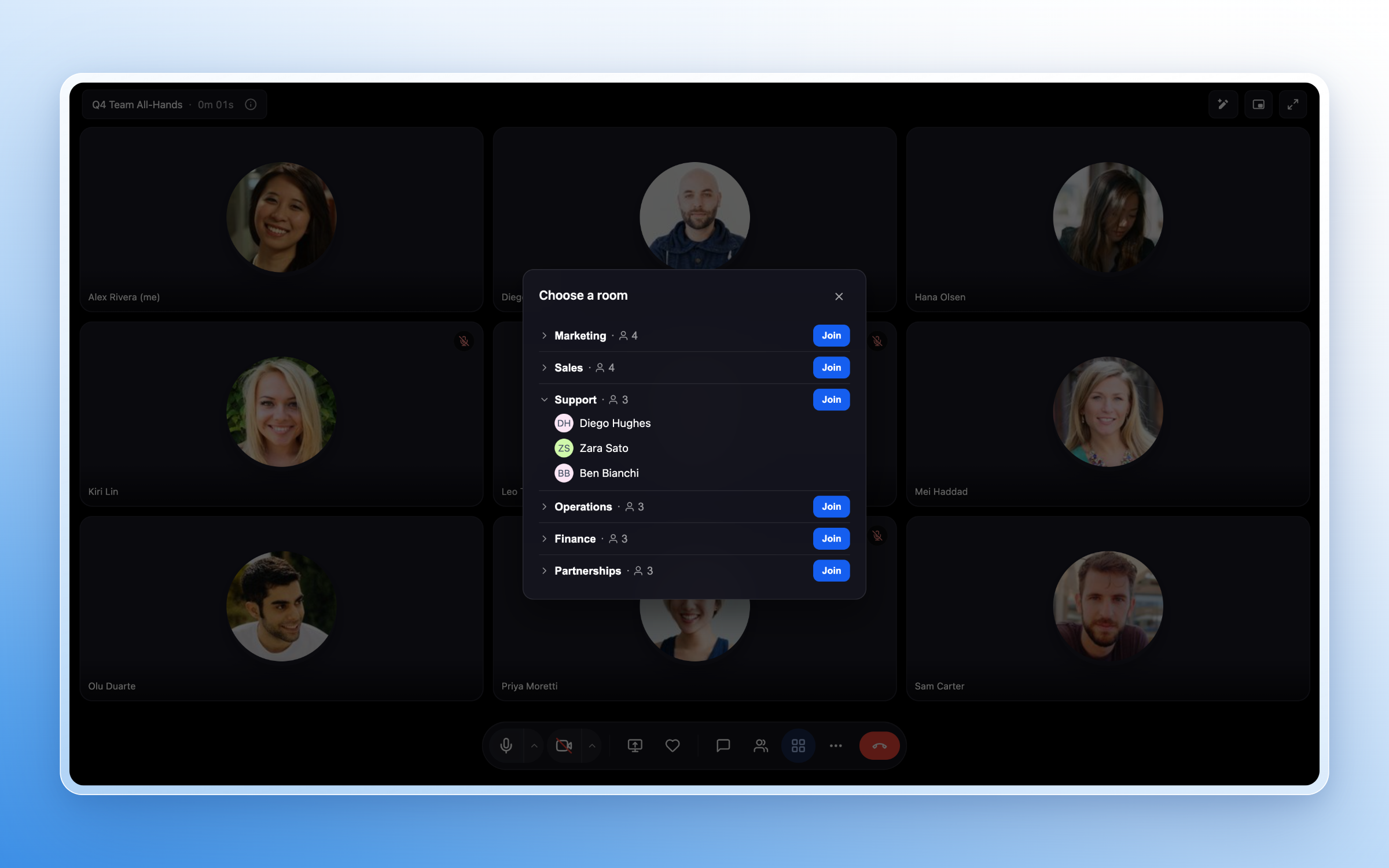
- Select the Rooms tab in the Breakout Rooms panel to view all open rooms.
- Use the Search field or expand a room to locate a specific participant or room.
- Click Join next to a room to enter that discussion.
- Click Broadcast at the bottom, type a message, and click Send to deliver it to every room.
- Adjust the Close after timer or open a room’s three dot menu and choose Close room to end a single room.
- Click Close all rooms to bring all participants back to the main meeting.
Record and transcribe individual rooms
- Open the three dot action menu for the breakout room you want to capture.
- Choose Start recording (or Stop recording) to control that room’s recording.
- Select Transcribe this room to begin live transcription for that room.
- Choose Stop transcription to end live transcription for that room.
- Check for the REC indicator next to the room name to confirm recording status.
07What it looks like in HighLevel
08Settings that matter
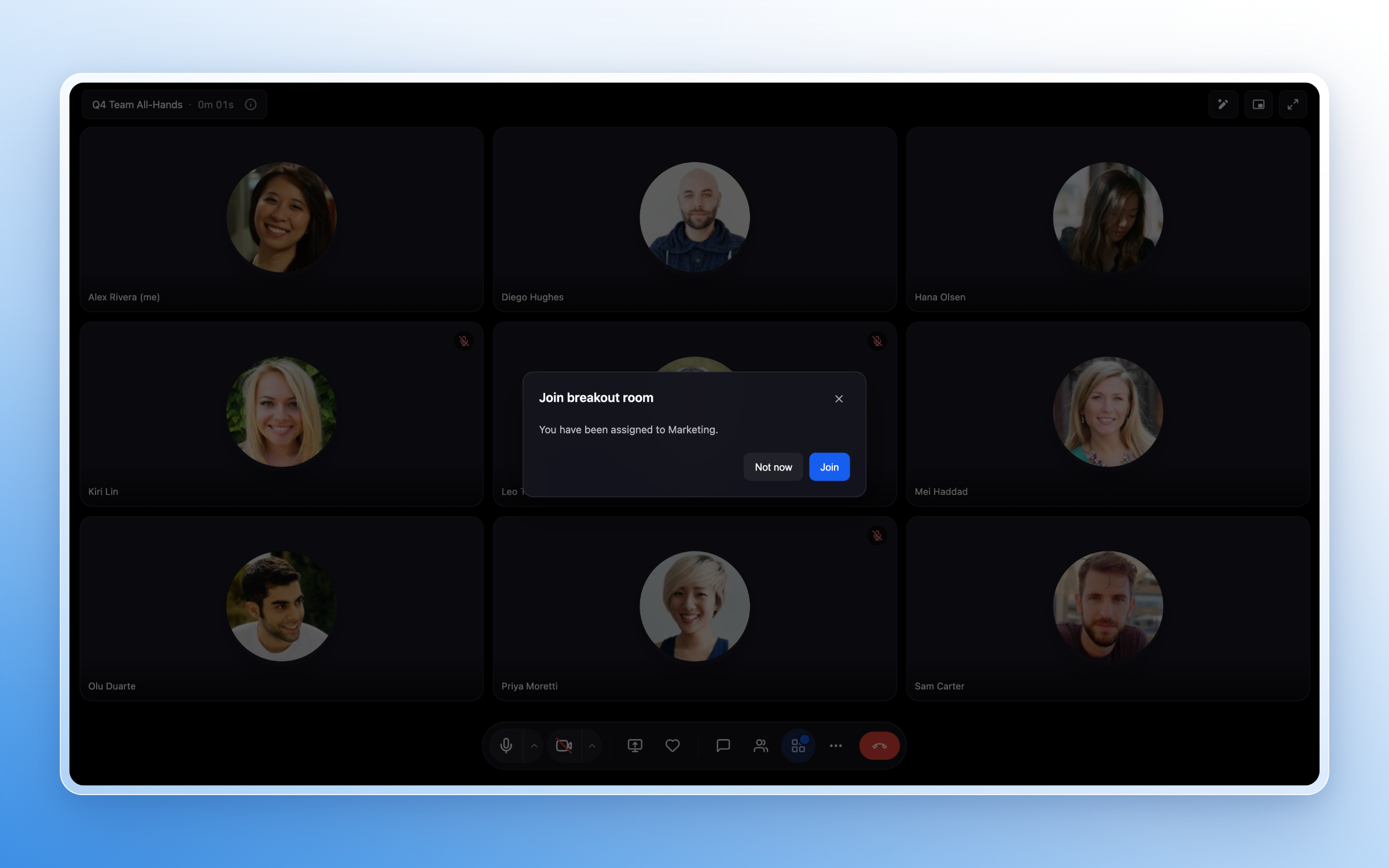
- Auto move people to rooms. When enabled, participants assigned to a room are moved into that room automatically as soon as the rooms open.
- Let people switch rooms. Allows participants to move between breakout rooms during an active session.
- Allow return to main room. Lets participants leave their breakout room and re enter the main meeting while rooms are still active.
- Close after. Sets a time limit after which breakout rooms close automatically.
- Countdown. Defines a countdown period that runs before rooms finish closing and participants return to the main meeting.
09Things to know before you rely on it
- You can create up to 100 breakout rooms in a single meeting session.
- Rooms stay in a draft state until you click Open all rooms; drafting does not move participants.
- Participant actions such as choosing rooms, switching rooms, and returning to the main meeting depend on the host’s option settings.
- Recording and live transcription are controlled per room; status indicators apply only to the specific room.
10How it connects to the rest of HighLevel
- Learn how to set up a HighLevel community where meetings can be hosted. Community setup
- Manage members inside groups to align breakout participants with community segments. Group management
- Review HighLevel pricing and plans to ensure your subscription includes Meeting Room features. Pricing
Michael's take

Wondering if breakout rooms are worth the effort for a small team? They let you keep everyone in a single meeting link while still giving each group its own space to work, which is great for focused training or quick brainstorming without juggling separate calls.
If I were setting up a workshop, I’d start with automatic assignment and automove so participants flow straight into their groups, then use a broadcast to remind them of the timer. I’d check each room’s recording indicator before the session begins to make sure I capture the right conversations.