
01Who this is for
- Members can share tone rich updates without typing long messages.
- Community managers can facilitate faster, more personal conversations.
02Voice notes in community chats, explained
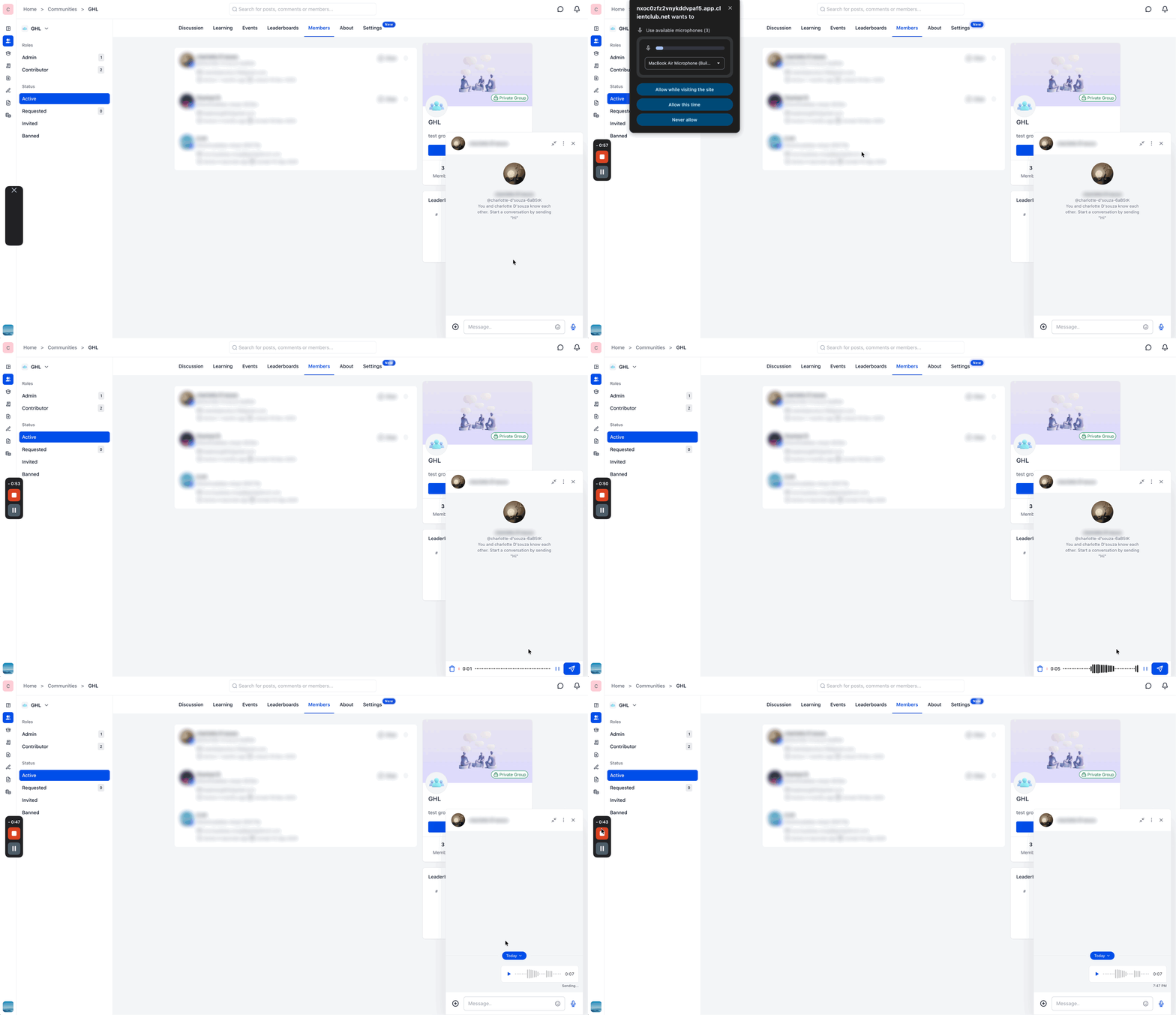
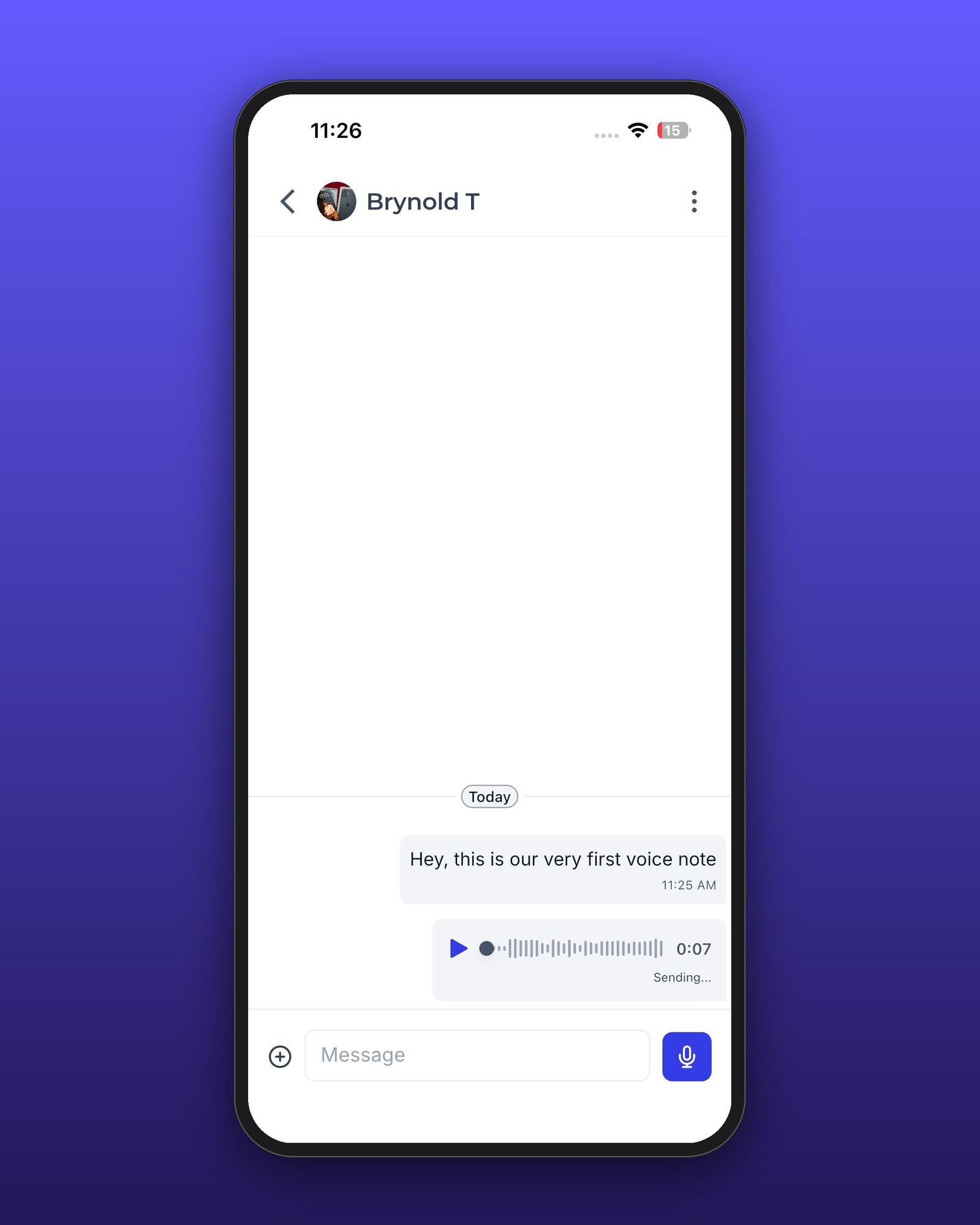
Voice Notes add a microphone button to the chat input bar in both the Communities New Web UI and the GoKollab mobile apps. When pressed, the platform records a short audio clip, shows an animated waveform while you speak, and saves the clip as an inline message.
The message displays a visual waveform and an embedded audio player with play, pause and scrub controls. It behaves like any other chat entry, triggering the same in app notifications and being viewable on any device that can access the conversation.
03How businesses use voice notes in community chats
- Coaching practice. A coach opens a private chat with a client, holds the microphone icon, records a short progress note, and releases the icon to send. The client later taps the embedded player to listen in the same chat thread.
- Real estate agency. An agent selects a lead from the members list, starts a chat, records a voice note with property details, and sends it. The lead reviews the audio directly in the conversation without opening a separate file.
- SaaS product community. A product manager records a quick feature walkthrough inside a direct message, sends the voice note, and teammates replay the clip using the inline player to stay aligned.
04The numbers and rules that matter
- Supported platforms: Web, Communities New UI, GoKollab iOS app, GoKollab Android app.
05Before you start
- Browser or device microphone permissions must be granted before recording will work.
06How to set up and use voice notes in community chats in HighLevel
Record and send a voice note on the HighLevel web interface
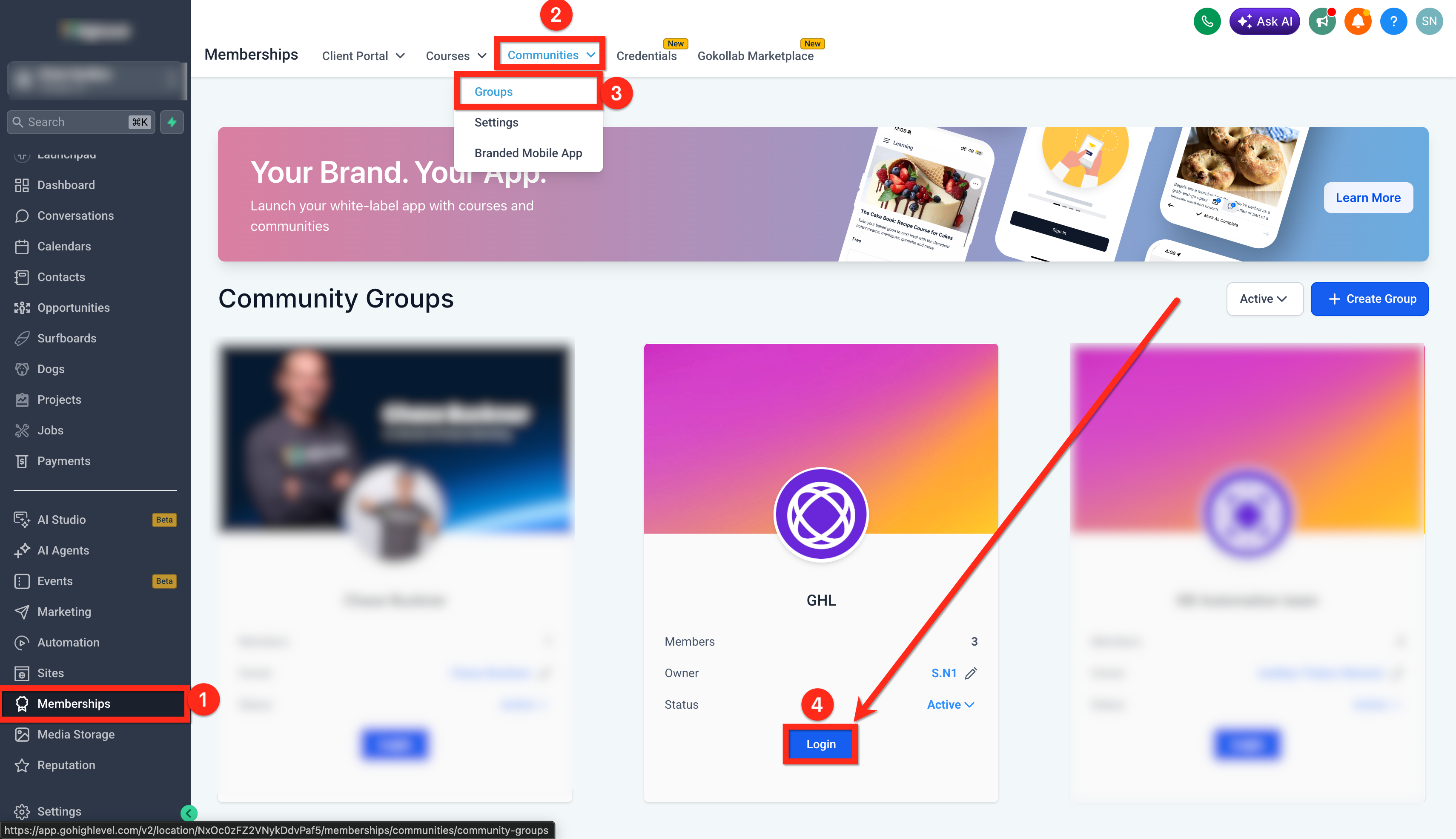
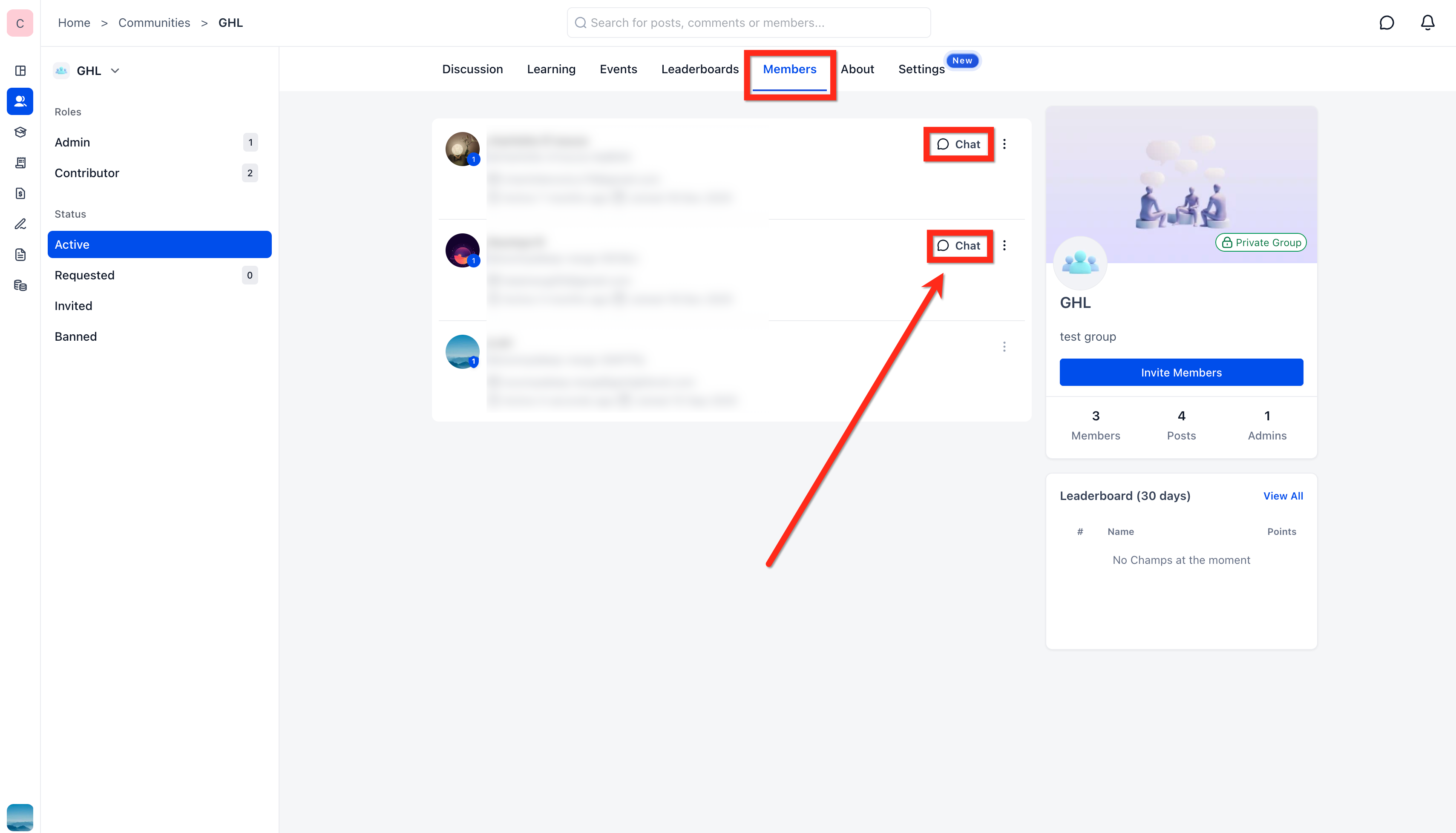
- Open the Communities section, go to Memberships > Communities > Groups, log in to the group, locate a member and click the Chat button beside their name.
- Find the message input bar at the bottom of the chat and press and hold the microphone icon to start recording; a live waveform will appear.
- Speak your message while watching the waveform.
- Click the Send button to post the voice note inline in the conversation.
Record and send a voice note using the GoKollab mobile app
- Launch GoKollab, sign in, navigate to the desired community, and open an existing direct message or start a new one.
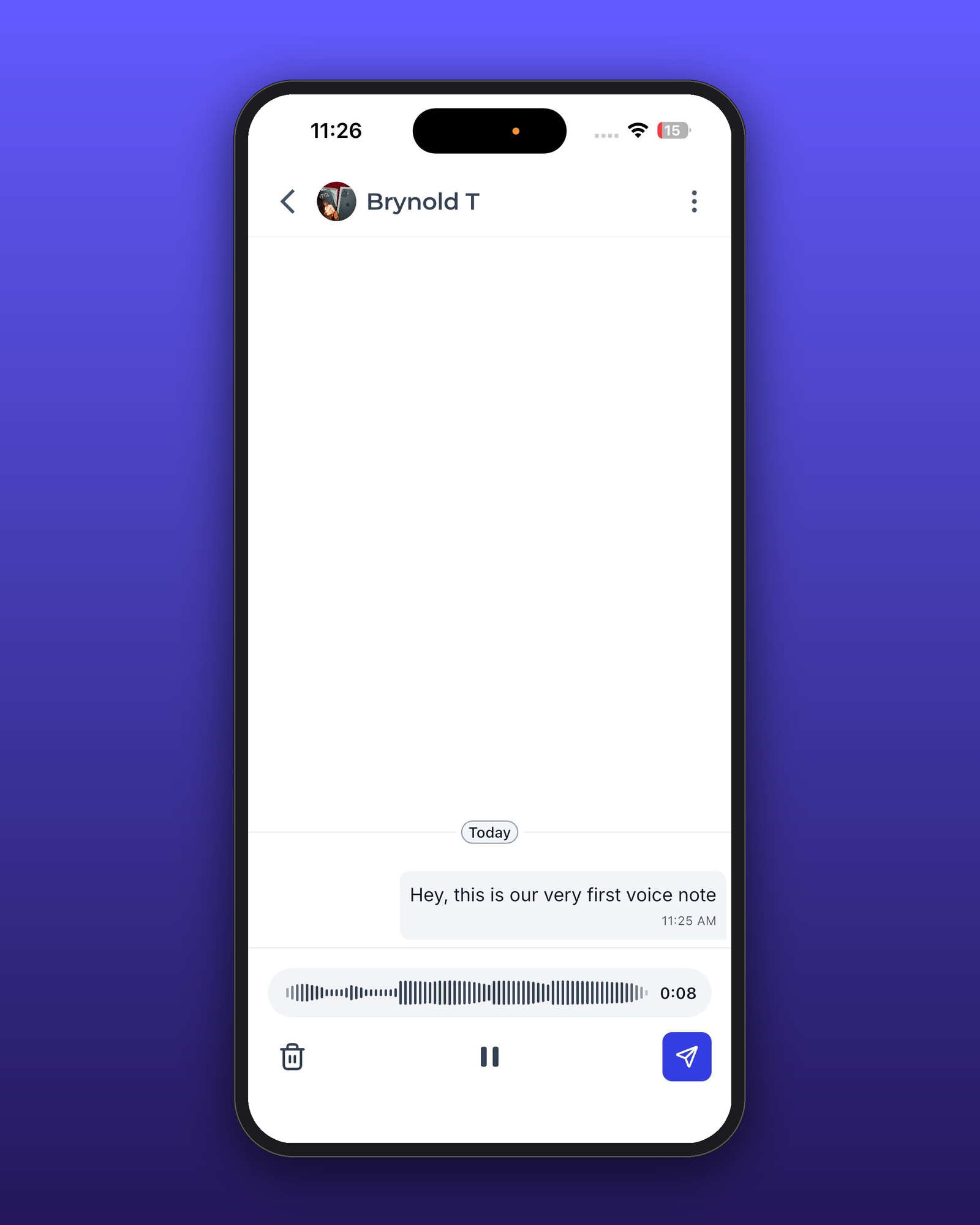
- In the chat input bar, press and hold the microphone icon; an animated waveform confirms audio capture.
- Talk into the device while holding the icon.
- Release the microphone icon to send the voice note, which appears with playback controls.
07What it looks like in HighLevel
08Things to know before you rely on it
- Voice Notes are only available in private Community Chats and GoKollab direct messages; a separate workflow is used for posts and comments.
- The feature works on the Communities New UI web version and the iOS and Android GoKollab apps; other platforms are not supported.
09If something goes wrong
- Microphone permission is denied, preventing recording.. When prompted by the browser or device, choose Allow for microphone access.
10How it connects to the rest of HighLevel
- Learn how to set up and manage your HighLevel community. Setup community
- Manage members inside groups to control who can chat. Manage members
- Create channels, posts and other content for richer community interaction. Manage content
Michael's take

Michael ReimerFounder of CRM Pros, HighLevel Commander and Certified Admin
Voice notes add real time nuance without a live call, but they are optional for text centric groups.
Teams that rely heavily on typed documentation or have strict compliance around recordings should skip this feature.
Get More InformationOpens on HighLevelPublished November 2, 2026 · Updated November 17, 2026