
01Who this is for
- Course creators, eliminate manual enrollment and keep content delivery consistent.
- Coaches and trainers, ensure new clients receive course access immediately after sign up.
- Marketing teams, tie lead capture forms to instant course enrollment for faster engagement.
02Granting membership access using workflows, explained
The workflow feature lives under Automation > Workflows. It lets you build a sequence that starts with a trigger, such as a form being submitted or a payment finishing, and then runs actions. One of the available actions is Course Grant Offer, which awards access to a specific membership course or product.
When the trigger fires, HighLevel right away adds the chosen course to the member’s account. You can test the workflow before activating it, and you may combine it with other actions such as sending emails. The workflow runs in real time, so members receive access without delay.
03How businesses use granting membership access using workflows
- Online fitness coaching business. Create a workflow that starts when a client completes a payment. Add the Course Grant Offer action and select the workout program course. The client receives immediate access and a welcome email can be added as a subsequent step.
- Professional development academy. Set a trigger for a specific registration form. The workflow then grants the appropriate certification course using Course Grant Offer. This automates enrollment for each new applicant.
- Software training portal. Use a payment completed trigger to assign a technical training module. The workflow adds the module to the user’s dashboard and can also launch a follow up email sequence for onboarding.
04Before you start
- You must be logged into a subaccount in HighLevel.
05How to set up and use granting membership access using workflows in HighLevel
Grant access to membership courses using workflows
- Log in to your subaccount.
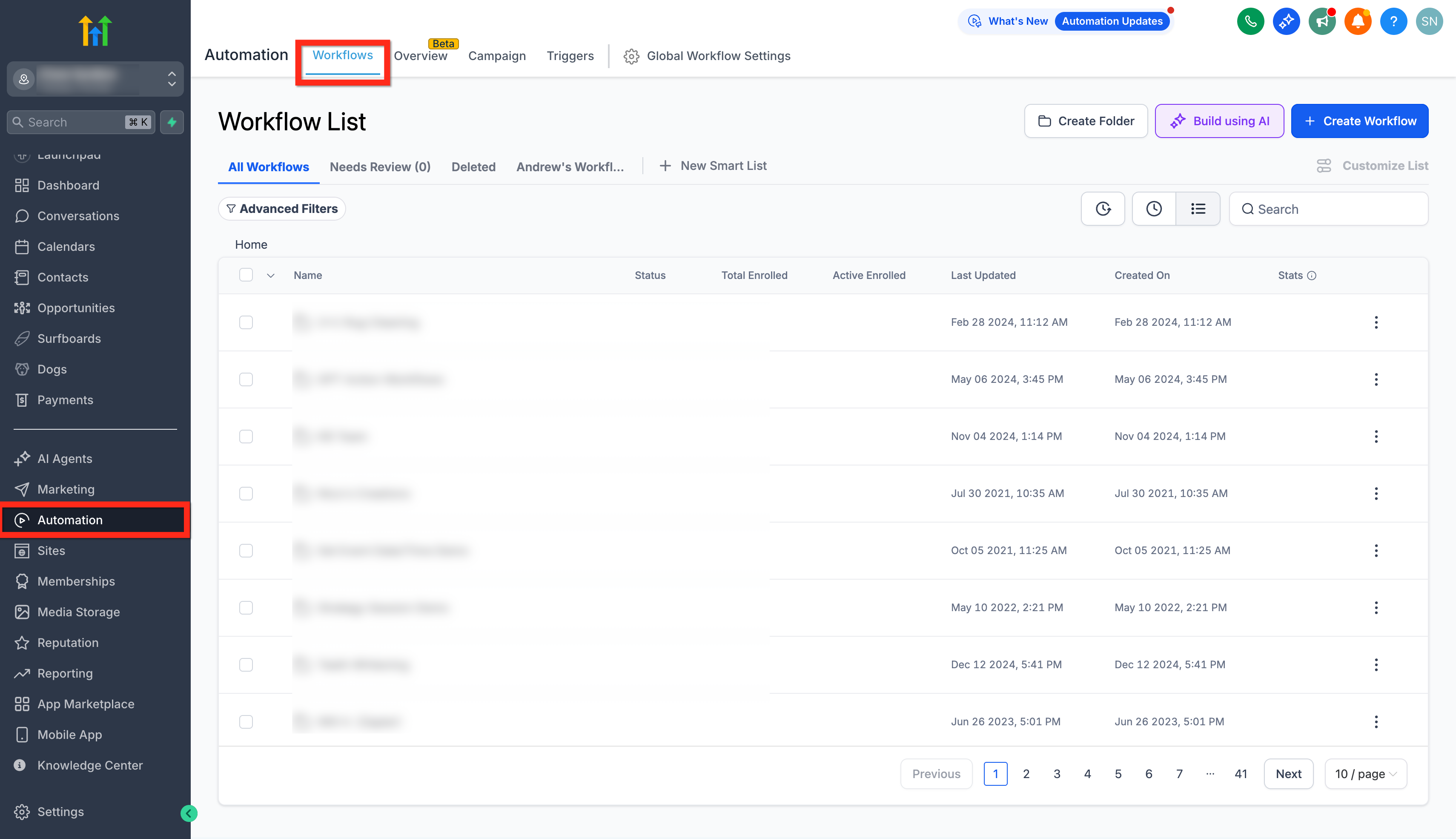
- From the dashboard open Automation > Workflows.
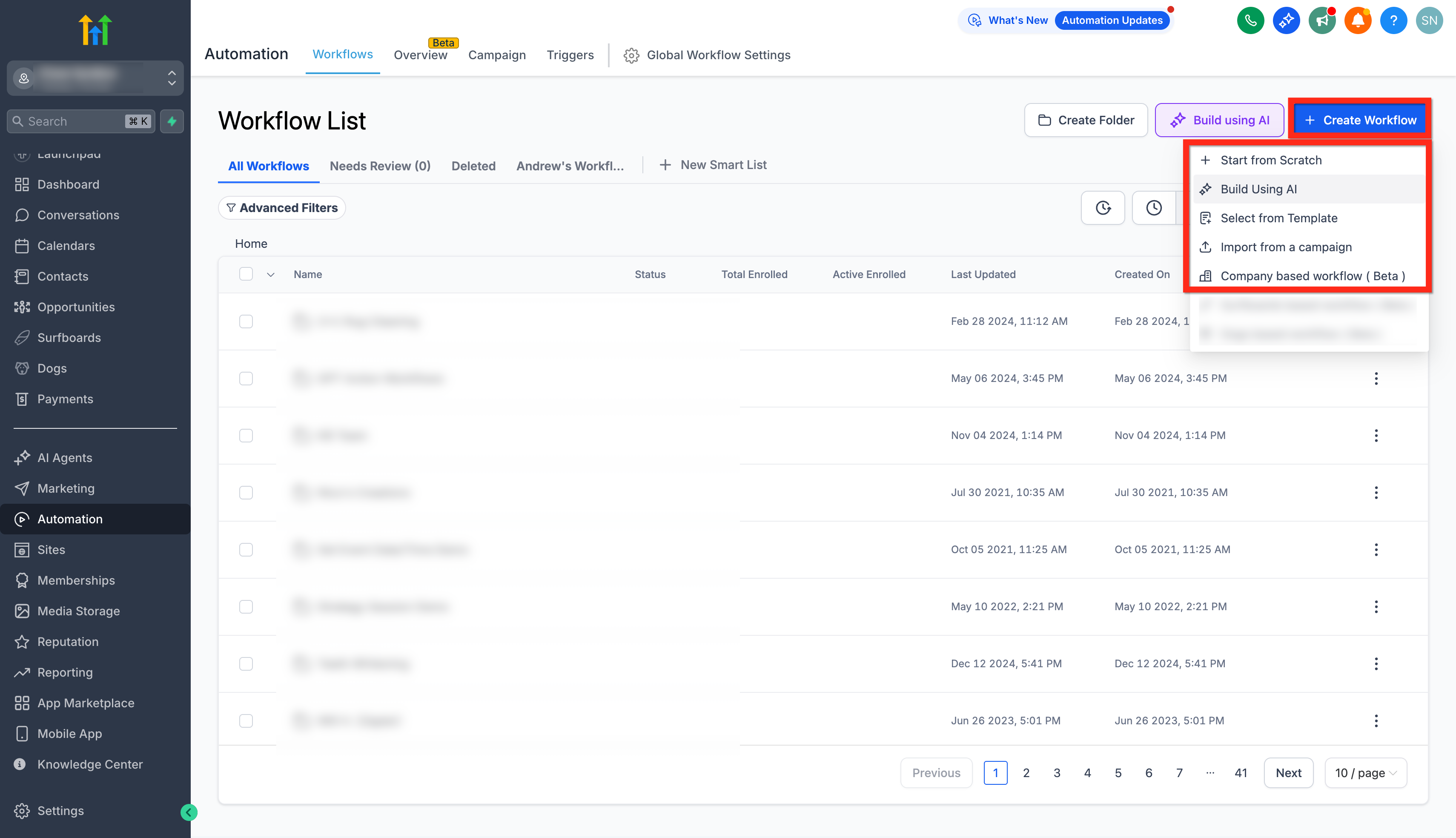
- Click the + Create Workflow button.
- Choose to build the workflow from scratch, a template, or AI.
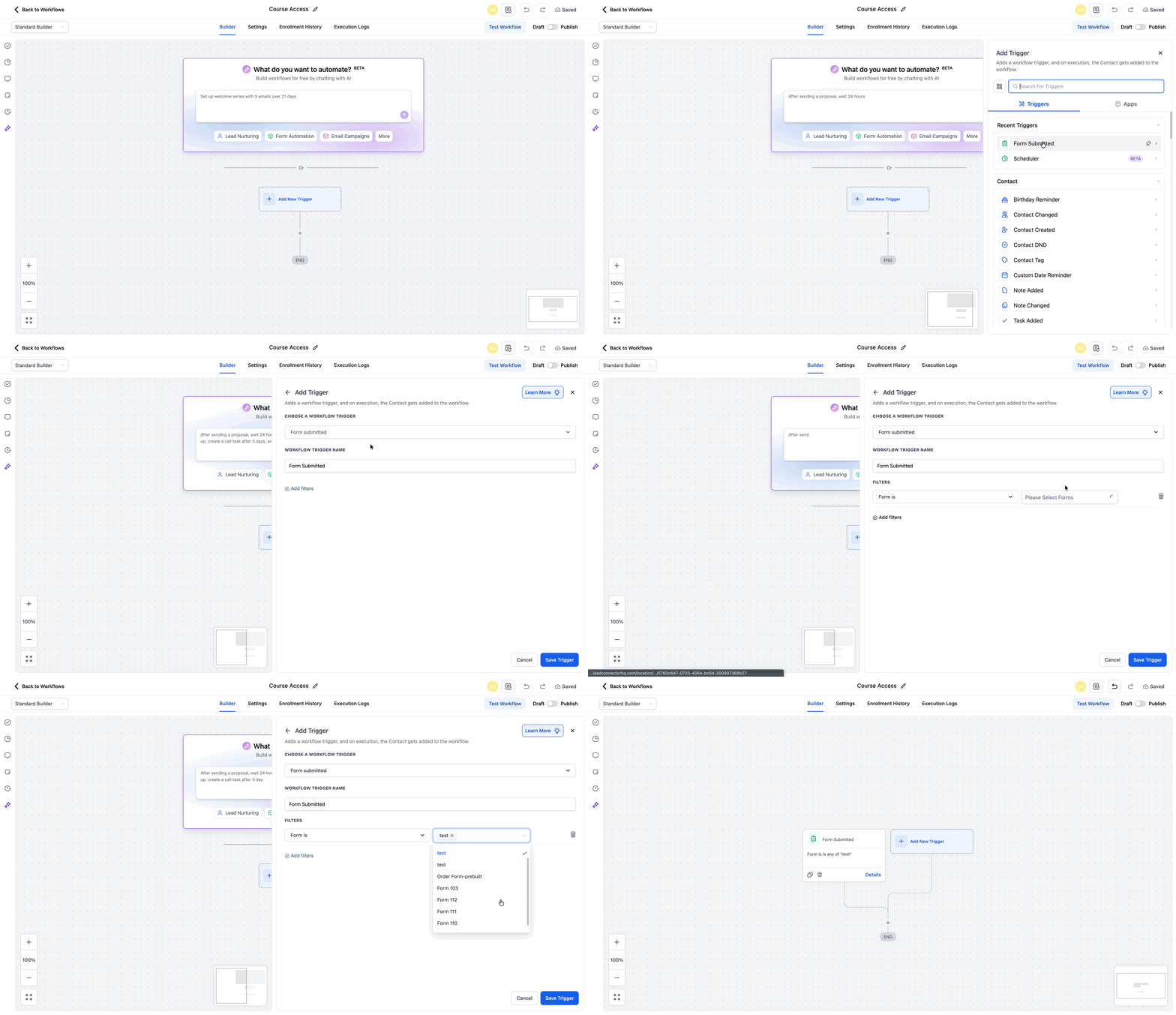
- Select the trigger type, such as Form submitted or Payment completed.
- Pick the specific form(s) or payment source using filters.
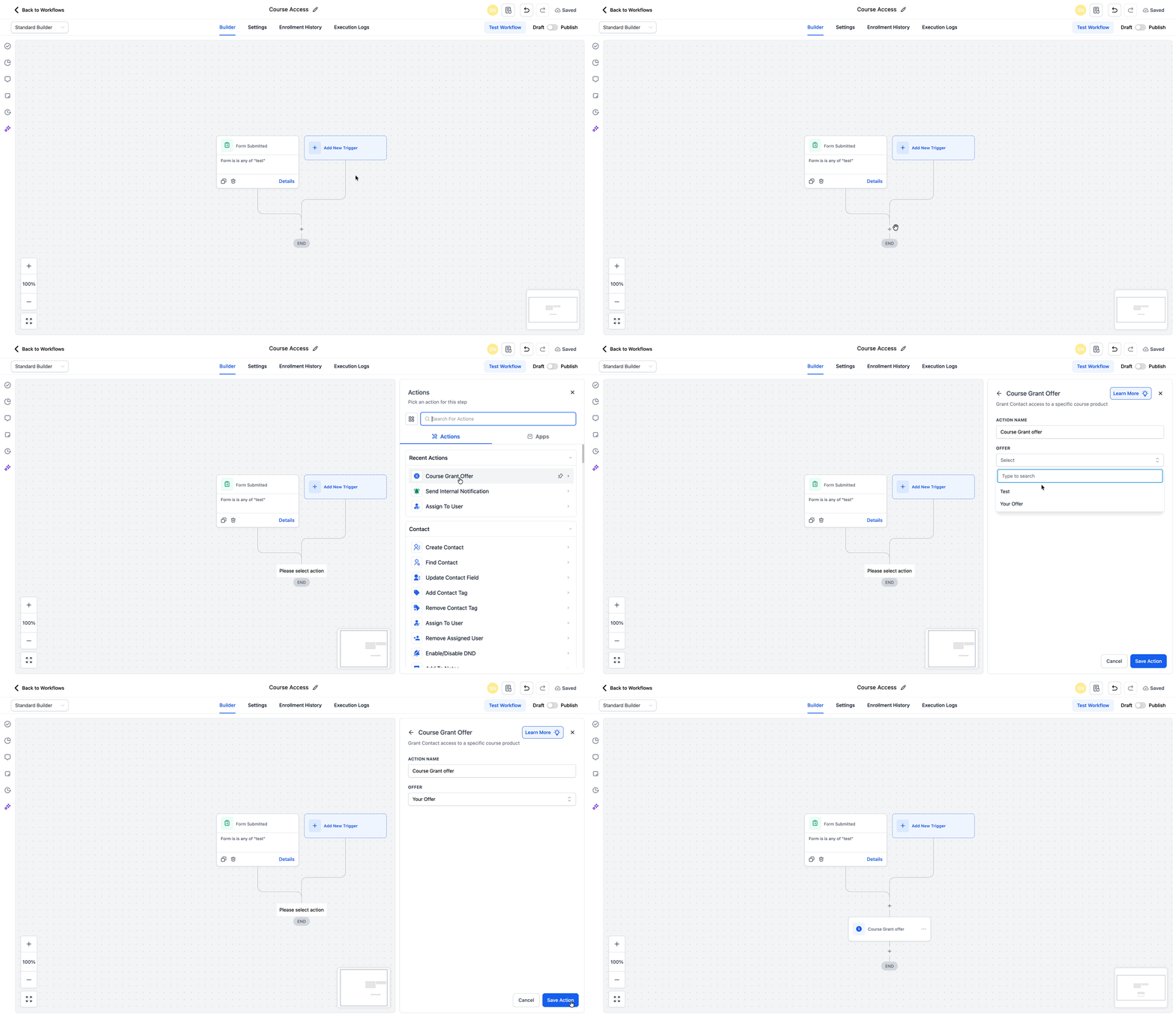
- Add an action and select Course Grant Offer.
- Choose the course or membership product to grant.
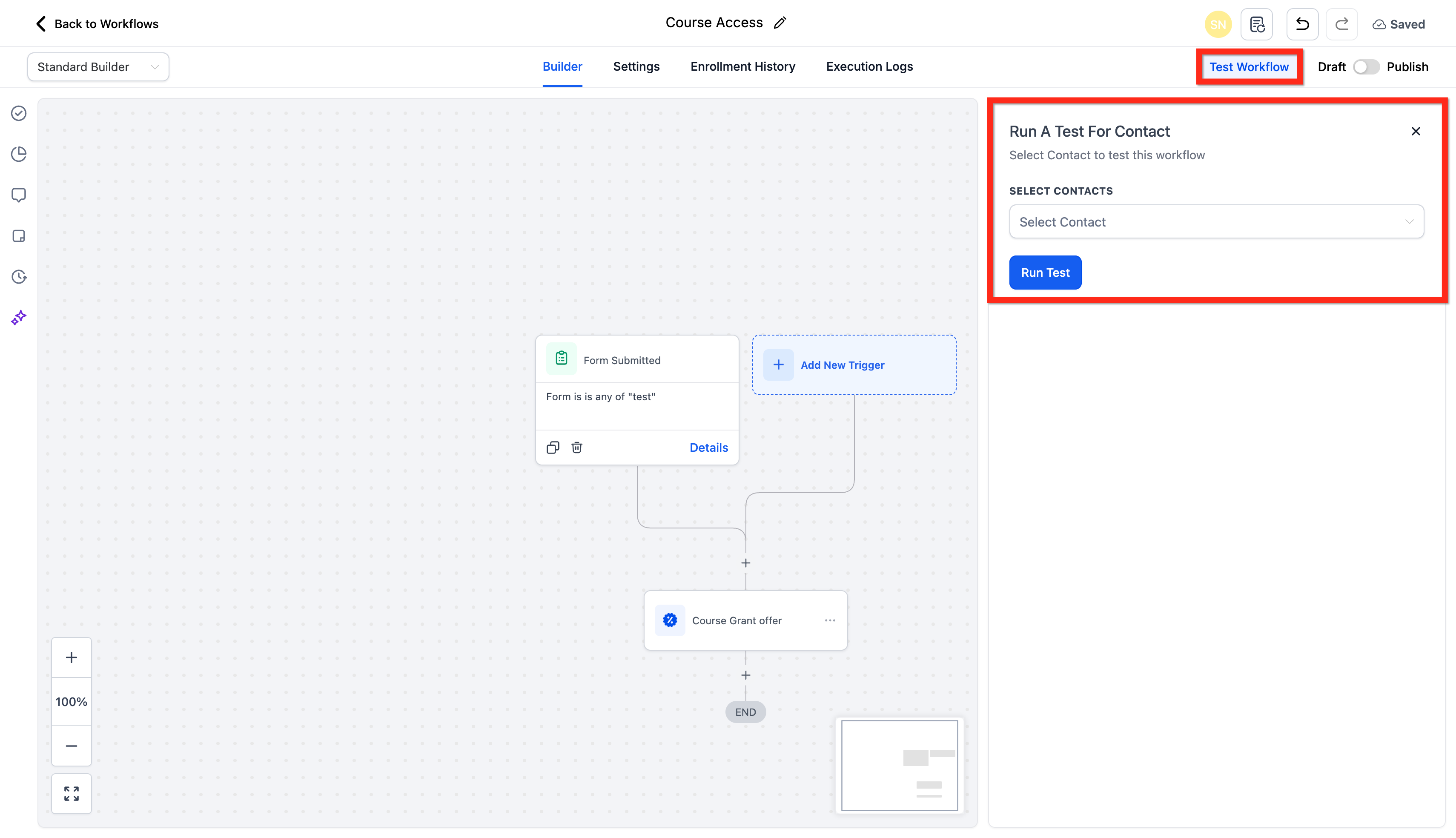
- Run a test of the workflow to confirm it works as expected.
- Verify that access is granted and any email steps fire.
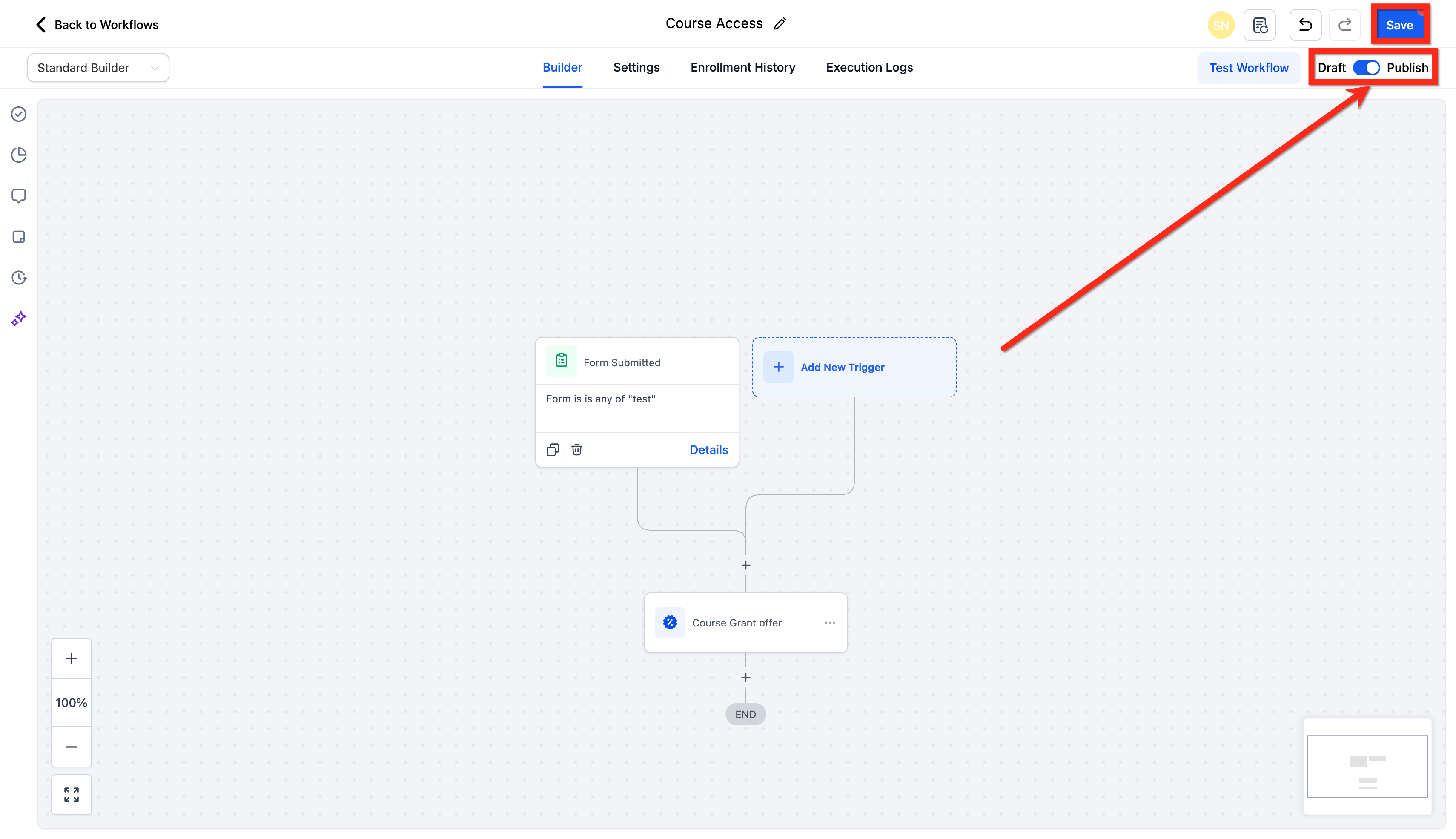
- Toggle the workflow status to Publish.
- Save the workflow.
06What it looks like in HighLevel
07Settings that matter
- Course Grant Offer. Specifies which membership course or product is automatically assigned to a user when the workflow runs.
08If something goes wrong
- Welcome Email from Membership settings is not sent. Use only one method to send the welcome email: either enable it in Membership Settings or add an Email step inside the workflow. The system disables the default welcome email when a workflow includes its own email step.
09How it connects to the rest of HighLevel
- Build and organize your courses before granting access Course builder
- Create password free Magic Links for quick entry Magic links
- Review pricing and plan options for workflow usage Pricing
Michael's take

If you’re wondering whether you need a separate automation to enroll students, the short answer is yes. Once the workflow is set up, HighLevel handles new sign ups or payments automatically, granting immediate access and minimizing the chance of human error, which leads to a smoother experience for learners.
When I start a new course, I first build the enrollment workflow, test it with a dummy user, and then add any welcome email or follow up messages I want. That way the whole onboarding chain is verified before any real members join.