
01Who this is for
- Community managers can quickly pull members of a particular group for targeted announcements.
- Marketers can segment audiences by group membership to tailor email campaigns.
- Support teams can view contacts without any group assignment to identify onboarding gaps.
02Groups filter in Smart Lists, explained
The Groups filter appears inside the Smart List builder under the Filters panel. It reads membership information from Community Groups defined in the Client Portal, so no extra tags are needed. When you select a condition, empty, not empty, or specific groups, the Smart List returns only those contacts that match the rule.
The filter works alongside other Smart List criteria such as tags, custom fields, or activity history. You can pick one group or check multiple groups at once, creating flexible segments for any outreach or reporting need.
03How businesses use the Groups filter
- Fitness studio. The studio adds new members to a "Yoga" group in the community. Using the Groups filter, the owner creates a Smart List of only Yoga participants and sends them a class schedule update directly from HighLevel.
- Online coaching business. Coaches assign clients to a "Premium" group for exclusive content. They filter contacts by that group to launch a special webinar invitation without handling individual tags.
- Software SaaS community. Product managers label beta testers in a "Beta Users" group. The beta group filter builds a Smart List that receives a feature rollout email, keeping the communication limited to those users.
04How to set up and use the Groups filter in HighLevel
Filter contacts by community groups
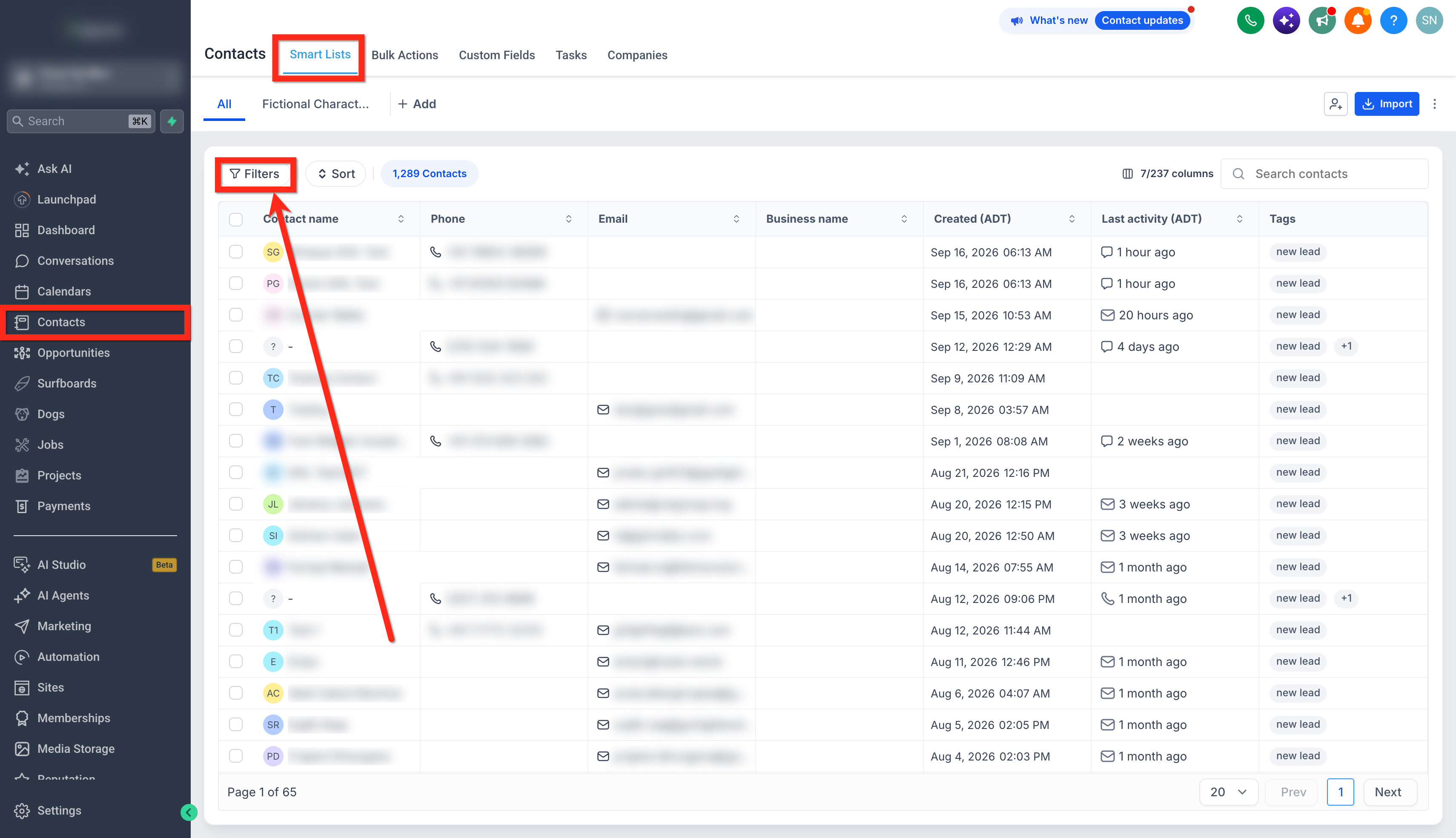
- Navigate to Contacts > Smart Lists.
- Click the Filters button.
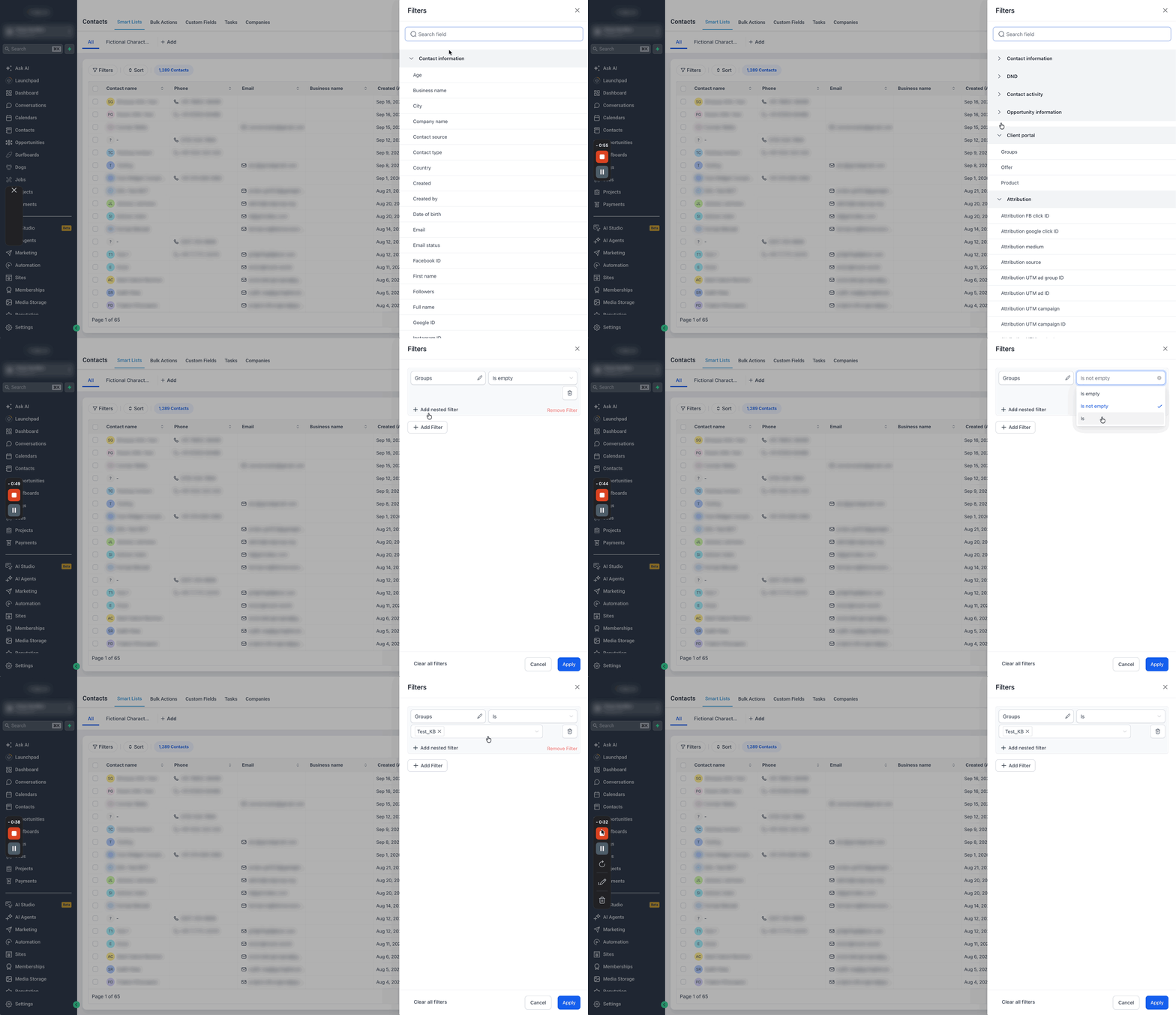
- Locate the Groups filter by scrolling to the Client Portal section or typing "Groups" or "Client Portal" in the search bar.
- Click on Groups.
- Select the desired condition, Groups is empty, Groups is not empty, or Groups is (specific group).
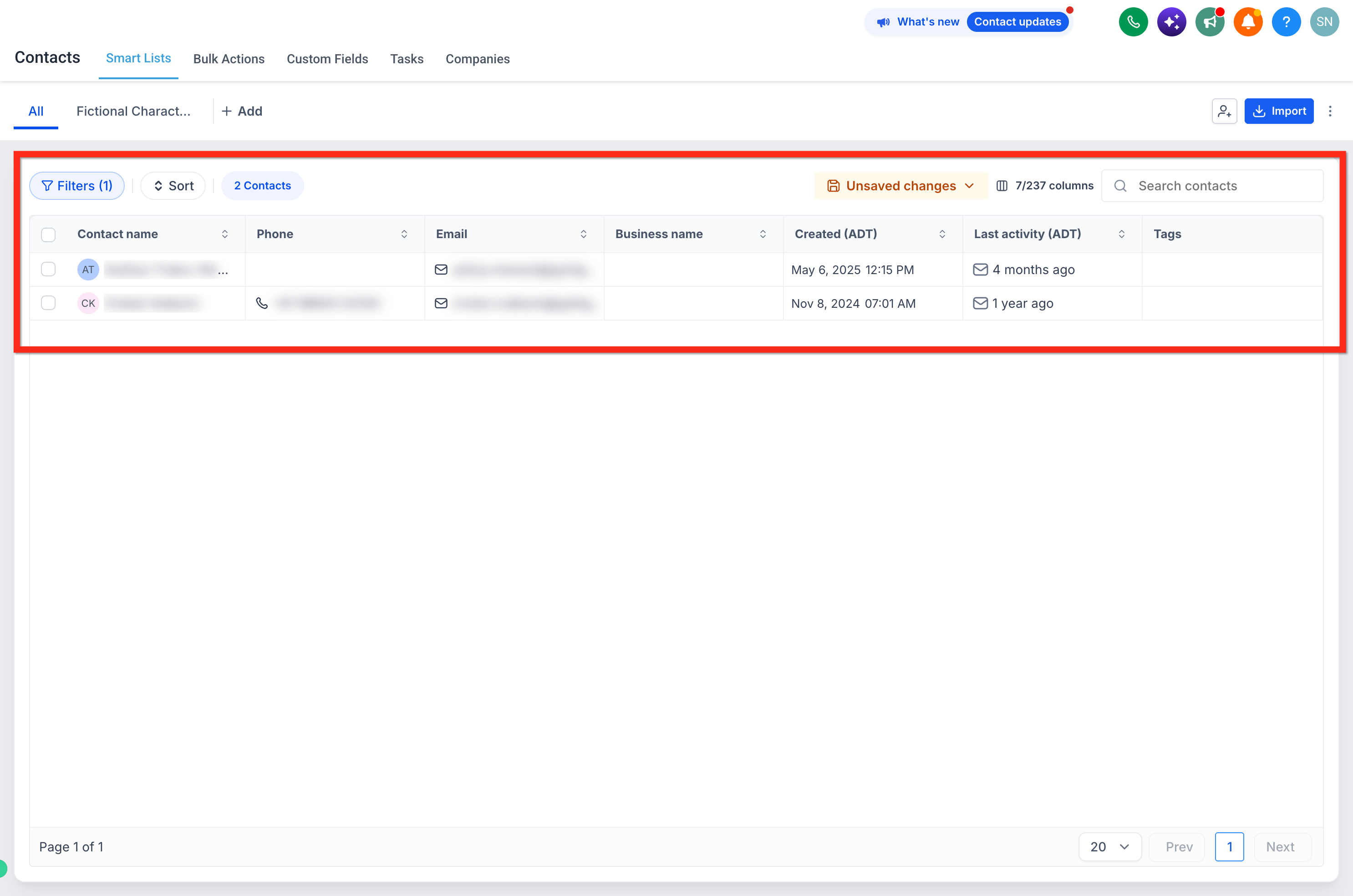
- Click Apply to view the filtered contacts.
05What it looks like in HighLevel
06Settings that matter
- Groups filter. Controls which Community Group membership criteria are applied when building a Smart List.
07Things to know before you rely on it
- You can choose one or multiple Community Groups in a single filter.
- The filter pulls membership data automatically; no manual tagging is required.
08How it connects to the rest of HighLevel
- Create and manage Community Groups Manage groups
- Manage members inside groups Group members
- Explore all Memberships & Communities features Memberships overview
Michael's take

The Groups filter saves you time when you need to reach members of a specific community without hand sorting lists. It lets you launch focused outreach in a few clicks.
Don’t forget to verify that your groups are set up correctly in the Client Portal before you rely on the filter.